In Simple Log Service, tags are fields that identify data, such as source IP addresses or file paths. LoongCollector automatically adds these tags during data collection. You can add, delete, and rename tags as needed.
Limitations
-
This feature requires LoongCollector 3.0.10 or later. If you use Logtail or an earlier version of LoongCollector, upgrade to the latest version.
-
If your log consumption process depends on the modified tags, you may encounter compatibility issues.
Tag categories
A tag consists of a key-value pair, similar to a field index. For example, in __tag__:__inode__:263554, __tag__:__inode__ is the key (tag name) and 263554 is the value.
Tags fall into two categories based on their source:
-
Agent-related: Associated with the collection agent itself and independent of plugins. Examples include IP addresses and hostnames.
-
Input plugin-related: Added by input plugins to enrich logs with contextual information, such as file inodes, read offsets, pod names, namespaces, and image names.

Billing
Tags are free of charge. However, if you configure a tag as a field index, charges apply. For more information about billing, see Billing. For more information about how to create and delete a field index, see Create an index.
Create or modify a tag name
LoongCollector provides a tag processing feature. You can configure advanced parameters to add, delete, and rename tags.
Agent-related tags
These tags are global parameters and do not depend on any input plugin. You can configure these parameters when creating or modifying a collection configuration. This topic uses an example of modifying a collection configuration. To learn how to create a collection configuration, see Create a collection configuration.
Log on to the Simple Log Service console. In the Projects section, click the one you want.

Find your logstore, and select . Click Integrate Now. In this example, Regular Expression - Text Log is used, which means text logs will be parsed using regular expression matching.
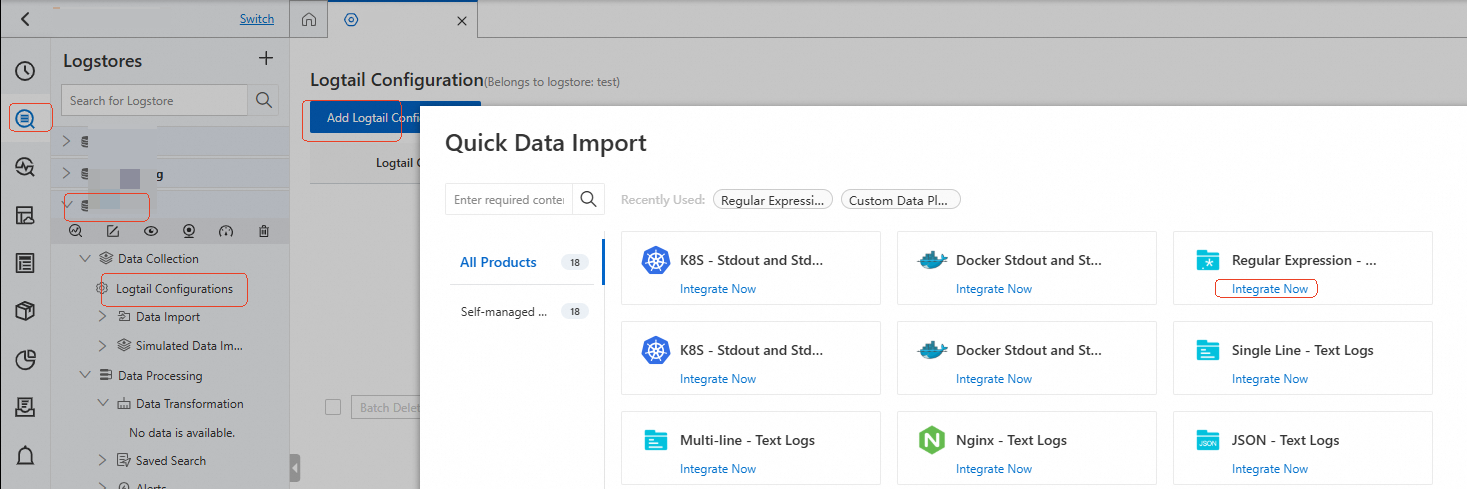
In the Logtail Configuration list, click the target Logtail configuration.
On the Logtail Configuration page, click Edit.
-
In the Global Configurations section, click Other Global Configurations. Then, click
 next to Advanced Parameters to configure agent-related tags.
{ "PipelineMetaTagKey": { "HOST_NAME": "sourceName", "AGENT_TAG": "__default__", "HOST_ID": "__default__", "CLOUD_PROVIDER": "__default__" } }Parameter
Type
Required
Default
Example
Description
PipelineMetaTagKey
object
No
Empty
{"HOST_NAME":"__hostname__"}
The key specifies the tag parameter, and the value defines the corresponding field name in the log. If the value is set to
__default__, the default value is used. If the value is set to an empty string, the tag is deleted. The following tags can be configured:-
HOST_NAME: The hostname. This tag is added by default. The default value is "__hostname__".
-
AGENT_TAG: The custom user identifier. This tag is added by default. The default value is "__user_defined_id__". This parameter applies only to a machine group with custom identifiers and not to a machine group with IP addresses.
-
HOST_ID: The host ID. This tag is not added by default. The default value is "__host_id__".
-
CLOUD_PROVIDER: The cloud provider. This tag is not added by default. The default value is "__cloud_provider__".
-
Input plugin-related tags
These tags are specific to input plugins. You can configure them through the advanced parameters of the input configuration. You can configure these parameters when creating or modifying a collection configuration. This topic uses an example of modifying a collection configuration. To learn how to create a collection configuration, see Create a collection configuration.
Currently, this feature supports only file collection and the new standard output collection plugins.
Log on to the Simple Log Service console. In the Projects section, click the one you want.
Find your logstore, and select . Click Integrate Now. In this example, Regular Expression - Text Log is used, which means text logs will be parsed using regular expression matching.
In the Logtail Configuration list, click the target Logtail configuration.
On the Logtail Configuration page, click Edit.
-
In the Input Configurations section, click Other Input Configurations. Then, click
next to Advanced Parameters to configure input plugin-related tags.Important-
If you set
FileOffsetKeyin the input configuration, the Auto Generate Index feature automatically creates a field index for this tag (__file_offset__). For more information about billing, see Billing. If you do not need the field index, you can delete it without removing the tag. For more information, see Update an index. -
This tag is not displayed in the top section of the Search & Analysis page. It has unique properties and features, and its name is
__file_offset__.On the Search & Analysis page, the __file_offset__ field appears in the Displayed Fields list on the left and in the log details area. Its value is the file read offset, such as 1465.
{
  "Tags": {
    "FileInodeTagKey": "__default__",
    "FilePathTagKey": "__default__"
  },
  "FileOffsetKey":"__default__"
}
Parameter
Type
Required
Default
Example
Description
Tags
object
No
Empty
{"FileInodeTagKey":"__inode__"}
The key specifies the tag parameter, and the value defines the corresponding field name in the log. If the value is set to
__default__, the default value is used. If the value is set to an empty string, the tag is deleted. The following tags can be configured:-
FileInodeTagKey: The file inode. This tag is not added by default. The default value is "__inode__".
-
FilePathTagKey: The file path. This tag is added by default. The default value is "__path__".
The following parameters are valid only when the
EnableContainerDiscoveryparameter is set totrue.-
K8sNamespaceTagKey: The namespace of the container where the file is located. This tag is added by default. The default value is "_namespace_".
-
K8sPodNameTagKey: The pod name of the container where the file is located. This tag is added by default. The default value is "_pod_name_".
-
K8sPodUidTagKey: The UID of the pod where the file is located. This tag is added by default. The default value is "_pod_uid_".
-
ContainerNameTagKey: The name of the container where the file is located. This tag is added by default. The default value is "_container_name_".
-
ContainerIpTagKey: The IP address of the container where the file is located. This tag is added by default. The default value is "_container_ip_".
-
ContainerImageNameTagKey: The image name of the container where the file is located. This tag is added by default. The default value is "_image_name_".
FileOffsetKey
string
No
Empty
__file_offset__
The log's read offset within the file. This tag is not added by default. The default value is
__file_offset__. Set the value to__default__to use the default field name, or set it to an empty string to delete the tag.ImportantIf both the
EnableLogPositionMetaparameter and theTags.FileInodeTagKeyorFileOffsetKeyparameter are configured,EnableLogPositionMetais ignored. -
Delete a tag
To delete a tag, set its value to an empty string in the advanced parameter configuration.
In the following example, the value of AGENT_TAG is set to an empty string to remove the tag. For more information, see Create or modify a tag name.
{
  "PipelineMetaTagKey": {
    "HOST_NAME": "sourceName",
    "AGENT_TAG": "",
    "HOST_ID": "__default__",
    "CLOUD_PROVIDER": "__default__"
  }
}
View tags
In the Projects section, click the one you want.
-
To the right of the target Logstore, click the
 icon and select Query and Analysis.
 -
The tag fields are displayed in the top row of the log page.
-
-
__tag__:sourceName: This tag represents the source hostname. Its field name is set to
sourceNameby using thePipelineMetaTagKey.HOST_NAMEkey. The default value is__hostname__. -
__tag__:__host_id__: The tag key is set toPipelineMetaTagKey.HOST_ID. The default value__host_id__is used. -
__tag__:__cloud_provider__: The tag key is set toPipelineMetaTagKey.CLOUD_PROVIDER. The default value__cloud_provider__is used. -
__tag__:__user_defined_id__: The tag key is set toAGENT_TAG. This parameter applies only to a machine group with custom identifiers and not to a machine group with IP addresses.
-
-
-
__tag__:__inode__: The tag key is set toTags.FileInodeTagKey. The default value__inode__is used. -
__tag__:__path__: The tag key is set toTags.FilePathTagKey. The default value__path__is used. -
__file_offset__: The tag key is set toFileOffsetKey. The default value__file_offset__is used.Important-
If you set
FileOffsetKeyin the input configuration, the Auto Generate Index feature automatically creates a field index for this tag (__file_offset__). For more information about billing, see Billing. If you do not need the field index, you can delete it without removing the tag. For more information, see Update an index. -
This tag is not displayed in the top section of the Search & Analysis page. It has unique properties and features, and its name is
__file_offset__.On the Search & Analysis page, the __file_offset__ field appears in the Displayed Fields list on the left and in the log details area. Its value is the file read offset, such as 1465.
-
-
-
Modify a tag value
Currently, this feature supports only file collection and the new standard output collection plugins.
You can use an SPL processing plugin to modify tag values. When using SPL to process tags, follow these rules:
-
SPL uses the
__tag__:prefix to identify tags. This prefix is automatically added to all tags during SPL processing, so you must include it in the field name when writing SPL statements. -
In the SPL output, any field with the
__tag__:prefix is treated as a tag. You can use this method to create new tags.
This section provides an example of adding an SPL statement when modifying a collection configuration to change the value of __tag__ :sourceName. To simplify log queries, you can change the value to user_module to distinguish logs by application name. For information about how to add an SPL statement when you create a collection configuration, see Add an SPL statement when you create a collection configuration.
In the Projects section, click the one you want.
-
On the tab, click > next to the target Logstore, then choose .
-
In the Logtail Configuration list, find the target configuration and click Manage Logtail Configuration in the Actions column.
-
Click Edit at the top of the page. In the Processor Configurations area at the bottom of the page, in Processor Configurations, select SPL for Processing Method, and then click Save.
Set the SPL statement to the following:
* | extend "__tag__:sourceName"='user_module' -
To the right of the target Logstore, click the
icon and select Query and Analysis.The value of the
__tag__:sourceNamefield isuser_module.
Related documents
You can also configure a standard index field as a tag. The resulting tag fields can be shown or hidden. For more information, see Tag fields.