E-HPC Portal is a convenient web portal provided by Elastic High Performance Computing (E-HPC) for day-to-day job management by different users. E-HPC Portal supports features such as job submission, job query, and data management. This topic describes the features provided by E-HPC Portal, the limits on E-HPC Portal, and the operations that can be performed in E-HPC Portal.
Features
E-HPC provides two types of users: cluster administrator and job submitter.
Cluster administrator
A cluster administrator deploys and manages E-HPC clusters in the E-HPC console. For example, a cluster administrator can create clusters, configure clusters, scale out clusters, and manage job submitters.
Job submitter
A job submitter submits jobs to E-HPC clusters for high-performance computing. We recommend that you use E-HPC Portal to perform operations such as uploading job files and submitting jobs.
Homepage
After you log on to E-HPC Portal, the homepage appears by default, as shown in the following figure.
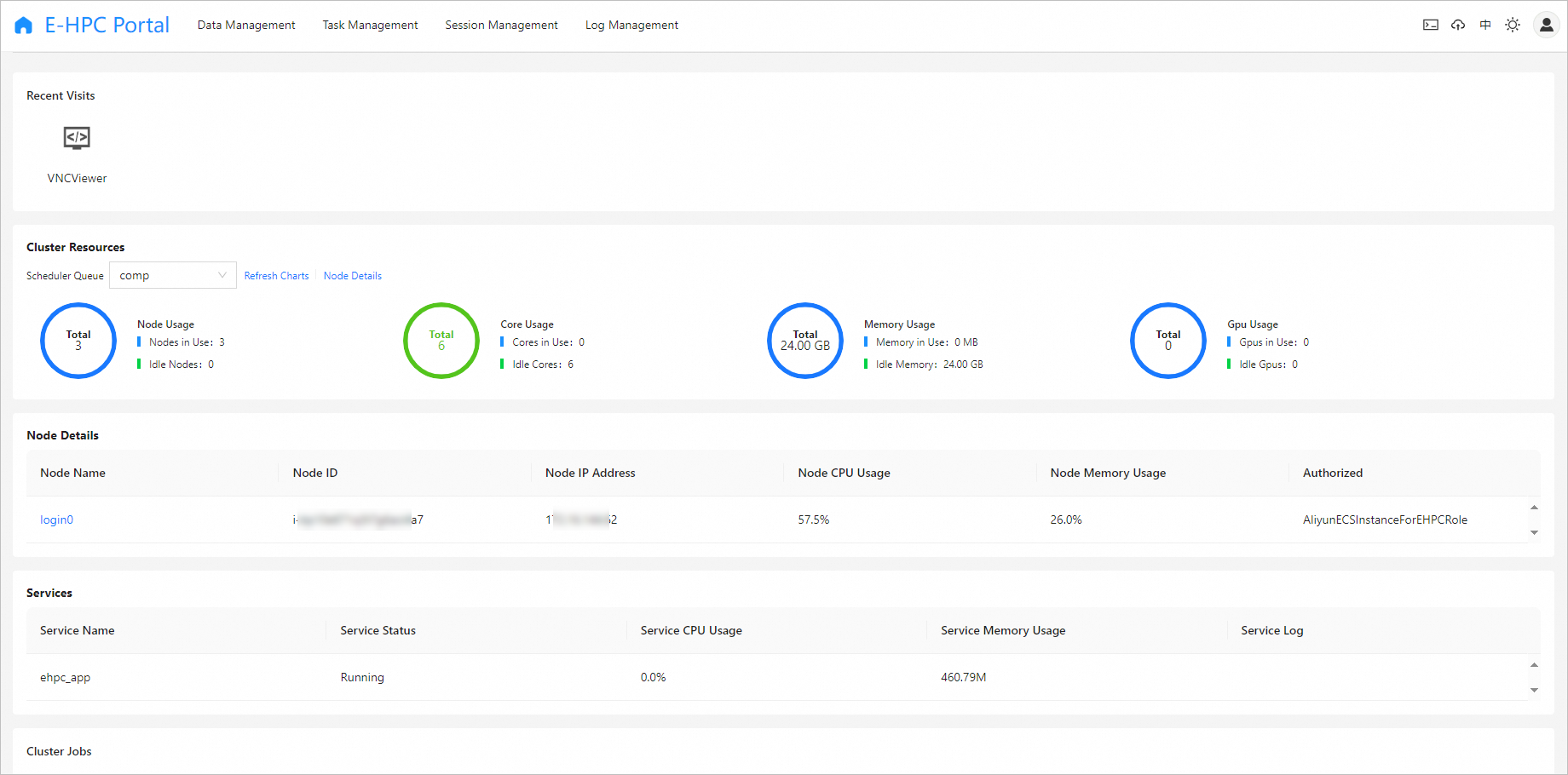
The homepage includes the following sections:
Recent Visits: You can view the most recently accessed applications for quick redirection. If no applications have been used, the module is not displayed.
Cluster Resources: You can view the resource usage of nodes by queue.
Node Details: You can view the details of the logon node in the cluster.
Services: You can view the services in the current cluster and the status, CPU utilization, and memory usage of each service.
Cluster Jobs: You can view the job information as icons, including the number of jobs that are running, submitted, queued, and completed.
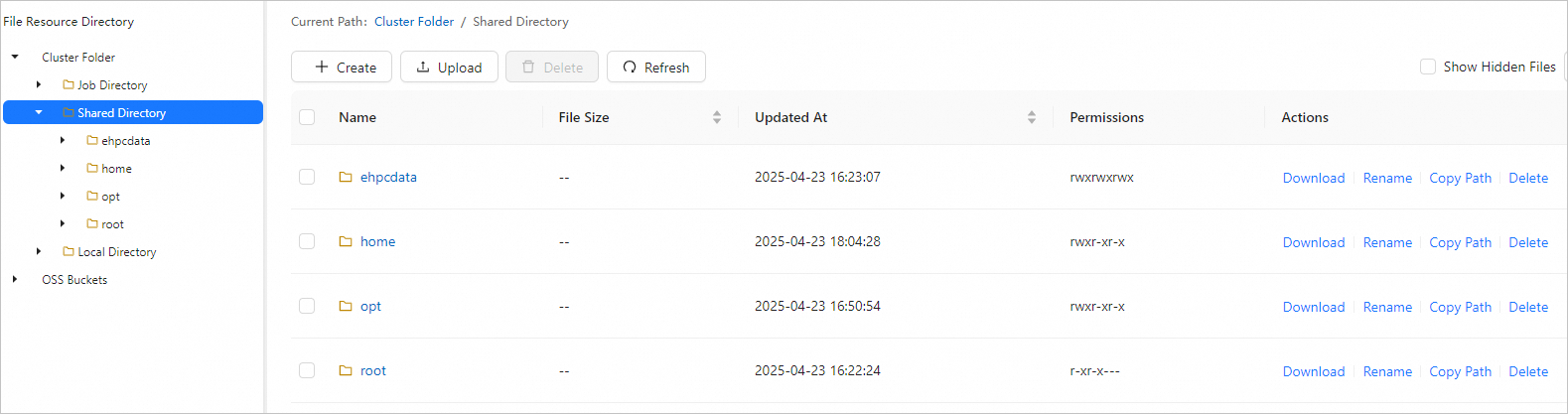
Data Management
On the Data Management tab, you can perform operations on the files in the cluster. For example, you can edit the files required by jobs, view the output files of jobs, and upload files to an Object Storage Service (OSS) bucket. For more information, see Manage cluster files.
Task Management
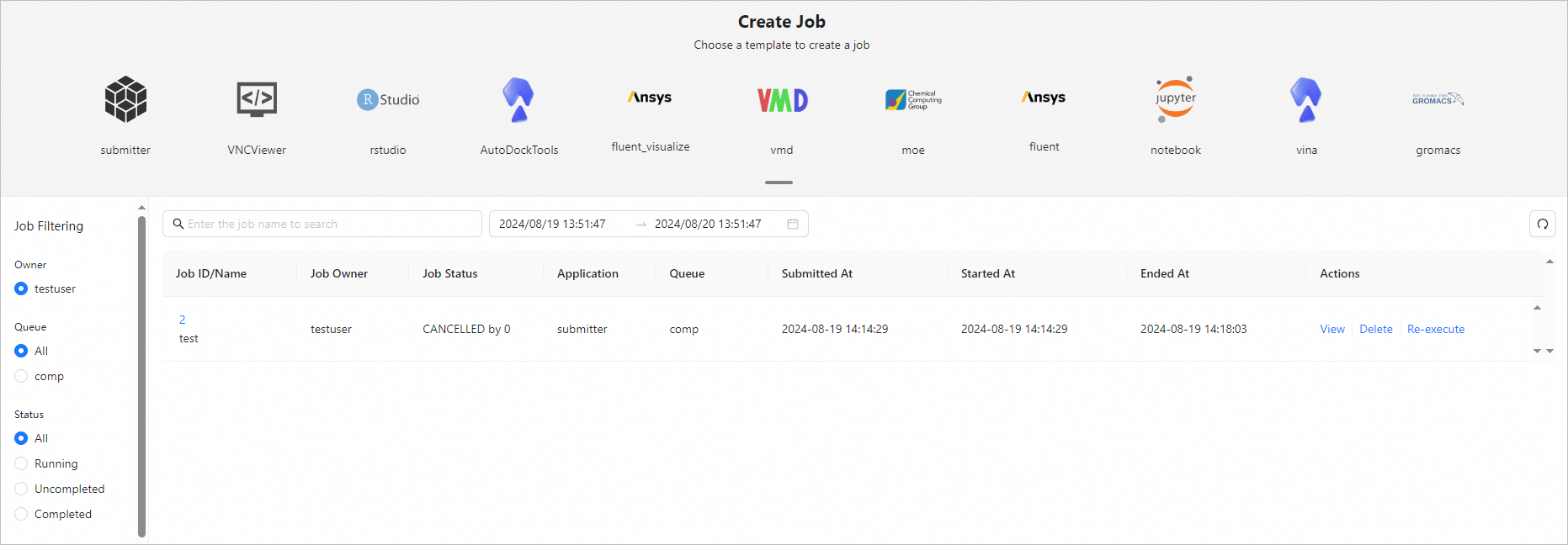
On the Task Management tab, you can submit and query jobs.
Submit jobs
In the upper part of the Task Management tab, the supported application templates are displayed. You can use these templates to quickly submit jobs. The following table describes the submitter and VNCViewer templates.
Application template
Description
References
submitter
You can run this template to directly configure job-related parameters and run commands to submit jobs.
VNCViewer
You can run this template to configure VNC to connect to the cluster and view job results in a visualized manner.
Query jobs
In the lower part of the Task Management tab, you can query jobs by job name and time range. For more information, see Query jobs.
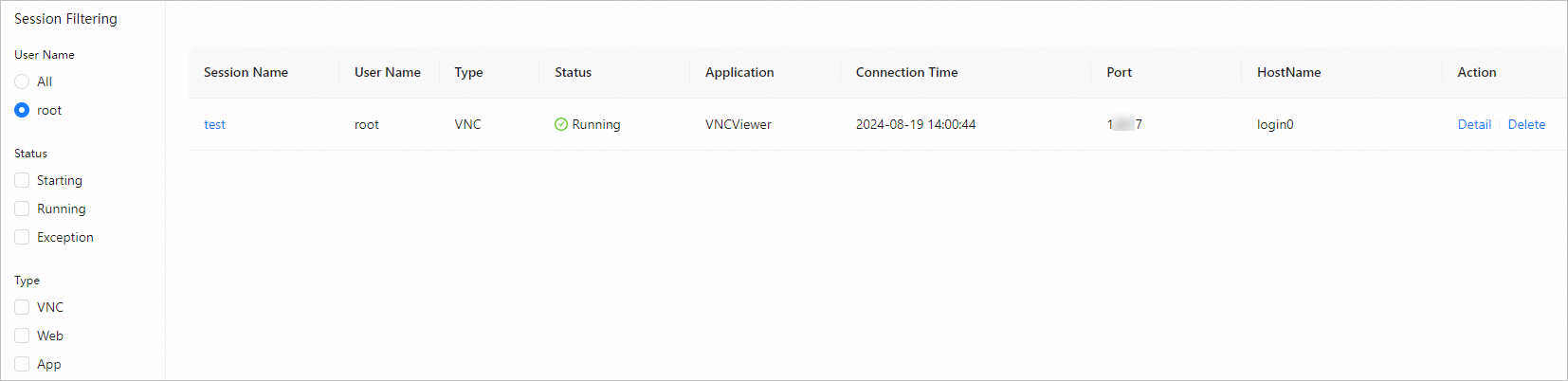
Session Management
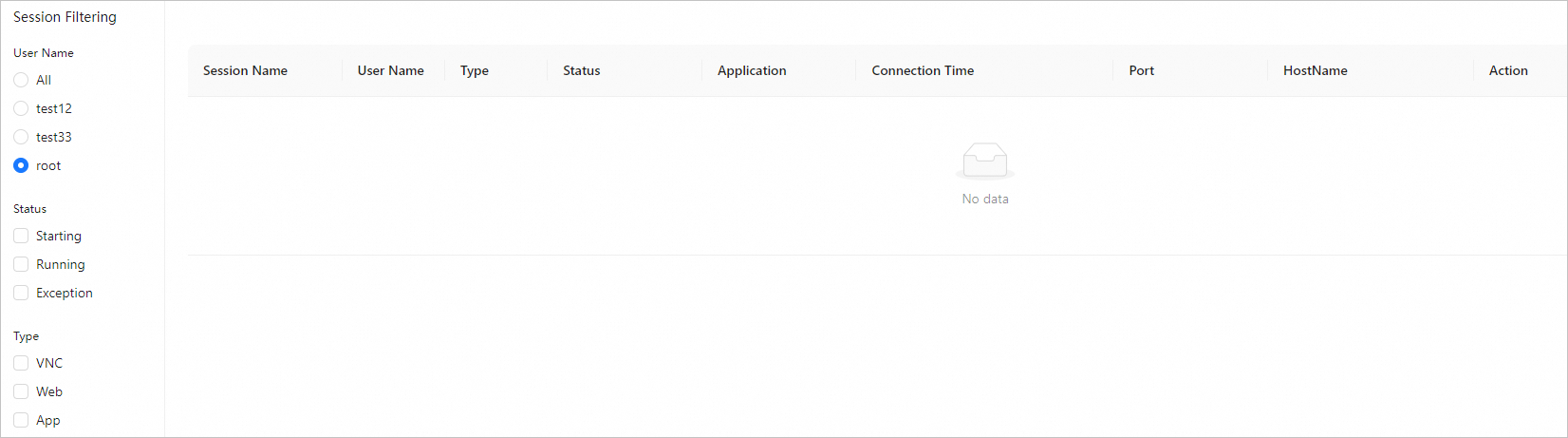
On the Session Management tab, you can view the session records of the current user, including the sessions generated by running applications such as VNCViewer and AutoDockTools. For more information, see Manage cluster sessions.
Performance Management
On the Performance Management tab, you can view the performance profiling details of jobs to learn more about the resource usage of the cluster, identify and resolve resource imbalance issues, optimize job scheduling, and quickly locate performance bottlenecks. For more information, see View the performance profiling details of jobs.
Log Management
Only the root user can view logs in E-HPC Portal.
On the Log Management tab, you can query the operation logs of the current user by time range and check whether exceptions exist. The operation logs record the operations of the user over the previous 30 days, such as logging on to E-HPC Portal, submitting jobs, and querying jobs. For more information, see View logs.
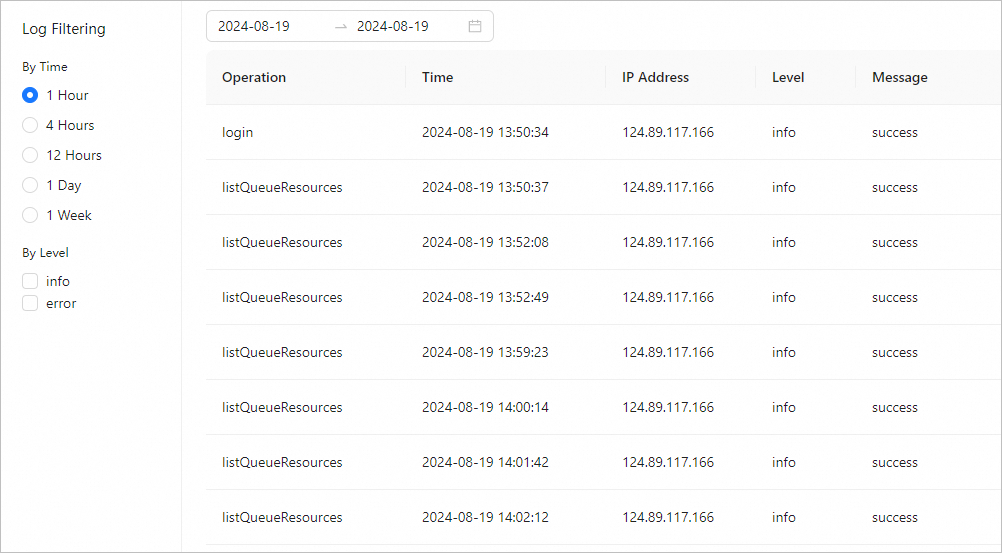
Each operation log contains the following information:
Operation: the operation that is performed, such as logging on to E-HPC Portal and querying queue resources.
Time: the time when the operation was performed.
IP Address: the IP address of the user.
Level: the level of the operation. Valid values: info and error. The value info indicates that the operation is normal whereas the value error indicates that the operation encounters an error.
Message: the result of the operation.
Right side of the menu bar
On the right side of the menu bar, you can click an icon to use features such as remote connection. The following table describes the icons.
Icon | Description |
| You can click the icon to connect to the cluster by using Workbench. By default, the current user is used to log on to the logon node. |
| You can click the icon to view the list of file transfers, including file transfers between the cluster and an on-premises host, and between the cluster and an OSS bucket. |
中/EN | You can click the icon to switch the language of the E-HPC Portal interface. Chinese and English are supported. |
| You can click the icon to change the interface color of E-HPC Portal with one click. |
| You can click the icon to view cluster information such as the cluster name and cluster status. You can also log off E-HPC Portal. |


Limits
Hybrid cloud clusters do not support E-HPC Portal.
Clusters that use the Sun Grid Engine (SGE) scheduler do not support E-HPC Portal.
Only clusters whose operating system is CentOS are supported.
Operations
Operation | Description | References |
Log on to E-HPC Portal | After you create an E-HPC cluster, you can log on to E-HPC Portal by using the E-HPC console. | |
Submit jobs | You can submit jobs by using the application templates provided by E-HPC Portal. | |
Query jobs | After you submit a job, you can query job data in E-HPC Portal. You can view the name, status, start time, end time, and details of the job. | |
Manage files in a cluster | E-HPC Portal allows you to manage files in a visualized manner. You can transfer job files between your local computer and cluster. You can also modify, rename, and delete files. | |
View cluster sessions | You can view the cluster sessions that are created in E-HPC Portal, such as cluster sessions created by using VNCViewer and AutoDockTools. | |
View the performance profiling details of jobs | You can view the performance profiling details of the jobs that are submitted in E-HPC Portal. | |
View operation logs | The root user can query operation records by time range and check for exceptions. | |
Remotely log on to a cluster | Workbench is embedded in E-HPC Portal. You can use Workbench to remotely log on to your cluster and run relevant commands. |