You can use Data Transmission Service (DTS) to synchronize data from a PolarDB-X 2.0 instance to a MaxCompute project.
Prerequisites
You have activated MaxCompute and created a MaxCompute project. For more information, see Activate MaxCompute and Create a project.
You have configured the MaxCompute whitelist to allow DTS access. For more information, see Configure the MaxCompute whitelist to allow access from Alibaba Cloud services.
You have used your Alibaba Cloud account (root account) to Create an AccessKey.
NoteAlternatively, you can Create a RAM user, and then Set a RAM user as the super administrator for a MaxCompute project.
Limitations
DTS does not synchronize foreign keys from the source database to the destination database. Therefore, cascade and delete operations on the source database are not synchronized to the destination database.
|
Type |
Description |
|
Limits on the source database |
|
|
Other limits |
|
|
Precautions |
DTS periodically updates the |
Billing
|
Synchronization type |
Pricing |
|
Schema synchronization and full data synchronization |
Free of charge. |
|
Incremental data synchronization |
Charged. For more information, see Billing overview. |
Supported SQL operations
Type | SQL statement |
DML | INSERT, UPDATE, and DELETE |
DDL | ALTER TABLE, ADD COLUMN Note Only simple add column operations are supported, such as
|
Procedure
Go to the data synchronization task list page in the destination region. You can do this in one of two ways.
DTS console
Log on to the DTS console.
In the navigation pane on the left, click Data Synchronization.
In the upper-left corner of the page, select the region where the synchronization instance is located.
DMS console
NoteThe actual steps may vary depending on the mode and layout of the DMS console. For more information, see Simple mode console and Customize DMS console layout and style.
Log on to the DMS console.
In the top menu bar, choose .
To the right of Data Synchronization Tasks, select the region of the synchronization instance.
Click Create Task to open the task configuration page.
Configure the source and destination databases.
Category
Parameter
Description
N/A
Task Name
DTS automatically generates a task name. We recommend that you specify a descriptive name for easy identification. The name does not need to be unique.
Source Database
Select Existing Connection
Select the registered database instance with DTS from the drop-down list. The database information below is automatically configured.
NoteIn the DMS console, this configuration item is Select a DMS database instance.
If you have not registered the database instance or do not need to use a registered instance, manually configure the database information below.
Database Type
Select PolarDB-X 2.0.
Connection Type
Select Alibaba Cloud Instance.
Instance Region
Select the region where the PolarDB-X 2.0 instance is located.
Replicate Data Across Alibaba Cloud Accounts
This example shows data synchronization within the same Alibaba Cloud account. Select No.
Instance ID
Select the ID of the source PolarDB-X 2.0 instance.
Database Account
Enter the database account of the PolarDB-X 2.0 instance. The account must have the REPLICATION SLAVE, REPLICATION CLIENT, and SELECT permissions on the objects to be synchronized.
NoteFor information on how to grant permissions, see Account permission issues during data synchronization.
Database Password
Enter the password for the specified database account.
Destination Database
Select Existing Connection
Select the registered database instance with DTS from the drop-down list. The database information below is automatically configured.
NoteIn the DMS console, this configuration item is Select a DMS database instance.
If you have not registered the database instance or do not need to use a registered instance, manually configure the database information below.
Database Type
Select MaxCompute.
Connection Type
Select Alibaba Cloud Instance.
Instance Region
Select the region where the destination MaxCompute instance is located.
Project
Enter the name of the destination MaxCompute project.
AccessKey ID of Alibaba Cloud Account
Enter the AccessKey pair that you prepared in the Prerequisites section.
AccessKey Secret of Alibaba Cloud Account
After completing the configuration, click Test Connectivity and Proceed at the bottom of the page.
NoteEnsure that you add the CIDR blocks of the DTS servers (either automatically or manually) to the security settings of both the source and destination databases to allow access. For more information, see Add the IP address whitelist of DTS servers.
If the source or destination is a self-managed database (i.e., the Access Method is not Alibaba Cloud Instance), you must also click Test Connectivity in the CIDR Blocks of DTS Servers dialog box.
Click OK to authorize the MaxCompute account.
Configure the task objects.
On the Configure Objects page, specify the objects to synchronize.
Parameter
Description
Synchronization Type
The synchronization types. By default, Incremental Data Synchronization is selected. You must also select Schema Synchronization and Full Data Synchronization. After the precheck is complete, DTS synchronizes the historical data of the selected objects from the source database to the destination cluster. The historical data is the basis for subsequent incremental synchronization.
Processing Mode for Existing Destination Tables
Precheck and Report Errors: Checks for tables with the same names in the destination database. If any tables with the same names are found, an error is reported during the precheck and the data synchronization task does not start. Otherwise, the precheck is successful.
NoteIf you cannot delete or rename the table with the same name in the destination database, you can map it to a different name in the destination. For more information, see Object name mapping.
Ignore Errors and Proceed: Skips the check for tables with the same name in the destination database.
WarningSelecting Ignore Errors and Proceed may cause data inconsistency and put your business at risk. For example:
If the table schemas are consistent and a record in the destination database has the same primary key or unique key value as a record in the source database:
During full data synchronization, DTS retains the destination record and skips the source record.
During incremental synchronization, DTS overwrites the destination record with the source record.
If the table schemas are inconsistent, data initialization may fail. This can result in only partial data synchronization or a complete synchronization failure. Use with caution.
Naming Rules of Additional Columns
DTS adds additional columns to destination tables during synchronization. If these column names conflict with existing columns, the synchronization fails. Select New Rule or Previous Rule based on your business requirements.
WarningCheck whether the additional column names conflict with existing column names in the destination tables before selecting a rule. Otherwise, data loss or task failure may occur. For more information about the rules and definitions for additional columns, see Additional column names and definitions.
Partition Definition of Incremental Data Table
Select partition names based on your business requirements. For more information about partitions, see PartitionPartition.
Case Policy for Destination Object Names
Configure the case-sensitivity policy for database, table, and column names in the destination instance. By default, the DTS default policy is selected. You can also choose to use the default policy of the source or destination database. For more information, see Case policy for destination object names.
Source Objects
In the Source Objects box, click the objects, and then click
 to move them to the Selected Objects box.Note
You can select objects to synchronize only at the table level.
Selected Objects
To rename a single object in the destination instance, right-click the object in the Selected Objects box. For more information, see Map a single object name.
To rename multiple objects in bulk, click Batch Edit in the upper-right corner of the Selected Objects box. For more information, see Map multiple object names in bulk.
NoteTo select the SQL operations to be synchronized at the database or table level, right-click the object in the Selected Objects box, and then select the desired SQL operations in the dialog box that appears.
To set a WHERE clause to filter data, right-click the table to be synchronized in the Selected Objects box, and then set the filter condition in the dialog box that appears. For more information, see Filter task data by using SQL conditions.
Click Next: Advanced Settings.
Parameter
Description
Dedicated Cluster for Task Scheduling
By default, DTS uses a shared cluster for tasks, so you do not need to make a selection. For greater task stability, you can purchase a dedicated cluster to run the DTS synchronization task. For more information, see What is a DTS dedicated cluster?.
Retry Time for Failed Connections
If the connection to the source or destination database fails after the synchronization task starts, DTS reports an error and immediately begins to retry the connection. The default retry duration is 720 minutes. You can customize the retry time to a value from 10 to 1,440 minutes. We recommend a duration of 30 minutes or more. If the connection is restored within this period, the task resumes automatically. Otherwise, the task fails.
NoteIf multiple DTS instances (e.g., Instance A and B) share a source or destination, DTS uses the shortest configured retry duration (e.g., 30 minutes for A, 60 for B, so 30 minutes is used) for all instances.
DTS charges for task runtime during connection retries. Set a custom duration based on your business needs, or release the DTS instance promptly after you release the source/destination instances.
Retry Time for Other Issues
If a non-connection issue (e.g., a DDL or DML execution error) occurs, DTS reports an error and immediately retries the operation. The default retry duration is 10 minutes. You can also customize the retry time to a value from 1 to 1,440 minutes. We recommend a duration of 10 minutes or more. If the related operations succeed within the set retry time, the synchronization task automatically resumes. Otherwise, the task fails.
ImportantThe value of Retry Time for Other Issues must be less than that of Retry Time for Failed Connections.
Enable Throttling for Full Data Synchronization
During full data synchronization, DTS consumes read and write resources from the source and destination databases, which can increase their load. To mitigate pressure on the destination database, you can limit the migration rate by setting Queries per second (QPS) to the source database, RPS of Full Data Migration, and Data migration speed for full migration (MB/s).
NoteThis parameter is available only if Synchronization Types is set to Full Data Synchronization.
You can also adjust the rate of full data synchronization when the synchronization instance is running.
Enable Throttling for Incremental Data Synchronization
You can also limit the incremental synchronization rate to reduce pressure on the destination database by setting RPS of Incremental Data Synchronization and Data synchronization speed for incremental synchronization (MB/s).
Whether to delete SQL operations on heartbeat tables of forward and reverse tasks
Choose whether DTS writes heartbeat SQL information to the source database while the instance is running.
Yes: Does not write heartbeat SQL information to the source database. The DTS instance may display latency.
No: Writes heartbeat SQL information to the source database. This may interfere with source database operations like physical backups and cloning.
Environment Tag
Select an environment tag to identify the instance. This parameter is optional for this example.
Configure ETL
Choose whether to enable the extract, transform, and load (ETL) feature. For more information, see What is ETL? Valid values:
-
Yes: Enables the ETL feature. Enter data processing statements in the code editor. For more information, see Configure ETL in a data migration or data synchronization task.
-
No: Disables the ETL feature.
Monitoring and Alerting
Choose whether to set up alerts. If the synchronization fails or the latency exceeds the specified threshold, DTS sends a notification to the alert contacts.
No: No alerts are configured.
Yes: Configures alerts. You must also set the alert threshold and alert notifications. For more information, see Configure monitoring and alerting during task configuration.
Save the task and perform a precheck.
To view the parameters for configuring this instance via an API operation, hover over the Next: Save Task Settings and Precheck button and click Preview OpenAPI parameters in the tooltip.
If you have finished viewing the API parameters, click Next: Save Task Settings and Precheck at the bottom of the page.
NoteBefore a synchronization task starts, DTS performs a precheck. You can start the task only if the precheck passes.
If the precheck fails, click View Details next to the failed item, fix the issue as prompted, and then rerun the precheck.
If the precheck generates warnings:
For non-ignorable warning, click View Details next to the item, fix the issue as prompted, and run the precheck again.
For ignorable warnings, you can bypass them by clicking Confirm Alert Details, then Ignore, and then OK. Finally, click Precheck Again to skip the warning and run the precheck again. Ignoring precheck warnings may lead to data inconsistencies and other business risks. Proceed with caution.
Purchase the instance.
When the Success Rate reaches 100%, click Next: Purchase Instance.
On the Purchase page, select the billing method and link specifications for the data synchronization instance. For more information, see the following table.
Category
Parameter
Description
New Instance Class
Billing Method
Subscription: You pay upfront for a specific duration. This is cost-effective for long-term, continuous tasks.
Pay-as-you-go: You are billed hourly for actual usage. This is ideal for short-term or test tasks, as you can release the instance at any time to save costs.
Resource Group Settings
The resource group to which the instance belongs. The default is default resource group. For more information, see What is resource management?.
Instance Class
DTS offers synchronization specifications at different performance levels that affect the synchronization rate. Select a specification based on your business requirements. For more information, see Data synchronization link specifications.
Subscription Duration
In subscription mode, select the duration and quantity of the instance. Monthly options range from 1 to 9 months. Yearly options include 1, 2, 3, or 5 years.
NoteThis option appears only when the billing method is Subscription.
Read and select the checkbox for Data Transmission Service (Pay-as-you-go) Service Terms.
Click Buy and Start, and then click OK in the OK dialog box.
You can monitor the task progress on the data synchronization page.
Incremental log table schema
Run set odps.sql.allow.fullscan=true; in MaxCompute to allow full table scans.
DTS stores incremental data with additional metadata when synchronizing from MySQL to an incremental log table in MaxCompute.
In this example, modifytime_year, modifytime_month, modifytime_day, modifytime_hour, and modifytime_minute are partition keys, which are specified in the Configure Task Object step.
Schema definition
Field | Description |
record_id | The unique record ID for each incremental log entry. Note
|
operation_flag | The operation type. The valid values are:
|
utc_timestamp | The timestamp of the operation from the binlog, in UTC. |
before_flag | Specifies if column values represent the pre-update state. Valid values: Y or N. |
after_flag | Specifies if column values represent the post-update state. Valid values: Y or N. |
Additional information about the before_flag and after_flag fields
For different operation types, the before_flag and after_flag fields in an incremental log are defined as follows:
-
INSERT
When the operation type is INSERT, all column values are the newly inserted record values. These are the values after the update. Therefore, the value of `before_flag` is N, and the value of `after_flag` is Y, as shown in the following example.

-
UPDATE
When the operation type is UPDATE, DTS splits the UPDATE operation into two incremental log records. These two log records have the same values for `record_id`, `operation_flag`, and `utc_timestamp`.
The first log record contains the values before the update, so the value of `before_flag` is Y and the value of `after_flag` is N. The second log record contains the values after the update, so the value of `before_flag` is N and the value of `after_flag` is Y, as shown in the following example.

-
DELETE
When the operation type is DELETE, all column values in the incremental log record are the deleted values. This means the column values do not change. Therefore, the value of `before_flag` is Y, and the value of `after_flag` is N, as shown in the following example.

Example of merging full data
After the data synchronization operation, DTS creates a full baseline table and an incremental log table for each table in MaxCompute. You can use MaxCompute SQL commands to merge these two tables to obtain the full data at a specific point in time.
This example uses the `customer` table (with the following structure) to describe the procedure.

-
Based on the structure of the table to be synchronized in the source database, create a table in MaxCompute to store the merged results.
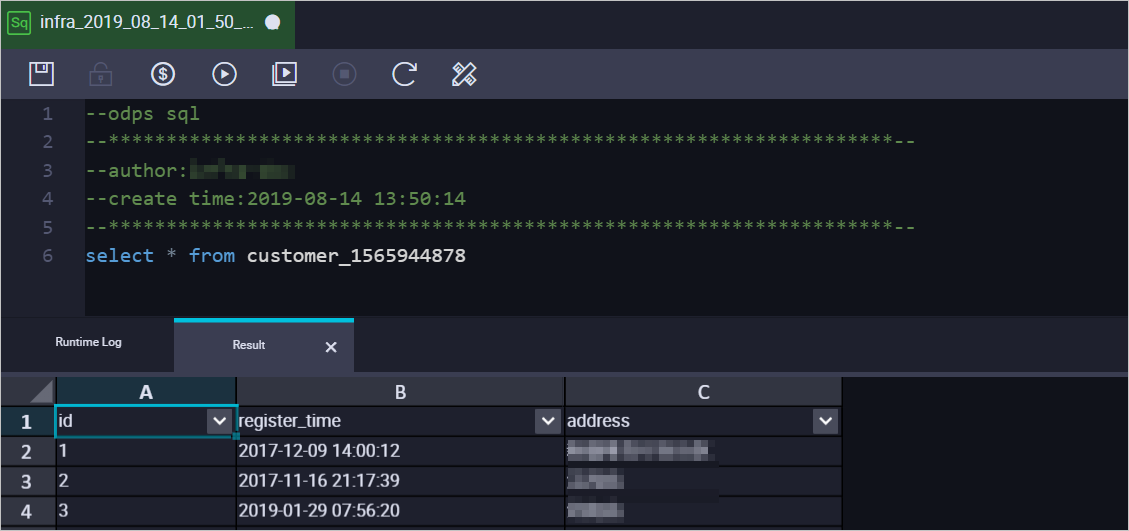
For example, to obtain the full data of the `customer` table at the timestamp
1565944878, create the following data table for easy business identification:CREATE TABLE `customer_1565944878` ( `id` bigint NULL, `register_time` datetime NULL, `address` string);Note-
You can run SQL commands in the ad-hoc query editor of MaxCompute.
-
For more information about the data types supported by MaxCompute, see Data types.
-
-
Run the following SQL command in MaxCompute to merge the full baseline table and the incremental log table to obtain the full data of the table at a specific point in time.
set odps.sql.allow.fullscan=true; insert overwrite table <result_storage_table> select <col1>, <col2>, <colN> from( select row_number() over(partition by t.<primary_key_column> order by record_id desc, after_flag desc) as row_number, record_id, operation_flag, after_flag, <col1>, <col2>, <colN> from( select incr.record_id, incr.operation_flag, incr.after_flag, incr.<col1>, incr.<col2>,incr.<colN> from <table_log> incr where utc_timestamp< <timestamp> union all select 0 as record_id, 'I' as operation_flag, 'Y' as after_flag, base.<col1>, base.<col2>,base.<colN> from <table_base> base) t) gt where row_number=1 and after_flag='Y'Note-
<result_storage_table>: The name of the table that stores the full merged result set.
-
<col1>/<col2>/<colN>: The names of the columns in the synchronized table.
-
<primary_key_column>: The name of the primary key column in the synchronized table.
-
<table_log>: The name of the incremental log table.
-
<table_base>: The name of the full baseline table.
-
<timestamp>: The point in time for which to get the full data.
To merge the data tables and obtain the full data of the `customer` table at the timestamp
1565944878, use the following example:set odps.sql.allow.fullscan=true; insert overwrite table customer_1565944878 select id, register_time, address from( select row_number() over(partition by t.id order by record_id desc, after_flag desc) as row_number, record_id, operation_flag, after_flag, id, register_time, address from( select incr.record_id, incr.operation_flag, incr.after_flag, incr.id, incr.register_time, incr.address from customer_log incr where utc_timestamp< 1565944878 union all select 0 as record_id, 'I' as operation_flag, 'Y' as after_flag, base.id, base.register_time, base.address from customer_base base) t) gt where gt.row_number= 1 and gt.after_flag= 'Y'; -
-
After the preceding command is executed, you can query the merged data in the `customer_1565944878` table.