In Operation Center, you can view tasks published to the production environment and perform O&M operations such as testing and data backfill. This topic uses an auto triggered node as an example to walk you through the basic features of Operation Center. You will learn how to verify node configurations, use data backfill to compute historical data, and configure intelligent monitoring rules to ensure your nodes are scheduled and run as expected.
Prerequisites
Create and publish a result_table node by following the Data development workflow guide.
This topic uses the result_table node to demonstrate O&M operations. In practice, you can apply the same operations to your own tasks.
Background information
DataWorks Operation Center supports O&M for various types of tasks, such as auto triggered nodes, manual tasks, and real-time synchronization tasks. It also provides multiple monitoring methods for tasks and the resources used to run the tasks. This helps you use alerts to promptly detect and handle exceptions, ensuring efficient and stable data production.
This topic describes only the basic task execution workflow in Operation Center. You can perform more O&M operations based on your business requirements. For example:
-
Perform more O&M operations on tasks, such as bringing tasks online or offline and freezing tasks. For more information, see Basic O&M operations for auto triggered nodes.
-
Control O&M operations on tasks. For more information, see O&M Operation Control (advanced).
For more information about Operation Center, see Operation Center overview.
Enter operation center
Log on to the Operation Center console. Switch to the target region, select the desired workspace from the drop-down list, and click Operation Center.
Procedure
Phase 1: Verify an auto-triggered node
-
Step 1: View the configuration of the auto triggered node
To prevent an auto triggered node from being scheduled unexpectedly, check its configuration, such as scheduling parameters and the scheduling resource group, after it is published. If the configuration is incorrect, modify the configuration and republish the node.
-
Step 2: Test the auto triggered node
Use the smoke test feature to verify that the auto triggered node runs as expected in the production environment. If an error occurs, handle it promptly to ensure the node runs properly.
-
Step 3: Backfill historical data for the auto triggered node
You can use the data backfill feature to recompute historical data.
-
Step 4: View recurring instances
After an auto triggered node is published, recurring instances are generated based on its scheduling cycle. If Instance generation method is set to T +1 generated next day in DataStudio, the task is scheduled to run starting the next day. If the parameter is set to Instant generation after publishing, the task is scheduled to run on the same day. You can view the generation and running status of recurring instances to verify that the task is scheduled correctly.
-
Step 5: View execution results
After you run a smoke test or a data backfill for a node, you can verify that the data is written correctly.
Phase 2: Monitor an auto-triggered node
-
Step 6: Create a custom monitoring rule
Based on your business needs, you can configure intelligent monitoring rules for an auto triggered node to monitor its scheduling and runtime status and ensure it continues to run as scheduled.
-
Step 7: Create an intelligent baseline (advanced)
To ensure high-priority tasks generate data by a specific time, you can configure intelligent baseline monitoring for the tasks. If the system predicts that a task cannot be completed by the committed time, the baseline proactively sends a task exception alert. This helps you receive and handle exceptions efficiently.
-
Step 8: Create an automatic O&M rule for a resource group
You can create custom monitoring rules for an exclusive resource group to monitor its usage and the number of instances waiting on the resource group, and perform related O&M operations.
Step 1: View node configuration
To prevent an auto triggered node from running unexpectedly, check its configuration, such as scheduling parameters and node dependencies, after it is published.
-
Find the target node.
-
In the left-side navigation pane, choose .
-
On the Auto Triggered Node page, search for the target node.
-
-
View the node details.
-
Click the target node to open its directed acyclic graph (DAG).
-
Click Show Details to view detailed information about the node.
-
-
For more information about operations on auto triggered nodes, see Manage auto triggered nodes.
-
If the node configuration is incorrect, go to DataStudio, find the node, modify its configuration on the node editing page, and then republish it. For more information, see Node-related operations.
This example shows how to find the published result_table node in the auto triggered node list and check whether its Scheduling Parameters and Scheduling Resource Group are correctly configured.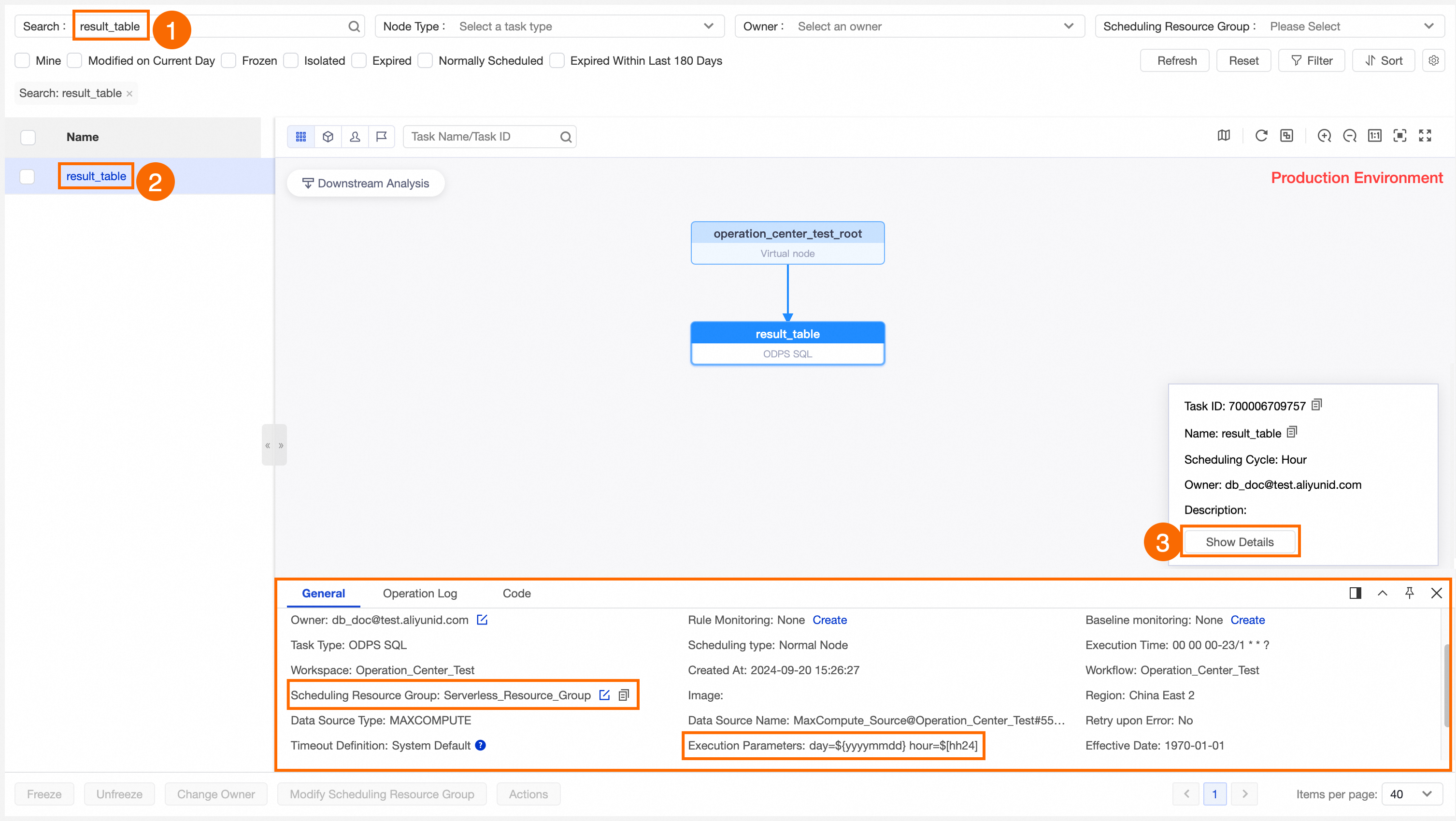
Step 2: Test an auto-triggered node
Run a smoke test for the auto triggered node to verify that it runs as expected in the production environment. This operation runs the actual code logic.
-
Go to the smoke test page.
You can use one of the following methods:
-
Method 1: In the auto triggered node list, find the target task and click Test in the Actions column.
-
Method 2: In the DAG of the target node, right-click the node and select Test.
-
-
Configure the data timestamp and runtime for the test, and click OK.
When the smoke test runs, a test instance is generated. The page shows the instance's details and status.
Note-
For more information about smoke tests, see Perform a smoke test.
-
For more information about how to view a test instance, see Run a test and view test instances.
-
This example shows how to test the result_table node to check whether it runs successfully. You can follow the steps in the figure to run the test and view the execution status of the generated test instance.
Step 3: Backfill historical data
After an auto triggered node is developed and published, it runs at scheduled intervals based on its configuration. If you need to recompute historical data, you can use the data backfill feature.
-
Go to the data backfill page.
You can use one of the following methods:
-
Method 1: In the auto triggered node list, find the target task and click Run in the Actions column.
-
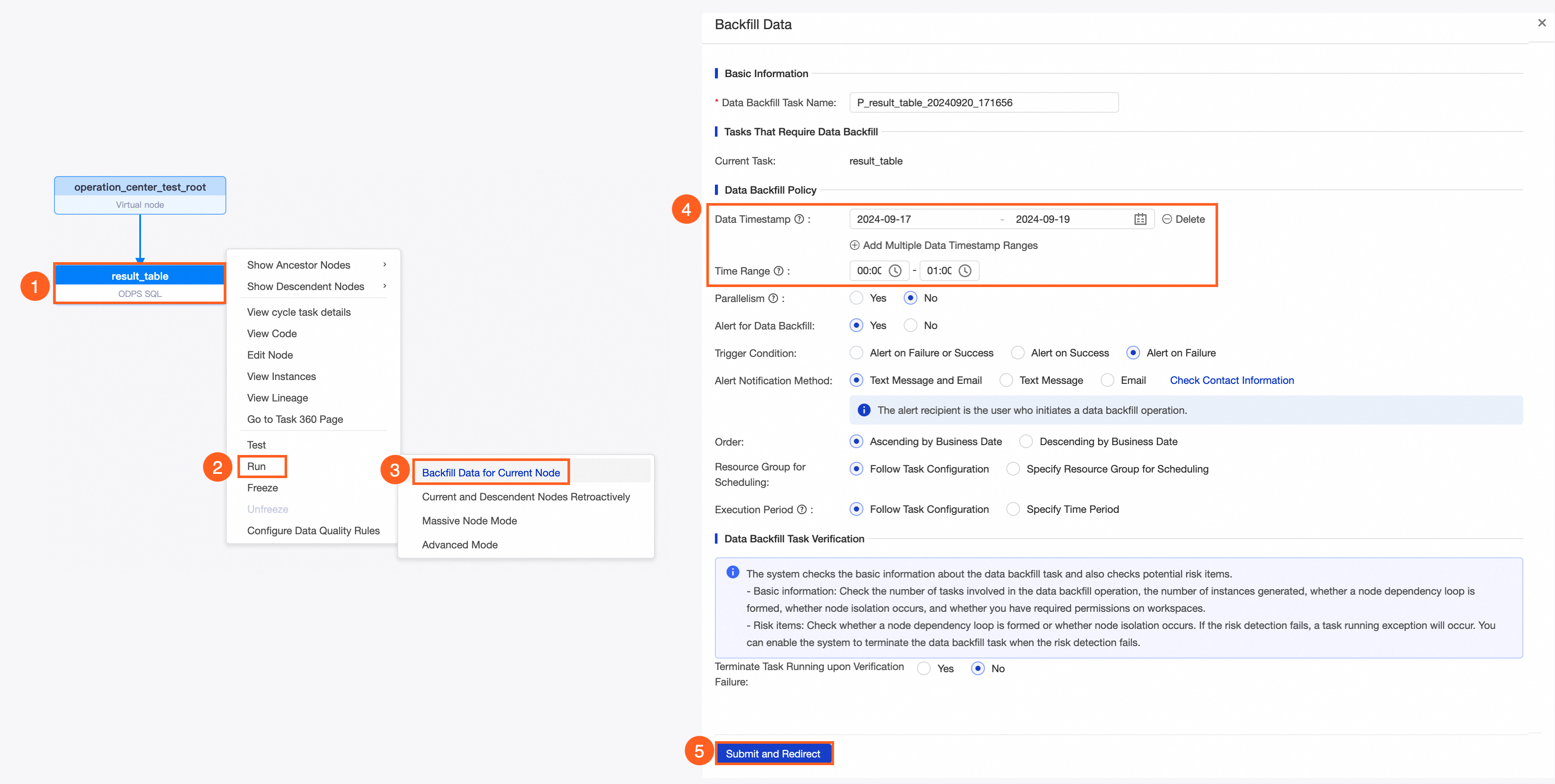
Method 2: In the DAG of the target node, right-click the node and select Run.
-
-
Select a data backfill mode.
You can select a mode based on your needs:
Mode
Description
Use cases
Select one or more nodes as root nodes. You can then manually select their descendant nodes for the data backfill. You can specify a subset of descendant nodes.
Note-
This mode is compatible with previous data backfill plans such as Backfill Data for Current Node, Current and Descendant Nodes Retroactively, and Advanced Mode.
-
A maximum of 500 root nodes and 2,000 total nodes (root and descendant nodes) can be backfilled in a single operation.
-
Batch data backfill for the current node and its descendant nodes.
-
Flexibly select a batch of nodes for data backfill. The nodes do not need to have dependencies on each other.
Select a start node as the root node and one or more end nodes. The system automatically analyzes and includes all nodes between the start and end nodes in the data backfill scope, including the start and end nodes.
End-to-end data backfill for tasks with complex dependencies.
Select a root node and determine the data backfill scope based on the descendant nodes' workspaces.
Note-
This mode is compatible with the previous Massive Node Mode data backfill plan. A maximum of
20,000nodes can be backfilled in a single operation. -
Task blacklists are not supported.
Use this mode if the descendant nodes of the current node exist in multiple workspaces and you need to backfill data for nodes in those workspaces.
After you select a root node, the system automatically analyzes and includes the node and all its descendant nodes in the data backfill scope.
ImportantThe triggered nodes become visible only when the data backfill task is running. Use this mode with caution.
Backfill data for a root node and all of its descendant nodes.
-
-
Configure data backfill parameters.
Configure parameters such as the data timestamp and the nodes to backfill based on your business requirements. The parameters vary based on the selected mode. For more information, see Manage data backfill instances.
This example uses the Backfill Data for Current Node mode to backfill data for the result_table node for the data timestamp range from 2024-09-17 to 2024-09-19, for the period between 00:00 and 01:00 each day. For the configuration steps, see the following figure.
After you configure the data backfill, the variables in the node code are replaced with specific values based on the scheduling parameters and data timestamp that you configure.
Step 4: View recurring instances
After an auto triggered node is published, recurring instances are generated based on its scheduling cycle. If Instance generation method is set to T +1 generated next day in DataStudio, the task is scheduled to run starting the next day. If the parameter is set to Instant generation after publishing, the task is scheduled to run on the same day. You can view the generated recurring instances to determine whether the task is scheduled and running correctly.
-
Go to the recurring instance page.
In the left-side navigation pane of Operation Center, choose .
-
View recurring instances.
Based on the scheduling configuration of the auto triggered node, check that the corresponding recurring instances are generated and run as expected. For more information about recurring instances, see View recurring instances.
If an instance is in the Not Run state, perform the following operations:
-
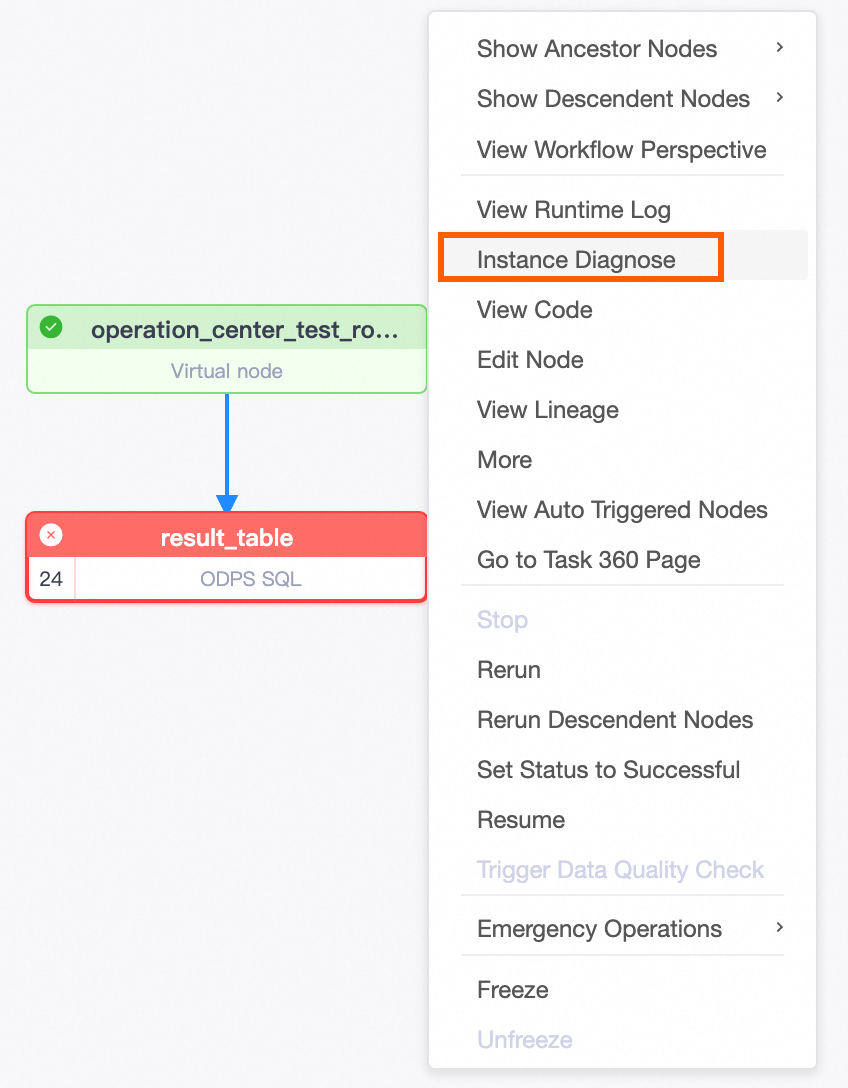
Use the Upstream Analysis feature in the DAG panel to quickly identify the key upstream task that is blocking the current task.
-
Use the Run Diagnostics feature to diagnose why a key upstream task failed to run or to identify other issues. For tasks with deep dependency chains, this feature helps you quickly locate issues and improve O&M efficiency.
-
This example shows the recurring instances generated by the hourly scheduled node result_table on 2024.09.19.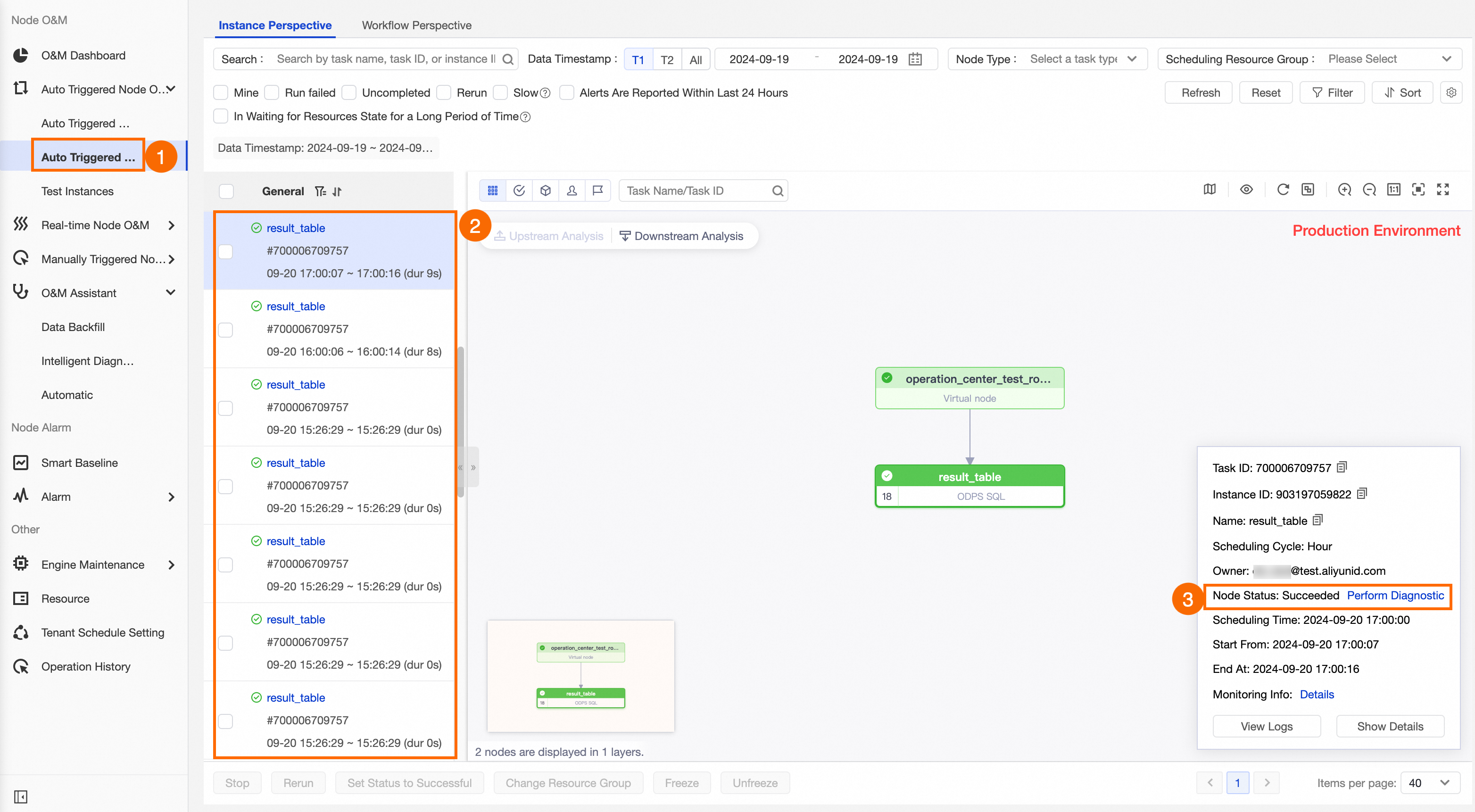
Step 5: View execution results
After running a smoke test or data backfill for a node, you can verify that data was written correctly in the following ways:
-
Go to Data Map.
In Data Map, search for the destination table and view its details to check whether data is written as expected. For more information about how to find a table and view its details, see Find a table and View table details.
-
Use Ad Hoc Query.
If you only need to query data and test SQL code in the developer environment (DataStudio) without publishing to the production environment, you can create an ad hoc query file.
-
By default, a RAM user does not have permissions to query data in the production tables of a MaxCompute project. You can go to Data Map and request permissions for the table from its details page. For more information, see Request table permissions.
-
If a node runs in the developer environment, data is written to the developer engine project. If a node runs in the production environment, data is written to the production engine project. When you query data, make sure you are in the correct project. The Computing Resources page shows the engine project for each environment.
-
MaxCompute allows you to access tables across projects. For example, you can access tables in other data sources or access tables in a production project from a developer project. However, not all engines support this feature. Support for cross-project table access depends on the specific engine.
In this example, the production environment engine project for the result_table node is mc_test_project. Use Ad Hoc Query to create an ODPS SQL node and run a SQL statement to query the partitioned data of the table (mc_test_project.result_table) in the production environment.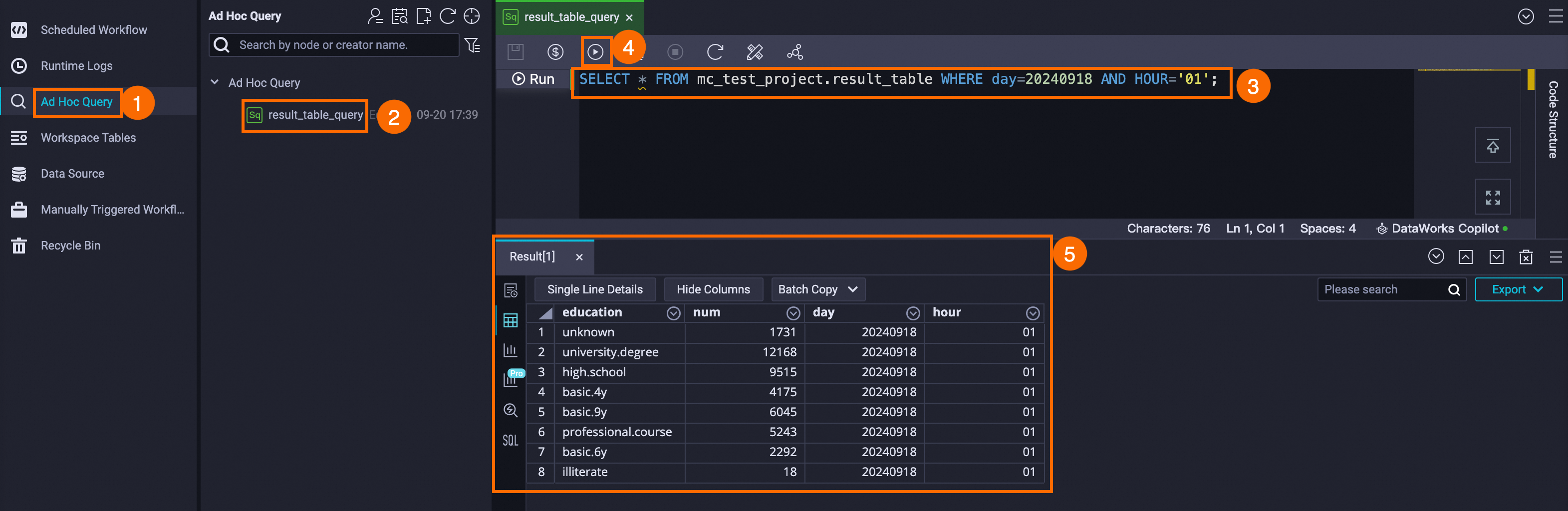
Step 6: Create a custom monitoring rule
After you verify that the node works as expected, you can create a custom monitoring rule to monitor its running status. When an error occurs on the node, DataWorks sends an alert based on your configuration. This allows you to detect and handle the exception in a timely manner to ensure that the node can be scheduled as expected.
-
In the left-side navigation pane, choose .
-
Create a custom rule.
-
Click Create Custom Rule.
-
Configure the rule.
You can create a custom rule based on your business requirements. For more information about the configuration, see Create a custom monitoring rule.
In this example, a monitoring rule is configured to send an alert when the
result_tablenode fails to run. The following figure shows the configuration.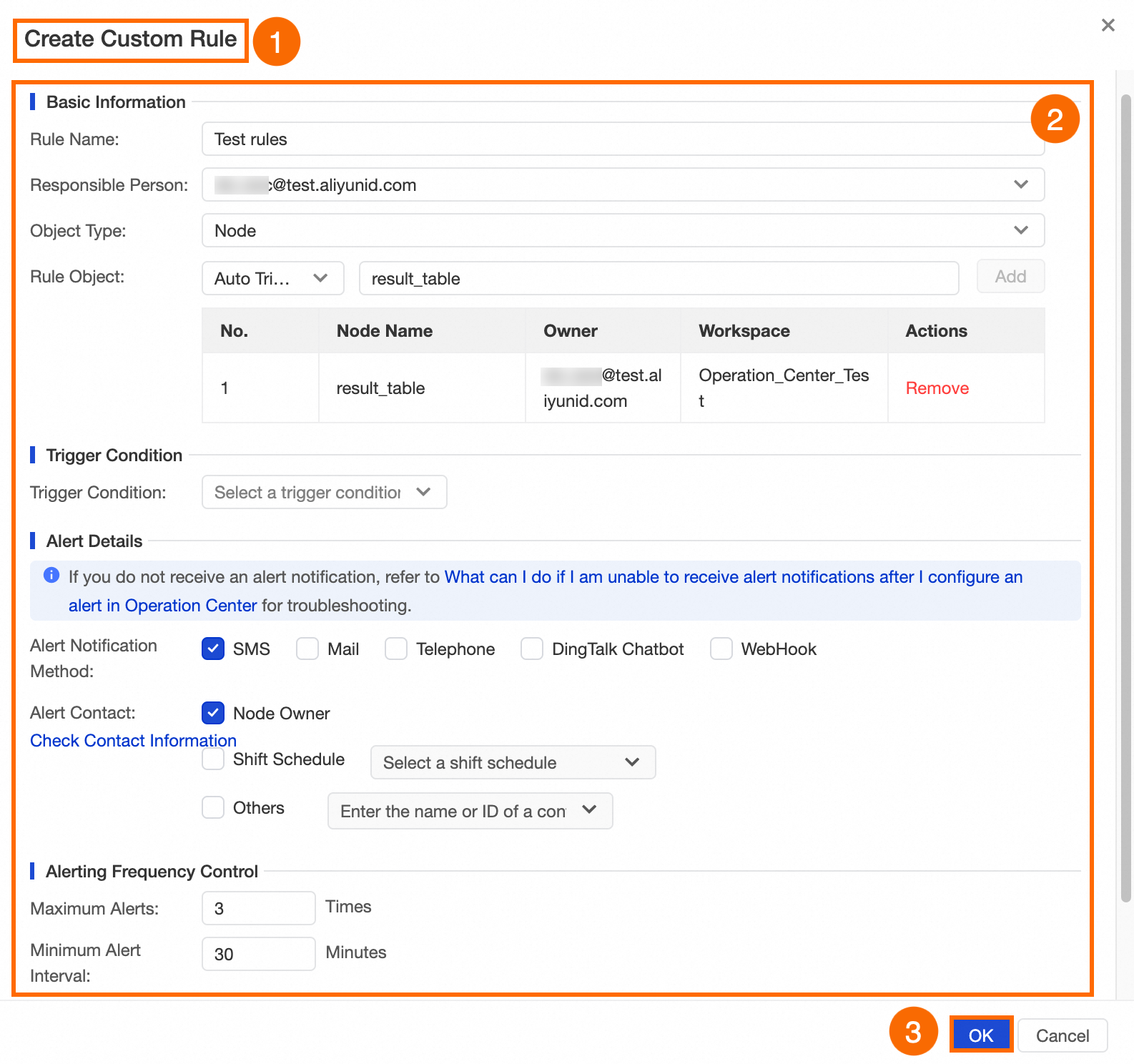 When the
 result_tablenode fails to run, theTest rulesrule is triggered, and a text message alert is sent to the node owner. A maximum of three alerts can be sent at 30-minute intervals.NoteConfigure alert contacts in advance. For more information, see View and configure alert contacts.
-
Step 7: Create an intelligent baseline (advanced)
To ensure that a task generates data within a specified time, you can configure baseline monitoring for the task. Add the task to a baseline and set a priority and a committed time. DataWorks calculates the estimated completion time of the baseline task based on its running status and allows high-priority tasks to preferentially obtain scheduling resources. If the system predicts the baseline task will miss its committed time, DataWorks sends an alert. You can then handle the exception promptly based on the alert.
-
In the left-side navigation pane, click Intelligent Baselines.
-
Create an intelligent baseline.
-
On the Baselines tab, click Create Baseline.
-
Configure the baseline.
You can configure the baseline based on your business requirements. For more information about the configuration, see Create a baseline.
This example shows how to configure an hourly baseline for the
result_tablenode to monitor the data output of the node on an hourly basis. The following figure shows the configuration.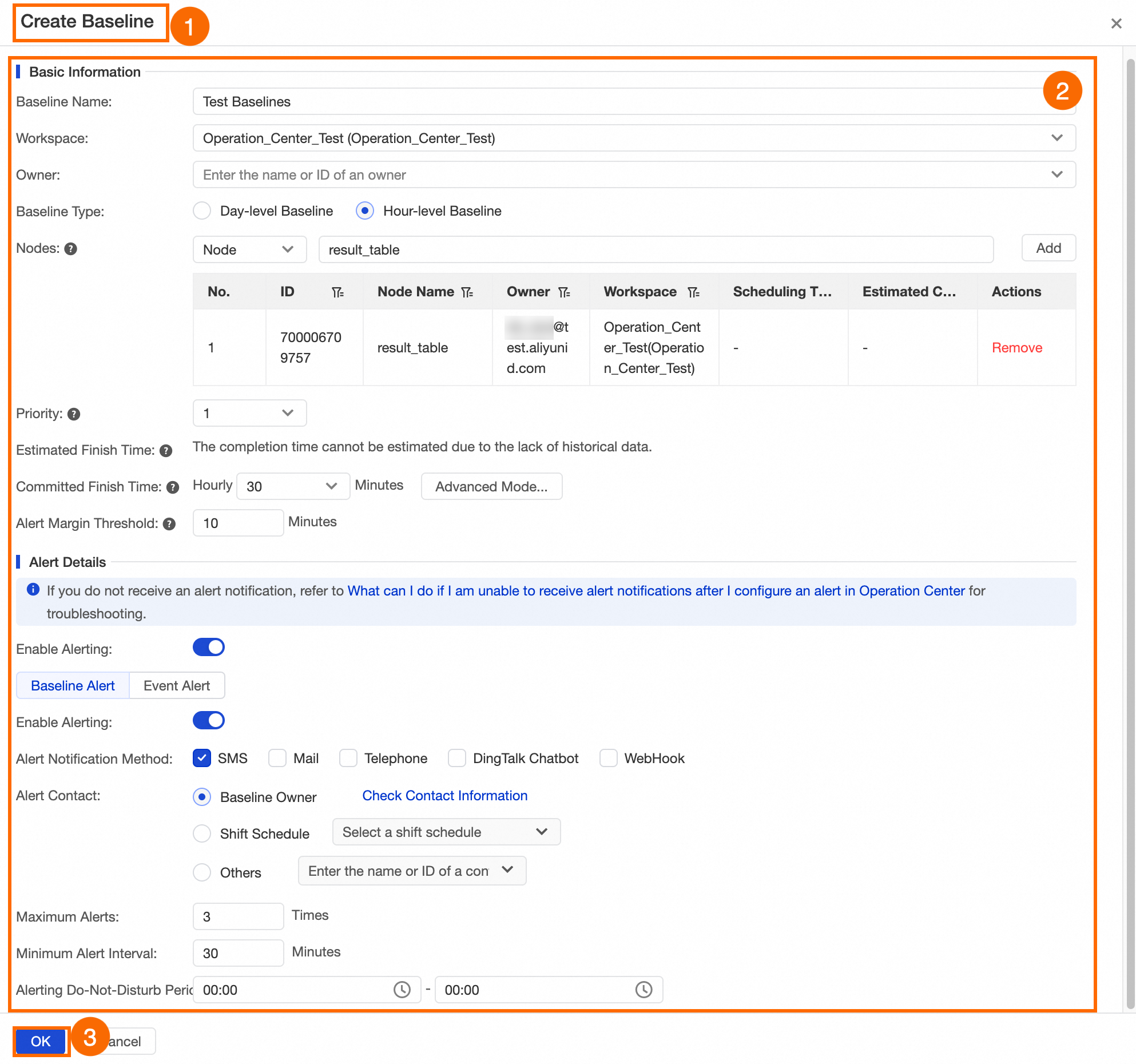 The following describes some of the parameters:
-
Priority: The larger the value, the higher the priority. High-priority tasks are preferentially granted scheduling resources in case of resource contention.
-
Estimated Completion Time: The estimated time to completion is calculated based on the node's completion history over a period of time.
-
Committed Completion Time: The latest time the node must generate data. You can configure this parameter based on your business requirements and the node's completion history over a period of time.
-
Alert Margin Threshold: A buffer before the Committed Completion Time that is used to handle task exceptions. This ensures that the task can be completed by the committed time.
NoteThe interval between the alert margin and the committed time must be at least 5 minutes.
If an hourly instance of the
result_tablenode cannot be completed within the first 30 minutes of each hour, theTest Baselinesbaseline is triggered, and an alert is sent by text message to the node owner. A maximum of three alerts can be sent at an interval of 30 minutes. -
-
Step 8: Create an automatic resource group O&M rule
If you use an exclusive resource group to run tasks, you can create an automatic O&M rule for the exclusive resource group based on your business requirements. This allows you to set monitoring alerts for the resource group's usage and the number of instances waiting on the resource group, and to perform related O&M operations.
The automatic O&M feature works by associating monitoring rules for an exclusive resource group, customizing monitoring metrics for instances running on the target resource group, and defining O&M rules with business logic. When an instance meets the filter conditions, the specified O&M action is automatically triggered.
-
Currently, automatic O&M is supported only for exclusive resource groups for scheduling.
-
To prevent slow task execution due to resource contention, you can move tasks to an exclusive resource group for scheduling. For more information about how to change the resource group used by a task, see General reference: Switch resource groups.
-
Create a monitoring rule for the resource group.
-
In the left-side navigation pane, choose .
-
Create and configure a monitoring rule for the resource group.
The procedure for configuring a monitoring rule for a resource group is similar to that for a node. You only need to set Object Type to Exclusive Resource Group for Scheduling. For more information about the configuration, see Create a custom monitoring rule.
In this example, the resource utilization of the
Exclusive_Scheduling_Resourceresource group is monitored. The following figure shows the configuration.NoteThis topic provides an example of the configuration for demonstration only. When you perform the configuration, create a monitoring rule for the resource group that you use.
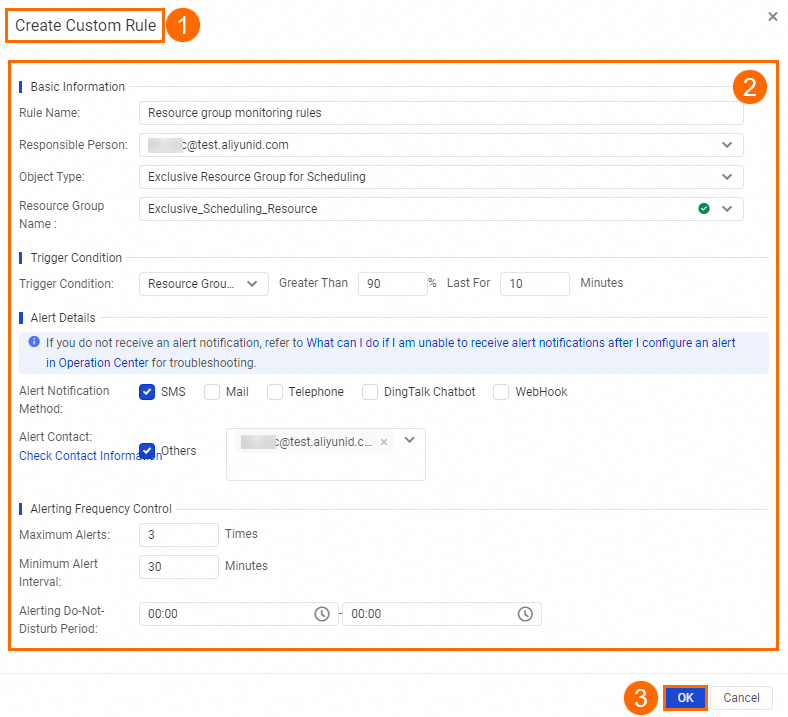 If the resource utilization of the
 Exclusive_Scheduling_Resourceresource group exceeds 90% for 10 consecutive minutes, theResource group monitoring rulesrule is triggered, and an alert is sent by text message to the recipient. A maximum of three alerts can be sent.
-
-
Create an automatic O&M rule based on the resource group monitoring rule.
-
In the left-side navigation pane, choose .
-
On the Rule Management tab, click Create Rule.
-
Configure the rule.
You can configure the rule based on your business requirements. For more information about the configuration, see Create an automatic O&M rule for a resource group.
In this example, a rule named
Automatic_testis created and associated with theResource group monitoring rulesmonitoring rule for the exclusive scheduling resource group. When theResource group monitoring rulesrule is triggered, DataWorks automatically performs an O&M operation on the instances in theAutomatic_testrule that meet the filter conditions. The following figure shows the configuration.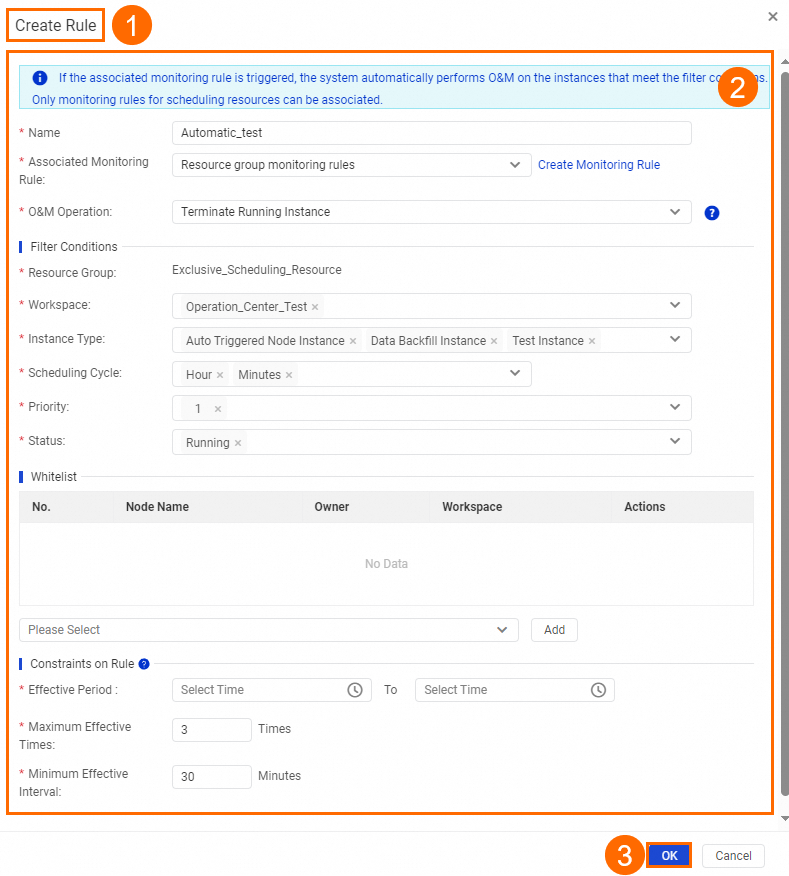 The following describes some of the parameters:
-
Associated Monitoring Rule: Currently, you can associate only a monitoring rule for an exclusive resource group for scheduling. You must create the required monitoring rule for the resource group in advance.
-
O&M Operation: Currently, only Terminate Running Instance is supported. After the O&M rule is triggered, DataWorks stops the instances that meet the filter conditions.
If the resource utilization of the
Exclusive_Scheduling_Resourceexclusive scheduling resource group exceeds 90% for 10 consecutive minutes, DataWorks stops the hourly and minute tasks that have a priority of 1 and are running on theExclusive_Scheduling_Resourceresource group in the specified workspace. These tasks can be recurring instances, test instances, or data backfill instances. -
-
O&M Operation Control (advanced)
Operation Center provides extension points for operations such as freezing a node, unfreezing a node, backfilling data, and taking a node offline. You can use these extension points together with an extension to customize task logic and O&M operations. For more information, see Extensions overview and Example: Check events that are triggered in Operation Center.
Next steps
You can configure Data Quality monitoring rules for the data generated by nodes to ensure the output meets your expectations. For more information, see Data Quality.