A map container is a container used to host the map itself and its sub-components in a basic flat map. You can add sub-components such as the regional thermal layer and point thermal layer, configure the location, color, and mouse interaction events of the map, and render real-time data of the geographic locations of cities across the country from multiple perspectives and in multiple forms. This topic describes the configuration items of the basic flat map container.
Lens Settings
Click in the upper-right corner of the
 Basic Flat Map 3.0 widget on the canvas or double-click the widget to go to the Lens Settings page.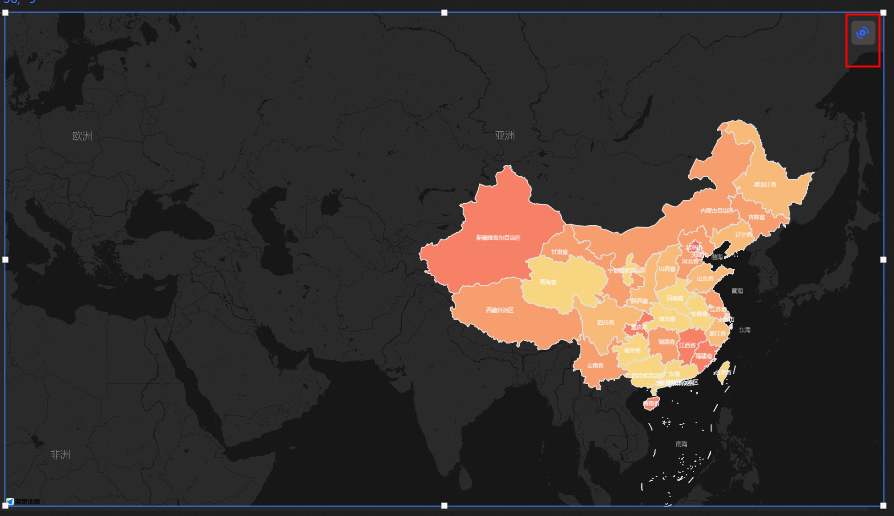
In the lens setting interface, you can freely change the lens angle of view of the map. After the change is completed, you need to save the set lens angle of view of the map.
There are several ways to change the angle of view of the map lens through the mouse:
Click the area of a province or municipality in the map to locate and zoom in on the area to the middle of the map.
Double-click a province or municipality region or a prefecture-level region in the map to drill down and zoom in on the region to the middle of the map.
Click and hold the left mouse button to pan the map by dragging.
Scroll the mouse wheel up and down to scale the size of the map.
After you set the map lens, click Save and Exit in the Lens Settings section to close the Lens Settings section.
NoteAfter exiting the lens setting interface, you can still re-enter to modify the map lens style. Every time you enter the lens setting page, if there is any change in the lens angle, you need to save it again.
Manage sub-components
Add a component
On the canvas, click the Basic Flat Map 3.0 widget. The Style tab appears on the right.
Click the
 icon to expand the subcomponent.
 In the left-side sub-layer panel, click to add one or more sub-components. After the component is added, the component appears in the Component Management list.
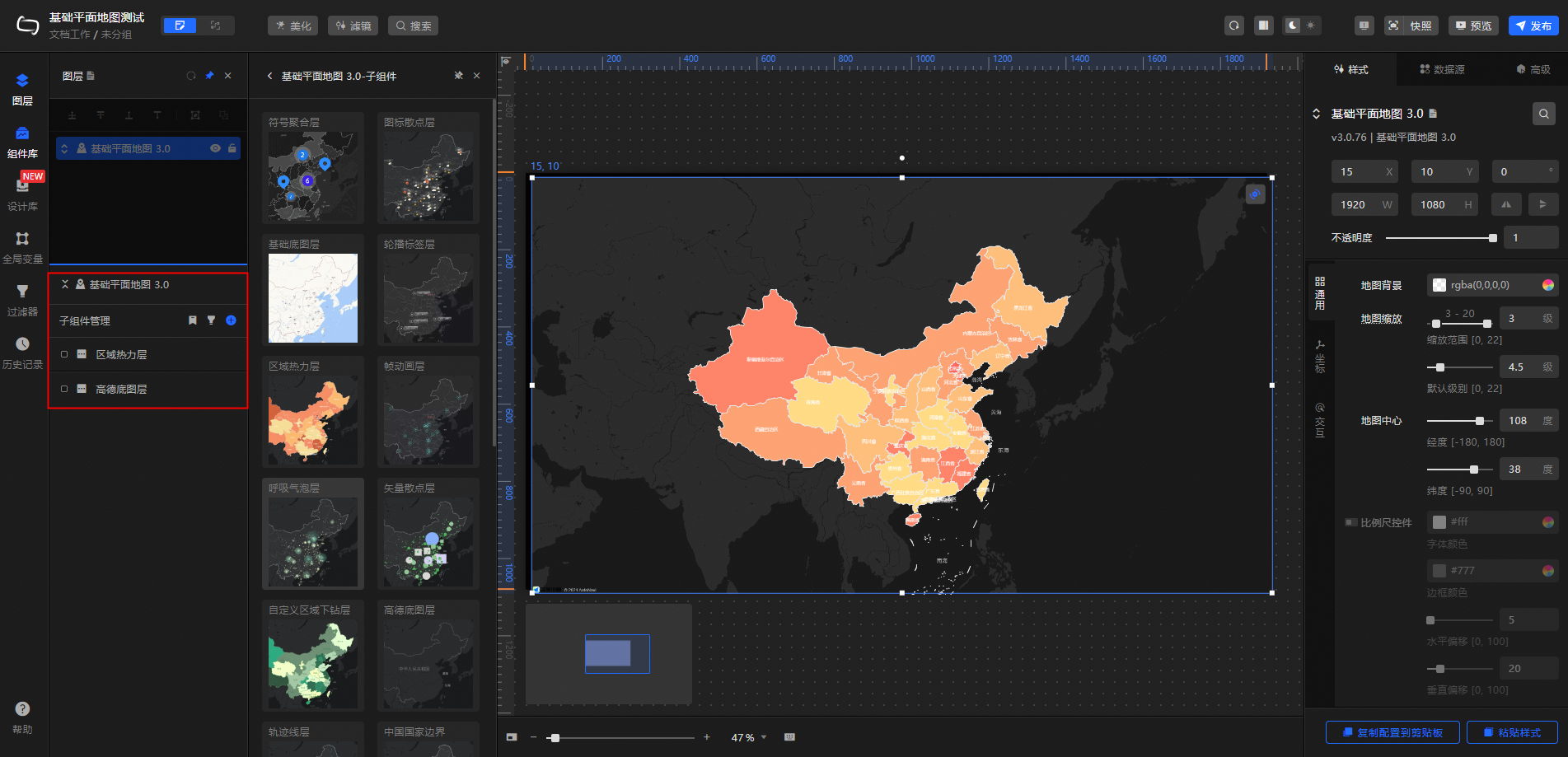
Click the added component and configure the component parameters.
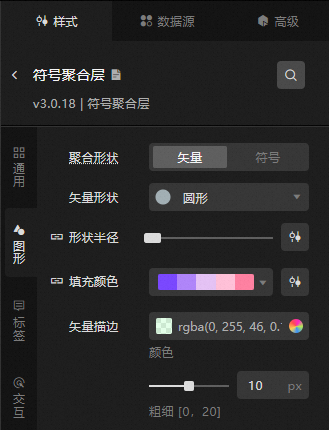
After the configuration is complete, click the
 icon to go back to the Basic Flat Map panel and configure other child components.
To copy, delete, and rename a component, right-click the component and select Copy or Delete. Double-click the subcomponent to rename it.
NoteFor more information about sub-widgets, see Manage map sub-widgets.
Style Panel 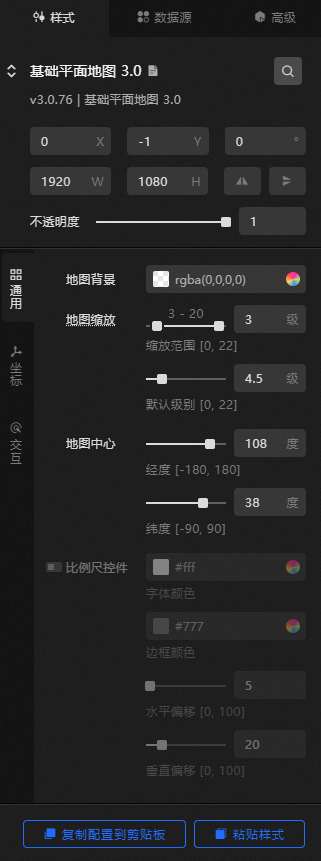
Search Configuration: Click the Search configuration items icon
 in the upper-right corner of the Style panel. In the Search Configuration panel, enter the name of the configuration items that you want to search for and locate the configuration items. Fuzzy match is supported. For more information, see Search configuration items.
 Size: the width and height of the widget. Unit: pixels.
Positioning: the x-axis and y-axis of the component. Unit: pixels. X-coordinate indicates the pixel distance between the upper-left corner of the widget and the left border of the canvas. Y-coordinate indicates the pixel distance between the upper-left corner of the widget and the upper border of the canvas.
Rotate: The widget is rotated around the center of the widget. Unit: degrees.
Directly enter the degrees in the Rotation Angle spin box or click the plus sign (+) or minus sign (-) to increase or decrease the value in the Rotation Angle spin box.
Click the
 icon to flip the widget style.
 Click the
 icon to flip the widget style.
Opacity: Valid values: 0 to 1. If this parameter is set to 0, the widget is hidden. If this parameter is set to 1, the widget is completely displayed. Default value: 1.
General: the general configuration of the map container.
Metric
description
Map background
The background color of the map. For more information, see color picker.
Map Zoom
Controls the zoom range and default level of the map's parent container.
Zoom Range: The zoom range controls the parent container only within the zoom range. Valid values: 0 to 22.
Default Level: The default level of the parent container. The default level must be within the zoom range. Valid values: 0 to 22.
NoteThe map zoom supports fractional zoom. The zoom level controls that the parent container can only operate within the zoom range; the default level sets the default display level of the parent container, which needs to be set within the zoom range.
Map Center
The latitude and longitude of the center of the map.
scale ruler
Click the icon to the right of the
 scale ruler to display the scale ruler on the map. When on, you can adjust the font color, border color, and offset values in the horizontal and vertical directions of the scale ruler.
 You can also configure the data source to change the map center point and zoom level.
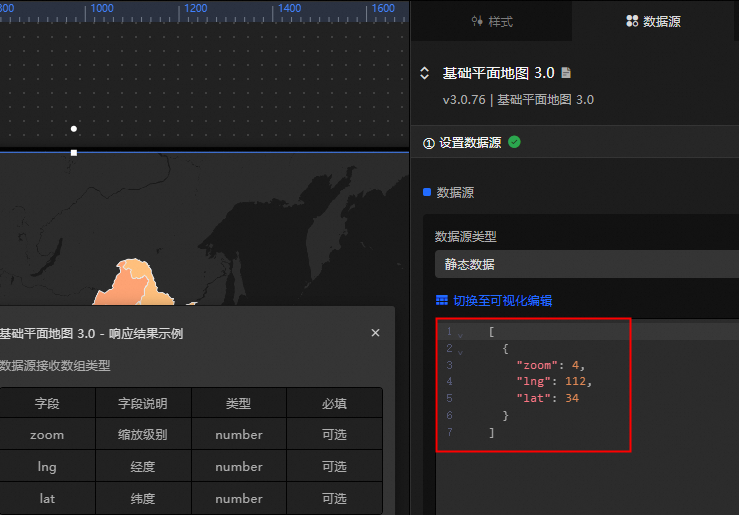 Note
NoteIf you want to locate the map area of another province, you must use the regional thermal layer (V3.x) or custom regional drill-down layer (V3.x).
Coordinate: the coordinate system type of the map. You can select Universal Coordinate or Custom.
Metric
description
General Coordinates
Common coordinates include EPSG3857, EPSG3395, EPSG4326, and BD09. By default, the system sets the common coordinate system to EPSG3857. If you change the common coordinate system to another type, the URL of the tile corresponding to the base layer needs to be reset.
user-defined
You can customize the coordinate system, including the EPSG, proj parameters, longitude origin, latitude origin, and resolution. For more information about custom coordinate systems, see Custom coordinate system maps.
Interactive: Set the parameters for the interactive map feature.
Metric
description
Map interaction
Turn on the switch to enable the map interaction feature. On the Preview or Publish page, you can click to focus on an area and view the data configuration information of the area.
Drag interaction
Turn on the switch to enable the map dragging feature. On the Preview or Publish page, you can click and drag the map.
Zoom interaction
Turn on the switch to enable the map zoom function. Under the preview or publish page, you can scroll the mouse wheel to zoom the map.
infinite scaling
If you turn on the switch, the map zooming function is smoother. If you turn off the switch, the map zooming performance is higher.
Data Sources panel 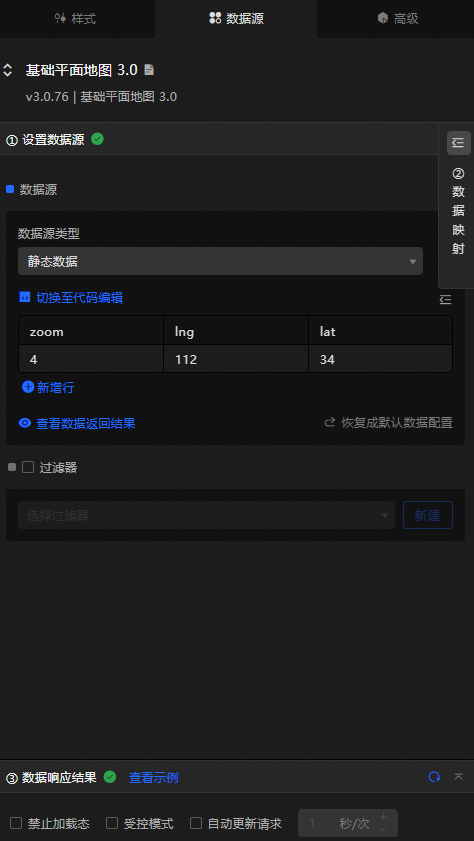
Column | Description |
| Optional. The zoom level of the map. This value corresponds to the Map Zoom tab. If both are configured, DataV preferentially uses the configuration in the data. |
| Optional. The longitude of the map center. This parameter corresponds to the Map Center Longitude parameter in the configuration panel. If both are configured, DataV preferentially uses the configuration in the data. |
| Optional. The latitude of the map center, which corresponds to the Map Center Latitude in the configuration panel. If both are configured, DataV preferentially uses the configuration in the data. |
Configure data items | Description |
Data sources | You can use the code editor or visual editor to view the data fields contained in the widget. You can also modify the data type to flexibly configure the component data. |
Data Mapping | If you need to customize chart field configurations, you can set different field mapping content in the Data Mapping module and field mapping these content to the corresponding fields of the widget. This allows you to match data without modifying the fields in the data source. You can also click the |
Configure a filter | Turn on Filter, select an existing data filter or create a data filter, and configure a data filter script to filter data. For more information, see Manage data filters. |
Data Response Result | The Data Response Result section displays widget data in real time. If the data source of the widget changes, this section displays the latest data. If the system response is delayed, you can click the |
Forbid Loading | If you select the check box, you will not see the loaded content during component initialization when you update the component and preview the data kanban. If you select the check box, the opposite is true. By default, the status is deselected. |
Controlled Mode | If you select the check box, the component does not request data in the initialized state, and only requests data by using global variables or the method configured in Blueprint Editor. If you clear the check box, you can use automatic update to request data. By default, the status is deselected. |
Auto Data Request | Select the check box to manually enter the time frequency of polling to set dynamic polling. If you clear the page, the page is not automatically updated. You need to manually refresh the page or use Blueprint Editor and global variable events to trigger a request to update data. |
 icon to configure the field style.
  icon on the right to view the data response result. You can also click the
  icon on the right to obtain the latest data of the widget. You can also click View Example to view an example of the response result of the current component.
 Advanced Panel 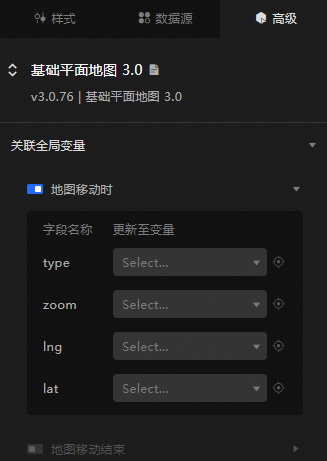
Turn on the switch to enable the widget interaction feature. The custom variable value is thrown when the map is moved and when the map is moved. For more information, see Component interaction configuration.
Blueprint Interaction
Click the
 icon in the upper-left corner to go to the Blueprint page.
 On the Layer Nodes tab, add the widget to the main canvas.
View blueprint configuration parameters.
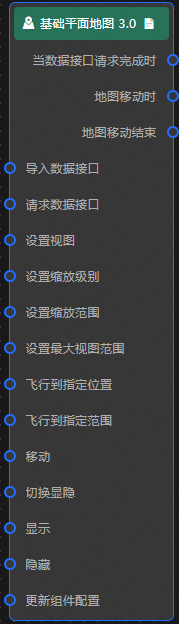
Event
Event
Description
When the data interface request is completed
The event is triggered with the processed JSON data after a data interface request is responded and processed by a filter. For more information about specific data examples, see the Data Response Result section of the Data Source tab in the right-side configuration panel of the canvas editor.
When the map moves
The event that is raised when the center point of the map is moved. For more information, see the sample data.
{
  // The latitude. Valid values:[-90,90].
  lat: 38.5714
  // Longitude, range:[-180, 180]
  lng: 106.5306
  // The zoom level.
  zoom: 4.3
  // mouse: the mouse operation. setView: sets the view. updateOptions: modifies the style.
  // setZoom: sets the zoom level; flyTo: flies to the specified position; flyToBounds: flies to the specified range;
  type: "mouse"// The trigger type
Map moving end
The event that is raised when the center point of the map is moved. For more information, see the sample data.
{
  // The latitude. Range:[-90,90].
  lat: 38.5714
  // Longitude, range:[-180, 180]
  lng: 106.5306
  // The zoom level.
  zoom: 4.3
  // mouse: the mouse operation. setView: sets the view. updateOptions: modifies the style.
  // setZoom: sets the zoom level; flyTo: flies to the specified position; flyToBounds: flies to the specified range;
  type: "mouse"// The trigger type
Action
Action
Description
Import data
After data of a widget is processed in accordance with its drawing format, the widget is imported for redrawing. You do not need to request server data again. For more information about specific data examples, see the Data Response Result section of the Data Source tab in the right-side configuration panel of the canvas editor.
Request Data Interface
This action is performed to request the server data again. The data sent by an upstream data processing node or layer node is used as a parameter. For example, if the basic flat map is configured with the API data source as
https://api.testand the data passed to the request data interface as{ id: '1'}, the final request interface ishttps://api.test?id=1.Set View
Set the map center point and zoom level of the map view. Refer to the data example.
{
  // The zoom level, which must be within the set zoom level range.
  "zoom":4.5,
  // Longitude range:[-180,180]
  "lng":108,
  // Latitude range:[-180,180]
  "lat":38
}
Set Zoom Level
Set the zoom level of the map. For more information, see the data example.
{
  // The zoom level, which must be within the set zoom level range.
  "zoom":4.5
}
Set Zoom Range
Set the level zoom range of the map. For more information, see the data example.
{
  // Zoom level range: [minimum level, maximum level].
  "range":[3,18]
}
Set the maximum view range
Set the coordinate range of the maximum view of the map. For more information, see the data example.
{
// Coordinate range:[[minimum latitude, minimum longitude],[maximum latitude, maximum longitude]]
"bounds":
	[
    [0,72],
    [53,138]
  ]
}
Fly to the designated position
Set the latitude and longitude and zoom level of the flight to the specified location point and the time interval for the flight. For more information, see the sample data.
{
  // The zoom level, which must be within the set zoom level range.
  "zoom": 4.5,
  // Longitude range:[-180,180]
  "lng": 108,
  // Latitude range:[-90,90]
  "lat": 38,
  // gap. Unit: seconds.
  "duration": 0.25
}
Fly to Specified Range
Set the coordinate range and flight gap for flying to the specified range. Refer to the data example.
{
  // Coordinate range:[[minimum latitude, minimum longitude],[maximum latitude, maximum longitude]]
  "bounds":
  [
    [0,72],
    [53,138]
  ],
  // The time interval. Unit: seconds.
  "duration": 0.25
}
Move
Move a widget to a specified location. For more information, see the data example.
    {
      // The positioning type. to indicates absolute positioning, whereas by indicates relative positioning. The default value is to.
        "positionType": "to",
      // The location, which is indicated by the x and y coordinates.
      "attr": {
        "x": 0,
        "y": 0
      },
      // The animation type.
      "animation": {
        "enable": false,
        // The animation delay. Unit: milliseconds.
        "animationDuration": 1000,
        // The animation curve, which can be set to linear|easeInOutQuad|easeInOutExpo.
        "animationEasing": "linear"
      }
    }
Switch Display /Display
Specifies whether to show or hide a widget. No parameters are required.
Display
Display the widget. For more information, see Data example.
{
  "animationType": "",// The animation method. Valid value: fade. If you do not specify this parameter, no animation is generated.
  "animationDuration": 1000,// The animation delay. Unit: ms.
  "animationEasing": ""// animation curve
}
Hide
Hide the component. For more information, see Data example.
{
  "animationType": "",// The animation method. Valid value: fade. If you do not specify this parameter, no animation is generated.
  "animationDuration": 1000,// The animation delay. Unit: ms.
  "animationEasing": ""// animation curve
}
Update component configurations
Style configurations of widgets are dynamically updated. In the Style panel, click Copy Configuration to Clipboard to obtain the configuration data of the widget. After that, change the style field for the data processing node in Blueprint Editor.