DataV provides an Assets category in the Design Library panel with a large collection of high-quality design assets. You can add these assets to the canvas editor and swap them for other design resources using the change feature.
Procedure
Access the DataV console.
-
On the Workbench page, select a data dashboard and click Edit to open the canvas editor.
-
In the navigation pane on the left, click the Design Library tab.
-
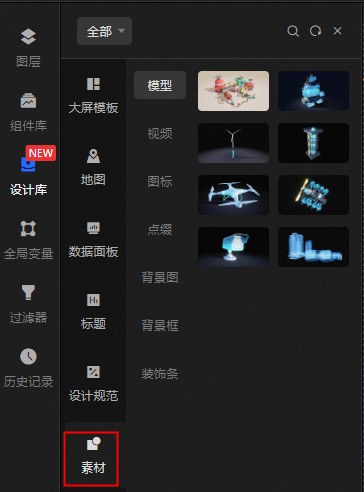
Click the Assets module on the left to open the Content Classification panel.
-
In the categorization panel of the Assets module, preview the official DataV design assets. These assets are updated periodically.
NoteDesign assets are updated periodically. After an update, a small red dot appears in the upper-right corner of an asset's icon.
-
The secondary panel in the Assets module contains seven asset types: Models, Videos, Icons, Embellishments, Background Images, Background Frames, and Decorative Strips. In the tertiary panels for the Icons, Embellishments, Background Frames, and Decorative Strips asset types, you can click the drop-down list to select an asset list.
-
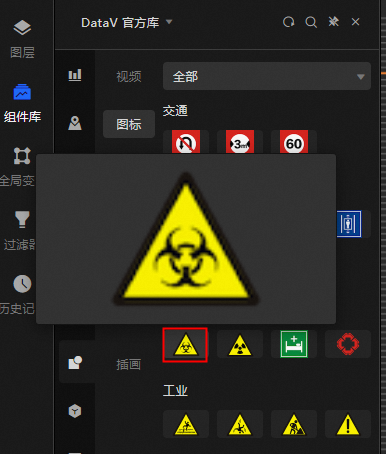
Click a resource component in the Assets panel or drag it to the canvas editor to add the component to the canvas.
NoteYou can hover over a resource component in the Assets panel to zoom in and preview its content before you add it.
-
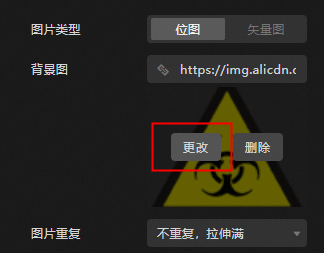
Click the component on the canvas. In the configuration panel on the right, click the configuration item for the associated design resource feature. For example, you can hover over the current background image and click Change to replace the asset.
 Note
NoteAvailable configuration items vary by resource component. Refer to the interface for the available options.
-
In the Select Resource To Change dialog box, select a design resource of the same type to update the configuration item. For more information, see Use interface features.
You can also go to the Resource Management module in the product workbench and manage design resources in the current workspace from the Design Resources panel. For more information, see Create and manage design resources.
-
(Optional) After you add an asset to the canvas, customize its position, scaling, style, data source configuration, and blueprint configuration. For more information, see Configuration item description.