When a dashboard contains design resources, you can switch between official and custom resources, search for resources, sort resources, and update configuration items for images, videos, and models.
Introduction to Using the Design Resources Interface Features
The Design Resource Usage interface provides the following features: 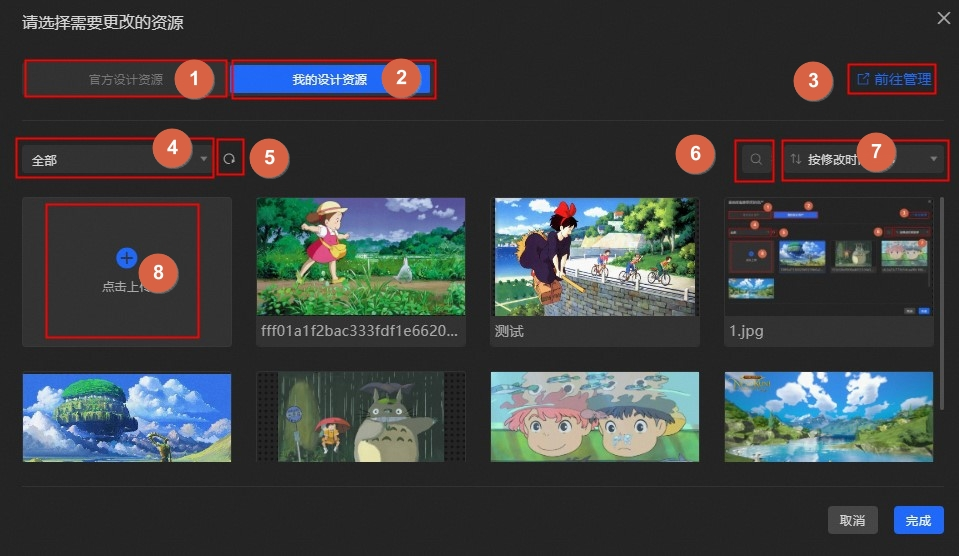
|
No. |
Description |
Remarks |
|
1 |
Use official design resources |
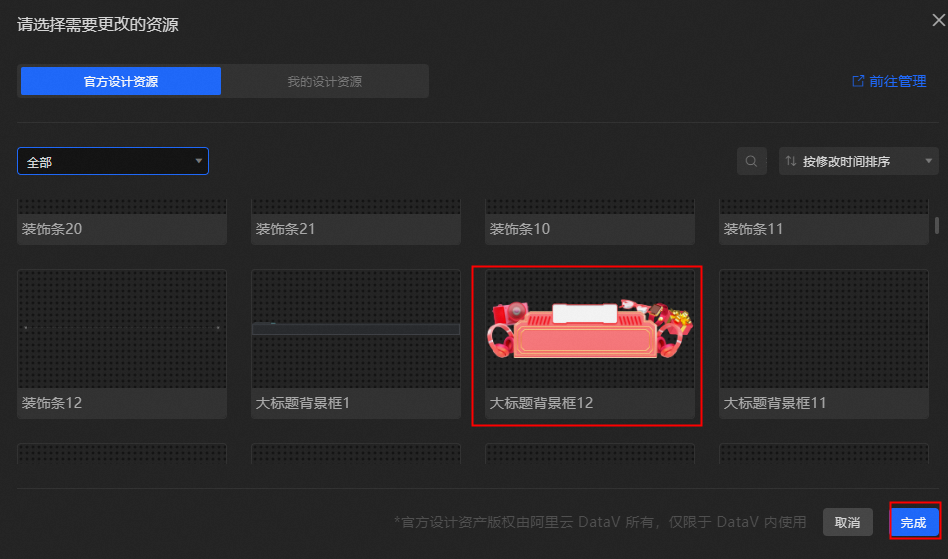
Click Official Design Resources in the dialog box to switch to the Official Design Resources panel, select a design resource, and then click Finish in the lower-right corner. |
|
2 |
Use My Design Resources |
Click My Design Resources in the dialog box to switch to the Custom Design Resources panel, select a custom design resource, and then click Finish in the lower-right corner. |
|
3 |
Go to the Design Resource Management page |
Click Go to Management in the upper-right corner of the dialog box to open the Resource Management page, where you can manage uploaded resources. For more information, see Manage resources. |
|
4 |
Group switching |
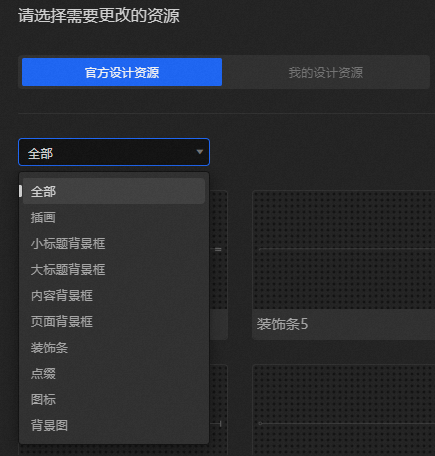
Select a group from the Group drop-down list to filter the displayed design resources. By default, all resources are displayed.
|
|
5 |
Refresh Design Resources |
Click My Design Resources in the dialog box, and then click the |
|
6 |
Search for design resources |
Enter the name or URL of a design resource in the search box to find matching resources. |
|
7 |
Sorting Design Resources |
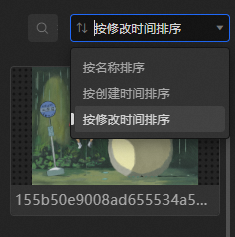
Select an option from the Sort drop-down list to sort design resources. Options include Sort by Creation Time, Sort by Modification Time, and Sort by Name. By default, resources are sorted by modification time in descending order. |
|
8 |
Upload design resources |
In the dialog box, click My Design Resources. In the Custom Resources panel, click the |
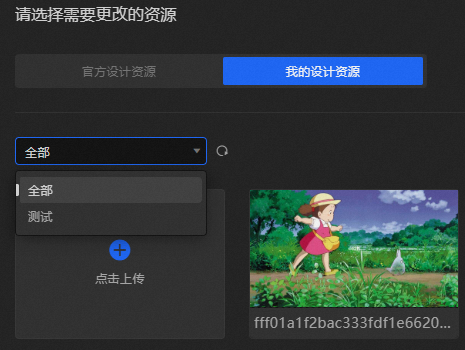
 icon in the Custom Resources panel to refresh all custom design resources. The resources are synchronized with those on the Resource Management page.
 icon to select and upload a design resource. Uploaded resources are placed in all resources by default and are not grouped. For more information about grouping, see
 Design resources and material linkage
All official design resources provided by DataV are available in the Materials section of Design Library in Canvas Editor. After you use a material in Canvas Editor, you can change its associated design resource from the configuration items of Associated Design Resources in the right-side configuration panel. For more information, see Use design resources.
When you change the design resource for a material, the Official Design Resources panel displays only resources of the same type as the material, not all official resources. For example, if the material belongs to the video category, only video design resources are displayed. This helps you quickly switch between visual elements of your material.