Container Compute Service (ACS) lets you deploy LLM inference services without managing GPU-accelerated nodes or configuring underlying hardware. All configurations are ready to use out of the box, and billing is pay-as-you-go. This topic describes how to deploy a QwQ-32B inference service on ACS using vLLM, and how to access it through Open WebUI.
Background
QwQ-32B
vLLM
Open WebUI
Prerequisites
Before you begin, make sure that you have:
Assigned default roles to ACS with your Alibaba Cloud account (required for first-time ACS users). ACS uses these roles to access Elastic Compute Service (ECS), Object Storage Service (OSS), Apsara File Storage NAS (NAS), Cloud Parallel File Storage (CPFS), and Server Load Balancer (SLB) to create clusters and store log files. See Quick start for first-time ACS users.
A kubectl client connected to the cluster. See Obtain the kubeconfig file of a cluster and use kubectl to connect to the cluster.
GPU instance specification and estimated cost
GPU memory is consumed by model parameters during inference. Use the following formula to estimate requirements:
*GPU memory = 32 × 10^9 × 2 bytes ≈ 59.6 GiB*
The calculation uses the model's 32 billion parameters at 16-bit floating-point precision (2 bytes per value). Beyond loading the model weights, you also need GPU memory for the KV cache and GPU utilization headroom. The suggested specification is 1 GPU with 80 GiB of memory, 16 vCPUs, and 128 GiB of memory. For a full list, see the Table of suggested specifications and GPU models and specifications. For billing details, see Billing overview.
Make sure that the specification complies with ACS pod specification adjustment logic.
By default, an ACS pod provides 30 GiB of free ephemeral storage. The inference image inference-nv-pytorch:25.02-vllm0.7.2-sglang0.4.3.post2-pytorch2.5-cuda12.4-20250305-serverless is 9.5 GiB in size. If you need more storage space, customize the ephemeral storage size. See Add the EphemeralStorage.
Deploy QwQ-32B on ACS
Submit a ticket to copy the QwQ-32B model files (~120 GiB) directly to your OSS bucket, bypassing the 2–3 hour download and upload process. You can also use the ticket to check supported GPU models.
GPU model: Replace<example-model>in thealibabacloud.com/gpu-model-series: <example-model>label with your actual GPU model. See Specify GPU models and driver versions for ACS GPU-accelerated pods.
RDMA: RDMA (Remote Direct Memory Access) uses zero-copy and kernel bypass to reduce latency and CPU usage while increasing throughput compared to TCP/IP. Add the alibabacloud.com/hpn-type: "rdma" label to enable RDMA. For supported GPU models, submit a ticket or see High-performance RDMA networks.Step 1: Prepare model data
Large model files require persistent storage to avoid re-downloading on pod restarts. Storing the QwQ-32B model (~120 GiB) in OSS separates storage from compute, simplifies model updates, and eliminates time-consuming downloads at startup. The model is mounted directly into the inference container at runtime.
Download the QwQ-32B model.
Check whether the git-lfs plugin is installed. If not, run
yum install git-lfsorapt-get install git-lfsto install it. See Install git-lfs.git lfs install GIT_LFS_SKIP_SMUDGE=1 git clone https://huggingface.co/Qwen/QwQ-32B.git cd QwQ-32B git lfs pullCreate an OSS directory and upload the model files. Uploading ~120 GiB typically takes 2–3 hours.
To install and use ossutil, see Install ossutil.
ossutil mkdir oss://<your-bucket-name>/models/QwQ-32B
ossutil cp -r ./QwQ-32B oss://<your-bucket-name>/models/QwQ-32B
Create a PersistentVolume (PV) and PersistentVolumeClaim (PVC) named
llm-model. For more information, see Mount a statically provisioned OSS volume.Use the console
The following table lists the parameters for creating the PV.
Parameter Value PV Type OSS Volume Name llm-model Access Certificate The AccessKey ID and AccessKey secret for accessing the OSS bucket Bucket ID The OSS bucket you created OSS Path The model path, such as /models/QwQ-32BThe following table lists the parameters for creating the PVC.
Parameter Value PVC Type OSS Volume Name llm-model Allocation Mode Existing Volumes Existing Volumes Select the PV you created Use kubectl
Apply the following YAML manifest:
apiVersion: v1
kind: Secret
metadata:
  name: oss-secret
stringData:
  akId: <your-oss-ak>      # The AccessKey ID used to access the OSS bucket.
  akSecret: <your-oss-sk>  # The AccessKey secret used to access the OSS bucket.
---
apiVersion: v1
kind: PersistentVolume
metadata:
  name: llm-model
  labels:
    alicloud-pvname: llm-model
spec:
  capacity:
    storage: 30Gi
  accessModes:
    - ReadOnlyMany
  persistentVolumeReclaimPolicy: Retain
  csi:
    driver: ossplugin.csi.alibabacloud.com
    volumeHandle: llm-model
    nodePublishSecretRef:
      name: oss-secret
      namespace: default
    volumeAttributes:
      bucket: <your-bucket-name>      # The name of the OSS bucket.
      url: <your-bucket-endpoint>     # The endpoint, such as oss-cn-hangzhou-internal.aliyuncs.com.
      otherOpts: "-o umask=022 -o max_stat_cache_size=0 -o allow_other"
      path: <your-model-path>         # The model path, such as /models/QwQ-32B/.
---
apiVersion: v1
kind: PersistentVolumeClaim
metadata:
  name: llm-model
spec:
  accessModes:
    - ReadOnlyMany
  resources:
    requests:
      storage: 30Gi
  selector:
    matchLabels:
      alicloud-pvname: llm-model
Step 2: Deploy the model
Deploy the QwQ-32B inference service using vLLM. The Deployment mounts the OSS-backed PVC to /models/QwQ-32B and starts the vLLM server, which exposes an OpenAI-compatible HTTP API on port 8000.
egslingjun-registry.cn-wulanchabu.cr.aliyuncs.com/egslingjun/{image:tag} is a public image address. To speed up image pulls, use VPC to accelerate the pulling of AI container images.kubectl apply -f- <<EOF
apiVersion: apps/v1
kind: Deployment
metadata:
labels:
app: qwq-32b
alibabacloud.com/compute-class: gpu
alibabacloud.com/gpu-model-series: <example-model>
alibabacloud.com/hpn-type: "rdma"
name: qwq-32b
namespace: default
spec:
replicas: 1
selector:
matchLabels:
app: qwq-32b
template:
metadata:
labels:
app: qwq-32b
alibabacloud.com/compute-class: gpu
alibabacloud.com/gpu-model-series: <example-model>
spec:
volumes:
- name: model
persistentVolumeClaim:
claimName: llm-model
- name: dshm
emptyDir:
medium: Memory
sizeLimit: 30Gi
containers:
- command:
- sh
- -c
- vllm serve /models/QwQ-32B --port 8000 --trust-remote-code --served-model-name qwq-32b --max-model-len 32768 --gpu-memory-utilization 0.95 --enforce-eager
image: egslingjun-registry.cn-wulanchabu.cr.aliyuncs.com/egslingjun/inference-nv-pytorch:25.02-vllm0.7.2-sglang0.4.3.post2-pytorch2.5-cuda12.4-20250305-serverless
name: vllm
ports:
- containerPort: 8000
readinessProbe:
tcpSocket:
port: 8000
initialDelaySeconds: 30
periodSeconds: 30
resources:
limits:
nvidia.com/gpu: "1"
cpu: "16"
memory: 128G
volumeMounts:
- mountPath: /models/QwQ-32B
name: model
- mountPath: /dev/shm
name: dshm
---
apiVersion: v1
kind: Service
metadata:
name: qwq-32b-v1
spec:
type: ClusterIP
ports:
- port: 8000
protocol: TCP
targetPort: 8000
selector:
app: qwq-32b
EOFThe key vLLM parameters used in the command above:
| Parameter | Description |
|---|---|
--port 8000 | Port on which the vLLM server listens |
--trust-remote-code | Allows the model to run custom code from the model repository |
--served-model-name qwq-32b | The model name used in API requests |
--max-model-len 32768 | Maximum token sequence length (input + output). Increase for longer contexts, at the cost of higher GPU memory usage |
--gpu-memory-utilization 0.95 | Fraction of GPU memory reserved for the model and KV cache. Reserving 5% prevents out-of-memory errors |
--enforce-eager | Disables CUDA graph capture and runs in eager mode. Reduces startup time and memory overhead |
Step 3: Deploy Open WebUI
Step 4: Verify the inference service
Set up port forwarding from your local machine to the Open WebUI service.
Port forwarding with
kubectl port-forwardis intended for development and debugging only—it is not reliable, secure, or scalable in production. For production networking in ACK clusters, see Ingress management.kubectl port-forward svc/openwebui 8080:8080Expected output:
Forwarding from 127.0.0.1:8080 -> 8080
Forwarding from [::1]:8080 -> 8080
Open
http://localhost:8080in a browser and log in to Open WebUI. The first login requires you to create an administrator username and password. After logging in, enter a prompt to verify that the model responds correctly.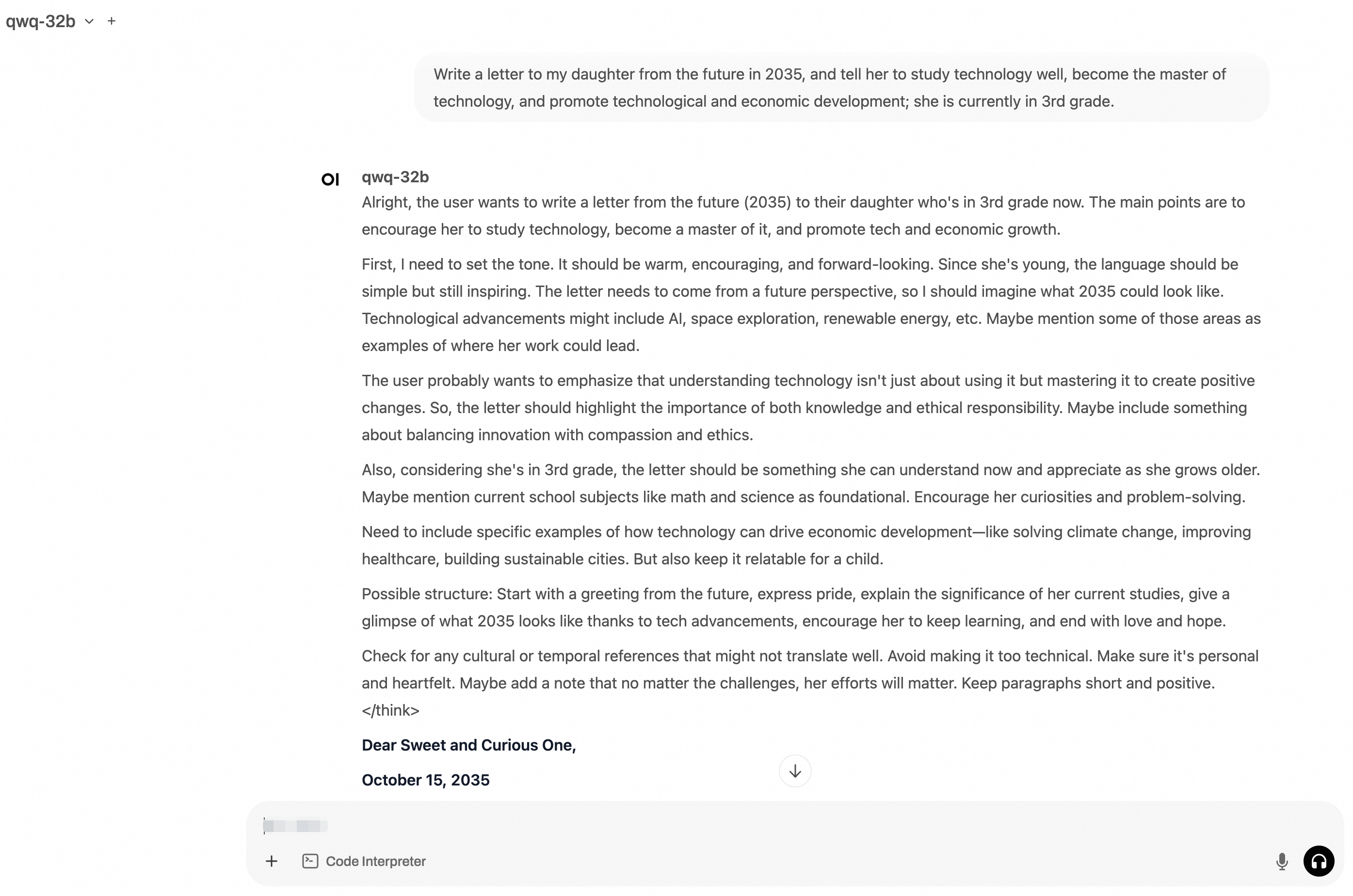
(Optional) Step 5: Run stress tests
The stress test dataset is downloaded from the internet. Make sure the pod has internet access. See Enable internet access for an ACS cluster or Mount an independent EIP for pods.
Deploy the benchmark tool.
kubectl apply -f- <<EOF
apiVersion: apps/v1
kind: Deployment
metadata:
  name: vllm-benchmark
  labels:
    app: vllm-benchmark
spec:
  replicas: 1
  selector:
    matchLabels:
      app: vllm-benchmark
  template:
    metadata:
      labels:
        app: vllm-benchmark
    spec:
      volumes:
      - name: llm-model
        persistentVolumeClaim:
          claimName: llm-model
      containers:
      - name: vllm-benchmark
        image: kube-ai-registry.cn-shanghai.cr.aliyuncs.com/kube-ai/vllm-benchmark:v1
        command:
        - "sh"
        - "-c"
        - "sleep inf"
        volumeMounts:
        - mountPath: /models/QwQ-32B
          name: llm-model
EOF
Log in to the benchmark pod and download the test dataset.
# Log in to the benchmark pod.
PODNAME=$(kubectl get po -o custom-columns=":metadata.name"|grep "vllm-benchmark")
kubectl exec -it $PODNAME -- bash

# Download the stress test dataset.
pip3 install modelscope
modelscope download --dataset gliang1001/ShareGPT_V3_unfiltered_cleaned_split ShareGPT_V3_unfiltered_cleaned_split.json --local_dir /root/
Run the stress test. The following command tests with input_length=4096, output_length=512, concurrency=8, and num_prompts=80.
Metric Value Description Request throughput 0.17 req/s Completed requests per second Output token throughput 85.11 tok/s Generated tokens per second Total token throughput 790.18 tok/s Input + output tokens per second Mean TTFT 10,315.97 ms Average latency before the first token is generated Mean TPOT 71.03 ms Average time to generate each output token after the first Mean ITL 71.02 ms Average time between consecutive tokens python3 /root/vllm/benchmarks/benchmark_serving.py \ --backend vllm \ --model /models/QwQ-32B \ --served-model-name qwq-32b \ --trust-remote-code \ --dataset-name random \ --dataset-path /root/ShareGPT_V3_unfiltered_cleaned_split.json \ --random-input-len 4096 \ --random-output-len 512 \ --random-range-ratio 1 \ --num-prompts 80 \ --max-concurrency 8 \ --host qwq-32b-v1 \ --port 8000 \ --endpoint /v1/completions \ --save-result \ 2>&1 | tee benchmark_serving.txtExpected output:
Starting initial single prompt test run...
Initial test run completed. Starting main benchmark run...
Traffic request rate: inf
Burstiness factor: 1.0 (Poisson process)
Maximum request concurrency: 8
100%|██████████| 80/80 [07:44<00:00,  5.81s/it]
============ Serving Benchmark Result ============
Successful requests:                     80
Benchmark duration (s):                  464.74
Total input tokens:                      327680
Total generated tokens:                  39554
Request throughput (req/s):              0.17
Output token throughput (tok/s):         85.11
Total Token throughput (tok/s):          790.18
---------------Time to First Token----------------
Mean TTFT (ms):                          10315.97
Median TTFT (ms):                        12470.54
P99 TTFT (ms):                           17580.34
-----Time per Output Token (excl. 1st token)------
Mean TPOT (ms):                          71.03
Median TPOT (ms):                        66.24
P99 TPOT (ms):                           95.95
---------------Inter-token Latency----------------
Mean ITL (ms):                           71.02
Median ITL (ms):                         58.12
P99 ITL (ms):                            60.26
==================================================
Key metrics:
(Optional) Step 6: Clean up
Delete all workloads and storage resources when the inference service is no longer needed.
Delete the inference workloads and services.
kubectl delete deployment qwq-32b
kubectl delete service qwq-32b-v1
kubectl delete deployment openwebui
kubectl delete service openwebui
kubectl delete deployment vllm-benchmark
Delete the PV and PVC.
kubectl delete pvc llm-model
kubectl delete pv llm-model
Expected output:
persistentvolumeclaim "llm-model" deleted
persistentvolume "llm-model" deleted
What's next
ACS is integrated into Container Service for Kubernetes (ACK). See Use the GPU container compute power of ACS in ACK Pro clusters.
Use ACS GPU compute power to deploy a model inference service from a DeepSeek distilled model
Use ACS GPU compute power to deploy a model inference service based on the DeepSeek full version
For release notes on ACS AI container images, see Release notes for ACS AI container images.