This guide walks you through creating an ACK Serverless cluster, deploying an NGINX application from a container image, and accessing the application through a public endpoint.
Prerequisites
Before you begin, complete the following:
Activate ACK and authorize it to access Alibaba Cloud services
Activate Elastic Container Instance (ECI) in the Elastic Container Instance console
Step 1: Create an ACK Serverless cluster
This section covers only the key parameters. For a complete reference, see Create an ACK Serverless cluster.
Configure cluster settings
Log on to the ACK console. In the left-side navigation pane, click Clusters.
On the Clusters page, click Create Kubernetes Cluster.
Click the ACK Serverless tab and configure the following parameters.
| Parameter | Description | Example |
|---|---|---|
| Cluster Name | The name of the cluster. | ask-hangzhou |
| Cluster Specification | The cluster edition. Select Pro. ACK Pro clusters are recommended for production and test environments. | Standard edition |
| Region | The region for the cluster. A region closer to your users reduces network latency and improves access speed. | China (Hangzhou) |
| VPC | The Virtual Private Cloud (VPC) for the cluster. Specify a zone to automatically create a VPC, or select an existing VPC. | Select Existing VPC |
| Configure SNAT for VPC | Allows instances in the VPC to access the internet. When selected, ACK configures SNAT automatically. See the SNAT behavior details below this table. | Configure SNAT for VPC |
| vSwitch | Select an existing vSwitch or click Create vSwitch. For high availability, select multiple vSwitches in different zones. The control plane and the default node pool use the selected vSwitch. | vsw-uf6x420ebylcwqclw\*\*\*\*,vsw-uf6qbh0tfvfuco0q7\*\*\*\* |
| Security Group | Options: Create Basic Security Group, Create Advanced Security Group, or Select Existing Security Group. The Select Existing Security Group option is available only when VPC is set to Select Existing VPC. See the security group details below this table. | Create Advanced Security Group |
| Service CIDR | The CIDR block for cluster Services. This value cannot be changed after the cluster is created. The CIDR block must not overlap with the VPC CIDR block, ACK cluster CIDR blocks in the VPC, or the pod CIDR block. For more information, see Network planning of an ACK managed cluster. | 172.21.0.0/20 |
| Access To API Server | An internal-facing SLB instance is created by default for the Kubernetes API server. You can modify the specification of the SLB instance. For more information, see Specification. Select or clear Expose API Server with EIP. See the API server access details below this table. | Expose API Server with EIP |
SNAT behavior when Configure SNAT for VPC is selected:
No NAT Gateway exists: ACK creates a NAT Gateway and configures switch-level SNAT rules for all switches used by the cluster.
NAT Gateway exists but no VPC-level SNAT rules: ACK configures switch-level SNAT rules automatically.
VPC-level SNAT rules already exist: No action is taken.
If you do not select this check box, manually configure a NAT Gateway and SNAT rules after cluster creation. For more information, see Create and manage an Internet NAT gateway.
When using VPC sharing, do not select this option.
Security group details:
Auto-created security groups allow all outbound traffic. Traffic to
100.64.0.0/10must be allowed because this CIDR block is used to access Alibaba Cloud services for image pulling and ECS information queries.If you select an existing security group, the system does not automatically configure security group rules. You must configure them manually. For more information, see Configure security groups for clusters.
API server access details:
Expose API Server with EIP selected: An Elastic IP Address (EIP) is created and associated with the SLB instance. The API server is exposed to the internet through port 6443. You can use kubeconfig files to connect to and manage the cluster over the internet.
Expose API Server with EIP cleared: No EIP is created. You can only connect to the cluster from within the VPC using kubeconfig files.
If you delete the internal SLB instance, you lose access to the Kubernetes API server.
For more information, see Expose the API server to the Internet.
Configure components
Click Next:Component Configurations in the lower-right corner of the page.
| Parameter | Description | Example |
|---|---|---|
| Service Discovery | Options: Disable, PrivateZone, or CoreDNS. PrivateZone resolves private domain names to IP addresses within one or more VPCs. CoreDNS is a flexible, scalable DNS server and the standard service discovery component in Kubernetes. | Disable |
| Ingress | Options: Do Not Install, Nginx Ingress, ALB Ingress, or MSE Ingress. Nginx Ingress provides routing based on Ingresses. ALB Ingress supports complex routing, automatic certificate discovery, and HTTP, HTTPS, and QUIC protocols. MSE Ingress integrates MSE cloud-native gateways with ACK for ingress traffic management. | Do Not Install |
| Monitoring Service | View predefined dashboards and metrics with Managed Service for Prometheus. You can also install the metrics-server component. For more information, see Managed Service for Prometheus. | Install metrics-server |
| Log Service | Enable Log Service. Select an existing project or create a new one. | Create Project |
| Knative | Enable Knative, a Kubernetes-based serverless framework that supports request-based auto scaling, scaling to zero, version management, and canary release. | Enable Knative |
Confirm and create
Click Next:Confirm in the lower-right corner of the page.
On the Confirm wizard page, read the Term of Service and click Create Cluster.
After the cluster is created, you can view it on the Clusters page. Locate the cluster and click Details in the Actions column. Then click the Basic Information and Connection Information tabs to view the cluster details.
Step 2: Create an application from an image
This section covers only the key parameters. For more information, see Create a stateless application from an image.
Configure basic information
In the left-side navigation pane of the cluster details page, choose Workloads > Deployments.
In the upper-right corner of the Deployments page, click Create from Image.
On the Basic Information wizard page, configure the following parameters.
| Parameter | Description | Example |
|---|---|---|
| Name | The name of the application. | serverless-app-deployment |
| Type | The resource type. Valid values: Deployment and StatefulSet. | Deployment |
Click Next.
Configure container settings
In the General section of the Container wizard page, configure the container settings.
| Parameter | Description | Example |
|---|---|---|
| Image Name | Click Select Image to choose an image, or enter the address of a private registry image. The image address format is domainname/namespace/imagename:tag. | In this example, an image stored on a Container Registry Personal Edition instance in the China (Hangzhou) region is used. |
| Image Version | Click Select Image Version to select a version. If you do not specify a version, the latest version is used. | In this example, no image version is specified. |
In the Ports section, click Add to configure a container port.
| Parameter | Description | Example |
|---|---|---|
| Name | The name of the container port. | nginx |
| Container Port | The container port to expose. Valid values: 1 to 65535. | 80 |
| Protocol | The protocol. Valid values: TCP and UDP. | TCP |
Click Next.
Configure advanced settings
In the Access Control section of the Advanced wizard page, click Create next to Services to configure a Service that exposes the backend pod. In the Create Service dialog box, configure the following parameters.
| Parameter | Description | Example |
|---|---|---|
| Name | The name of the Service. | serverless-app-svc |
| Type | The Service type, which determines how the Service is accessed. | Select Server Load Balancer. Then select Public Access and Create SLB Instance. Click Modify to change the SLB specification. The default specification is Small I (slb.s1.small). |
| Port Mapping | The Service port and container port. The container port must match the port exposed in the backend pod. | Service port: 8080, Container port: 80 |
The created Service appears in the Access Control section. You can click Update or Delete to modify it.
Click Create.
Access the NGINX application
On the Complete wizard page, click View Details. You can find serverless-app-deployment on the Deployments page.

Access the NGINX application:
In the left-side navigation pane of the cluster details page, choose Network > Services. On the Services page, locate the serverless-app-svc Service.

Click the address in the External Endpoint column to access the NGINX application in your browser.

You can also access an application by using an Ingress. For more information, see Access Services by using an ALB Ingress.
Step 3: View the pod
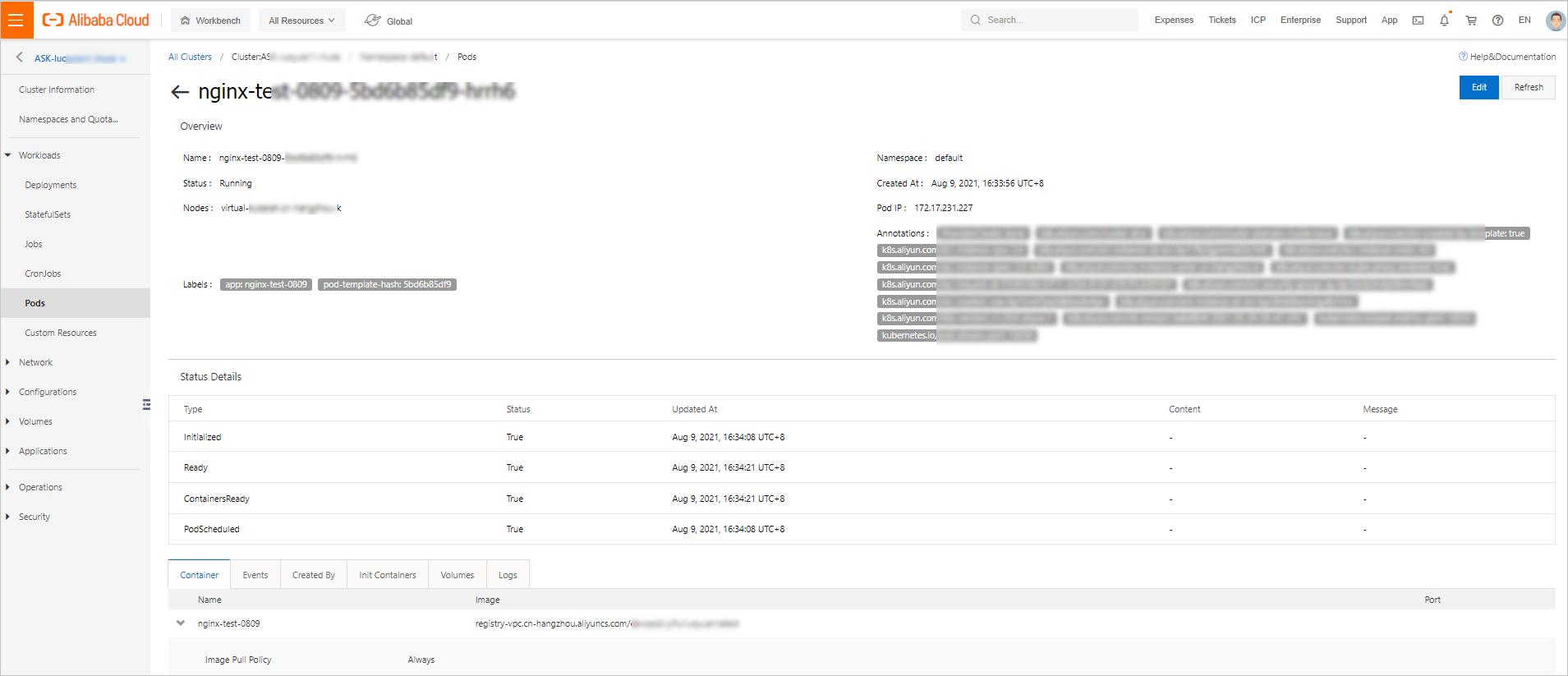
In the left-side navigation pane of the cluster details page, choose Workloads > Pods.
Select the pod you want to view and click Details in the Actions column.
Use templates to manage pods that were created by templates. Do not directly modify or delete these pods.
On the pod details page, view detailed information about the pod.
Next steps
Create a stateless application from an image for advanced Deployment configurations
Access Services by using an ALB Ingress for Ingress-based routing
Create an ACK Serverless cluster for a comprehensive reference of all cluster parameters