Create and manage marketing campaigns that trigger chat flows on schedule to message all contacts in an audience group.
Before you begin
-
A published chat flow. Use Chat Flow.
-
An audience group for target contacts. Groups.
-
If you need to use WhatsApp:
-
Register a WhatsApp Business Account (WABA) and bind the verified account to a channel.
-
If you need to use Viber:
-
Apply for a Viber Service ID and get it approved by Viber.
Create a marketing campaign
To create a campaign:
Log on to the Chat App Message Service console.
-
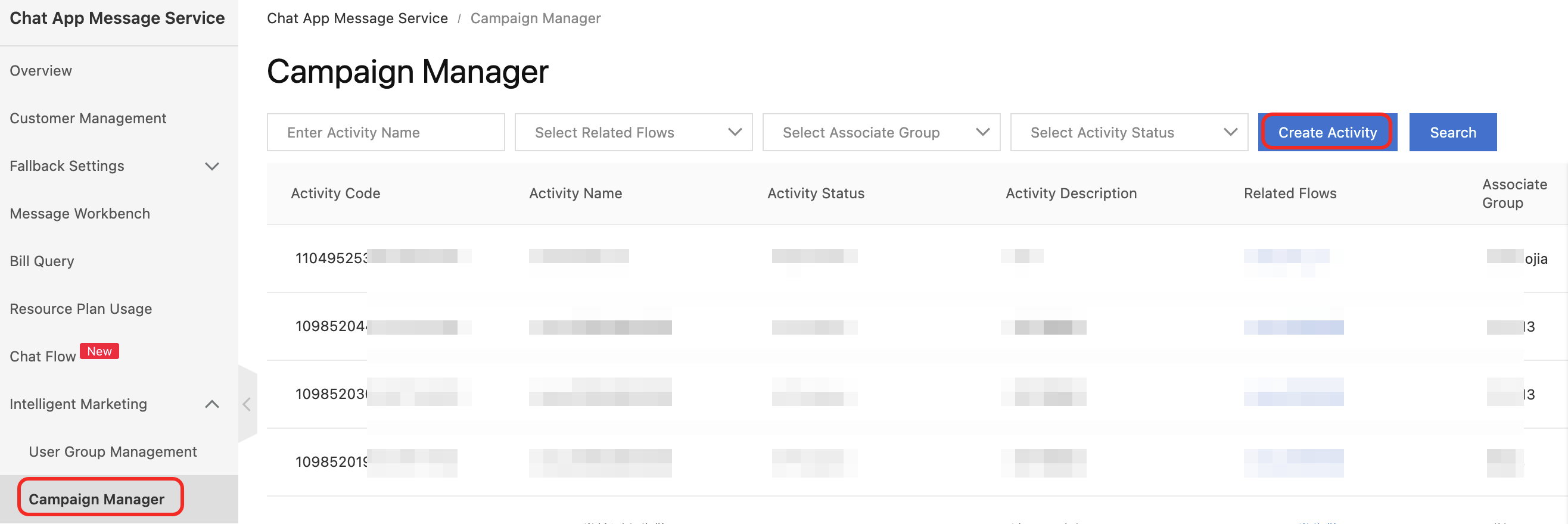
In the left navigation pane, choose Intelligent Marketing > Campaign Manager. Click Create Activity.
-
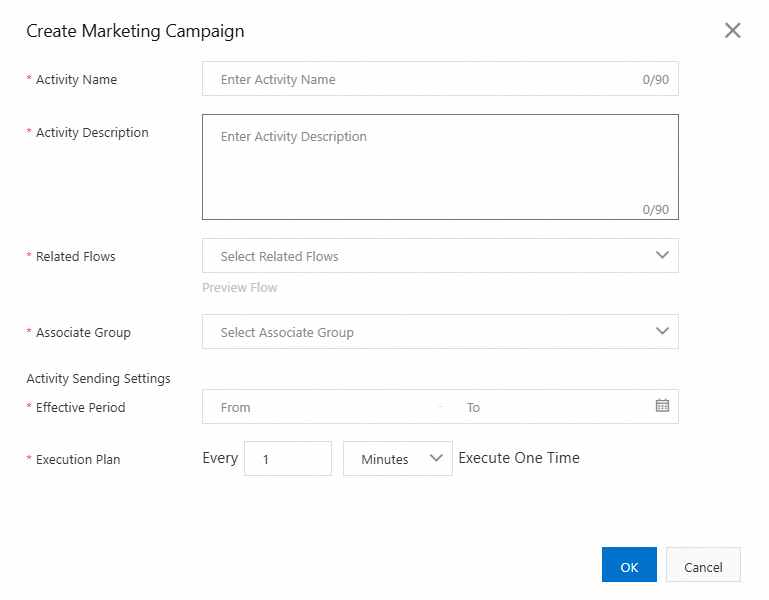
Configure the campaign settings and click OK.
Parameters
|
Parameter |
Description |
|
Activity Name |
Campaign name. Maximum 60 characters. |
|
Activity Description |
Campaign description. Maximum 90 characters. |
|
Related Flows |
Select a published flow to trigger when the campaign starts. Click Preview Flow to view flow details. The flow must be created and published before association. Note
Only flows with the Trigger Type set to Manual are supported. |
|
Associate Group |
Target contact group. Create the group in Audience Management first. |
|
Effective Period |
Start and end time. The campaign automatically starts and ends at the specified times. The start time must be later than the current time, and the end time must be later than the start time. |
|
Execution Plan |
Execution frequency: daily, hourly, or per minute. |
Pause a marketing campaign
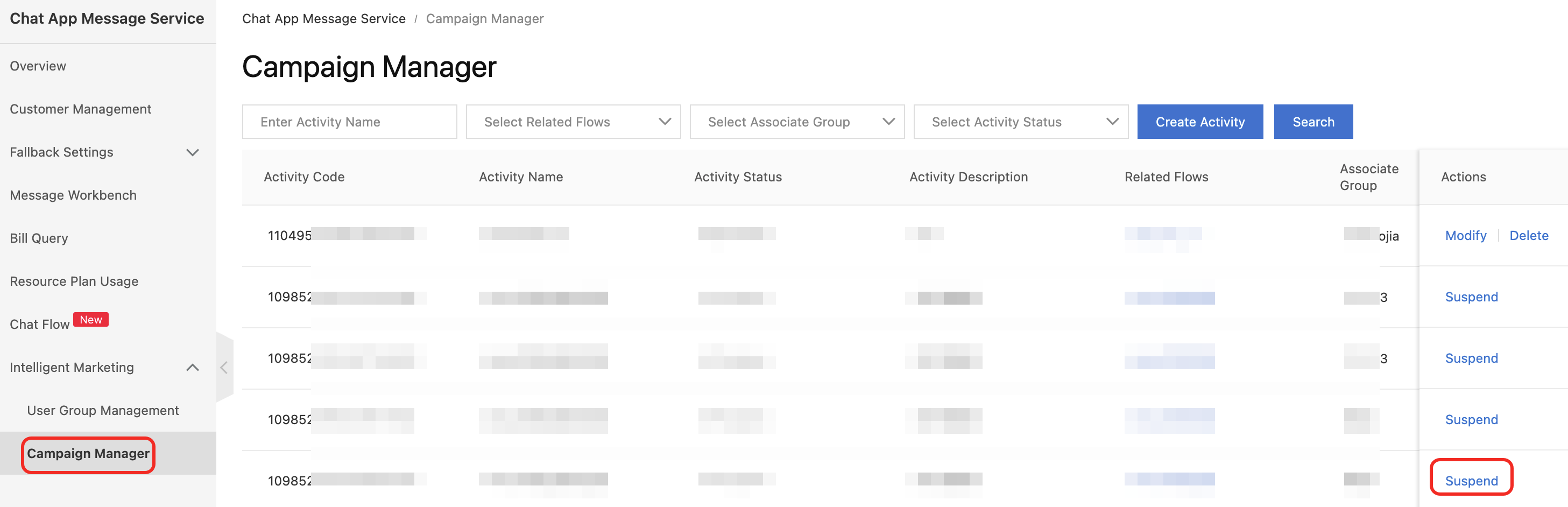
You can pause a campaign only when its Activity Status is In Progress. The Suspend button appears only for active campaigns.
Log on to the Chat App Message Service console.
-
In the left navigation pane, choose Intelligent Marketing > Campaign Manager. Find the campaign to pause and click Suspend.
-
In the dialog box that appears, click OK.
ImportantA paused campaign stops triggering flows. To resume, set a new start time.
Modify a marketing campaign
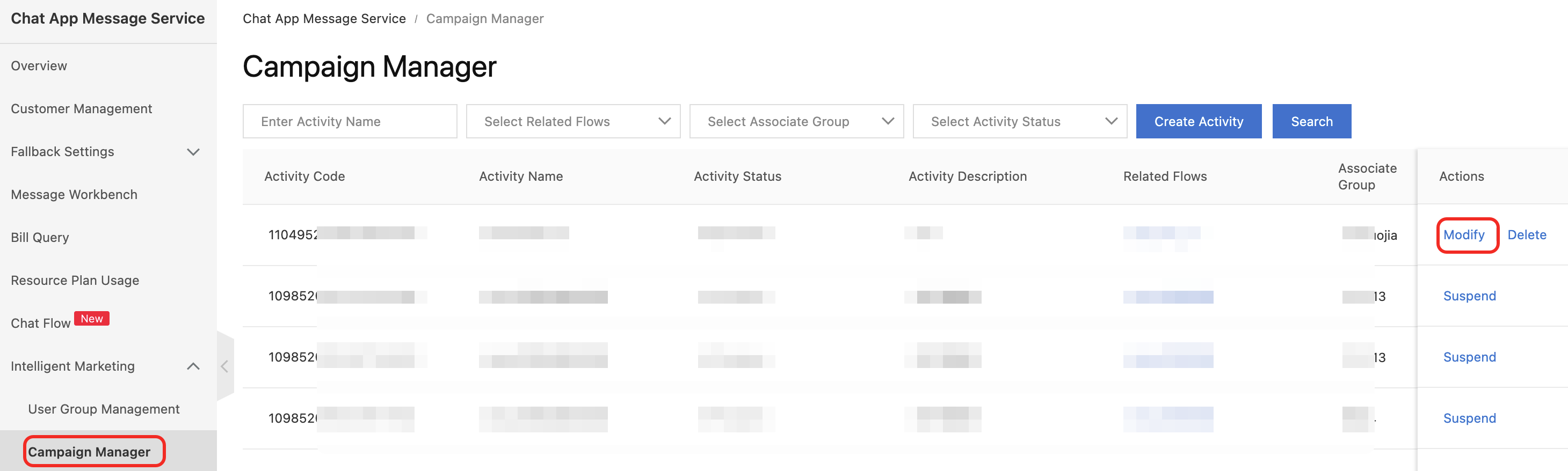
You can modify a campaign only when its Activity Status is Pending Execution or Suspended.
Log on to the Chat App Message Service console.
-
In the left navigation pane, choose Intelligent Marketing > Campaign Manager. Find the campaign to modify and click Modify.
-
Modify the parameters as needed. For more information, see Parameters.
-
Click OK.
Delete a marketing campaign
You can delete a campaign in any status except In Progress.
Log on to the Chat App Message Service console.
-
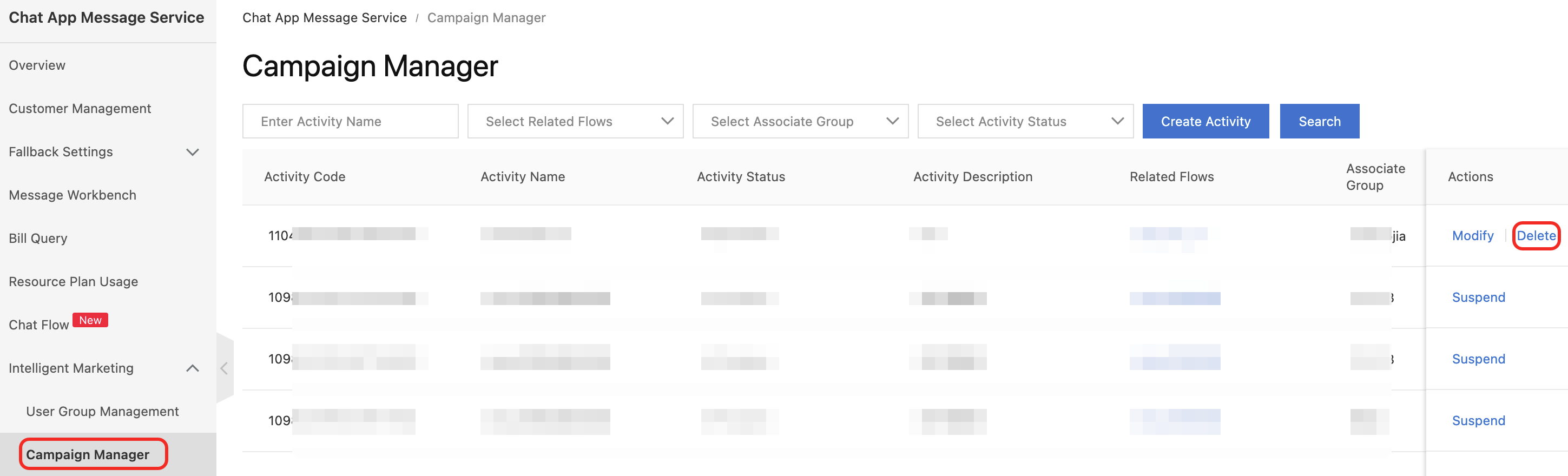
On the page, find the campaign to delete and click Delete.
-
In the dialog box that appears, click OK.
Search for campaigns
-
Log on to the Chat App Message Service console.
-
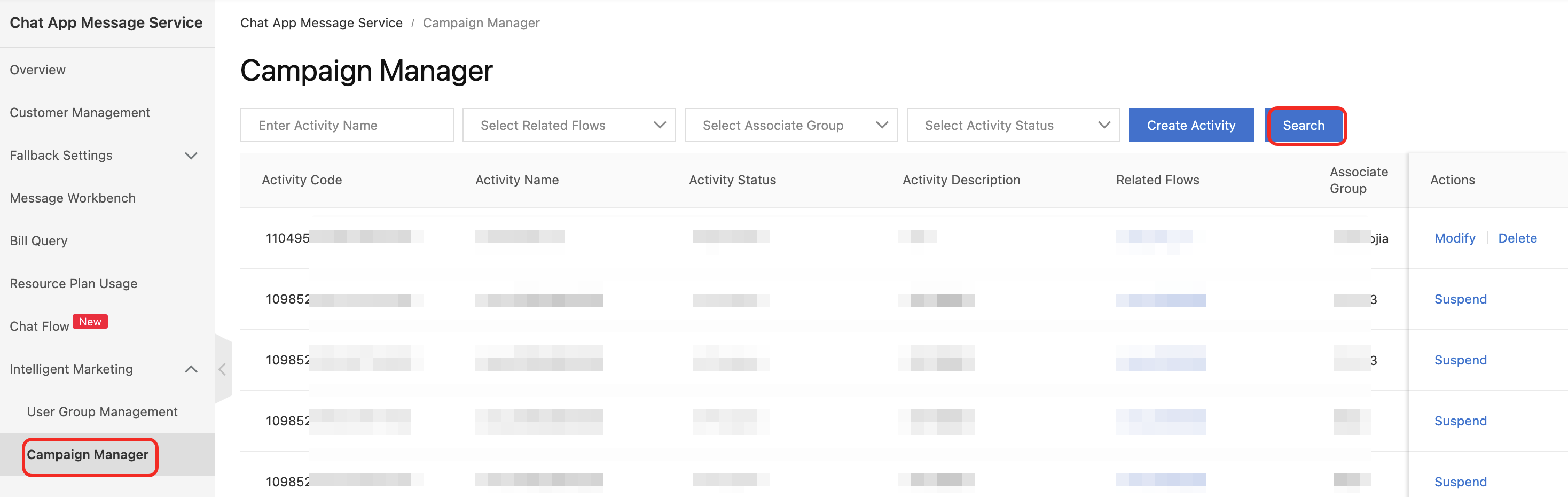
In the left navigation pane, choose Intelligent Marketing > Campaign Manager. Filter campaigns by Activity Name, Related Flows, Associate Group, and Activity Status.
References
Related topics:
-
To learn how to use Chat Flow, see Use Chat Flow.