This topic describes how to create a Log Service sink connector to synchronize data from a topic in your ApsaraMQ for Kafka instance to Log Service by using EventBridge.

Prerequisites

  • ApsaraMQ for Kafka
  • EventBridge
    • EventBridge is activated and permissions are granted to a RAM user. For more information, see Activate EventBridge and grant permissions to a RAM user.
    • A RAM role whose trusted entity is an Alibaba Cloud service is created and the permissions that you need to export and synchronize data are added to the RAM role. If you want the full log permissions, select the system policy and add the AliyunLogFullAccess permission to the RAM role. The following code describes how to configure the trust policy:
      {
        "Statement": [
          {
            "Action": "sts:AssumeRole",
            "Effect": "Allow",
            "Principal": {
              "Service": [
                "eventbridge.aliyuncs.com"
              ]
            }
          }
        ],
        "Version": "1"
      }
      Note If you want to use a custom policy to add specific permissions to the RAM role, see Step 2: Grant permissions to the RAM user.
  • Log Service

Background information

You can create a data synchronization task in the ApsaraMQ for Kafka console to synchronize data from a topic in ApsaraMQ for Kafka to the Log Service Logstore. This task is completed by using an event stream in EventBridge. For more information about event streams in EventBridge, see Overview.

Usage notes

  • You can synchronize data from a topic in a ApsaraMQ for Kafka instance only to a Log Service Logstore that resides in the same region as the Message Queue for Apache Kafka instance. For more information about the limits on connectors, see Limits.
  • When you create a connector, ApsaraMQ for Kafka creates a service-linked role for you.
    • If no service-linked role is available, ApsaraMQ for Kafka creates a role for you to export data from a topic in the ApsaraMQ for Kafka instance to a Logstore.
    • If a service-linked role is available, ApsaraMQ for Kafka does not create a new role.
    For more information about service-linked roles, see Service-linked roles.

Create and deploy a Log Service sink connector

This section describes how to create and deploy a Log Service sink connector to synchronize data from ApsaraMQ for Kafka to Log Service.

  1. Log on to the ApsaraMQ for Kafka console. In the Resource Distribution section of the Overview page, click the name of the region where your instance is deployed.
  2. In the left-side navigation pane, click Connectors. Select the instance to which the connector belongs from the Select Instance drop-down list, and click Create Sink Connector (Export from Kafka).
  3. Perform the following operations to complete the Create Connector wizard.
    1. In the Configure Basic Information step, configure the parameters and click Next. The following table describes the parameters.
      ParameterDescriptionExample
      NameThe name of the Log Service sink connector.

      The connector must use a consumer group that is named in the connect-task name format. If you have not created this consumer group, Message Queue for Apache Kafka automatically creates the consumer group for you.

      kafka-sls-sink
      InstanceThe information about the Message Queue for Apache Kafka instance. By default, the name and ID of the instance are displayed. demo alikafka_post-cn-st21p8vj****
    2. In the Configure Source Service step, configure the parameters and click Next. The following table describes the parameters.
      ParameterDescriptionExample
      Data Source TopicThe name of the topic from which data is to be synchronized. sls-test-input
      Consumer Thread ConcurrencyThe number of concurrent consumer threads that are used to synchronize data from the source topic. By default, six concurrent consumer threads are used. 6
      Consumer OffsetThe offset from which consumption starts. Valid values:
      • Earliest Offset: Consumption starts from the earliest offset.
      • Latest Offset: Consumption starts from the latest offset.
      Earliest Offset
      VPC IDThe ID of the VPC in which the data synchronization task runs. Click Configure Runtime Environment to display the parameter. By default, the VPC ID that you specified when you deployed the ApsaraMQ for Kafka instance is displayed. You do not need to configure this parameter. vpc-bp1xpdnd3****
      vSwitch IDThe ID of the vSwitch in which the data synchronization task runs. Click Configure Runtime Environment to display the parameter. The vSwitch must be deployed in the same VPC as the ApsaraMQ for Kafka instance. By default, the vSwitch ID that you specified when you deployed the ApsaraMQ for Kafka instance is displayed. vsw-bp1d2jgg8****
      Failure Handling PolicySpecifies whether to retain the subscription to the partition in which an error occurs after the message fails to be sent. Click Configure Runtime Environment to display the parameter. Valid values:
      • Continue Subscription: retains the subscription to the partition in which an error occurs and returns the logs.
      • Stop Subscription: stops the subscription to the partition in which an error occurs and returns the logs.
      Note
      • For information about how to view log information, see Manage a connector.
      • For information about how to troubleshoot errors based on error codes, see Error codes.
      Continue Subscription
      Resource Creation MethodThe method to create the topic and group that are required by the Log Service sink connector. Click Configure Runtime Environment to display the parameter. Auto
      Connector Consumer GroupThe consumer group that is used by the connector. Click Configure Runtime Environment to display the parameter. The name of the consumer group must be in the connect-task name format. connect-kafka-sls-sink
      Task Offset TopicThe topic that is used to store consumer offsets. Click Configure Runtime Environment to display the parameter.
      • Topic: We recommend that you start the topic name with connect-offset.
      • Partitions: The number of partitions in the topic must be greater than 1.
      • Storage Engine: The storage engine of the topic must be set to Local Storage.
      • cleanup.policy: The log cleanup policy for the topic must be set to Compact.
      connect-offset-kafka-sls-sink
      Task Configuration TopicThe topic that is used to store the task configurations. Click Configure Runtime Environment to display the parameter.
      • Topic: We recommend that you start the topic name with connect-config.
      • Partitions: The topic can contain only one partition.
      • Storage Engine: The storage engine of the topic must be set to Local Storage.
      • cleanup.policy: The log cleanup policy for the topic must be set to Compact.
      connect-config-kafka-sls-sink
      Task Status TopicThe topic that is used to store the task status. Click Configure Runtime Environment to display the parameter.
      • Topic: We recommend that you start the topic name with connect-status.
      • Partitions: We recommend that you set the number of partitions in the topic to 6.
      • Storage Engine: The storage engine of the topic must be set to Local Storage.
      • cleanup.policy: The log cleanup policy for the topic must be set to Compact.
      connect-status-kafka-sls-sink
      Dead-letter Queue TopicThe topic that is used to store the error data of the Kafka Connect framework. Click Configure Runtime Environment to display the parameter. To save topic resources, you can create a topic and use the topic as both the dead-letter queue topic and the error data topic.
      • Topic: We recommend that you start the topic name with connect-error.
      • Partitions: We recommend that you set the number of partitions in the topic to 6.
      • Storage Engine: The storage engine of the topic can be set to Local Storage or Cloud Storage.
      connect-error-kafka-sls-sink
      Error Data TopicThe topic that is used to store the error data of the sink connector. Click Configure Runtime Environment to display the parameter. To save topic resources, you can create a topic and use the topic as both the dead-letter queue topic and the error data topic.
      • Topic: We recommend that you start the topic name with connect-error.
      • Partitions: We recommend that you set the number of partitions in the topic to 6.
      • Storage Engine: The storage engine of the topic can be set to Local Storage or Cloud Storage.
      connect-error-kafka-sls-sink
    3. In the Configure Destination Service step, select Log Service as the destination service, configure the parameters, and then click Create. The following table describes the parameters.
      ParameterDescriptionExample
      Log Service Project NameThe name of the Log Service project. k00eny67
      Logstore NameThe name of the Logstore that stores the data synchronized from the Message Queue for Apache Kafka instance. kafka-logstore
      Log TopicYou can specify a topic when you collect logs. This allows you to better identify the logs. kafka
      Role NameThe RAM role that is used by EventBridge to perform data synchronization tasks. The drop-down list displays only the RAM roles whose trusted service is EventBridge. testrole
      After the connector is created, you can view the connector on the Connectors page.
  4. Go to the Connectors page, find the connector that you created, and then click Deploy in the Actions column.
    After you create and deploy the Log Service sink connector, an event stream is created in EventBridge in your account. The event stream has the same name and is in the same region as the Log Service sink connector.

Send messages

After you deploy the Log Service sink connector, you can send a message to the source topic in ApsaraMQ for Kafka to test whether messages can be synchronized to the Log Service Logstore.

  1. On the Connectors page, find the connector that you want to use and click Test in the Actions column.
  2. In the Send Message panel, configure the following parameters to send a test message.
    ParameterDescriptionExample
    Message KeyThe key of the test message that you want to send. demo
    Message ContentThe content of the test message that you want to send. {"key": "test"}
    Send to Specified Partition
    • Yes: Enter the ID of the partition to which you want to send the test message in the Partition ID text box. For information about how to query a partition ID, see View partition status.
    • No: does not specify a partition for the test message.
    No

View logs

After you send a test message to the source topic in ApsaraMQ for Kafka, you can view logs in the Log Service console to check whether the message you sent is received.

  1. Log on to the Log Service console. In the Projects section, click the project that you want to view.
  2. On the Logstores page, click the Logstore that you want to manage.
  3. Click Search & Analyze to view the query and analysis results.
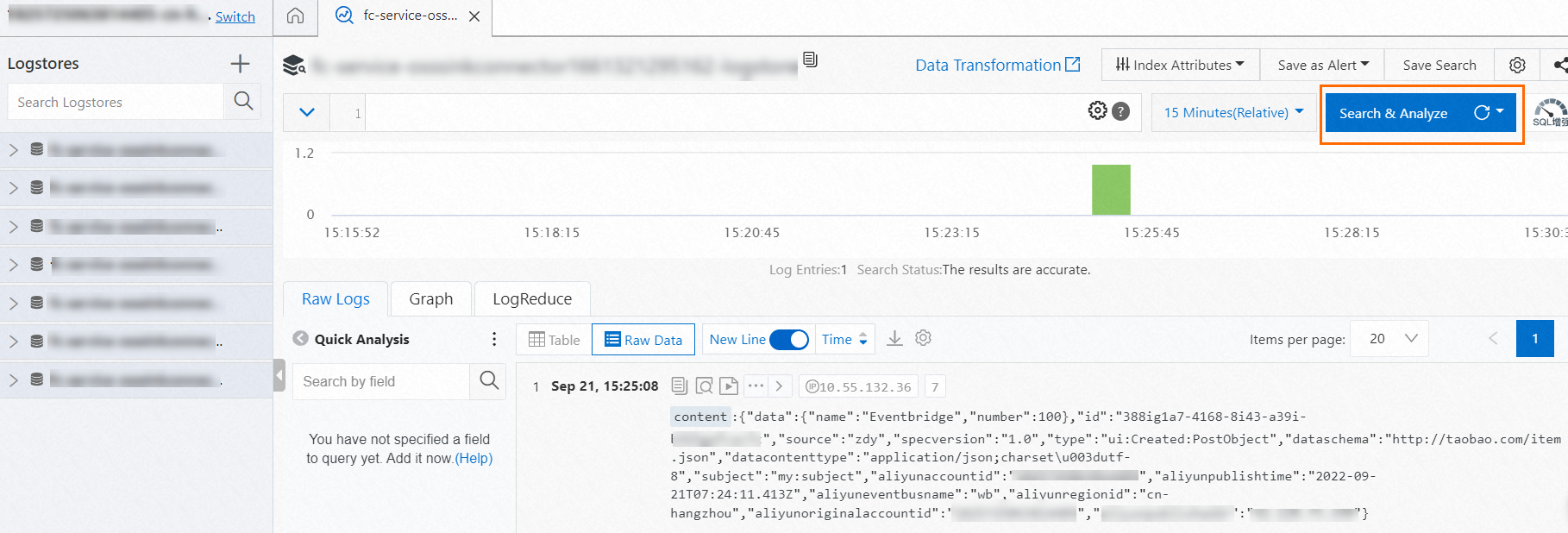
    Search & analyze

Check the synchronization progress

On the Connectors page, find the deployed synchronization task that is in the Running state. Click Consumption Progress in the Actions column to view the data synchronization status of the task.