This tutorial walks you through building a real-time Change Data Capture (CDC) ingestion pipeline from MySQL to Hologres using Realtime Compute for Apache Flink. By the end, you will have a working pipeline that handles whole-database synchronization, merges sharded tables into a single target table, and propagates schema changes (DDL evolution) in real time.
The following tasks are handled automatically — you do not need to configure them manually:
-
Switching from full synchronization to incremental synchronization
-
Discovering new tables and metadata changes
-
Propagating DDL schema changes to the downstream table
Background
This tutorial uses two sets of MySQL databases:
-
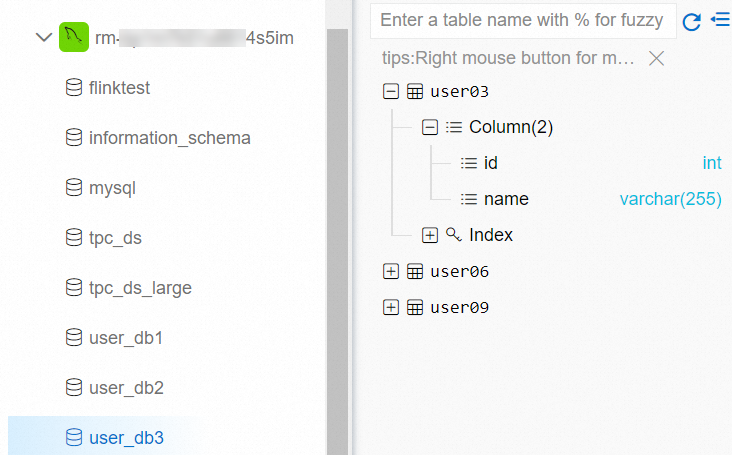
tpc_ds: one database with 24 business tables, each with a different schema
-
user_db1, user_db2, user_db3: three sharded databases, each containing three tables with identical schemas (user01–user09 across all databases)
The goal is to sync all tables from tpc_ds to Hologres and merge the nine sharded user tables into a single Hologres table named users.
The following figure shows the databases and tables in MySQL as viewed in the Data Management (DMS) console.
This tutorial uses the How Flink CDC data ingestion works feature.
Prerequisites
Before you begin, ensure that you have:
-
Flink console permissions for your Resource Access Management (RAM) user or RAM role. For more information, see Permissions.
-
A Flink workspace. For more information, see Activate a Flink workspace.
-
An ApsaraDB RDS for MySQL instance. For more information, see Create an ApsaraDB RDS for MySQL instance.
-
A Hologres instance. For more information, see Create an instance.
The ApsaraDB RDS for MySQL and Hologres instances must be in the same region and virtual private cloud (VPC) as your Flink workspace. If they are not, configure network connectivity. For more information, see How does Realtime Compute for Apache Flink access the Internet? and How do I access the Internet?.
-
MySQL test data and a Hologres target database prepared. See Prepare MySQL test data and a Hologres database.
-
IP whitelists configured. See Configure IP whitelists.
Prepare MySQL test data and a Hologres database
-
Download the following SQL test files to your local machine: tpc_ds.sql, user_db1.sql, user_db2.sql, and user_db3.sql.
-
Load the test data into your ApsaraDB RDS for MySQL instance using DMS.
-
Log on to your ApsaraDB RDS for MySQL instance using DMS. For more information, see Use DMS to log on to an ApsaraDB RDS for MySQL instance.
-
In the SQL Console window, run the following commands to create the four databases, and then click Execute.
sql CREATE DATABASE tpc_ds; CREATE DATABASE user_db1; CREATE DATABASE user_db2; CREATE DATABASE user_db3; -
On the top shortcut menu bar, click Data Import.
-
On the Data Import tab, select the target database, upload the corresponding SQL file, click Submit, and then click Execute Change. In the dialog box that appears, click Confirm Execution. Repeat this step for each of the four databases: tpc_ds, user_db1, user_db2, and user_db3.

-
-
In the Hologres console, create a database named
my_userto store the merged user table data. For more information, see Create a database.
Configure IP whitelists
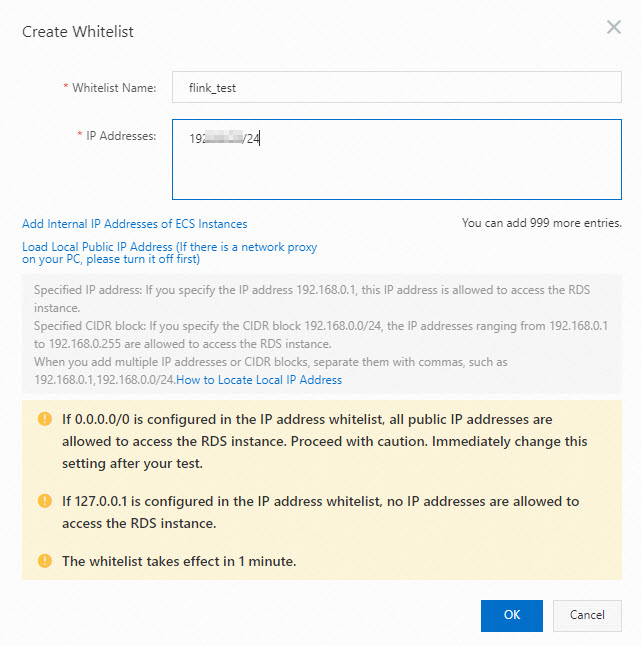
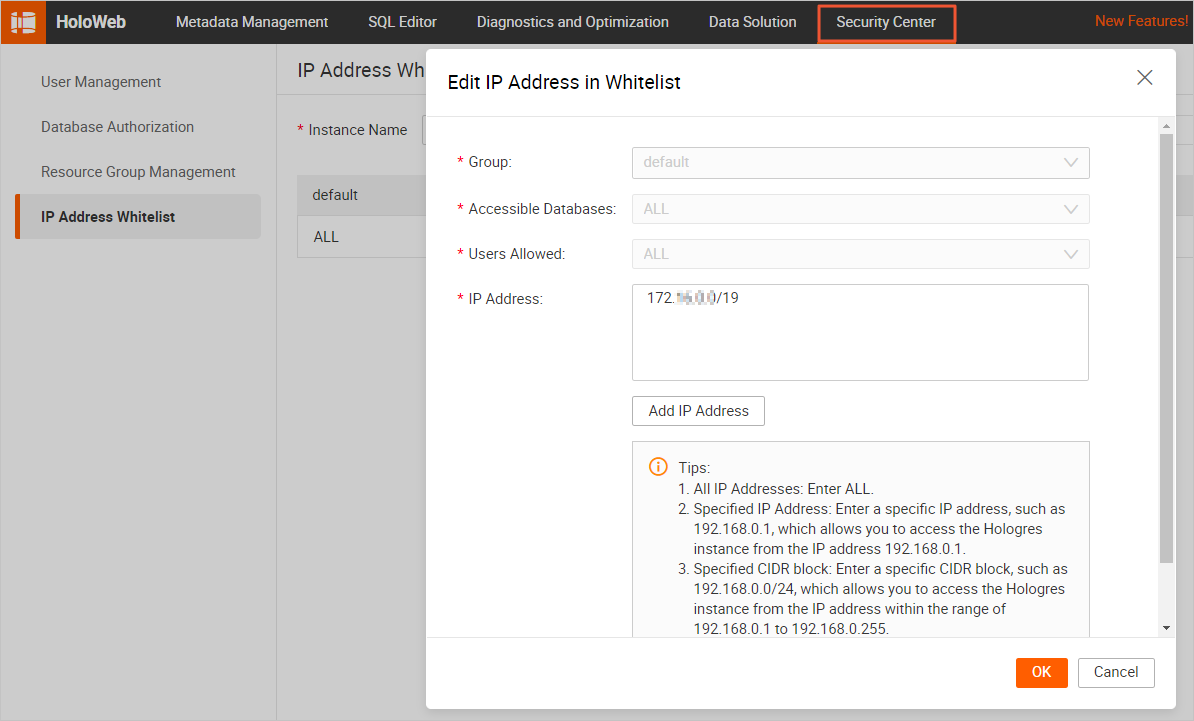
Add the CIDR block of your Flink workspace to the IP whitelists of both the ApsaraDB RDS for MySQL instance and the Hologres instance so that Flink can access them.
-
Get the VPC CIDR block of your Flink workspace.
-
Log on to the Realtime Compute console.
-
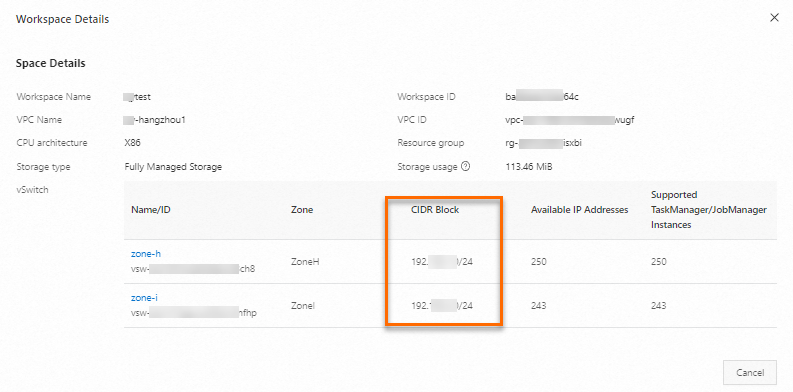
In the Workspace list, find your workspace. In the Actions column, choose More > Workspace Details.
-
In the Workspace Details dialog box, note the VPC CIDR block of the vSwitch that Flink uses.
-
-
Add the Flink CIDR block to the IP whitelist of your ApsaraDB RDS for MySQL instance. For more information, see Configure IP whitelists.
-
Add the Flink CIDR block to the IP whitelist of your Hologres instance. When configuring a data connection in HoloWeb, set Login Method to Passwordless Login for Current User before configuring the IP whitelist. For more information, see IP whitelist.
Step 1: Develop a data ingestion job
-
Log on to the Flink development console and create a new job.
-
On the Data Development > Data Ingestion page, click New.
-
Click Blank Data Ingestion Draft. Flink also provides code templates that include use cases, sample code, and usage guidance. Click any template to explore Flink features and syntax.
-
Click Next.
-
In the New Data Ingestion Job Draft dialog box, configure the following parameters.
Parameter
Description
Example
File Name
Name of the job. Must be unique within the current project.
flink-test
Engine Version
Flink engine version. For version details and lifecycle milestones, see Engine version overview.
vvr-11.1-jdk11-flink-1.20
-
Click OK.
-
-
Copy the following job code into the job editor. This job synchronizes all tables from the tpc_ds database to Hologres and merges the nine sharded user tables into a single
userstable. Thetablespattern uses regular expressions:tpc_ds\.\.*matches all tables in tpc_ds, anduser_db[0-9]+.user[0-9]+matches all sharded user tables across user_db1, user_db2, and user_db3.All tables from the MySQL tpc_ds database sync directly to identically named tables in Hologres — no additional
routeentry is required. To sync them to a differently named database, such as ods_tps_ds, add a route entry: ``yaml route: # Merge sharded user tables into the my_user.users table. - source-table: user_db[0-9]+.user[0-9]+ sink-table: my_user.users # Sync all tables from the tpc_ds database to the ods_tps_ds database. - source-table: tpc_ds.\.* sink-table: ods_tps_ds.<> replace-symbol: <>``source: type: mysql name: MySQL Source hostname: localhost port: 3306 username: username password: password tables: tpc_ds.\.*,user_db[0-9]+.user[0-9]+ server-id: 8601-8604 # (Optional) Synchronize table and column comments. include-comments.enabled: true # (Optional) Prioritize unbounded chunk distribution to avoid possible TaskManager out-of-memory (OOM) errors. scan.incremental.snapshot.unbounded-chunk-first.enabled: true # (Optional) Enable parsing filters to speed up reading. scan.only.deserialize.captured.tables.changelog.enabled: true sink: type: hologres name: Hologres Sink endpoint: ****.hologres.aliyuncs.com:80 dbname: cdcyaml_test username: ${secret_values.holo-username} password: ${secret_values.holo-password} sink.type-normalize-strategy: BROADEN route: # Merge sharded user tables into the my_user.users table. - source-table: user_db[0-9]+.user[0-9]+ sink-table: my_user.users
Step 2: Start the job
-
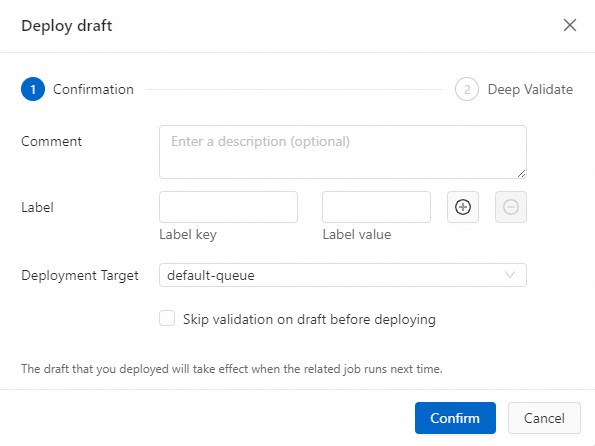
On the Data Development > Data Ingestion page, click Deploy. In the dialog box that appears, click Confirm.
-
On the Operation Center > Job Operations page, click Actions next to your job, and then click Start. For more information, see Start a job.
-
Click Start. After the job starts, monitor its status and runtime information on the Job Operations page.

Step 3: Monitor full synchronization results
-
Log on to the Hologres Management Console.
-
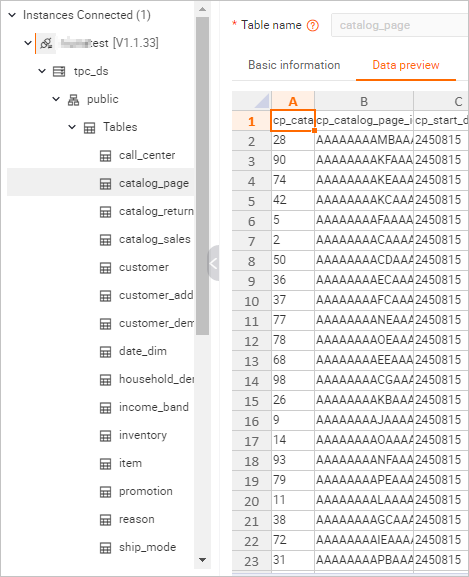
On the Metadata Management tab, verify that the 24 tables and their data from the tpc_ds database appear in Hologres.
-
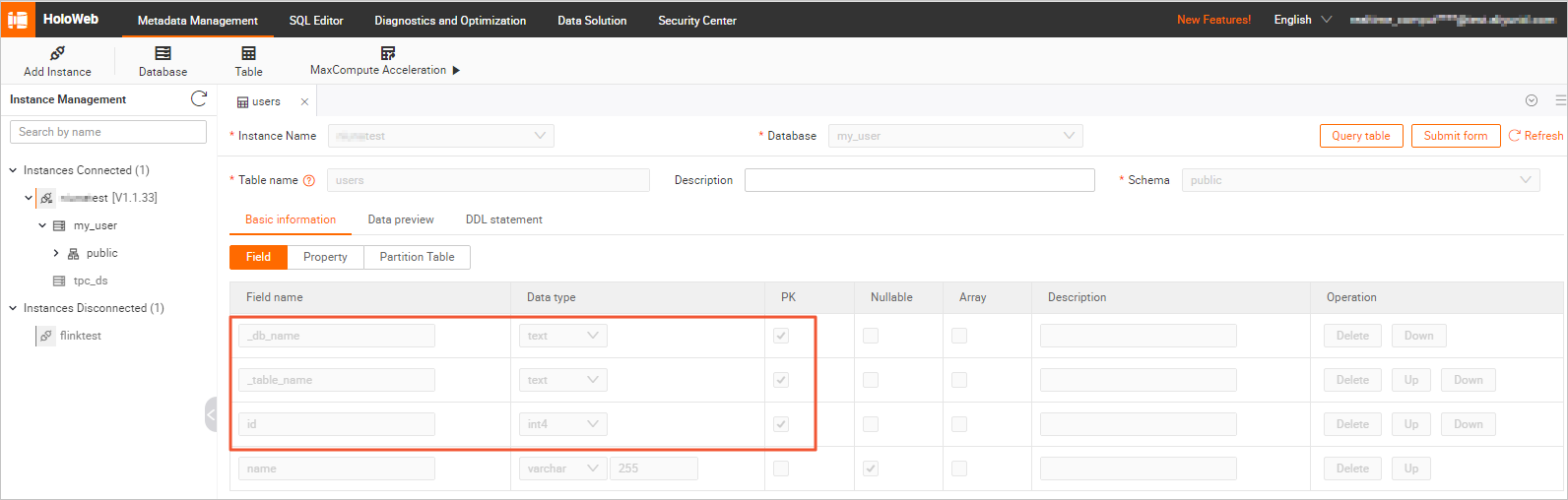
On the Metadata Management tab, check the schema and data of the
userstable in themy_userdatabase.-
Schema
 The
The userstable includes two extra columns:_db_nameand_table_name. These columns record the source database and table name for each row, and together they form part of the composite primary key to ensure row uniqueness after the sharded tables are merged. -
Table data In the upper-right corner of the
userstable details page, click Query Table, run the following query, and then click Run. ``sql select * from users order by _db_name,_table_name,id;`` The query result is shown in the following figure.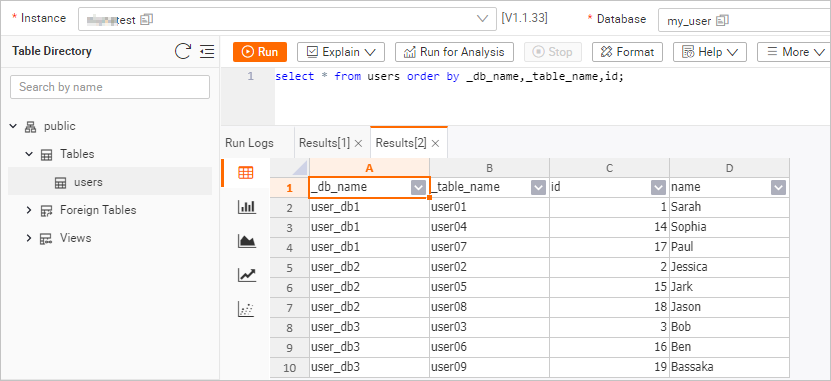
-
Step 4: Monitor incremental synchronization results
After full synchronization completes, the job automatically switches to incremental synchronization. No manual intervention is required.
Use the currentEmitEventTimeLag metric to determine which phase the job is in:
-
Value = 0: full synchronization is still in progress
-
Value > 0: incremental synchronization has started
To check the metric:
-
Log on to the Realtime Compute console.
-
Find your workspace and click Console in the Actions column.
-
On the Operation Center > Job Operations page, click your job name.
-
Click the Monitoring and Alerts tab (also labeled Data Curve in some versions).
-
Check the
currentEmitEventTimeLagcurve to identify the synchronization phase.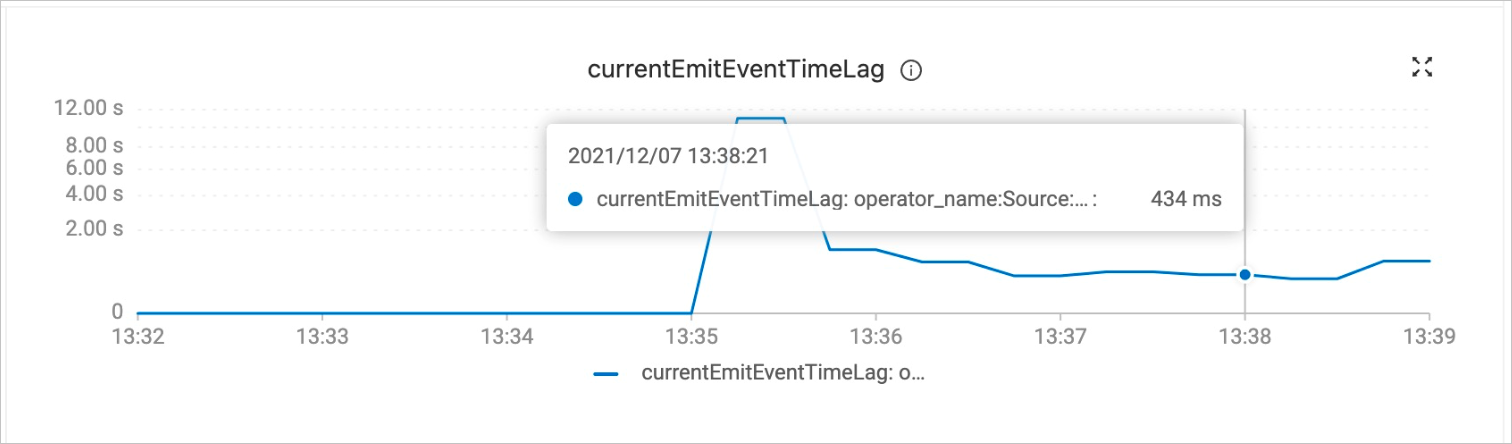
-
Verify that schema and data changes sync in real time. After the job enters incremental synchronization, run the following commands one at a time in DMS. After each command, check the
userstable in Hologres to confirm that the change appears immediately.-
Log on to your ApsaraDB RDS for MySQL instance using DMS. For more information, see Log on to ApsaraDB RDS for MySQL using DMS.
-
In the
user_db2database, run each of the following commands individually and verify the result in Hologres after each one.Add a column (DDL schema change):
USE DATABASE `user_db2`;
ALTER TABLE `user02` ADD COLUMN `age` INT;
Go to the Hologres console, click Query Table on the
userstable details page, run the query below, and click Run. Confirm that theagecolumn appears in the result.select * from users order by _db_name,_table_name,id;Insert a row with the new column:
INSERT INTO `user02` (id, name, age) VALUES (27, 'Tony', 30);Run the same query again and confirm that the Tony record appears. Update a row in a different sharded table:
UPDATE `user05` SET name='JARK' WHERE id=15;Run the same query again and confirm that the name is updated to JARK. After all three commands, the
userstable in Hologres reflects the newagecolumn (from the ALTER TABLE), the inserted Tony record, and the updated JARK record — even though the schema change was made to only one of the nine sharded tables.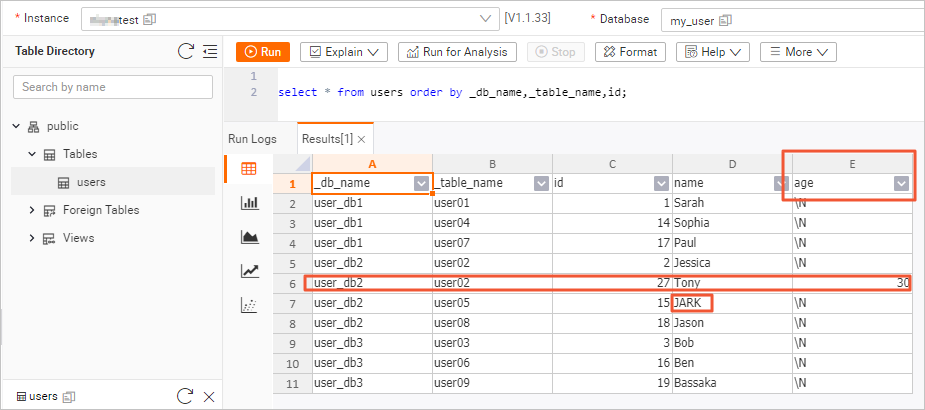
-
(Optional) Step 5: Configure job resources
Adjust concurrency and TaskManager resources to optimize job performance for your data volume.
-
On the Operation Center > Job Operations page, click your job name.
-
On the Deployment Details tab, click Resource Configuration, and then click Edit in the upper-right corner.
-
Set resource parameters such as TaskManager memory and concurrency.
-
Click Save in the upper-right corner of the Resource Configuration section.
-
Restart the job. Resource configuration changes take effect only after a restart.
What's next
-
For syntax details of all data ingestion configuration options, see Flink CDC data ingestion job development reference.
-
If your job encounters errors, see Common issues and solutions for data ingestion jobs.