By default, Realtime Compute for Apache Flink cannot access the public internet. This topic addresses frequently asked questions regarding public internet access, cross-VPC connectivity, DNS resolution, and network testing.
Troubleshoot network issues
Realtime Compute for Apache Flink is deployed within a specific VPC, which cannot be modified after workspace activation. If your source or sink resides in a different network environment, communication will fail.
Follow these steps to diagnose and resolve network-related issues:
-
Test connectivity: Use the network probe feature in the Flink console to verify communication between the Flink workspace and your upstream or downstream services. See Run a network probe.
-
Verify network access: By default, Flink can only access services within the same region and VPC.
-
Cross-VPC access: Refer to Access services across VPCs.
-
Public internet access: Use a NAT gateway to bridge your VPC to the internet; refer to Access the internet.
-
-
Configure whitelists: Ensure that the security groups or firewalls of your upstream/downstream services permit traffic from your Flink workspace. Configure whitelists for upstream and downstream services.
-
Adjust connection settings: If you encounter persistent timeout errors despite proper network configuration, increase the
connect.timeoutoption in your DDL statement.
Run a network probe
Realtime Compute for Apache Flink provides a built-in network probe feature connectivity test. Procedure:
-
Go to Realtime Compute for Apache Flink's Management Portal.
-
In the Actions column of the target workspace, click Console.
-
Click the Network Detection icon in the upper-right corner of the top navigation bar.

-
Enter the endpoint or IP address and port of a service, and click Detect.
ImportantWhen you enter an endpoint in Host, remove
:<port>and enter the port number in the Port field.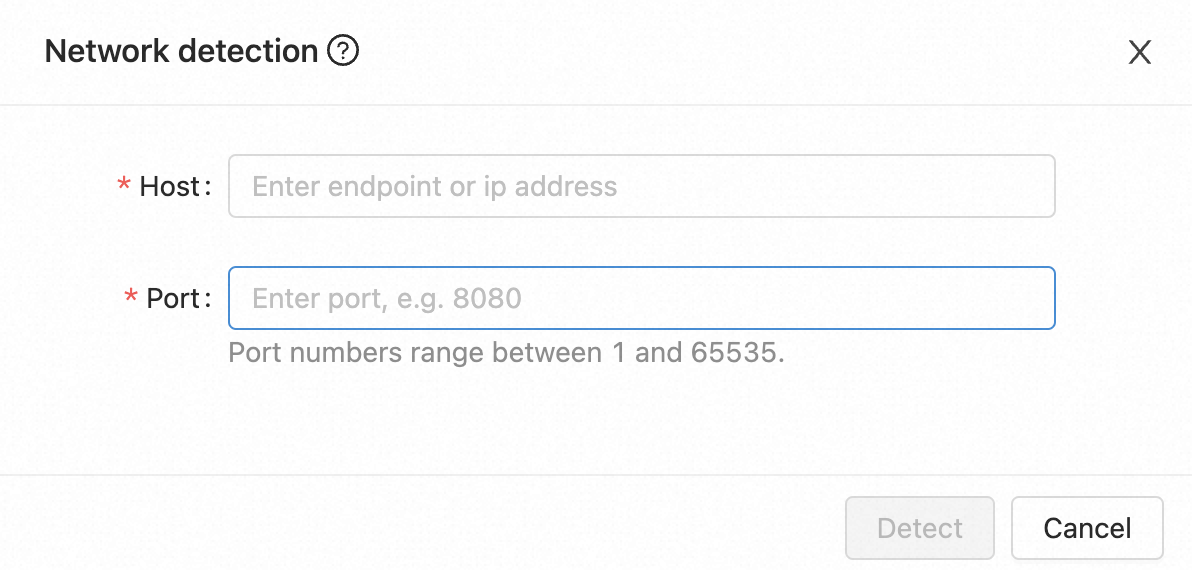
If the network probe returns a "connect timed out" error, the Flink workspace likely lacks the necessary network permissions to reach the target endpoint. By default, Flink can only access services within the same VPC. Verify that your target endpoint is not a public internet address or located in a different VPC. If you need cross-VPC or public Internet access, see Access services across VPCs and Access the internet.
Get the Hologres endpoint
-
Go to the Hologres console. On the Instances page, click the target instance.
-
On the Instance Details page, find the endpoint in the Network Information section. Choose the e ndpoint that matches your network topology:
Network type
Use case
Dedicated VPC (Recommended)
A private network connected to a specific VPC.
-
Same VPC (Recommended): If the Hologres instance and the Flink workspace are in the same VPC, they can communicate directly.
-
Different VPC: If they are in different VPCs, configure cross-VPC networking. For more information, see Access services across VPCs.
Public Network
A public network with no access restrictions. Latency may be higher and less predictable than VPC access.
For more information, see Access the public Internet.
-
-
(Optional) Run a network probe from the Flink console to verify connectivity. For more information, see Run a network probe.
-
Probe succeeds: The endpoint is correct and the network is connected.
-
Probe fails: Verify whether the Hologres instance and the Flink workspace are in different VPCs or require public Internet access.
-
Access the internet
Public internet access typically incurs higher and more volatile latency compared to internal VPC communication. For workloads requiring strict latency and stability, prioritize VPC-based connectivity.
Use an Alibaba Cloud NAT Gateway to bridge your VPC with the public internet. This allows the Flink workspace to reach data sources hosted outside of your private network. For details, see Public data sources.
Check internet bandwidth
If your job exhibits normal metrics and no backpressure, but throughput remains below expectations, the internet bandwidth may be the bottleneck.
Follow these steps to diagnose bandwidth limits:
-
In the Realtime Compute for Apache Flink console, click Details in the Actions column.
-
In the Workspace Details dialog, take note of VPC ID.
-
Go to the VPC console, and click the target VPC ID.
-
On the VPC details page, select the Resource Management tab. In the Access to Internet section, click the number below Internet NAT Gateway.
Note0 indicates you don't have an Internet NAT Gateway instance yet.
-
Click the target internet NAT gateway ID.
-
On the details page, switch to the Associated EIP tab, click the EIP instance ID.
-
On the EIP instance's details page, select the Monitoring and O&M tab to view bandwidth.
Access services across VPCs
For optimal performance and simplified networking, we recommend deploying your services within the same VPC as your Flink workspace. If you have already deployed resources, consider the following:
-
Service colocation: If services are in the planning phase, provision them in the same VPC as your Flink workspace.
-
Workspace migration: If applicable, release your current Flink workspace and create a new one within the same VPC as your existing services.
-
Cross-VPC connectivity: For services that must remain in a separate VPC, configure cross-VPC networking. For details, see Connect VPCs.
Configure allowlist for upstream and downstream services
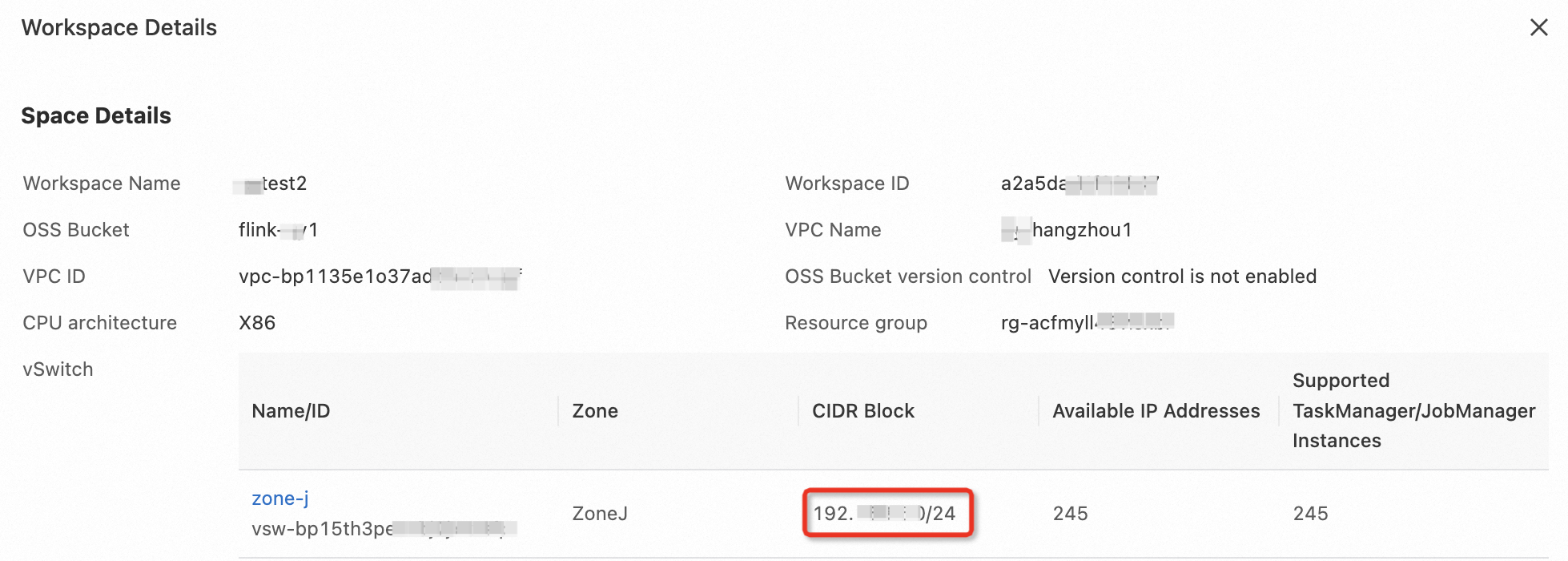
Typically, the upstream and downstream services deny access from Flink. Add the CIDR block of the vSwitch configured for your Flink workspace to the allowlist of each target service.
-
Go to Realtime Compute for Apache Flink's Management Portal.
-
In the Actions column of the target workspace, click Details.
-
In the Workspace Details dialog box, in the vSwitch section, and note the CIDR Block of the vSwitch.
-
Add the vSwitch CIDR block to the whitelist of your target upstream or downstream service.
For example, to configure a whitelist for an ApsaraDB RDS for MySQL instance, see Configure a whitelist for an RDS instance.
Note-
vSwitch scaling: If you add more vSwitches to your workspace, repeat the configuration process for each new vSwitch.
-
Cross-zone connectivity: If your vSwitch and upstream/downstream services reside in different zones, you can still enable connectivity by adding the vSwitch CIDR block to the service whitelist.
-
Resolve domain names for Flink job dependencies
If your jobs reference external services by domain name, you may encounter DNS resolution errors during migration from self-managed clusters to Realtime Compute for Apache Flink. Use the following methods to resolve these issues:
-
Method A: Using a self-managed DNS server
If your Flink VPC can reach a self-managed DNS server, configure the Flink workspace to utilize it.
-
Go to Realtime Compute for Apache Flink's Management Portal.
-
In the Actions column of the target workspace, click Console.
-
In the left navigation pane, choose . On the Deployment Defaults tab, locate Other Configuration and add the following code.
env.java.opts: >-
  -Dsun.net.spi.nameservice.provider.1=default
  -Dsun.net.spi.nameservice.provider.2=dns,sun
  -Dsun.net.spi.nameservice.nameservers=192.168.0.1
(Replace
192.168.0.1with your actual DNS server IP; separate multiple IPs with commas.) -
Click Save Changes.
-
Redeploy your job.
Note-
Engine compatibility: This configuration is not supported in JDK 11-based engines.
-
Troubleshooting: If
UnknownHostExceptionpersists, contact Alibaba Cloud technical support. If the job encounters frequentJobManagerheartbeat timeouts, see Error: JobManager heartbeat timeout.
-
-
-
Method B: Using Alibaba Cloud DNS
If you do not have a self-managed DNS server or if the Flink VPC cannot reach your existing DNS server, use Alibaba Cloud DNS to resolve your service domain names.
How do I force DNS resolution to use IPv4?
When a backend service domain name resolves to an IPv6 address, connections may fail. You can add a JVM parameter to force the IPv4 protocol stack.
Add the following parameter to Other Configuration:
env.java.opts: '-Djava.net.preferIPv4Stack=true'This parameter can be applied at two levels:
-
Per job: On the O&M page, click the target job and go to . For more information, see Parameters.
-
Workspace-wide: Go to .
Save the configuration and restart the job for the changes to take effect.
Error: JobManager heartbeat timeout
-
Symptom
After configuring a self-managed DNS server for domain resolution, jobs frequently fail over with a
JobManager heartbeat timeouterror. -
Cause
High DNS latency: Latency between the TaskManagers and the self-managed DNS server causes delays that interrupt the heartbeat signal between the JobManager and TaskManagers.
-
Solution
Disable hostname resolution for TaskManagers to bypass the DNS lookup during heartbeat checks. Add the following to your job configuration:
jobmanager.retrieve-taskmanager-hostname: false. This configuration does not affect the job's ability to connect to external services by domain name. For detailed instructions, see Configure custom running parameters.
Why does Kafka return a metadata timeout even though the network is connected?
Network connectivity between Flink and Kafka does not guarantee that Flink can read data from Kafka. Flink connects to the Kafka bootstrap server to retrieve cluster metadata, which contains the advertised endpoints of each broker. Flink must be able to reach these advertised endpoints to read data.
Even if the initial bootstrap connection succeeds, data transfer fails if the advertised endpoints in the broker metadata are unreachable from the Flink VPC. For more information, see Kafka Client Cannot Connect to Broker.
To diagnose this issue:
-
Use
zkCli.shorzookeeper-shell.shto connect to the ZooKeeper cluster used by Kafka. -
Run
ls /brokers/idsto list all Kafka broker IDs. -
Run
get /brokers/ids/{your_broker_id}to view the broker metadata. The endpoint information is in thelistener_security_protocol_mapfield. -
Verify that Flink can reach the endpoint listed in the broker metadata.
If the endpoint uses a domain name, configure DNS resolution for your Flink workspace. For more information, see Resolve domain names for Flink job dependencies.