The security center in the desktop client helps protect your account. Configure and use it properly to protect your account.
This topic uses the macOS client V7.13 and the Enterprise Edition as an example. If your experience differs from the description in this topic, you may be using a different client or an outdated version. Upgrade to the latest version.
Prerequisites
You have logged on to the desktop client. For more information, see Log on to a desktop client.
You have been assigned a cloud computer. If no cloud computer is available after you log on, contact your IT administrator to have one assigned to you. For more information, see Assign cloud computers to users.
View account information
After you sign in, click the icon in the upper-right corner of the desktop client and then click your username. You can view the following account information in the Account Summary dialog box:
Username: The username of the end user account.
AliUid: The ID of the Alibaba Cloud account for the end user's organization.
Organization ID or Office Network ID: The ID of the current organization or office network.
Password: Allows you to change the logon password for the end user account.
Mobile Number/Email Address: The phone number or email address that is associated with the end user account. This is used to receive notifications.
Change the sign-in password
You can change the password from the client only when using convenience accounts. AD accounts are controlled by the enterprise Active Directory (AD). To change the password for an AD account, you must contact the administrator, unless it is your first sign-in or your password has expired.
If you forgot your password
On the sign-in screen, click Forgot Password.
In the Reset Password dialog box, enter your username and email address, then click Confirm.
If the information you entered is authenticated, a new initial password is sent to the specified email address.
If you know your current password
Click the icon in the upper-right corner of the desktop client, then click your username.
In the Account Summary dialog box, click the icon to the right of Password.
In the Change Password dialog box, enter your old password and a new password, then click Confirm Submit.
NoteThe password must be at least 10 characters long. It must contain at least three of the following character types: uppercase letters, lowercase letters, digits, and special characters. The new password cannot be the same as your current password.
When you confirm the new password, enter it again manually. Do not copy and paste the password.
Disable automatic sign-in
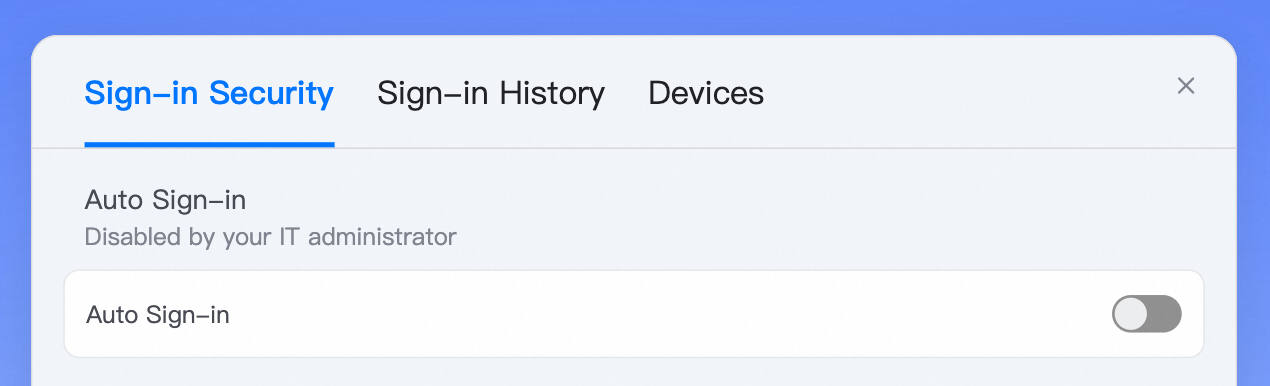
When automatic sign-in is enabled, you do not need to re-enter your credentials for a specific period after you sign in. If you share the client with others, disable this feature for security.
Click the icon in the upper-right corner of the desktop client and select Security.
On the Sign-in Security tab, turn off Auto Sign-in.
View sign-in device information
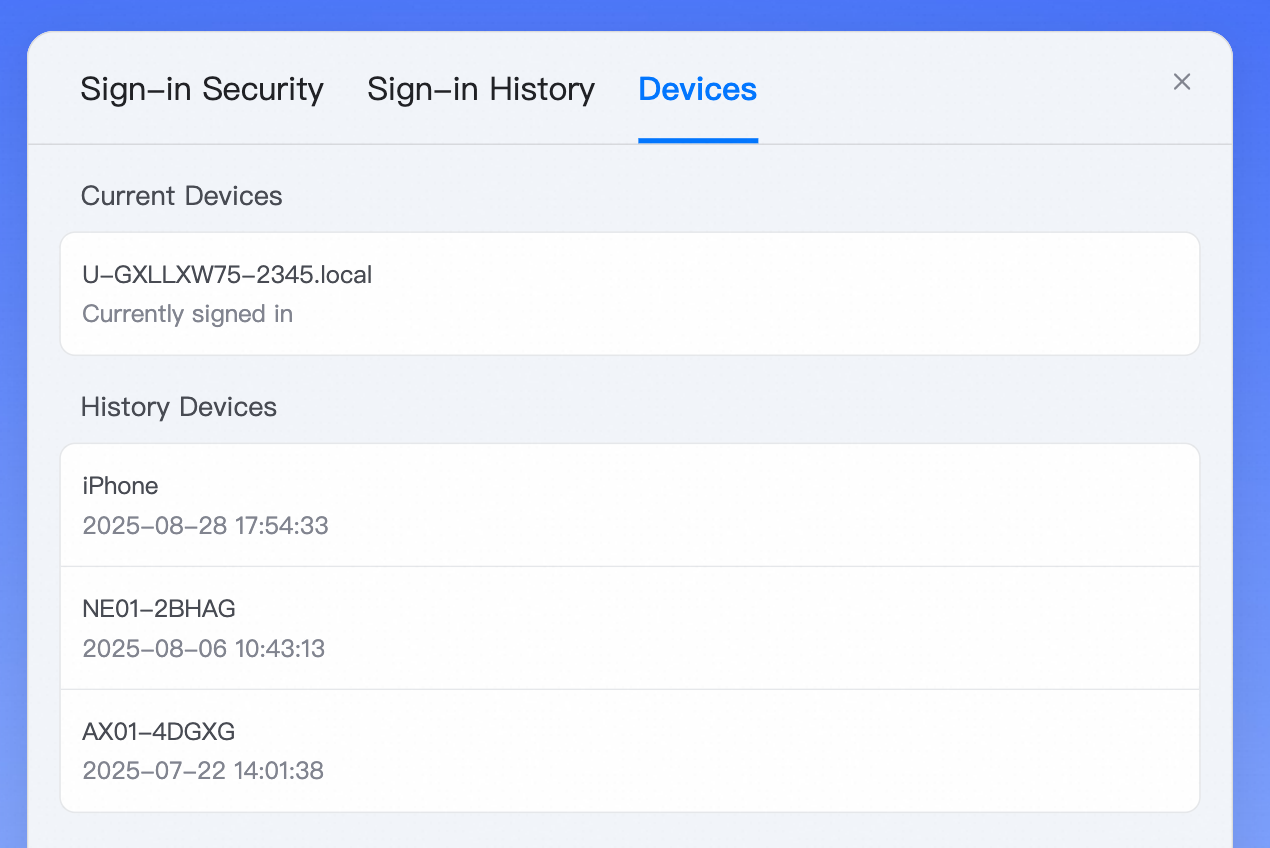
In the security center, you can view information about current and previous sign-in devices.
Click the icon in the upper-right corner of the desktop client and select Security.
On the Devices tab, view information about current and previous sign-in devices.
Sign out from other devices
If your account is signed in to multiple Alibaba Cloud Workspace terminals, you can sign out from undesired terminals to ensure security.
In the upper-right corner of the desktop client, click the icon and select Security.
On the Devices tab, find the other signed-in terminals and click Sign Out.
NoteFor security, you must enter a verification code to verify your identity before signing out.

Automatic sign-out when the device limit is reached
An EDS Enterprise administrator can set the maximum number of clients that a user account can be used to sign in at the same time. If this limit is exceeded, the client that is signed in first is automatically signed out. For example, if the maximum number of signed-in clients is set to 1, the first client is automatically signed out when the user successfully signs in to a second client.
View logon history
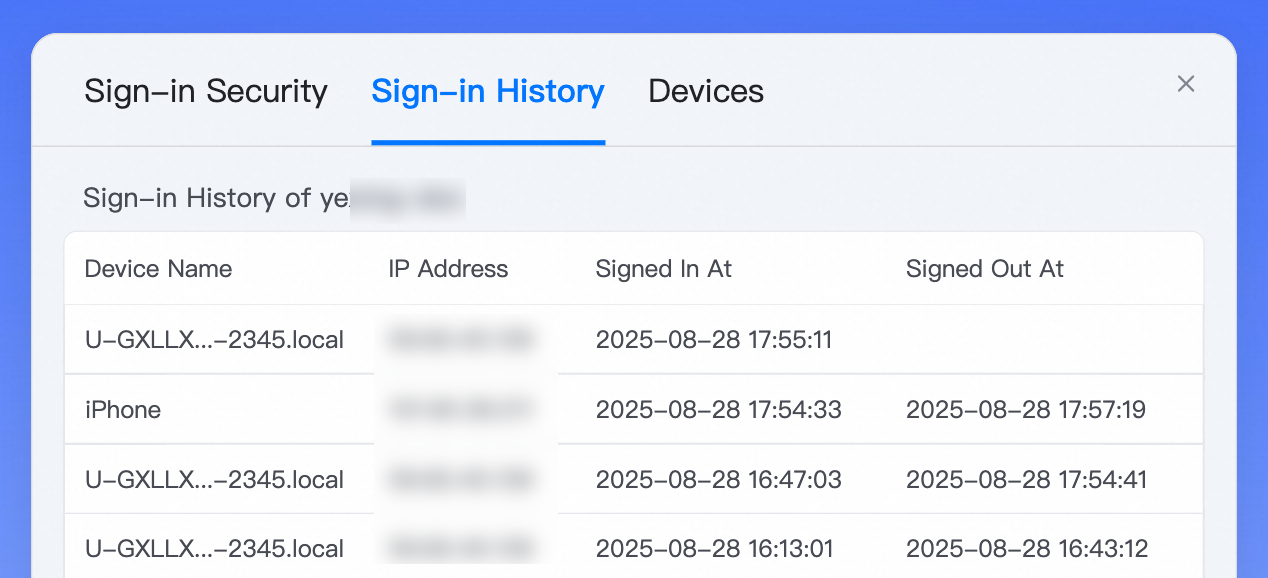
View the logon history for your account on the Sign-in History tab in Security. The history includes the device name, IP address, sign-in time, and sign-off time.
Click the icon in the upper-right corner of the desktop client and select Security.
On the Sign-in History tab, you can view the logon history for the current account, including the device name, IP address, sign-in and sign-out time.