VPN Gateway integrates with Network Intelligence Service (NIS). Use NIS to diagnose VPN Gateway instances and receive recommendations to fix detected issues. This helps you troubleshoot SSL-VPN connection issues such as negotiation failures or instance status problems. The diagnostic process does not affect your services.
VPN Gateway diagnostic items
The following table describes the diagnostic items for a VPN Gateway instance.
|
Category |
Diagnostic item |
Description |
|
Configuration Diagnostics |
Instance configuration check |
Checks whether a VPN Gateway instance is being configured. If the VPN Gateway instance is being configured, wait until its status changes to Active before you proceed. |
|
Version check |
Checks whether the VPN Gateway instance is on the latest version. Upgrade the VPN Gateway instance to the latest version to access more features. See Upgrade a VPN gateway. |
|
|
VPN tunnel configuration integrity check |
Checks whether an SSL server is configured for SSL-VPN connections. If the system detects a missing configuration, add the required configuration based on your network requirements. To configure an SSL server, see Create and manage an SSL server. |
|
|
SSL UDP Connection Check |
Checks for unreliable SSL-VPN connections on the VPN Gateway instance. An SSL server that uses the UDP protocol can create unreliable connections that consume connection resources. Change the Protocol of the SSL server to TCP for more reliable connections. See Modify an SSL server. |
|
|
VPC intranet segment conflict check |
Checks whether the Local Network and Client CIDR Block of the SSL server conflict with the CIDR block of a vSwitch in the VPC. If a conflict is detected, modify the network settings of the SSL server. See Modify an SSL server. |
|
|
CIDR block IP deficiency check |
Checks whether the Client CIDR Block configured for the SSL server provides enough IP addresses for the required number of SSL-VPN connections. If the client CIDR block does not have enough IP addresses, modify it. See Modify an SSL server. The client CIDR block must contain at least four times as many IP addresses as the maximum number of allowed SSL-VPN connections. For example, if you specify 192.168.0.0/24 as the client CIDR block, the system first divides a subnet CIDR block with a subnet mask of 30 from 192.168.0.0/24, such as 192.168.0.4/30. This subnet provides up to four IP addresses. Then, the system allocates an IP address from 192.168.0.4/30 to the client and uses the other three IP addresses to ensure network communication. In this case, one client consumes four IP addresses. Therefore, to ensure that an IP address can be allocated to your client, you must make sure that the number of IP addresses in the client CIDR block is at least four times the maximum number of SSL-VPN connections supported by the associated VPN gateway. |
|
|
Public CIDR block network conflict check |
Checks whether the Client CIDR Block of an SSL server, when configured as a public CIDR block, is also specified as a user CIDR block for the VPC. If the client CIDR block of the SSL server is a public CIDR block, you must add it as a user CIDR block for the VPC. See VPC FAQ and VPC FAQ. |
|
|
Quota Limit Diagnostics |
Check VPN Bandwidth Usage |
Checks whether the bandwidth utilization of the VPN Gateway instance has reached 80% of its limit. If the bandwidth utilization reaches 80%, upgrade the bandwidth of the VPN Gateway instance based on your business requirements. See Change the configuration of a VPN Gateway instance. |
|
Check the number of VPN connections |
Checks whether the number of SSL-VPN connections has reached 80% of the allowed limit. If the number of SSL-VPN connections reaches 80% of the limit, increase the connection quota based on your business requirements. See Modify the maximum number of concurrent SSL-VPN connections. |
|
|
Certificate Diagnostics |
Check for SSL Client Certificate Expiration |
Checks whether the SSL client certificate has expired. By default, an SSL client certificate is valid for three years. If the certificate has expired, delete the current certificate, create a new one, and install it on your client. See Create and manage an SSL client certificate and Configure a client. |
|
Check for SSL Client Certificate Expiration |
Checks whether the SSL client certificate will expire within 60 days. If the certificate is about to expire, delete the current certificate, create a new one, and install it on your client to avoid service interruptions. See Create and manage an SSL client certificate and Configure a client. |
|
|
Cost Diagnostics |
Alerts for Overdue Payments |
Checks whether your VPN Gateway instance has overdue payments. If your VPN Gateway instance has overdue payments, top up your account balance promptly. |
|
Alerts for Expiration |
Checks whether the VPN Gateway instance will expire within seven days. |
Run a diagnosis
Log on to the VPN Gateway console.
-
In the top navigation bar, select the region of the VPN Gateway instance.
-
On the VPN Gateways page, find your VPN Gateway instance and choose in the Diagnose column.
-
In the Instance Diagnostics panel, view the diagnostic details.
Note-
If you have not activated NIS, select Terms of Service for Standard Edition NIS and then click Activate NIS free of charge to diagnose instances..
-
If a
permission deniedmessage appears when a RAM user tries to activate NIS, use your Alibaba Cloud account to grant theAliyunNISFullAccesspermission to the RAM user. See Manage the permissions of a RAM user. -
When you run a diagnosis for the first time, the system automatically creates a service-linked role named
AliyunServiceRoleForNisfor diagnostic operations. For more information aboutAliyunServiceRoleForNis, see Service-linked roles.
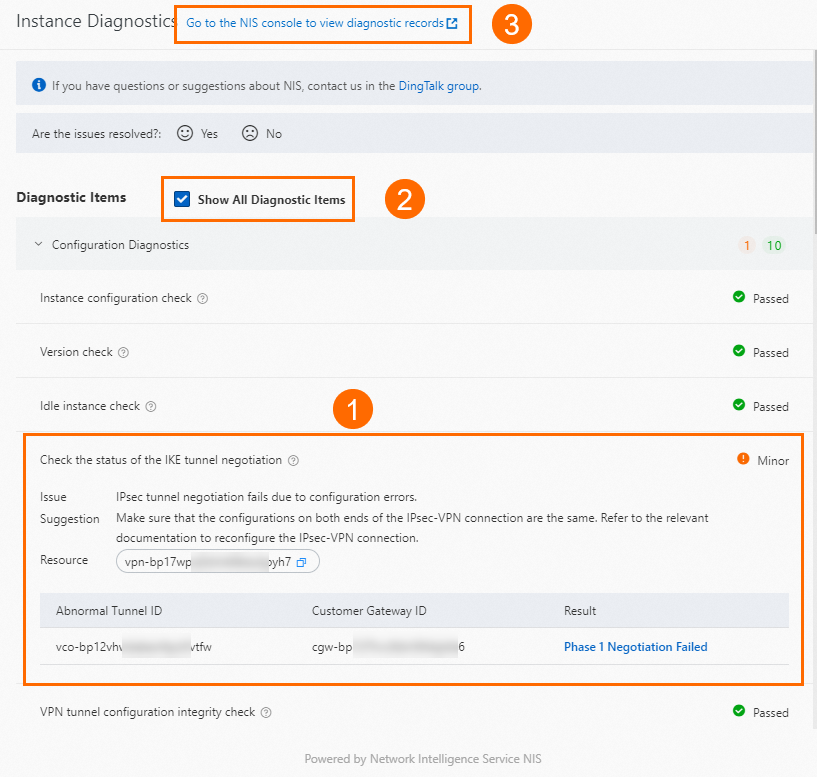
Section
Description
①
Detected anomalies are displayed immediately. You can view the anomaly description, associated resources, and recommended actions.
②
In the Diagnostic Items area, select Show All Diagnostic Items to view all diagnostic checks performed on the VPN Gateway instance.
③
At the top of the Instance Diagnostics panel, click Go to the NIS console to view diagnostic records to open the Overview page of the NIS console, where you can view historical diagnostic reports for the VPN Gateway instance. See Overview.
-
Example
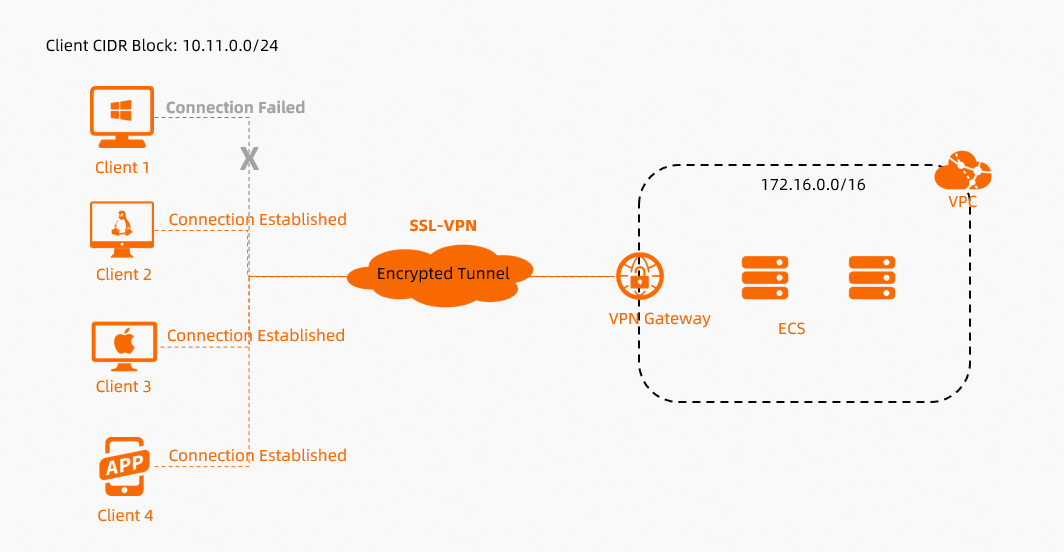
If clients cannot connect to a VPC through SSL-VPN, diagnose the VPN Gateway instance to check the SSL-VPN connection configuration.
-
Run a diagnosis on the VPN Gateway instance. See Run a diagnosis.
-
In the Instance Diagnostics panel, review the diagnostic results and troubleshoot any issues based on the findings.
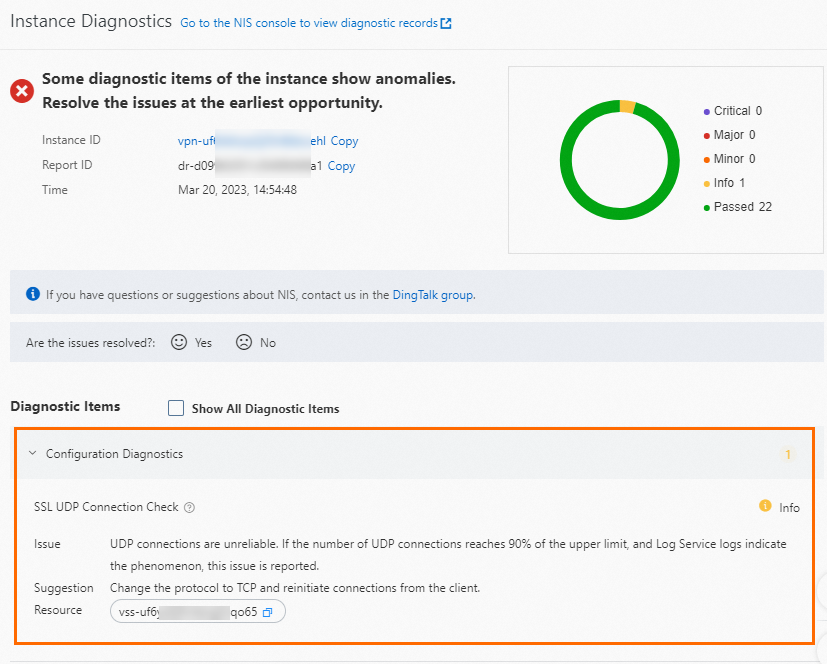
In the preceding example, the diagnosis found that the SSL server uses the UDP protocol. This can cause unreliable connections that consume connection resources and lead to client connection failures. The recommendation is to change the SSL server protocol to TCP.
-
After you modify the configuration, rerun the diagnosis on the VPN Gateway instance to verify that the issues are resolved.
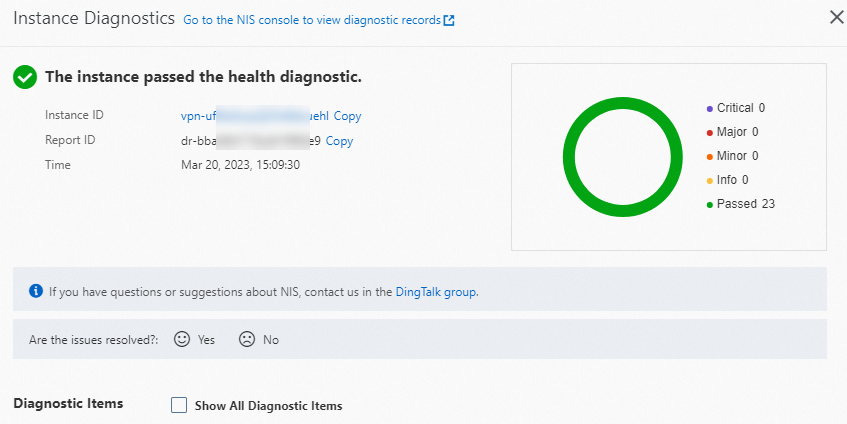
-
If the diagnosis passes but SSL-VPN connection issues persist, check the SSL-VPN connection logs and refer to the SSL-VPN FAQ documentation for further troubleshooting. See Troubleshoot SSL-VPN connection issues and SSL-VPN connection FAQ.