Express Connect circuits provide private, low-latency links between your data center and a VPC, but do not encrypt traffic in transit. Adding a private IPsec-VPN connection on top of the circuit gives you end-to-end encryption while keeping all traffic off the public internet — no public IP addresses required for VPN endpoints. This guide walks through a complete two-phase setup: establishing the Express Connect connection, then layering encryption on top without disrupting existing connectivity.
Background information
Before you begin, we recommend that you first understand the principles of encrypting private network traffic over Express Connect circuits. For more information, see Encrypt Express Connect traffic.
Scenario example
This topic uses the scenario shown in the following figure as an example. An enterprise has a data center (IDC, Internet Data Center) in Hangzhou and a VPC in the China (Hangzhou) region on Alibaba Cloud. Related services are deployed in the VPC by using Elastic Compute Service (ECS). As the business grows, the on-premises IDC needs to connect to the cloud. Based on certain security compliance requirements, the enterprise needs to use an Express Connect circuit and a transit router to implement private network communication between the on-premises IDC and the VPC. In addition, to reduce the risk of data leakage and prevent confidential enterprise data from being stolen or tampered with by internal or external personnel, the enterprise wants all traffic transmitted over the Express Connect circuit to be encrypted before being transmitted to Alibaba Cloud.
If your on-premises data center and VPC are connected over an internal network, you can establish an internal IPsec-VPN connection between the on-premises gateway device and the transit router. The internal IPsec-VPN connection can encrypt the traffic that is transmitted over the Express Connect circuit, which meets the high network security requirements of enterprises.

Network planning
If you want to plan CIDR blocks for the on-premises data center and the associated network instances on your own, make sure that the CIDR blocks that need to communicate with each other do not overlap.
How the routing mechanism works
To encrypt internal network traffic that is transmitted over an Express Connect circuit, you must ensure that the traffic exchanged between the on-premises data center and the VPC is preferentially transmitted over the internal IPsec-VPN connection instead of the Express Connect circuit. This topic achieves this goal by controlling routes:
Traffic from the VPC to the on-premises data center:
The transit router can learn the routes to the on-premises data center from the VBR instance and the internal IPsec-VPN connection separately. Based on the route priorities of the transit router, the routes learned from the VBR instance are preferred by default. As a result, traffic from the VPC to the on-premises data center is preferentially transmitted over the Express Connect circuit and cannot be encrypted.
This topic avoids this issue by advertising CIDR blocks of the on-premises data center with different subnet masks. When the on-premises gateway device advertises a CIDR block of the on-premises data center to the VBR instance, it must advertise a large CIDR block (with a short subnet mask). When the on-premises gateway device advertises a CIDR block of the on-premises data center to the internal IPsec-VPN connection, it must advertise a small CIDR block (with a long subnet mask).
For example, if the CIDR block of the on-premises data center is 192.168.0.0/16 and the CIDR block of the clients in the on-premises data center that communicate with the VPC is 192.168.20.0/24, the on-premises gateway device advertises the CIDR block 192.168.0.0/16 of the on-premises data center to the VBR instance, and advertises the specific client CIDR block 192.168.20.0/24 to the internal IPsec-VPN connection. This ensures that the routes learned by the transit router from the internal IPsec-VPN connection are preferred, and traffic from the VPC to the clients is preferentially transmitted in encrypted form over the internal IPsec-VPN connection.
Traffic from the on-premises data center to the VPC:
The on-premises data center can learn routes to the VPC instance through both the VBR instance and the private IPsec-VPN connection. This topic describes how to configure a routing policy on the transit router to adjust the route priority, so that traffic from the on-premises data center to the VPC is preferentially transmitted over the private IPsec-VPN connection.
The current routing mechanism also ensures that, after the private IPsec-VPN connection is interrupted, the on-premises IDC and the VPC can still achieve private network communication through the Express Connect circuit and the transit router, but the traffic is no longer encrypted.
Basic CIDR block planning
Configuration goal | CIDR block planning | IP address |
VPC |
|
|
VBR | 10.0.0.0/30 |
|
On-premises data center | Client CIDR block: 192.168.20.0/24 | Client IP address: 192.168.20.6 |
CIDR block of the on-premises gateway device:
|
|
BGP CIDR block planning
The BGP tunnel CIDR block must be a CIDR block with a subnet mask of 30 within 169.254.0.0/16, and cannot be 169.254.0.0/30, 169.254.1.0/30, 169.254.2.0/30, 169.254.3.0/30, 169.254.4.0/30, 169.254.5.0/30, 169.254.6.0/30, or 169.254.169.252/30. The two tunnels of an IPsec connection cannot use the same tunnel CIDR block.
Resource | Tunnel | BGP tunnel CIDR block | BGP IP address | BGP AS number (local autonomous system number) |
IPsec connection instance | Tunnel 1 | 169.254.10.0/30 | 169.254.10.1 | 65534 |
Tunnel 2 | 169.254.20.0/30 | 169.254.20.1 | ||
On-premises gateway device | Tunnel 1 | 169.254.10.0/30 | 169.254.10.2 | 65530 |
Tunnel 2 | 169.254.20.0/30 | 169.254.20.2 |
Prerequisites
You have created a VPC in the China (Hangzhou) region of Alibaba Cloud and deployed relevant services by using ECS. For more information, see Create a VPC with an IPv4 CIDR block.
Check the on-premises gateway device to ensure that it supports the standard IKEv1 and IKEv2 protocols so that it can establish a private IPsec-VPN connection with Alibaba Cloud. To confirm whether the on-premises gateway device supports the standard IKEv1 and IKEv2 protocols, consult the vendor of the on-premises gateway device.
Procedure
Step 1: Enable private communication between the IDC and the VPC over an Express Connect circuit and a transit router
Step 1: Deploy an Express Connect circuit
Deploy an Express Connect circuit to connect your on-premises IDC to Alibaba Cloud.
Create an Express Connect circuit.
Apply for an Express Connect circuit in the China (Hangzhou) region. See Apply for Classic Mode or Hosted connection. This example uses a dedicated connection.
Create a VBR instance.
Log on to the Express Connect console.
In the left-side navigation pane, click VBRs.
In the top navigation bar, select the China East 1 (Hangzhou) region.
The VBR instance must be deployed in the same region as the Express Connect circuit.
On the VBRs page, click Create VBR.
In the Create VBR panel, configure the settings based on the following information, and then click OK.
Only the parameters that are strongly related to this topic are listed below. The other parameters retain their default settings. For more information, see Create and manage VBRs.
Parameter
Description
Name
In this topic, enter VBR.
Physical Connection
In this topic, select Dedicated Express Connect Circuits as the type, and then select the created Express Connect circuit interface.
VLAN ID
In this topic, enter 0.
IPv4 Address of Gateway at Alibaba Cloud Side
In this topic, enter 10.0.0.1.
IPv4 Address of Gateway at Customer Side
In this topic, enter 10.0.0.2.
Subnet Mask (IPv4 Address)
In this topic, enter 255.255.255.252.
Configure a BGP group for the VBR.
On the VBRs page, click the ID of the VBR instance.
On the details page of the virtual border router (VBR) instance, click the BGP Groups tab.
On the BGP Groups tab, click Create BGP Group, configure the BGP group based on the following information, and then click OK.
Only the configuration items that are strongly related to this topic are listed here. For more information, see Configure and manage BGP.
Name: Enter VBR-BGP.
Peer AS Number: Enter the autonomous system number (ASN) 65530 of the on-premises gateway device.
Local ASN: Enter the BGP ASN 65534 used by the VBR instance.
Configure a BGP peer for the VBR.
On the details page of the border router instance, click the BGP Peers tab.
Under the BGP Peers tab, click Create BGP Peer.
In the Create BGP Peer panel, configure the BGP peer information, and then click OK.
BGP Groups: Select VBR-BGP.
BGP Peer IP Address: Enter the IP address of the BGP peer. In this topic, enter the IP address of the interface on the on-premises gateway device that is connected to the Express Connect circuit 10.0.0.1.
Configure BGP routes on the on-premises gateway device.
NoteIn this example, the software Adaptive Security Appliance (ASA) 9.19.1 is used to describe how to configure a Cisco firewall. The commands may vary with software versions. Consult the documentation or your vendor based on your actual environment during operations. For more information, see Configure local gateways.
The following content contains third-party product information, which is only for reference. Alibaba Cloud does not make guarantees or other forms of commitments for the performance and reliability of third-party products, or the potential impacts of operations performed by using these products.
ciscoasa> enable Password: ******** # Enter the password for enable mode. ciscoasa# configure terminal # Enter configuration mode. ciscoasa(config)# #The Cisco firewall has completed the interface configuration and enabled the interfaces. The following is an interface configuration example used in this topic. ciscoasa(config)# show running-config interface ! interface GigabitEthernet0/0 #The interface that is connected to the VBR. nameif VBR #The name of the GigabitEthernet0/0 interface. security-level 0 ip address 10.0.0.1 255.255.255.252 #The IP address configured for the GigabitEthernet0/0 interface. ! interface GigabitEthernet0/2 #The interface that is connected to the on-premises data center (IDC). nameif private #The name of the GigabitEthernet0/2 interface. security-level 100 #Specify a security-level for the interface connected to the on-premises IDC that is lower than that of the interface connected to Alibaba Cloud. ip address 192.168.50.215 255.255.255.0 #The IP address configured for the GigabitEthernet0/2 interface. ! interface GigabitEthernet0/3 #The interface that connects to private IPsec-VPN tunnel 1 nameif VPN-IP1 #The name of the GigabitEthernet0/3 interface. security-level 0 ip address 192.168.10.136 255.255.255.0 #The private IP address configured for the GigabitEthernet0/3 interface. ! interface GigabitEthernet0/4 #The interface that connects to private IPsec-VPN tunnel 2 nameif VPN-IP2 #The name of the GigabitEthernet0/4 interface. security-level 0 ip address 192.168.40.159 255.255.255.0 #The private IP address configured for the GigabitEthernet0/4 interface. ! #Configure the prefix-list and route-map prefix-list VBR permit 192.168.0.0/16 route-map VBR permit 10 match ip address prefix-list VBR #Configure BGP routing router bgp 65530 #Enable the BGP routing protocol and configure the autonomous system number of the on-premises IDC. In this topic, the value is 65530. bgp router-id 10.0.0.1 #The BGP router ID. In this topic, the value is set to 10.0.0.1. address-family ipv4 unicast neighbor 10.0.0.2 remote-as 65534 #Establish a BGP peer relationship with the VBR instance. neighbor 10.0.0.2 activate #Activate the BGP peer. neighbor 10.0.0.2 route-map VBR out #Advertise only large route blocks to the VBR. network 192.168.0.0 mask 255.255.0.0 #Advertise the CIDR block of the on-premises data center. We recommend that you advertise a large CIDR block. exit-address-family ! #Configure routes to clients in the on-premises data center. route private 192.168.0.0 255.255.0.0 192.168.50.216ImportantWhen you advertise the CIDR blocks of the on-premises data center to the VBR, we recommend that you advertise a large CIDR block. This ensures that the CIDR blocks of the on-premises data center that the transit router later learns over the private IPsec-VPN connection are more specific than the currently advertised CIDR block, and therefore have a higher route priority.
Step 2: configure the transit router
After the on-premises data center is connected to Alibaba Cloud over an Express Connect circuit, configure a transit router to enable private network communication between the on-premises data center and the VPC.
In the Create a CEN instance. dialog box, select Create CEN Only, then customize the Cloud Enterprise Network (CEN) instance name and keep the other configuration items at their default values.
Create a transit router instance in the China (Hangzhou) region to connect the VBR instance and the VPC instance. Keep the default settings for the other configuration items.
Create a VPC connection.
On the tab of the CEN instance details page, find the transit router instance in the China (Hangzhou) region and click Create Connection in the Actions column.
On the Connection with Peer Network Instance page, configure the settings based on the following information, and then click OK to connect the VPC instance to the transit router.
The following section describes only the configuration items that are closely related to this topic. Keep the default settings for the other configuration items. For more information, see Procedure.
Configuration item
Description
Instance Type
Select Virtual Private Cloud (VPC).
Region
Select China (Hangzhou).
Attachment Name
Set a custom name to VPC-Attachment.
Network Instance
Select VPC.
VSwitch
Select a vSwitch instance in a zone supported by the transit router.
In this topic, vSwitch 2 and vSwitch 3 are selected. In a region that supports multiple zones, you must select one vSwitch instance in each of at least two zones. We recommend that you use vSwitches that do not carry workloads to create the VPC connection.
Advanced Settings
Use the default route configuration, which means enabling all three advanced configurations.
Click Create More Connections to return to the Connection with Peer Network Instance page.
Create a VBR connection.
On the Connection with Peer Network Instance page, configure the connection based on the following information, and then click OK to connect the VBR instance to the transit router. Only the configuration items that are strongly related to this topic are listed below. Keep the other configuration items at their default values. For more information, see Connect a VBR to a transit router.
Configuration item
Description
Instance Type
Select Virtual Border Router (VBR).
Region
Select China (Hangzhou).
Attachment Name
Set the custom name to VBR-Attachment.
Network Instance
Select VBR.
Advanced Settings
Use the default route configuration, that is, enable all three advanced configurations.
Step 3: test private network connectivity
After the preceding configurations are complete, the on-premises data center and the VPC can communicate over the private network. You can perform the following steps to test the private network connectivity.
Make sure that you understand the security group rules applied to the ECS instances in the VPC and the access control rules applied to the clients in the data center (IDC), and make sure that the security group rules of the ECS instances and the access control rules of the clients in the data center (IDC) allow the clients in the data center (IDC) to communicate with the ECS instances in the VPC. For more information, see View security group rules and Add a security group rule.
In this step, the access control rules of the data center (IDC) must allow the ICMP protocol and the VPC CIDR block, and the security group rules of the ECS instances must allow the ICMP protocol and the data center (IDC) CIDR block.
Log on to the ECS1 instance in the VPC. For more information, see Connection method overview.
Run the ping command to access any client in the data center (IDC) CIDR block.
ping <the IP address of a client in the data center>[root@iZr***viZ ~]# ping 192.168.20.6 PING 192.168.20.6 (192.168.20.6) 56(84) bytes of data. 64 bytes from 192.168.20.6: icmp_seq=1 ttl=60 time=153 ms 64 bytes from 192.168.20.6: icmp_seq=2 ttl=60 time=152 ms 64 bytes from 192.168.20.6: icmp_seq=3 ttl=60 time=152 ms 64 bytes from 192.168.20.6: icmp_seq=4 ttl=60 time=152 ms 64 bytes from 192.168.20.6: icmp_seq=5 ttl=60 time=152 ms 64 bytes from 192.168.20.6: icmp_seq=6 ttl=60 time=152 ms ^Z [1]+ Stopped ping 192.168.20.6As shown in the preceding output, if ECS1 can receive response packets, private network communication between the on-premises IDC and the VPC is established.
Step 2: encrypt the private network traffic of the Express Connect circuit
After the on-premises data center and the VPC can communicate over the private network, you can create an IPsec-VPN connection of the private network type between the on-premises gateway device and the transit router. Then, you can use route configurations to route the traffic between the on-premises data center and the VPC through the private IPsec-VPN connection, so that the private network traffic of the Express Connect circuit is encrypted.
Step 1: Establish a private IPsec-VPN connection
Add a transit router CIDR block 10.10.10.0/24 to the transit router. For more information, see Add a CIDR block to an existing router.
The transit router CIDR block is used to assign gateway IP addresses to the IPsec connection so that a private IPsec-VPN connection can be established. The transit router CIDR block cannot conflict with the CIDR blocks in the data center (IDC) and the VPC that need to participate in network communication.
Create two customer gateways to register the VPN IP addresses and BGP ASN of the customer gateway device with Alibaba Cloud.
- Log on to the VPN gateway console.
In the left-side navigation pane, choose Interconnections - VPN - Customer Gateways.
On the Customer Gateway page, click Create Customer Gateway.
In the Create Customer Gateway panel, configure the following parameters and then click OK.
Only the parameters that are strongly related to this topic are described below. Keep the default values for the other parameters. For more information, see Customer Gateway.
Customer gateway 1
Name: Set the customer gateway name to Customer-Gateway1.
IP Address: Enter VPN IP address 1 of the on-premises gateway device192.168.10.136.
ASN: Enter the BGP AS number of the on-premises gateway device65530.
Customer gateway 2
Name: Set the customer gateway name to Customer-Gateway2.
IP Address: Enter the VPN IP address 2 of the on-premises gateway device 192.168.40.159.
ASN: Enter the BGP AS number of the on-premises gateway device 65530.
Create a VPC connection.
In the left navigation pane, choose .
On the IPsec Connections page, click Bind CEN.
On the Create IPsec-VPN Connection page, configure the IPsec connection based on the following information, and then click OK.
The following content lists only the configuration items that are closely related to this topic. The other configuration items retain their default settings. For more information, see IPsec-VPN connection (attached to a TR).
Parameter
IPsec connection
Name
Set to IPsec-Connection.
Region
Select the region where the transit router is deployed.
The ipsec-vpn connection is created in the same region as the transit router.
Gateway Type
Select Private.
Bind CEN
Select Same Account.
CEN Instance ID
Select the Cloud Enterprise Network (CEN) instance that you created.
The console displays the ID and CIDR block of the transit router that is created for the CEN instance in the current region. The ipsec-vpn connection will be attached to this transit router.
Routing Mode
This topic uses Destination Routing Mode, and the transmitted traffic is then controlled by routes.
Enable BGP
Enable the BGP feature.
Local ASN
Enter the BGP AS number of the IPsec connection 65534.
Tunnel 1
Customer Gateway
Associate Customer-Gateway1.
Pre-Shared Key
fddsFF111****.
ImportantThe pre-shared key of the IPsec-VPN connection must be the same as the pre-shared key of the peer gateway device. Otherwise, the IPsec-VPN connection cannot be established.
Encryption Configuration
Keep the default values for all other configuration items except the following parameters.
Select group14 for DH Group (Perfect Forward Secrecy) of IKE Settings.
Select group14 for DH Group (Perfect Forward Secrecy) of IPsec Settings.
NoteYou need to select encryption parameters based on the on-premises gateway device to ensure that the encryption configurations for the IPsec connection are the same as those for the on-premises gateway device.
BGP Configuration
Tunnel CIDR Block: Enter 169.254.10.0/30.
Local BGP IP address: Enter 169.254.10.1.
Tunnel 2
Customer Gateway
Associate Customer-Gateway2.
Pre-Shared Key
fddsFF222****.
Encryption Configuration
Keep the default values for all other configuration items except the following parameters.
For the DH Group (Perfect Forward Secrecy) of IKE Settings, select group14.
For the DH Group (Perfect Forward Secrecy) of IPsec Settings, select group14.
NoteYou need to select encryption parameters based on the on-premises gateway device to ensure that the encryption configurations for the IPsec connection are the same as those for the on-premises gateway device.
BGP Configuration
Tunnel CIDR Block: Enter 169.254.20.0/30.
Local BGP IP address: Enter 169.254.20.1.
Advanced Configuration (including route table association and route forwarding)
Use the default route configuration, that is, enable all advanced configuration options.
After the IPsec connection is created, you can view the gateway IP addresses of the IPsec connection on the IPsec connection details page. The IPsec connection uses these two gateway IP addresses to establish a private IPsec-VPN connection with the on-premises gateway device.
Return to the IPsec-VPN connection page, find the created IPsec connection, and click Generate Peer Configuration in the Actions column.
The peer configuration is the VPN configuration that you must add to the peer of the IPsec connection. In the scenario described in this topic, you must add these configurations to the on-premises gateway device.
In the IPsec-VPN Connection Configuration dialog box, copy the configuration and save it locally for subsequent configuration of the on-premises gateway device.
Configure the on-premises gateway device.
After you create an IPsec connection, you must add VPN configurations to the on-premises gateway device to establish a private IPsec-VPN connection between the on-premises gateway device and Alibaba Cloud.
After the preceding configurations are completed, the on-premises gateway device can establish a private IPsec-VPN connection with Alibaba Cloud. However, the BGP neighbor is not established. You can view the status of the private IPsec-VPN connection on the details page of the IPsec connection instance in the Alibaba Cloud console. If the private IPsec-VPN connection is not established in your environment, troubleshoot the issue. For more information, see Self-service diagnostics.
Step 2: Configure routes
After the private IPsec-VPN connection is created, traffic between the on-premises data center and the VPC is still transmitted over the Express Connect circuit and is not encrypted. You must add routes so that traffic between the on-premises data center and the VPC is transmitted over the private IPsec-VPN connection.
Add BGP route configurations on the on-premises gateway device.
# Configure prefix-list and route-map. prefix-list VPN permit 192.168.10.0/16 prefix-list VPN permit 192.168.20.0/16 prefix-list VPN permit 192.168.40.0/16 route-map VPN permit 10 match ip address prefix-list VPN # Configure BGP peers between the customer gateway device and the IPsec-VPN connection. router bgp 65530 address-family ipv4 unicast neighbor 169.254.10.1 remote-as 65534 # BGP peer: Tunnel 1 IP on the Alibaba Cloud side. neighbor 169.254.10.1 activate neighbor 169.254.10.1 route-map VPN out # Advertise specific routes to Tunnel 1. neighbor 169.254.20.1 remote-as 65534 # BGP peer: Tunnel 2 IP on the Alibaba Cloud side. neighbor 169.254.20.1 activate neighbor 169.254.20.1 route-map VPN out # Advertise specific routes to Tunnel 2. maximum-paths 5 # Increase ECMP route entries. network 192.168.10.0 mask 255.255.255.0 # Data center CIDR block — more specific than the route advertised to the VBR. network 192.168.20.0 mask 255.255.255.0 network 192.168.40.0 mask 255.255.255.0 exit-address-familyImportantWhen you advertise the CIDR block of the on-premises data center to the private IPsec-VPN connection, make sure that the CIDR block is more specific than the CIDR block of the on-premises data center advertised to the VBR instance. This ensures that the routes of the on-premises data center that the transit router learns over the private IPsec-VPN connection are more preferred.
Add a custom route entry for the transit router.
After the preceding route configuration is complete, the private IPsec-VPN connection is interrupted. You must add a specific route destined for the VPN IP address of the on-premises gateway device to the route table of the transit router, with the next hop pointing to the VBR instance, to re-establish the private IPsec-VPN connection.
Stay on the Route Table tab, click the Route tab, and then click Create Route.
In the Add Route Entry dialog box, configure the route entry information, and then click OK.
Parameter
CIDR block 1
CIDR block 2
Destination CIDR
Enter VPN IP address 1 of the on-premises gateway device 192.168.10.136/32.
Enter VPN IP address 2 of the on-premises gateway device 192.168.40.159/32.
Blackhole Route?
Select No.
Next Hop Connection
Select VBR-Attachment.
Add the first routing policy to the route table of the transit router.
The on-premises data center learns the CIDR block of the VPC from both the VBR instance and the private IPsec-VPN connection. To ensure that traffic from the on-premises data center to the cloud enters the VPC over the private IPsec-VPN connection in preference, you must configure a routing policy on the transit router so that the priority of the CIDR block of the VPC advertised to the on-premises data center by the VBR instance is lower than the priority of the CIDR block of the VPC advertised to the on-premises data center by the private IPsec-VPN connection.
Log on to CEN console.
On the CEN Instance page, find the CEN instance that you created and click the ID of the target instance.
On the details page of the CEN instance, click the ID of the transit router in the China East 1 (Hangzhou) region.
On the details page of the transit router, click the Forwarding router routing table tab and then click Routing Policy.
On the Routing Policy tab, click Add Route Map. Configure the routing policy based on the following information and then click OK.
The following content lists only the configuration items that are strongly related to this topic. The other configuration items remain in their default states. For more information, see Routing policies.
Parameter
Route map
Policy priority
Enter 30.
Associate routing tables
Retain the default value.
Effective direction
Select Outbound Gateway.
Match Condition
Destination Instance IDs: VBR instance ID.
Route Prefix: Enter 172.16.10.0/24 and 172.16.20.0/24, and select Exact match.
Strategic Behavior
Select Allow.
Add Action Object
In this topic, select Add AS Path and enter 65525, 65526, and 65527 to lower the priority of the VPC CIDR blocks that the VBR instance advertises to the on-premises IDC.
Add the second routing policy to the route table of the transit router to deny the private IPsec-VPN connection from propagating the route of the VPN IP address of the on-premises gateway device to the on-premises IDC. This prevents routing loops.
Policy priority: In this topic, enter 40.
Associate routing tables: Retain the default value.
Effective Direction: Select Outbound Gateway.
Match Condition:
Destination Instance IDs: the ID of the IPsec connection instance.
Route Prefix: Select Exact match and enter 192.168.10.136/32 and 192.168.40.159/32 for the VPN IP address of the on-premises gateway device.
Strategic Behavior: Select Reject.
Step 3: Verify the encryption effect
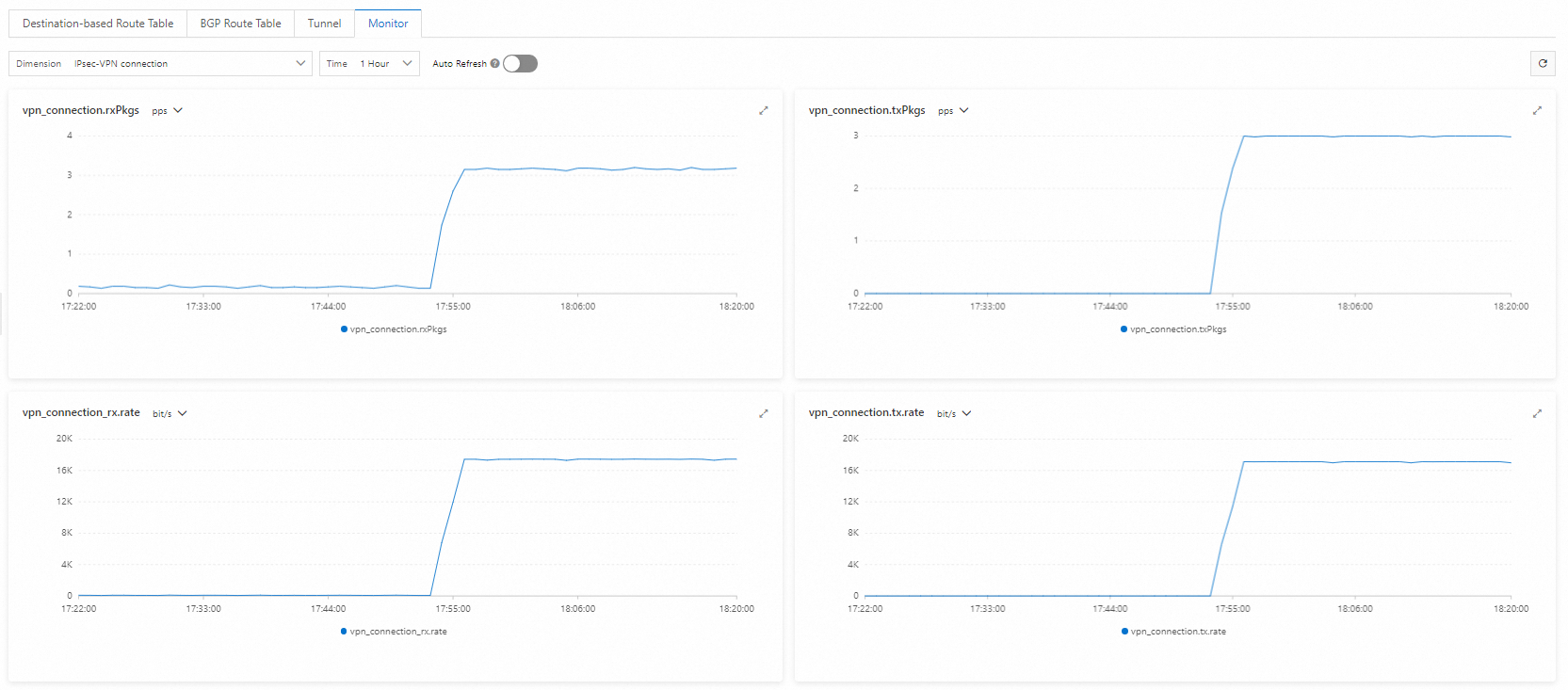
After you complete the preceding configurations, if you can view traffic transmission monitoring data on the details page of the IPsec connection, the private network traffic over the Express Connect circuit is encrypted.
Log on to the ECS1 instance in the VPC. Run the ping command to continuously access any client in the on-premises IDC CIDR block.
ping <IP address of a client in the data center> -s 1000 -c 10000-s 1000: specifies to send 1000-byte packets.-c 10000: continuously sends 10000 request packets.
Log on to the VPN Gateway console.
In the top navigation bar, select the China (Hangzhou) region.
In the left-side navigation pane, choose Interconnections - VPN - IPsec Connections.
On the IPsec-VPN connection page, find the created IPsec connection and click the IPsec connection ID.
View the traffic transmission monitoring data on the IPsec connection details page.