You can enable the log delivery feature for a cloud-native gateway in the Microservice Engine (MSE) console. After you enable the feature, the access logs of the gateway are delivered to Simple Log Service. You can analyze the access logs of the cloud-native gateway to understand the behavior and geographical locations of client users for troubleshooting.
Prerequisites
A cloud-native gateway is created. For more information, see Create a cloud-native gateway.
Simple Log Service is activated. To activate Simple Log Service, log on to the Simple Log Service console with your Alibaba Cloud account. For more information about Simple Log Service, see What is Simple Log Service?
If you use the log shipping feature in MSE, no log shipping fees are generated in the MSE console. Instead, you are charged the fees in Simple Log Service based on the amount of resources that you used. For more information about billing of Simple Log Service, see Pay-by-feature.
Scenarios
This topic describes how to deliver cloud-native gateway logs. For information about how to deliver traffic protection events from MSE to Simple Log Service, see Report MSE traffic protection events to Simple Log Service. For information about how to configure traffic protection alerts based on Simple Log Service, see Configure a traffic protection alert based on Simple Log Service.
Procedure
Log on to the MSE console. In the top navigation bar, select a region.
In the left-side navigation pane, choose Cloud-native Gateway > Gateways. On the Gateways page, click the name of the gateway.
In the left-side navigation pane, click Parameter Settings. In the Observability Parameters section, click
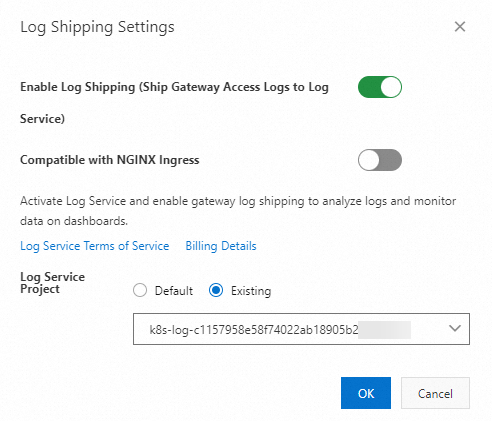
 next to Log Shipping. In the Log Shipping Settings dialog box, turn on Enable Log Shipping (Ship Gateway Access Logs to Log Service).
  Note
NoteAfter you enable log shipping, a Simple Log Service project is automatically created in the Simple Log Service console. You can also select an existing Simple Log Service project.
If you activate Managed Service for OpenTelemetry, you can view metric data of the gateway in the Managed Service for OpenTelemetry console. For more information, see Enable tracing analysis for a cloud-native gateway.
After log shipping is enabled, click the link on the right side of Project in the Observability Parameters section. You are redirected to the Logstore that corresponds to the gateway. For more information, see Query and analyze logs.
Related operations
Operation | Description |
Disable log delivery | In the Log Shipping Settings dialog box, turn off Enable Log Shipping. Important If you disable log delivery, the related project and pushed logs are not automatically deleted. To prevent additional fees, you can delete the project that is used to store gateway logs in the Simple Log Service console after you disable log delivery. For more information, see Manage a project. |
What to do next
After the access logs of a gateway are delivered to Simple Log Service, you can query, analyze, download, ship, and transform the logs in the Simple Log Service console. You can also create alert rules for the logs. For more information, see Common operations on logs of Alibaba Cloud services.