Use the Agentic SOC cloud observability feature with Simple Log Service (SLS) to monitor and create alerts for service health, log usage, and other operational metrics.
Business scenarios
During daily O&M, you may encounter the following issues with Agentic SOC:
Service availability risks: Interruptions in log ingestion or abnormal core module operations may go undetected, degrading security analytics capabilities.
Cost management difficulties: Log ingestion traffic can exceed expectations, causing unexpected SLS storage and query costs without timely monitoring.
Low O&M efficiency: Without a unified monitoring view and alerting mechanism, integrating Agentic SOC operational status into your existing O&M system is difficult.
Workflow
The cloud observability feature delivers Agentic SOC operational status logs to Simple Log Service (SLS). You can then use SLS alerts to monitor these logs and send notifications.

Log generation: Modules of Agentic SOC, such as usage metering and module health, generate monitoring logs during runtime.
Log delivery: After you enable the cloud observability feature, Agentic SOC delivers these monitoring logs in real time to your specified SLS project.
Log storage: The logs are stored in a Logstore in SLS.
Monitoring and alerts: Alert rules in SLS periodically execute query statements (SQL) to determine whether the trigger conditions are met.
Send notifications: When an alert is triggered, an action policy sends notifications to specified channels, such as text messages, DingTalk, or email.
Procedure
Step 1: Enable the cloud observability feature
Enable the cloud observability feature in the Agentic SOC console to deliver monitoring logs to Simple Log Service (SLS).
Go to the Cloud Observability configuration page
Log on to the Security Center console - System Settings - Feature Settings. At the top of the page, select the region where your assets are located: Chinese Mainland or Outside Chinese Mainland.
On the Settings tab, click Cloud Observability.
Enable the feature
In the Basic Settings section of the Cloud Observability configuration tab, turn on the Enable Cloud Observability switch.
Configure log storage information
In the Detailed Configuration section of the Cloud Observability configuration tab, specify the following parameters:
Monitoring Module: Turn on the switches for the log types that you want to deliver.
Module Health: Monitors the running status, connection status, and performance of each module.
Usage Metering: Monitors log ingestion traffic and log storage capacity.
Log Storage Location:
Region: Select the region where you want to store the cloud observability logs.
WarningThe log storage region cannot be changed after the initial setup. The system automatically creates a dedicated SLS Project and Logstore in the selected region.
Project: Automatically created based on the selected region. Format:
sas-observability-AccountUID-RegionID.Logstore Mapping: Two Logstores are automatically created.
health-log: Stores Module Health logs.metering-log: Stores Usage Metering logs.
Data Retention Days: Set the data retention period. Default: 30 days.
NoteA longer retention period results in higher storage costs.
Save Configuration: Click Save Configuration. Agentic SOC then starts delivering logs to the specified SLS Project.
ImportantCloud observability log storage incurs additional fees billed by Simple Log Service (SLS).
Step 2: Configure alert notification rules
Procedure
On the Cloud Observability tab, click Alert Center in the lower-right corner to go to the alert center configuration page.
On the Alert Rules tab, click Create Alert and configure the following parameters:
NoteFor more information, see Create an alert rule.
Parameter
Description
Rule Name
The name of the alert rule.
Check Frequency
How often SLS checks query and analysis results.
-
Hourly: Checks query and analysis results every hour.
-
Daily: Checks query and analysis results daily at a specified time.
-
Weekly: Checks query and analysis results weekly on a specified day and time.
-
Fixed Interval: Checks query and analysis results at a fixed interval.
-
Cron: Checks query and analysis results based on a Cron expression.
NoteCron expressions use a 24-hour clock with minute-level precision. Examples:
-
0/5 * * * *: Checks every 5 minutes, starting from minute 0. -
0 0/1 * * *: Checks every hour, starting from 00:00. -
0 18 * * *: Checks at 18:00 every day. -
0 0 1 * *: Checks at 00:00 on the first day of every month.
Cron expression syntax: Cron jobs.
-
Query statistics
Click the input box to open the Query statistics dialog box and configure the query and analysis statement.
-
Associated report tab: Select a dashboard to monitor.
-
Advanced Settings tab:
-
From the Type list, select a data source type:
-
Logstore: Stores logs. Quick start for query and analysis.
-
Metricstore: Stores metric data. Query and analyze metric data.
-
Resource Data: External data linked to a specific alert rule. Create resource data.
-
-
If you select Logstore or Metricstore for Type and specify a query and analysis statement, you can enable Dedicated SQL. High-performance and high-accuracy query and analysis (Dedicated SQL).
-
Auto: Dedicated SQL is off by default. If a concurrency limit is reached or results are imprecise, SLS automatically retries with Dedicated SQL.
-
Enable: Uses Dedicated SQL for all queries and analyses.
-
Close: Disables Dedicated SQL.
-
-
For multiple queries, use Set operations to correlate results. Configure query statements.
Group evaluation
Groups query and analysis results. Configure group evaluation.
-
Custom label: SLS groups query and analysis results by the fields you specify. The trigger condition is evaluated per group, generating an alert for each matching group per check interval.
You can specify multiple fields.
-
No grouping: Generates one alert per check interval when the trigger condition is met.
-
Auto label: Available when Metricstore is selected in Query statistics. SLS automatically groups results by labels.
The trigger condition is evaluated per group, generating an alert for each matching group per check interval.
Trigger Condition
Set the condition that triggers an alert and its severity.
-
Trigger condition
-
Data exists: Triggers an alert if query results contain data.
-
A specific number of data rows exists: Triggers an alert if the number of data rows in query results is N.
-
Data matches expression: Triggers an alert if query results contain data matching the expression.
-
A specific number of data rows match expression: Triggers an alert if N data rows in query results match the expression.
-
-
Severity
Drives alert noise reduction and notification routing. Add severity-based conditions to alert and action policies. Configure alert severity.
-
Simple: Select a severity. All alerts from this rule share the same severity.
-
Conditional: Click Add to set different severities based on specific conditions.
-
Alert condition expression syntax: Syntax for alert condition expressions.
Add Tag
Key-value identifying attributes for alerts. Labels drive noise reduction and notification routing. Add label-based conditions to alert and action policies. Add labels and annotations.
Add Annotation
Key-value metadata for alerts. Annotations drive noise reduction and notification routing. Add annotation-based conditions to alert and action policies. Add labels and annotations.
Enable Auto-add annotations to include fields such as __count__ to alerts. Automatic annotations.
Recovery Notification
When the Recovery Notification switch is enabled, a recovery notification is sent when an alert is resolved. For example, if CPU usage exceeds 95% and later drops to 95% or below, a recovery notification is sent. Configure a recovery notification.
Advanced settings > Consecutive trigger threshold
Number of consecutive checks that must meet the trigger condition before an alert fires. Non-matching checks do not count.
Advanced settings > No-data alert
When No-data alert is enabled, an alert fires if consecutive no-data checks exceed the Threshold of Continuous Triggers. For multiple queries, this applies to the post-set-operation result. No-data alert.
Destination
Select one or more destinations for alert events.
-
Eventstores: Writes alert events to an Eventstore.
-
CloudMonitor Event Center: Sends alerts to CloudMonitor Event Center for management and notification.
-
SLS notification: Routes alerts through the SLS notification service using alert and action policies.
Destination - Eventstore
-
Enable: Enable to write alerts to the specified Eventstore.
-
Region: Region of the destination Eventstore.
-
Project: Project of the destination Eventstore.
-
Eventstores: Target Eventstore for alert events.
-
Authorization Method:
-
Default Role: Click Authorize Now to authorize AliyunLogETLRole to write alerts to the destination Eventstore. Grant permissions to a default role.
-
Custom Role: Uses a custom role to write alerts to the Eventstore. Enter the role ARN. Grant permissions to a custom role.
-
Destination - CloudMonitor Event Center
-
Enable: Enable to send alerts to CloudMonitor Event Center. View system events.
Destination - SLS notification
-
Enable: Enable to route alerts through the SLS notification service.
-
Alert Policy
Simple mode
-
SLS uses the built-in dynamic alert policy (sls.builtin.dynamic) by default.
-
Configure an action group.
After you configure an action group, SLS automatically creates an action policy named
Rule Name-Action Policy. All alerts from this rule use this policy. Notification channels.ImportantModify this action policy on the Action policies page. Adding a condition changes the Alert Policy setting to Standard Mode automatically.
-
Repeat interval: During this interval, repeated alerts trigger the action policy only once.
Standard mode
-
SLS uses the built-in dynamic alert policy (sls.builtin.dynamic) by default.
-
Select a built-in or custom action policy. Action policies.
-
Repeat interval: During this interval, repeated alerts trigger the action policy only once.
Advanced mode
-
Select a built-in or custom alert policy. Create an alert policy.
-
Select a built-in or custom action policy. Action policies. You can also toggle Custom action policy. Dynamic action policy mechanism.
-
Repeat interval: During this interval, repeated alerts trigger the action policy only once.
-
-
After you complete the configuration, click OK.
Configuration examples
Traffic Drop to Zero
Scenario: Log ingestion traffic to Agentic SOC abruptly drops to 0.
Solution: Every 10 minutes, the system checks the log volume for the preceding 10-minute period. If the volume is 0, data reporting is considered interrupted and an alert is triggered. The alert is sent by text message, with a 10-minute cool-down period to avoid duplicate notifications.
Configuration:
Check Frequency: Fixed interval of 10 minutes.
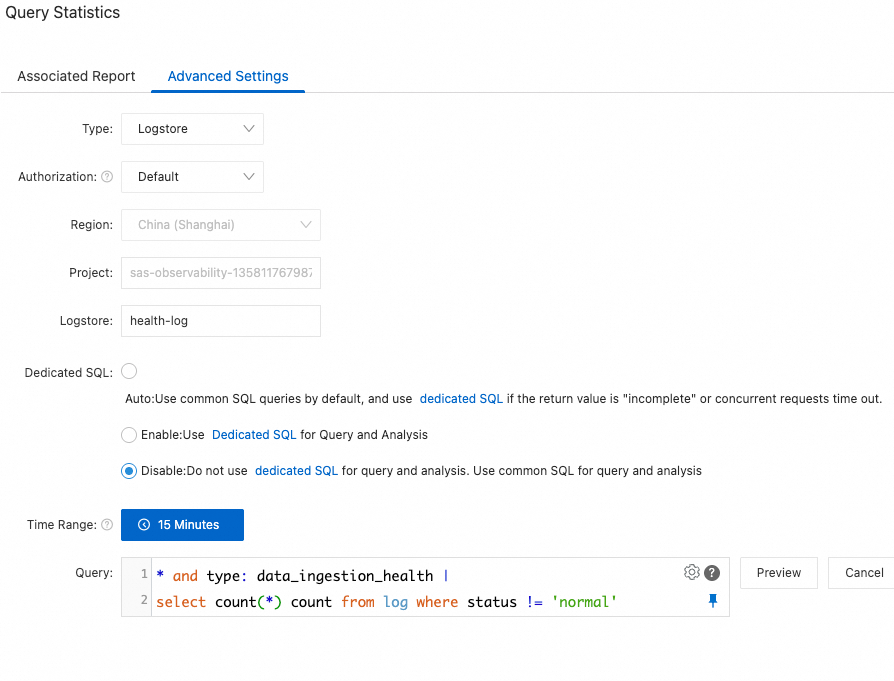
Query Statistics: Click Create. In the Query Statistics dialog box, click the Advanced Settings tab and specify the following parameters:
Type: Logstore
Authorization: Default.
Logstore:
metering-logDedicated SQL: Disable.
Time Range: 10 minutes (relative to the hour). The query SQL is as follows:
* and type: log_traffic |
select if(t.log_size is null, 0, t.log_size) from (select sum(log_size) log_size from log) t
Group Evaluation: No Grouping.
Trigger Condition:
Data matches condition. The Evaluation Expression is_col0<=0.Destination: Select Simple Log Service Notification and turn on the switch.
Alert Policy:
Mode: Simple mode.
Action Group:
Notification Method: Text Message. For more information about other channel configurations, see Notification channels.
Recipient Type: Static Recipient.
NoteFor more information about how to set a dynamic recipient, see Set dynamic recipients
Alert Template: SLS built-in content template.
Period: Any.
Repeat Interval: 10 minutes.
Ingestion anomaly
Scenario: The status of a data source in the Integration Center is abnormal.
Solution: Every 15 minutes, the system checks the Module Health Logstore for logs where the
statusis notnormal. An alert is triggered if such a log is found.Configuration:
Check Frequency: Fixed interval of 15 minutes.
Query Statistics: Click Create. In the Query Statistics dialog box, click the Advanced Settings tab and specify the following parameters:
Type: Logstore
Authorization: Default.
Logstore:
health-logDedicated SQL: Disable.
Time Range: 15 minutes (relative to the hour). The query SQL is as follows:
* and type: data_ingestion_health |
select count(*) count from log where status != 'normal'
Trigger Condition:
Data matches condition. The Evaluation Expression iscount>0.Destination: Select SLS Notification and turn on the switch.
Alert Policy:
Mode: Simple mode.
Action Group:
Notification Method: Text Message. For more information about other channel configurations, see Notification channels.
Recipient Type: Static Recipient.
NoteFor more information about how to set a dynamic recipient, see Set dynamic recipients
Alert Template: SLS built-in content template.
Period: Any.
Repeat Interval: 15 minutes.
Costs and risks
Cost: After you enable Cloud Observability, monitoring logs are continuously delivered to SLS. Log storage and query analysis fees are billed by SLS. The default data retention period is 30 days.
Risk: The log storage region cannot be changed after the initial setup. Choose the region carefully, as an incorrect selection can increase data link latency and management complexity.