Features
This topic covers the features of SchedulerX for scheduling, execution, and operations.
Periodic scheduling
-
Crontab
Supports standard UNIX crontab expressions but does not support second-level scheduling. For more information, see Cron.
-
Fixed rate
The fixed rate option allows for regular polling at a fixed interval. Fixed rate expressions are simple but do not support second-level scheduling. For more information, see Fixed rate.
-
Second delay
This option is ideal for services that require high real-time performance, such as running a job every 10 seconds. Second delay supports second-level scheduling. For more information, see Second delay.
-
Calendar
SchedulerX supports multiple calendar types and allows you to import custom ones. A common use case is in financial services, for example, to run a job on every trading day.
-
Time zone
This feature is suitable for global businesses that need to run jobs in the local time zones of different countries.
-
Data timestamp
SchedulerX can handle jobs that are data-aware. When creating a job, you can specify a data offset. For example, a job is scheduled to run at 00:30 daily but needs to process data from the previous day. You can set a negative offset of one hour. The job's run time remains unchanged, but calling
context.getDataTime()during execution returns 23:30 of the previous day.
For more information about how to create a periodic scheduling job, see Create a scheduling job.
Job orchestration
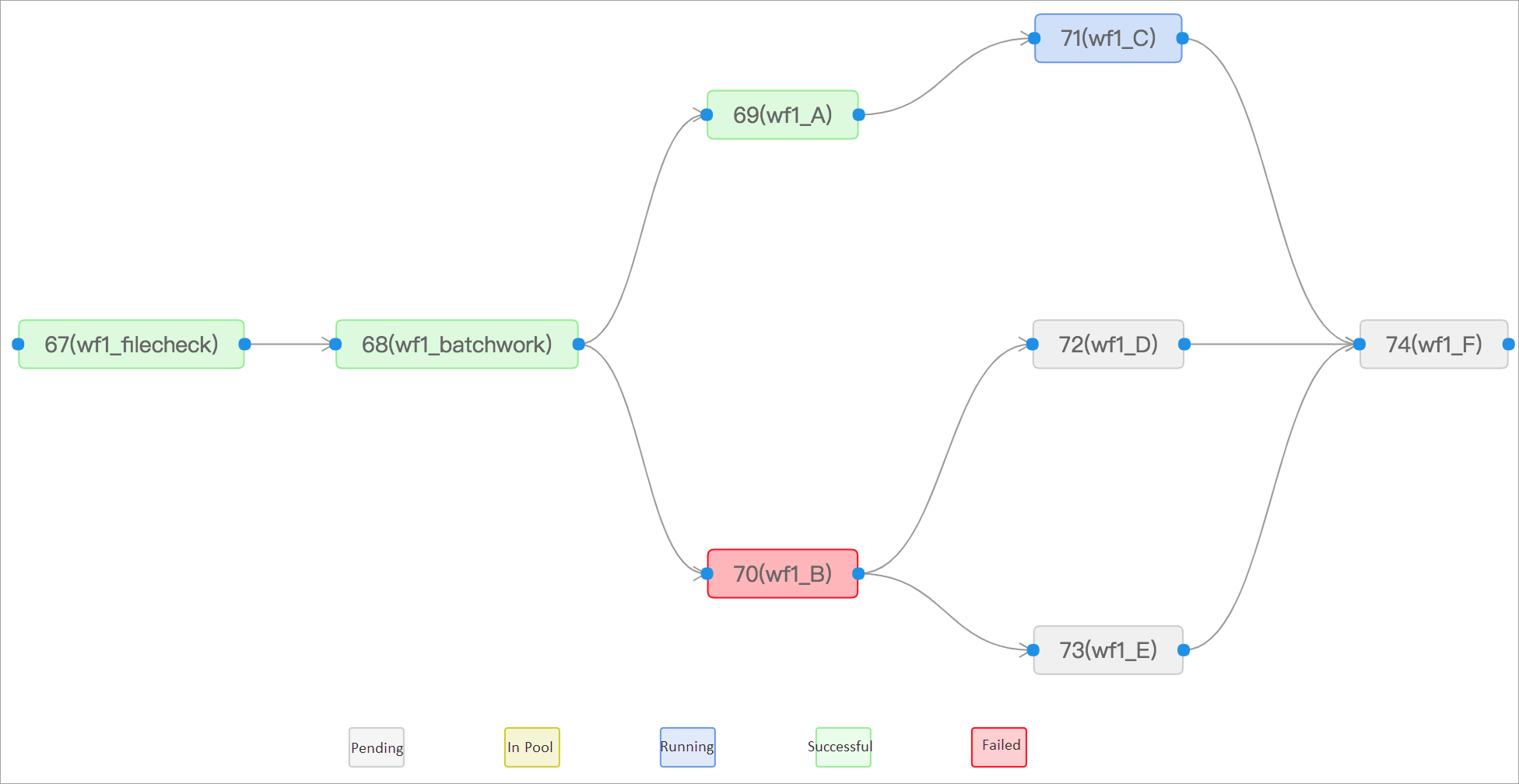
SchedulerX provides a drag-and-drop user interface to orchestrate jobs into a workflow based on a directed acyclic graph (DAG). The visual representation of job states helps you quickly identify and troubleshoot why downstream jobs did not execute. For more information, see Create a workflow.
Multiple job types
SchedulerX supports a variety of job types in multiple programming languages for both periodic scheduling and workflow orchestration.
Java
For Java applications, integrate the Java SDK to run specific methods in your application. For more information, see Java jobs.
Script job
You can write and run scripts online. SchedulerX supports scripts such as Shell and Python. For more information, see Script jobs.
Golang
For Go applications, integrate the Go SDK to run specific jobs. For more information, see Golang jobs.
XXL-JOB
SchedulerX provides compatibility with XXL-JOB, allowing you to host and manage XXL-JOB jobs without code modification. For more information, see XXL-JOB jobs.
DataWorks
SchedulerX integrates with Alibaba Cloud DataWorks. You can add DataWorks jobs to a workflow and orchestrate them with other job types. For more information, see DataWorks jobs.
Spring
SchedulerX provides compatibility with the Spring @Scheduled annotation, allowing you to manage Spring scheduled jobs without code modification. For more information, see Spring jobs.
HTTP
-
HTTP serverless: Schedule jobs by using a public domain name without requiring a client agent. For more information, see HTTP jobs (Serverless).
-
HTTP agent: Requires deploying a schedulerxAgent within your VPC cluster. This allows you to schedule jobs by using private domain names or IP addresses.
K8s
Supports K8s script jobs and is compatible with native Kubernetes Jobs and CronJobs. For more information, see K8s jobs.
Distributed computing
SchedulerX provides simple distributed programming models that support large-scale batch processing.
-
Standalone
This model randomly selects one worker to execute the job. For more information, see Standalone.
-
Broadcast
This model executes the job on all available workers simultaneously and waits for all of them to complete. For more information, see Broadcast.
-
Map model
Similar to the Map phase in Hadoop MapReduce. By implementing a simple Map method, you can process large datasets in a distributed manner across multiple machines with just a few lines of code. For more information, see Map model.
-
MapReduce model
The MapReduce model extends the Map model. It deprecates the postProcess method and introduces a Reduce interface. SchedulerX executes the Reduce method after all sub-tasks complete, allowing you to return the final result of the job instance or trigger a business callback. For more information, see MapReduce model.
-
Sharding
Similar to the Elastic-Job model. You can configure sharding parameters in the console to distribute shards evenly among multiple clients for execution. This model supports multiple programming languages. For more information, see Sharding models for different programming languages.
Automatic retries on failure
-
Automatic retry for failed instances
In the advanced configuration for a job, you can set the number of retries and the retry interval for a failed instance. For example, you can configure the job to retry 3 times at 30-second intervals. SchedulerX marks the instance as Failed and triggers an alert only after all retry attempts have failed.
-
Automatic retry for failed sub-tasks
For distributed jobs, such as those using the sharding or MapReduce model, you can also configure automatic retries and retry intervals for failed sub-tasks in the advanced configuration settings.
Multiple flow control methods
-
Instance concurrency
Job-level flow control. This setting specifies the maximum number of instances of a job that can run concurrently. The default is 1, which means the next instance starts only after the previous one has finished.
-
Single-machine sub-task concurrency
Flow control for distributed jobs. This setting limits the number of sub-tasks that can run concurrently on each machine.
-
Global sub-task concurrency
Flow control for distributed jobs. When a large number of machines are used, the single-machine concurrency model can generate high traffic. In a distributed job, you can use a pull-based model where compute nodes pull sub-tasks from the master node. This setting controls the maximum number of sub-tasks that can run concurrently across the entire system.
-
Application priority
Application-level flow control. This setting limits the maximum number of jobs that can run concurrently within a single application.
Enterprise observability
SchedulerX provides rich visualization capabilities, such as:
-
User dashboard: The SchedulerX Overview page displays Professional Edition Statistics (including Total Jobs, Enabled Jobs, Disabled Jobs, Online Workers, and Current Running Job Instances) and a Professional Edition Job Instance Summary (including Triggered, Succeeded, and Failed counts with trend charts). A Resource Overview and Quick Start section are also available on the right.
-
Job execution history: The Execution List page allows you to switch between the Job Instance List and Workflow Instance List. You can filter instances by status, application ID, date, and other criteria. The table displays fields such as Job ID/Name, Job Type/Execution Mode, Instance ID/Workflow Instance ID, App ID, Start Time, End Time, and Operator. Status is indicated by green (Succeeded) and red (Failed) labels. For each record, you can perform Details, Logs, and Rerun operations.
-
Job run logs: The Log Query feature allows you to filter logs by App, Job ID, or Search by keyword within a specified time range. The query results show the IP address, execution ID, log level, and detailed log content for each entry.
-
Job run stack: In the Job Instance Records panel, you can filter jobs by status (such as Running or Failed) and view the job name and type. After selecting a running job, the View Stack panel displays the current thread name, thread state (such as
TIMED_WAITING), and the full Java stack trace in a terminal-style view. -
Job tracing: For more information, see How to integrate tracing analysis. On the Job Instance Records page, clicking a job opens the Details panel. In the Basic Information tab, you can view fields like instance ID, job ID, job name, TraceId, start time, end time, schedule time, data timestamp, Server IP, and Worker Address. The TraceId is used for tracing. The SchedulerX trace details page includes Trace and Business Trace tabs. A diagnostic summary helps pinpoint performance bottlenecks. For example, the
SimpleHelloProcessor.processspan took 3.00s, accounting for 95.40% of the total time. The trace table shows details for each span, including application name, log timestamp, status, IP address, call type, service name, and a timeline. -
Job operation records: The operation history page displays operations in a table with columns for ID, Operation Time, Operation Type, Operator, and Extended Info. You can filter by operation type using the Type drop-down list. Operation types include deleting an application group, modifying an application group, authorization, upgrading an application group, enabling a job, specifying a machine, and modifying a job. Click the View link for each record to see its details.
O&M capabilities
-
Enable or disable jobs
You can dynamically enable and disable jobs from the console.
-
Rerun in place
After a job fails, you can fix the code, deploy the changes, and rerun the job.
-
Mark as successful
If a job fails but the underlying data has been corrected manually, you can mark the job as successful to avoid a lengthy rerun.
-
Stop jobs
By implementing the
kill()method of JobProcessor, you can stop a running job, including its sub-tasks, from the console. -
Backfill data
Jobs that use a data timestamp may require data backfilling. For example, if a workflow generates a report but the business requirements change (such as adding a field), or if an error is found in the previous month's data, you may need to backfill data for the past month. The backfill data feature lets you reprocess data for specific jobs or workflows (day-level granularity only), with each new instance having a different data timestamp.
Alerting and monitoring
-
Alert types: failure, timeout, no available machines, and success notification.
-
Alerting for contact groups.
-
Viewing alert history.
-
Notification methods: SMS, phone call, email, and webhook.