If your business resources are deployed on SASE, you can use a SASE gateway and a SASE connector to establish a private network connection, allowing users to access those resources internally.
How it works

Configure a connector for network access
To enable private network access, deploy the SASE connector in your on-premises data center or on the third-party cloud server that hosts your resources. After deployment, you must enable the instance switch.
Step 1: Add a SASE connector
-
Log on to the SASE console. In the navigation pane on the left, select .
-
On the Services Outside Alibaba Cloud tab, add a connector.
-
On the Connectors tab, click Add Connector.
-
In the Add Connector dialog box, configure the parameters and click OK.
Parameter
Description
Region
The region where the SASE connector is deployed. For optimal performance, select the region closest to your server.
Instance Name
The name of the connector instance.
Instance Switch
SASE end users can access the applications associated with the connector only when the instance switch is set to Enabled.
You can also enable the instance switch on the Details tab or in the connector's Details panel.
ImportantDisabling the instance switch prevents users from accessing private applications through the SASE Client. Proceed with caution.
After the connector is added, you can view its details on the Connectors tab.
-
Step 2: Deploy the SASE connector
-
Find the connector that you added and click Deploy in the Operation column. In the Deploy panel, copy the deployment command.
-
Log on to the destination server or virtual machine as the
rootuser and run the deployment command.The Deploy panel also provides commands to upgrade or uninstall the connector, or to export logs.
Step 3: Configure a forwarding policy
-
On the Connectors tab, click the Forwarding Policies tab.
-
On the Forwarding Policies page, click Create Policy.
-
In the Create Policy panel, configure the parameters and click OK.
Parameter
Description
Policy Name
The name of the forwarding policy.
Description
A description for the policy.
Priority
The policy priority. Valid values: 1 to 100. A smaller value indicates a higher priority.
Policy Details
Specify the users and applications that the policy applies to.
Associated Connector
Select the SASE connector to associate with this policy.
Policy Status
The policy is active only when its status is Enable.
View SASE connector instance details
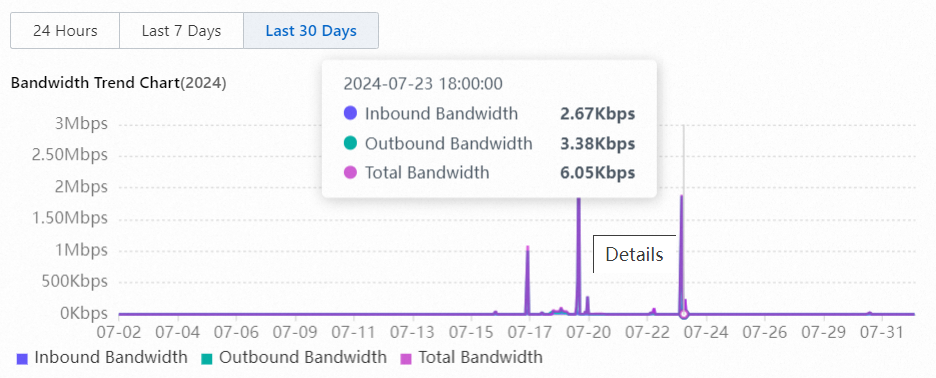
On the Connectors tab, find the target connector instance and click Details in the Operation column. On the Instance Information tab, you can view the connector's Authorization license, instance status, associated policy, bandwidth trend chart, and virtual IP settings. Use this data to estimate bandwidth requirements, adjust deployment server configurations, and prevent disruptions.
-
Instance information
Basic instance information includes the Instance name, Instance ID, region (for example,
ap-southeast-1), Authorization license, and instance status. A red status indicator means the instance is not connected. -
Virtual IP
After this feature is enabled, each endpoint connected through the connector is assigned a unique virtual IP address from the specified CIDR block. The endpoint uses this virtual IP address as its source IP address to access business servers.
-
Bandwidth trend chart
-
Associated forwarding policies
You can view and modify the forwarding policies associated with the connector.
View deployment server information
On the Connectors tab, find the target connector instance and click Details in the Operation column. On the Deploy Server tab, you can view the server's status, Endpoint IP Address, and private IP address, along with trend charts for bandwidth, CPU utilization, memory usage, packet loss rate, and latency. Use this data to identify server anomalies and verify that your server configuration meets bandwidth requirements.
View connector alerts
On the Connectors tab, find the target connector instance and click Details in the Operation column. On the Alert Setting tab, you can view the enabled alert types, including Connection status of connector server, Connector server bandwidth, and Connector server latency. You can set thresholds for bandwidth and latency alerts.
Configure push notifications for connector alerts first. Otherwise, you will not receive alerts. For more information, see Configure push notifications.
Disable the SASE connector
To disable a SASE connector, turn off the switch in the Instance Switch column on the Connectors tab. Alternatively, click Details in the Operation column and turn off the Instance Switch.
Disabling the instance switch prevents users from accessing private applications through the SASE Client. Proceed with caution.
Next steps
After you enable network access, configure the applications that users can access. For more information, see Configure office applications and Configure zero trust policies.
Related topics
-
To allow traffic from specific IP addresses after configuring applications, add them to a whitelist. For more information, see Configure an application whitelist.
-
For applications deployed on Alibaba Cloud, see Enable network connections for services on Alibaba Cloud.
-
To support global office access, see Enable network connections for applications in global office scenarios.