This topic describes how to view installed software on all endpoints, configure and view restricted software, and review restricted software requests.
Software statistics
The Software Statistics feature provides a comprehensive and intuitive overview of software installations on all endpoints in your company. On the terminal list page, you can click a Terminal Name to view information about the software installed on that terminal. For more information, see View the terminal list. You can also view information about installed software on the Software Statistics page by following the steps below.
-
Log in to the Secure Access Service Edge (SASE) console.
-
In the left-side navigation pane, choose .
-
On the Software Statistics tab, view the information about installed software.
You can use the search box or filter by terminal type and software name. The list includes columns such as Terminal System, software name, software version, publisher, terminals installed with software, and installation ratio. You can sort the list by the number of terminals with the software installed or by the installation ratio. In the actions column, you can click quick import.
-
Find the desired software and click the number in the Terminals Installed with Software column. The Installed Terminal Details panel opens, listing all terminals where the software is installed.
-
In the Actions column, click Quick Import to add the software to the restricted software list.
Software blacklist
You can configure a software blacklist to prevent employees from using specific software, thereby enhancing your corporate security. To configure the blacklist, you first define software types, create software entries for those types, and then create a blacklist policy.
SASE includes built-in categories for common applications such as SASE. You can directly create blacklist policies for these built-in software categories.
Add a software type
-
Log in to the SASE console.
-
In the left-side navigation pane, choose .
-
On the Software Blacklist tab, add a software type.
-
In the Software Type area, click Add.
-
In the Add Software Type dialog box, enter a custom name for the software type and click OK.
The name must be 1 to 128 characters long and can contain Chinese characters, letters, digits, hyphens (-), underscores (_), and periods (.). The name must start with a Chinese character, a letter, or a digit.
For example, you can set the software type to instant messaging.
-
Create a software entry
Choose one of the following methods based on your needs:
Software List for Synchronization
-
Click Create Software and select the Software List for Synchronization tab. You can enter a software name in the search box or select the target software from the list.
-
Click OK to complete the synchronization.
Custom Software
Click Create Software. On the Custom Software tab, configure the following parameters and click OK.
|
Parameter |
Description |
|
Software Name |
The name of the software entry. The name must be 1 to 128 characters long and can contain Chinese characters, letters, digits, hyphens (-), underscores (_), and periods (.). It must start with a Chinese character, a letter, or a digit. |
|
Software Type |
Select a software type from the drop-down list. A software entry can be assigned to up to 10 software types. |
|
Terminal System |
Configure the operating system, Process Name, and installation directory for the software. The supported systems are Windows and macOS. Each Process Name corresponds to one installation directory. You can add up to 20 entries. |
Configure a blacklist policy
If an employee needs to use a blacklisted software, they can submit a request to use it.
Click Blacklist Policy Settings. On the Blacklist Policy Settings page, click Create Policy. In the Create Policy panel, configure the following parameters and click OK.
|
Parameter |
Description |
|
Policy Name |
The name of the policy. The name must be 1 to 128 characters long and can contain Chinese characters, letters, digits, hyphens (-), underscores (_), and periods (.). It must start with a Chinese character, a letter, or a digit. |
|
Action |
Valid values:
|
|
Applicable User |
The users that the policy applies to.
|
|
Exception User |
The users who are exempt from this policy. Separate multiple users with a comma. |
|
Blacklist Software |
The software to be blacklisted. You can select the software by name or by type.
|
|
Policy Status |
Indicates whether the policy is enabled. |
|
Priority |
The priority of the policy. The value can be an integer from 0 to 99. A smaller value indicates a higher priority. |
|
Approval Process Configuration |
Specifies whether employees can submit requests to use a blacklisted software. If you allow employees to submit requests for approval, you must select an approval process. For more information about how to create an approval process, see Configure an approval process. |
|
Prompt Display Configuration |
The message displayed when a blacklisted software is blocked. You can set messages in both Chinese and English. |
View violation events
You can view the Violation Events trend chart, the top 5 Unauthorized Software and their corresponding Violations, and the top 5 User in Violation and their corresponding Violations.
To view all unauthorized software and users in violation, click Details.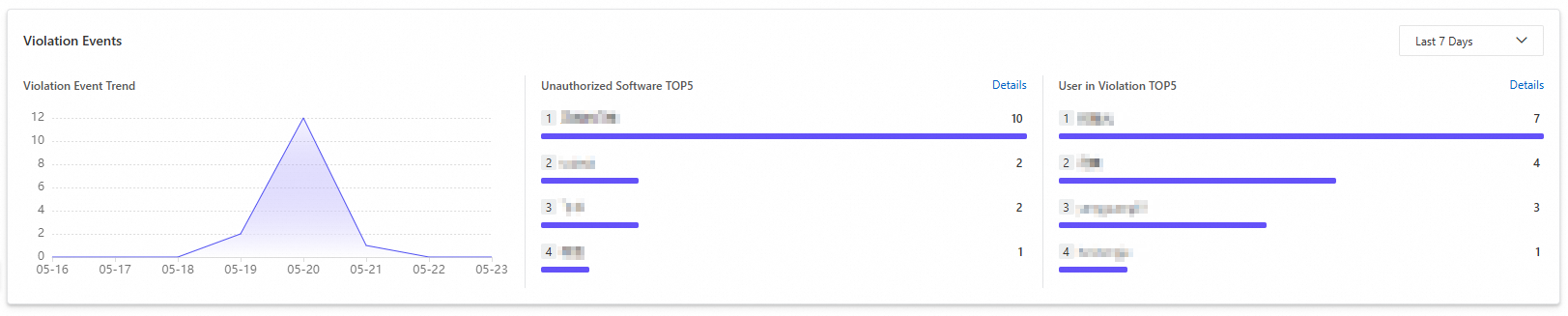
Other operations
-
View details of unauthorized software
On the Unauthorized Software page, find the target software in the list and click Details in the Actions column. The Details panel opens, displaying detailed information about the blacklisted software.
-
Edit a blacklisted software entry
On the Unauthorized Software page, find the target software in the list and click Edit in the Actions column to modify its information.
-
Delete unauthorized software
If a software no longer needs to be blacklisted, find it in the list on the Actions page and click Delete in the Actions column. After you delete the software entry, the system no longer records its use as a violation event.
Important-
If a software is on the blacklist but is not being blocked, verify that the Process Name is correctly configured in the Details panel.
-
Before you delete a software entry from the blacklist, ensure that it is not referenced by any blacklist policy. Otherwise, the software entry cannot be deleted.
-
Software library
The software library is a centralized platform for managing your company's software. After uploading software installation packages and configuring their categories, visibility scope, and installation check policies, employees can install the software from the software library in their SASE client. Alternatively, administrators can use the Software Distribution feature to push and automatically install the software on all hosts with the SASE client.
Software management
On the Software library page, you can perform the following actions:
-
Add software
Click Add Software. In the Add Software panel, configure the following parameters and click OK.
Parameter
Description
Software Name
A custom name for the software.
Software Description
A brief description of the software.
Software Category
Select an existing category from the drop-down list or click Add Category to create a new one.
Upload Logo
An icon for the software. Supported file types: PNG, JPG, JPEG, and WEBP. The file size cannot exceed 20 MB.
Visibility Scope
-
Specific User Group: Visible only to users in the specified user groups.
-
Specific Device Tag: Visible only on devices with the specified tags.
-
Specific Device: Visible only on the specified devices.
-
All Users: Visible to all users.
-
All Devices: Visible on all devices.
-
Not Configured: The software is not visible in the SASE client.
Installation Check
Verifies whether the software is successfully installed during distribution. If enabled, you must select at least one operating system.
-
Windows
-
Software Full Name: For instructions, see Obtain the software full name for a Windows application.
-
English Name: For instructions, see Obtain the software English full name for a Windows application.
-
-
macOS
-
Bundle ID: For instructions, see Obtain the Bundle ID for a macOS application.
-
-
-
Edit software
Find the target software, click View in the Actions column, then click Edit at the top of the panel that opens.
-
Delete software
Find the target software, click Delete in the Actions column, then follow the on-screen instructions.
NoteYou cannot delete software with a Running Software Distribution task. To delete the software, you must first stop the software distribution task.
Software version management
On the Software library page, find the target software and click View in the Actions column. You can then perform the following actions:
-
Add version
-
In the Details panel, go to the Version Information section and click Add Version.
-
In the Add Software Version dialog box, configure the following parameters and click OK.
Parameter
Description
Operating System
-
Windows
-
macOS(Apple)
-
macOS(Intel)
Software Publisher
-
Local Upload: Click Upload Local File to upload an installation package from your computer. Windows supports
.exeand.msiformats. macOS supports.dmgand.pkgformats. -
Third-party Links: Enter an external download link.
MD5
The MD5 hash of the installation package, used to verify its integrity. The system automatically generates this value when you upload a local file.
Software Version Number
The version number of the software.
-
-
-
Publish version
-
Find the target version and turn on the switch in the Status column to publish it.
-
After you publish a version, users with SASE client 5.0 or later can view and install it from Settings > Tools > software library.
-
-
Distribute version
When you submit a software distribution task, the system automatically instructs SASE clients (5.0 or later) to install the software.
-
Find the target version and click Deploy in the Actions column. In the panel that appears, fill in the required information (see Create a software distribution task) and click OK to create the distribution task.
-
Go to the Software distribution page to view the status and results of the task. For details, see View software distribution task status. To stop a task, see Stop a software distribution task.
-
-
Edit version
Find the target version and click Edit in the Actions column to modify the version information.
-
Delete version
Find the target version and click Delete in the Actions column.
NoteYou cannot delete software with a Running Software Distribution task. To delete the software, you must first stop the software distribution task.
Software Distribution
The Software Distribution feature lets you deploy installation packages from the software repository to specified endpoints running SASE client V5.0 or later for automatic installation. You can configure the distribution time, scope, validity period, download speed limit, and retry policy for a controlled deployment. When a task is complete, you can view its distribution status and details.
Create a Software Distribution task
-
Go to the Software Distribution page and click Software Distribution.
-
In the Software Distribution dialog box, configure the following parameters and click OK.
Parameter
Description
Task Name
A name for the distribution task.
Distribute Software
The software from the software repository to distribute.
Distribution Time
-
Deploy Now: The task runs immediately after creation.
-
Specify Time: You can specify multiple time windows for the task. The task runs only once. After completion, it will not run again in other specified time windows.
Installation Parameters
The installation parameters required for the software.
Effective Scope
The following scope types are supported:
-
Specific User Group
-
Specific Device Tag
-
Specific Device
-
All Users
-
All Devices
Validity Period
-
Valid Days: Set a specific validity period from 1 to 100 days.
-
Indefinite: The distribution task remains valid indefinitely.
Rate Limit
-
Enable: Set the maximum download speed for the SASE client in KB/s.
-
Disable: Do not limit the download speed.
Distribution Retry Count
The number of automatic retries if the distribution fails. Valid values: 0 to 5.
Timeout
The task timeout in seconds. Valid values: 0 to 86400.
-
Stop a Software Distribution task
Go to the Software Distribution page, find the task you want to stop, and use one of the following methods:
-
Method 1: In the Actions column, click Stop and follow the on-screen instructions.
-
Method 2: In the Actions column, click View. In the panel that opens, click Stop Distribution / Installation and follow the on-screen instructions.
A stopped task cannot be restarted. To distribute the software again, you must create a new task.
View Software Distribution task status
Go to the Software Distribution page and find the task. You can then view its status and details:
-
View distribution status
Check the Status column. Possible values are Pending, Running, and Stopped.
-
View task result distribution
Hover over a cell in the Task Result column to view a breakdown of endpoint statuses: All, Pending, Running, Execution Successful, and Execution Failed.
-
View all details
Click View in the Actions column. The panel that opens displays the total number of target devices, distribution status summary, installation status summary, and distribution and installation details.
-
View endpoint execution logs
In the Actions column, click View. In the panel that opens, find the target endpoint and click View Logs in the Actions column.
-
Download distribution task details
In the Actions column, click View. In the panel that opens, click Policy Export Tasks to download the detailed records for the current task.
Application review
Employees can submit an application to use unauthorized software for specific reasons. You can review these applications on the User Application tab. After you approve an application, the employee can use the software for the specified period. For instructions on how to submit an application, see Submit an application to use unauthorized software.
-
Log in to the Secure Access Service Edge (SASE) console.
-
In the left navigation pane, choose .
-
On the User Application tab, review the applications and choose one of the following actions.
-
Allow: The employee can use the software for the specified period. Usage during this period will not be recorded as a violation.
-
Reject: The employee cannot use the software. Any subsequent usage is recorded as a violation.
-
Appendix: Obtaining unique software identifiers
Obtaining the Windows software full name
The Windows software full name uniquely identifies an application within the operating system. You can obtain it in one of the following ways:
-
From Software Management in the SASE console: Use this method if the software is listed in the SASE console.
-
From "Uninstall or change a program" in Windows: Use this method if the software is not listed in the SASE console.
SASESoftware Management (Recommended)
Go to the Software Statistics page, set Terminal Type to Windows, locate the target software, and find the name in the Software Name column.
From Windows
-
Open Uninstall or change a program in Windows.
In File Explorer, click This PC in the navigation pane on the left. In the ribbon, select the Computer tab, and then click Uninstall or change a program.
-
Find the software name in the Uninstall or change a program list.
Obtaining the English software full name for Windows
If your Windows display language is English, the software full name you obtained by following the instructions in the "Obtaining the software full name for a Windows application" section is correct. No further action is needed.
The English software full name for a Windows application is a unique identifier. You can obtain it by following these steps:
-
In Windows Settings, go to Time & Language.
-
In the Preferred languages section, add English (United Kingdom).
-
Install the language pack for English (United Kingdom) and select Set as my Windows display language.
-
Open Uninstall or change a program in Windows.
In File Explorer, select This PC, click the Computer tab in the ribbon, and then click Uninstall or change a program in the System group.
-
Find the software name in the Uninstall or change a program list.
In the application list, the version number appears next to the software name, for example, 7-Zip 24.08 (x64 edition).
Obtaining the Bundle ID for macOS
The Bundle ID uniquely identifies an application in macOS. You can obtain it in one of the following ways:
-
From Software Management in the SASE console: Use this method if the software is listed in the SASE console.
-
From the Terminal app on macOS: Use this method if the software is not listed in the SASE console.
SASESoftware Management (Recommended)
-
Go to the Software Statistics page, set Terminal Type to macOS, and locate the target software.
-
Click the number in the Terminals Installed with Software column. In the Installed Terminal Details panel that appears, you can find the Bundle ID in the list.
Note-
Verify the Bundle ID for the specific terminal and user.
-
If you cannot determine the correct terminal or user, you can add multiple Bundle IDs when configuring the new channel.
-
From the macOS Terminal
-
Open the Terminal application on macOS.
-
Enter the
codesign -dvvvcommand followed by a space. Then, drag the application into the Terminal window to paste its path and press Enter.For example:
codesign -dvvv /Applications/DingTalk.app. -
In the output, the value of the
Identifierfield is the Bundle ID.# ~ [9:57:32] → codesign -dvvv /Applications/DingTalk.app Executable=/Applications/DingTalk.app/Contents/MacOS/DingTalk Identifier=5ZSL2CJU2T.com.dingtalk.mac