In Resource Center, you can create resource delivery tasks in multi-account mode by using the management account of your resource directory or the delegated administrator account of Resource Center. The tasks can be used to deliver resource change events and scheduled resource snapshots within the members in your resource directory to Object Storage Service (OSS) or Simple Log Service. Then, other Alibaba Cloud services consume standardized resource information from OSS or Simple Log Service.
Prerequisites
The cross-account resource search feature is enabled. For more information, see Enable cross-account resource search.
You must use one of the following accounts to create resource delivery tasks in multi-account mode:
Management account of your resource directory: The management account has full administrative permissions and does not require authorization.
Delegated administrator account of Resource Center: You can specify a member in your resource directory as the delegated administrator account of Resource Center and use the member to perform cross-account resource searches and manage resource delivery tasks in Resource Center. For more information, see Manage a delegated administrator account of Resource Center.
RAM user within the management account of your resource directory or the delegated administrator account of Resource Center: You must attach the following custom policy to the RAM user. We recommend that you use a RAM user to create resource delivery tasks in multi-account mode. For more information, see Create custom policies and Grant permissions to a RAM user.
{
	"Version": "1",
	"Statement": [{
		"Effect": "Allow",
		"Action": [
			"resourcecenter:CreateMultiAccountDeliveryChannel",
			"resourcecenter:UpdateMultiAccountDeliveryChannel",
			"resourcecenter:DeleteMultiAccountDeliveryChannel",
			"resourcecenter:ListMultiAccountDeliveryChannels",
			"resourcecenter:GetMultiAccountDeliveryChannel",
			"resourcecenter:GetMultiAccountDeliveryChannelStatistics"
		],
		"Resource": [
			"*"
		]
	}]
}
Limits
Up to five resource delivery tasks in multi-account mode can be created within the management account of your resource directory or the delegated administrator account of Resource Center.
Deliver scheduled resource snapshots
A scheduled resource snapshot is a complete copy of the configurations of all resources within a specific range at a specific point in time. You can deliver scheduled resource snapshots from Resource Center to an OSS bucket.
Prerequisites
OSS is activated. For more information, see Get started with the OSS console. You are charged for using OSS. For information about the pricing of OSS, visit the OSS pricing page.
Procedure
Log on to the Resource Management console.
In the left-side navigation pane, choose .
On the page that appears, click the Across Accounts tab. On this tab, click Create Delivery Task
On the page that appears, configure the parameters and click Next.

Parameter
Description
Delivery Task Name
The name of the resource delivery task.
The name can be up to 64 characters in length and can contain letters, digits, hyphens (
-), and underscores (_).Description
The description of the resource delivery task.
The description can be up to 256 characters in length and can contain letters, digits, hyphens (
-), and underscores (_).Account Scope
Specify the scope of accounts whose resource information needs to be delivered.
Resource Scope
All Resources: If you select this option, Resource Center delivers information about all types of resources within the selected accounts.
Custom Resource Scope: If you select this option, you can select specific resource types based on your business requirements. In this case, Resource Center delivers information only about the selected types of resources within the selected accounts.
NoteFor information about the types of resources whose information can be delivered, see Supported cloud services and resource types for Resource Center.
If you select All Resources, the resource types that are supported by Resource Center in the future are automatically included in the delivery scope.
Configure a delivery channel to deliver scheduled resource snapshots to an OSS bucket.
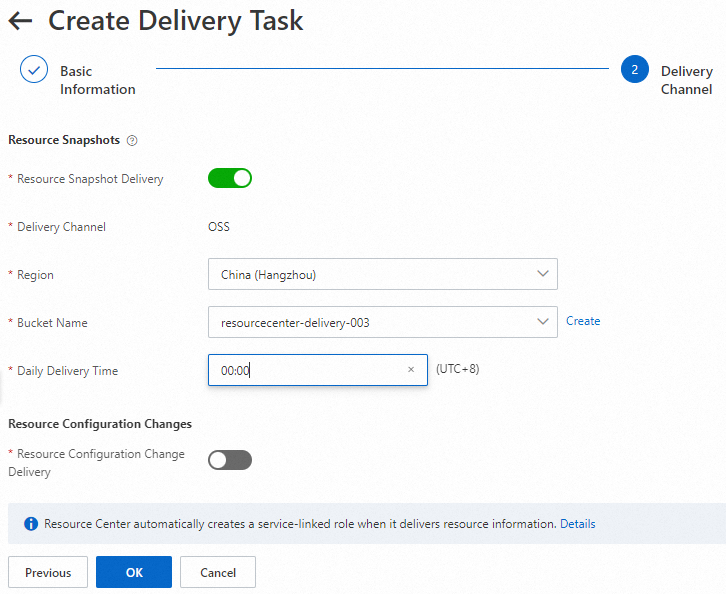
Parameter
Description
Resource Snapshot Delivery
Turn on this switch to enable resource snapshot delivery.
Delivery Channel
The value of this parameter is fixed as OSS.
Region
The region where the destination OSS bucket resides.
Bucket Name
The name of the destination OSS bucket. The name must start with
resourcecenter-.If no bucket is available, click Create to create a bucket.
Daily Delivery Time
The point in time at which resource snapshots are delivered every day.
Click OK.
What to do next
You can view the delivery results of scheduled resource snapshots in OSS and download the delivery results as a JSON-formatted file to your on-premises machine. For information about how to view the delivery results in OSS, see View scheduled resource snapshots.
Deliver resource change events
A resource change event is generated when a resource is created or deleted or when the properties of a resource are modified. You can deliver resource change events from Resource Center to a Simple Log Service Logstore.
However, if the size of an event is greater than 1 MB, Simple Log Service discards the event. To prevent this situation, you can enable the large-file delivery feature to deliver an event whose size is greater than 1 MB to an OSS bucket.
Prerequisites
Simple Log Service is activated. For more information, see Activate Simple Log Service. You are charged for using Simple Log Service. For information about the pricing of Simple Log Service, visit the Simple Log Service pricing page.
OSS is activated if you require the large-file delivery feature. You are charged for using OSS. For information about how to activate OSS, see Get started with the OSS console. For information about the pricing of OSS, visit the OSS pricing page.
Procedure
Log on to the Resource Management console.
In the left-side navigation pane, choose .
On the page that appears, click the Across Accounts tab. On this tab, click Create Delivery Task
On the page that appears, configure the parameters and click Next.
Parameter
Description
Delivery Task Name
The name of the resource delivery task.
The name can be up to 64 characters in length and can contain letters, digits, hyphens (
-), and underscores (_).Description
The description of the resource delivery task.
The description can be up to 256 characters in length and can contain letters, digits, hyphens (
-), and underscores (_).Account Scope
Specify the scope of accounts whose resource information needs to be delivered.
Resource Scope
All Resources: If you select this option, Resource Center delivers information about all types of resources within the selected accounts.
Custom Resource Scope: If you select this option, you can select specific resource types based on your business requirements. In this case, Resource Center delivers information only about the selected types of resources within the selected accounts.
NoteFor information about the types of resources whose information can be delivered, see Supported cloud services and resource types for Resource Center.
If you select All Resources, the resource types that are supported by Resource Center in the future are automatically included in the delivery scope.
Configure a delivery channel to deliver resource change events to a Simple Log Service Logstore.
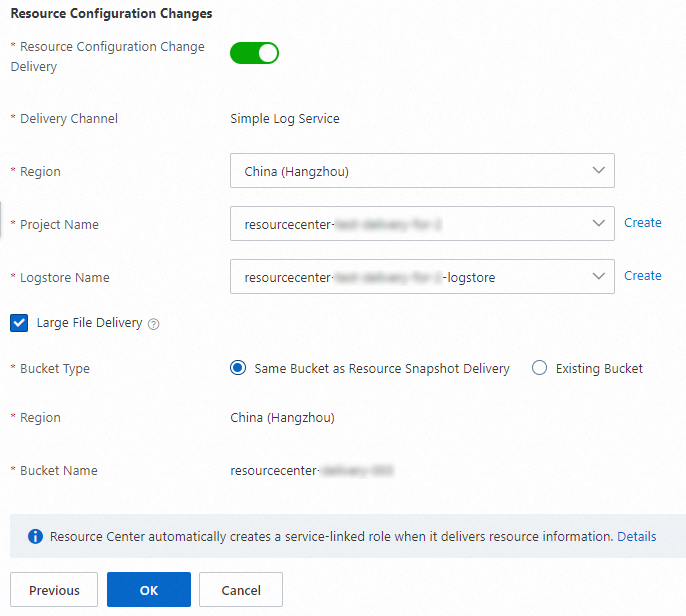
Parameter
Description
Resource Configuration Change Delivery
Turn on this switch to enable the delivery of resource change events.
Delivery Channel
The value of this parameter is fixed as Simple Log Service.
Region
The region where the destination Simple Log Service project resides.
Project Name
The name of the destination Simple Log Service project.
If no project is available, click Create to create a project.
Logstore Name
The name of the destination Simple Log Service Logstore. The name must start with
resourcecenter-.If no Logstore is available, click Create to create a Logstore. A newly created Logstore does not contain any indexes. If you need to analyze data, you can configure indexes in the Simple Log Service console after you configure delivery settings.
If you want to use an existing Logstore, you must make sure that the Logstore is empty or the existing data in the Logstore is consistent with the data that you want to deliver. Otherwise, the delivered data cannot be queried or analyzed.
Large File Delivery
If you select Large File Delivery, Resource Center delivers the basic information about an event whose size is greater than 1 MB to the destination Logstore and the details of the event to an OSS bucket. If you do not select Large File Delivery, an event whose size is greater than 1 MB will be discarded.
NoteIf you select Large File Delivery, you need to specify an OSS bucket. You can use the destination bucket that is configured for resource snapshot delivery or use another existing bucket.
Click OK.
What to do next
You can view the delivery results of resource change events in Simple Log Service, and query and analyze the events. For more information, see View resource change events.
References
When you create a resource delivery task, the system automatically creates the service-linked role AliyunServiceRoleForResourceCenterDelivery within the account you use. This role allows you to access your resources in other Alibaba Cloud services. For more information, see AliyunServiceRoleForResourceCenterDelivery.
For information about the structures and examples of data delivered to OSS or Simple Log Service, see Data structure of scheduled resource snapshots or Data structure of resource change events.
If a delivery failure occurs, you can check the failure in the related system event of CloudMonitor. For more information, see View delivery failure events and configure alert notifications in CloudMonitor.