When an RDS instance enters the Locking state, INSERT and UPDATE statements fail. This topic explains the causes, how to resolve each one, and how to prevent recurrence.
Understand the locking behavior
The Locking state has different effects depending on your database engine version and minor engine version.
MySQL 5.6, 5.7, and 8.0 (minor engine version 20190815 or later)
ApsaraDB RDS uses three lock types to limit operations based on the cause of the lock:
| Lock type | What it blocks | Trigger condition |
|---|---|---|
LOCK_WRITE_GROWTH |
Operations that increase disk usage (INSERT, UPDATE). Read queries continue to work. Use DROP or TRUNCATE instead of DELETE to free space, because DELETE generates binary logs that increase disk usage. | Primary instance storage is full. |
LOCK_READ |
All read and write operations. | Read-only instance storage is full. |
LOCK_WRITE |
All write operations, including DROP and TRUNCATE (superset of LOCK_WRITE_GROWTH restrictions). |
Instance expiration, host expiration in an ApsaraDB MyBase cluster, or instance migration. |
When LOCK_WRITE_GROWTH is active, SQL statements return:
ERROR 1290 (HY000): The MySQL server is running with the LOCK_WRITE_GROWTH option so it cannot execute this statementMySQL 5.1, 5.5, and MySQL 5.6/5.7/8.0 with minor engine version earlier than 20190815
All operations are blocked regardless of the cause of the lock.
Diagnose the cause
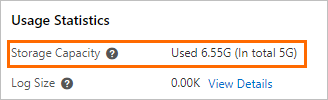
On the Basic Information page of your RDS instance, check the Usage Statistics section. The two possible causes are:
-
Cause 1: Storage capacity is exhausted.
-
Cause 2: Your Alibaba Cloud account has overdue payments, or the RDS instance has expired.
Resolve cause 1: storage capacity exhausted
Two options are available: expand the storage capacity or release storage. Expanding storage is faster and does not require data deletion.
Option 1: expand the storage capacity (recommended)
-
Go to the Instances page. In the top navigation bar, select the region where the instance resides, then click the instance ID.
-
On the Basic Information page, go to the Configuration Information section and click Change Specifications to expand the storage capacity.
-
Complete the payment. Click the
 icon in the upper-right corner of the Basic Information page to monitor progress on the Tasks page.
The time required varies by storage type:
| Storage type | Duration | Notes |
|---|---|---|
| Premium Local SSDs | Varies | Cross-instance data migration may occur. A transient connection of approximately 30 seconds is expected. Expand during off-peak hours and make sure your application reconnects automatically. |
| Cloud disks | About 5 minutes | MySQL and PostgreSQL: no transient connections. SQL Server: a transient connection of approximately 30 seconds may occur. Expand during off-peak hours, or make sure your application reconnects automatically. Specific RDS instances support storage capacity expansion without data loss. This does not interrupt your workloads. |
After the expansion, the instance ID and connection string remain unchanged. However, the IP address may change, for example, when the expansion of Premium Local SSDs triggers cross-instance data migration. Connect to the instance by using the connection string (domain name) instead of the IP address.
You can also log in to the ApsaraDB RDS console and click Task Center in the left-side navigation pane to view progress.
Option 2: release storage
Back up your data before deleting anything. If possible, expand storage instead to avoid data loss.
-
Go to the Instances page. Select the region, then click the instance ID.
-
In the left-side navigation pane, click Monitoring and Alerts to view storage usage broken down by data type.

-
Delete data based on which storage category is consuming the most space.
Temporary files (temp_file_size metric)
ApsaraDB RDS for MySQL generates temporary tables for sorting, grouping, or join operations, and binary log cache files before committing large transactions. These temporary files can exhaust disk space.
For resolution steps, see What do I do if an ApsaraDB RDS for MySQL instance is in the Locked state because its storage capacity is exhausted by temporary files?
Log files (binlog_size and general_log_size metrics)
| Database engine | Resolution |
|---|---|
| MySQL | On the Monitoring and Alerts page, view storage usage, then delete log files. See What do I do if the storage capacity of an ApsaraDB RDS for MySQL instance is exhausted by binary log files? and FAQ about the general query log feature of ApsaraDB RDS for MySQL. |
| PostgreSQL | Log files cannot be deleted manually. Delete inactive replication slots to allow AliPG to automatically remove WAL logs. See Use the WAL log management feature for an ApsaraDB RDS for PostgreSQL instance. |
| SQL Server | Log files cannot be deleted manually. Shrink transaction logs in the ApsaraDB RDS console instead. |
Data files (user_data_size metric)
MySQL:
-
Run the following statement to find the largest tables:
SELECT TABLE_NAME, concat(round((DATA_LENGTH + INDEX_LENGTH) / 1024 / 1024,2),'MB') AS DATA FROM information_schema.TABLES WHERE TABLE_SCHEMA = '<Database name>' ORDER BY DATA + 0 DESC; -
Drop unnecessary tables:
DROP TABLE <Table name>; -
Wait approximately 5 minutes for the system to unlock the instance.
PostgreSQL:
-
Connect to your RDS instance using DMS. See Use DMS to log on to an ApsaraDB RDS instance.
If you cannot connect, expand the storage capacity first, clear disk space, then reduce storage capacity as needed. See Change instance specifications.
-
Run the following statement to find the largest tables:
SELECT table_schema || '.' || table_name AS table_full_name, pg_total_relation_size('"' || table_schema || '"."' || table_name || '"') AS size FROM information_schema.tables ORDER BY pg_total_relation_size('"' || table_schema || '"."' || table_name || '"') DESC; -
Drop unnecessary tables:
DROP TABLE <Table name>; -
Wait approximately 5 minutes for the system to unlock the instance.
SQL Server:
Follow the steps in Troubleshoot insufficient storage issues on an ApsaraDB RDS for SQL Server instance.
System files (undolog_size metric)
Long-running queries on InnoDB tables combined with large concurrent data modifications can cause the system to generate excessive undo logs, exhausting storage capacity.
For resolution steps, see Troubleshoot insufficient storage caused by system file accumulation.
Resolve cause 2: overdue payments or instance expiration
-
Subscription instance: Renew the instance, then wait approximately 5 minutes and check whether the instance is in the Running state.
-
Pay-as-you-go instance: Top up your Alibaba Cloud account, then wait 5 minutes and check whether the instance is in the Running state.
Prevent future locks
Configure the following to avoid unexpected locking:
Set up payment and expiration notifications:
-
Log in to the ApsaraDB RDS console.
-
Click the
 icon in the upper-right corner to open Message Center.
 -
In the left-side navigation pane, click Common Settings.
-
In the Notification Type column, select Product Overdue Payment, Suspension, and Imminent Release Notifications and click Modify.
-
Select alert contacts and click Save.
Configure a storage usage alert: Set up alert rules for storage usage and trigger an alert when storage usage exceeds 90%.
Enable SQL Explorer and Audit: Enable the SQL Explorer and Audit feature. If storage usage spikes, query the SQL statements executed during the spike on the Monitoring and Alerts page and optimize them.
Enable automatic storage expansion: Configure automatic storage expansion so the system expands capacity when storage runs low. See the guides for MySQL, PostgreSQL, and SQL Server.
Optimize SQL statements: Avoid frequent use of ORDER BY and GROUP BY clauses in queries that process large datasets, as these generate large temporary files.
FAQ
Why is `LOCK_WRITE_GROWTH` still active after I deleted a large amount of data?
Running DELETE marks records as reusable but does not shrink the underlying disk files or reclaim tablespace. To release tablespace, use the OPTIMIZE TABLE statement. See How do I use the OPTIMIZE TABLE statement to release the tablespace of an ApsaraDB RDS for MySQL instance?
Why is my instance still locked even though storage is sufficient or the instance has been renewed?
A task such as a configuration change is still in progress. The instance unlocks automatically when the task completes. Click the icon in the upper-right corner of the Basic Information page to check task progress on the Tasks page.
If disk usage has already dropped below 100% but the instance is still locked and no task is in progress, this is expected: unlocking is not instantaneous. It goes through three stages—a periodic detection cycle checks disk usage, an unlock task is dispatched once a check confirms that usage is below 100%, and the unlock task then runs. The instance is usually unlocked automatically within 10 minutes after disk usage drops below 100%.
Can I change instance specifications while the instance is in the Locking state?
If the instance is locked because storage is exhausted, yes—you can upgrade or downgrade specifications. If it is locked for other reasons such as overdue payments, resolve the payment issue first.
My instance uses a phased-out instance type. How do I unlock it by expanding storage?
Change the instance type to an available instance type first, then expand storage. For available instance types, see Primary ApsaraDB RDS instance types.
Why does storage usage keep increasing even though the instance is locked?
INSERT and UPDATE are blocked, but read queries can still generate log files or temporary data, which increases storage usage.