ApsaraDB RDS for SQL Server automatically expands storage when free space drops to a threshold you set, keeping your database running without manual intervention.
How it works
When free storage falls to or below the Available Storage ≤ percentage you configure, the system triggers an expansion. The amount of storage added is the greater of:
-
5 GB (if total storage is less than 50 GB and free space is below 10%, the step size increases to 10 GB)
-
15% of current storage capacity, rounded to the nearest multiple of 5 GB
The expansion stops when total storage reaches the Maximum Storage Capacity you set.
For details on the underlying mechanism, see Auto Scaling.
Prerequisites
Before you begin, make sure the following conditions are met:
-
The RDS instance meets all of these requirements:
-
Storage type: enterprise SSD (ESSD)
-
Instance edition: High-availability Edition or Cluster Edition
-
Status: Running
-
Billing method: subscription or pay-as-you-go
-
-
Your account has a sufficient balance to cover the expansion cost.
Serverless ApsaraDB RDS for SQL Server instances do not support automatic storage expansion. To handle low storage on a Serverless instance, expand storage manually.
Limitations
-
No scale-in. Storage expanded automatically cannot be reduced.
-
Read-only instances expand first. If the primary instance has read-only instances, the system expands any read-only instance whose storage is less than the primary's target size before expanding the primary.
-
Read-only instance configuration. Automatic storage expansion for SQL Server read-only instances is controlled through the primary instance and cannot be configured separately.
-
Windows driver limitation. Some instances cannot use this feature due to Windows driver limitations. If you encounter this, update the minor engine version.
Billing
Automatic storage expansion follows the same billing rules as manual storage expansion. See Billing of specification changes.
Enable automatic storage expansion
-
Go to the Instances page. In the top navigation bar, select the region where the RDS instance resides. Find the instance and click its ID.
-
In the Instance Resources section, click Settings to the right of Automatic Storage Expansion.
-
Configure the following parameters, then click OK.
Parameter Description Automatic Storage Expansion Enable or disable automatic storage expansion. Available Storage ≤ The free-space percentage that triggers an expansion. When remaining free space drops to or below this value, an expansion starts. Maximum Storage Capacity The upper limit for automatic expansion. Must be greater than or equal to the current total storage capacity. Maximum values: ESSD: 32,000 GB; Standard SSD: 6,000 GB.
View expansion history
-
Go to the Instances page. In the top navigation bar, select the region where the RDS instance resides. Find the instance and click its ID.
-
In the Instance Resources section, click Storage Expansion Records to the right of Automatic Storage Expansion to open the Database Autonomy Service (DAS) console.
-
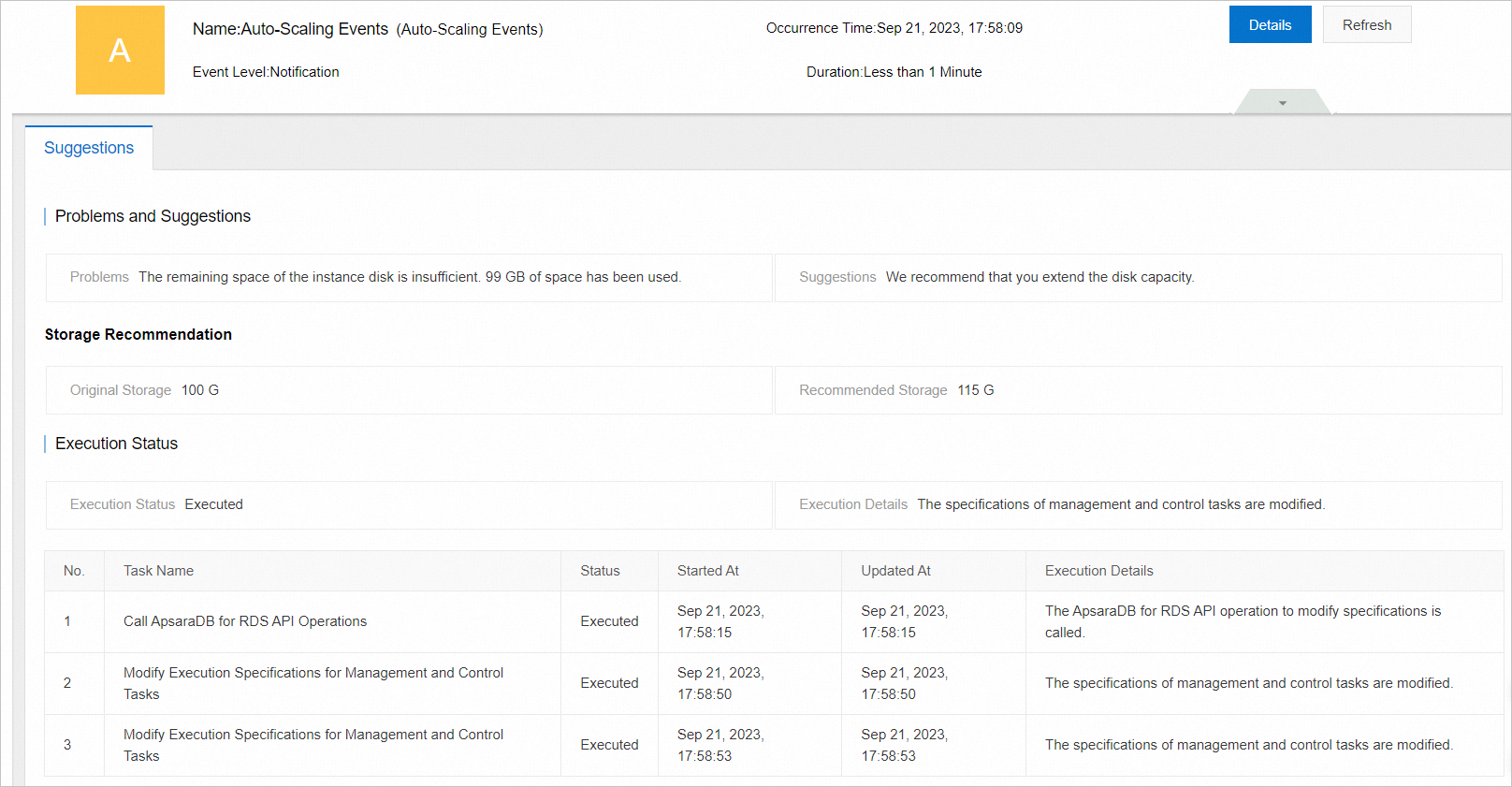
On the Autonomy Center page, set Type to Auto-Scaling Events to view triggered expansion events.

-
Click Details for a target Auto-Scaling event to view the expansion details.
API reference
| API | Description |
|---|---|
| ModifyDasInstanceConfig | Configure automatic storage expansion for a non-Serverless instance. |
What's next
-
To expand storage manually, see Expand the storage space of a non-Serverless instance or Expand the storage space of a Serverless instance.
-
For troubleshooting storage issues, see Insufficient storage space for ApsaraDB RDS for SQL Server.