This tutorial describes how to create an ApsaraDB RDS for SQL Server instance in the console, configure database and account information, and connect to the instance using various methods to get started with ApsaraDB RDS for SQL Server.
If you are new to ApsaraDB RDS, we recommend that you first read about the limits of ApsaraDB RDS.
Prerequisites
If you use a Resource Access Management (RAM) user to create an RDS instance, the AliyunRDSFullAccess and AliyunBSSOrderAccess policies must be attached to the RAM user. For more information, see Use RAM for resource authorization.
Costs
When you create an ApsaraDB RDS for SQL Server instance, you are charged for the instance type and storage. The fees depend on parameters such as the billing method, instance edition, instance type, storage class, and storage capacity.
1. Create an ApsaraDB RDS for SQL Server instance
This tutorial shows you how to use the Quick Creation method to create an ApsaraDB RDS for SQL Server instance. Compared with the Standard Creation method, Quick Creation lets you skip non-essential parameters and focus on core ones. You only need to specify key parameters to create an instance. This helps you get started quickly. To configure additional parameters during creation, see Create an ApsaraDB RDS for SQL Server instance.
Go to the ApsaraDB RDS consoleand click Create Instance.
At the top of the buy page, select Quick Creation.
Select a Billing Method. ApsaraDB RDS for SQL Server offers the following two billing methods:
Billing method
Use cases
Benefits
Subscription
Long-term use of ApsaraDB RDS for SQL Server instances.
The subscription billing method is more cost-effective than the pay-as-you-go billing method. The longer the subscription duration, the higher the discount.
Pay-as-you-go
Short-term use of ApsaraDB RDS for SQL Server instances.
You can release an instance at any time to stop billing.
You can also create a Pay-as-you-go instance, and after you confirm that the instance meets your requirements, Change the billing method from pay-as-you-go to subscription.
Select the Region for the instance.
Important
After you purchase an ApsaraDB RDS instance, you cannot change its region. Choose a region carefully.
To connect to the ApsaraDB RDS instance from an What is ECS?instance over an internal network, create them in the same region. Otherwise, the ECS instance can connect to the ApsaraDB RDS instance only over the Internet, which can reduce performance.
To connect from a non-ECS device like an on-premises server or a computer, choose a region close to your device to minimize network latency. You can then connect to the instance by using its public endpoint.
Select an Database Engine. This tutorial uses SQL Server as an example.
Select an Instance Specifications.
ApsaraDB RDS for SQL Server provides a variety of instance specifications. You can select one based on your business requirements. If the selected specification does not meet your needs, you can Change the specifications of an ApsaraDB RDS for SQL Server instanceafter purchase or select Standard Creation at the top of the page to customize the settings. For more information, see Create an ApsaraDB RDS for SQL Server instance.
Select a Storage Capacity.
The storage capacity includes the space for data, system files, log files, and transaction files. The available range of storage capacity depends on the instance type and storage type that you select. You can adjust the storage capacity in 5 GB increments.
NoteThe storage capacity of some instances with local SSDs is coupled with their Primary ApsaraDB RDS instance types. This limitation does not apply to ESSDs or SSD cloud disks.
Configure the network and vSwitch. The network type defaults to VPC (Virtual Private Cloud).
Important
ECS and ApsaraDB RDS instances in the same VPC can communicate over an internal network, even if they are in different vSwitches.
You cannot change the VPC after an instance is created. To connect to the ApsaraDB RDS instance from an ECS instance over an internal network, you must place both instances in the same region and VPC.
(Optional) View more settings. In Quick Creation, Alibaba Cloud automatically configures other parameters for you by default. You can click More Configurations (Optional) to view other information.
Select the Quantity of instances. Quick Creation supports purchasing a maximum of 10 instances at a time. Select a quantity based on your actual needs. In this tutorial, 1 is selected by default.
(Optional) If you set the Billing Method to Subscription, you must also specify a Duration.
You can also select Enable Auto-renewal to prevent service interruptions caused by missed renewals.
Click Confirm Order and complete the payment.
To view the instance, go to the Instance Listpage. In the top navigation bar, select the region where the instance was created. Then, find the instance based on its Creation Time.
NoteInstance creation takes about 1 to 10 minutes. You can view the creation progress on the Use Task Centerpage. After the instance is created, refresh the Instance Listpage.
2. Create a database
Go to the ApsaraDB RDS Instances list. In the top navigation bar, select the region where you created the instance in Step 1. Then, click the ID of the target instance.
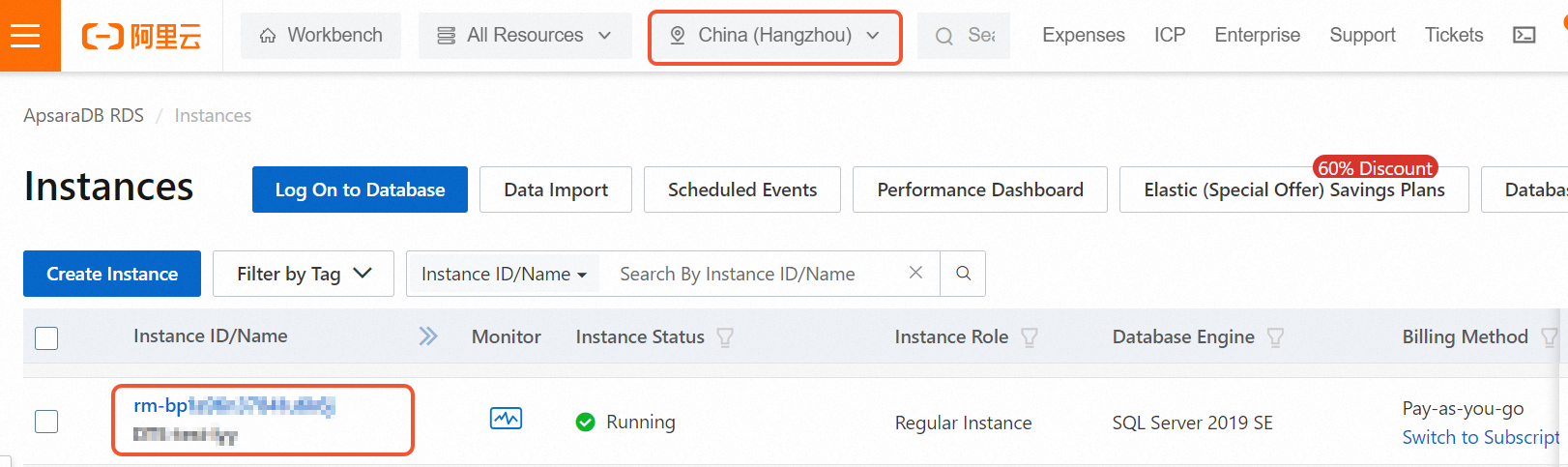
In the left navigation pane, click Database Management, and then click the Create Database button.
In the panel that appears, set the database parameters.
For this tutorial, set the Database Name to
dbtestand the Supported Character Set to Chinese_PRC_CI_AS. Then, click Create.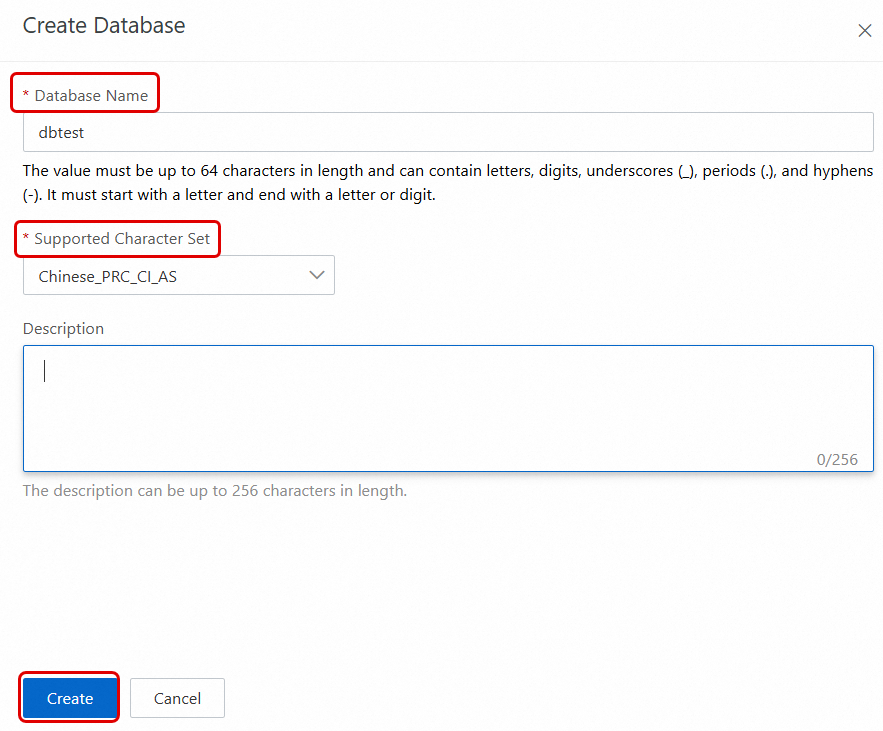
You can view the newly created database on the Database Management page, or after you connect to the SQL Server instance.

3. Create an account
On the instance details page, click Accounts in the left navigation pane.
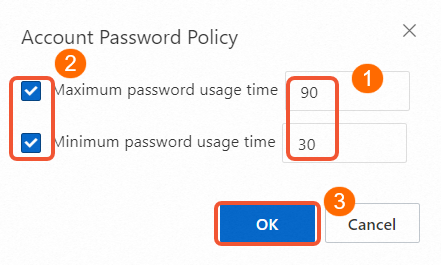
Click Password Policy to set the password validity period for accounts and enhance account security.
NoteShared and Serverless instances do not support setting a custom password policy. You can skip this step for these types of instances and proceed to the next one.
To configure passwords to be changed every 90 days and ensure that new passwords are used for at least 30 days, set Maximum Password Age to 90 days and Minimum Password Age to 30 days.
Click Create Account. In the pop-up panel, set the account parameters.
NoteAn error may occur if the account name is a duplicate or if you create accounts too frequently, such as before the previous account creation is complete. If this happens, check whether the account name is a duplicate or wait for the previous account creation to finish before you create the next account.
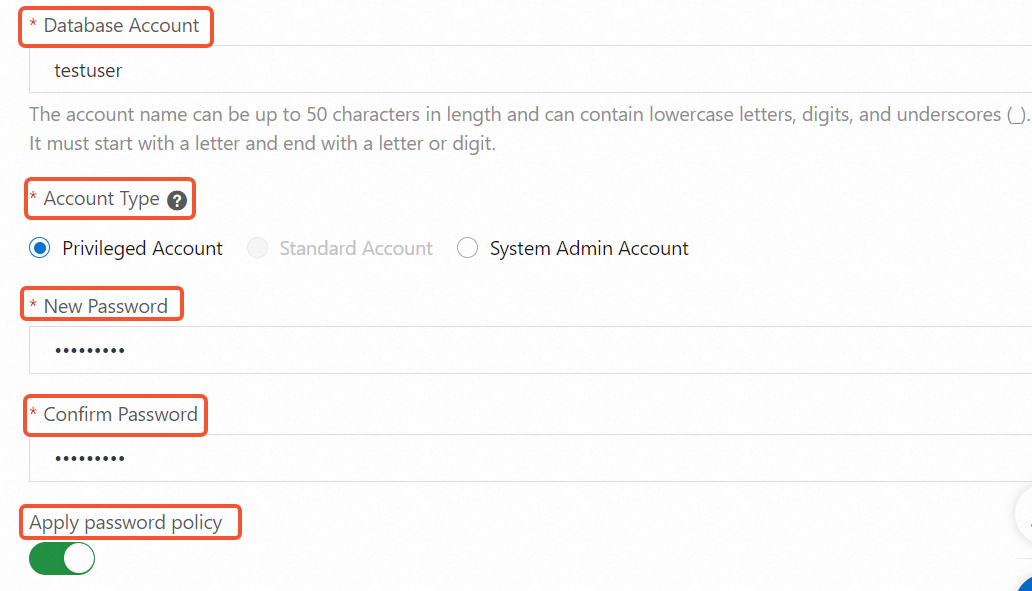
Enter a value for Database Account. For this tutorial, the value for Database Account is
testuser.Select an Account Type. RDS for SQL Server lets you create Privileged Account, Standard Account, and Super Privileged Accounts. This tutorial uses a Privileged Account as an example. For more information, see Create other types of accounts.
ImportantThe first account for an ApsaraDB RDS for SQL Server instance must be a privileged account, and each instance is allowed to have only one privileged account. This account has read and write permissions for all databases on the instance. If the creation fails, you may already have a privileged account on your instance.
In the New Password and Confirm Password fields, enter your new password.
Apply the password policy set in Step 2 to this privileged account.
Click OK to create your account.
Refresh the Accounts page to view the newly created privileged account.

4. Configure secure access to the instance
If you plan to log on to the database using the command line or a client, you must first add the IP address of your ECS instance or on-premises device to the IP whitelist of the ApsaraDB RDS for SQL Server instance. Then, obtain the internal or public endpoint of the instance based on the access type to connect to the instance. If you plan to log on to the database using Alibaba Cloud DMS, you can proceed directly to Step 5.
4.1 Set an IP whitelist
On the instance details page, click Whitelist and SecGroup in the navigation pane on the left.
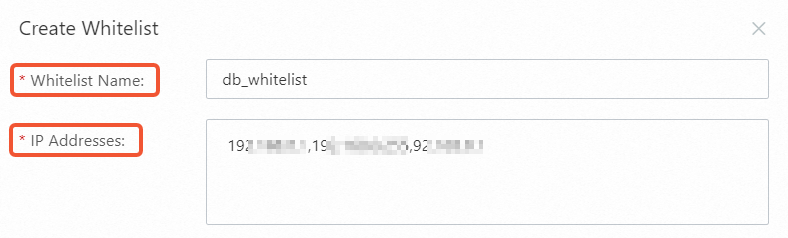
Click Create Whitelist, enter a Group Name, and add the application server's IP address to the whitelist group.
Scenario
Required IP address
Method
Connecting over the internal network
IP address of the pod in an ACK cluster
-
If the ACK cluster uses the Flannel container network plugin, add the node IP of the node that hosts your application.
-
If the ACK cluster uses the Terway container network plugin, add the pod IP of the pod that runs your application.
You can find the pod IP and node IP on the Pods page of your cluster.
Private IP address of an ECS instance
-
In the top navigation bar, select the region where the instance is located.
-
You can find the private and public IP addresses in the instance list.

Connecting from an ECS instance over the public network
Public IP address of an ECS instance
Connecting from a local device.
Public IP address of the local device
On your local device, search for "what is my IP" in a search engine.
NoteIf the IP address returned by the search engine is not accurate, use other methods to find your public IP address.
-
Click OK to save the whitelist configuration.
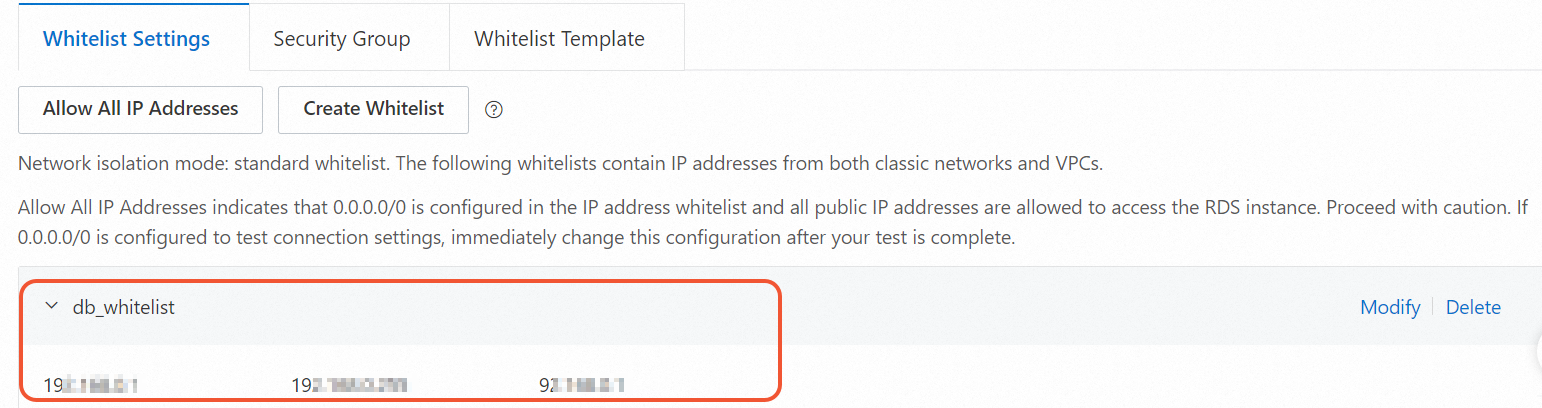
You can refresh the Whitelist and SecGroup page to view the newly added whitelists.
4.2 Select a connection type
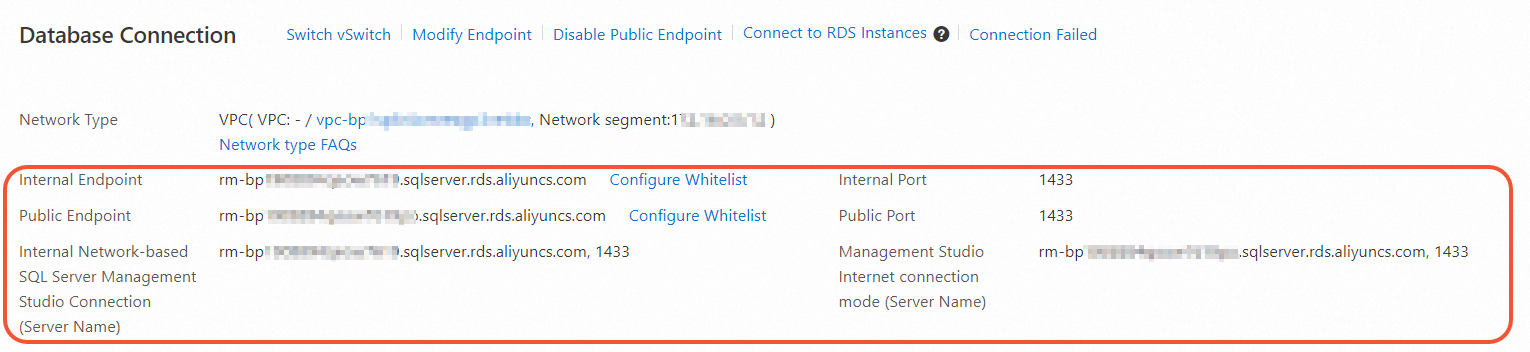
Connection types are divided into internal network access and public network access. If your setup meets the conditions for internal network access, you must use the instance's internal endpoint for a remote connection. If your setup does not meet the conditions or you are using an on-premises device to access the ApsaraDB RDS for SQL Server instance, you must use the instance's public endpoint. The conditions for internal network access and the methods for obtaining internal and public endpoints are as follows:
To access the instance over an internal network, your setup must meet the following conditions:
You are using an Alibaba Cloud server, and the server and the RDS instance are in the same region and use the same network type.
If the network type for both the server and the instance is VPC, they must have the same VPC ID.
Scenario | RDS Instance Endpoint to Obtain | How to Obtain |
Meets the conditions for internal network access | RDS internal endpoint | On the instance details page, click Database Connection in the navigation pane on the left to view the instance address and port number.
Note The public endpoint is displayed only after you click Enable Public Endpoint. |
Accessing the RDS instance from an ECS instance, but the conditions for internal network access are not met | RDS public endpoint | |
Accessing the RDS instance from an on-premises device |
5. Connect to the ApsaraDB RDS for SQL Server instance
You can log on to the SQL Server database directly using Alibaba Cloud DMS, connect remotely using a client, or connect using a Java application.
Method 1: Log on to the instance using DMS
Data Management (DMS) is a one-stop data management platform that supports the entire data lifecycle. It provides features such as global data asset management, data governance, database design and development, data integration, data development, and data consumption. to help enterprises efficiently and securely extract data value and accelerate their digital transformation.
You can use DMS to quickly and conveniently log on to an ApsaraDB RDS for SQL Server instance for data management and use without needing to configure the instance's IP whitelist or select a connection type.
Go to the Instances page. In the top navigation bar, select the region in which the RDS instance resides. Then, find the RDS instance and click the ID of the instance.
Click Log On to Database to navigate to the DMS logon page.

In the Log on to Instance dialog box, enter the logon information and click Log on.
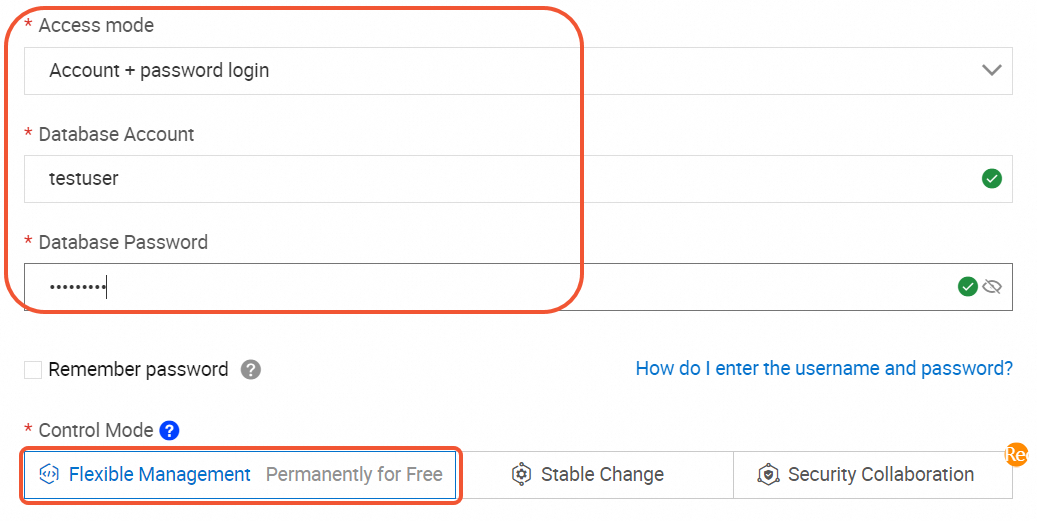
For Access Mode, select Account and Password Logon as an example.
Enter the Database Account and Database Password. For this tutorial, use the privileged account
testuserand a user-defined password.Select a Control Mode. In this example, select Flexible Management.
NoteFlexible Management is free of charge. Stable Change and Security Collaboration incur fees.
Compared to the control mode of Flexible Management, Stable Change and Security Collaboration offer more features and enhanced database control. If you are evaluating ApsaraDB RDS for SQL Server, we recommend using the Flexible Management mode.
After a successful logon, you can view the newly created database in the Logged-in Instances list on the left side of the DMS page. This tutorial uses the
dbtestdatabase as an example. You can also double-click another database to switch to it.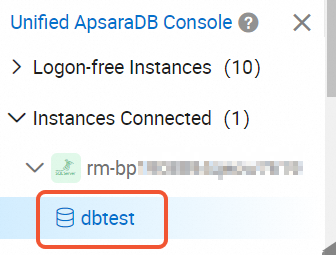 Note
NoteIf the instance exists but the target database is not found in the DMS logged-in instance list, it may be for one of the following reasons:
The logon account does not have permission to access the target database: Go to the Accounts page on the RDS instance details page and click Actions in the Change Permissions column for the target account to grant permissions.
The directory cannot be displayed because metadata is not synchronized: Hover the pointer over the instance to which the target database belongs. Click the
 button to the right of the instance name to refresh the database list and display the target database.
After you successfully log on to the SQL Server database in DMS, you can create databases, create tables, and query and change table data in the SQL Console.
Method 2: Connect to the instance using the SSMS client
Microsoft SQL Server Management Studio (SSMS) is a graphical interface tool for managing and working with SQL Server. It can be used to connect to different SQL Server databases, including ApsaraDB RDS for SQL Server instances, on-premises SQL Server instances, or SQL Server instances in the cloud.
This tutorial uses Microsoft SQL Server Management Studio 19.0 (SSMS) as an example to show you how to connect to an ApsaraDB RDS for SQL Server instance using a client.
We recommend that you download the latest version of the client to support all SQL Server versions.
Connecting to an instance using a client requires you to preset an IP whitelist and obtain the instance's connection address as needed.
Open the local Microsoft SQL Server Management Studio 19.0 (SSMS) client.
Select Connect > Database Engine.
Enter the logon information in the Connect to Server dialog box.
Parameter
Value in this tutorial
Description
Server name
rm-2ze****.rds.aliyuncs.com,1433
The endpoint and port number of the RDS instance. Enter the Public Endpoint and Public Port obtained when you enabled the public endpoint. Separate the endpoint and port number with a comma (,).
Authentication
SQL Server Authentication
The authentication method for SQL Server.
Login Name
testuser
Enter the account name of the RDS instance.
Password
Test_pw123
Enter the password for the RDS instance account.
To connect to the instance, click Connect.
After a successful connection, the database connection information is displayed on the left side of SSMS.
Method 3: Connect to the instance using a Java application
The following section describes how to connect to an ApsaraDB RDS for SQL Server instance using a Java application with JDBC.
Before you connect to the database, add the IP address of the application's runtime environment, such as an ECS instance or an on-premises device, to the IP whitelist of the ApsaraDB RDS for SQL Server instance. For more information, see Set a whitelist.
Add the Microsoft JDBC driver to your Maven project to access the SQL Server database.
NoteWe recommend that you choose the dependency version based on the corresponding Java version. For example, the
mssql-jdbc-12.2.0.jre8.jarfile in the 12.2.0 package should be used with Java 8 or later.To view the history of dependency versions, see the official tutorial.
<dependency>
  <groupId>com.microsoft.sqlserver</groupId>
  <artifactId>mssql-jdbc</artifactId>
  <version>12.2.0.jre8</version> <!-- Please check for the latest version number -->
</dependency>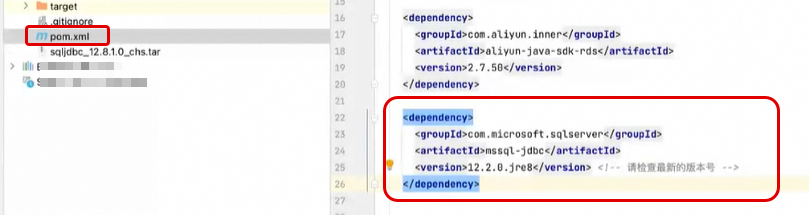
After you add the dependency, click
 . The dependency in the
 pom.xmlfile is automatically downloaded.
Download the driver that matches your Java version from Microsoft JDBC Driver for SQL Server.
The Microsoft JDBC Driver for SQL Server is a Type 4 JDBC driver that provides database connectivity through the standard JDBC application programming interfaces (APIs) available on the Java platform. It can access SQL Server from any Java application, application server, or Java-enabled applet.
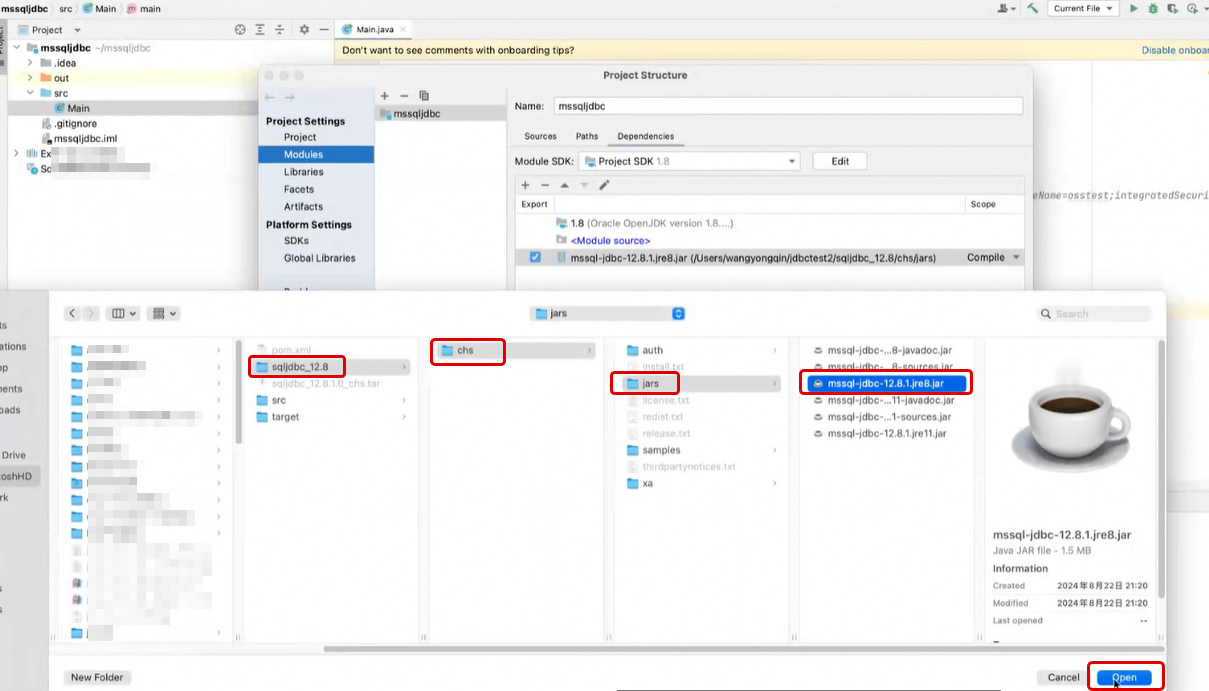
After you download and decompress the file, manually save the JAR file, such as
sqljdbc4.jarorsqljdbc.jar, to your project.This tutorial uses
IntelliJ IDEAas an example to demonstrate the method: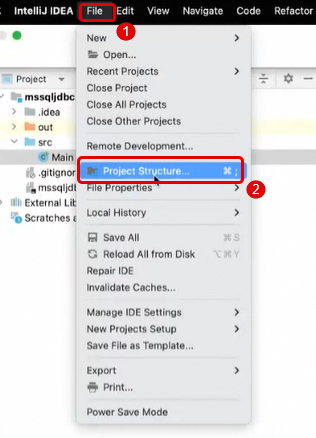
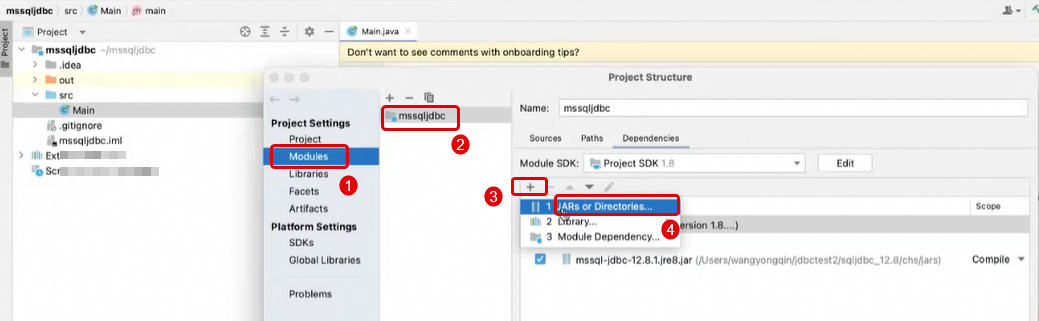
Write the sample code to connect to the SQL Server database using Java, as follows:
Replace the endpoint, database name, username, password, and SQL command in the example with your actual information. For more information, see View or change the endpoint and port number.
import java.sql.Connection;
import java.sql.DriverManager;
import java.sql.SQLException;
import java.sql.Statement;
import java.sql.ResultSet;

public class testMSSQLJDBC {

    public static void main(String[] args) {
        // Enter the database endpoint. Use the internal endpoint if the application is deployed on an ECS instance. Use the public endpoint if it is deployed locally or in another environment.
        String url = "jdbc:sqlserver://rm-2vc367d081200******.mssql.cn-chengdu.rds.aliyuncs.com:1433;"
                + "database=YourDatabaseName;"
                + "encrypt=true;"
                + "trustServerCertificate=true;"
                + "loginTimeout=30;";
        // The username and password. You must specify them if you do not use Windows Authentication.
        String username = "usernametest";
        String password = "Passwordtest!";

        // Create a connection object.
        Connection connection = null;

        try {
            // Load the JDBC driver.
            Class.forName("com.microsoft.sqlserver.jdbc.SQLServerDriver");
            // Establish a connection to the SQL Server database.
            connection = DriverManager.getConnection(url, username, password);
            System.out.println("Connection successful!");

            // Create a Statement object to execute SQL commands.
            Statement statement = connection.createStatement();
            // Execute an SQL query. Replace the table name and column names as needed.
            String sql = "SELECT TOP 10 * FROM YourTableName";
            ResultSet resultSet = statement.executeQuery(sql);

            // Process the result set.
            while (resultSet.next()) {
                System.out.println("Column 1: " + resultSet.getString("YourColumnName1"));
                System.out.println("Column 2: " + resultSet.getString("YourColumnName2"));
            }

            // Close the result set.
            resultSet.close();
            // Close the Statement object.
            statement.close();
        } catch (ClassNotFoundException e) {
            e.printStackTrace();
        } catch (SQLException e) {
            e.printStackTrace();
        } finally {
            // Close the connection.
            if (connection != null) {
                try {
                    connection.close();
                } catch (SQLException e) {
                    e.printStackTrace();
                }
            }
        }
    }
}
Test whether the connection is successful.
Save the above code as a
SqlServerConnection.javafile. Compile and run the program in the command line or an IDE. If the configuration is correct, the program outputs a result similar to the following, which indicates that the program has successfully connected to the SQL Server database.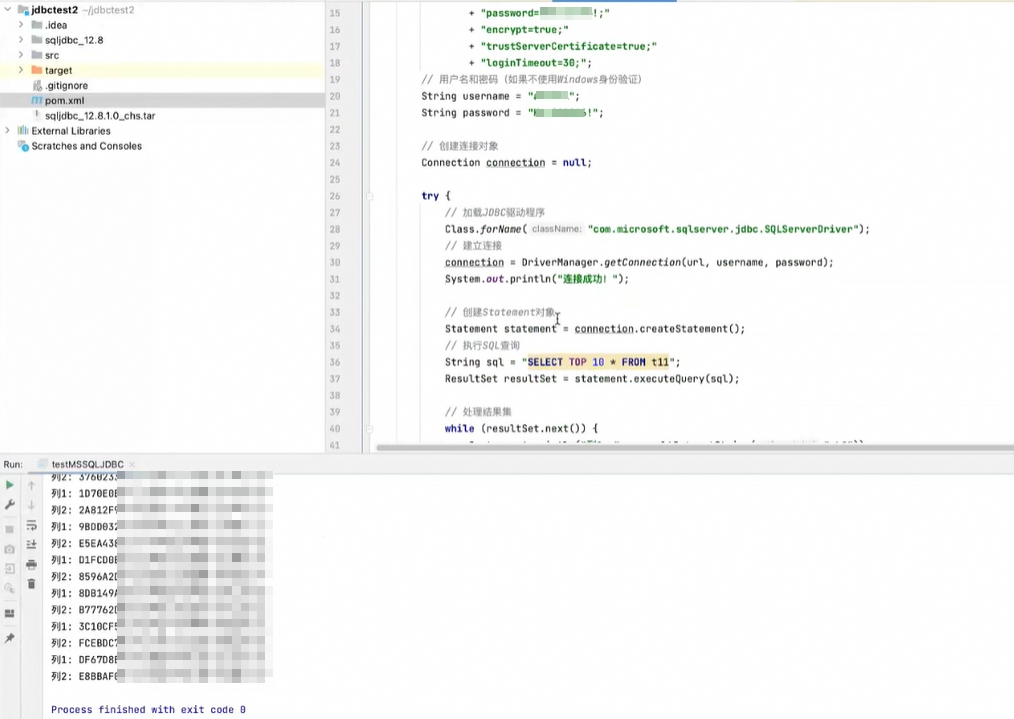
Next steps
FAQ
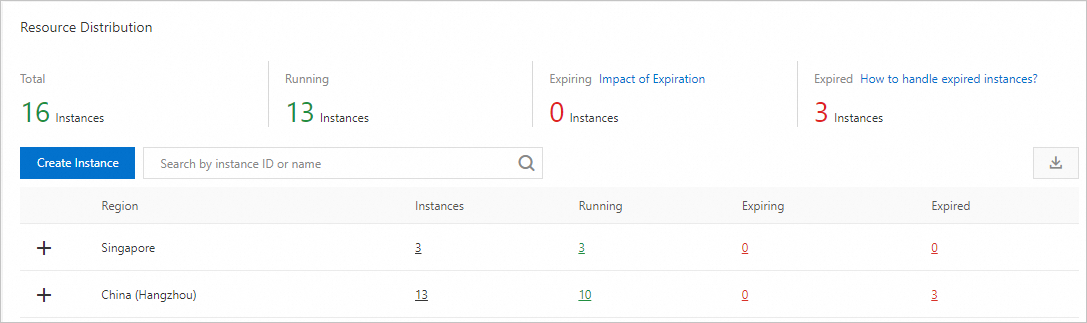
How do I view the total number of RDS instances under my Alibaba Cloud account?
Log on to the RDS Overview page. It shows the total number of RDS instances for all database engines under your account, the regions where they are located, and the number of running instances per region.
Why can't I see the instance I just created in the instance list?
| Cause | Description | Resolution |
|---|---|---|
| Incorrect region | The current region does not match the region selected during instance creation. | Switch to the correct region in the upper-left corner of the page. |
| Insufficient resources in the zone | The instance failed to create due to insufficient resources. A refund appears in the Orders list if creation fails. | Select a different zone and try again. |
| RAM policy prohibits unencrypted instances | A RAM policy is configured to block unencrypted RDS instance creation. This affects: (1) instances with a high-performance local disk — disk encryption cannot be set at creation time; (2) instances with a cloud disk where disk encryption was not enabled. For details, see Use a RAM policy to restrict RAM user permissions. | Set the storage type to cloud disk, enable Disk Encryption, select a key, and try again. |
References
Create an RDS instance using an API: CreateDBInstance
For more information about how to create other types of instances, see the following topics: