Before creating a disaster recovery instance for ApsaraDB RDS for PostgreSQL, complete the following preparations:
-
Verify that the destination instance meets all prerequisites
-
Establish network connectivity between the source and destination instances
This topic uses a self-managed PostgreSQL database running on an ECS instance as an example.
Prerequisites
The destination instance is the disaster recovery instance — an ApsaraDB RDS for PostgreSQL instance you create to receive replicated data from the source. Before you begin, ensure that the destination instance meets all of the following conditions. For more information about creating an instance, see Create an RDS for PostgreSQL instance.
-
The major version matches that of the source instance.
-
The instance is a primary instance. Read-only instances cannot be used as disaster recovery instances.
-
The billing method is subscription or pay-as-you-go. Serverless instances cannot be used as disaster recovery instances.
-
The instance is empty and contains no data, and the available storage space is greater than or equal to the total data size of the source database.
Establish network connectivity
Network connectivity solutions
Choose a connectivity method based on where your source database is hosted:
| Source instance type | Network connectivity method |
|---|---|
| Self-managed database in an on-premises data center | Express Connect, VPN Gateway, Smart Access Gateway, or Cloud Enterprise Network (CEN) |
| Self-managed database on another cloud platform | Smart Access Gateway, CEN, or Internet NAT gateway |
| Self-managed database on an Alibaba Cloud ECS instance | CEN or Internet NAT gateway. Not required if the ECS instance and the destination RDS instance are in the same virtual private cloud (VPC). |
| Other cloud hosting | Smart Access Gateway, CEN, or Internet NAT gateway |
| Alibaba Cloud RDS | CEN or Internet NAT gateway. Not required if the source and destination RDS instances are in the same VPC. |
If your source instance supports public network access, use an Internet NAT gateway to connect it to the VPC of the destination instance. The steps below describe how to configure an Internet NAT gateway for the destination RDS instance.
If the source instance does not support public network access, use a CEN instance instead. For more information, see Establish network connectivity by configuring a CEN instance.
Configure an Internet NAT gateway for the destination instance
-
Log on to the ApsaraDB RDS console and go to the Instances page. In the top navigation bar, select the region of the RDS instance. Find the instance and click its ID.
-
In the left navigation pane, click Database Connection. On the Database Connection page, note the VPC and vSwitch of the destination instance. Hover over the VPC ID to view the vSwitch ID.

-
Click the VPC ID to go to the VPC console.
-
Go to the Resource Management tab. In the Access to Internet section, hover over Internet NAT Gateway and click Create Now.
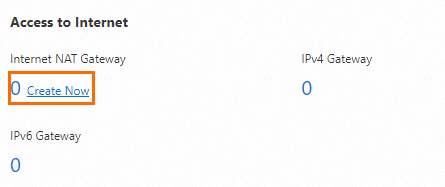
-
Configure the Internet NAT gateway and click Buy Now.
Configuration Description Billing method The default is Pay-As-You-Go. For billing details, see NAT Gateway billing. Instance name Enter a name for the gateway. The name must be 2–128 characters, start with a letter or a Chinese character, and can contain digits, underscores (_), and hyphens (-). Region Select the region of the destination RDS instance. Resource group Select the resource group to which the VPC belongs. For more information, see What is Resource Group?. Network and zone Select the VPC and vSwitch of the destination RDS instance. Network type Select Internet NAT Gateway. EIP Select an elastic IP address (EIP). If you don't have one, see Purchase an Internet NAT gateway and an EIP in unified access mode. -
On the Confirm page, review the configuration and click Activate Now.
Configure the source instance
Step 1: Create a synchronization account
A synchronization account is a database account on the source instance that the disaster recovery service uses to replicate data. Create one with the following steps.
-
Connect to the source PostgreSQL instance and create the synchronization account. The following example creates an account named
replicatoraccount.CREATE ROLE replicatoraccount CREATEROLE REPLICATION LOGIN PASSWORD 'your_password'; -
Grant the
pg_monitorpermission to the account.GRANT pg_monitor TO replicatoraccount; -
Verify that the account has the required permissions by connecting to the source instance with
replicatoraccountand running the following steps.-
Create a test account with the
REPLICATIONpermission.CREATE USER testreplicator WITH REPLICATION;If the error
must be superuser to create replication usersis returned, connect to the source instance with an account that has theSUPERUSERpermission and grantSUPERUSERtoreplicatoraccount:ALTER USER replicatoraccount WITH SUPERUSER; -
Delete the test account.
DROP USER IF EXISTS testreplicator;
-
Step 2: Configure the ECS security group
Add an inbound rule to allow the Internet NAT gateway to connect to the source PostgreSQL database.
-
Log on to the ECS console.
-
In the left navigation pane, choose .
-
In the top navigation bar, select the region.
-
Find the source ECS instance and click its ID.
-
On the Security Groups tab, click the name of the security group.
-
On the Security Group Details page, go to the Rules section on the Inbound tab and click Add Rule. Add the following rules.
Protocol type Port range Authorization object All ICMP (IPv4) Source: -1/-1/ Destination:-1/-1The EIP of the Internet NAT gateway created for the destination RDS instance. View the EIP on the Associated EIPs tab of the gateway. TCP The port of the self-managed PostgreSQL database. Run netstat -a | grep PGSQLto find the port.
Step 3: Configure the pg_hba.conf file
The following steps use PostgreSQL 13 on CentOS 7 as an example.
The pg_hba.conf file controls which hosts can connect to PostgreSQL and the authentication method each host must use. Add entries to allow the Internet NAT gateway to connect to the source database using the synchronization account.
-
Log on to the ECS instance where the self-managed PostgreSQL database is deployed. For more information, see Remotely connect to an ECS instance.
-
Find the location of the
pg_hba.conffile. Switch to the root user before running this command.find / -name pg_hba.confSample output:
/var/lib/pgsql/13/data/pg_hba.conf -
Go to the directory containing the file.
cd /var/lib/pgsql/13/data/ -
Edit
pg_hba.confand add the following lines at the end of the file.Placeholder Description replicatoraccountThe synchronization account created in Step 1. 121.XX.XX.XXThe EIP of the Internet NAT gateway created for the destination RDS instance. View it on the Associated EIPs tab of the gateway. host all replicatoraccount 121.XX.XX.XX/32 md5 host replication replicatoraccount 121.XX.XX.XX/32 md5Replace the placeholders with actual values:
-
Connect to the source PostgreSQL instance and reload the configuration.
SELECT pg_reload_conf();Expected output:
pg_reload_conf
----------------
 t
(1 row)
Step 4: Configure the postgresql.conf file
For instructions, see Configure the postgresql.conf file.
Step 5: Configure the server firewall
For instructions, see Configure the server firewall.