Connect to an ApsaraDB RDS for PostgreSQL instance over an encrypted SSL connection using pgAdmin, psql, or JDBC.
Prerequisites
Before you begin, ensure that you have:
-
SSL encryption enabled for the RDS instance. If it is not enabled, see Configure a cloud certificate to enable SSL encryption or Configure a custom certificate to enable SSL encryption
-
The server CA certificate file. To get this file, see Configure SSL encryption for an ApsaraDB RDS for PostgreSQL instance or Configure a custom certificate on an ApsaraDB RDS for PostgreSQL instance
-
(Required only if you configured a client CA certificate) The
client.crtandclient.keyfiles. See Configure a client CA certificate on an ApsaraDB RDS for PostgreSQL instance
Choose a connection method
| Tool | Best for |
|---|---|
| pgAdmin | GUI-based database management and interactive queries |
| psql | Scripts, automation, and command-line workflows |
| JDBC | Java applications connecting to the database programmatically |
SSL mode reference
All three connection methods use the same SSL mode values. Choose based on your security requirements:
| SSL mode | Behavior | When to use |
|---|---|---|
require |
Encrypts the connection but does not validate the server certificate | Basic encryption without certificate verification |
verify-ca |
Encrypts the connection and validates the server CA certificate | Recommended for most production use cases |
verify-full |
Encrypts the connection, validates the server CA certificate, and verifies that the CN or DNS in the server certificate matches the connection endpoint | Highest security; protects against man-in-the-middle attacks |
disable |
No SSL encryption. Available only if no access control lists (ACLs) are configured on the instance | Development or testing in trusted networks only |
If ACLs are configured on the RDS instance, the instance accepts SSL connections only. Set the SSL mode torequire,verify-ca, orverify-full.
Connect using pgAdmin
pgAdmin 4 is included when you install PostgreSQL from the PostgreSQL official website. To use pgAdmin without installing PostgreSQL, download it separately from pgAdmin.
The following steps use pgAdmin 4 V6.2.0 as an example.
-
Start pgAdmin 4.
On first login, pgAdmin asks you to set a master password to protect saved passwords and credentials.
-
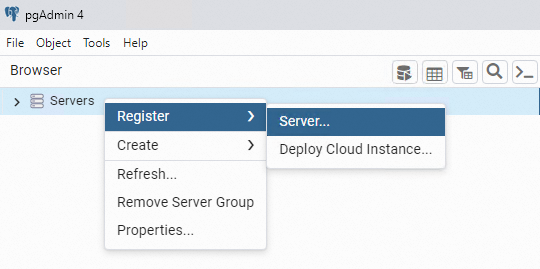
Right-click Servers and choose Register > Server.
-
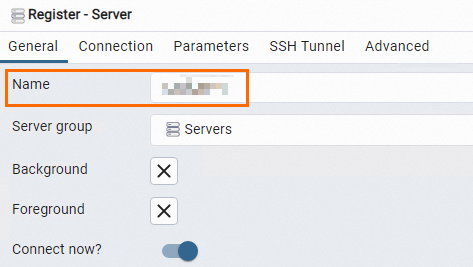
On the General tab, enter a name for the server.
-
On the Connection tab, enter the connection details.
Parameter Description Host name/address The endpoint of the RDS instance. Use the internal endpoint for VPC connections, or the public endpoint for Internet connections. Find this on the Database Connection page. See View and change the endpoints and port numbers of an ApsaraDB RDS for PostgreSQL instance. Port The port number for the connection. Find this on the Database Connection page. Username The username of the database account. See Create a database and an account. Password The password of the database account. 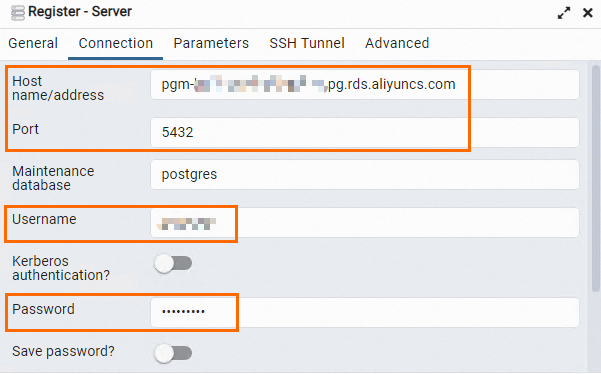
-
On the Parameters tab, configure the SSL settings.
You can use either a custom certificate (
server-ca.crt) or a cloud certificate (ApsaraDB-CA-Chain.pem) as the root certificate. Use the actual file path on your system.Parameter Description SSL mode The SSL mode. See SSL mode reference for the available values and when to use each. Client certificate The path to client.crt. Required only if you configured a client CA certificate.Client certificate key The path to client.key. Required only if you configured a client CA certificate.Root certificate The path to the server CA certificate file. Required when SSL mode is set to Verify-CA or Verify-Full. -
Click Save. If the connection succeeds, the database tree expands in the pgAdmin panel.
ImportantThe
postgresdatabase is the default system database. Do not perform operations on it.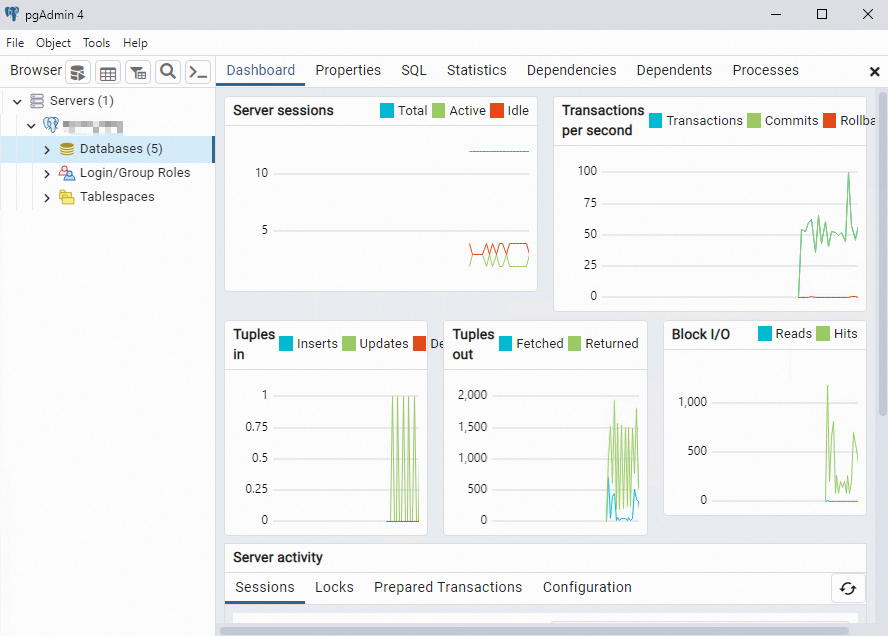
Connect using psql
The PostgreSQL client must be installed on your machine. See PostgreSQL documentation.
-
In the
/var/lib/pgsqldirectory, create a folder named.postgresql.mkdir /var/lib/pgsql/.postgresql -
Copy the certificate files to the
.postgresqlfolder.client.crtandclient.keyare required only if you configured a client CA certificate.- You can use either a custom certificate (
server-ca.crt) or a cloud certificate (ApsaraDB-CA-Chain.pem). Use the actual file path when running the commands.
cp client.crt client.key server-ca.crt /var/lib/pgsql/.postgresql/ -
Set file ownership and permissions on the
.postgresqlfolder.chown postgres:postgres /var/lib/pgsql/.postgresql/* chmod 600 /var/lib/pgsql/.postgresql/* -
Open the environment variables file for editing.
vim /var/lib/pgsql/.bash_profile -
Press
ito enter edit mode, then add the following environment variables:export PGSSLCERT="/var/lib/pgsql/.postgresql/client.crt" export PGSSLKEY="/var/lib/pgsql/.postgresql/client.key" export PGSSLROOTCERT="/var/lib/pgsql/.postgresql/ca1.crt" -
Press
Escto exit edit mode, then enter:wqto save and exit. -
Reload the environment variables.
source .bash_profile -
Set the SSL mode.
export PGSSLMODE="verify-full" -
Connect to the RDS instance.
Placeholder Description Where to find <Endpoint>The SSL-protected endpoint of the RDS instance Protected Host on the SSL Encryption tab of the Data Security page <Username>The database account username Accounts page <Port number>The port number (default: 5432)Database Connection page <Database name>The name of the database to connect to Database Connection page psql -h <Endpoint> -U <Username> -p <Port number> -d <Database name>Replace the placeholders with your actual values:
The postgres database is the default system database. Do not perform operations on it.
Connect using JDBC
Step 1: Get the certificate files
Download the following files to the host where your Java application runs:
-
server-ca.crt: The server CA certificate. See the Prerequisites section for how to get it. -
client.crtandclient.key: Required only if you configured a client CA certificate.
Step 2: Convert the client private key to PKCS8 (PK8) format
JDBC requires the client private key in PKCS8 (PK8) format. Run the following command on the host where your application runs:
openssl pkcs8 -topk8 -inform PEM -in client.key -outform der -out client.pk8 -v1 PBE-MD5-DES
# Enter the encryption password when prompted. You will use this password in your code.
Enter Encryption Password:
Verifying - Enter Encryption Password:Run this command on the same host where your application runs. If you run it on a different host and copy the file, the following errors may occur:
-
org.postgresql.util.PSQLException: Could not decrypt SSL key file C:/Users/XXX/XXX/client.pk8 -
org.postgresql.util.PSQLException: SSL error: Received fatal alert: unexpected_message
Step 3: Add the PostgreSQL JDBC driver dependency
Add the following dependency to your pom.xml:
<dependency>
    <groupId>org.postgresql</groupId>
    <artifactId>postgresql</artifactId>
    <version>42.2.10</version>
</dependency>
Step 4: Connect to the RDS instance
The example below uses a custom certificate (server-ca.crt). To use a cloud certificate, replaceserver-ca.crtwithApsaraDB-CA-Chain.pem.
public class PgSslDemo {
    public static void main(String[] args) {
        // Endpoint of the RDS instance
        String hostname = "pgm-bp1gclw58u36s6****.pg.rds.aliyuncs.com";
        // Port number (default: 5432)
        String port = "5432";
        // Database name
        String dbname = "postgres";

        String jdbcUrl = "jdbc:postgresql://" + hostname + ":" + port + "/" + dbname + "?binaryTransfer=true";

        Properties properties = new Properties();
        // Database account username
        properties.setProperty("user", "test_user");
        // Database account password
        properties.setProperty("password", "test_pwd");
        // Directory where certificate files are stored
        String path = "D:\\ssl\\";

        // Enable SSL
        properties.setProperty("ssl", "true");
        // Path to the server CA certificate
        properties.setProperty("sslrootcert", path + "/" + "server-ca.crt");
        // Path to the client private key (PKCS8 format)
        properties.setProperty("sslkey", path + "/" + "client.pk8");
        // Path to the client certificate
        properties.setProperty("sslcert", path + "/" + "client.crt");
        // The encryption password set when converting client.key to PKCS8 format
        properties.setProperty("sslpassword", "test_ssl_pwd");

        // SSL mode: require, verify-ca, or verify-full
        properties.setProperty("sslmode", "verify-ca");

        try {
            Class.forName("org.postgresql.Driver");
            Connection connection = DriverManager.getConnection(jdbcUrl, properties);
            // Example: query all rows from the students01 table
            PreparedStatement preparedStatement = connection.prepareStatement("select * from students01");
            ResultSet resultSet = preparedStatement.executeQuery();
            while (resultSet.next()) {
                ResultSetMetaData rsmd = resultSet.getMetaData();
                int columnCount = rsmd.getColumnCount();
                Map map = new HashMap();
                for (int i = 0; i < columnCount; i++) {
                    map.put(rsmd.getColumnName(i + 1).toLowerCase(), resultSet.getObject(i + 1));
                }
                System.out.println(map);
            }
        } catch (Exception exception) {
            exception.printStackTrace();
        }
    }
}