ApsaraDB RDS for PostgreSQL supports SSL encryption with both Alibaba Cloud-managed certificates and custom certificates. Use a custom certificate when you need to control the certificate authority (CA) or protect multiple endpoints with Subject Alternative Names (SANs).
This topic describes how to generate a custom certificate using OpenSSL and configure it on your RDS instance.
Prerequisites
Before you begin, make sure that you have:
-
An RDS instance running PostgreSQL 10 or later with cloud disks. Serverless RDS instances are not supported.
-
OpenSSL installed. Linux includes OpenSSL by default. On Windows, download and install it from the Win32/Win64 OpenSSL page.
Usage notes
-
Enabling SSL encryption increases CPU utilization and read/write latencies.
-
After enabling SSL encryption, close existing connections and establish new ones for the change to take effect.
-
The following operations trigger an RDS instance restart, which takes about 3 minutes. Perform them during off-peak hours:
-
Configuring a custom certificate
-
Modifying an existing custom certificate
-
Disabling SSL encryption
-
Step 1: Generate the certificate files
Do not enable password encryption when creating a private key for a server certificate or self-signed certificate. Password-encrypted private keys prevent SSL encryption from being enabled.
The following commands use CentOS as an example. On Windows, run the same openssl commands, but use copy and a text editor instead of cp and vim.
Single endpoint
Run the following three commands in sequence:
# 1. Create a self-signed CA certificate and its private key
openssl req -new -x509 -days 365 -nodes -out server-ca.crt -keyout server-ca.key -subj "/CN=root-server-ca"

# 2. Create a certificate signing request (CSR) and private key for the server certificate
#    Replace the CN value with the endpoint you want to protect
openssl req -new -nodes -text -out server.csr -keyout server.key -subj "/CN=pgm-bpxxxxx.pg.rds.aliyuncs.com"

# 3. Sign the CSR with the CA to produce the server certificate
openssl x509 -req -in server.csr -text -days 365 -CA server-ca.crt -CAkey server-ca.key -CAcreateserial -out server.crt
To find the endpoint to use in the CN value, see View and change the endpoints and port numbers of an ApsaraDB RDS for PostgreSQL instance.
Multiple endpoints (Subject Alternative Names)
To protect multiple endpoints, include them as Subject Alternative Names (SANs) in the certificate.
# 1. Create a self-signed CA certificate and its private key
openssl req -new -x509 -days 365 -nodes -out server-ca.crt -keyout server-ca.key -subj "/CN=root-server-ca"

# 2. Copy the default OpenSSL config to a temp file
cp /etc/pki/tls/openssl.cnf /tmp/openssl.cnf
On Windows, theopenssl.cnffile is in the\bin\cnfdirectory under your OpenSSL installation folder. Copy it to any directory you prefer.
Open /tmp/openssl.cnf in a text editor and add the following content:
# Add to the end of the [ req ] section
req_extensions = v3_req

# Add a new [ v3_req ] section
[ v3_req ]
basicConstraints = CA:FALSE
keyUsage = nonRepudiation, digitalSignature, keyEncipherment
subjectAltName = @alt_names

# Add a new [ alt_names ] section — list each endpoint as a DNS entry
[ alt_names ]
DNS.1 = pgm-bpxxxxx.pg.rds.aliyuncs.com
DNS.2 = pgm-bpyyyyy.pg.rds.aliyuncs.com
Then generate the CSR and server certificate:
# 3. Create a CSR and server private key using the updated config
openssl req -new -nodes -text -out server.csr -keyout server.key -config /tmp/openssl.cnf

# 4. Sign the CSR with the CA, including the SAN extensions
openssl x509 -req -in server.csr -text -days 365 -CA server-ca.crt -CAkey server-ca.key -CAcreateserial -out server.crt -extensions v3_req -extfile /tmp/openssl.cnf
When you run step 3, OpenSSL prompts you for CSR parameters. The following table describes each field.
| Parameter | Description | Example |
|---|---|---|
| Country Name | Two-letter ISO 3166 country code | CN |
| State or Province Name | Province or state | ZheJiang |
| Locality Name | City | HangZhou |
| Organization Name | Company name | Alibaba |
| Organizational Unit Name | Department name | Aliyun |
| Common Name | Leave blank — the domain names are specified in openssl.cnf |
— |
| Email Address | Leave blank | — |
| A challenge password | Leave blank | — |
| An optional company name | Leave blank | — |
Verify the output
After the commands complete, run ls to confirm that all required files are present:
server-ca.crt server-ca.key ca.srl server.crt server.csr server.keyThe following table describes each file and its role in SSL:
| File | Contents | Purpose |
|---|---|---|
server.crt |
Server certificate | Sent to clients to identify the server |
server.key |
Private key of the server certificate | Proves the server owns the certificate |
server-ca.crt |
Self-signed CA certificate | Used by clients to verify the server certificate |
server-ca.key |
Private key of the CA certificate | Used to sign the server certificate |
Step 2: Enable SSL encryption with the custom certificate
After you configure a custom certificate, the instance status changes from Running to Modifying SSL and back to Running in about 3 minutes.
-
Go to the Instances page. In the top navigation bar, select the region where your instance resides. Click the instance ID.
-
In the left-side navigation pane, click Data Security. On the page that appears, click the SSL tab.
-
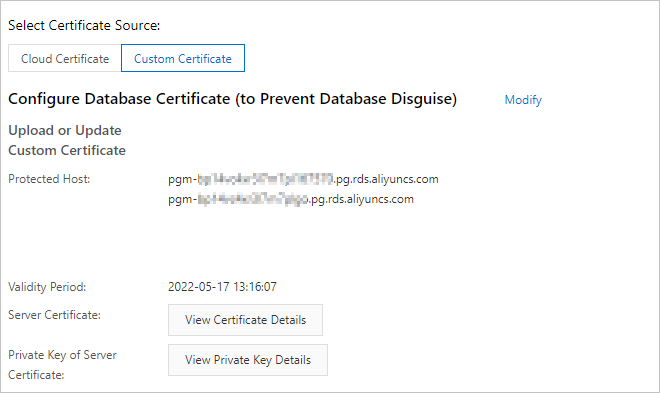
Set Select Certificate Source to Custom Certificate. Click Configuration next to Configure Database Certificate (to Prevent Database Disguise).
-
In the dialog box, paste the file contents into the corresponding fields. Copy the full content of each file, including the header and footer lines. Click OK. If your certificate covers multiple endpoints, each endpoint appears as a separate record in Protected Host.
Field File Content range Server Certificate server.crtFrom -----BEGIN CERTIFICATE-----to-----END CERTIFICATE-----Private Key of Server Certificate server.keyFrom -----BEGIN PRIVATE KEY-----to-----END PRIVATE KEY-----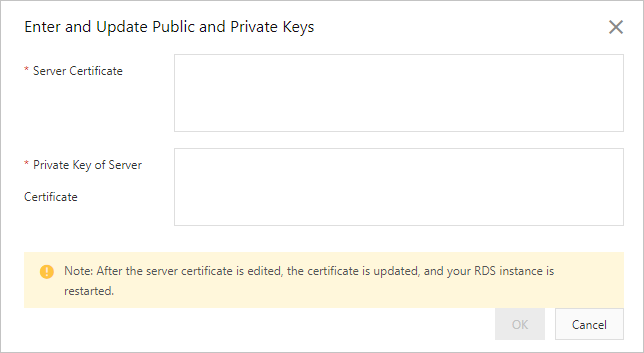
Step 3: Connect to the instance over SSL
You can connect to the RDS instance from a client over SSL. For more information, see Connect to an ApsaraDB RDS for PostgreSQL instance over SSL.
Step 4: (Optional) Update the custom certificate
This operation triggers an RDS instance restart. Proceed with caution.
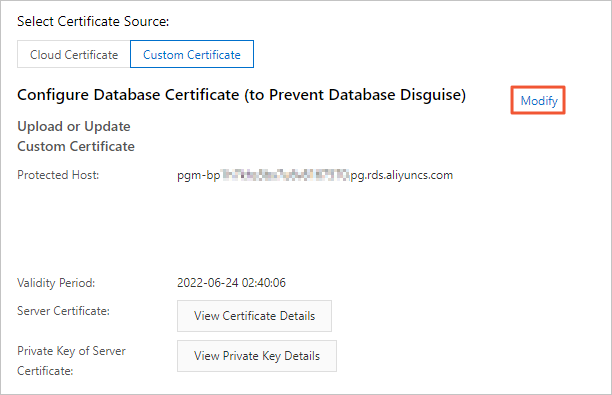
On the SSL tab, click Modify next to Configure Database Certificate (to Prevent Database Disguise). In the dialog box, enter the new server certificate and its private key.
Step 5: (Optional) Disable SSL encryption
This operation triggers an RDS instance restart. Proceed with caution.
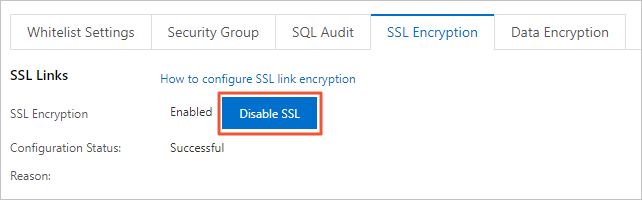
On the SSL tab, click Disable SSL.
FAQ
Why do I get the error "The certificate address does not contain the instance connection string"?
The certificate's CN (Common Name) or SAN (Subject Alternative Name) does not contain the RDS instance endpoint. Wildcard certificates (for example, *.example.com) are not supported.
To resolve this issue, regenerate the certificate and set the CN value or a SAN entry to the full RDS instance endpoint (for example, pgm-xxx.pg.rds.aliyuncs.com). For information about how to view the endpoint, see View and change the endpoints and port numbers of an ApsaraDB RDS for PostgreSQL instance.
Why does SSL configuration fail with a private key error?
The private key was generated with password encryption. Password-encrypted private keys are not supported.
To resolve this issue, regenerate the private key without password encryption. Use the -nodes flag in the openssl req command, as shown in Step 1. The private key file must start with -----BEGIN PRIVATE KEY-----.
Why do I get a certificate format error when uploading the certificate?
The certificate file may not be in PEM format, or it may contain extra content.
To resolve this issue, make sure you upload a PEM-format certificate file. The content must start with -----BEGIN CERTIFICATE----- and end with -----END CERTIFICATE-----, with no extra text outside these lines.