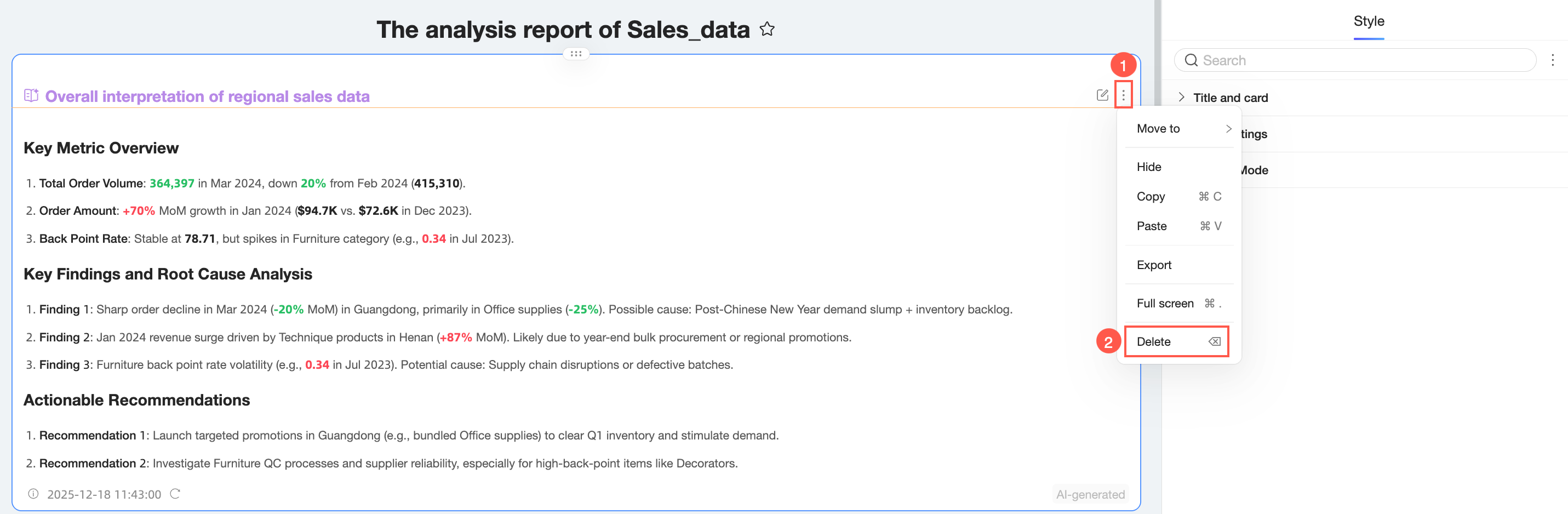
In Quick BI, you can add Q-Interpretation results to a dashboard as a component. This helps you present dynamically updated data insights on a fixed schedule to business teams or executives. This topic describes how to add interpretation results to a dashboard component and how to configure the interpretation component.
This feature is currently available only in the China (Hong Kong), Malaysia (Kuala Lumpur), and Singapore regions. It will be rolled out to other regions soon.
Prerequisites
Enable Q-Insight is enabled.
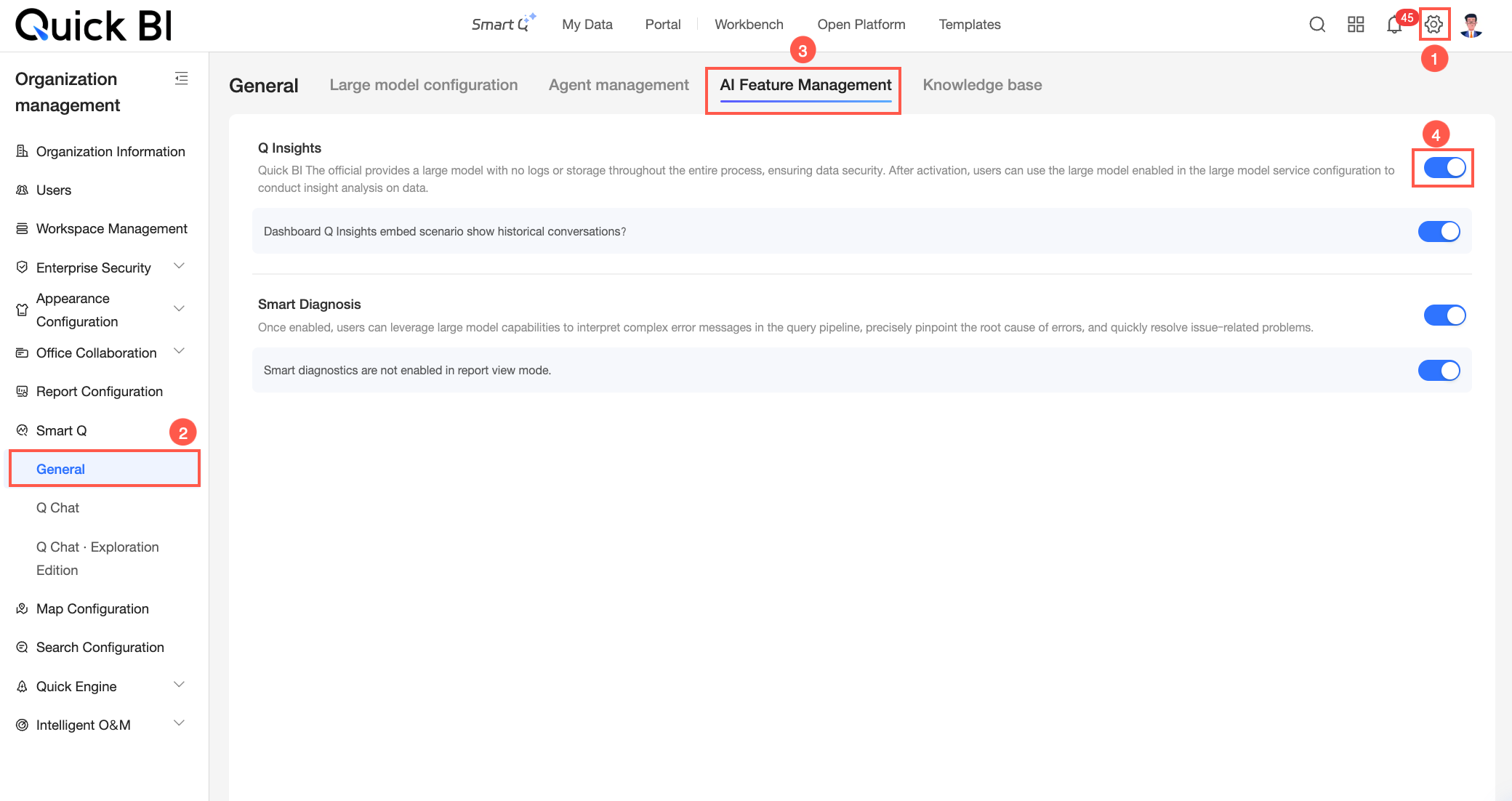
Q-Insight configuration is configured.
You have created a dashboard and have the required permissions to edit it.
Limitations
You can add a maximum of three Q-Interpretation components to a dashboard.
Add interpretation component
Entry points
You can generate either a dashboard-level interpretation or an interpretation for a single chart component.
Dashboard-level interpretation
On the dashboard editing page, click the
 icon at the top to open the dashboard-level interpretation panel.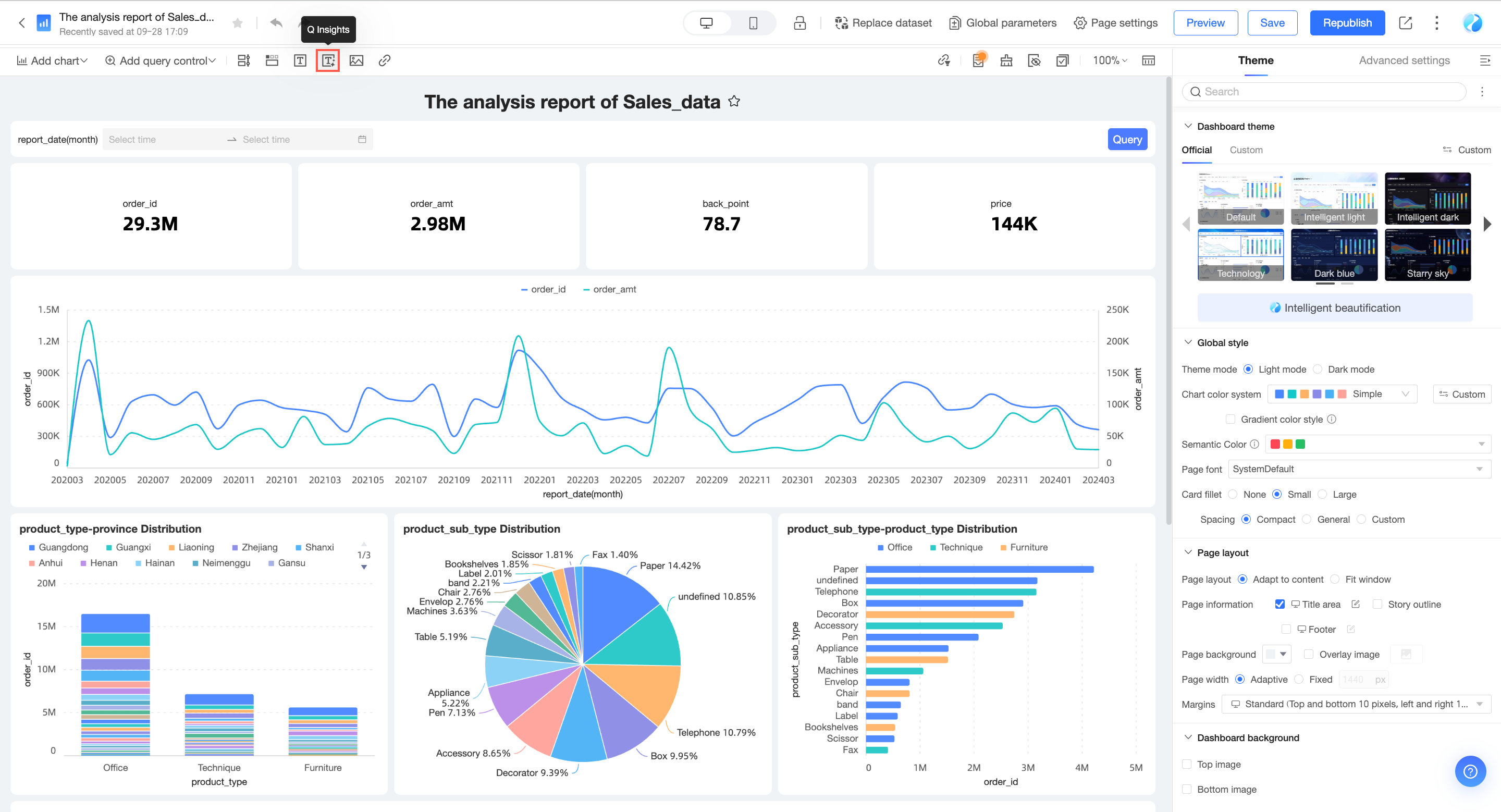
Single chart interpretation
Click the
 icon on the right side of the target chart and select Insert Q-Analysis to open the single chart component interpretation panel.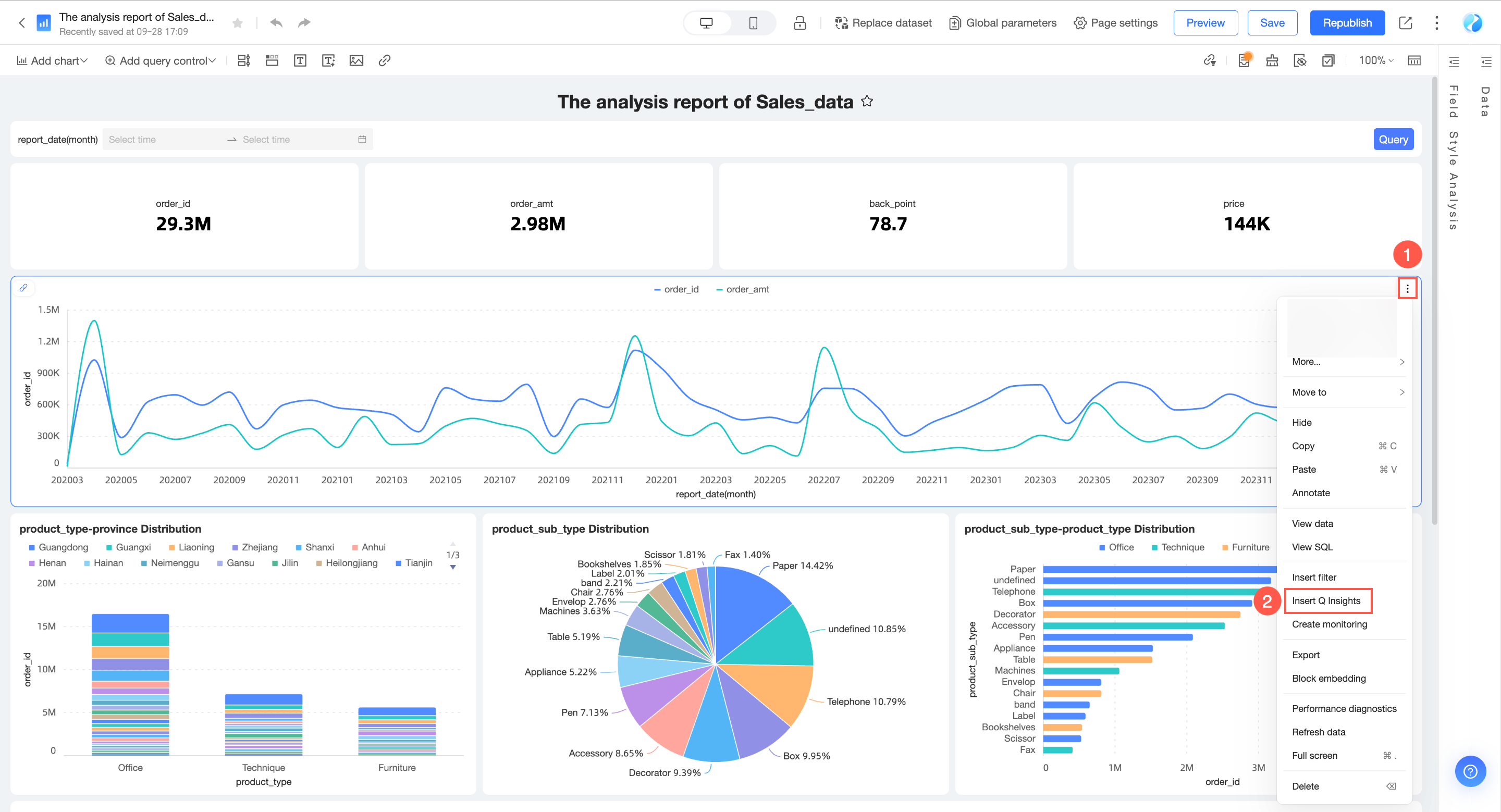
Select interpretation scope
Only dashboard-level interpretation supports selecting an interpretation scope and previewing data. You can skip this step for single chart components.
On the Q-Interpretation page, the system defaults to interpreting All Components on the dashboard. You can switch to selecting specific charts for interpretation.
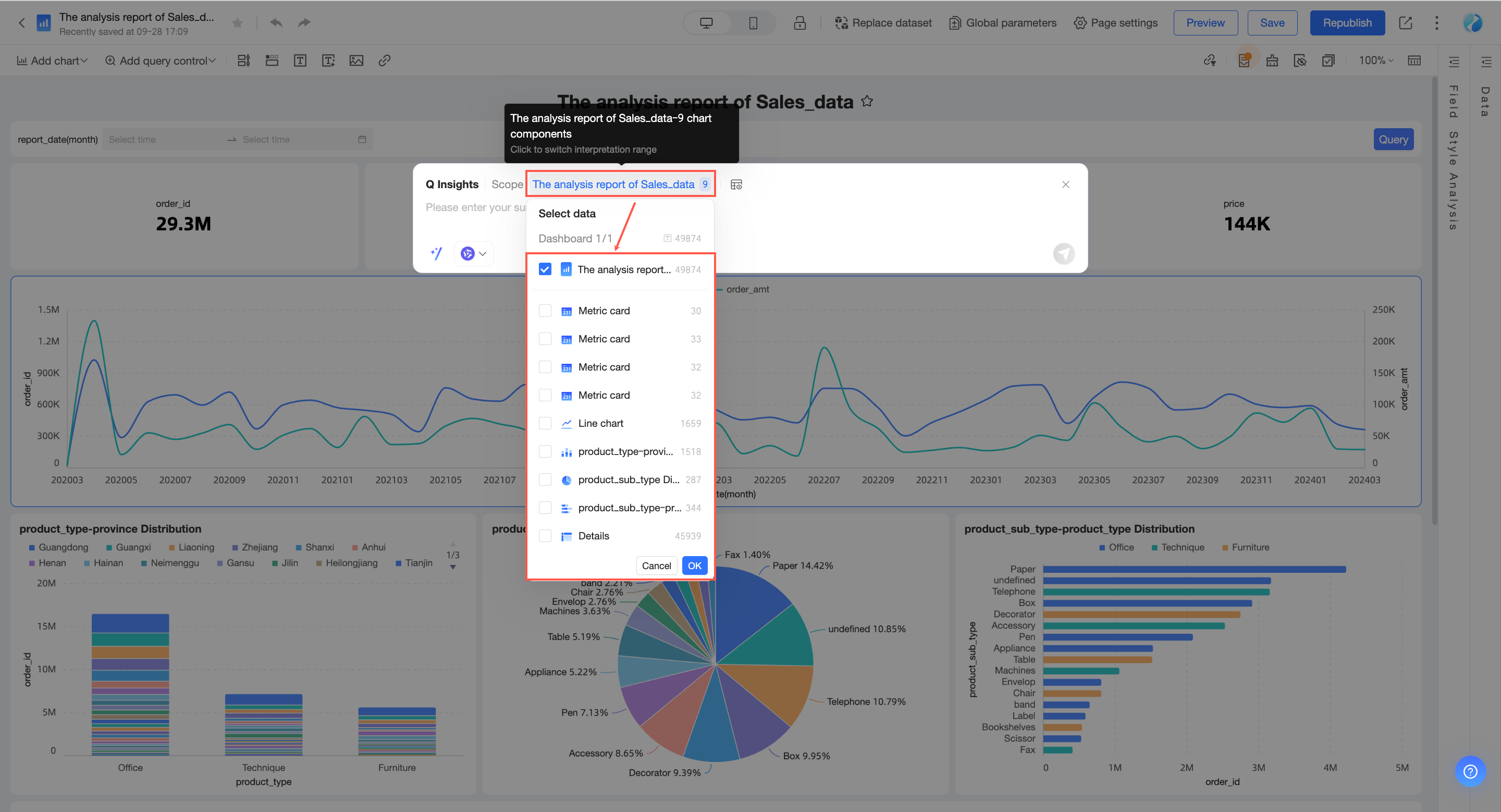
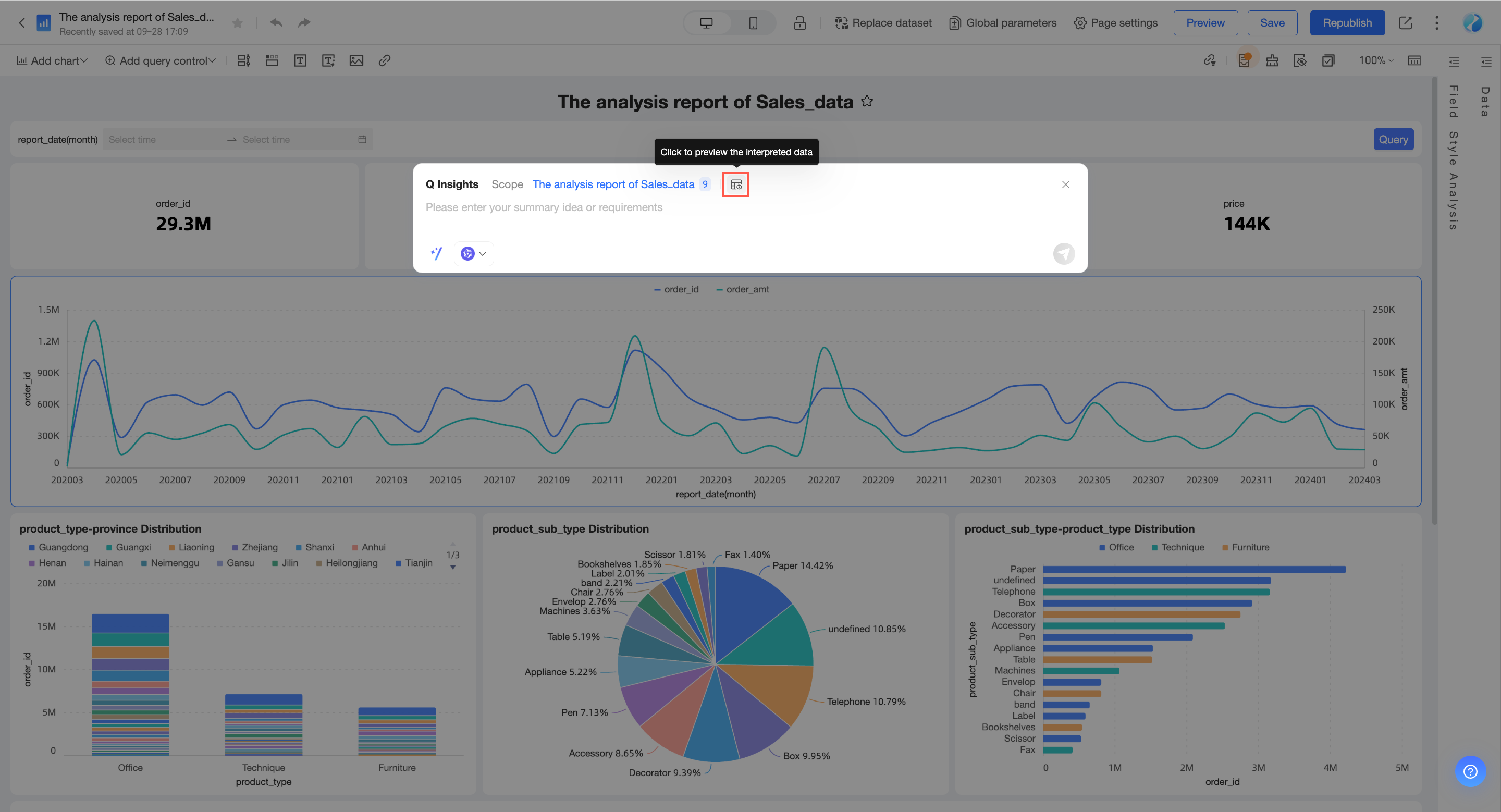
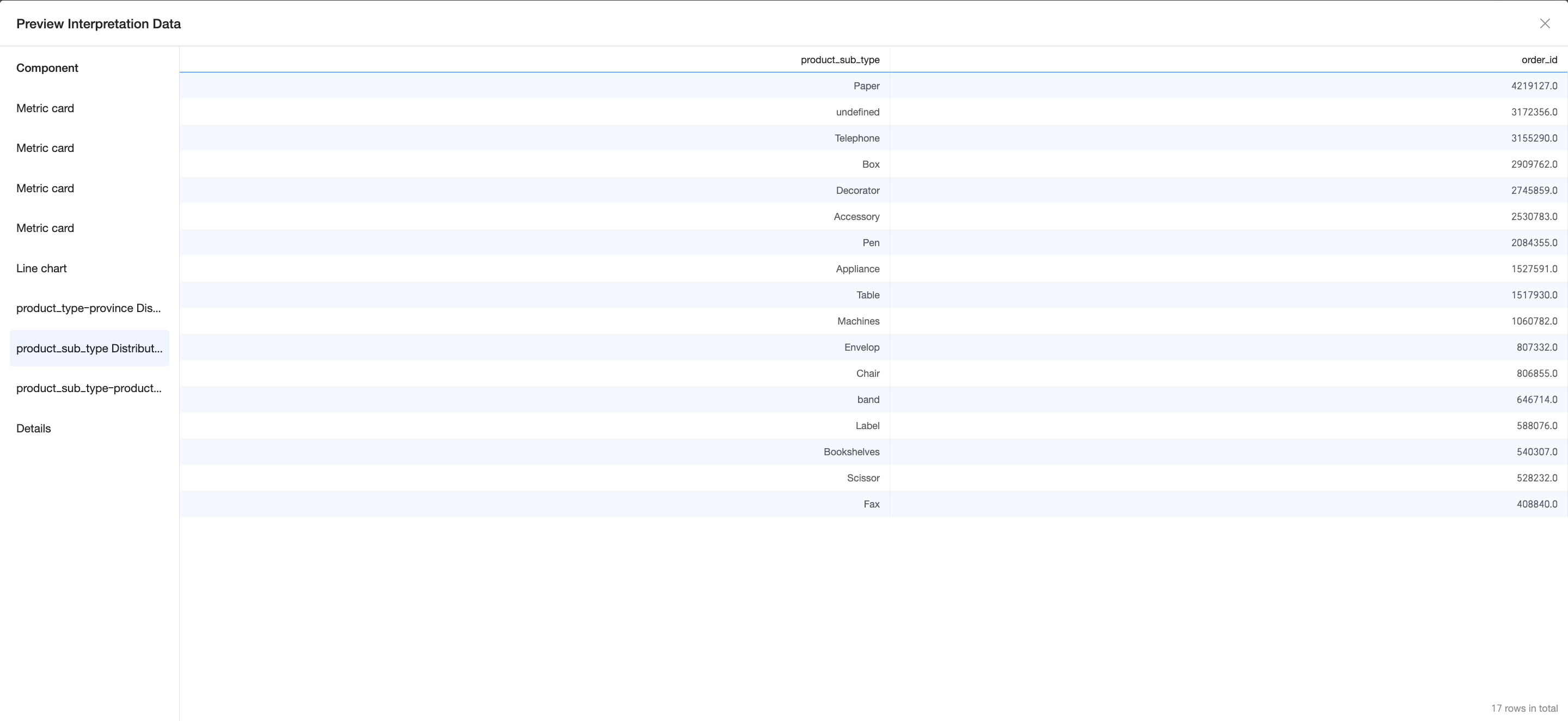
After selecting the scope, you can click Preview Interpretation Data.
The preview appears as shown in the following figure:
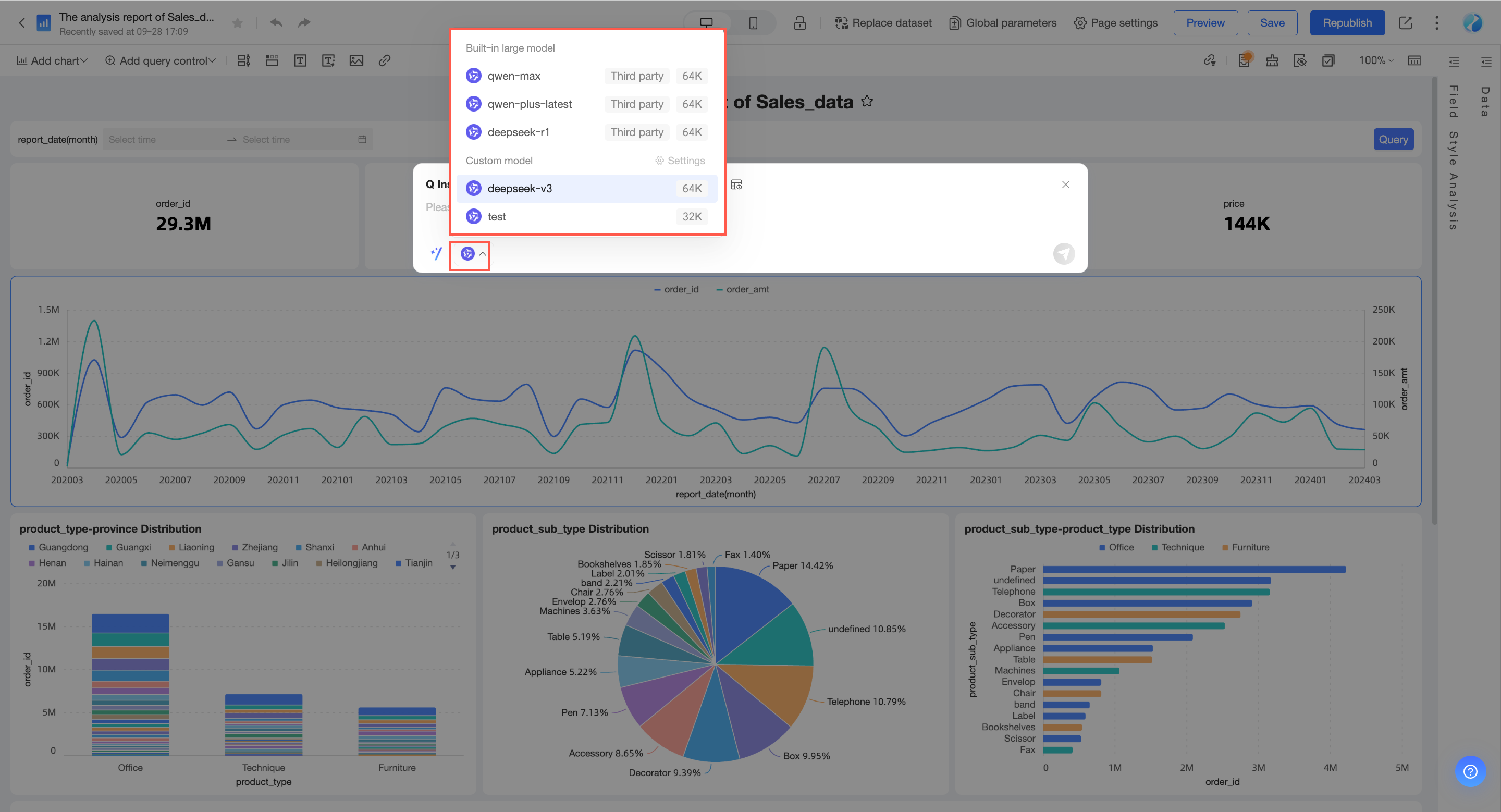
Select model
You can select either a built-in large model or a custom large model.
Enable knowledge base search
After you enable enterprise knowledge base search, you can select the knowledge base to associate.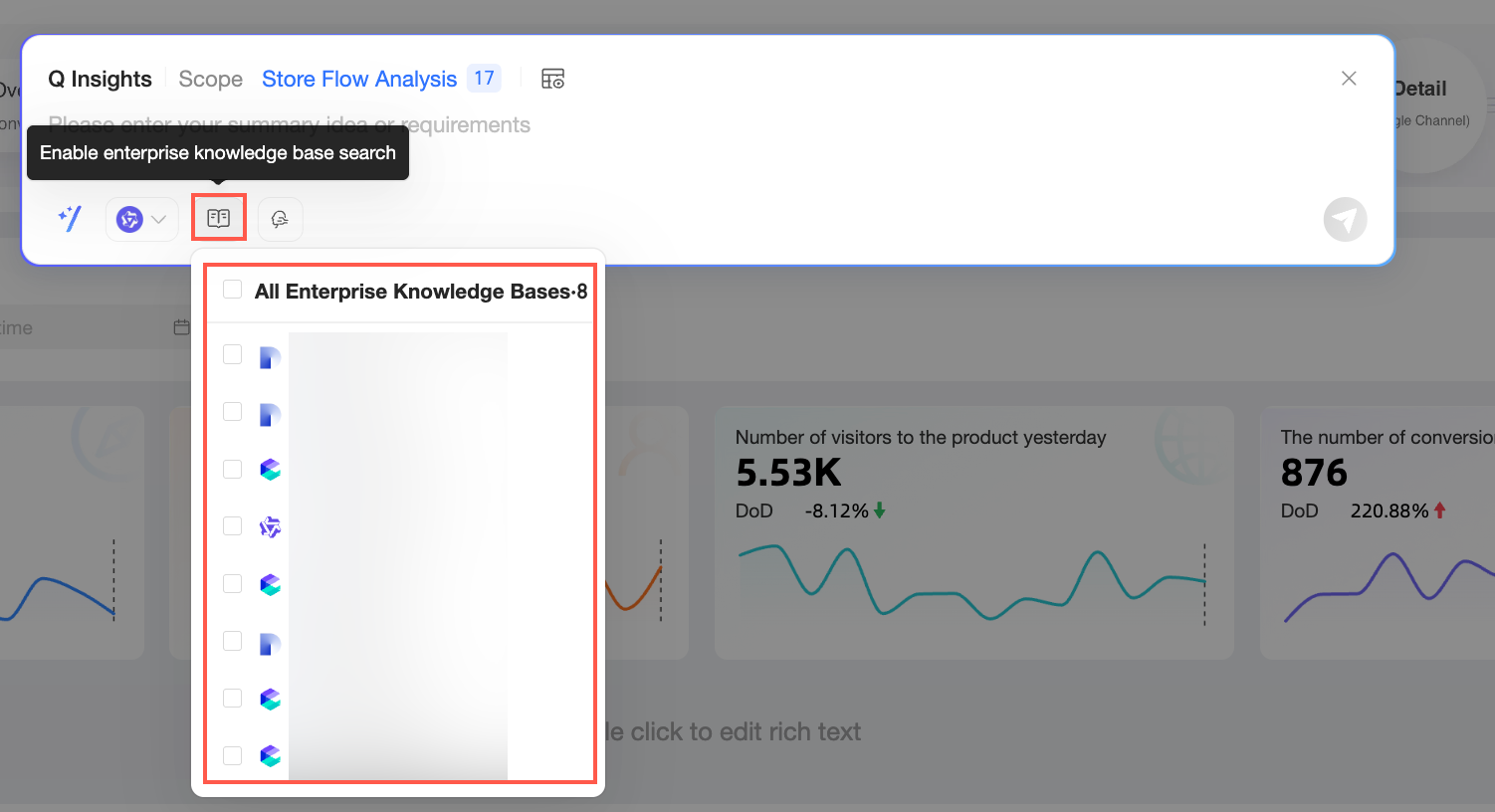
When enabled, the large model uses business information from the associated knowledge base to generate reports aligned with your company's business context and management logic.
To select a knowledge base here, an organization administrator must have already configured and enabled it in Organization Management. For more information about how to configure a knowledge base, see Manage a knowledge base.
Specify analysis logic
After you enable this feature, you can select the analysis logic from either Enterprise Knowledge or Personal Knowledge.
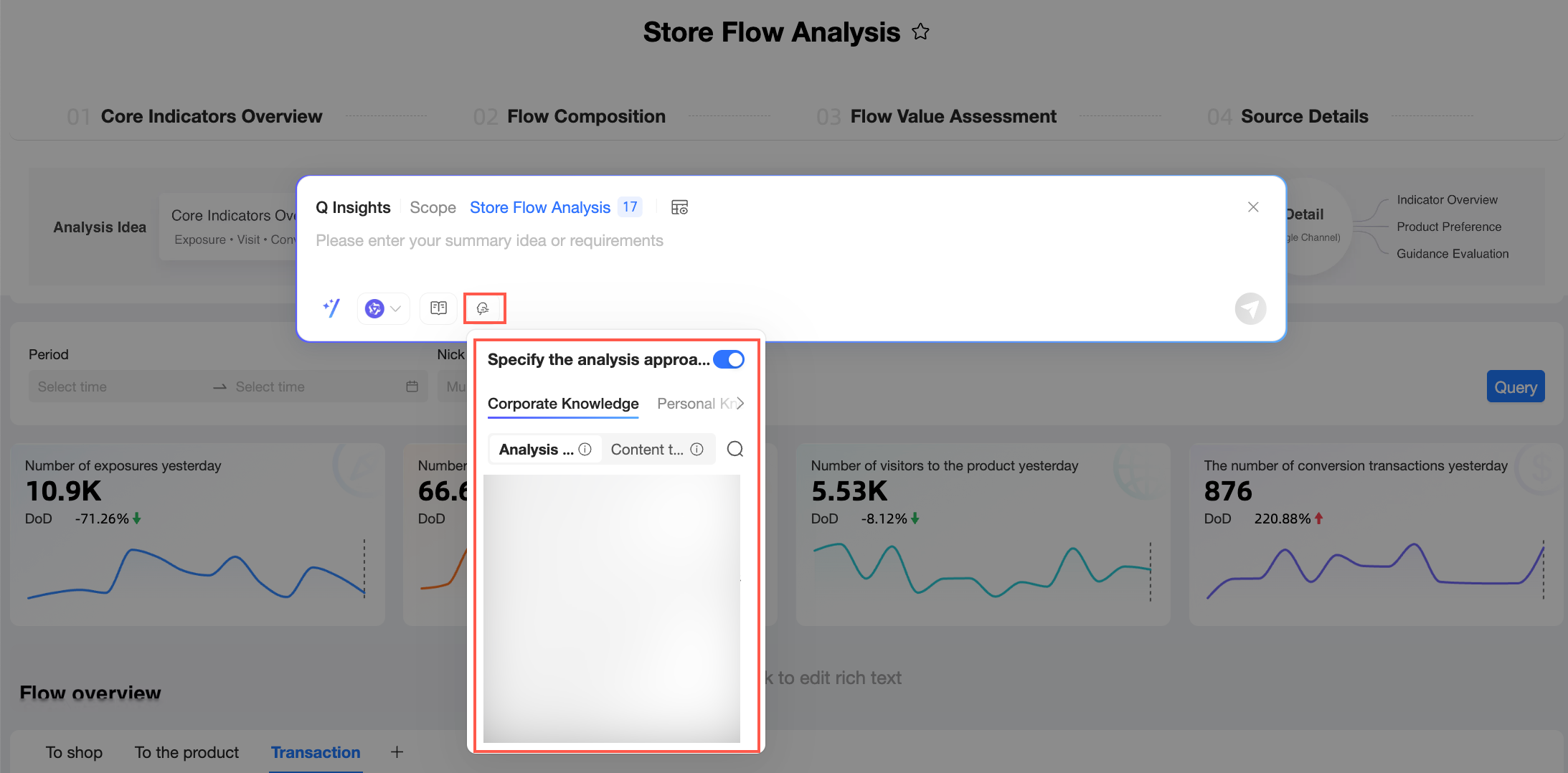
The Enterprise Knowledge tab displays common knowledge that is centrally configured and maintained for your organization. This helps standardize data analysis approaches and content structures, ensuring that reports from different members meet organizational standards.
Here, you can select the desired analysis logic or content template.
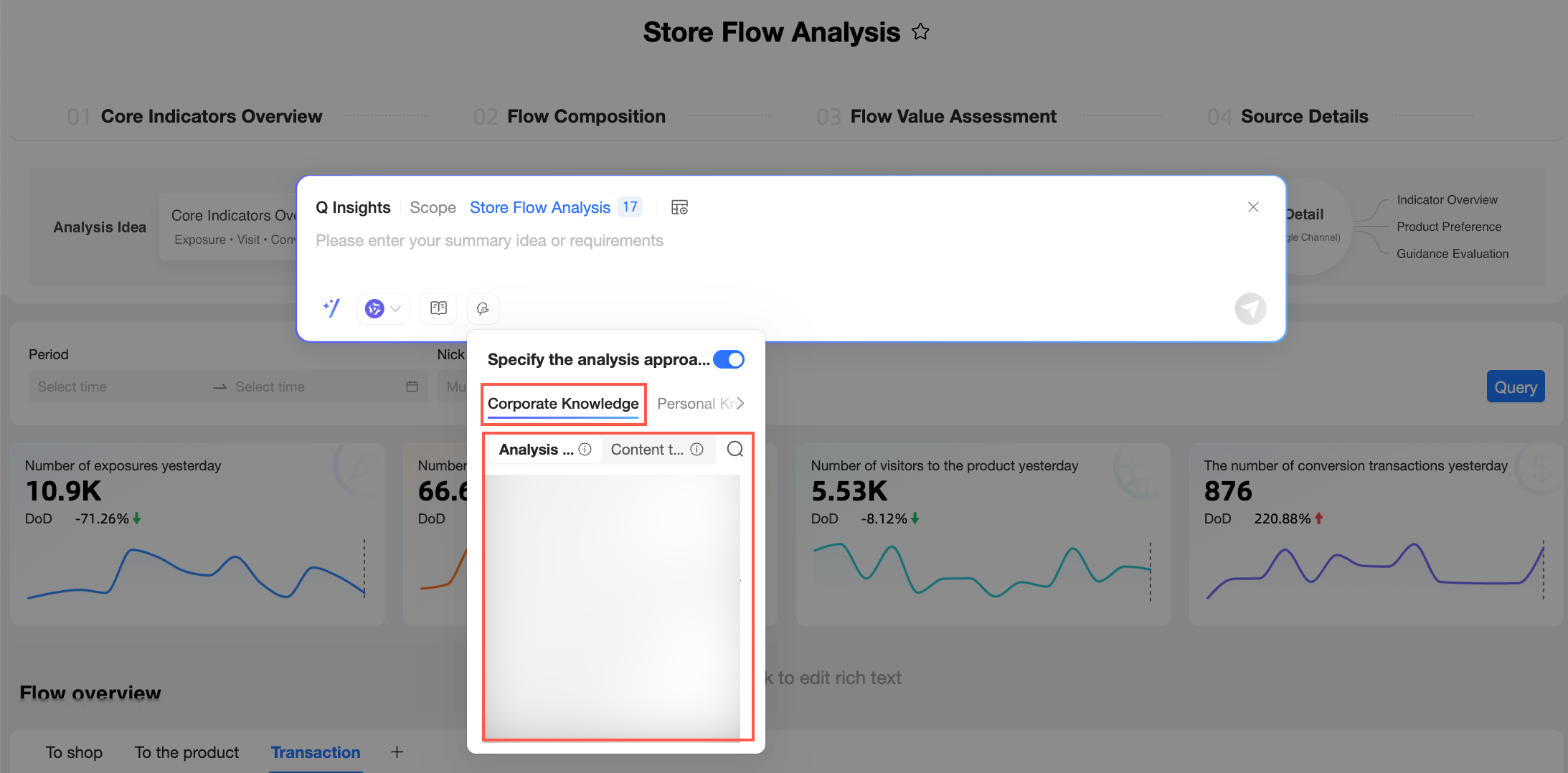
Analysis logic: Specifies only the analysis logic. Configuring the analysis logic guides the system to generate content that aligns with your organization's analytical framework, avoiding generic results disconnected from your business operations.
Here, the large model generates the presentation structure. If you have specific requirements for this layer, you can select a template from the Content Template tab or define the structure using prompts or attachments.
Content template: Specifies both the analysis logic and the output structure. Setting a content template lets you pre-configure standard report frameworks and ensure the analytical logic meets your expectations.
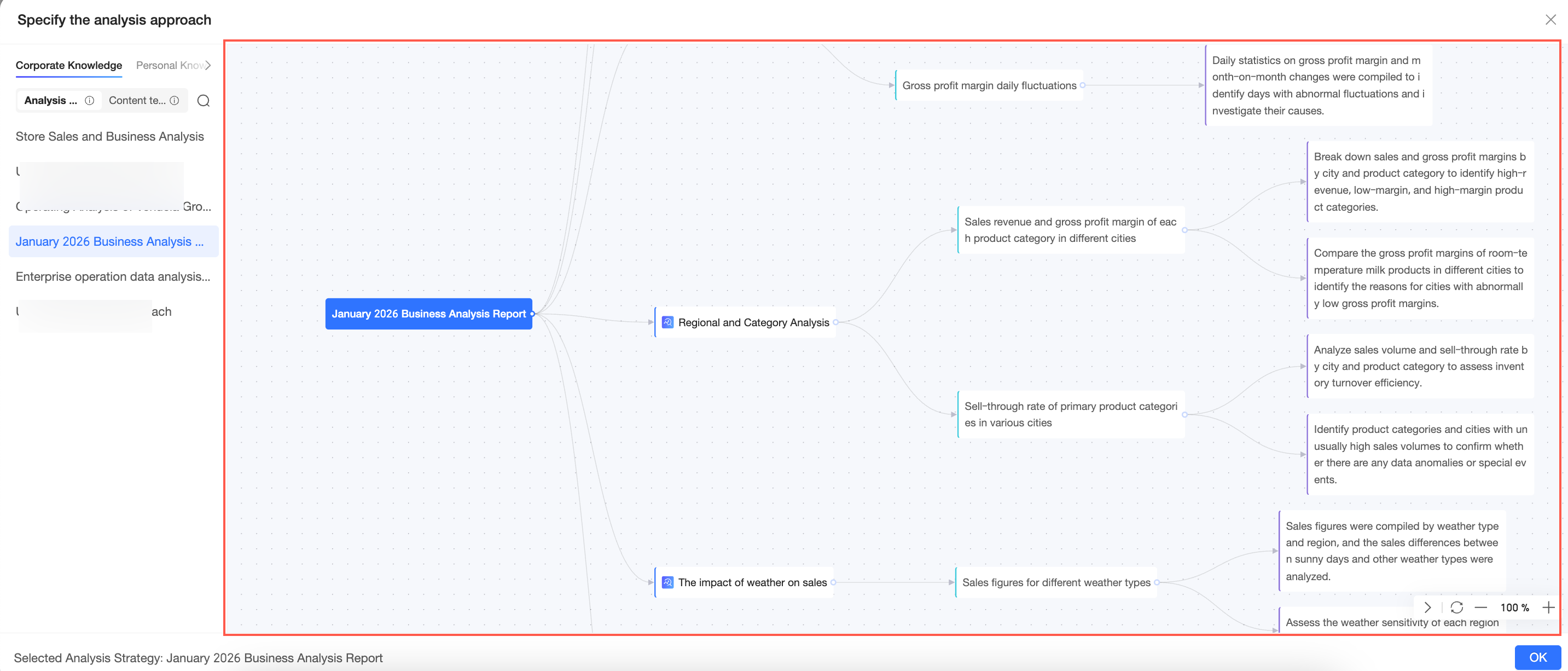
Click the
 icon next to an analysis logic or content template to preview its details in the Specify Analysis Logic dialog box.
 Note
NoteIf you turn off this feature, the large model automatically plans the analysis logic based on your prompt.
To select an analysis logic or content template here, an organization administrator must have already configured and enabled it in Organization Management. For more information about how to configure these items, see Manage a knowledge base.
The Personal Knowledge tab displays private knowledge that you have uploaded to your account. You can upload local files that capture knowledge from your specific role and experience, and then apply this knowledge when generating reports. This helps Q-Interpretation produce output that is more tailored to your individual work needs and perspective.
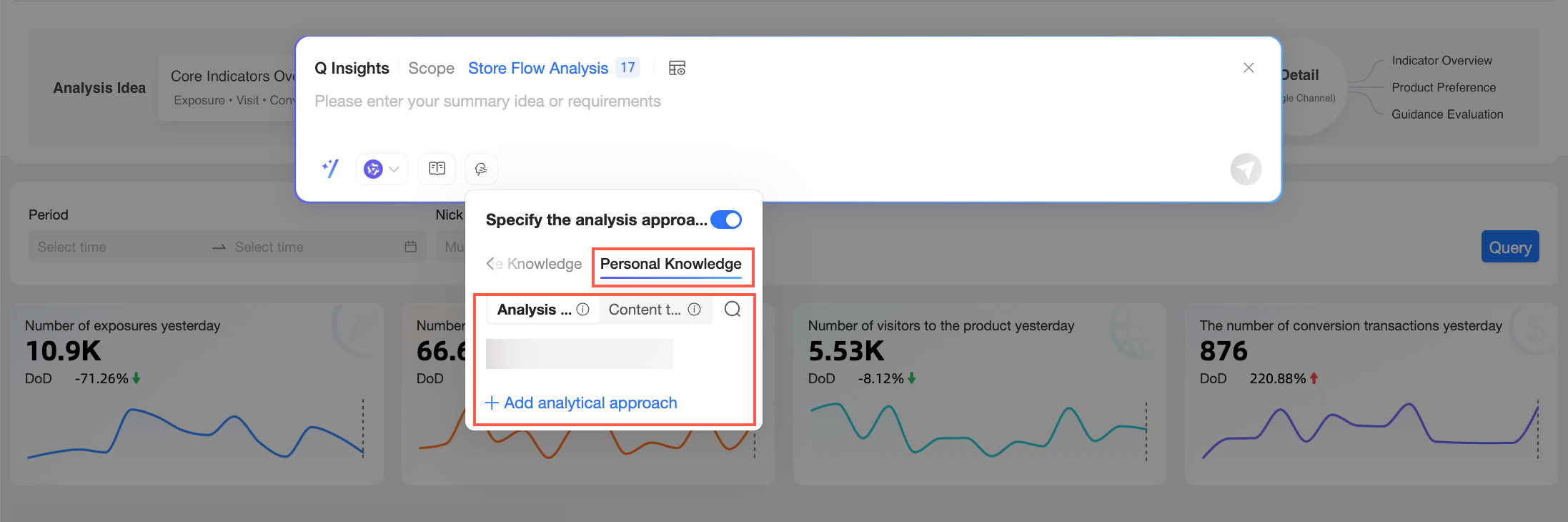
Perform the following steps:
Click Add New Personal Knowledge. In the Add Knowledge Document dialog box, click or drag a file into area ① to upload it.
NoteOnly files in .doc or .pdf format are supported. The file size cannot exceed 10 MB.
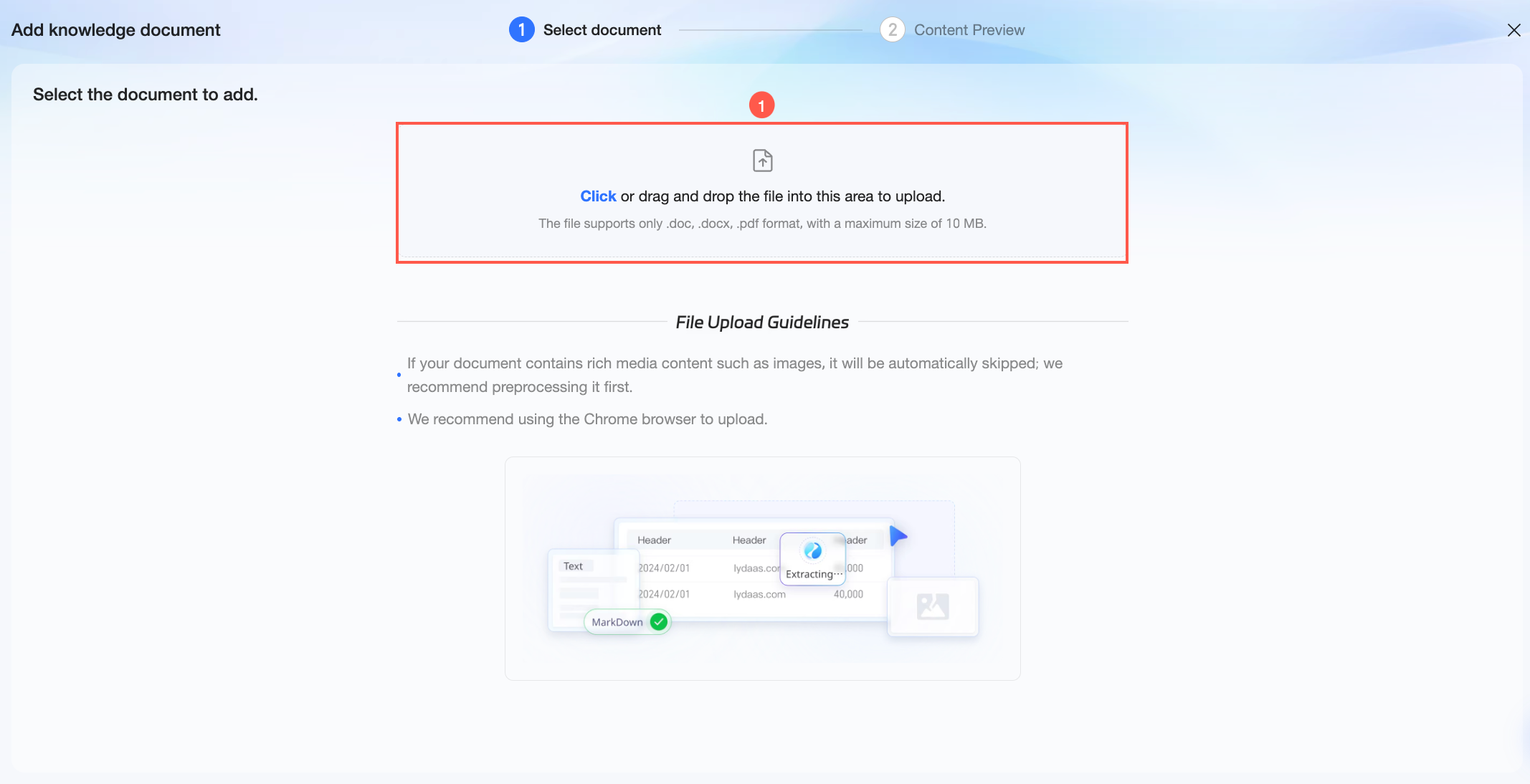
After the upload, you will proceed to the Content Preview stage. You can view the source document information and perform related actions on the Document Parsing tab.
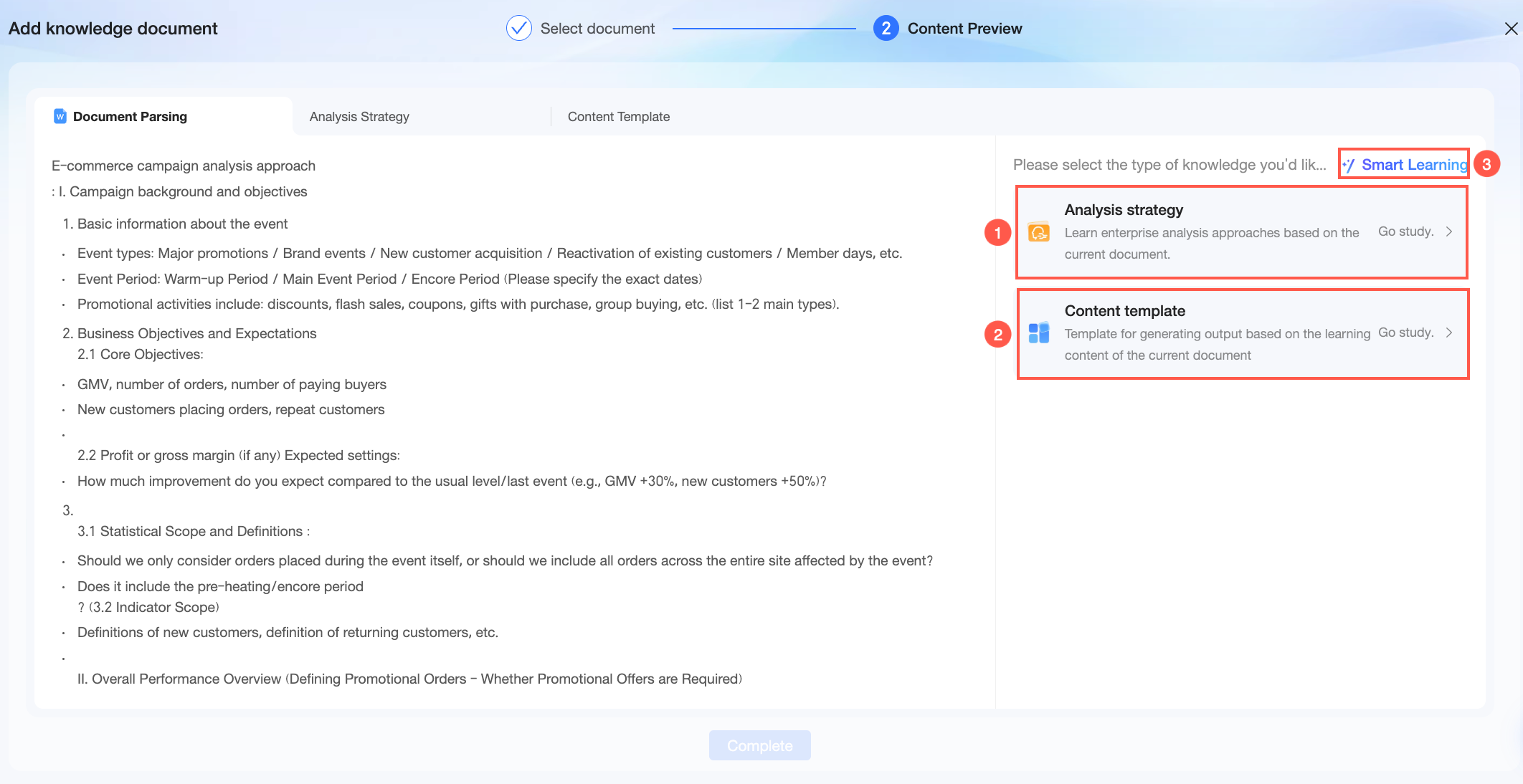
① Click Learn on the analysis logic card. The system learns the analysis logic from the current document. Once complete, you can view the details on the Analysis Logic tab.
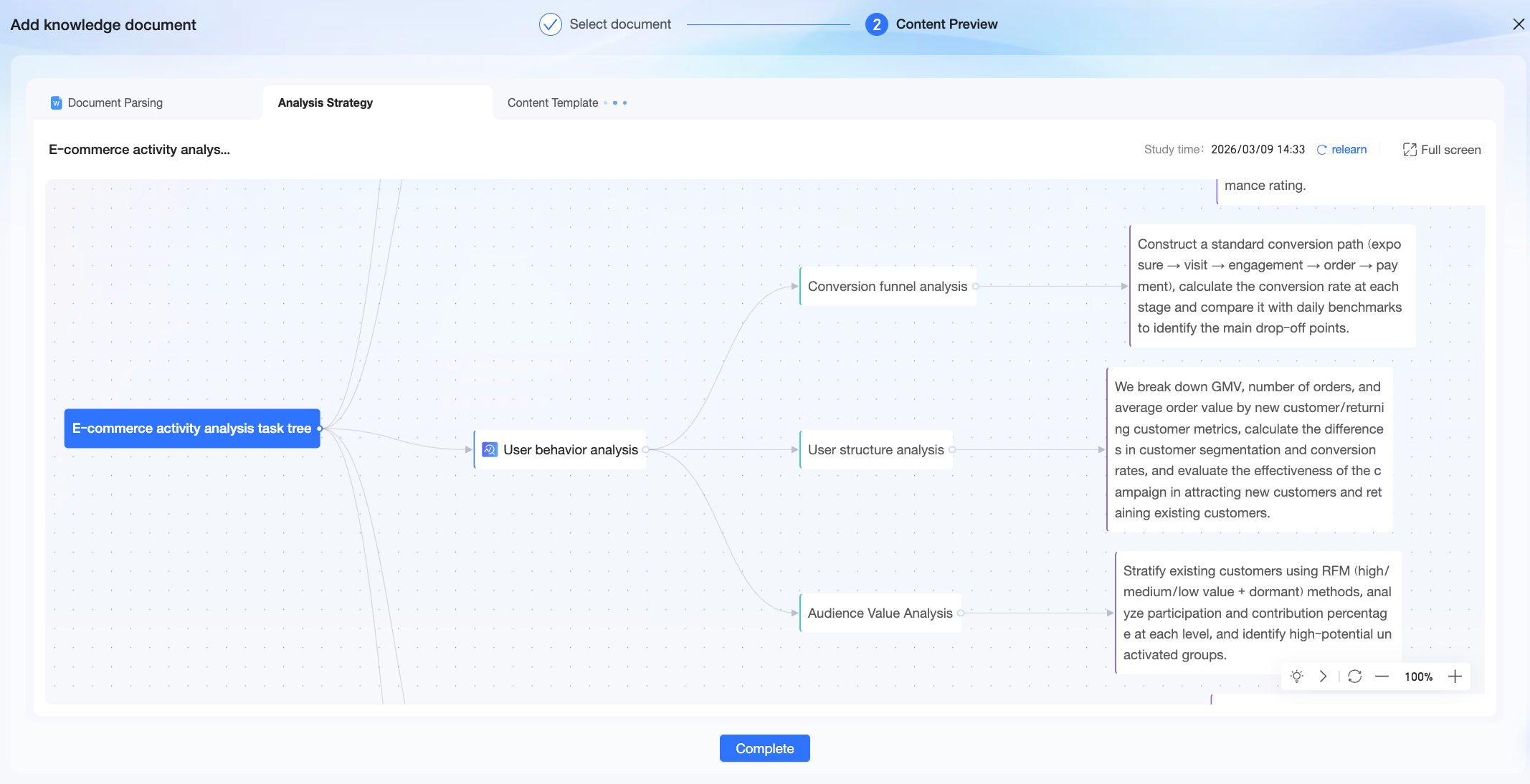 The analysis logic parsed by the system is displayed here as a mind map. You can double-click the name of the analysis logic or the node content to modify its text. You can also add or delete a node by clicking the
  icon or pressing the Delete key.
② Click Learn on the content template card. The system learns the content output template from the current document. Once complete, you can view the details on the Content Template tab.
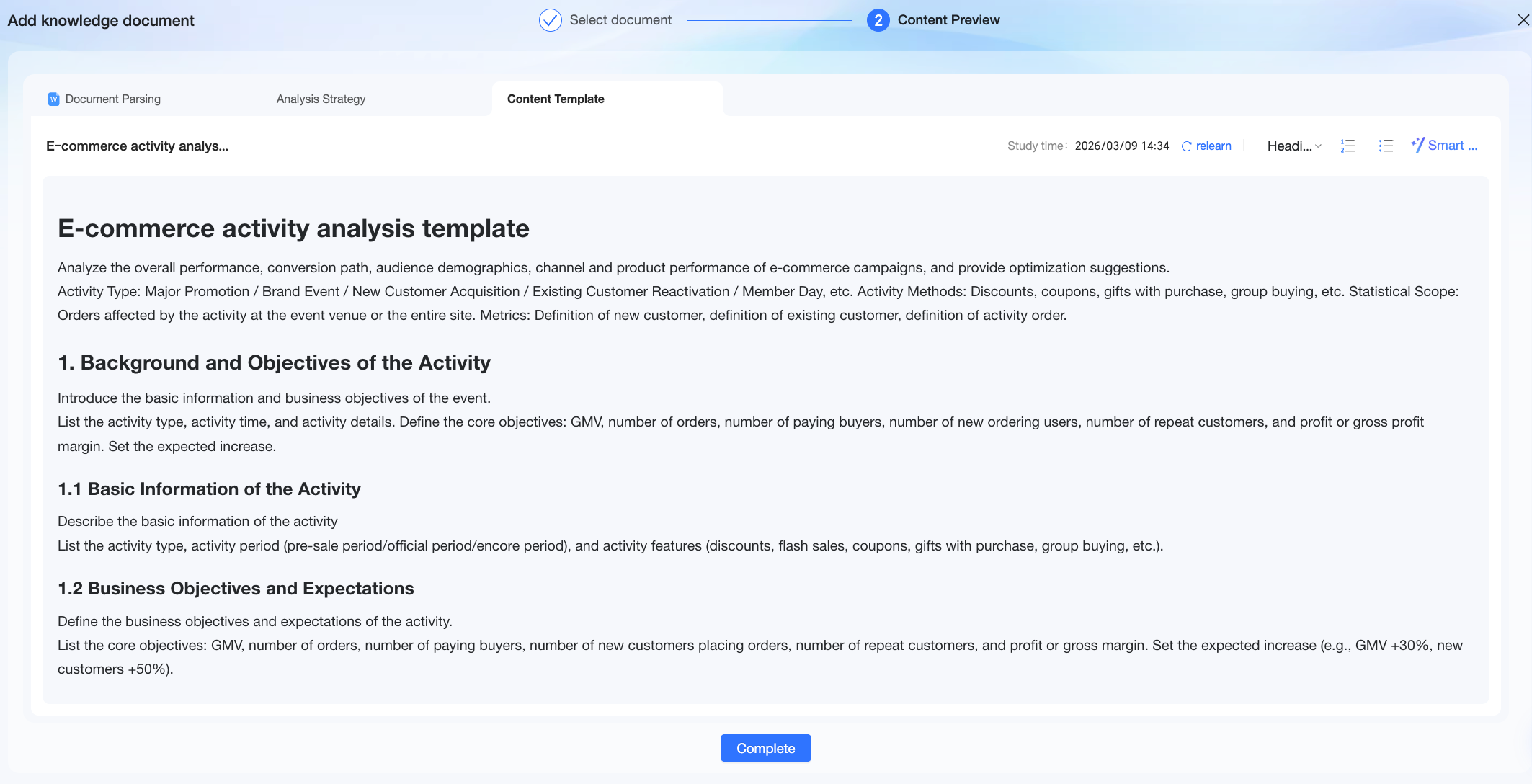 The content template extracted by the system is displayed here as a document. You can edit the text, adjust its format, or use AI to optimize and refine the existing content.
③ Click Intelligent Learning. Quick BI automatically learns from the document content and extracts the corresponding type of knowledge.
Click Done. After the knowledge is successfully added, it appears in your personal knowledge list. You can perform the following actions:
Select a knowledge item to apply during report generation.
Click the
 icon and enter a keyword in the search box to quickly find a specific knowledge item.
Click the
 icon to delete knowledge content that is no longer needed.
Click the
icon to preview the knowledge content details in the Specify Analysis Logic dialog box.
NotePersonal knowledge can only be used by the individual who uploaded it. It is not visible to other members of the organization and is not synchronized with the enterprise knowledge base in Organization Management.
If a report creator shares a report generated from personal knowledge with another user and grants them editing permissions, the authorized user can update data and regenerate the report within the shared report. However, they cannot use the creator's personal knowledge for actions outside the report, such as generating a new report.
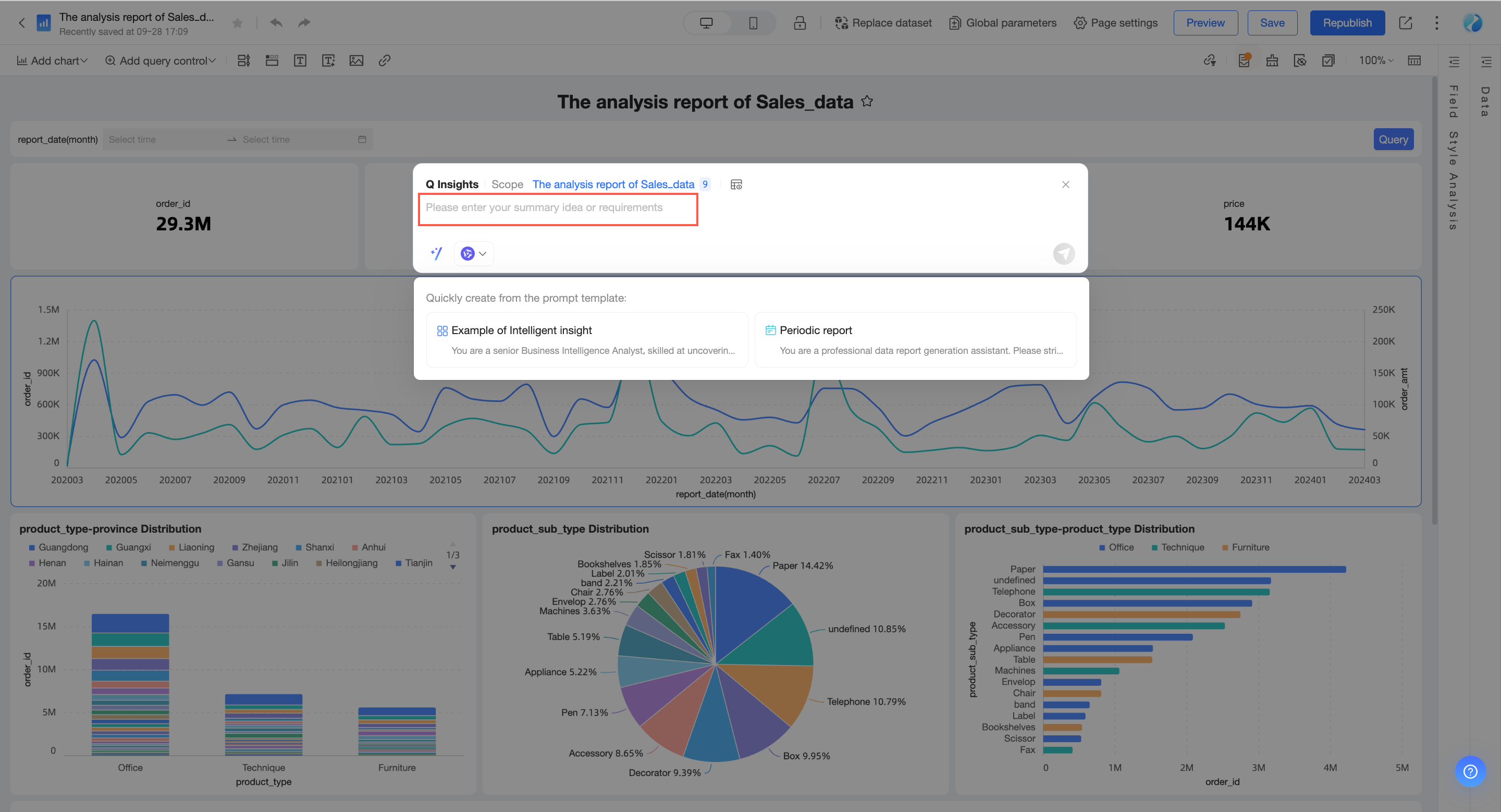
Enter interpretation prompt
You can enter a brief description of your summary goals or requirements.
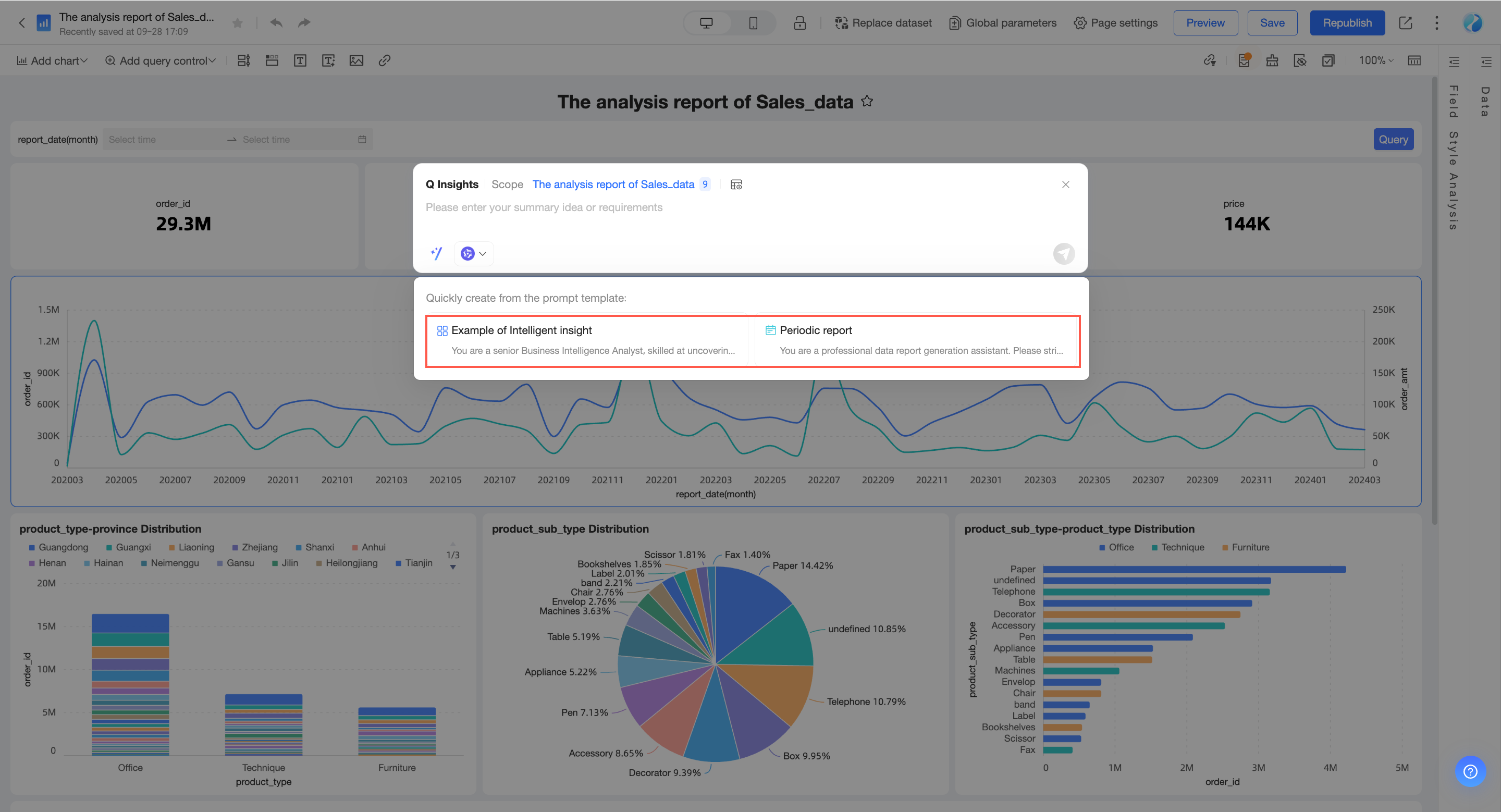
You can also create from a prompt template.
Get interpretation results
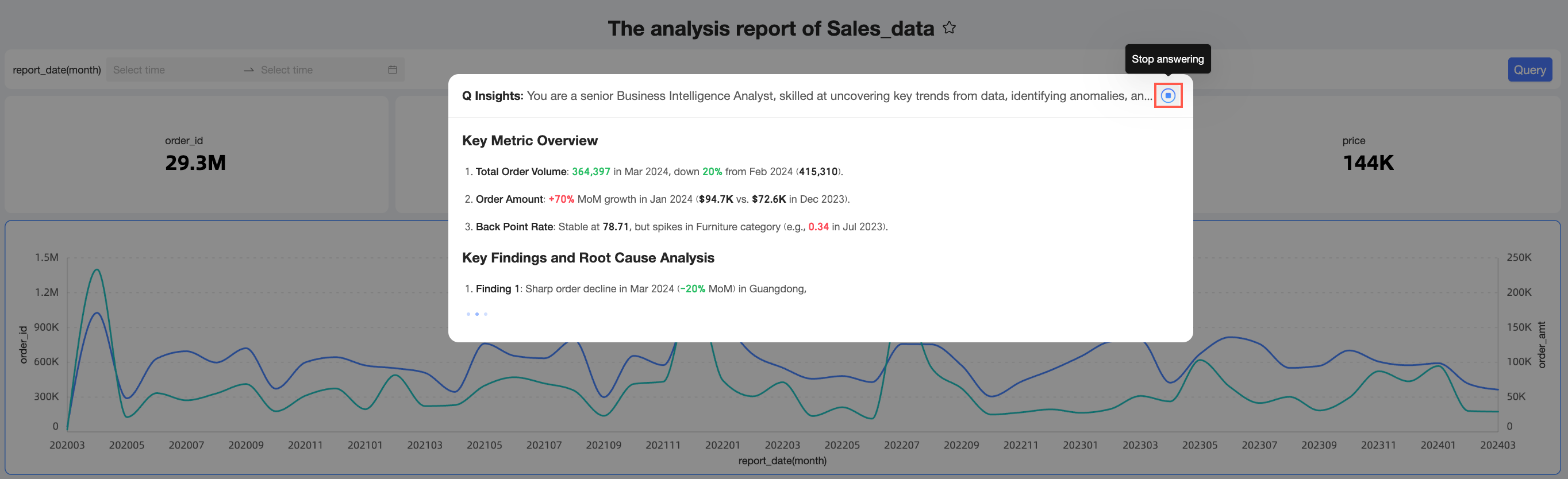
Click the  icon in the lower-right corner or press Enter to send your request. The system returns the data interpretation results.
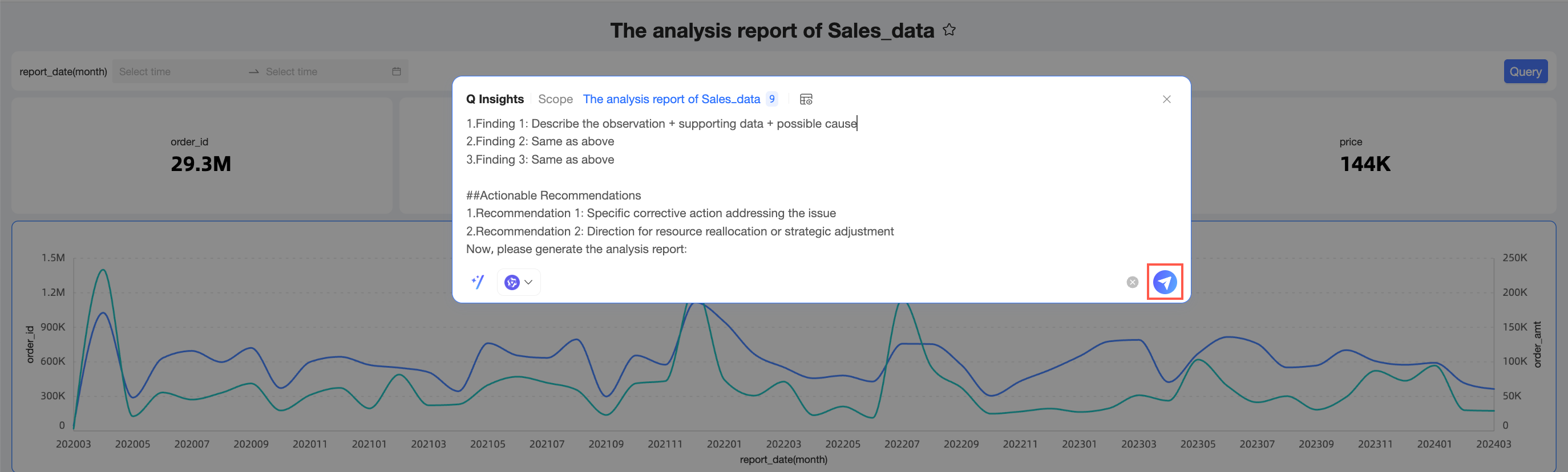
You can stop the response while the interpretation is in progress.
Apply interpretation results
Below the generated Q-Interpretation results, you can perform the following actions: Copy Trace_ID, Regenerate, Discard, and Apply.
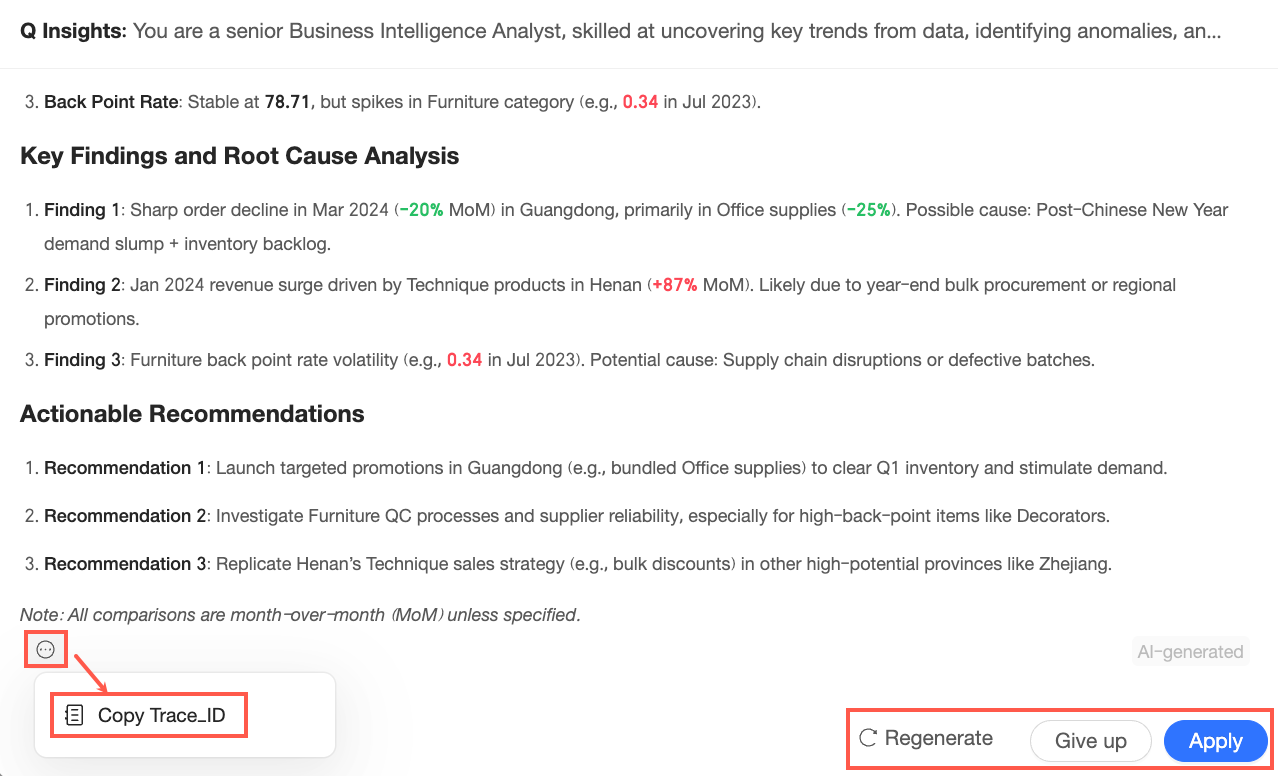
If the results meet your expectations, click Apply to add them to the dashboard or the chart.
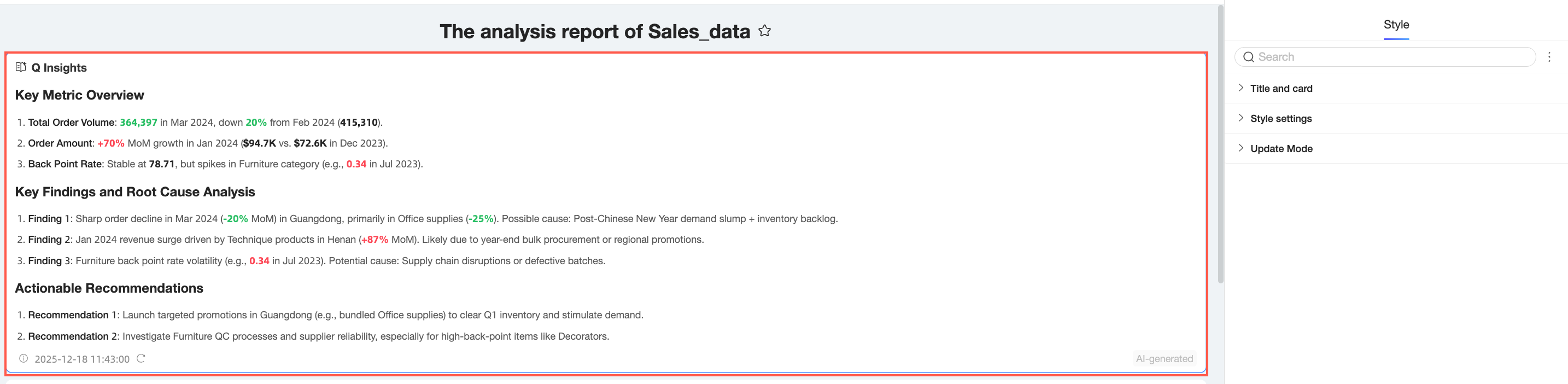
If you are using a dashboard-level interpretation, the results are applied to the dashboard.
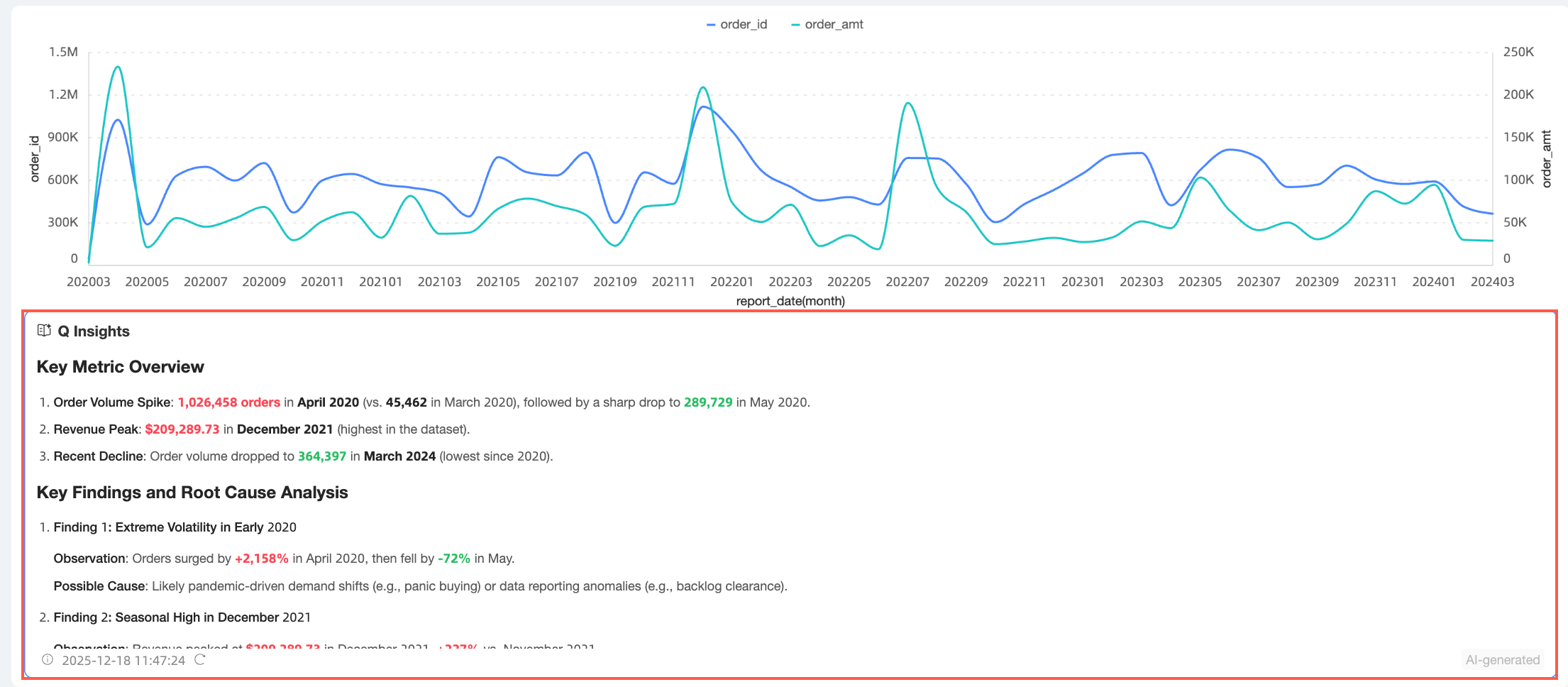
If you are using a single chart component interpretation, the results are applied to the corresponding chart.
Component configuration
Select the interpretation component to configure its Quick Template, Title and Card, Style Configuration, and update mode.
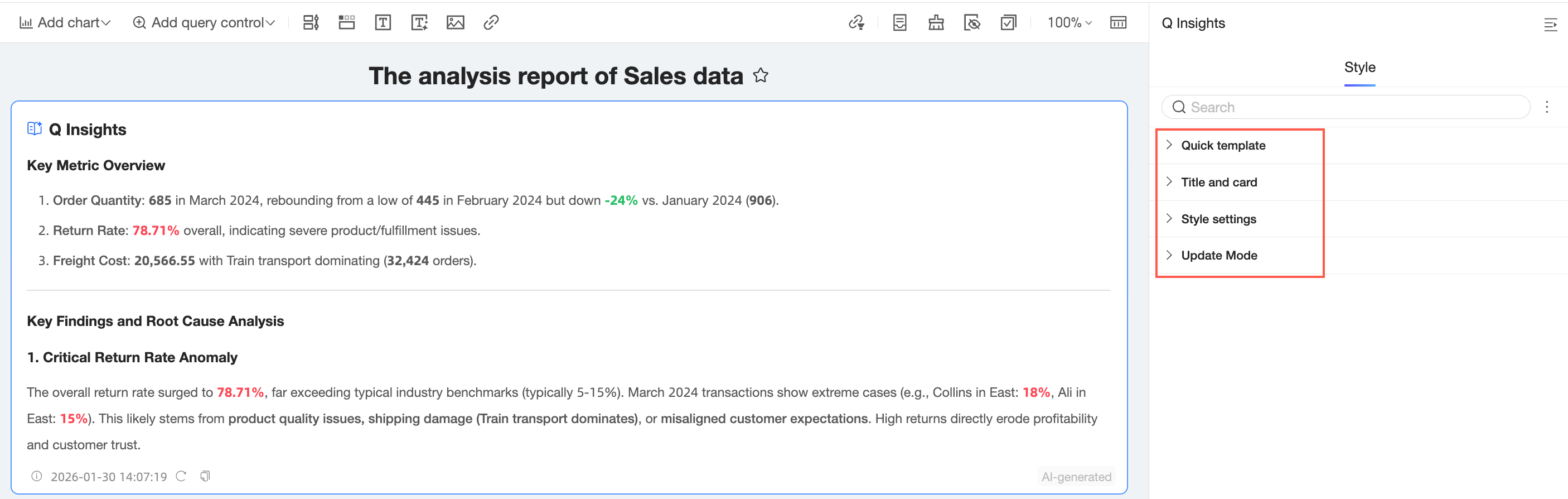
Quick template
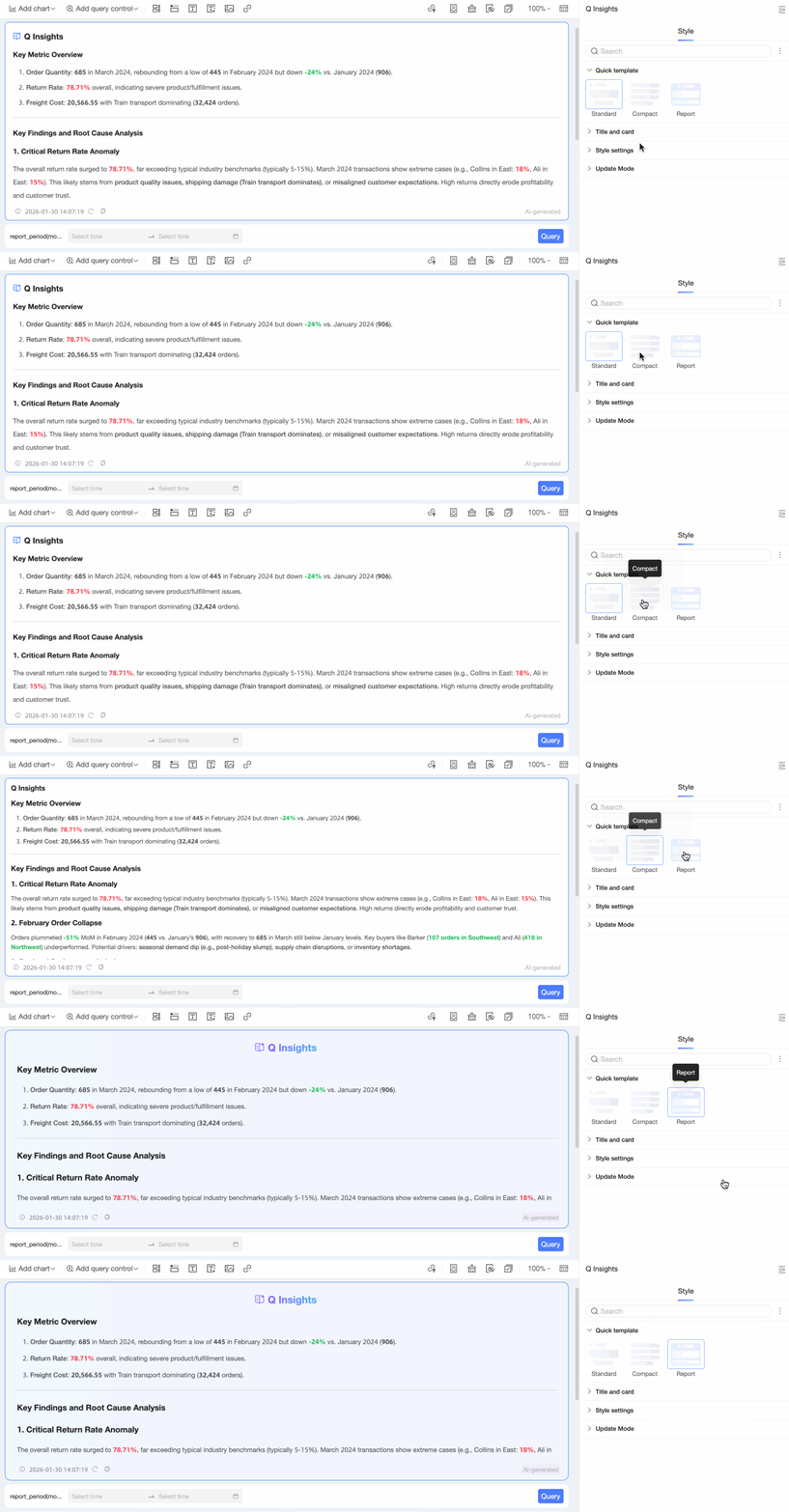
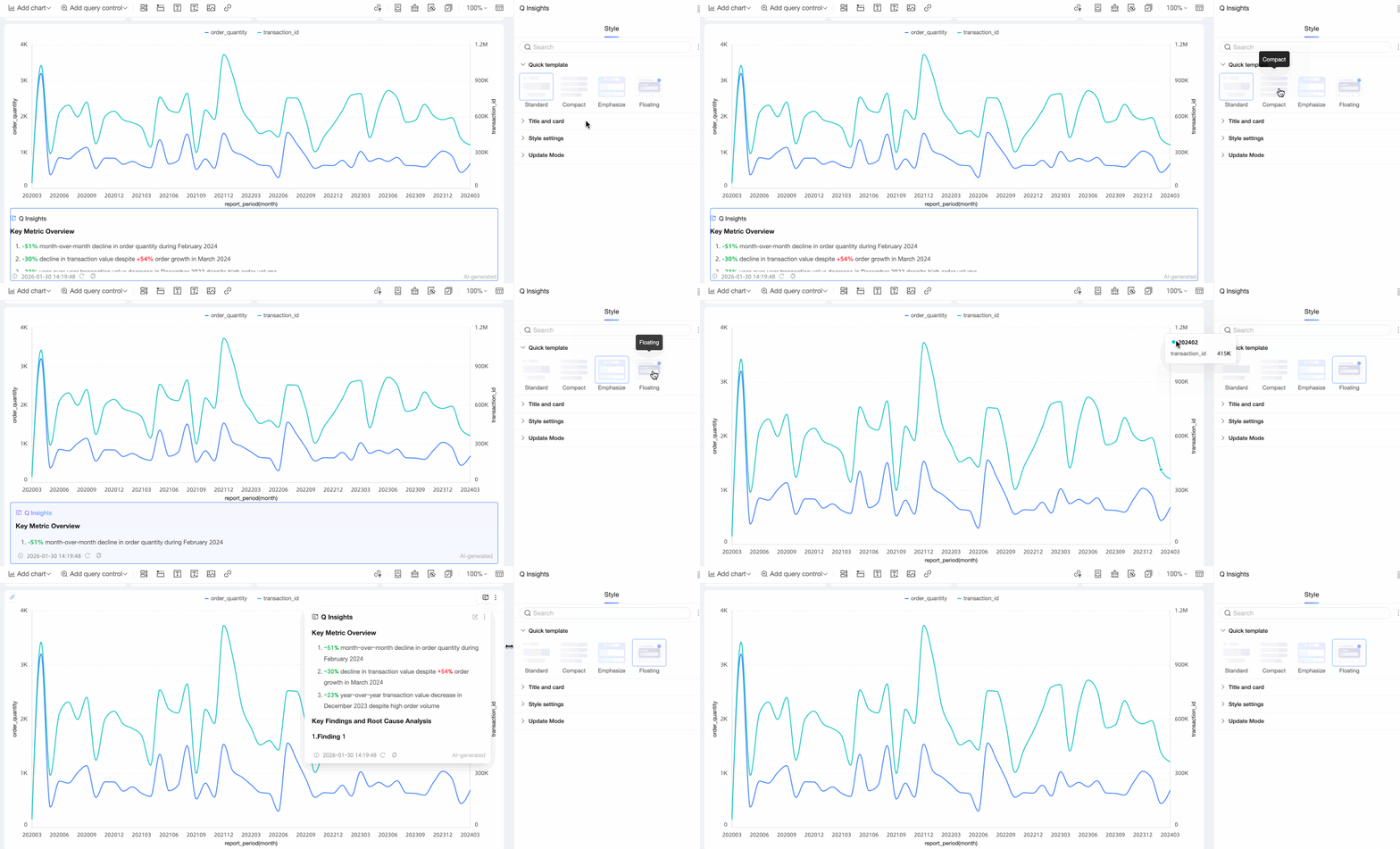
In the Quick Template section, you can configure the component template based on your business needs. The available templates differ for the dashboard-level interpretation component and the single chart interpretation component.
The dashboard-level interpretation component supports the Standard, Compact, and Report templates.
The single chart interpretation component supports the Standard, Compact, Emphasis, and Right of Title templates.
Title and card
In the Title and Card section, configure the Title and component container settings.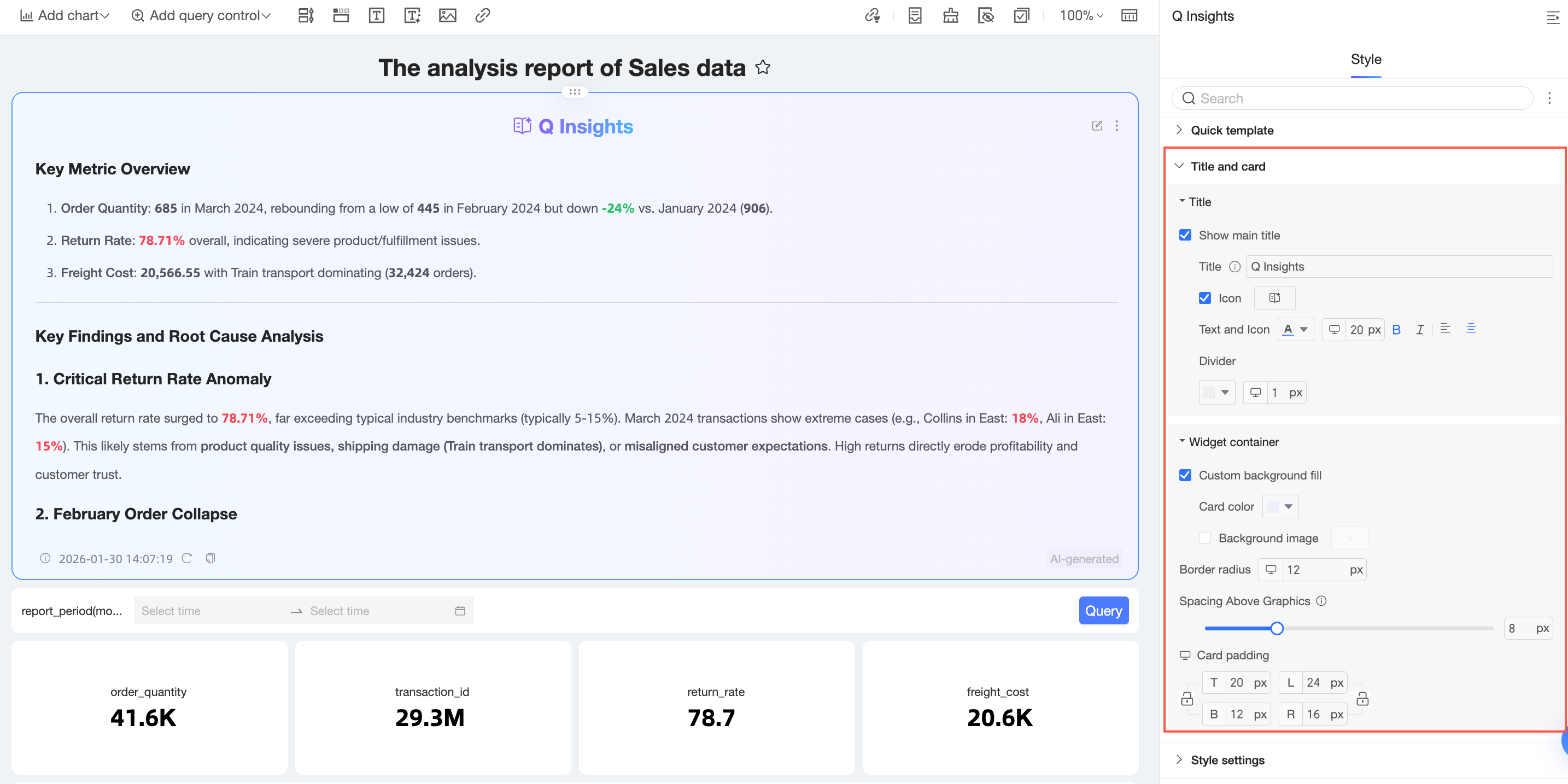
In the Title section, you can enable the Main Title, configure the style of the title and icon, and set whether to show the icon.
Enable Show Main Title, then configure the Title, Text and Icon, and divider.
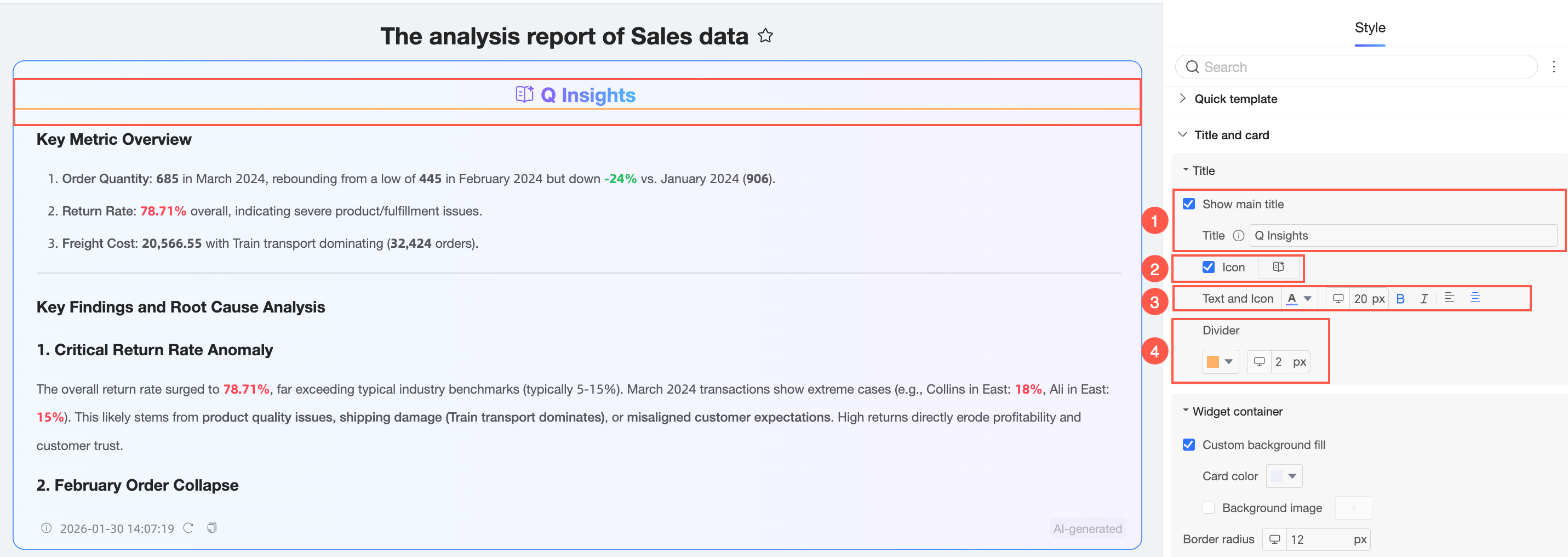
① Title: Enter a title for the interpretation component, such as "Overall Interpretation of Regional Sales Data".
② Icon: You can show or hide the icon and set its shape and color.
You can either Use Material or upload a Custom Image.
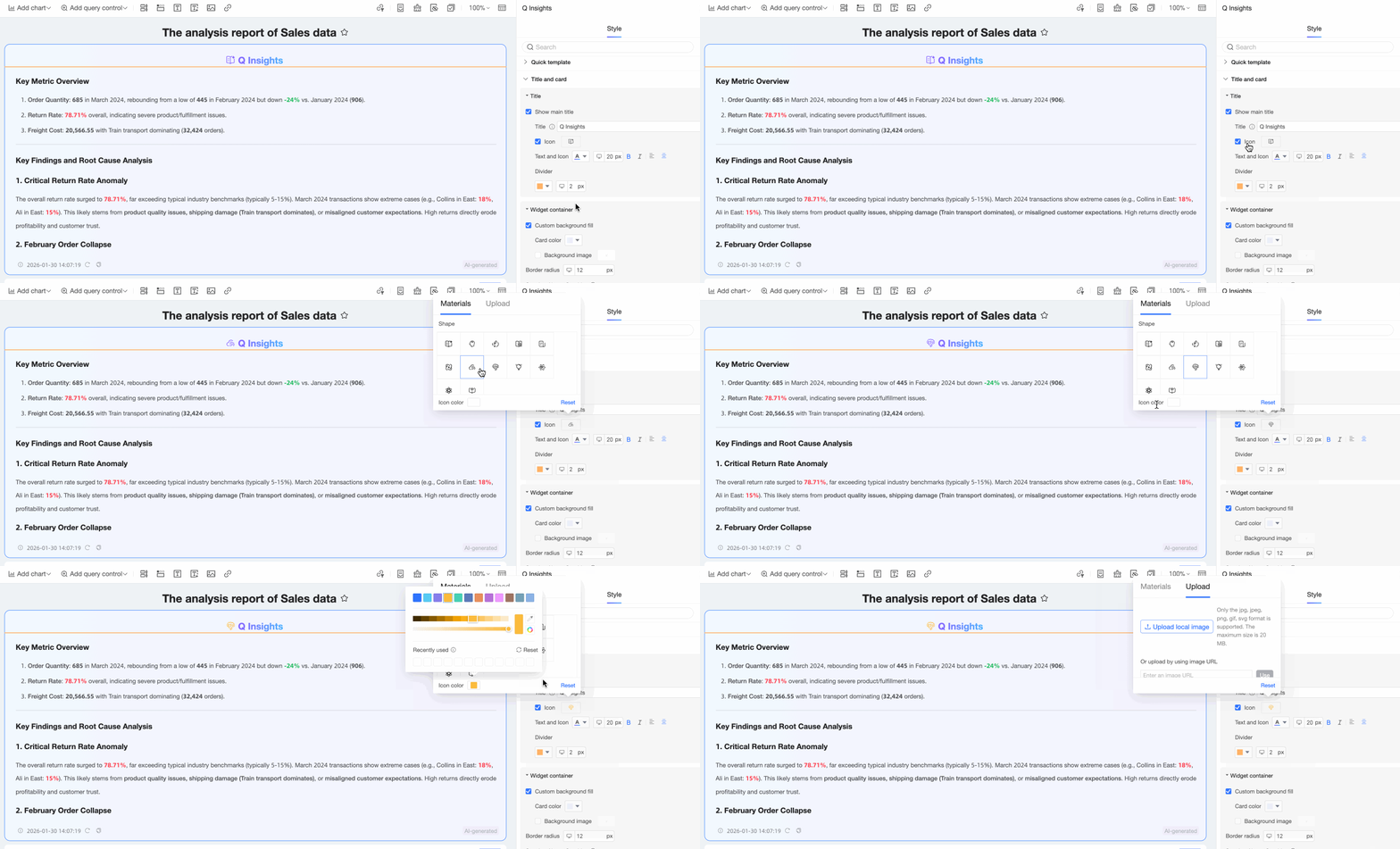
When you Use Material, you can use Custom Color Settings.
If you select Custom Image, you can choose to Upload Local Image or Upload via Image URL.
NoteOnly images in JPG, JPEG, PNG, GIF, and SVG formats are supported. The maximum file size is 20 MB.
③ Text and Icon: Set the style for the component title and icon.
④ Divider: Set the color and thickness of the divider.
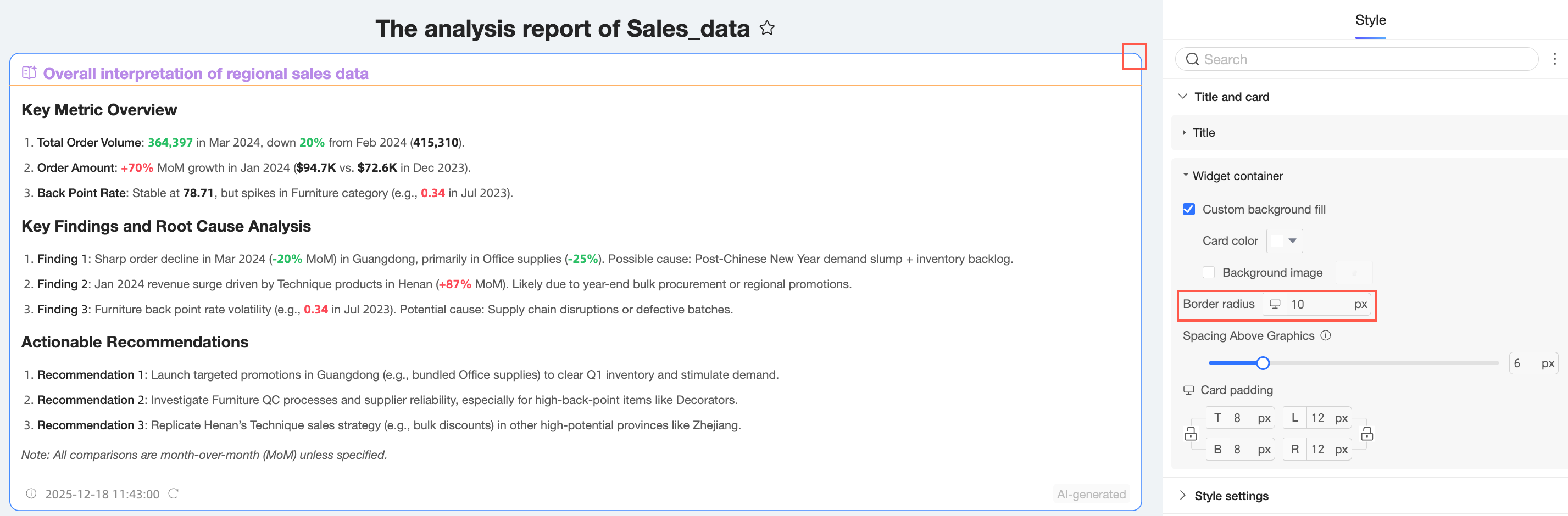
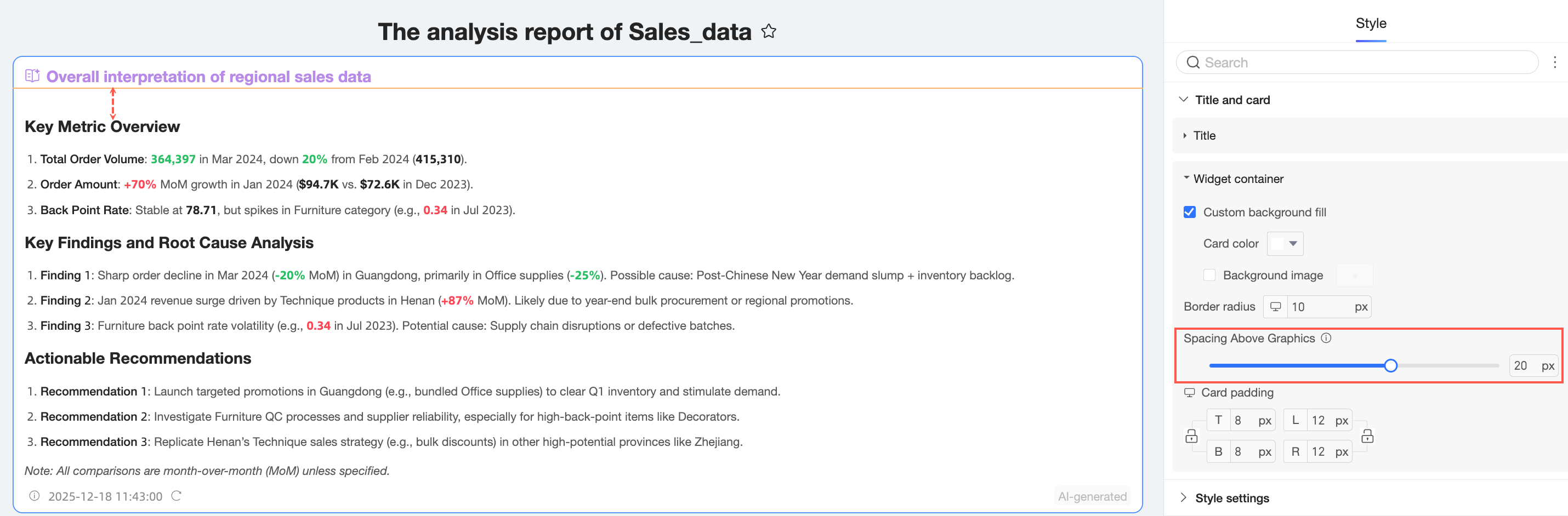
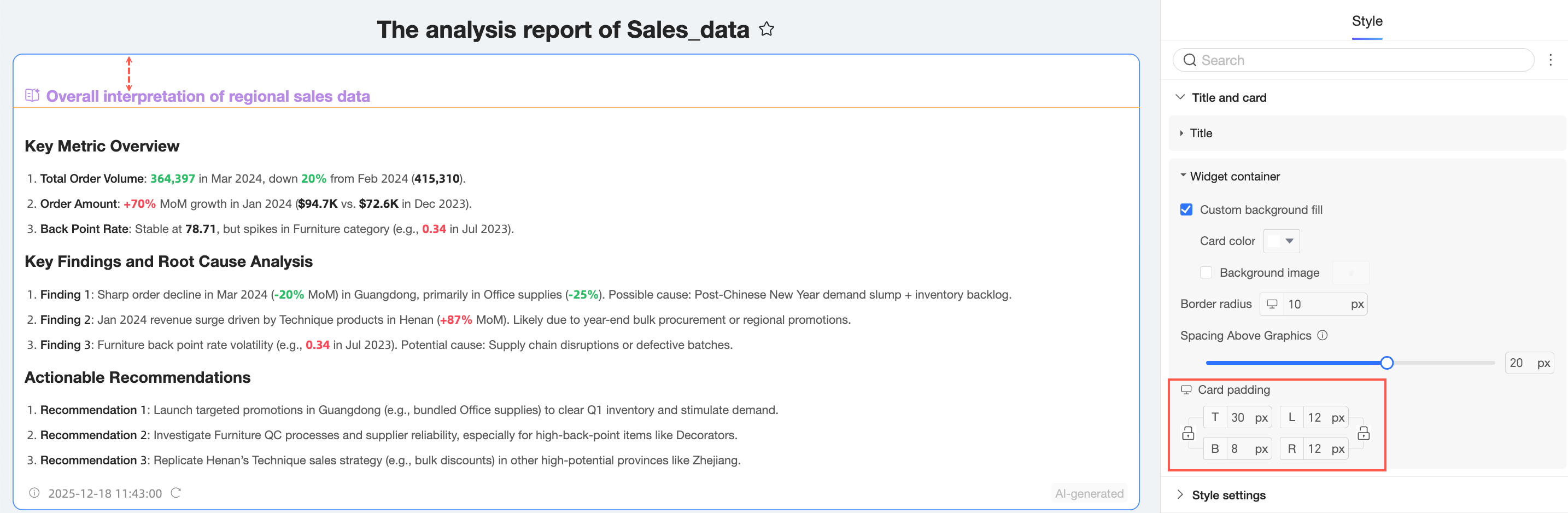
In the Component Container section, configure Custom Background Fill (①), Corner Radius (②), Spacing between Chart and Top (③), and Card Inner Padding (④).
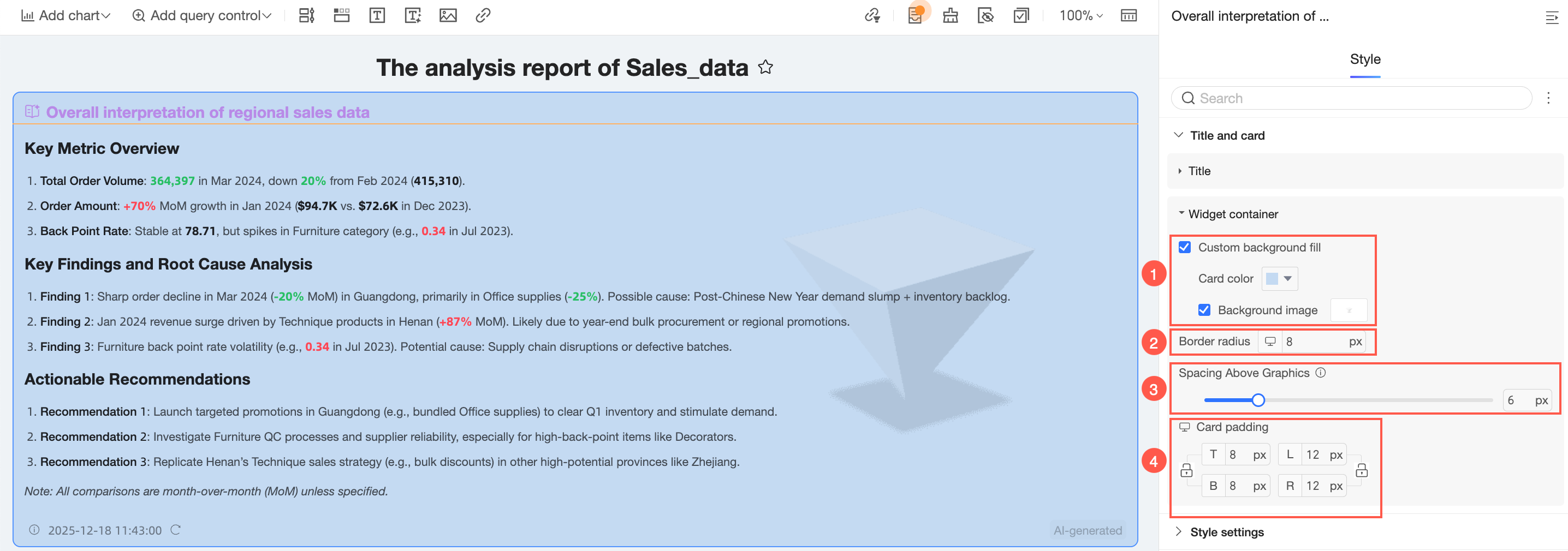
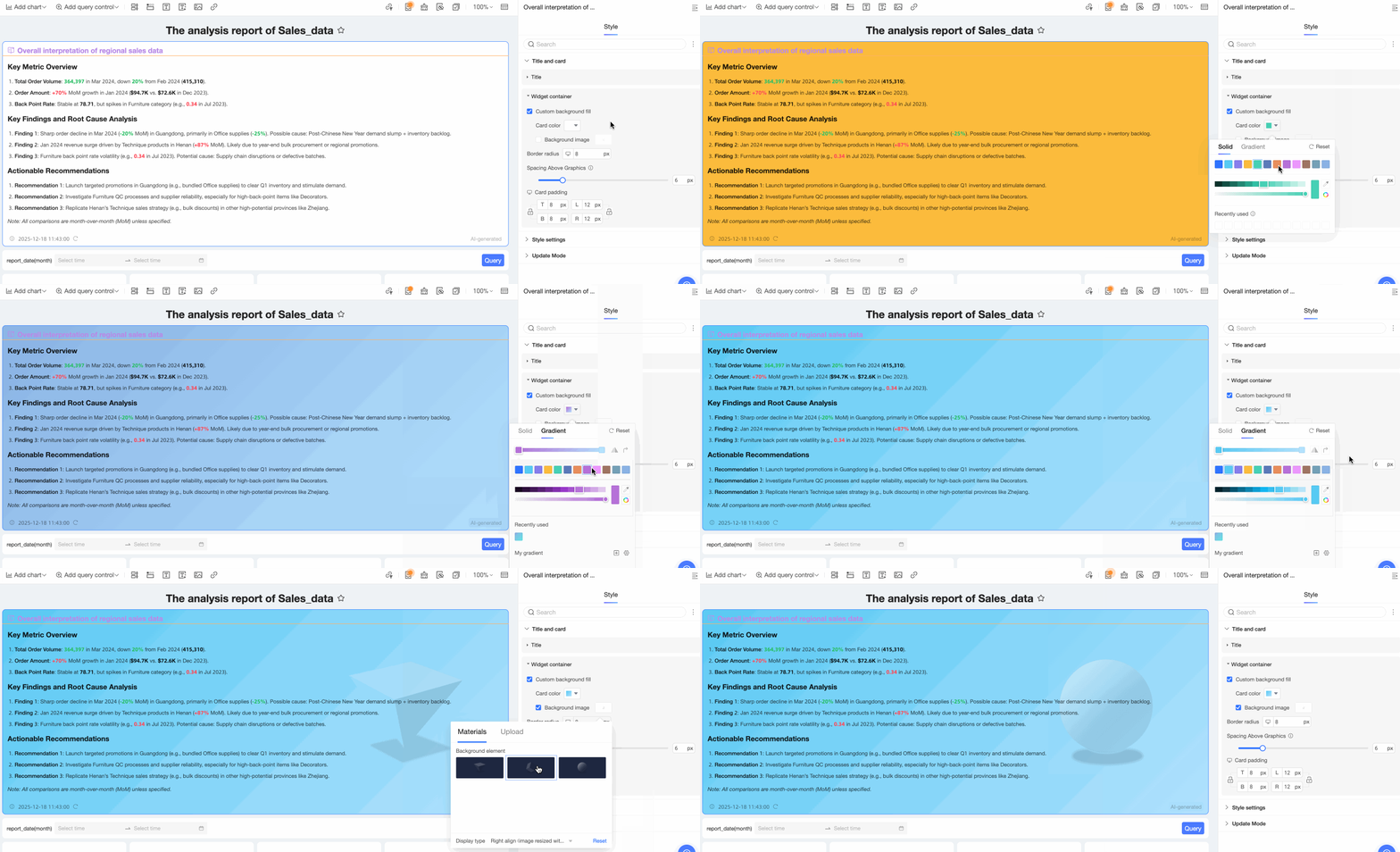
① Custom Background Fill: Select Custom Background Fill to customize the background color and image of the component to match your company's brand. You can use default system images or upload your own.
② Corner Radius: Set the value for the rounded corners of the component.
③ Spacing between Chart and Top: Set the spacing between the non-chart area and the chart area.
④ Card Inner Padding: Set the amount of space between the interpretation content and the card border.
Style configuration
In the style settings, configure the font size, color, line height, and container layout for the interpretation text.
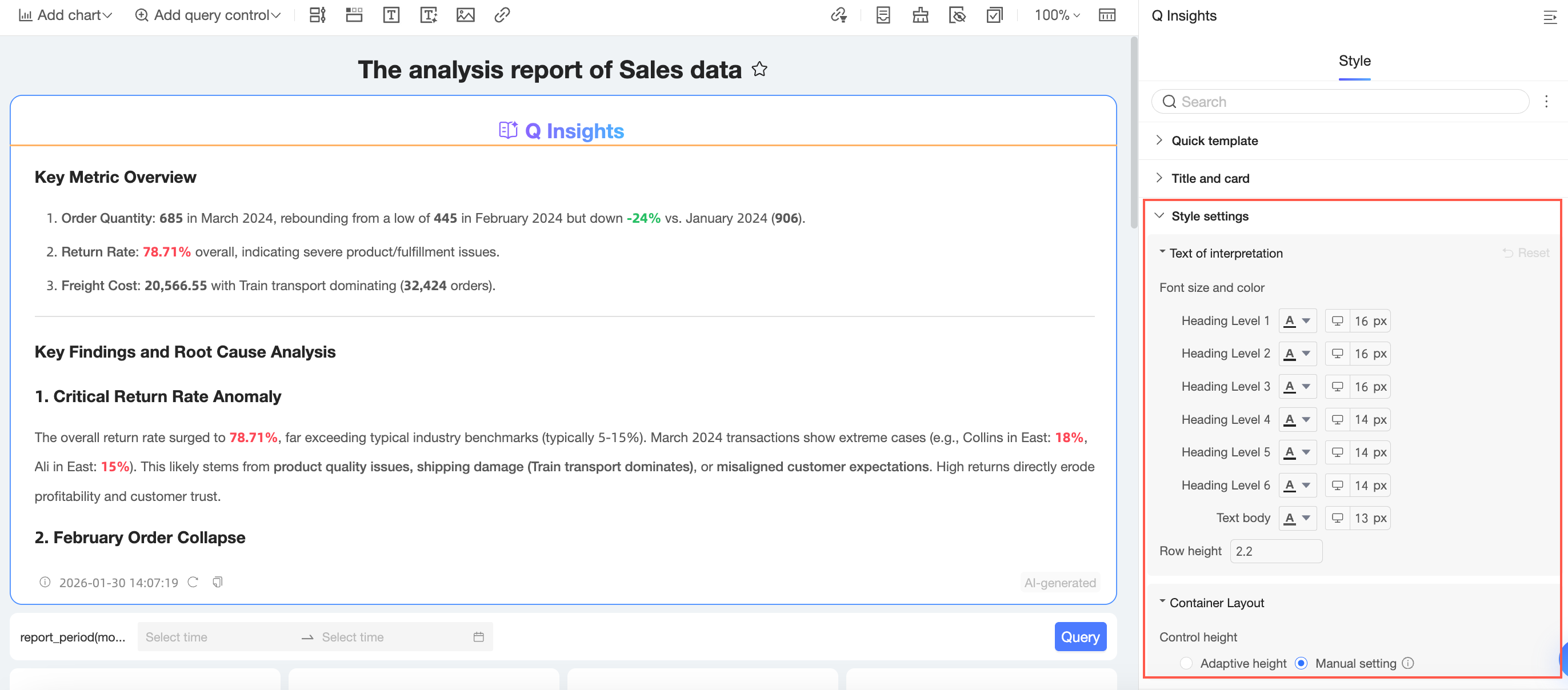
You can set the font size and color for the title and body text.
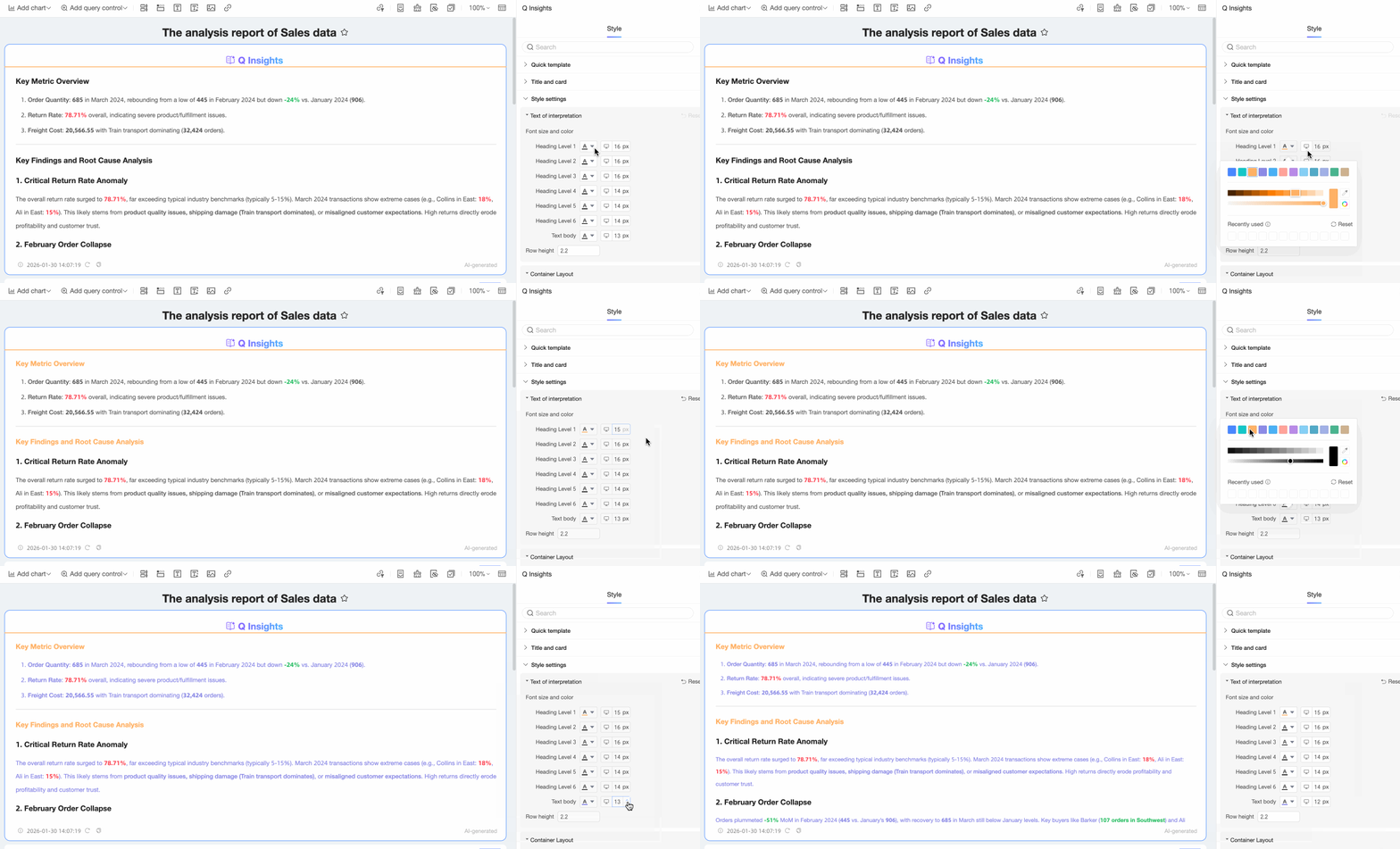
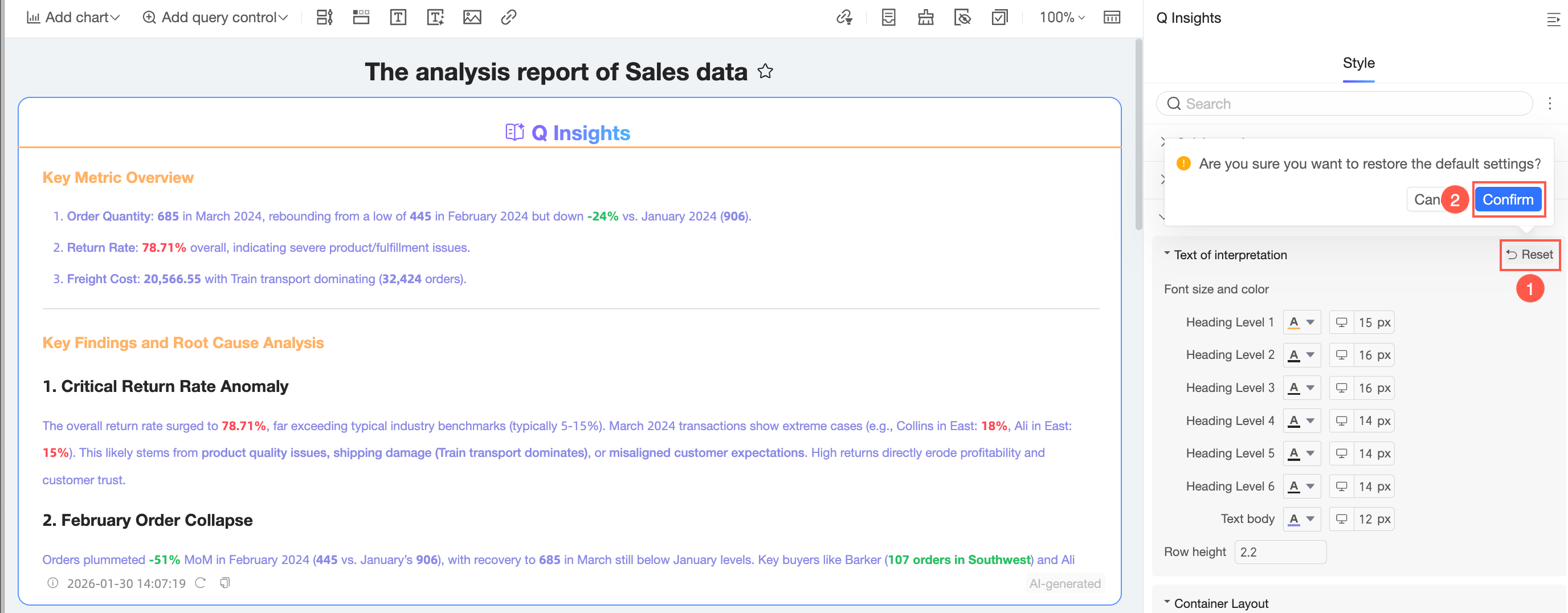
If you are not satisfied with the font size and color settings, you can click Restore Default to revert to the default settings.
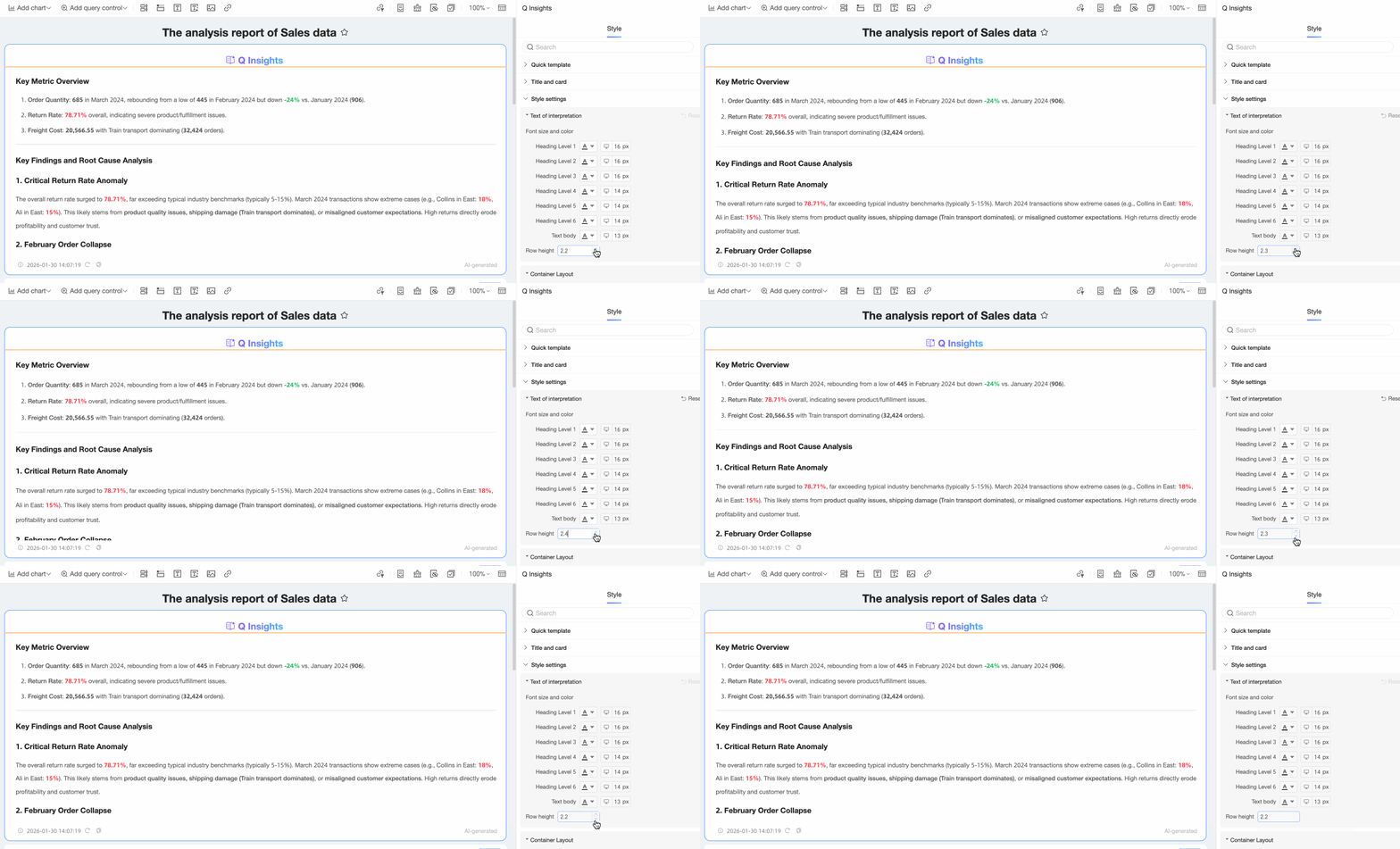
You can set the line height to a value from 1.0 to 6.0.
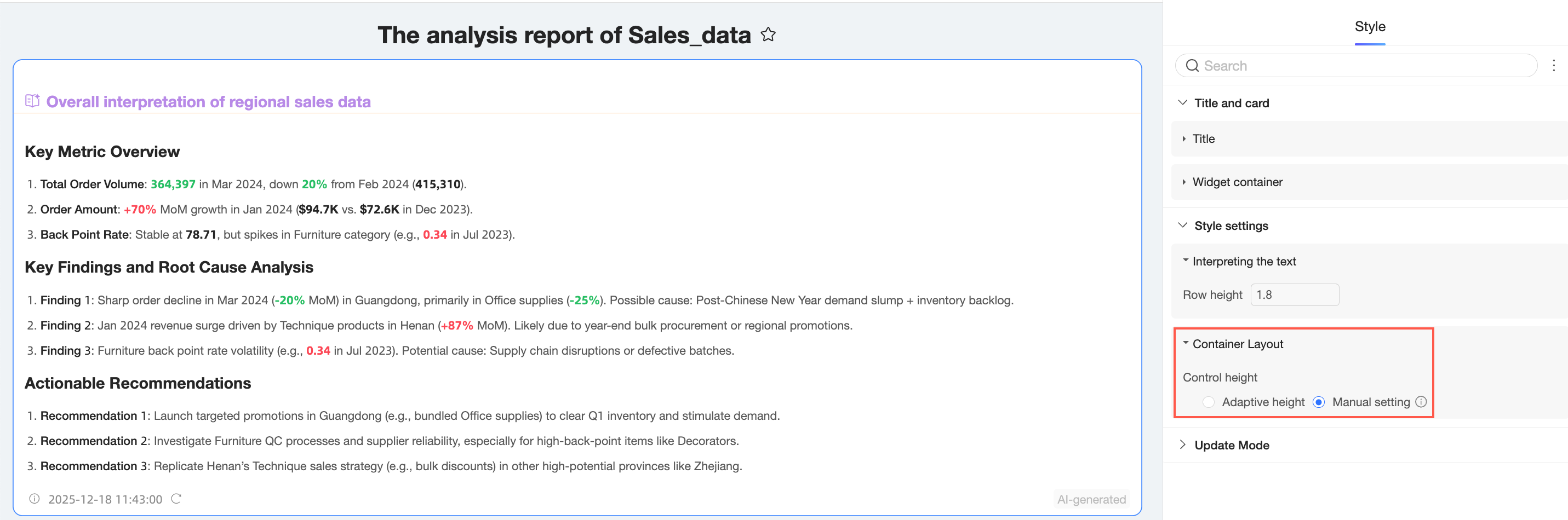
The container layout settings differ for the dashboard-level interpretation component and the single chart interpretation component.
The container layout for a dashboard-level interpretation component can be set to Auto-fit Height or Set Manually. When you choose Set Manually, you can drag to adjust the height. A vertical scrollbar appears if the content exceeds the set height.
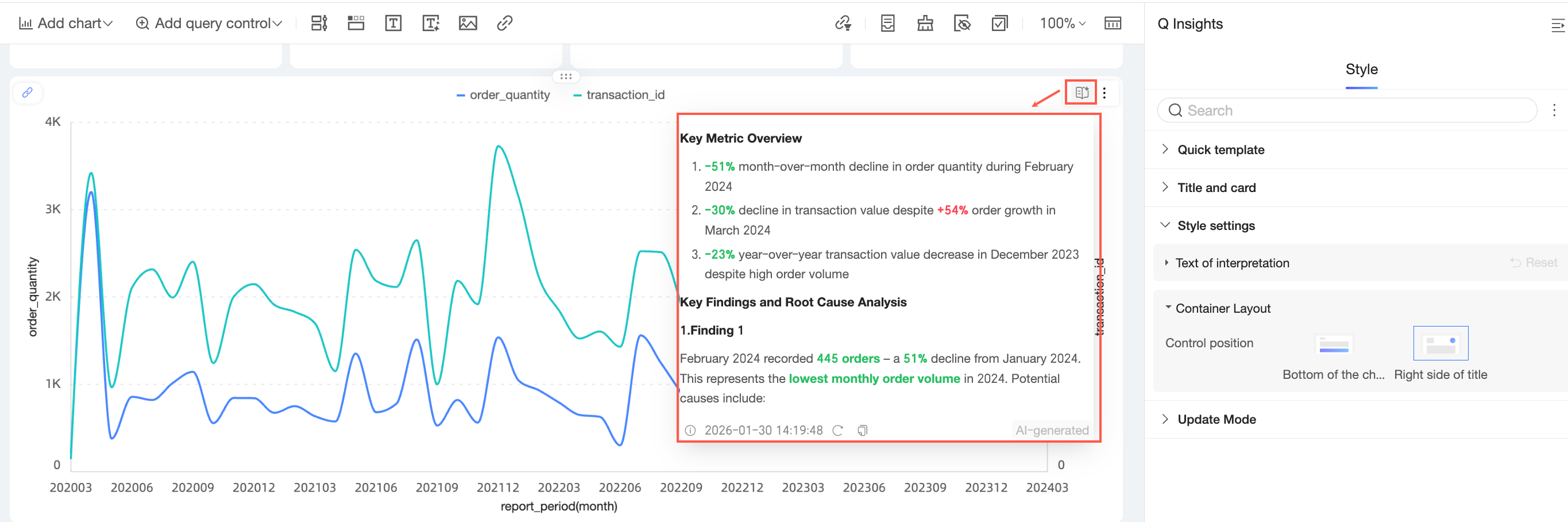
The container layout for a single chart interpretation component allows you to set the Control Position to Bottom of Chart or Right of Title.
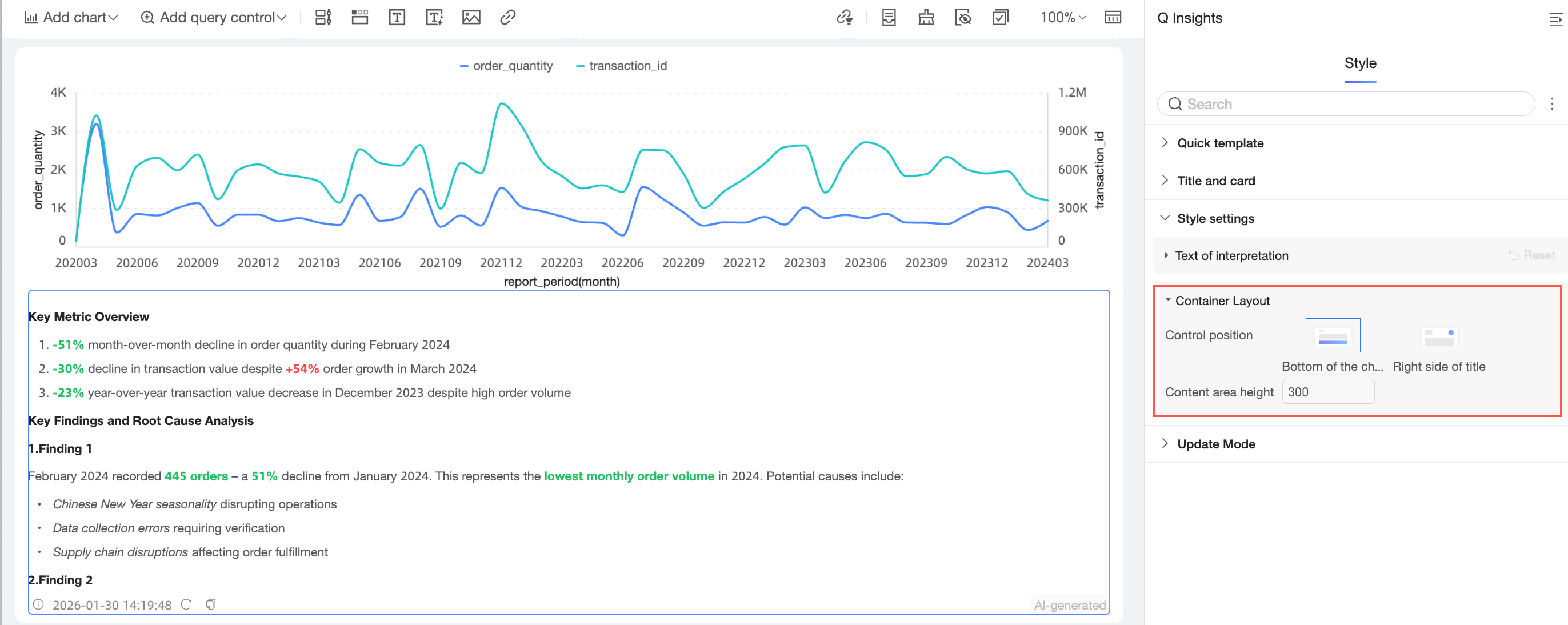
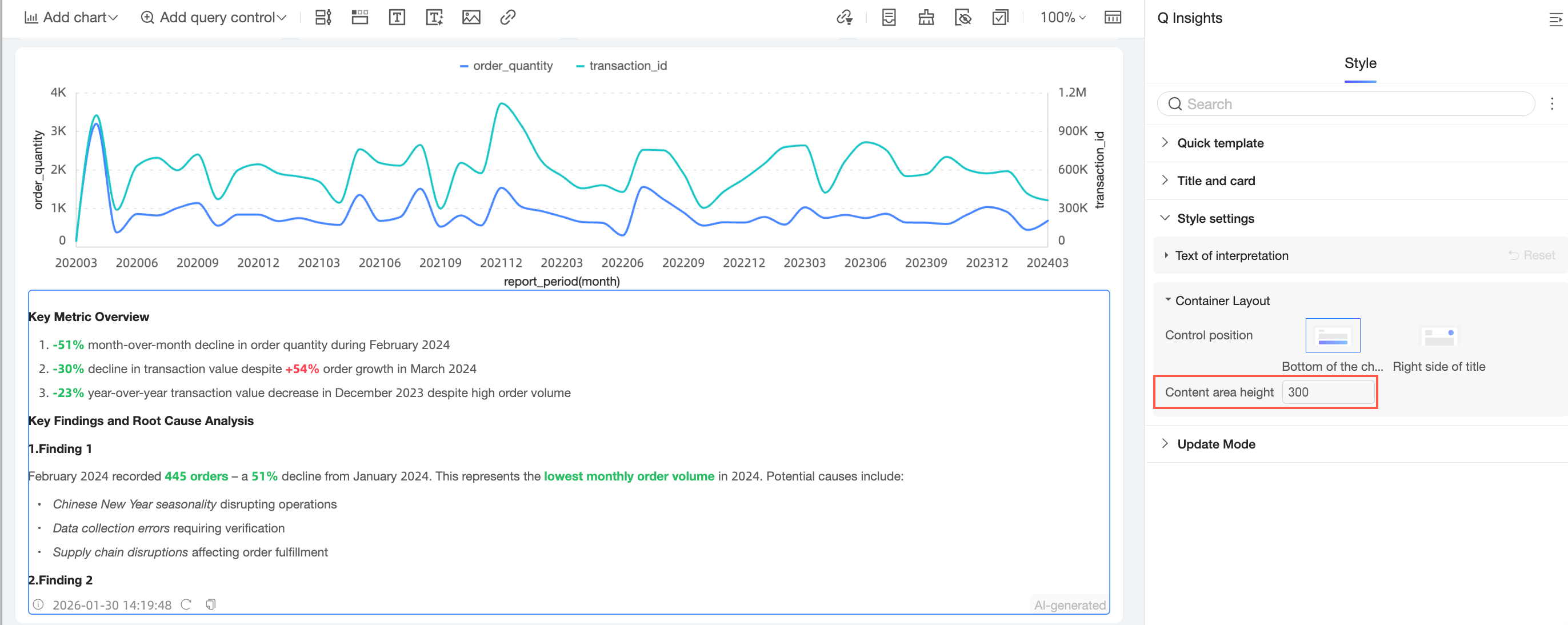
When the Control Position is set to Bottom of Chart, you can set the Content Area Height.
When the Control Position is set to Right of Title, you can view the interpretation content in the upper-right corner of the chart.
Update mode
In the update mode section, set whether the interpretation component uses Daily auto-update or Auto-update on subscription.
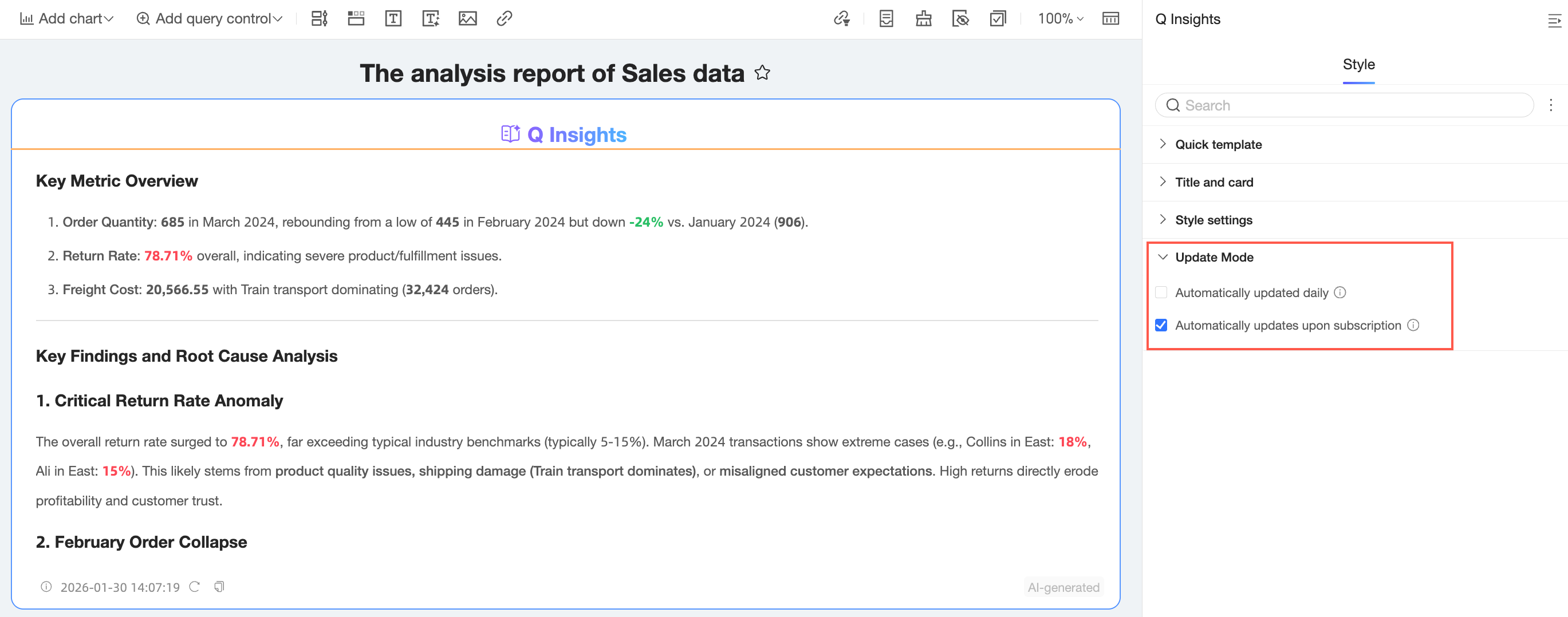
Daily auto-update: If enabled, the interpretation results are updated the first time a user views the dashboard each day. If disabled, viewers can manually regenerate the results.
Auto-update on subscription: If enabled, the results are automatically updated for subscriptions.
Component actions
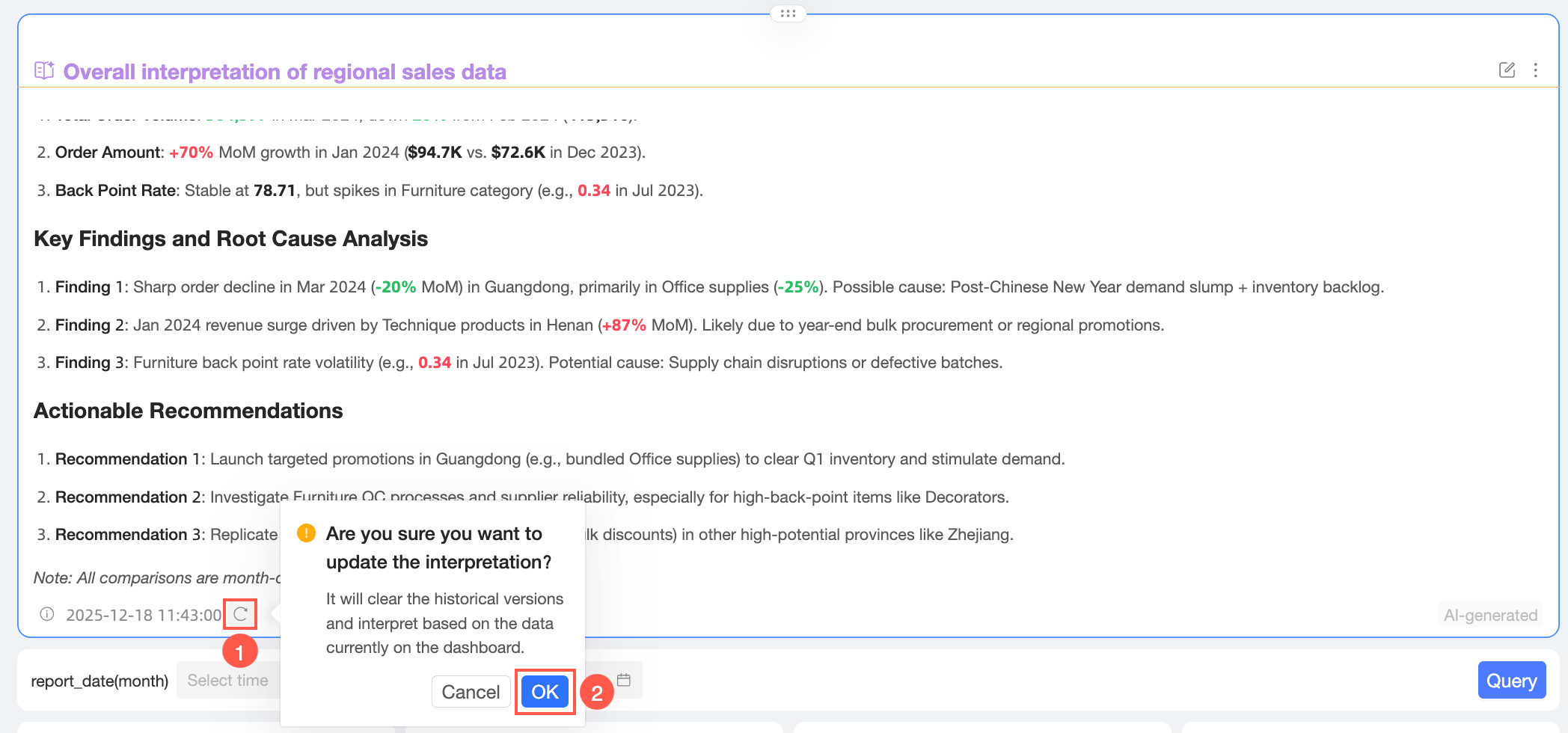
Update
Click the  icon in the lower-left corner of the component and then click OK in the confirmation dialog box. The system clears the previous version and generates a new interpretation based on the current data.
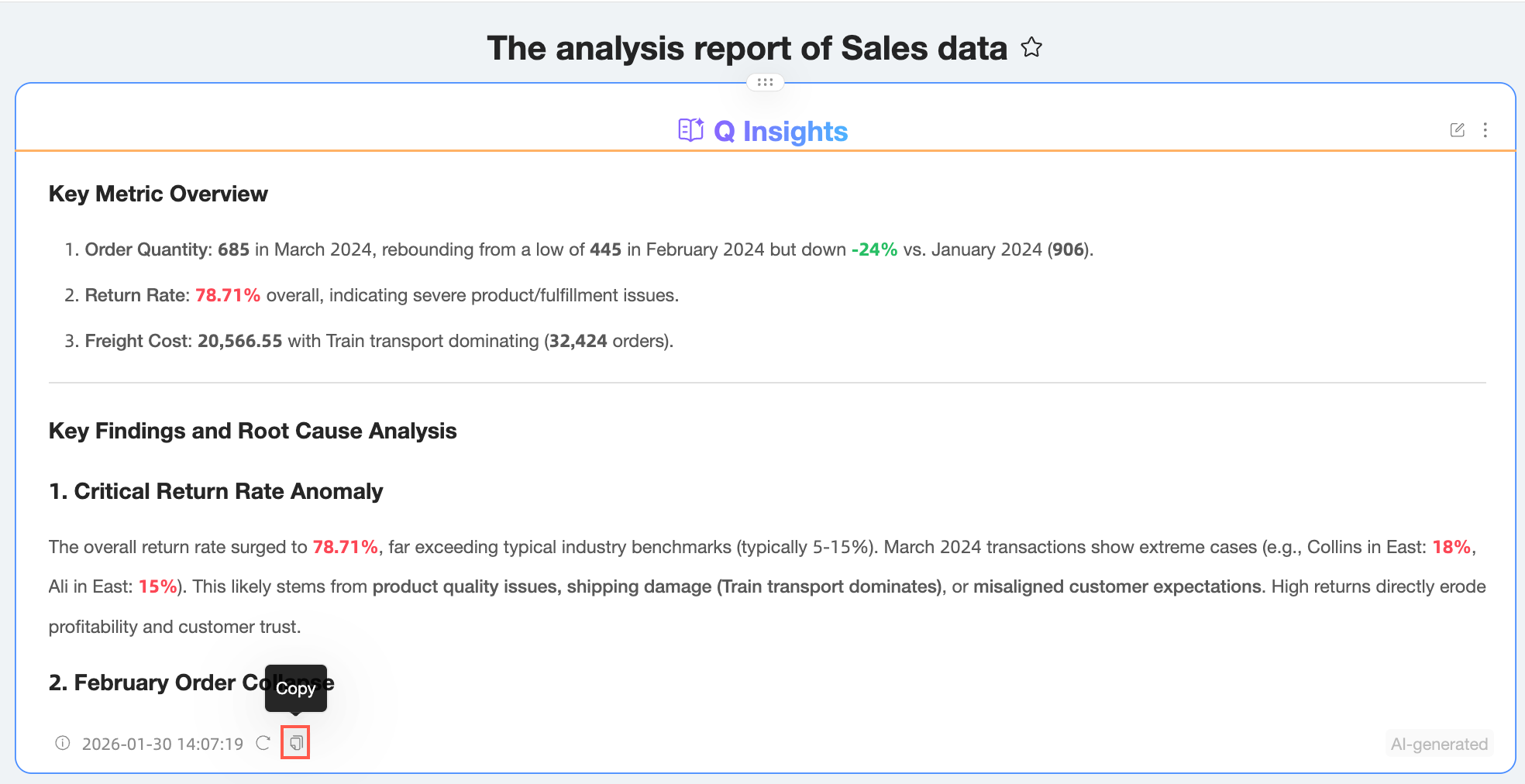
Copy
Click the  icon in the lower-left corner of the component to copy the interpretation content.
Edit
Click the
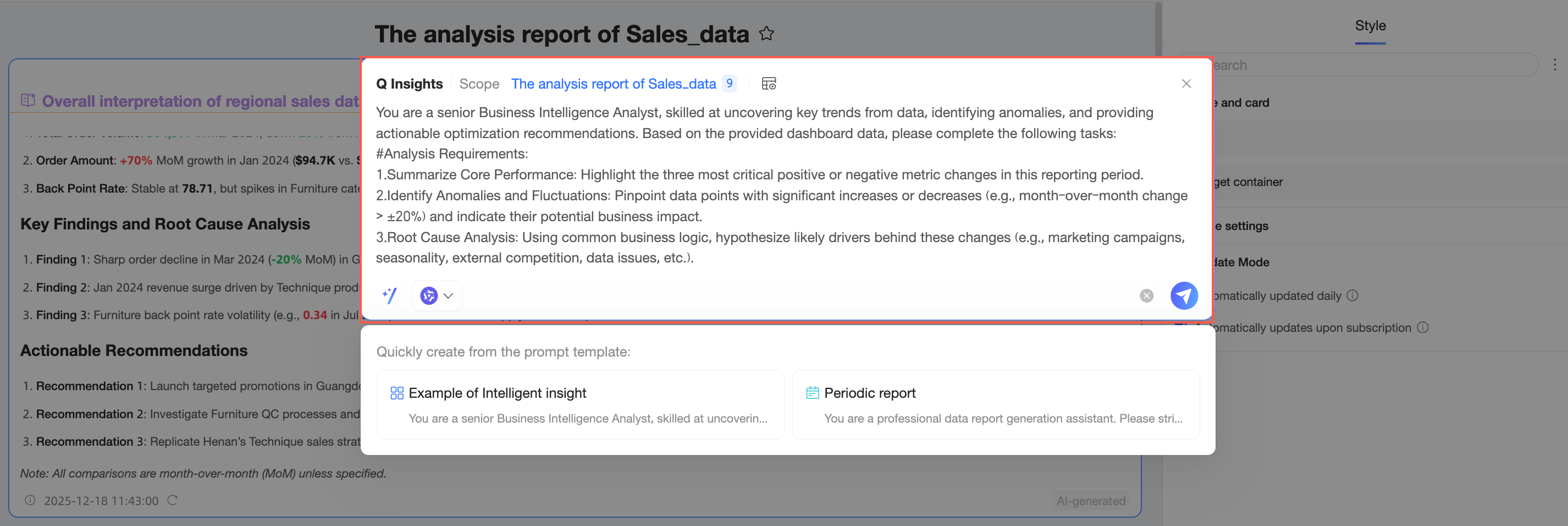
 icon in the upper-right corner of the component to open the edit settings interface.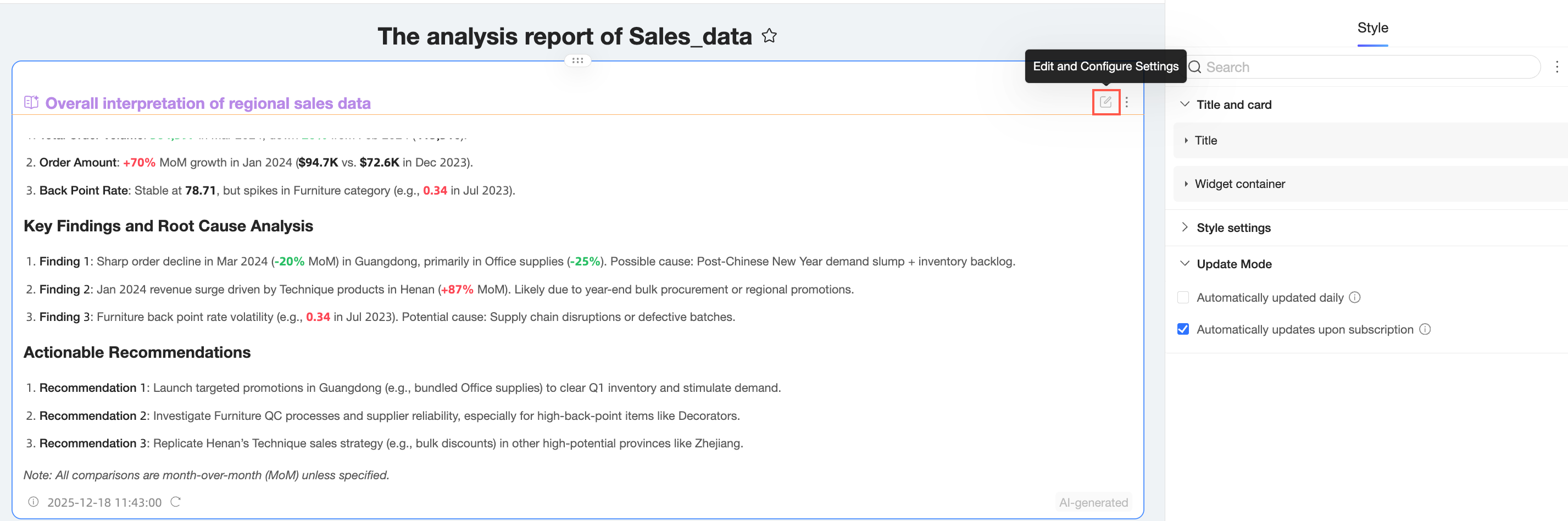
In the edit settings panel, you can revise the interpretation prompt and update the results.
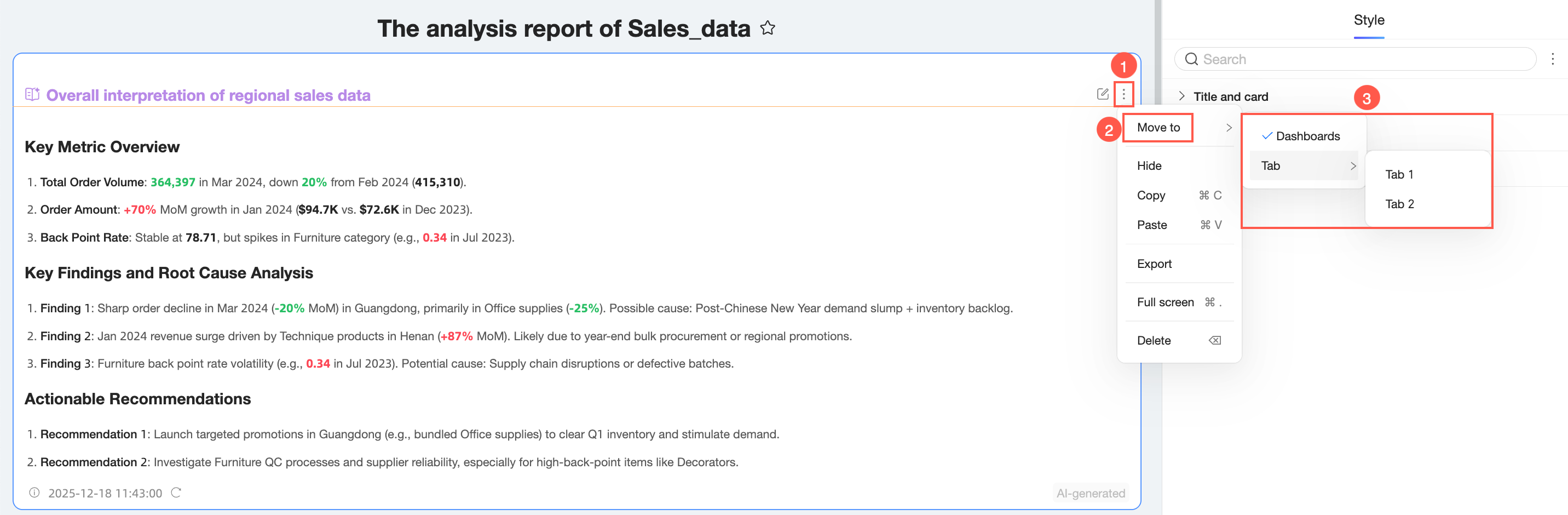
Move to
Only dashboard-level interpretation components can be moved to a tab or dashboard.
Click the  icon in the upper-right corner of the component, select Move to, and then choose the target tab or dashboard.
Hide
Click the
icon in the upper-right corner of the component and select Hide.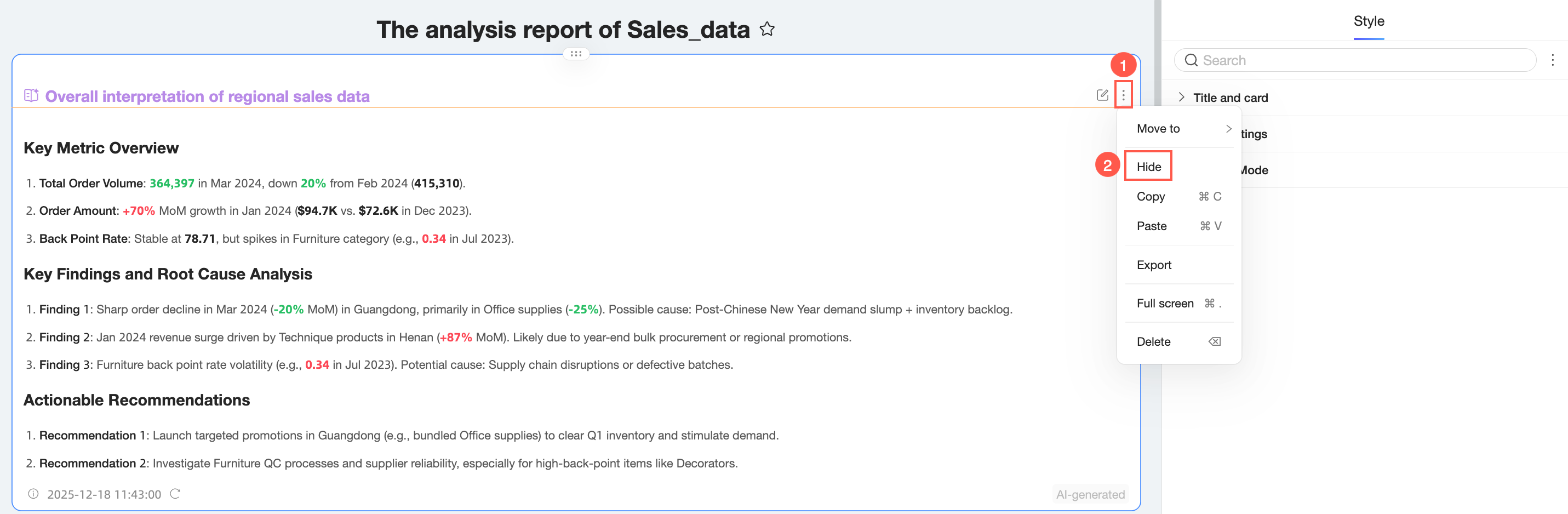
Once hidden, you can find the component in Hidden Chart Components.
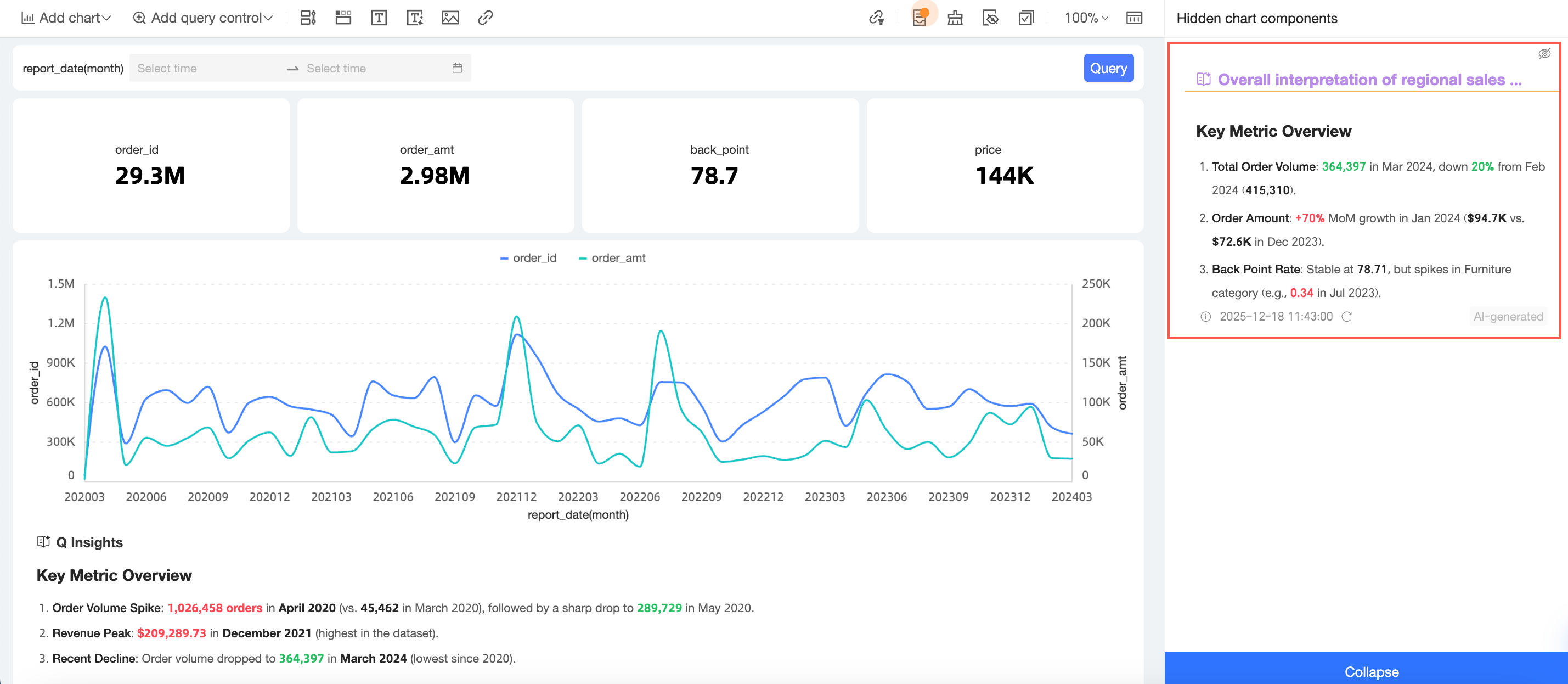
Click the
 icon in the upper-right corner to unhide the component.
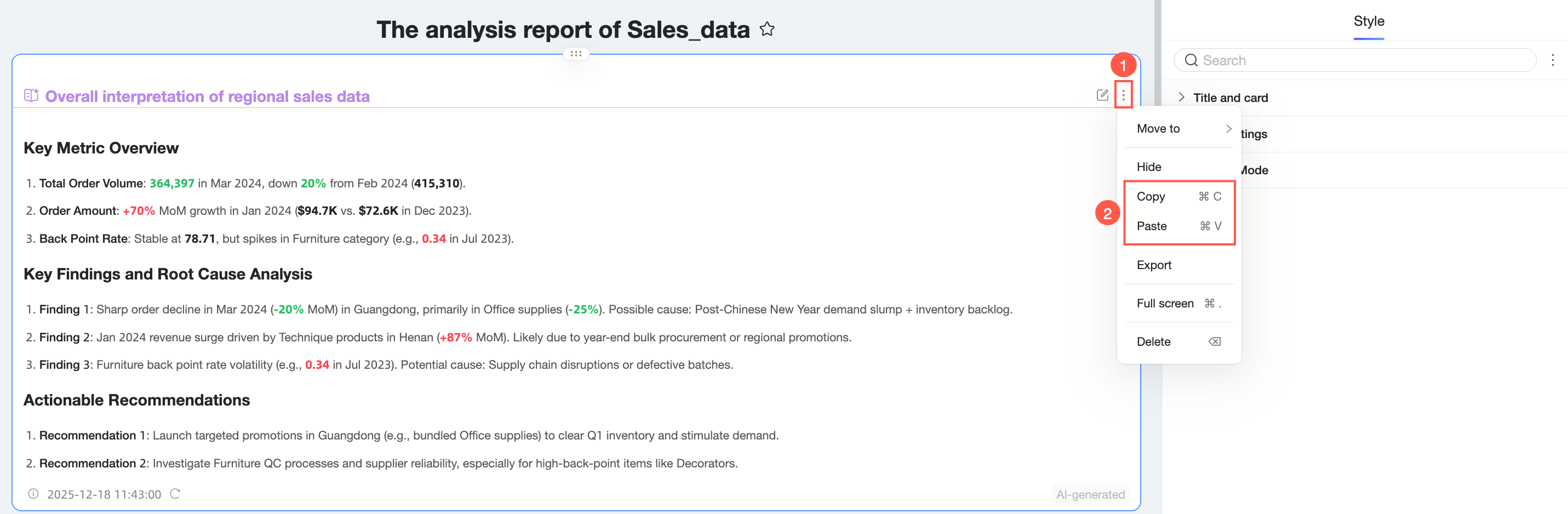
Copy and paste
Only dashboard-level interpretation components can be copied and pasted.
Click the icon in the upper-right corner of the component and select Copy and Paste. You can also use keyboard shortcuts to copy and paste.
Export
Only dashboard-level interpretation components can be exported.
Click the
icon in the upper-right corner of the component and select Export.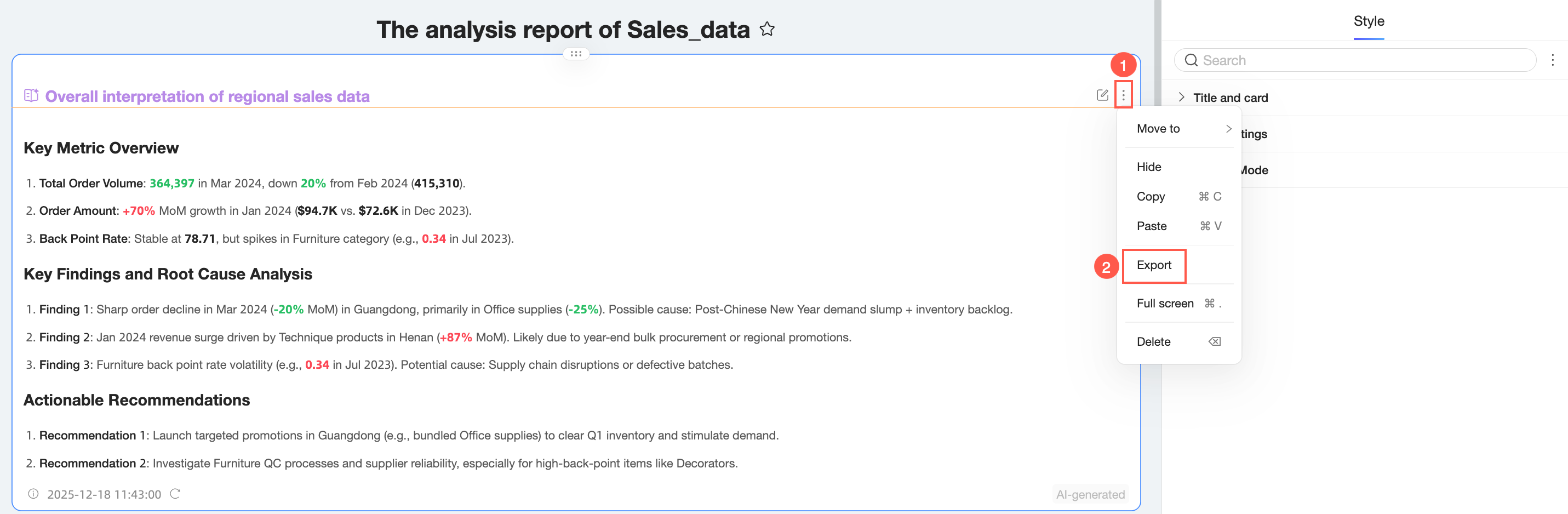
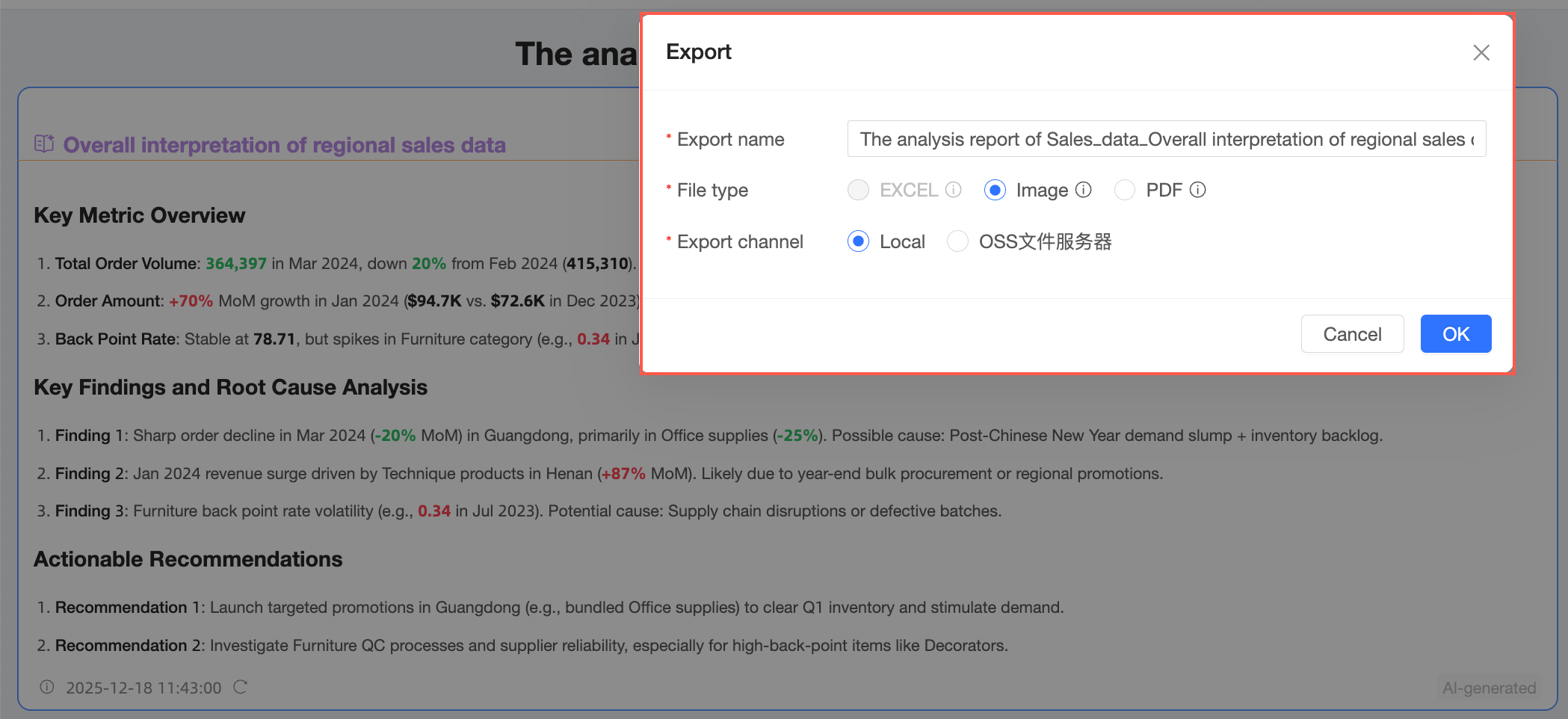
In the export dialog box, click OK.
 Note
NoteThe interpretation component can be exported as a PDF or image. Embedded pages and images that prevent cross-domain access cannot be exported. Gradient text colors are not supported and will be downgraded on export.
Full screen
Click the
icon in the upper-right corner of the component and select Full Screen.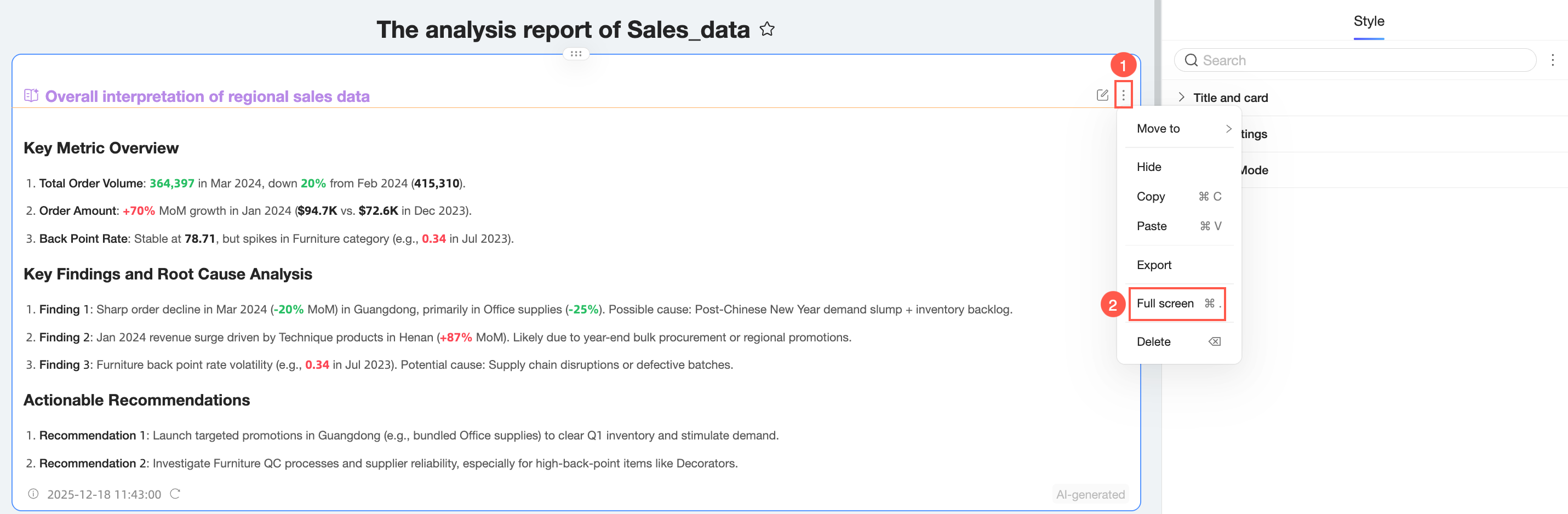
You can now view the interpretation component in full screen.
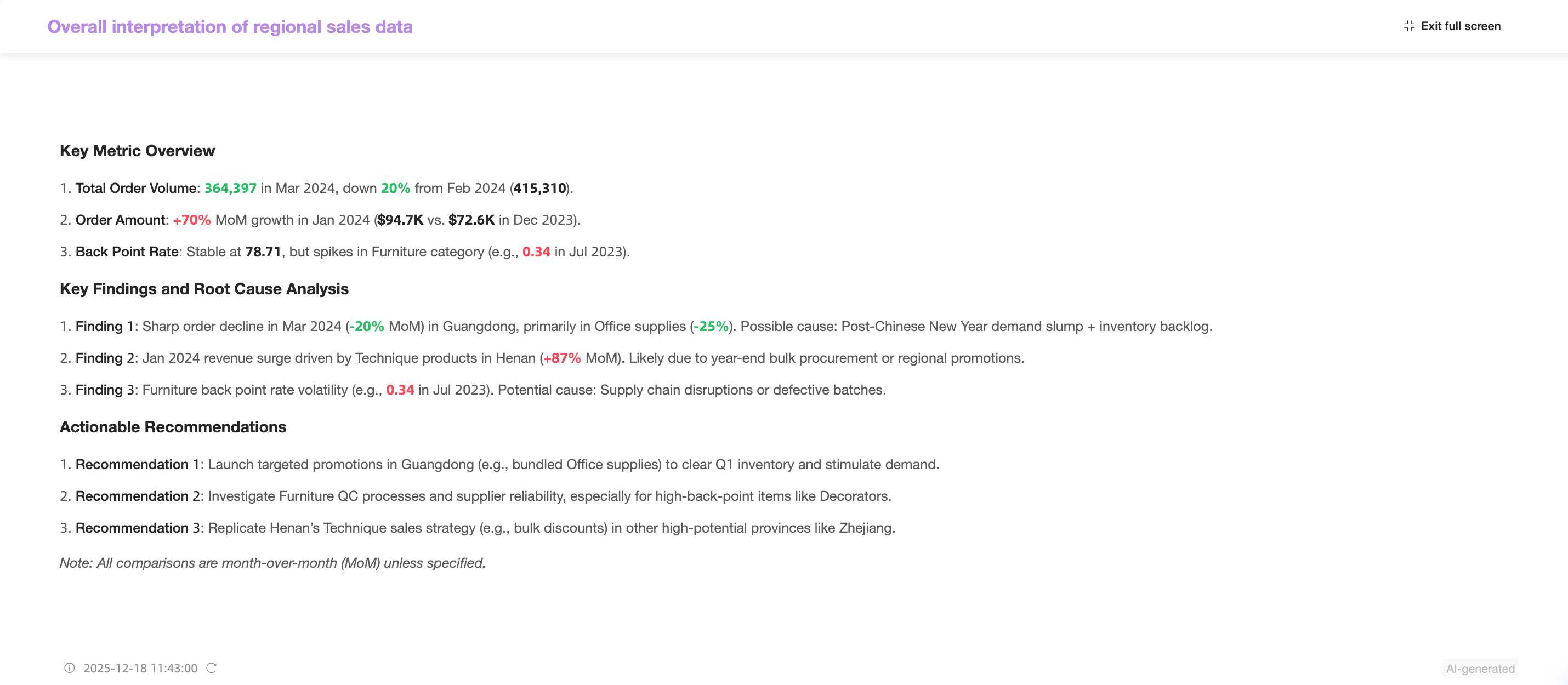
Click the Exit Full Screen button in the upper-right corner to return to the dashboard editing page.
Delete
Click the icon in the upper-right corner of the component and select Delete to remove the component.