To use the Q Insight feature in a dashboard, you must first enable and configure it. This topic describes the configuration process.
Q Insight is a value-added feature that requires a Quick BI Q-Bot subscription. A free trial is currently available for a limited time.
This feature is currently available only in the China (Hong Kong), Malaysia, and Singapore regions. Support is gradually being rolled out to other regions.
Limitations
Only an organization administrator can enable Q Insight and configure large model services.
Only users with permission to edit dashboards can configure preset prompts.
Overview
Follow these steps to configure Q Insight.
Enable Q Insight
After you enable this feature, users can access Q Insight.
Large model service configuration
You can configure large model services, including built-in and custom large models. Users can then select one of these models in Q Insight.
Preset prompt configuration
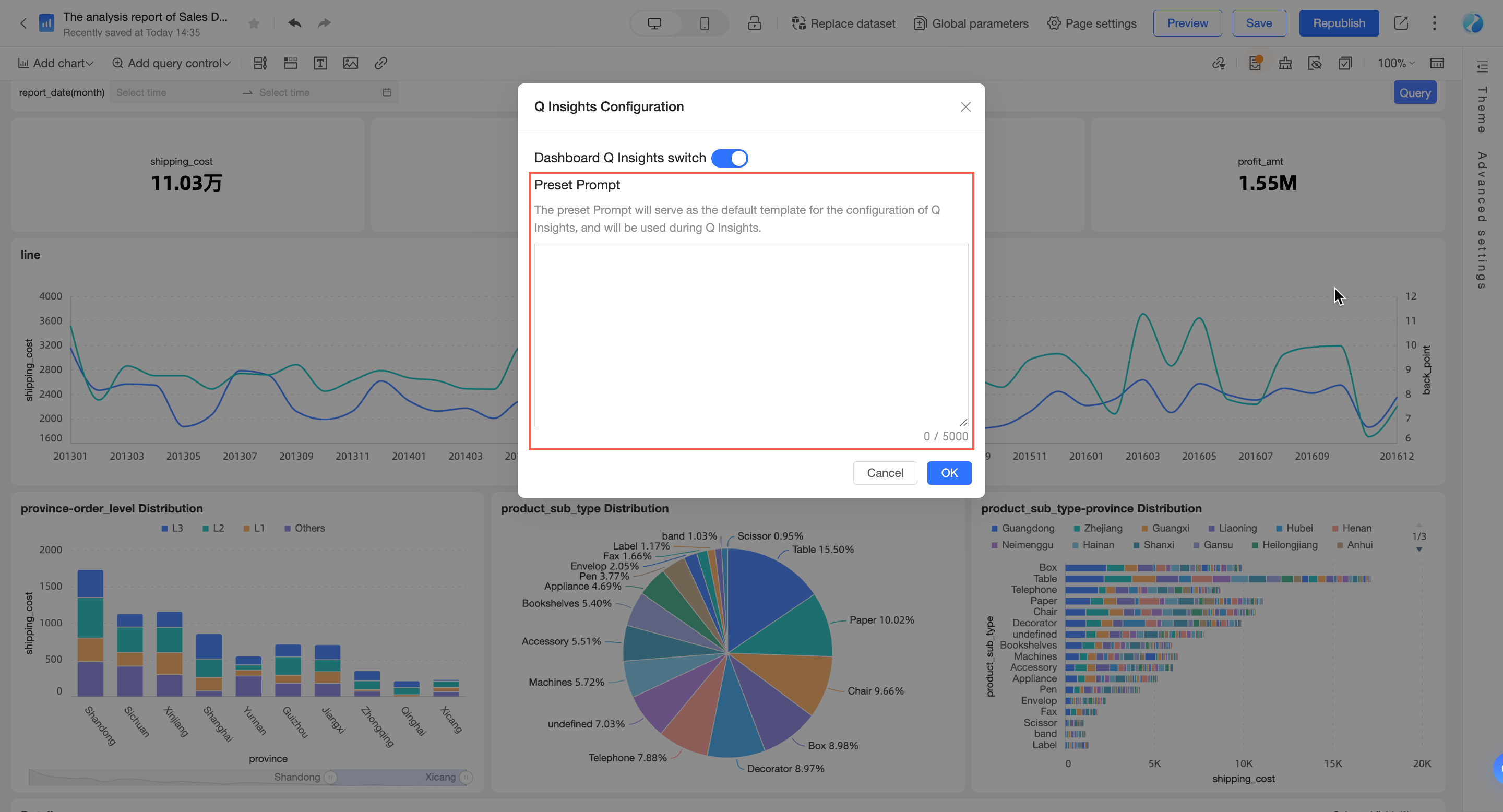
Preset prompts serve as default templates that Q Insight uses to generate insights for a dashboard. You can customize these prompts based on your business requirements.
Enable Q Insight
Global Q Insight
An organization administrator can enable Q Insight under General Settings > AI Feature Management.
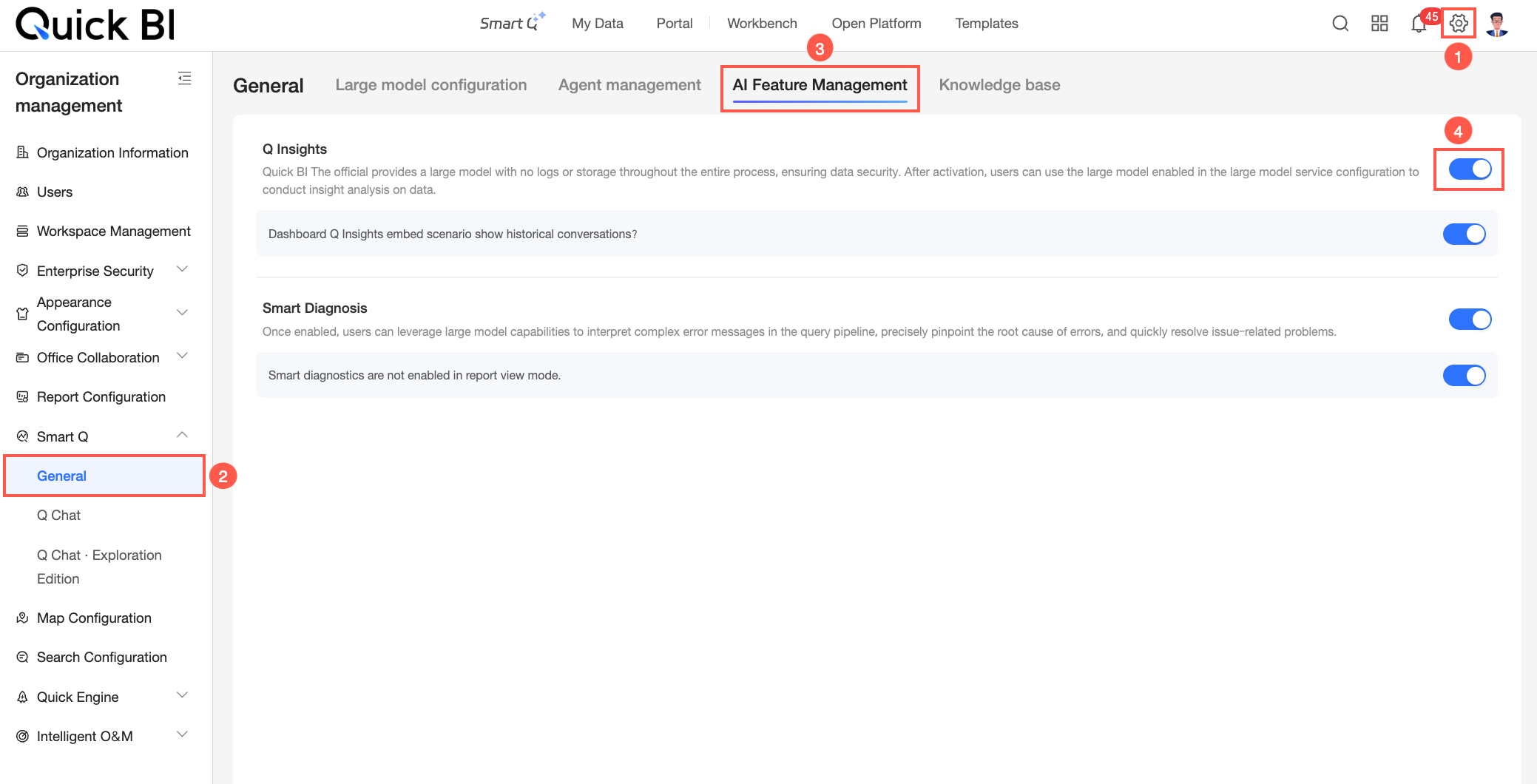
To display historical conversations in embedding scenarios, enable the Display historical conversations in dashboard Q Insight embedding scenarios toggle.

Dashboard-level Q Insight
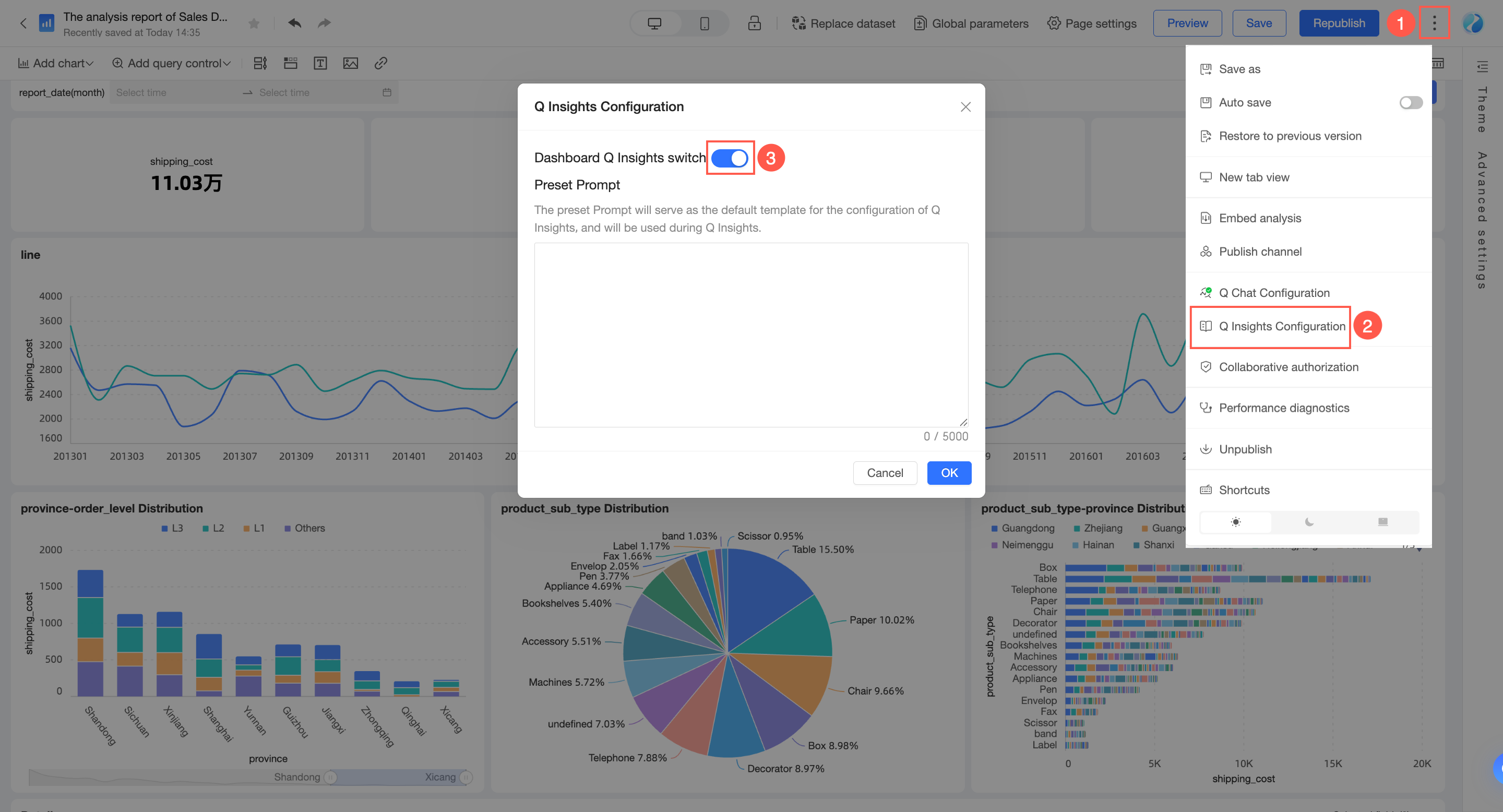
You can enable or disable Q Insight for one or more dashboards.
On the dashboard editing page, follow the steps in the image to enable or disable Q Insight.
On the Dashboard Management page, click the
 icon to the right of the target dashboard to enable or disable Q Insight.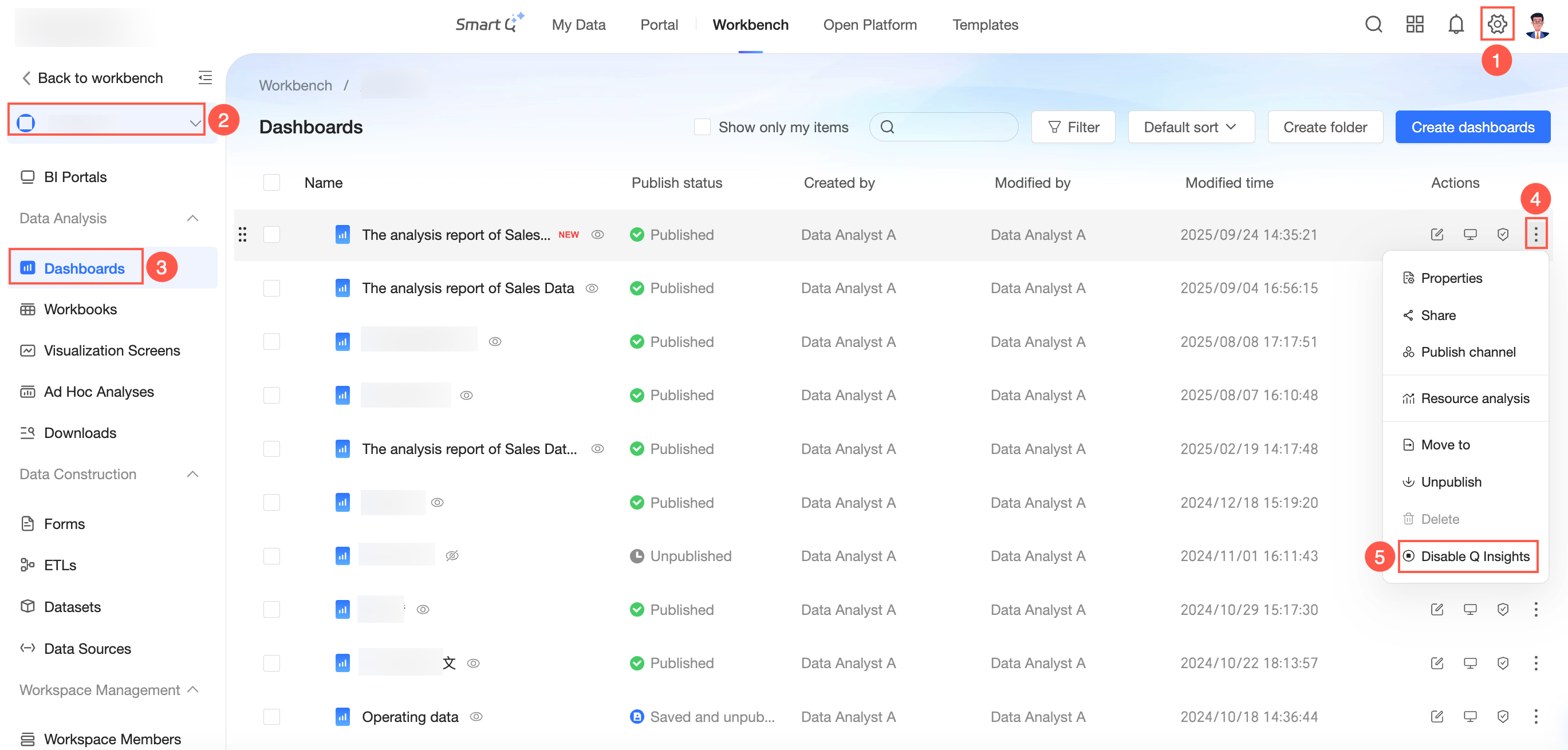
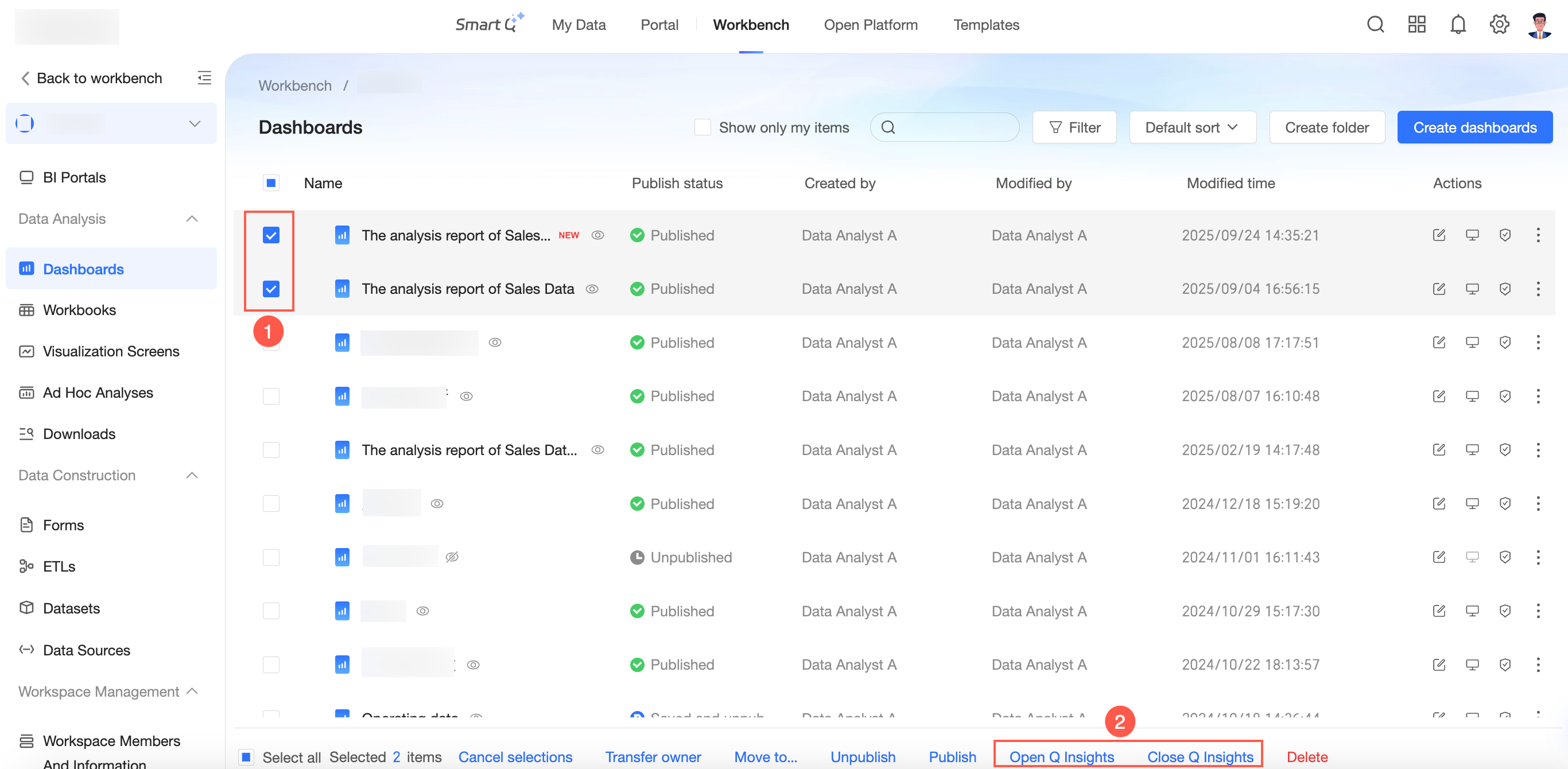
On the Dashboard Management page, you can also enable or disable Q Insight for multiple dashboards at once.
Large model service configuration
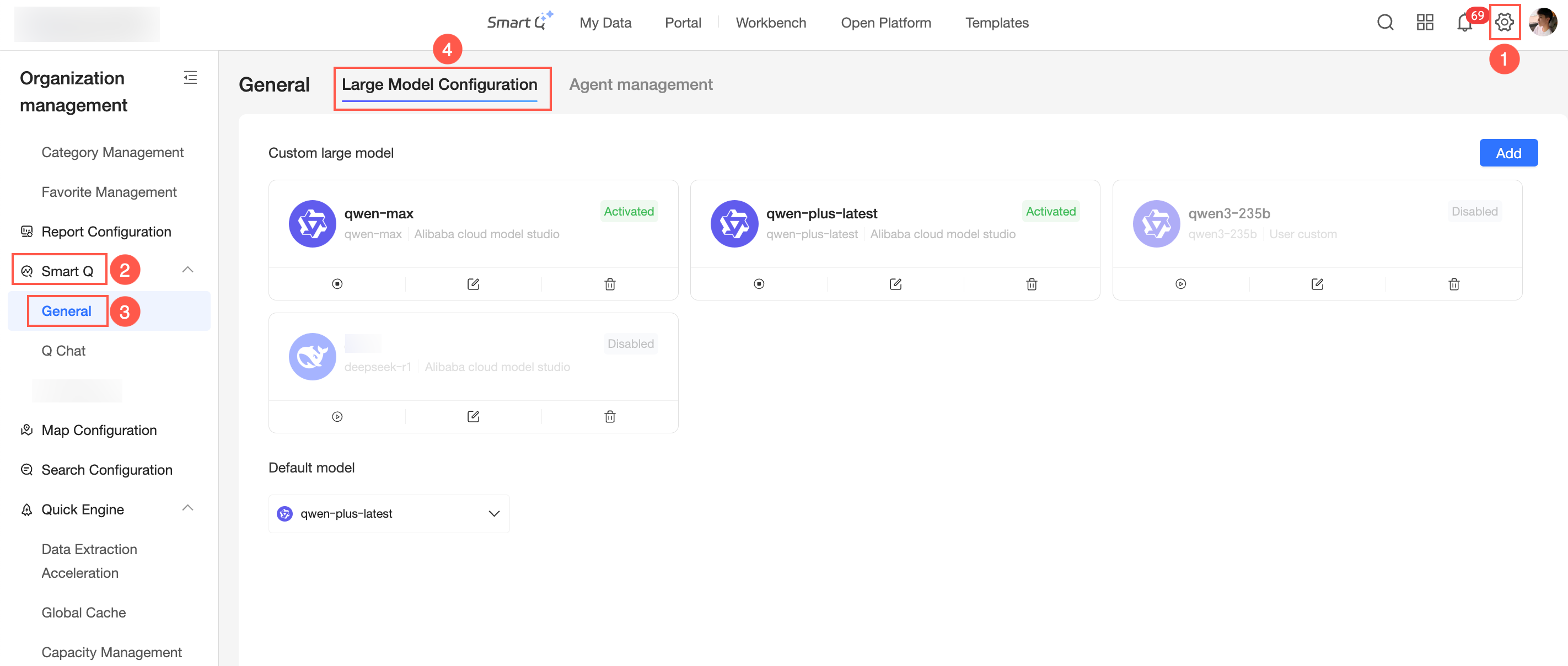
An organization administrator can configure large models under Q-Bot > General Settings > Large Model Configuration. Users can then select these models in Q Insight. For detailed instructions, see Large Model Configuration.
Preset prompt configuration
As shown in the image, select the dashboard that you want to configure. Click the dashboard name or the
 icon in the Actions column to open the editing page.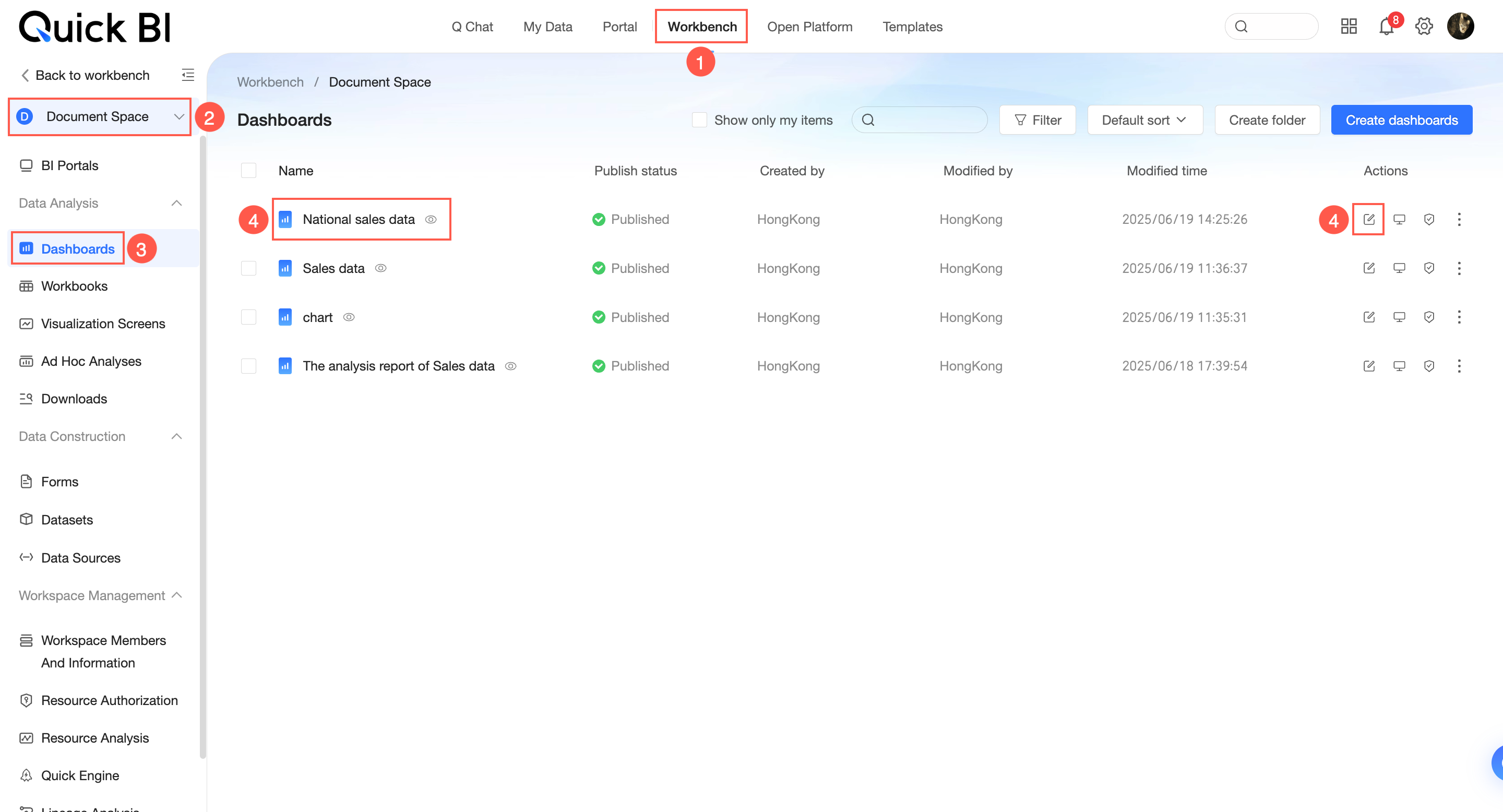
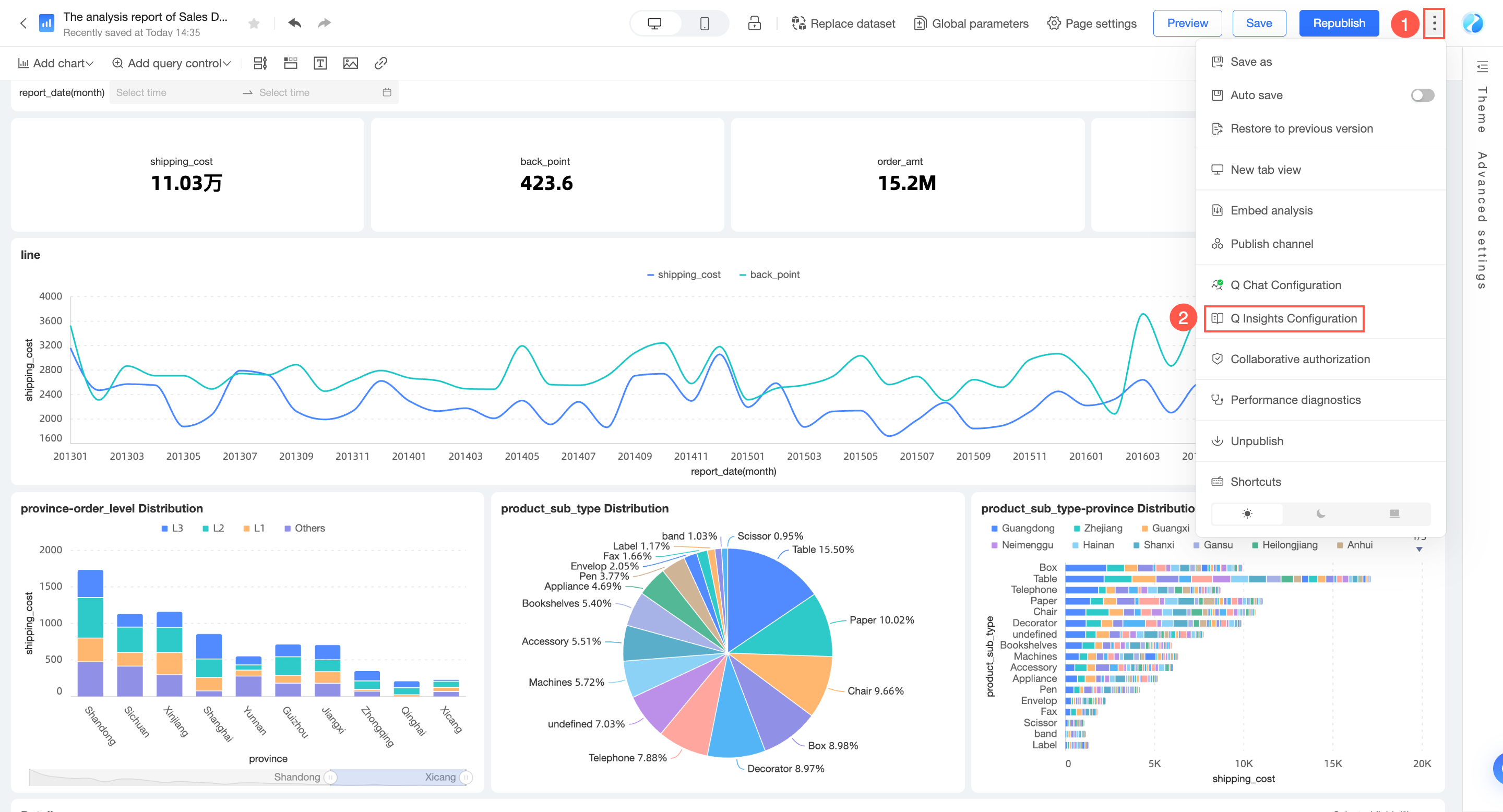
On the dashboard editing page, follow the steps in the image to open the Q Insight Configuration panel.
In the Q Insight Configuration panel, configure the Preset Prompt.
 Note
NoteThe preset prompt is the default template Q Insight uses to interpret dashboard data.