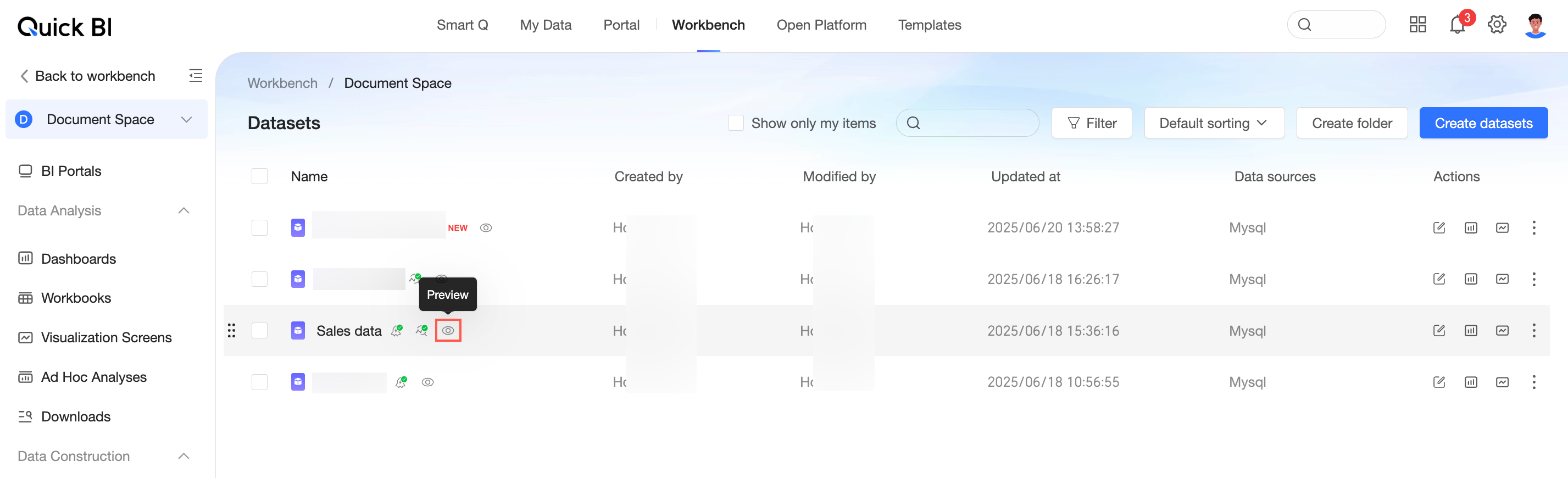
Users with dataset permissions can click the  icon on the right side of the target dataset in the dataset list page to access the dataset preview page.
You can preview up to the first 100 rows of a dataset.
Operation instructions
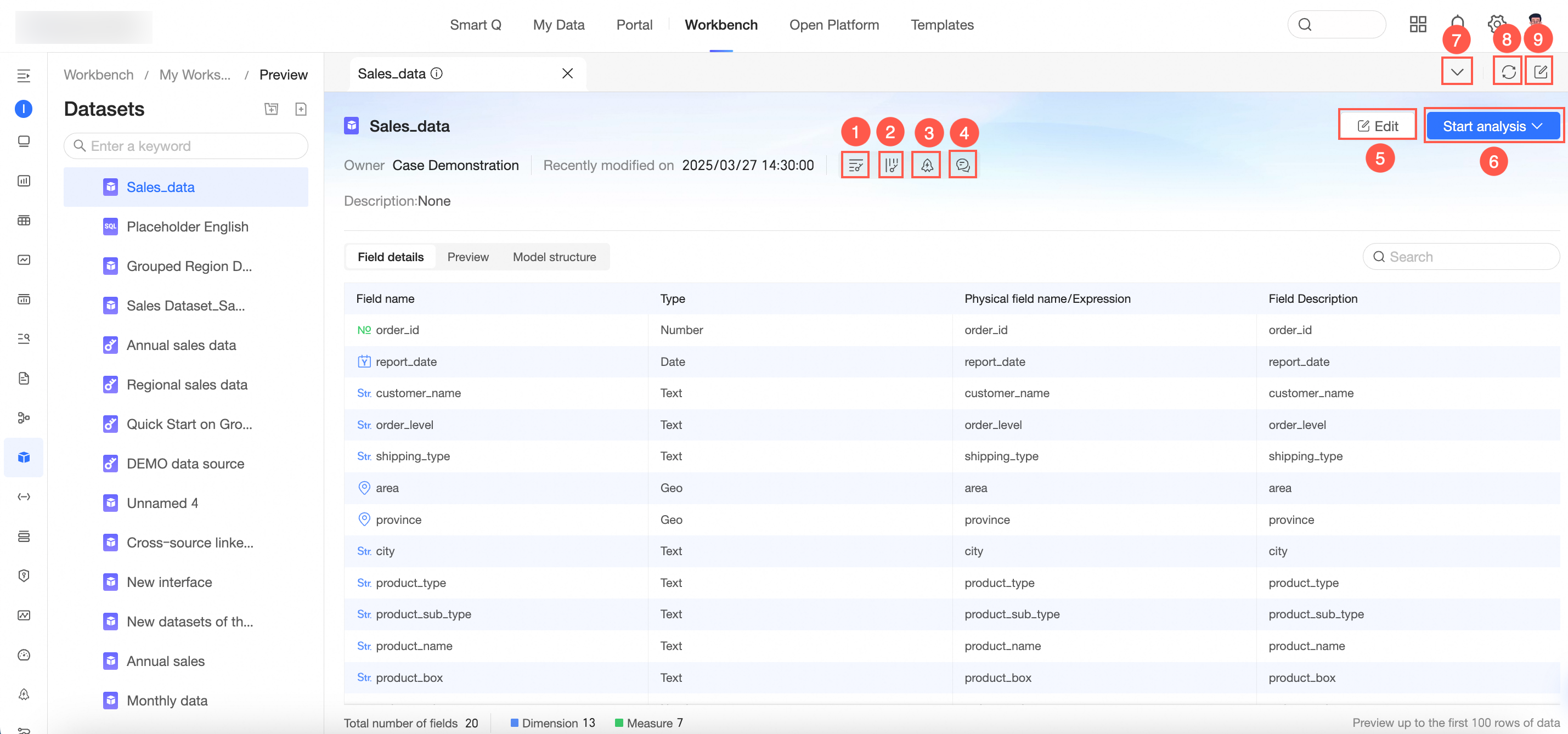
On the dataset preview page, you can view field details, perform data preview, view model structure, and perform the following operations.
Configuration item | Description |
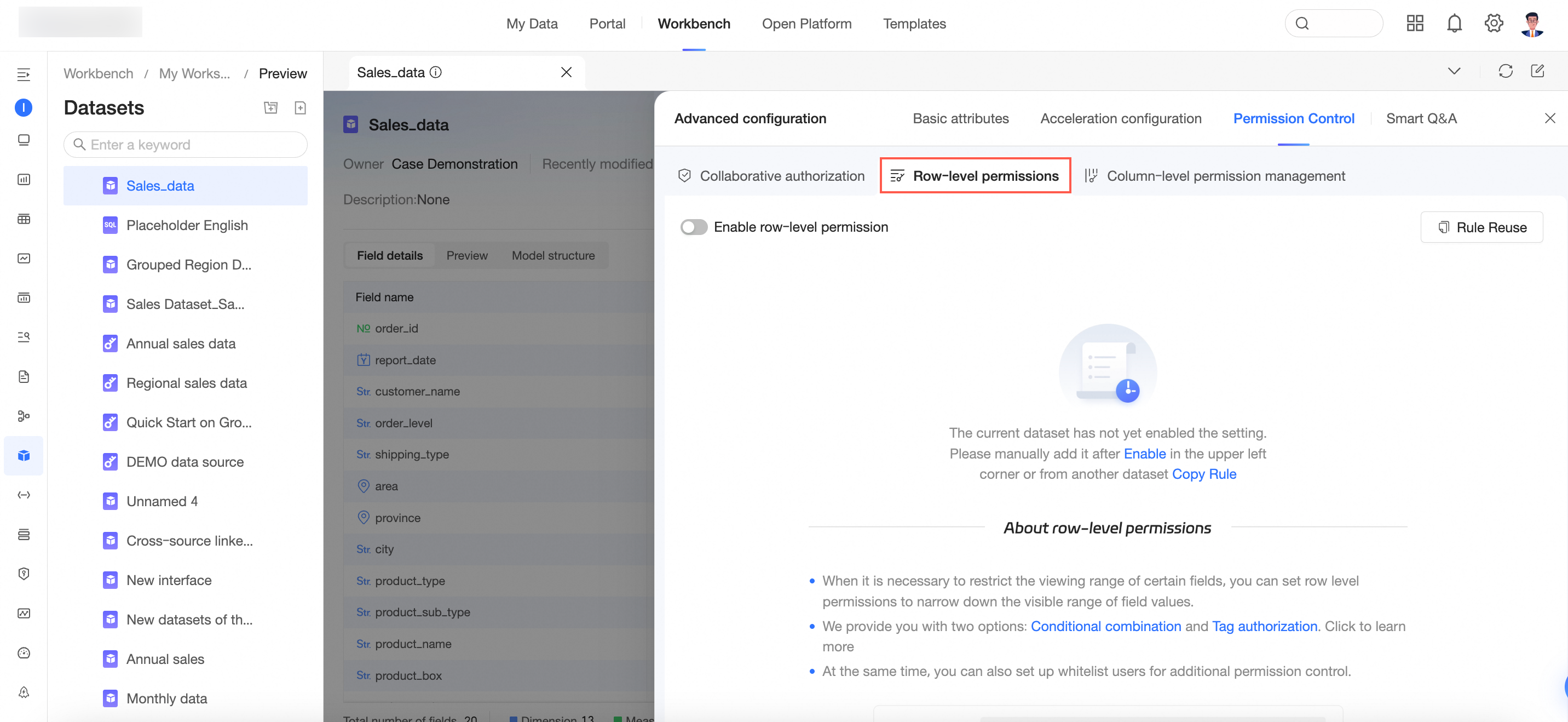
①Row-level permission | Click to enter the row-level permission configuration page. For more information, see Row-level permission.
Note Only the dataset owner or space administrator can set row-level permissions. |
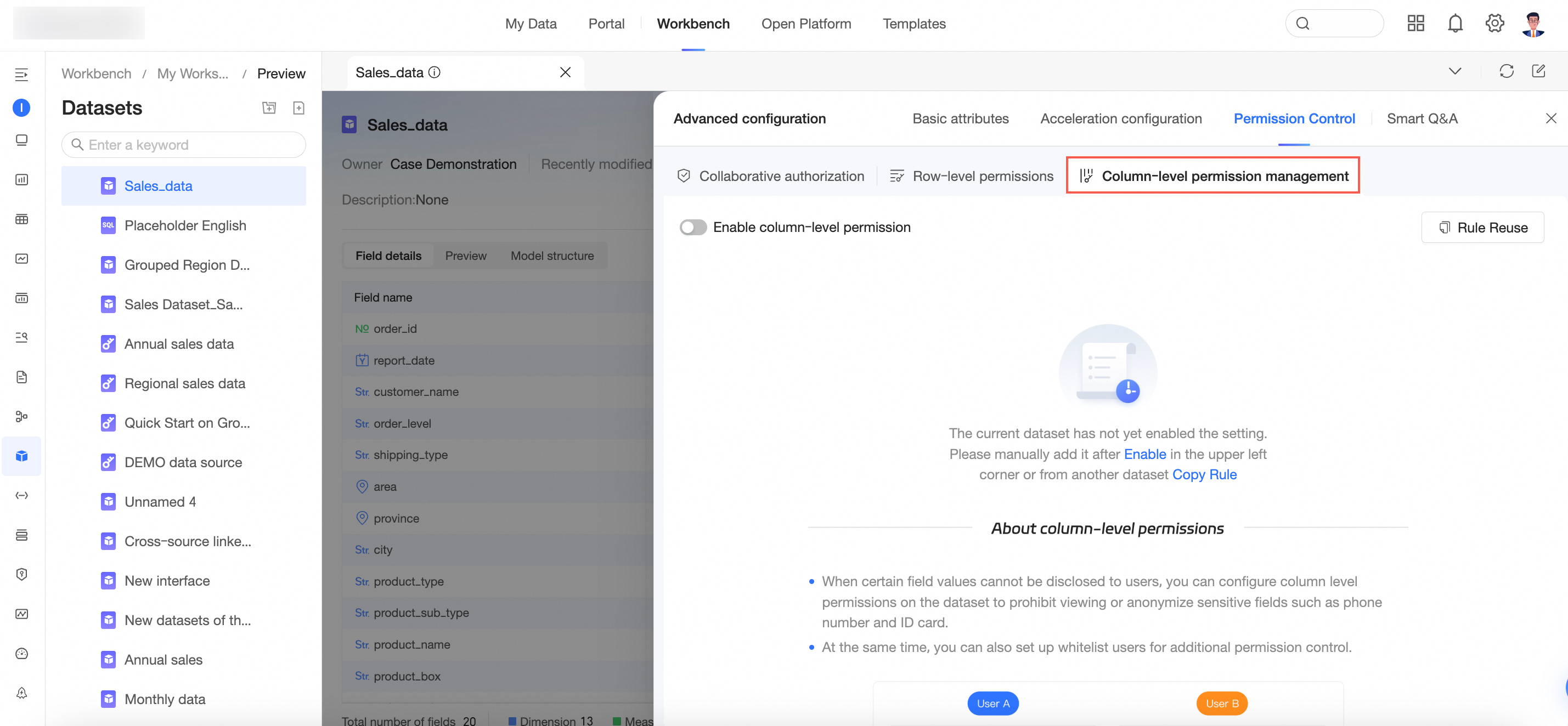
②Column-level permission | Click to enter the column-level permission configuration page. For more information, see Column-level permission.
Note Only the dataset owner or space administrator can set column-level permissions. |
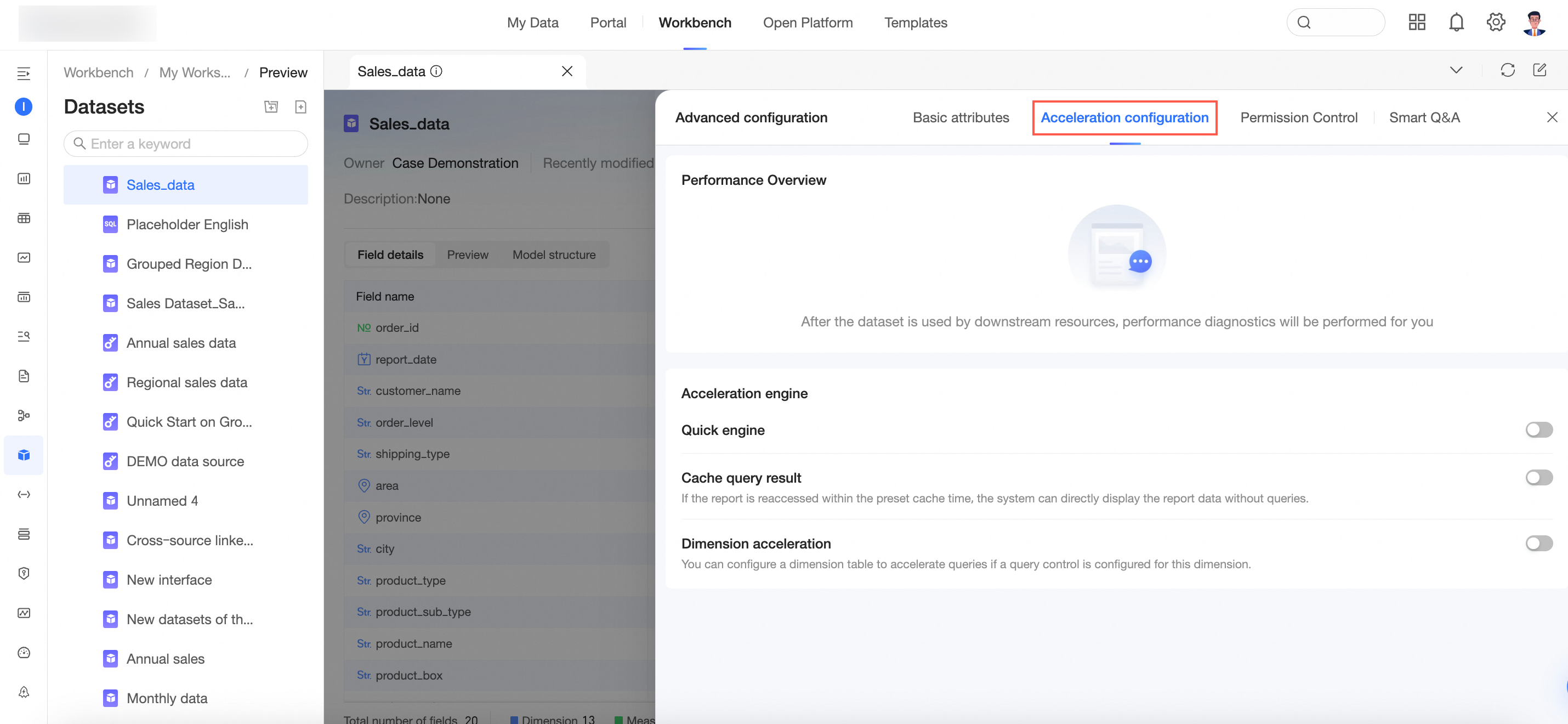
③Acceleration configuration | Click to enter the acceleration configuration page. For more information, see Configure Quick DPI engine.
Note Only users with dataset editing permissions can configure acceleration. |
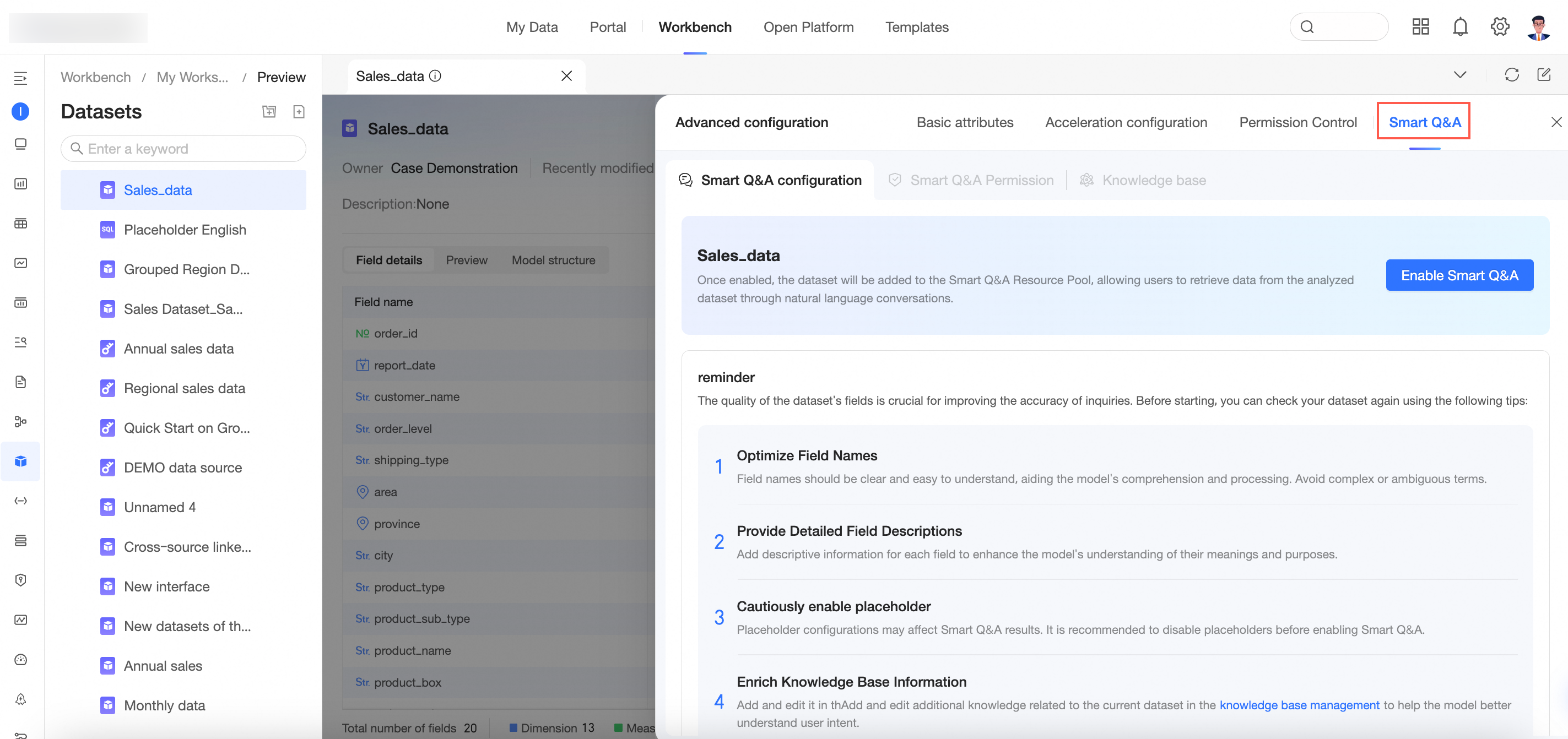
④Intelligent data query | Click to enter the intelligent data query configuration page. For more information, see Data preparation.
Note Only users with query management permissions who are also data source owners or space administrators can configure intelligent data query settings. |
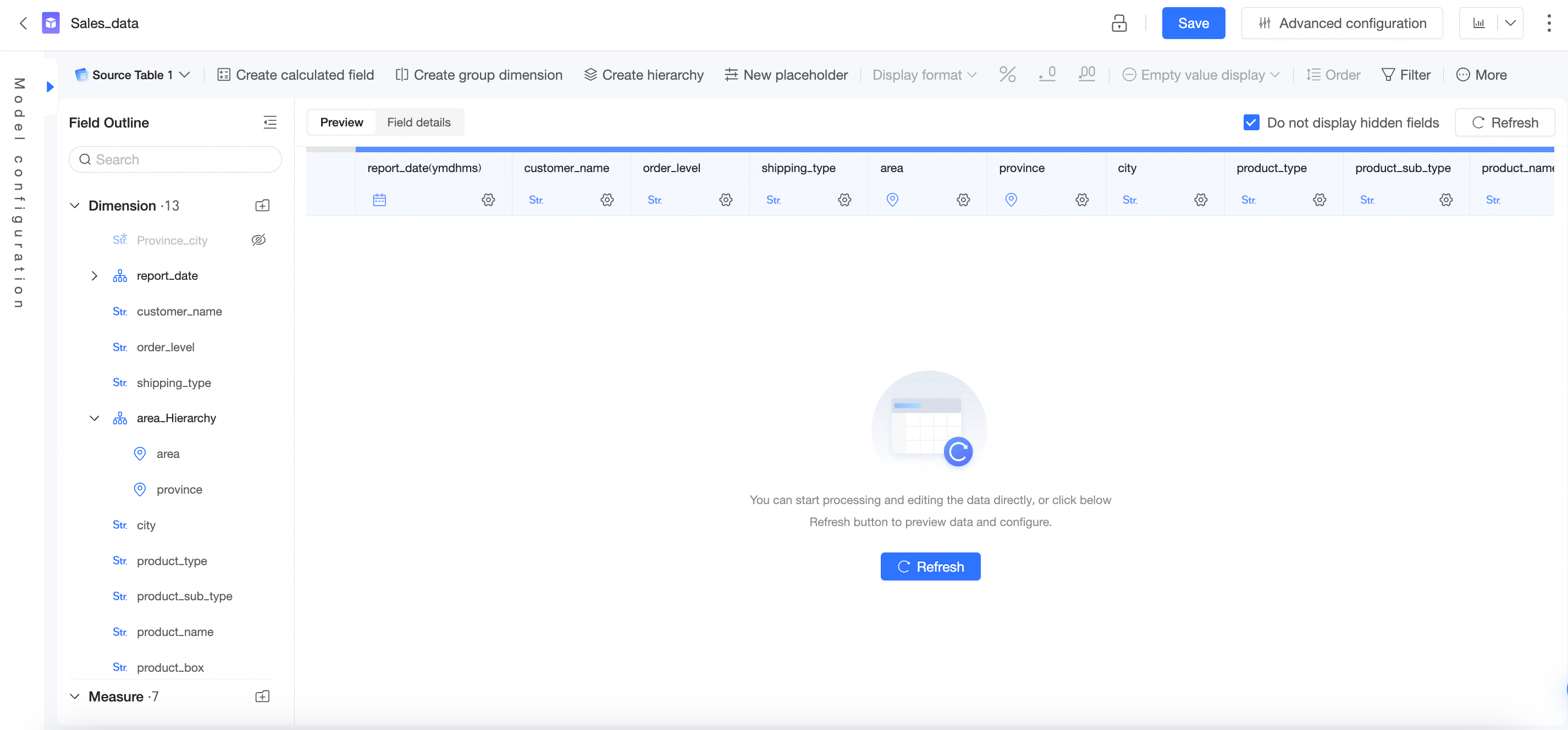
⑤Edit | Click to enter the dataset editing page.
|
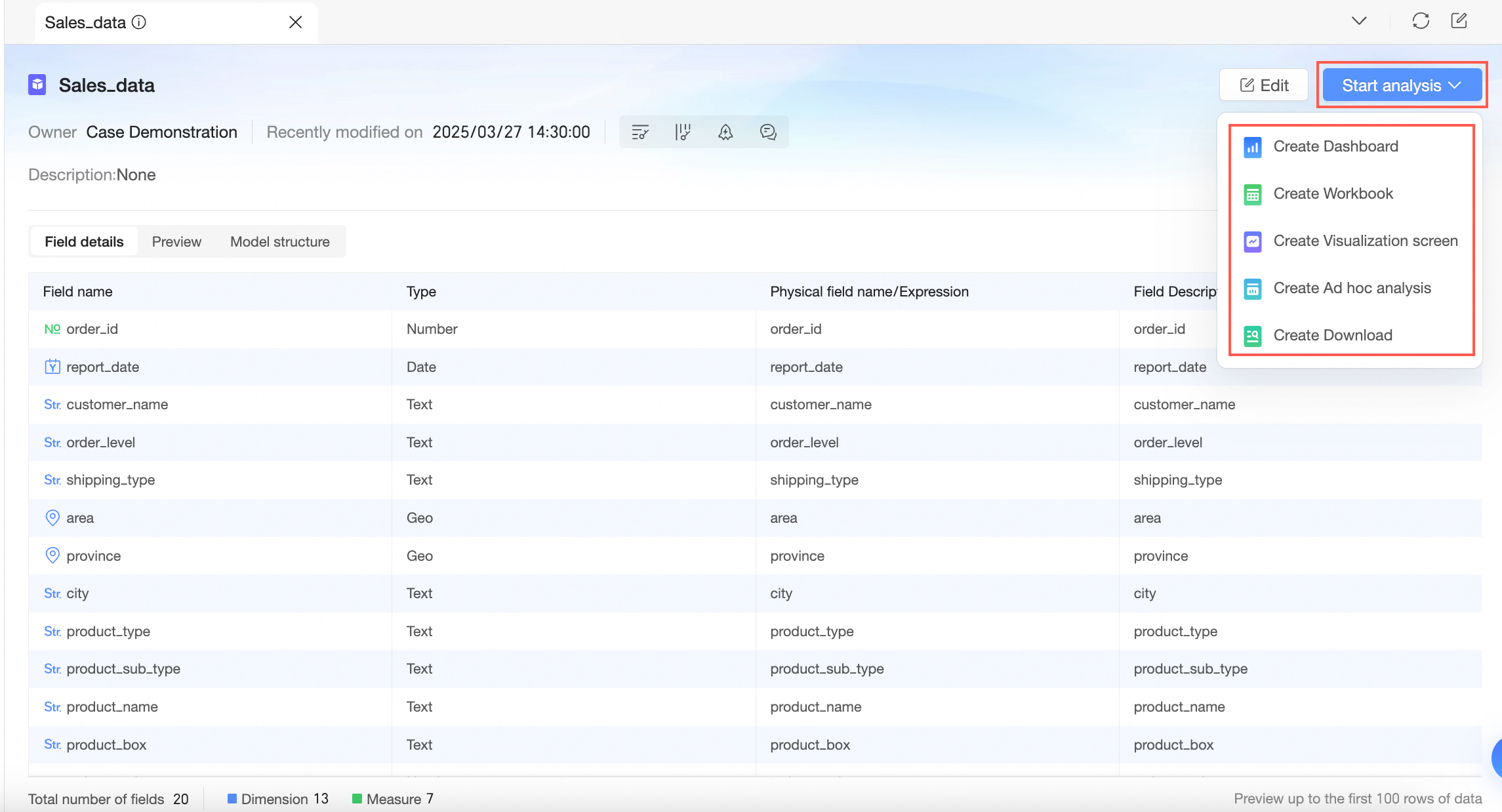
⑥Start analysis | Click Start analysis to create dashboards, spreadsheets, data screens, ad hoc analysis, and downloads.
|
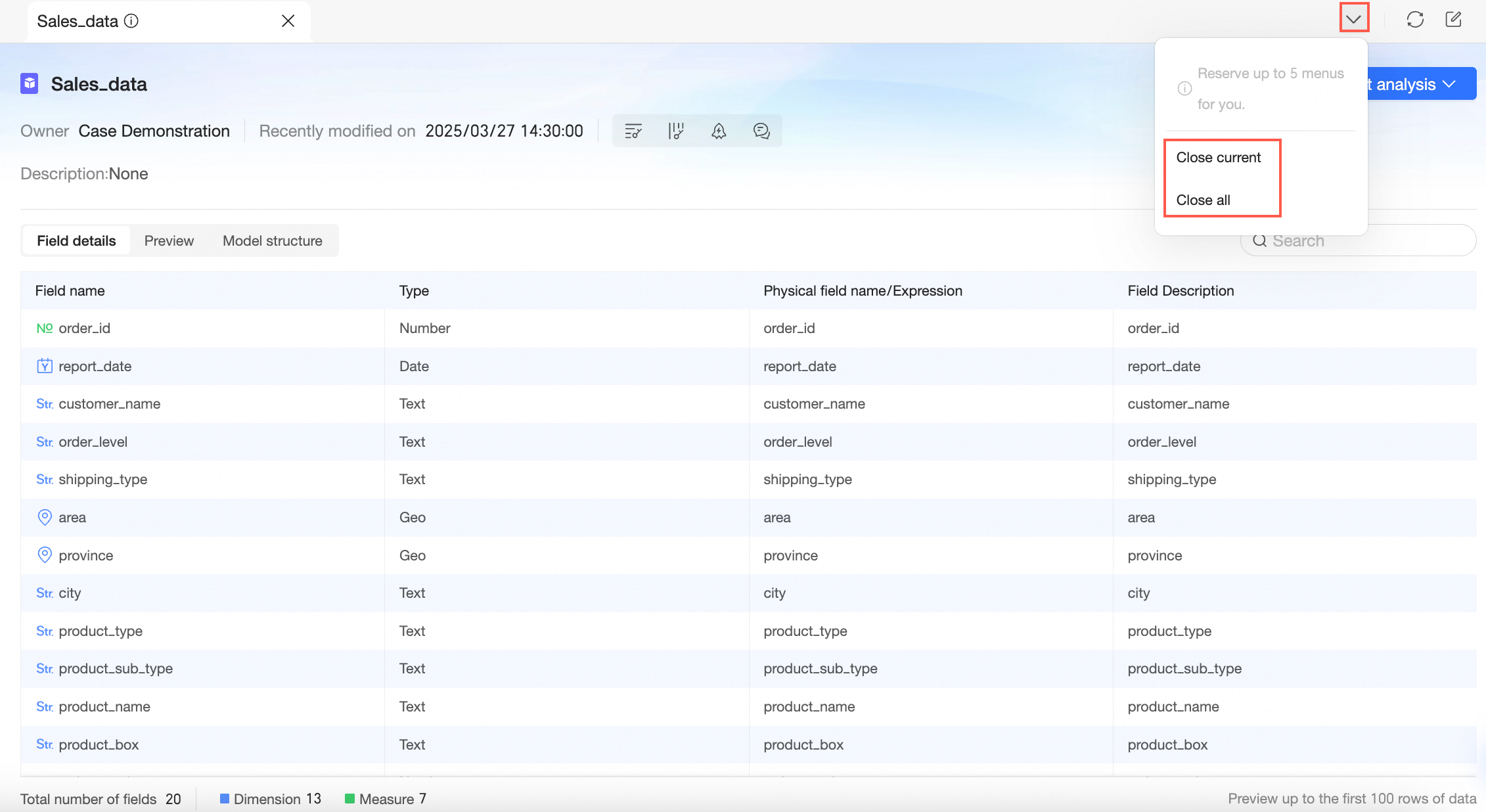
⑦Close current/all pages | You can close the current page or all pages. Note A maximum of 5 menus can be kept open.
|
⑧Refresh | Refresh the current data. |
⑨Edit | Click to enter the dataset editing page. |