In scenarios such as device inspection, production reporting, and order inquiry, where carrying a computer is impractical and real-time data access is necessary, mobile spreadsheets offer an efficient and flexible solution for data preview. This topic introduces the features of mobile spreadsheets.
Entry Points
To begin, create a Workbook as illustrated below; then configure mobile spreadsheets for mobile use.
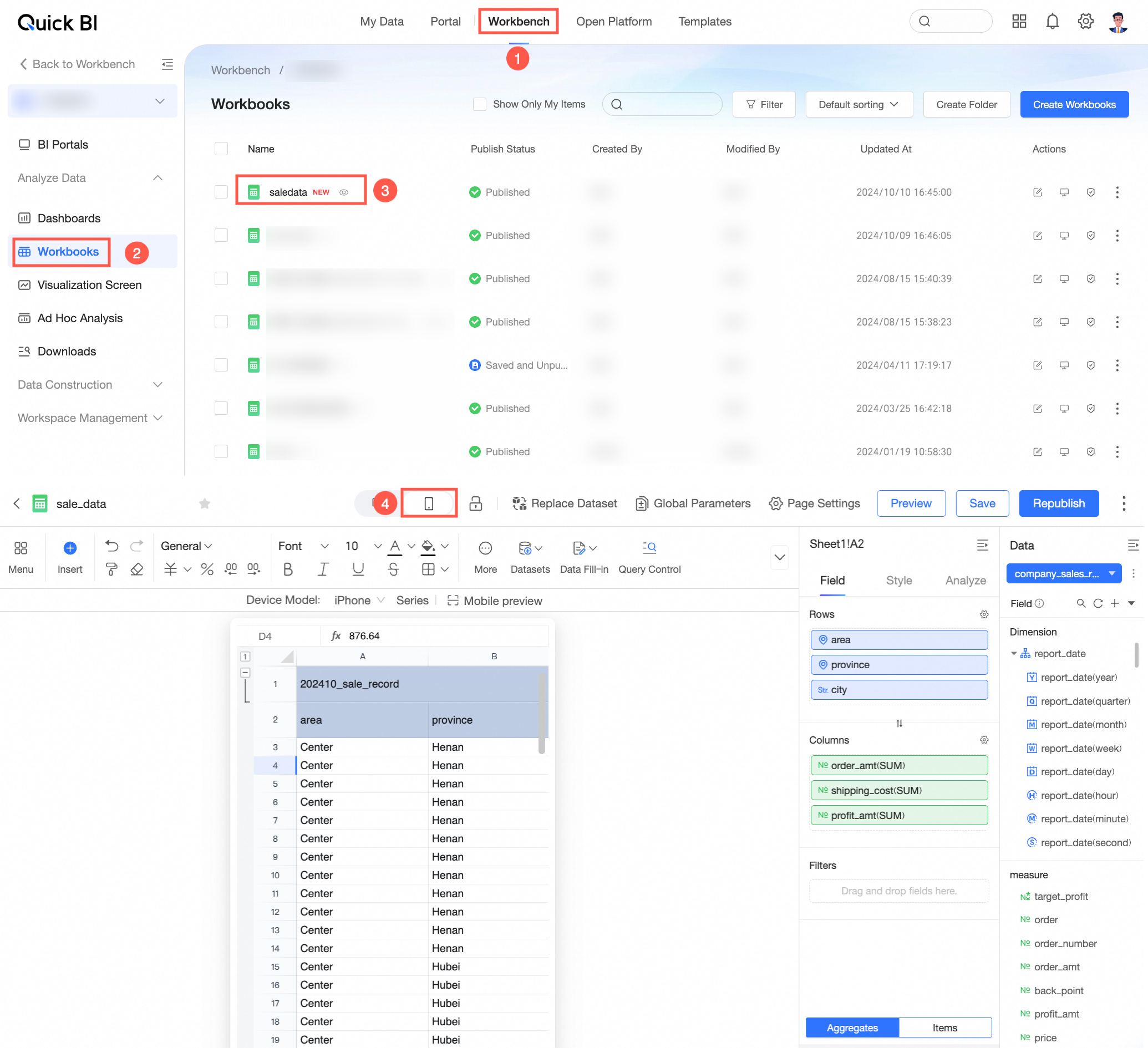
Mobile Report Interface
On the mobile editing page, you can carry out various operations. The menu bar features are consistent with those on the PC. For more information, see Configure a Workbook.
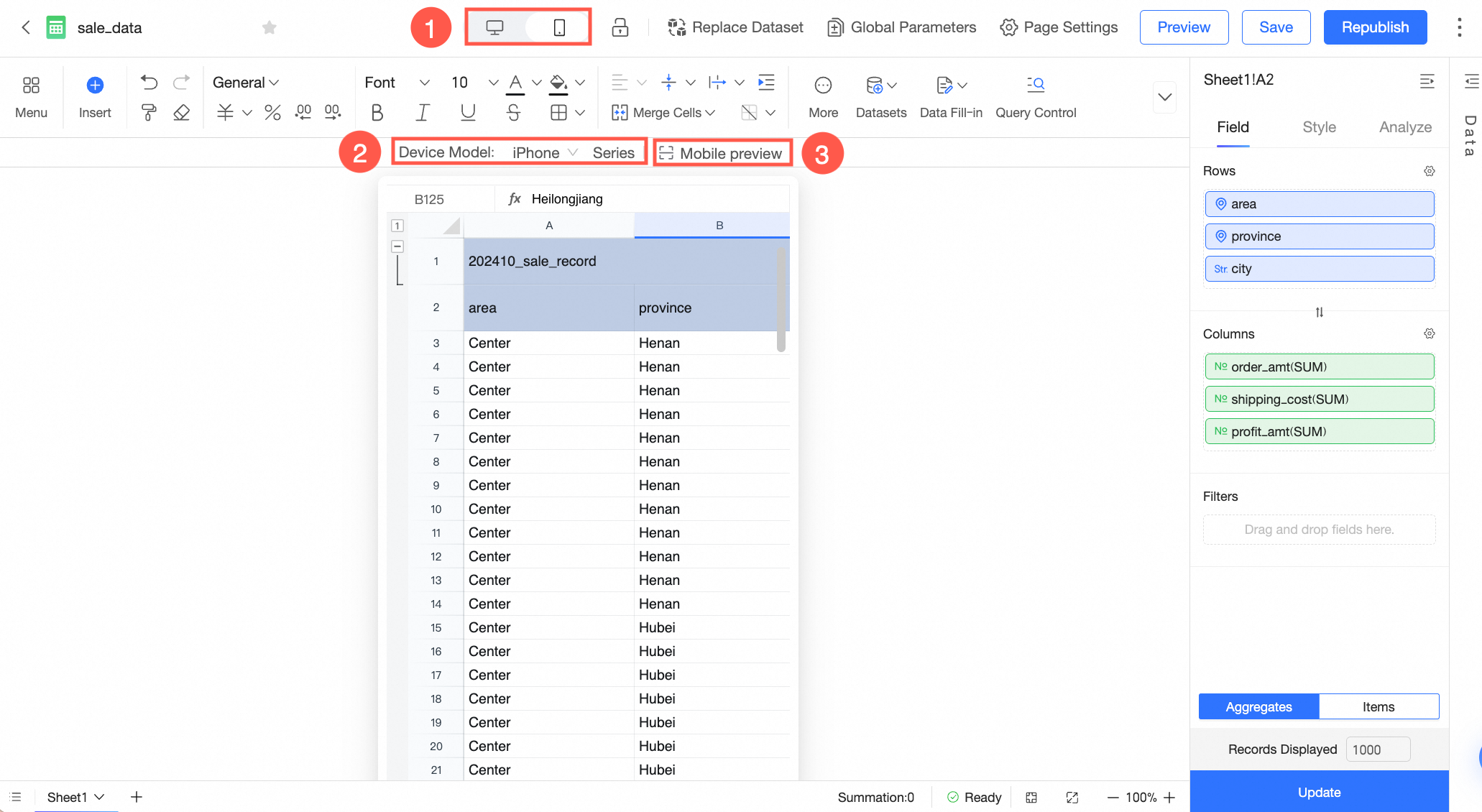
Feature | Description |
① Mobile Layout Configuration | After clicking the top menu bar to switch to mobile, you can edit mobile spreadsheets. |
② Device Model | After selecting a phone model, you can view the effect in the preview. Currently, the following phone editions are supported:
|
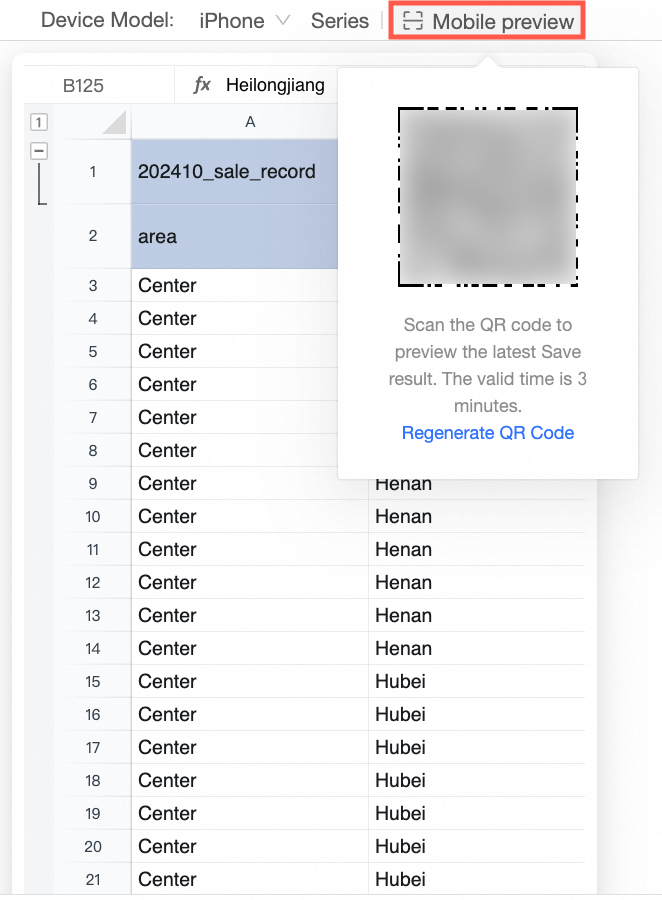
③ Mobile QR Code | You can use a mobile device to scan the mobile QR code to preview the effect. The QR code is valid for 3 minutes. After it expires, you can click Regenerate QR Code.
|
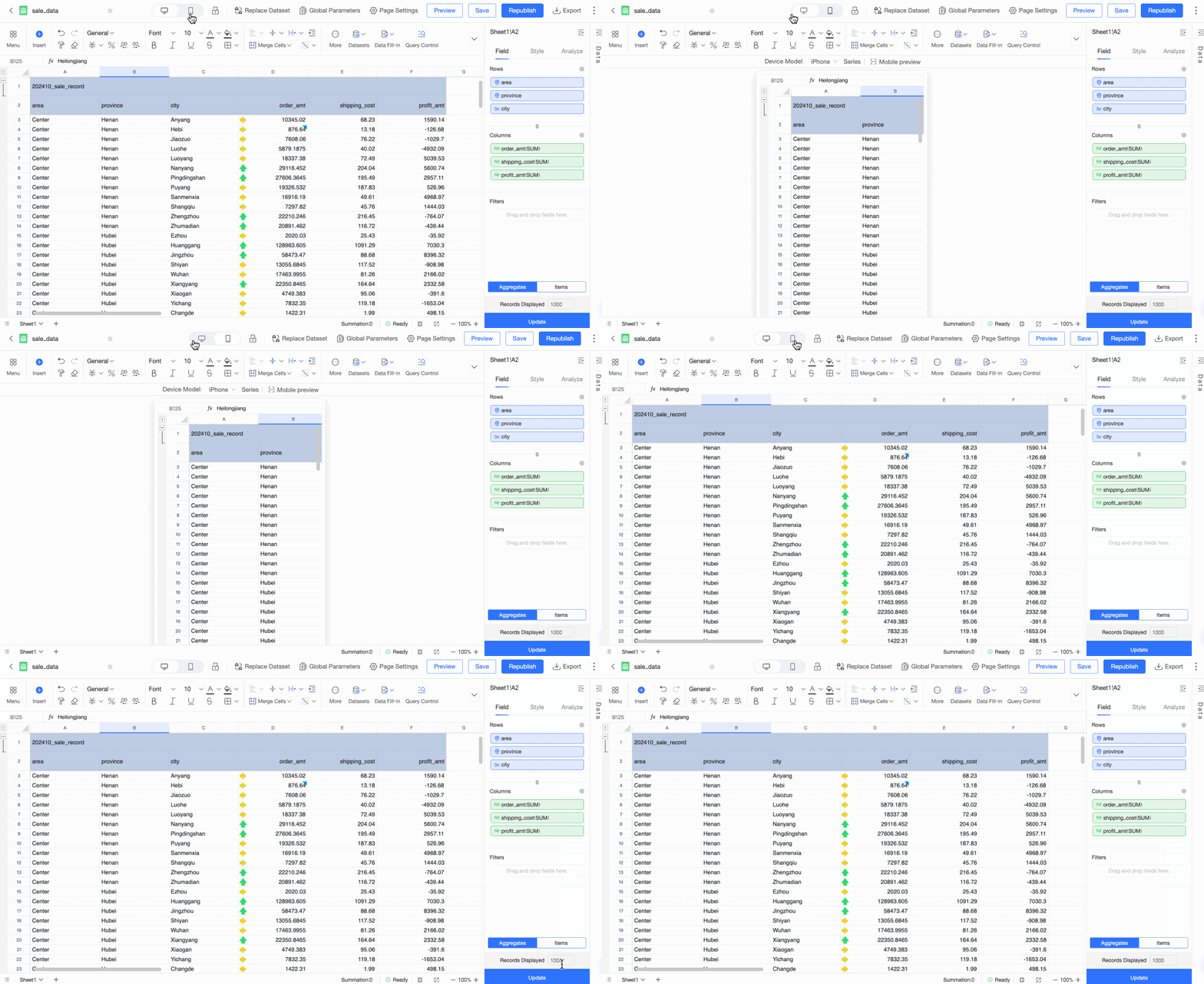
Mobile Operations Introduction
Spreadsheet Operations Introduction
The mobile interface supports actions such as click, double-click, long press, and two-finger scaling.
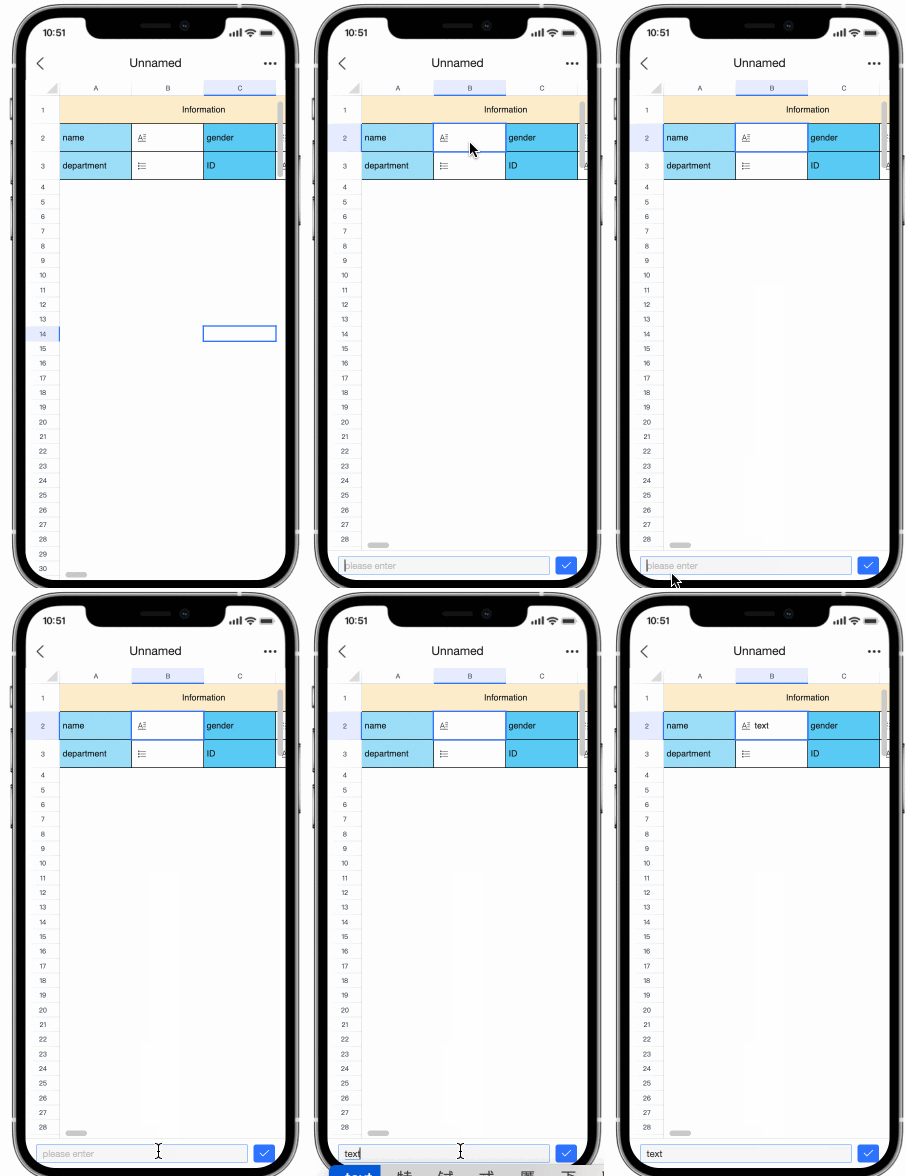
Click a cell to select it.
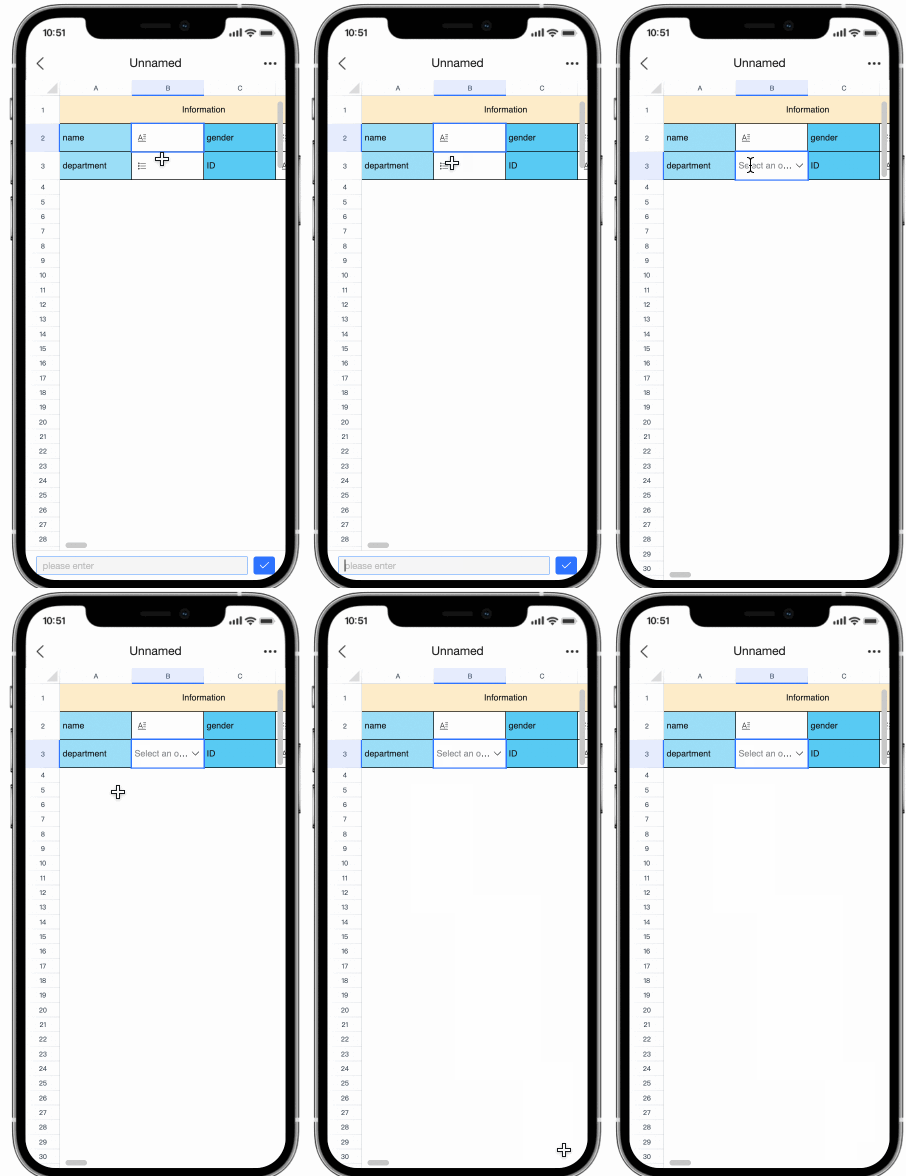
A reporting pop-up interface appears when you double-click a reportable cell, allowing you to enter data as needed.
 Note
NoteNote that regular spreadsheets in mobile mode are view-only and do not support editing. However, if you have set up reportable cells, double-clicking will enable the reporting feature. For more information, see Mobile Spreadsheet Reporting.
To copy data, long press the desired cell to bring up the copy options.
Use two fingers to pinch or spread to zoom in or out on the entire spreadsheet page.
NoteClicking or double-clicking regular cells (non-reportable cells) in mobile mode does not allow for cell editing.
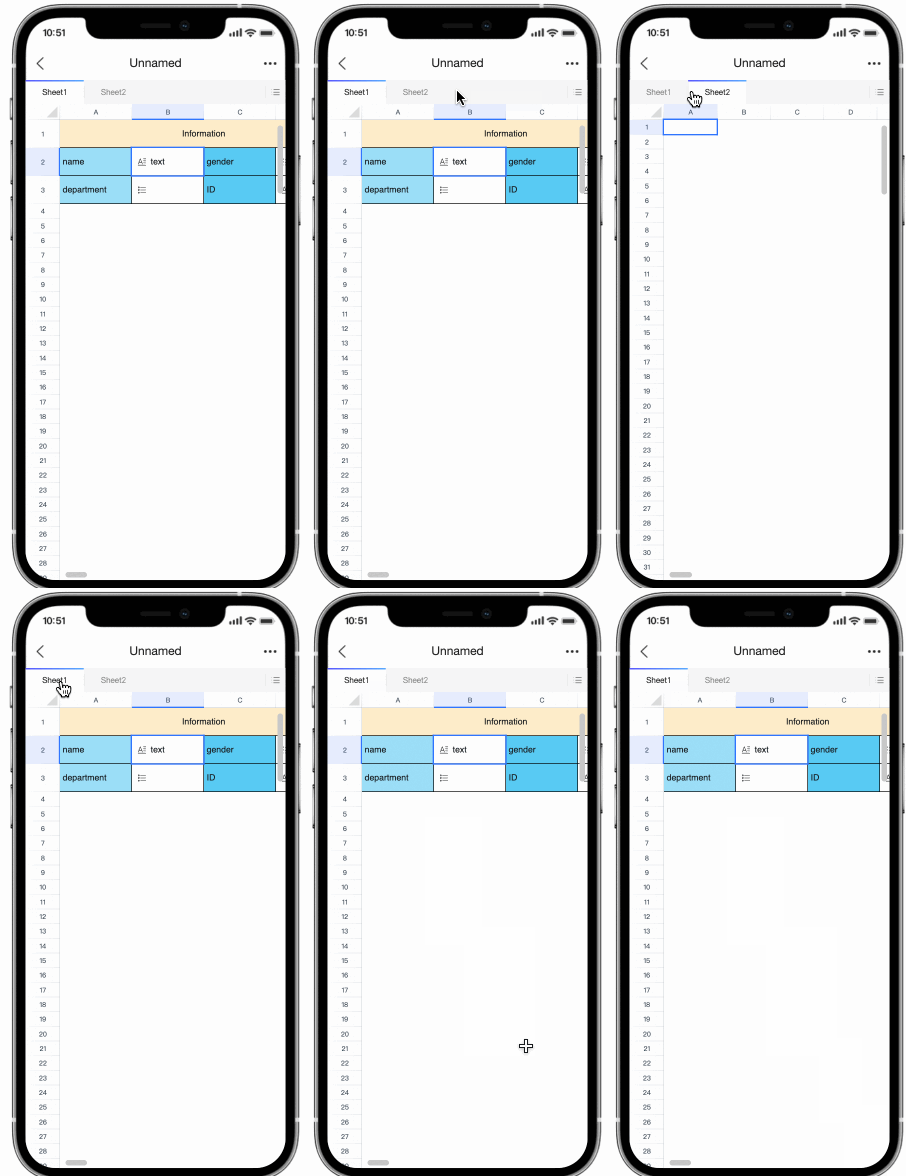
To navigate between multiple sheets in the spreadsheet, use the sheet switch at the top of the page.
Query Controls
In the spreadsheet toolbar, click
 to access Query Controls and add new controls.
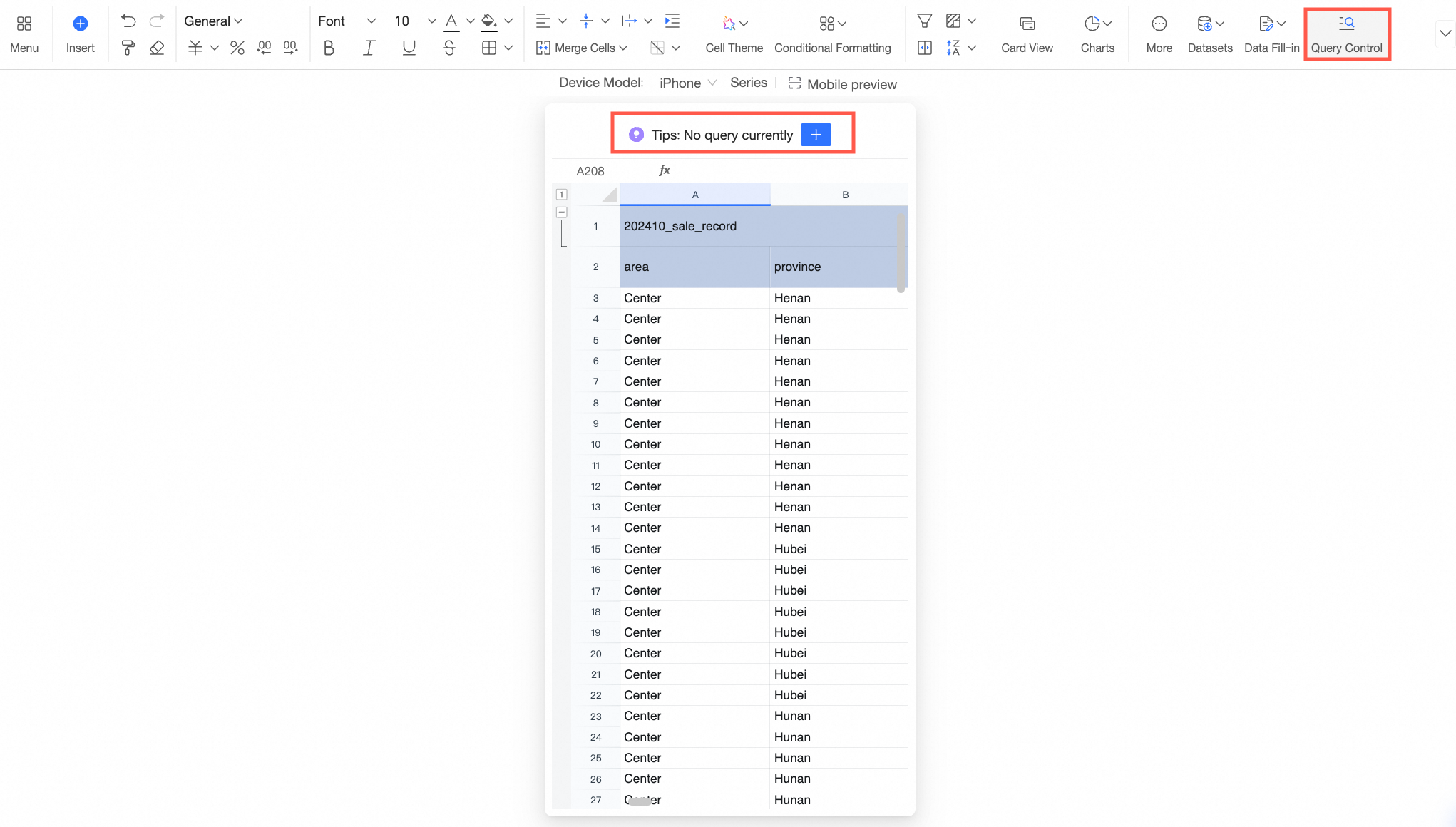
In the spreadsheet display area, click
 to create a new filter item.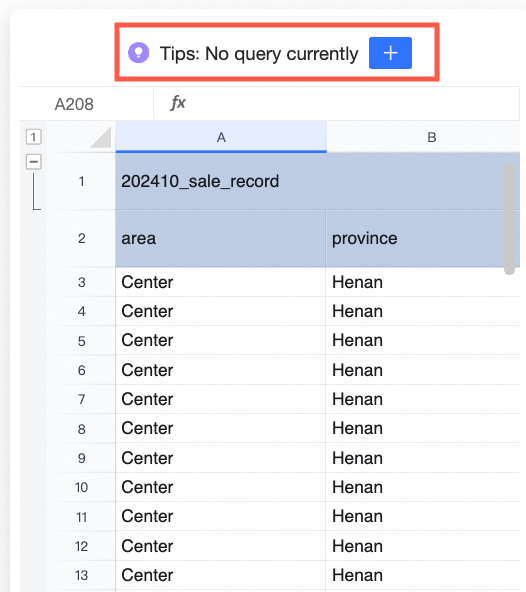
On the Query Condition Set page, define your query conditions.
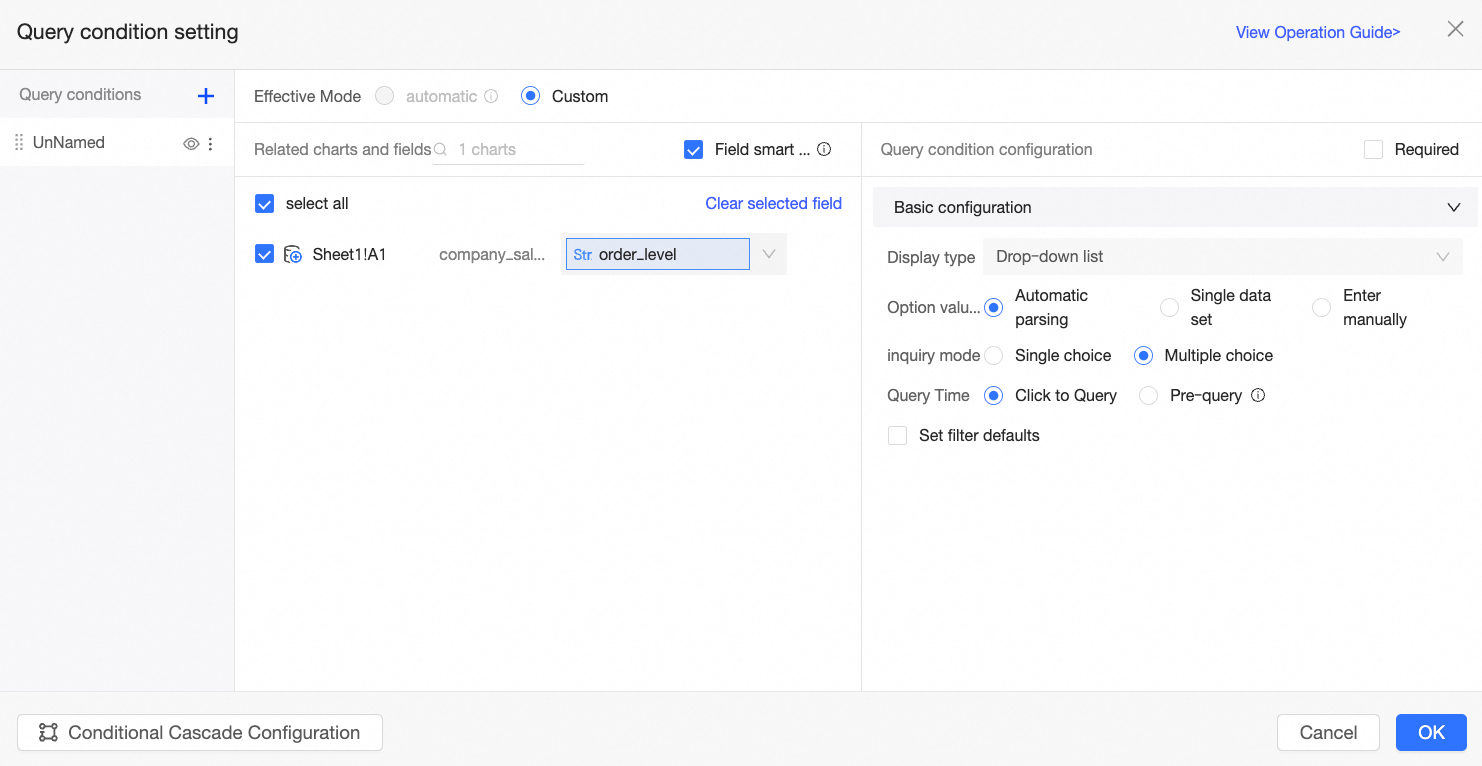
Click OK.
You can view and use the configured query controls on the query control page to perform filtered queries.
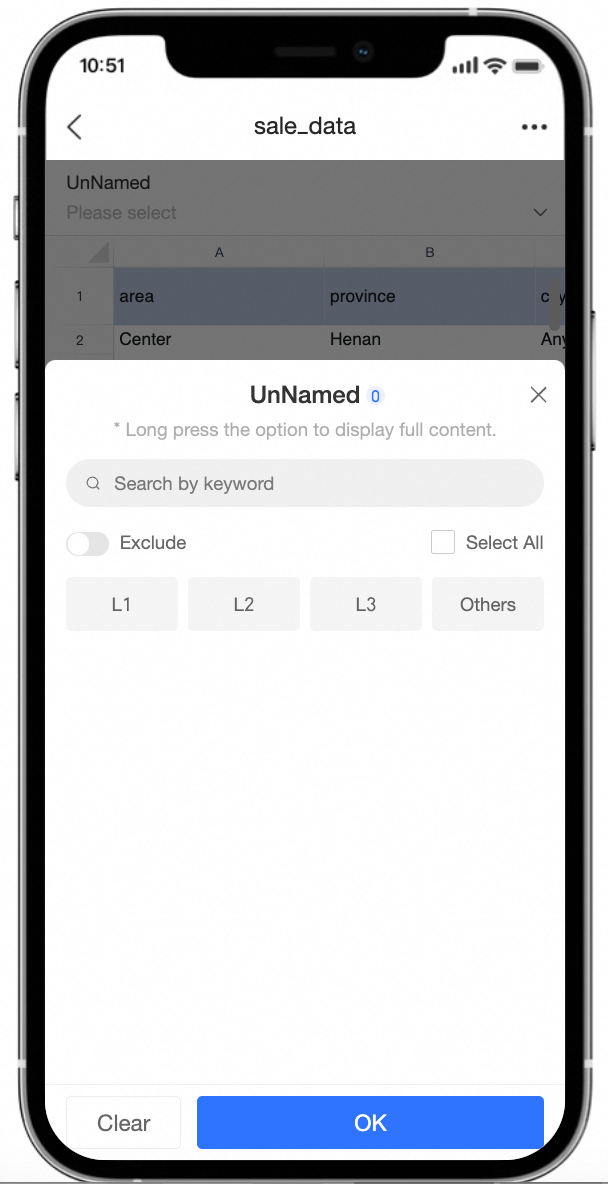
For more information, see Add a Query Control.