If your business has data security requirements, you can use the data masking feature. After you specify the fields that you want to mask in a dataset and configure masking rules for the fields, the system masks the sensitive information in the fields and displays the masked data on a dashboard, in a workbook, or in the result of a download task. This helps ensure the security of your business data.
Prerequisites
A dataset is created. For more information, see Create a dataset.
Desensitization rules and effect display
This document applies only to users who purchased or tried Quick BI after June 3, 2021.
You can grant different users the permissions to view data fields. For example, you can de-expose a field to specific users and configure different de-expose rules.
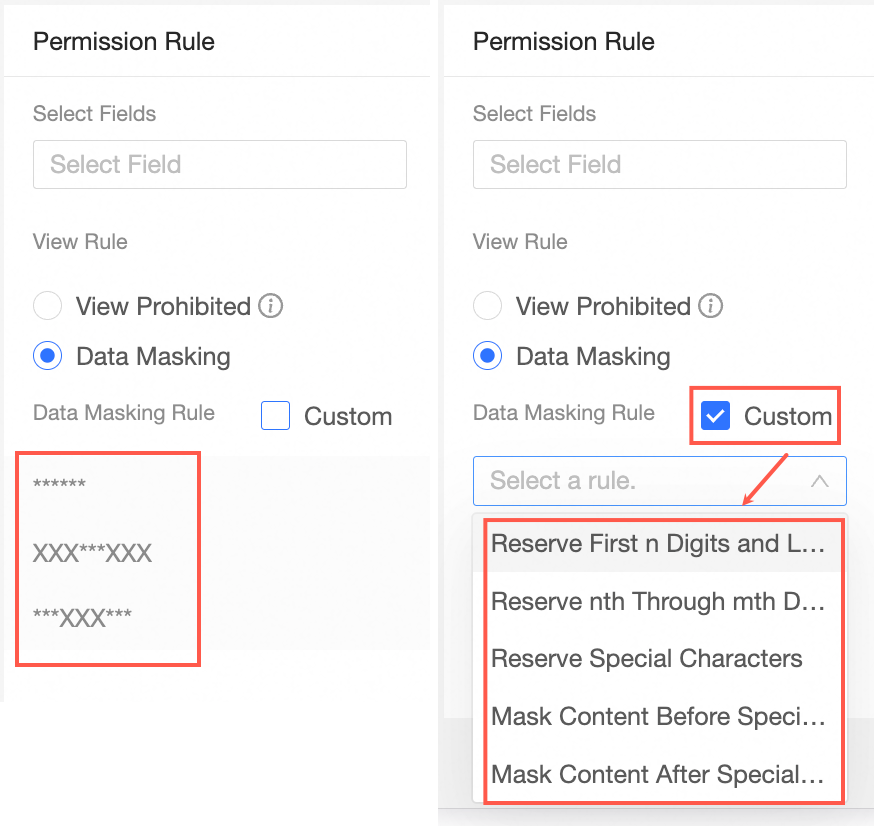
The permission rules and corresponding effects are as follows.
Desensitization field: full desensitization
The fields for which you want to mask data are displayed as six *. The field values are completely hidden.

Desensitization field: Desensitization middle character
Indicates that the middle is hidden and the head and tail are reserved for three characters.

Desensitization field: Desensitization start and end characters
Indicates that the leading and trailing characters are hidden and three characters are reserved in the middle.

Desensitization fields: custom desensitization rules
Indicates that all characters except the specified character are hidden.
Keeps the first N characters and the last M characters
In this example, the first two bits are retained and the last two bits are retained.

reserved before n to m
In this example, the reservation is from 1 to 3.

Desensitization before special characters

Examples:

Desensitization after special characters
The
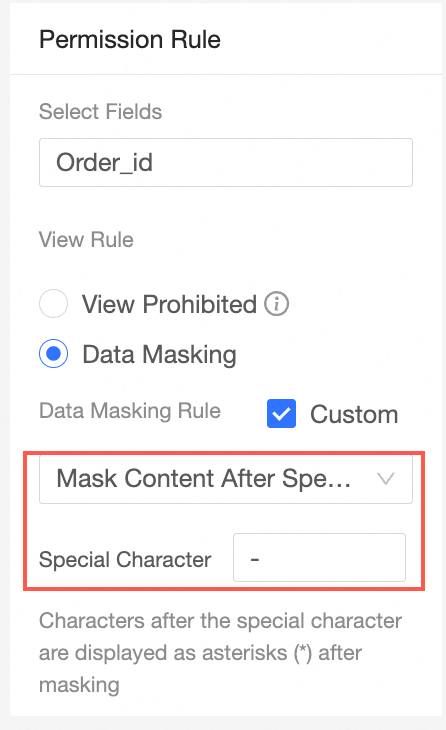 effect is as follows:
Keep Special Characters
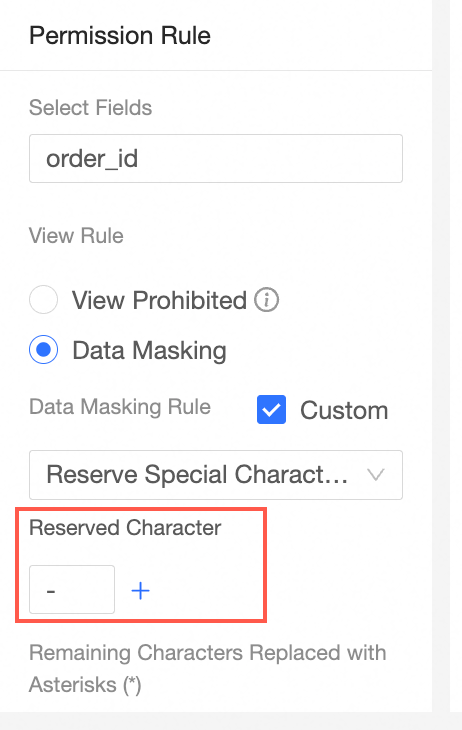
Examples:

Configure data masking rules.
Log on to the
to set column-level permissions on the target dataset in the console.
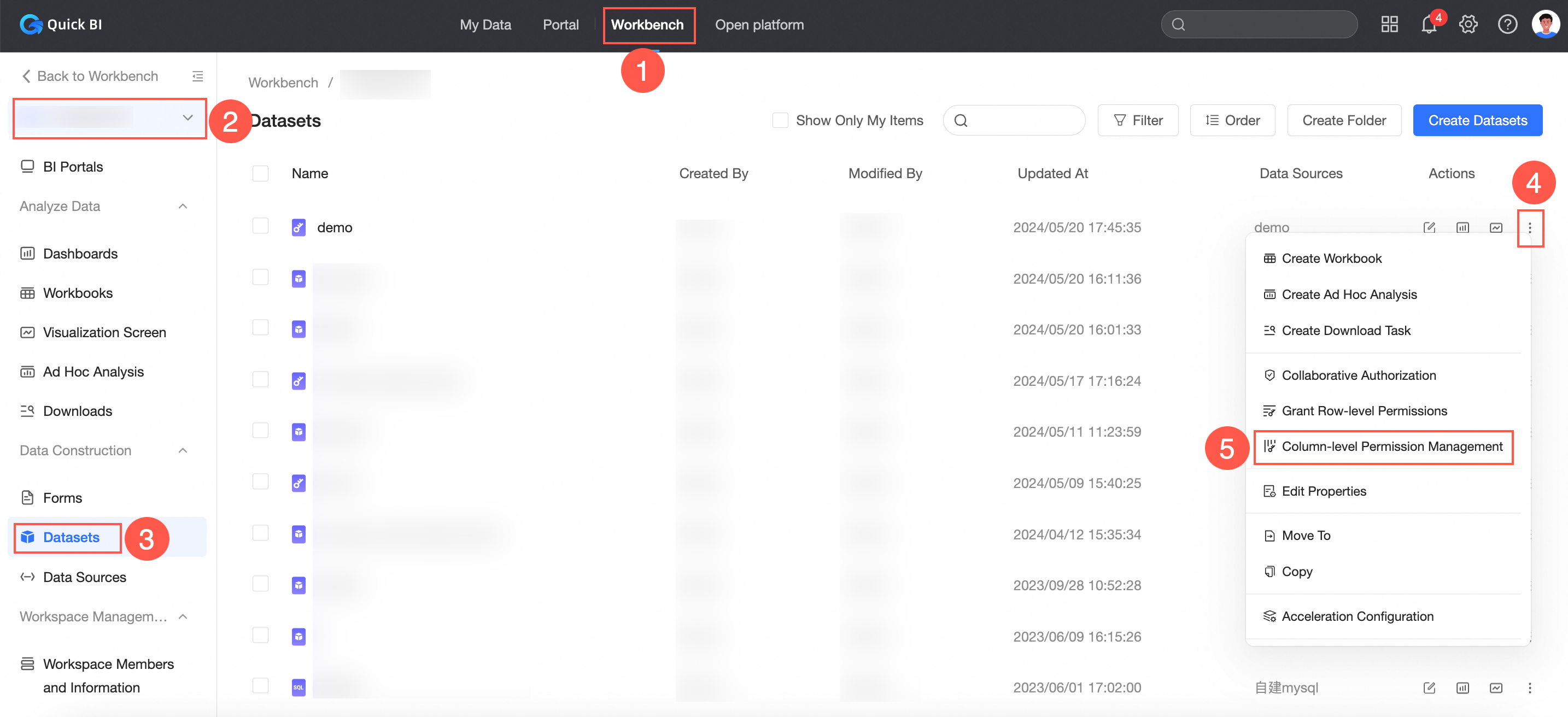
Turn on Enable Column-level Permissions.
After you enable column-level permissions, you can configure the view permissions on the specified fields and other fields.
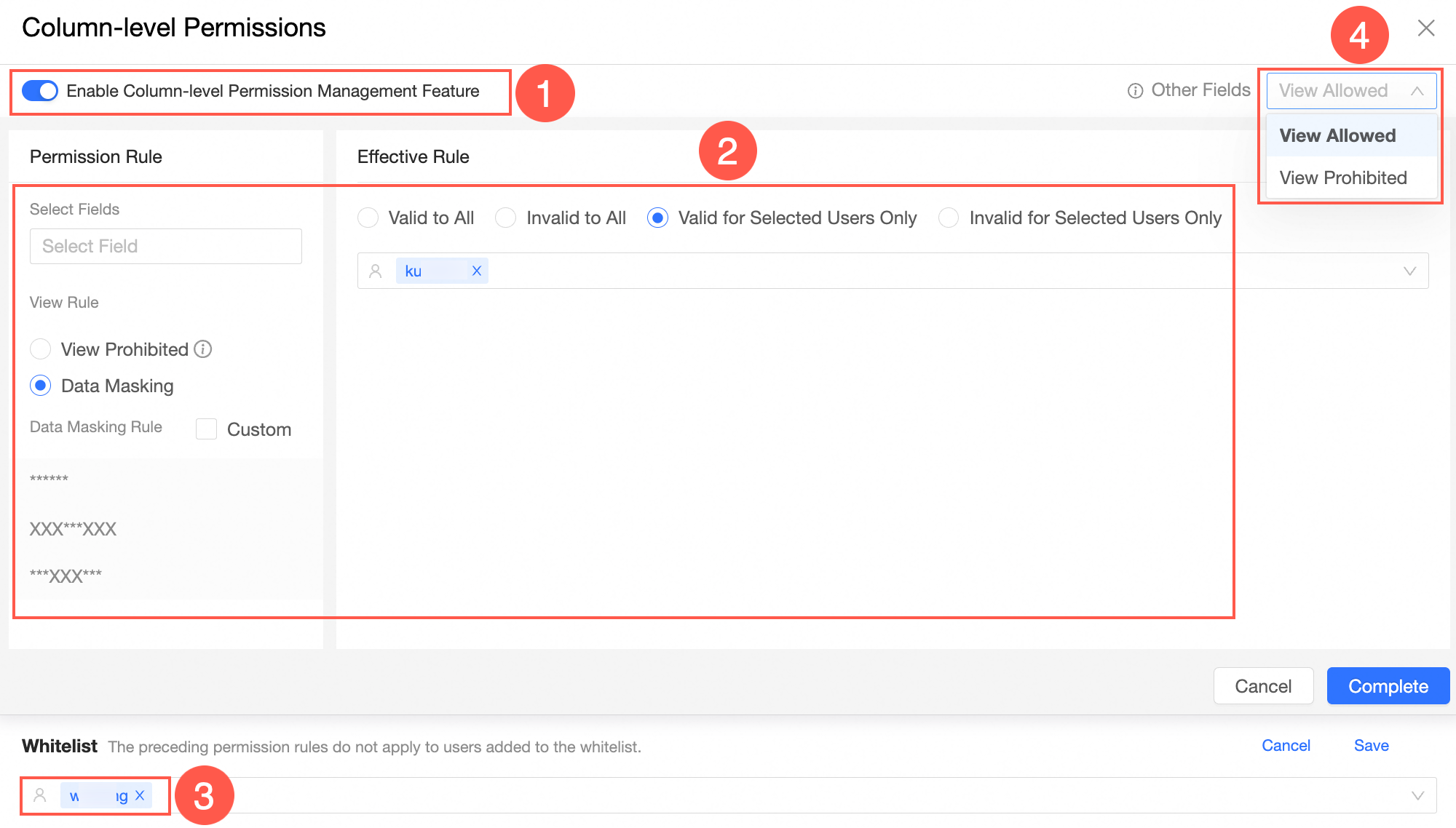
Set the view permissions on a specified field.
Click Add Field.
On the Permission Rules page, select a field and set Rule to Data Mask.
Users for whom the permission rule takes effect can only view the masked values of the field.
For more information, see Desensitization rules and effects.
Set the authorization object.
You can specify the users for whom the permission rule takes effect. Valid values: Valid to All, Invalid to All, Valid for Selected Users Only, and Invalid for Selected Users Only.
Authorized object
Parameters
Valid for Selected Users Only
You can select this option to achieve the following effects:
For the specified user or user group:
The field values are masked based on the permission rule.
For users other than the specified user or outside of the specified user group:
The complete field values are displayed.
.
Invalid for Selected Users Only
You can select this option to achieve the following effects:
For the specified user or user group:
The complete field values are displayed.
For users other than the specified user or outside of the specified user group:
The field values are masked based on the permission rule.
Valid to All or Invalid to All
The effect varies based on the option that you select:
If the permission rule takes effect for a user, the user can view the masked values of the field.
If the permission rule does not take effect for a user, the user can view the complete field values.
Click OK.
Set the permissions to view other fields.
Fields that are not selected from the Select Fields drop-down list are considered as other fields.
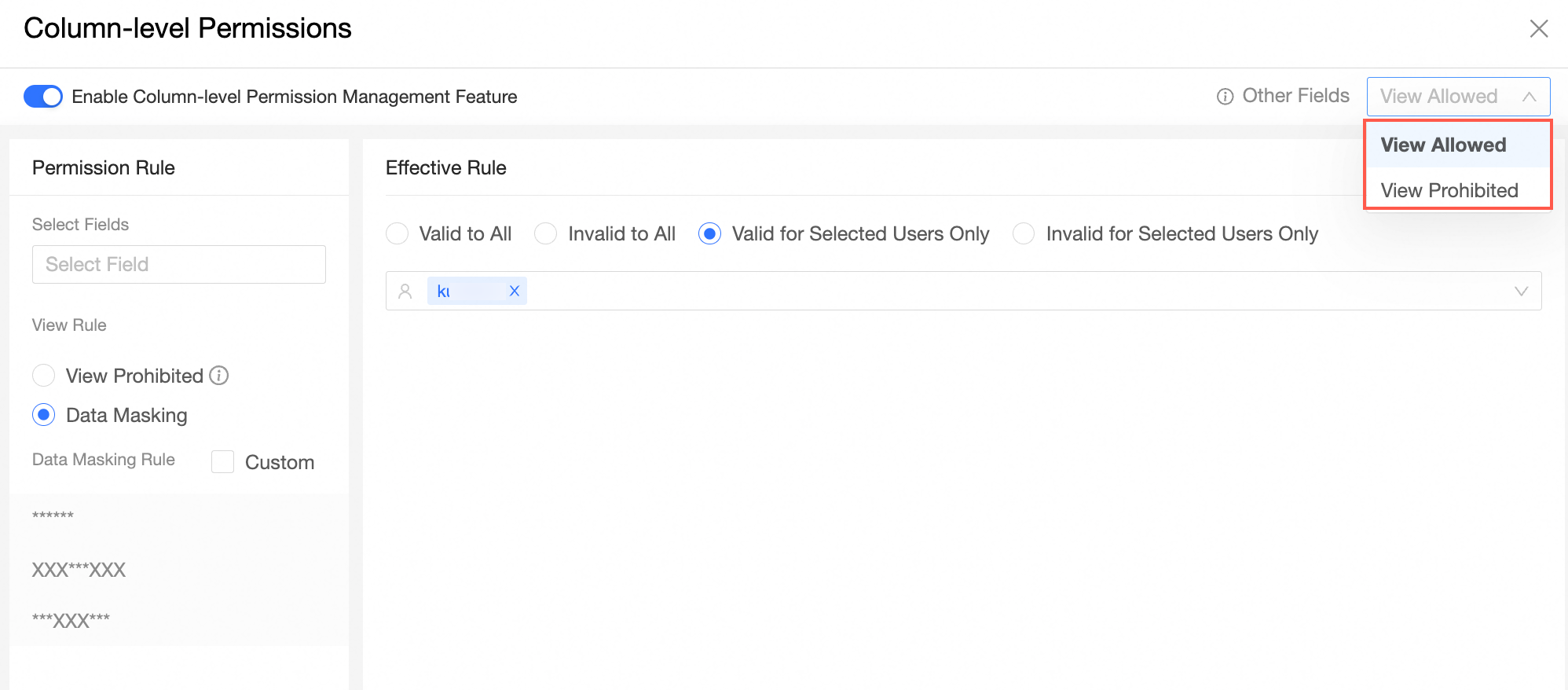
If you select View Allowed for Other Fields, users for whom a permission rule takes effect can view the complete values of other fields.
If you select View Prohibited for Other Fields, users for whom a permission rule takes effect cannot view other fields or can view the masked values of other fields based on the permission rule.
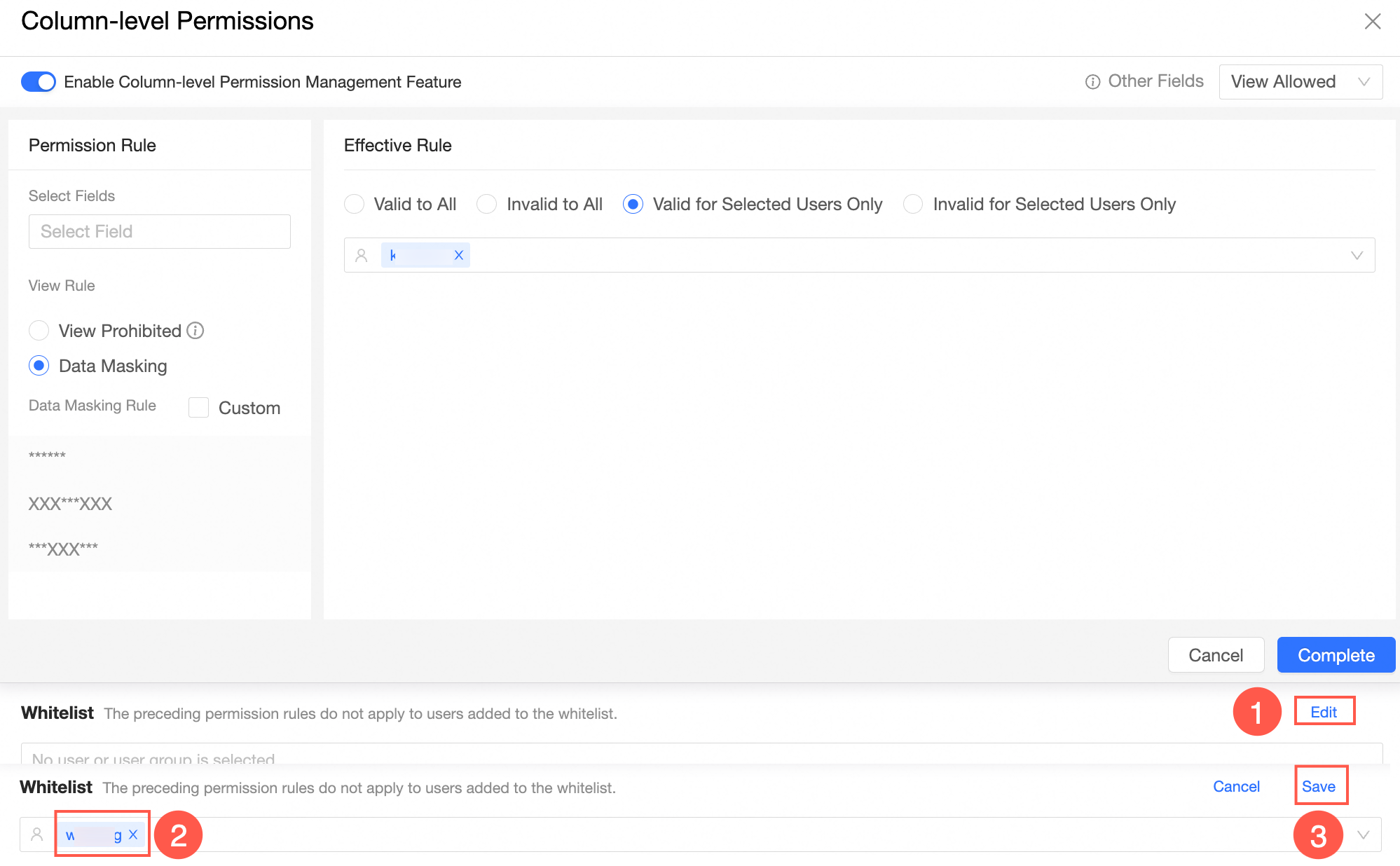
Configure a whitelist.
Users added to the whitelist are not restricted by permission rules. They can view the complete field values of the dataset.
What to do next
After you configure the dataset, you can analyze data in the dataset. For more information, see Create a dashboard and Create a chart.