A symbol map displays data points as icons or images on a map background, helping you visualize location-based datasets at a glance.
Prerequisites
-
You have created a dashboard. For more information, see Create a dashboard.
-
Ensure that the geographical area field you want to add has been converted to geographic information. For more information, see Configure fields.
NoteFor example, if the geographical area field you add to the chart is area, the field is converted to geographic information when the
 icon appears. For a mapping table with detailed information for each region, see public-area-info.xlsx. This file is for geographical area matching reference only and does not represent the political views of Quick BI.
Limitations
When creating a symbol map in area name mode, the map uses Area Name/Dimension and Tooltip/Measure:
-
Area Name uses one dimension from your data, which must be a geographical field. For example, a province.
-
Tooltip/Measure uses one to five measures from your data. For example, order amount and profit amount.
When creating a symbol map in longitude and latitude mode, the map uses Longitude and Latitude/Dimension, Location Tag/Dimension, and Tooltip/Measure:
-
Longitude and Latitude uses one longitude and one latitude field from your data.
-
Location Tag is an optional dimension. It supports string and geographical dimension types.
-
Tooltip/Measure uses one to five measures from your data. For example, order amount and profit amount.
Chart overview
Use cases
Symbol maps work well for datasets that contain location data, displaying summarized, continuous information for specific regions.
Benefits
-
Visual effects: Represents data points with icons or images.
-
Interactive operations: Supports zooming, metric switching, and in-component data filtering.
Example
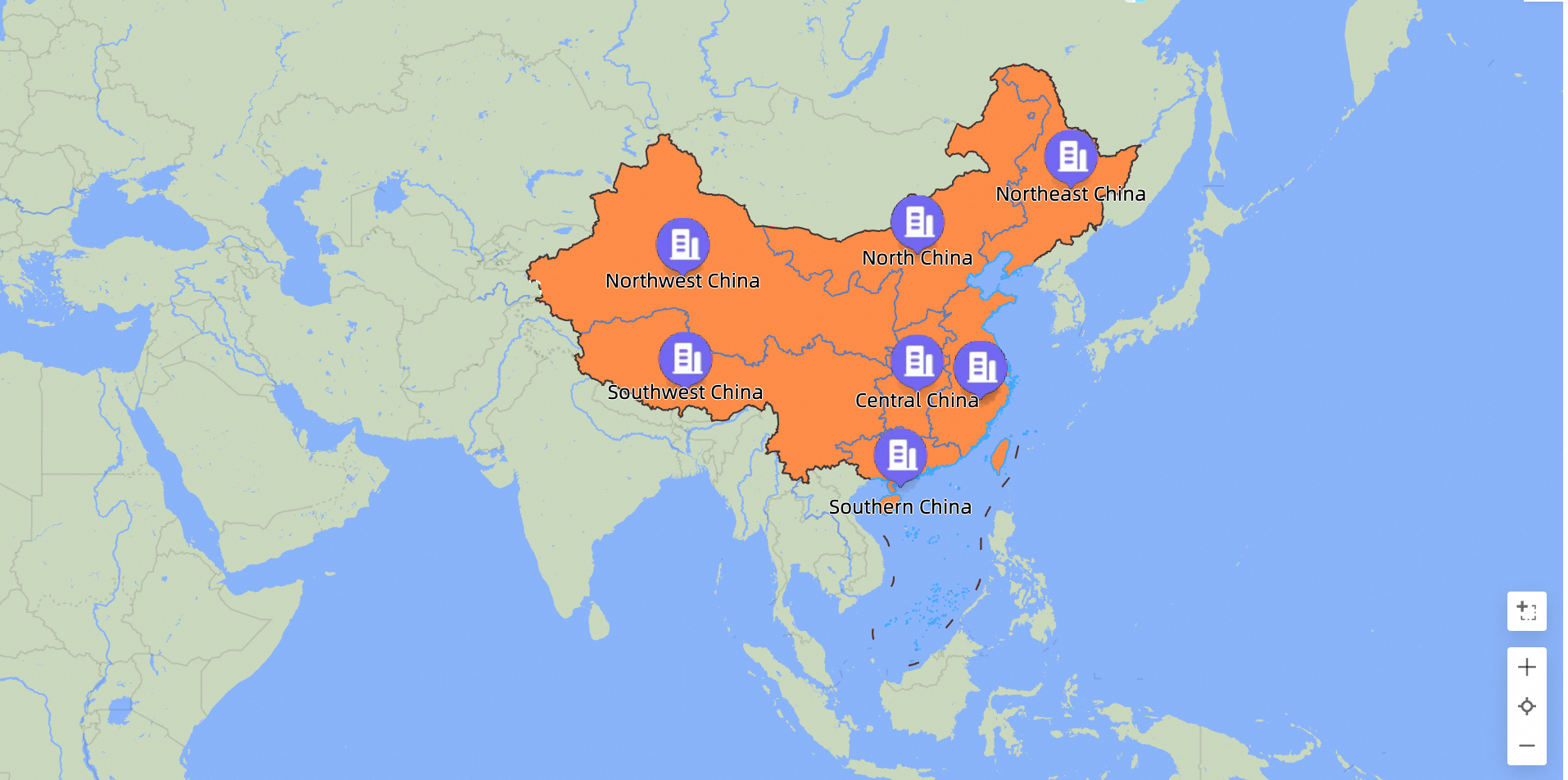
Configure chart fields
-
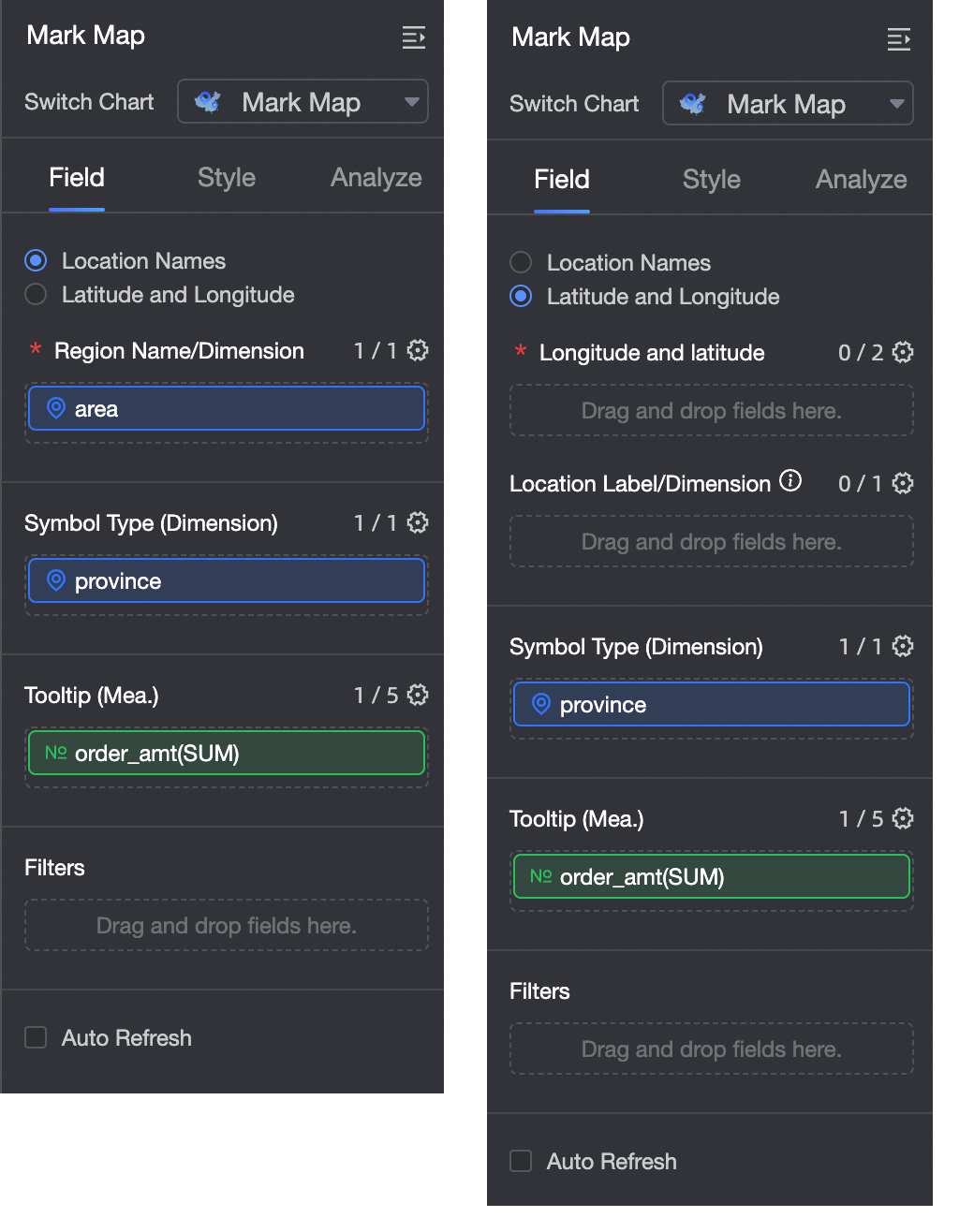
On the Fields tab, select the dimension and measure fields that you need:
-
In the Geographic Information section, you can create the map in two ways: by area name or by longitude and latitude.
-
If you select Area Name, double-click or drag the Area field to the Area Name/Dimension well.
-
If you select Longitude and Latitude, double-click or drag the Longitude and Latitude fields to the Longitude and Latitude/Dimension well. The Location Tag/Dimension field is optional.
-
-
Symbol Type generates different symbol styles based on the selected dimension values. In the Dimensions list, double-click or drag the Store Type field to the Symbol Type/Dimension well.
-
In the Measures list, find the Order Amount field and double-click or drag it to the Tooltip/Measure well.
-
-
Click Update. The system automatically updates the chart.
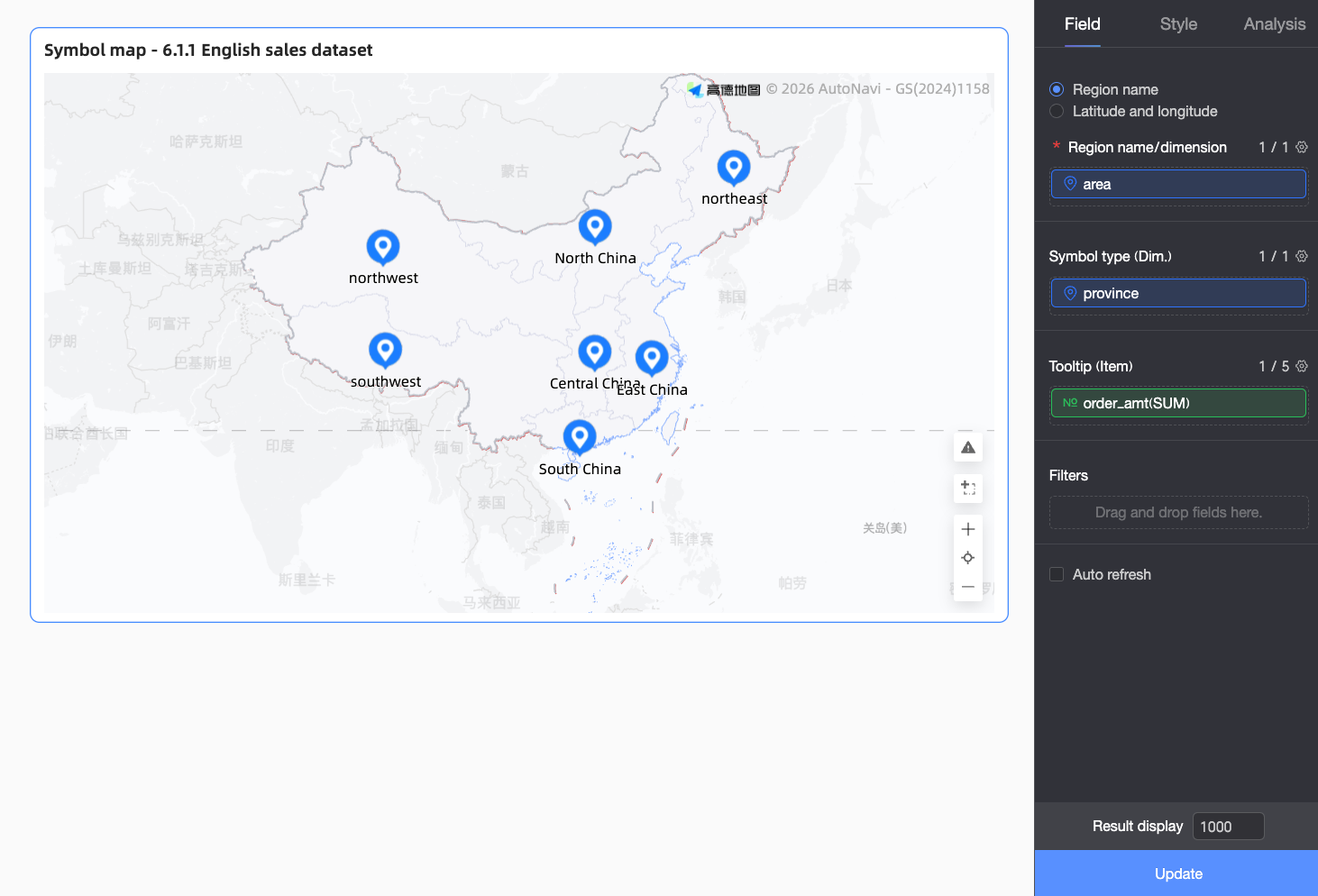 Note
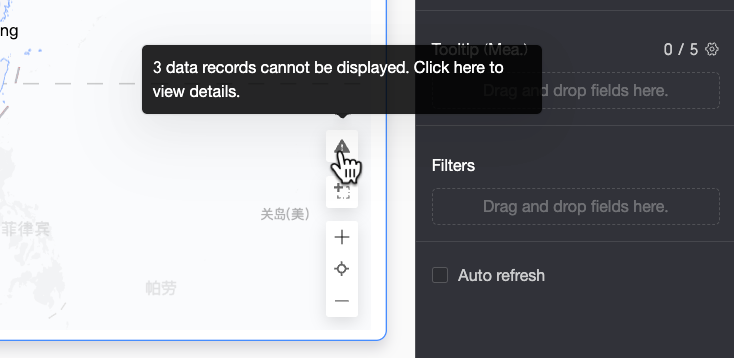
NoteIf area values in your data cannot be matched to the standard geographical names supported by the system, a prompt icon appears in the lower-right corner of the chart. Click the icon to view details about the data that failed to be displayed, which helps you troubleshoot and correct data issues.
-
On the Details of data that failed to be displayed page, you can view and copy the unmatched raw records. You can then use the copied content to batch-correct the data in the dataset's field configuration section.
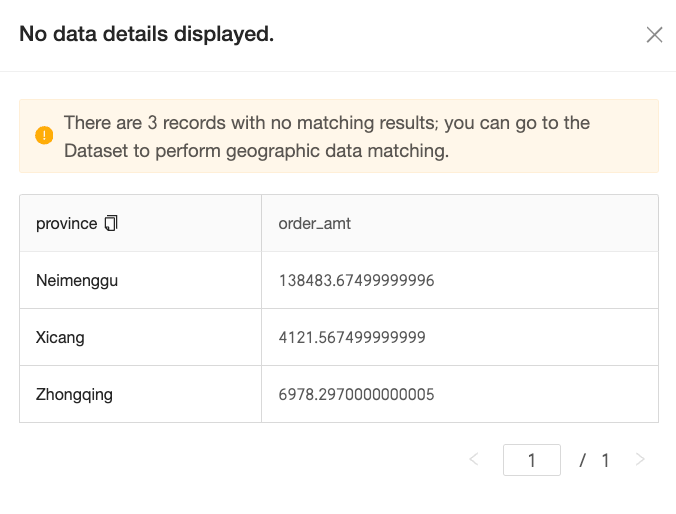
-
After you complete the configuration, the map data is displayed correctly.
-
Configure Styles
The following describes how to configure chart styles. For general style settings, see Configure the chart title area.
Geographical area
In the Map Area, set Display Range and Outline and Fill.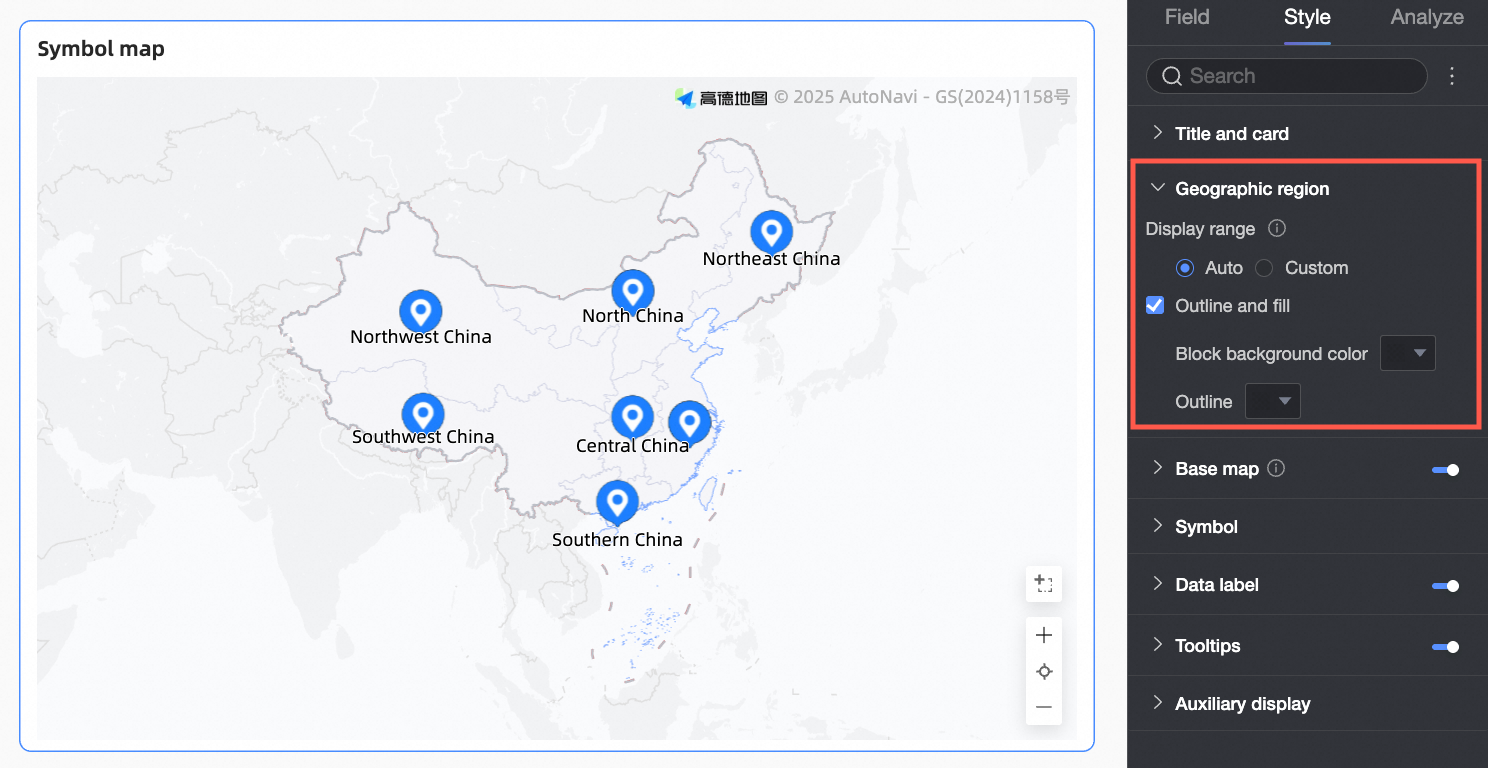
|
Setting |
Description |
|
Display range |
Supports Auto and Custom ranges. In this example, China is selected. Note
Turn on Manual adjustment. The current Center point and Zoom level are automatically generated. You can then adjust them manually. |
|
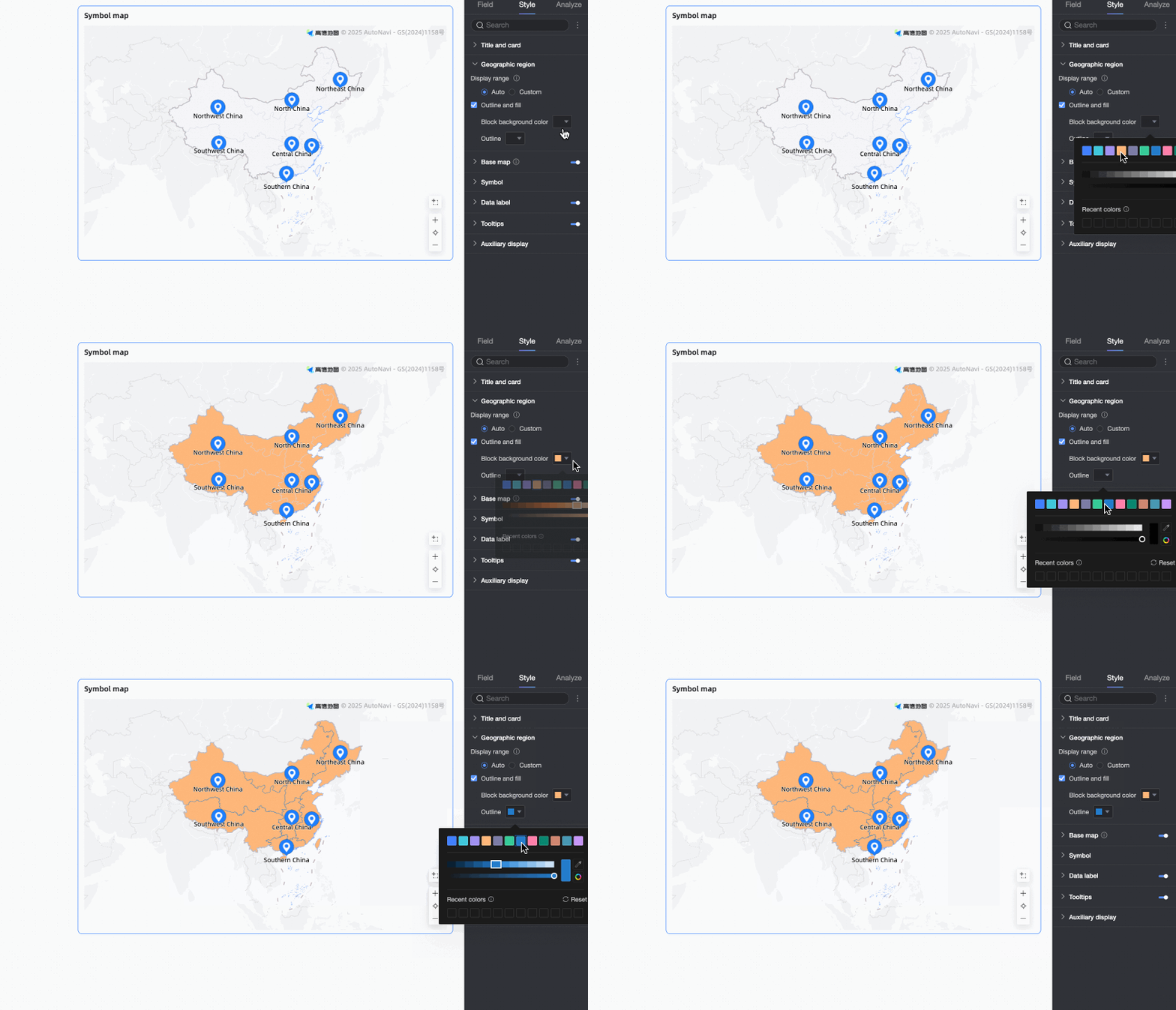
Outline and fill |
Configure the colors for the Area background color and Outline. Note
Outlines are not supported for some regions.
|


Basemap
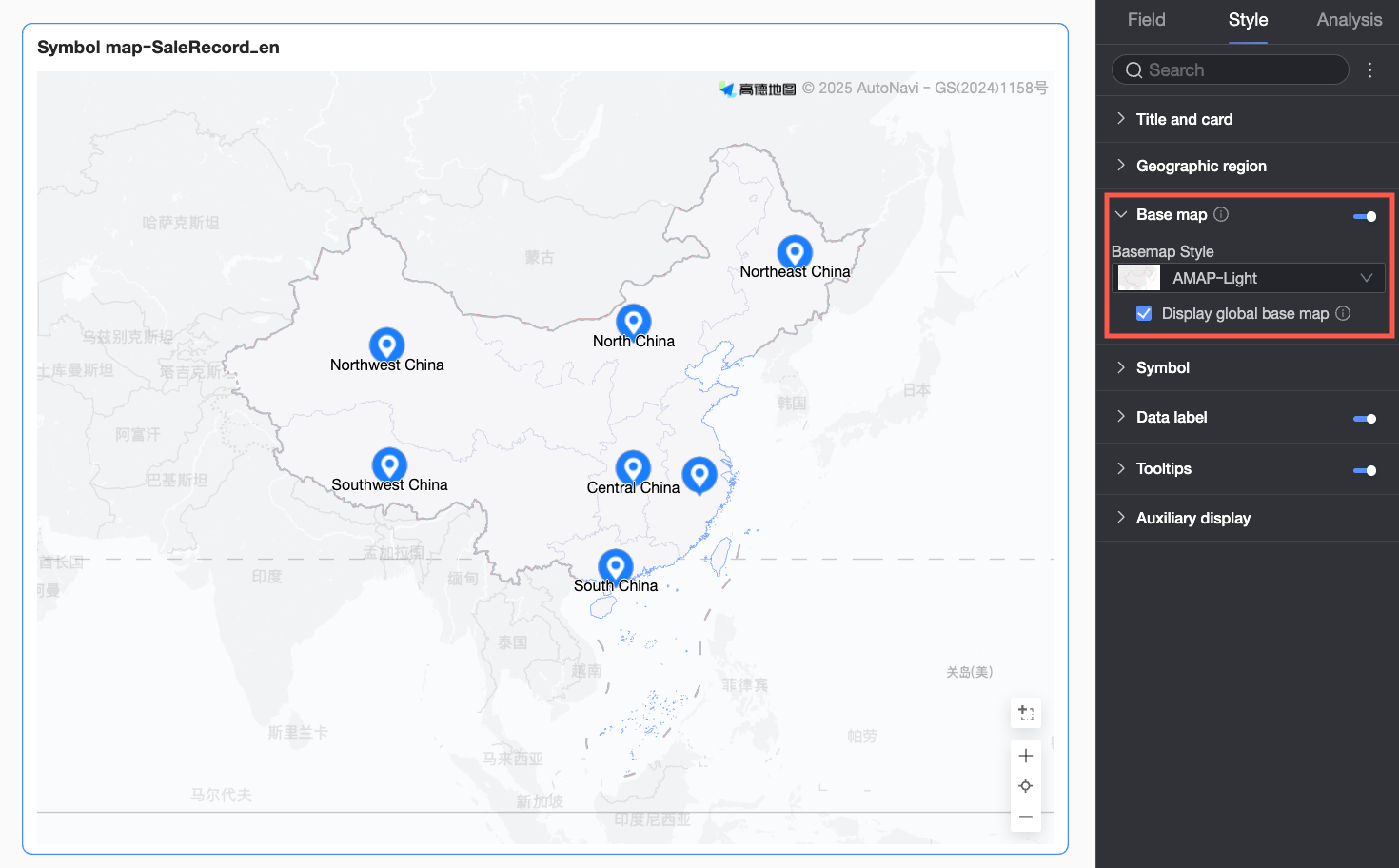
In the Basemap settings, set whether to Show basemap, the Basemap style, and whether to Show global basemap.
Internet Explorer currently does not support Amap basemaps.
|
Setting |
Description |
|
Show basemap |
Toggle the switch |
|
Basemap style |
Select a style for the Amap basemap. |
|
Show global basemap |
Select this option to display global information, such as cities, on the basemap. Note
Global basemap usage limit: Each Quick BI organization can preview map charts with overseas basemap data 1,000 times per month. A preview is counted each time a basemap is initialized. If this limit is exceeded, map charts will show only domestic basemap data. |
 to show or hide the basemap.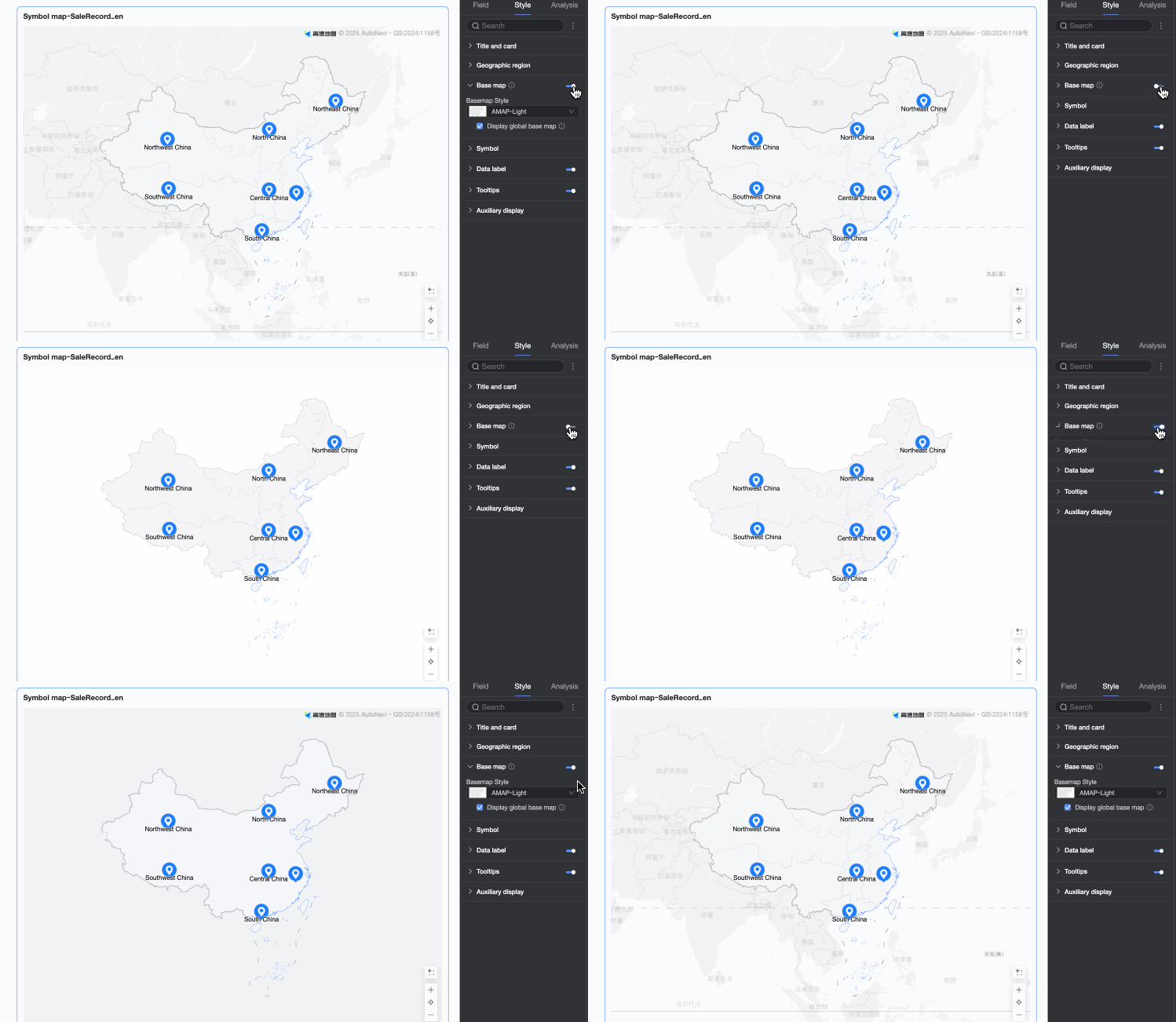
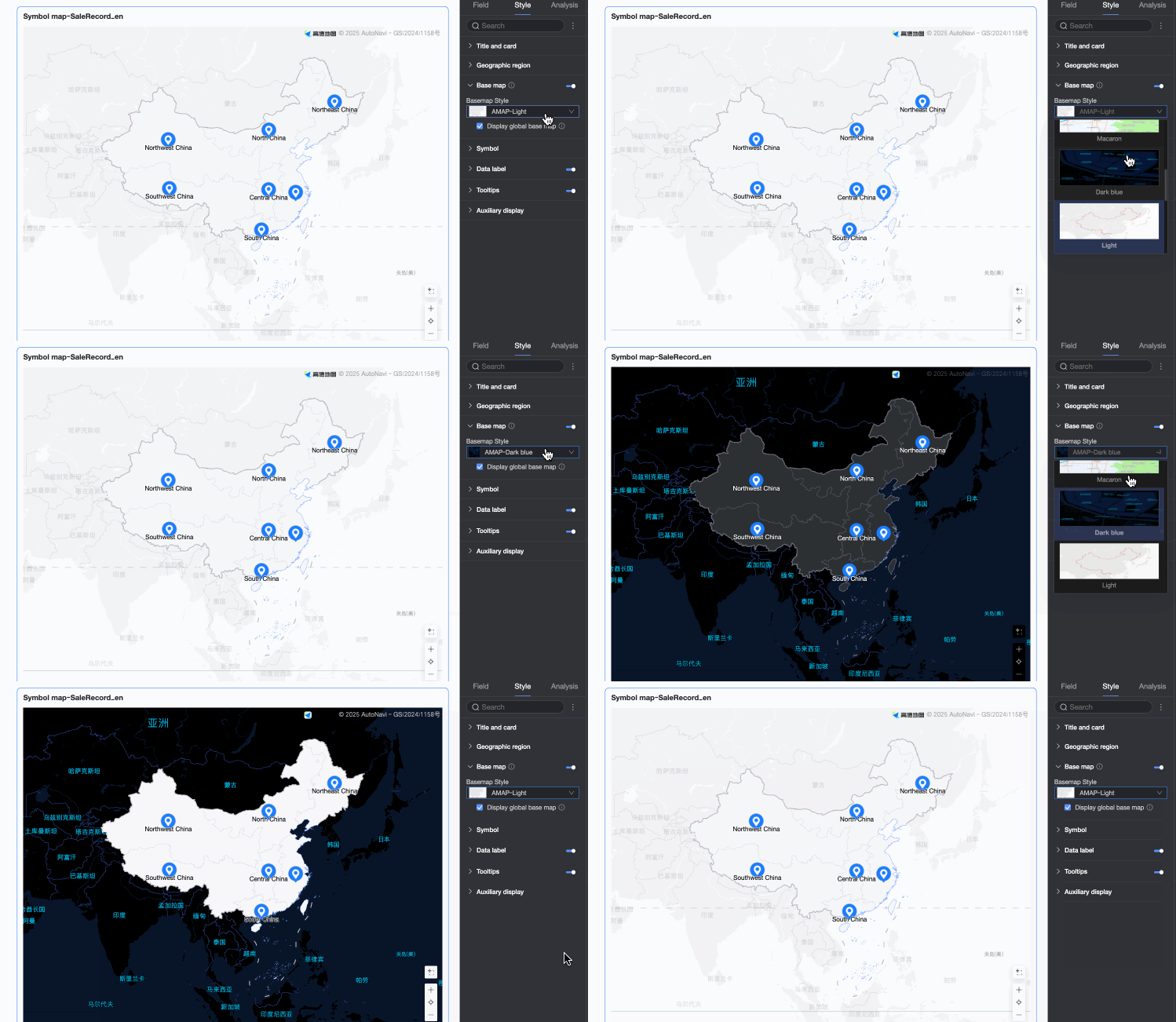
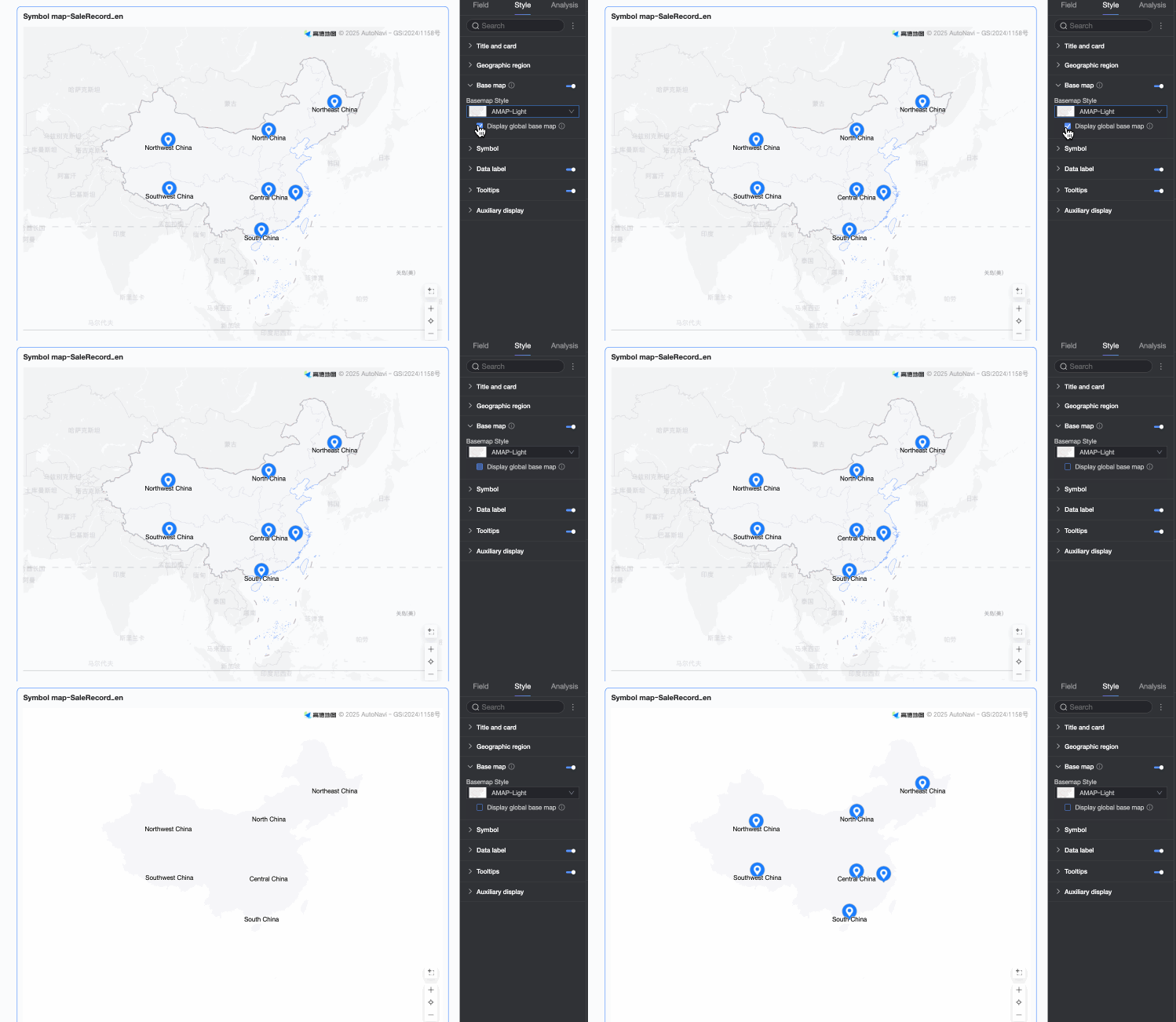
Symbols
In Symbol, set the Symbol style, Symbol size, and Symbol opacity. The available options vary depending on the fields in the field panel.
-
When a field is configured in Symbol Type/Dimension, the following settings are available.
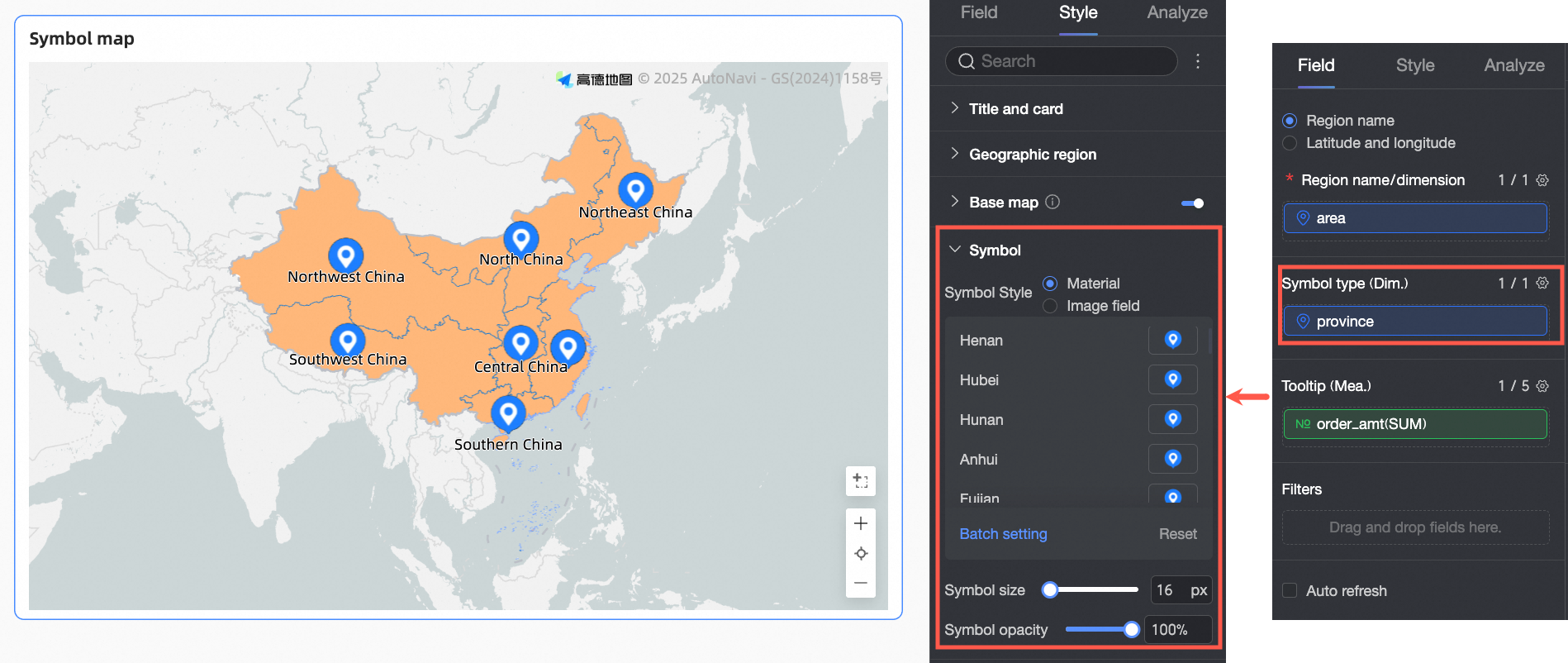
Setting
Description
Symbol Style
You can select Asset or Image Field.
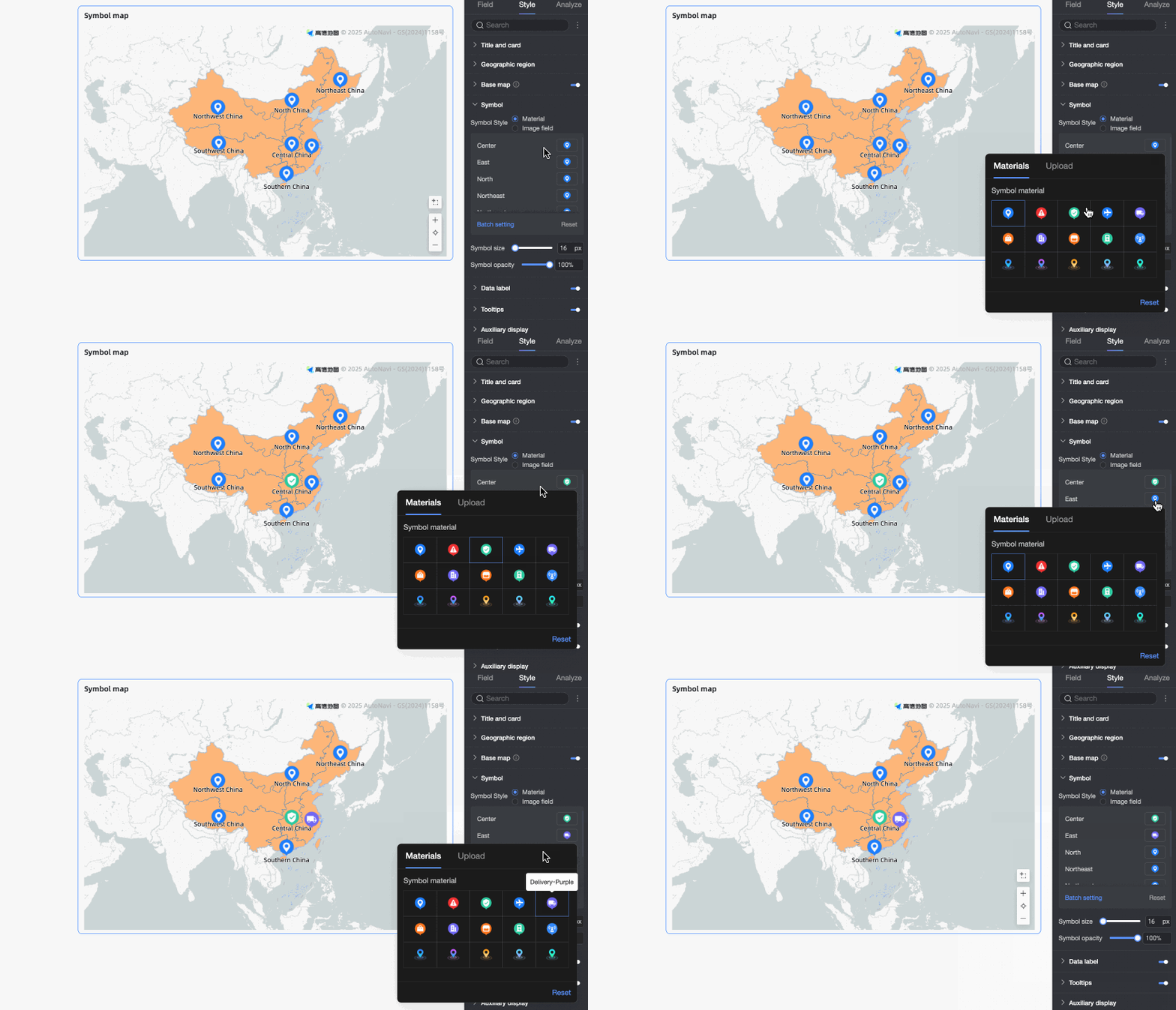
-
Asset: Sets a different graphic pattern for each dimension value. You can select from built-in assets or upload custom images.
-
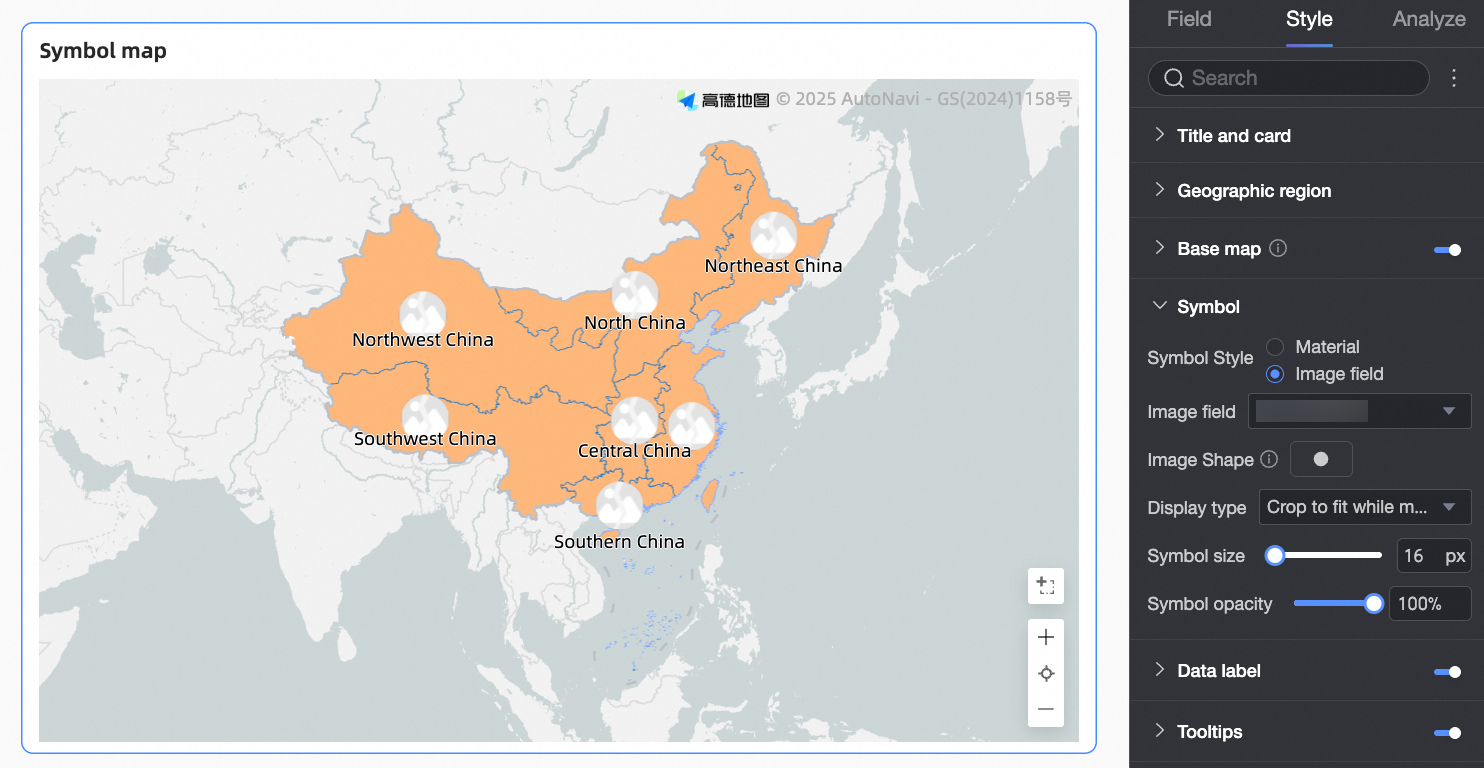
Image Field: Fills symbols with images from an image field in the dataset. The Image Field option is available only if the dataset contains an image field of the image type (
 ).
).
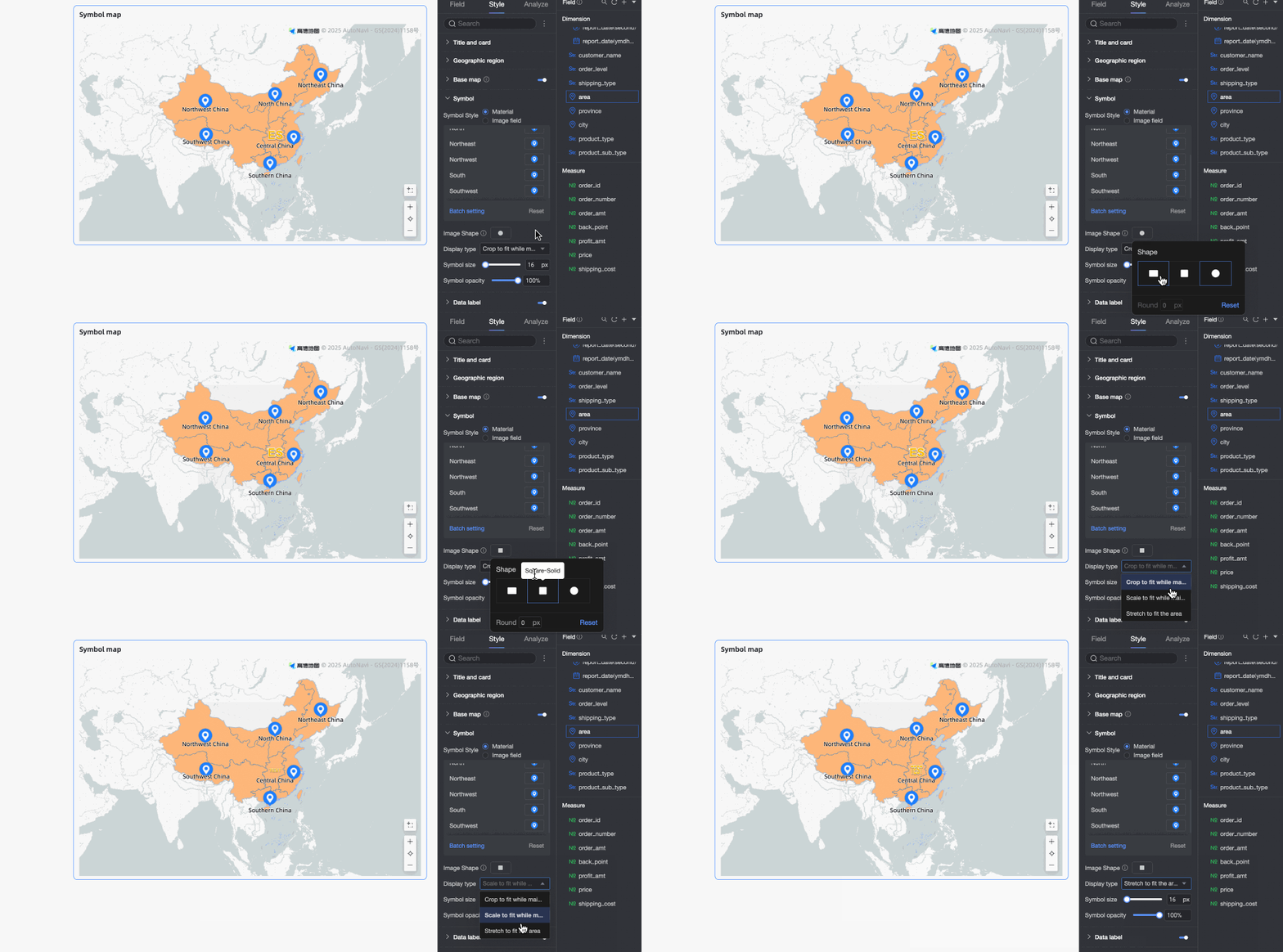
When you upload custom images or use an image field, you can also set the image shape and display mode.
Symbol Size
Sets the size of the symbols in the chart.
Symbol Opacity
Sets the opacity of the symbols in the chart.
-
-
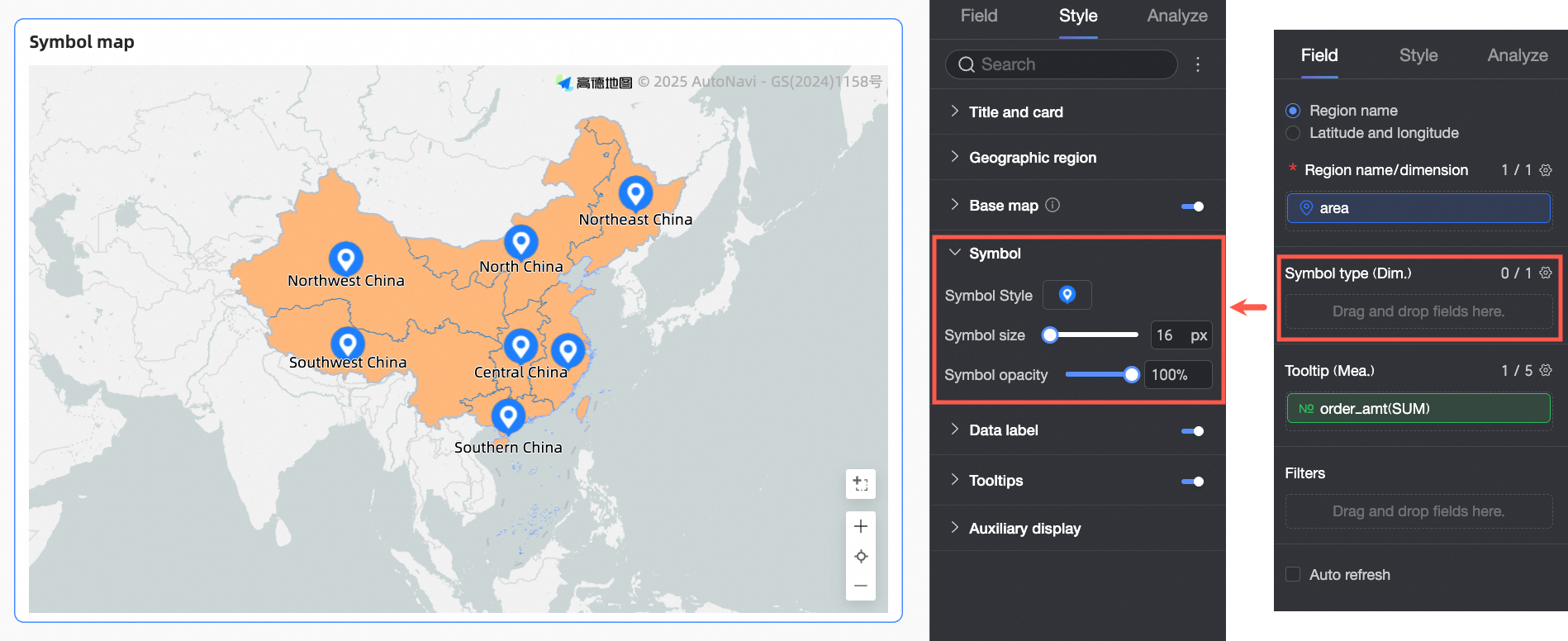
When no field is configured in Symbol Type/Dimension, the following settings are available.
Setting
Description
Symbol Style
Sets the style for all symbols in the chart. You can select from built-in symbols or upload a custom image. You cannot configure a separate style for each dimension value.
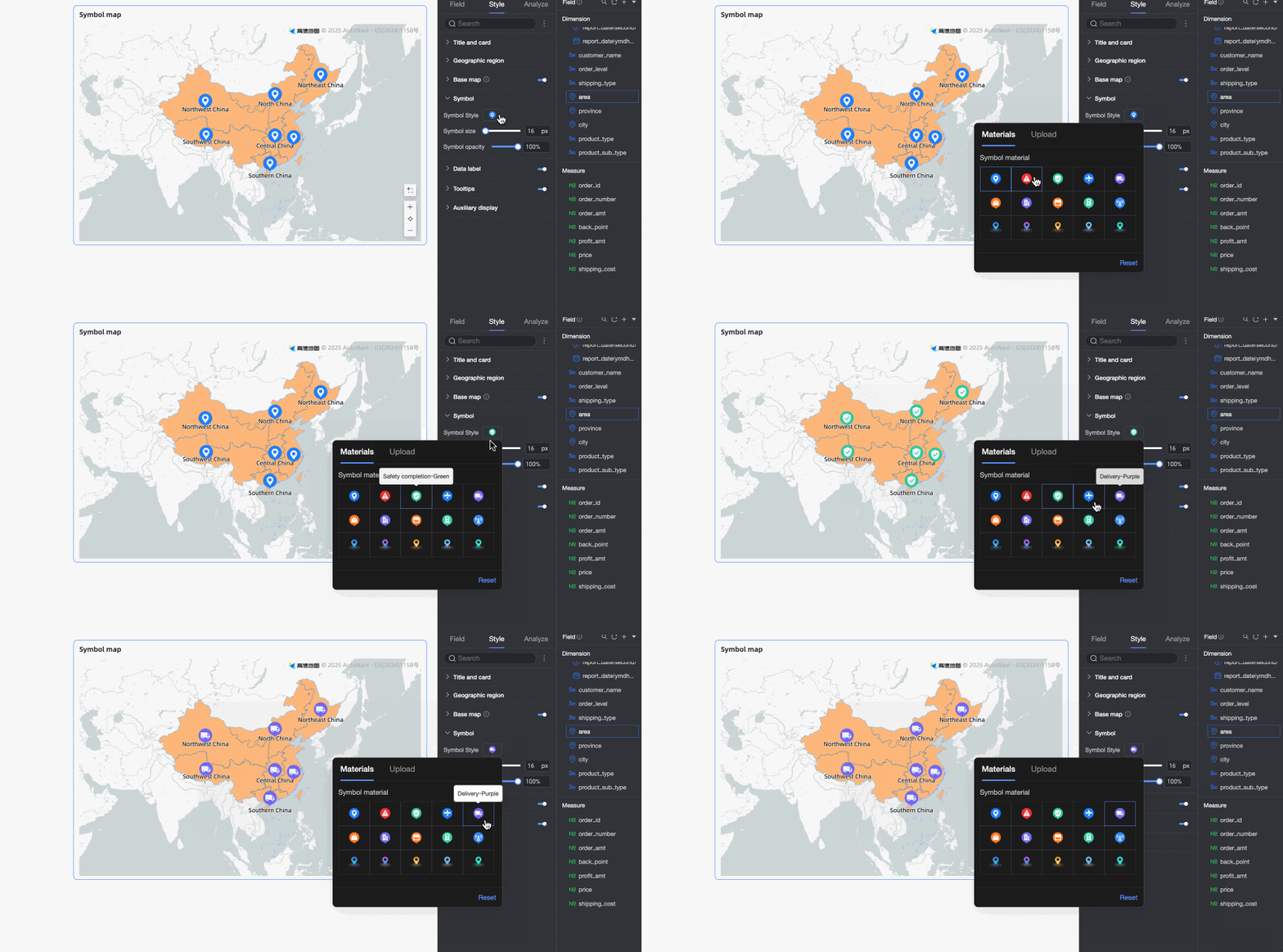
Symbol Size
Sets the size of the symbols in the chart.
Symbol Opacity
Sets the opacity of the symbols in the chart.
Data label
In Data Label, configure Show Data Label, Label Display Format, and Text Style.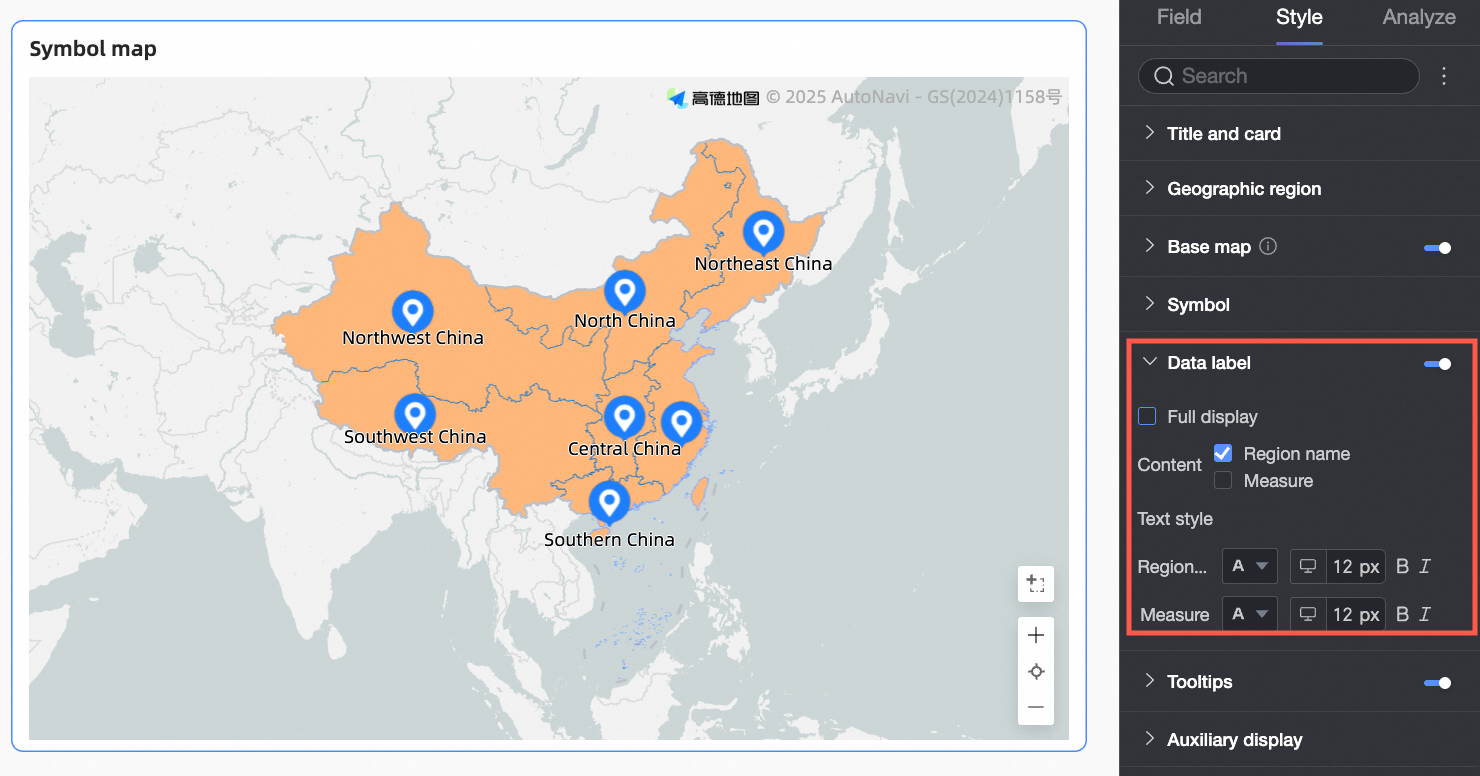
|
Setting |
Description |
|
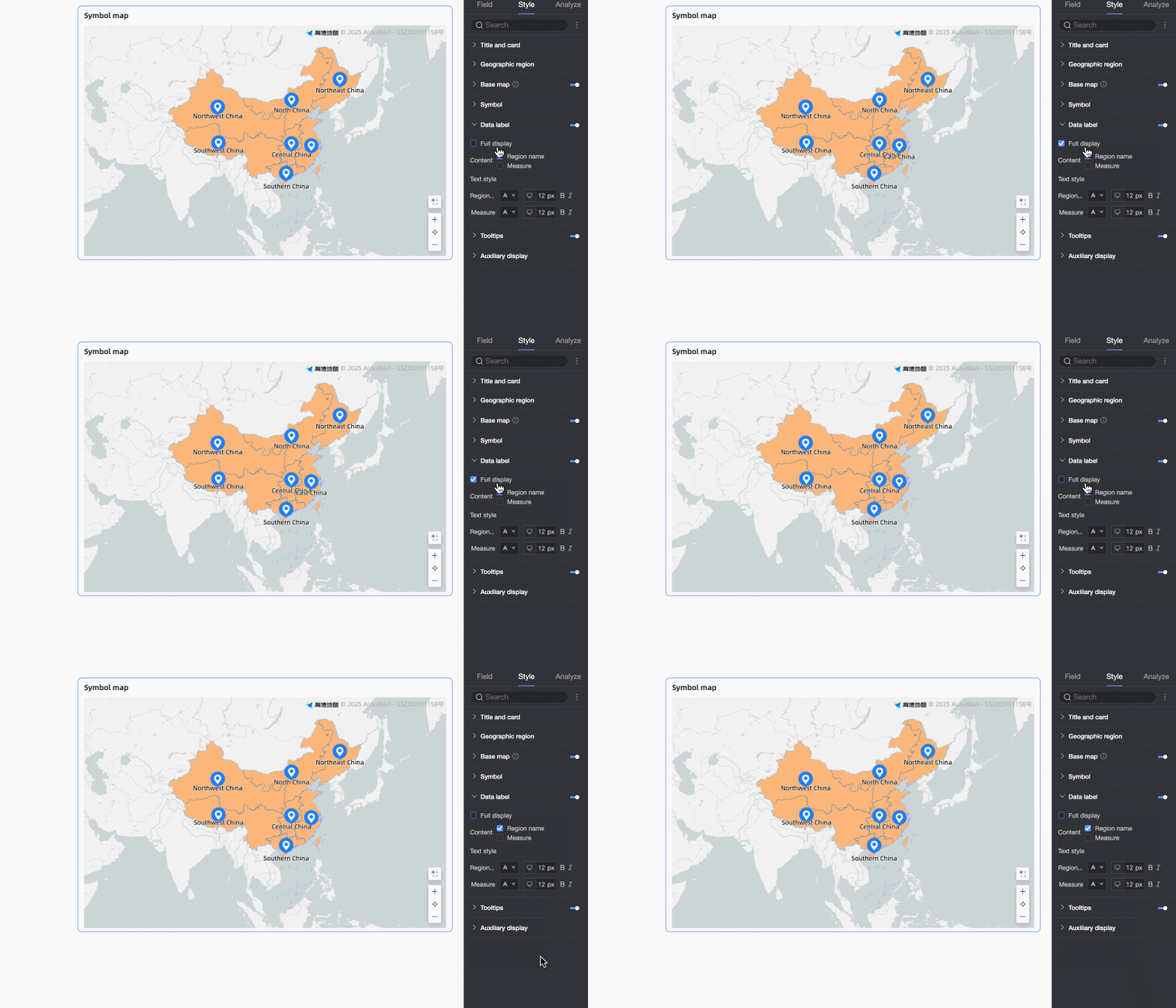
Show all |
Shows all dimension values in the chart. Useful when you have a small number of dimension values and enough space. |
|
Content |
Specifies what to display in the chart.
|
|
Text style |
Sets the text style for data labels, such as font size and color. |
Tooltip
Configure styles
Configure the visual styles of the symbol map below. For general chart style settings, see Configure the chart title area.
Geographical area
In the Map Area section, configure Display range and Outline and fill.
|
Parameter |
Description |
|
Display range |
Options: Auto and Custom. In this example, China is selected. Note
Turn on Manual Adjustment to automatically generate the current Center Point and Zoom Level. You can also modify them manually. |
|
Outline and fill |
Configure the colors for the Area Color and Outline. Note
Outlines are not supported for some regions.
|
Basemap
In the Basemap section, configure Show Basemap, Basemap Style, and Show Global Basemap.
The Amap basemap is not supported in Internet Explorer (IE).
|
Parameter |
Description |
|
Show basemap |
Toggle |
|
Basemap style |
Supports various styles for the Amap basemap. |
|
Show global basemap |
Select this option to display global information, such as cities, on the basemap. Note
Global basemap usage limitations: Each Quick BI organization can preview map charts that contain overseas basemap information 1,000 times per month, based on the number of basemap initializations. If you exceed this limit, the map displays only domestic information. |
Symbol
In the Symbol section, configure Symbol style, Symbol size, and Symbol opacity. The available settings depend on your field configuration.
-
When a field is configured in Symbol Type/Dimension, you can configure the following settings.
Parameter
Description
Symbol style
You can select Material or Image Field.
-
Material: Set a different pattern for each dimension value. You can use built-in materials or upload a custom image.
-
Image field: Select an image from an image field in the dataset to use as the fill. The Image field option is available only if the dataset contains a field of the image type (
).
When you upload a custom image or use an image field, you can also configure the shape and display mode of the image.
Symbol size
Set the size of the symbols in the chart.
Symbol opacity
Set the opacity of the symbols in the chart.
-
-
When no field is configured in Symbol Type/Dimension, you can configure the following settings.
Parameter
Description
Symbol style
Set a single style for all symbols in the chart. You can choose from built-in materials or upload a custom image. You cannot configure styles for individual dimension values.
Symbol size
Set the size of the symbols in the chart.
Symbol opacity
Set the opacity of the symbols in the chart.
Data label
In the Data Label section, configure Show Data Label, Label Display Format, and Text Style.
|
Parameter |
Description |
|
Display all |
Shows all dimension values. Suitable when there are few dimension values and ample space in the chart. |
|
Content |
Select the content to display on the chart.
|
|
Text style |
Set the font size, color, and other text styles for data labels. |
Tooltip
In the Tooltip section, click the  icon to enable tooltips and configure their styles.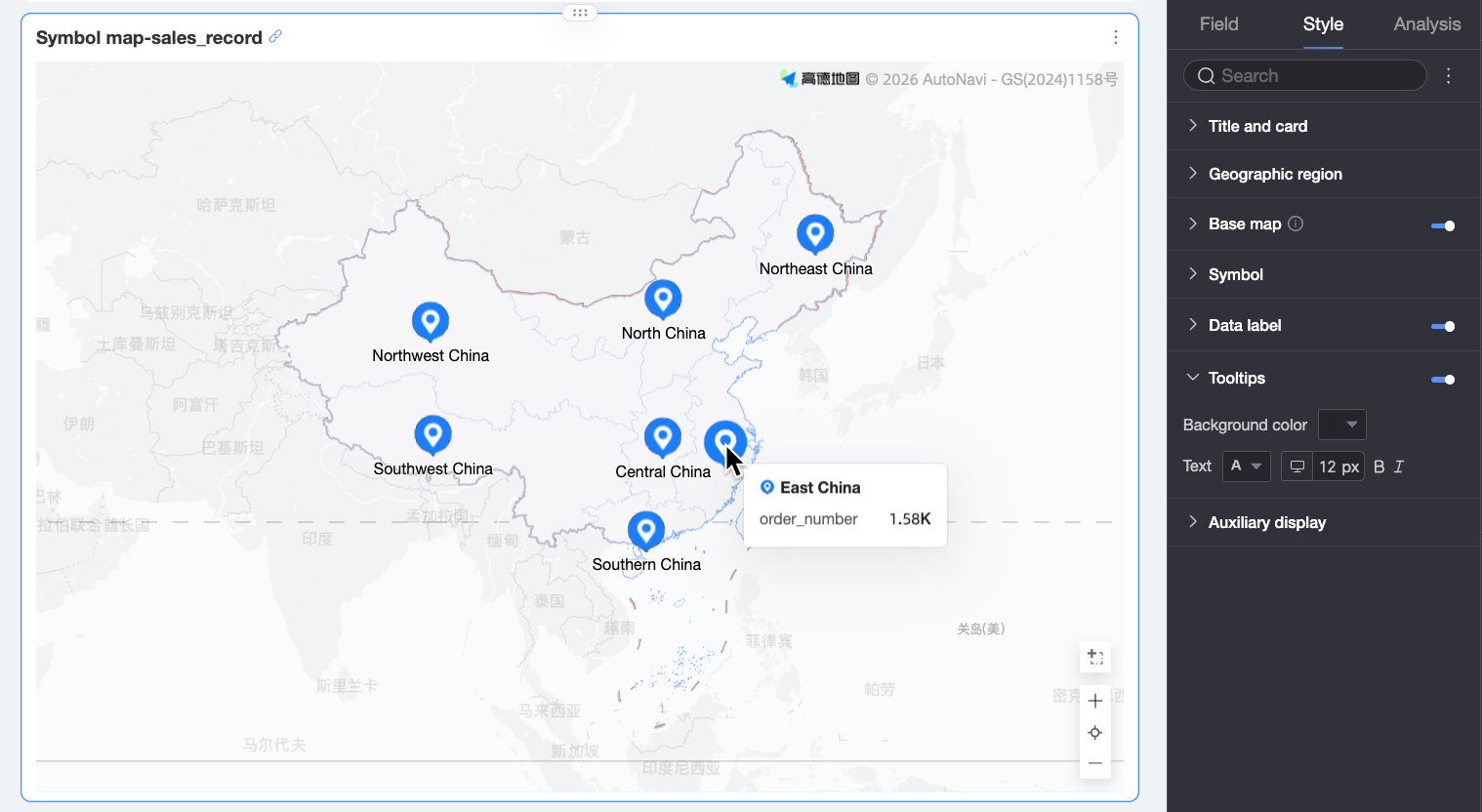
|
Parameter |
Description |
|
Background color |
Set the background color of the tooltip. |
|
Text |
Set the tooltip text style, including font color, size, weight, and italic. |
|
Mobile tooltip |
PC and mobile tooltips are enabled independently. Use the PC/Mobile toggle ( |
 ) at the top of the dashboard editor to switch to the mobile editor and configure mobile tooltips. Font size is set separately for PC and mobile; other styles are shared.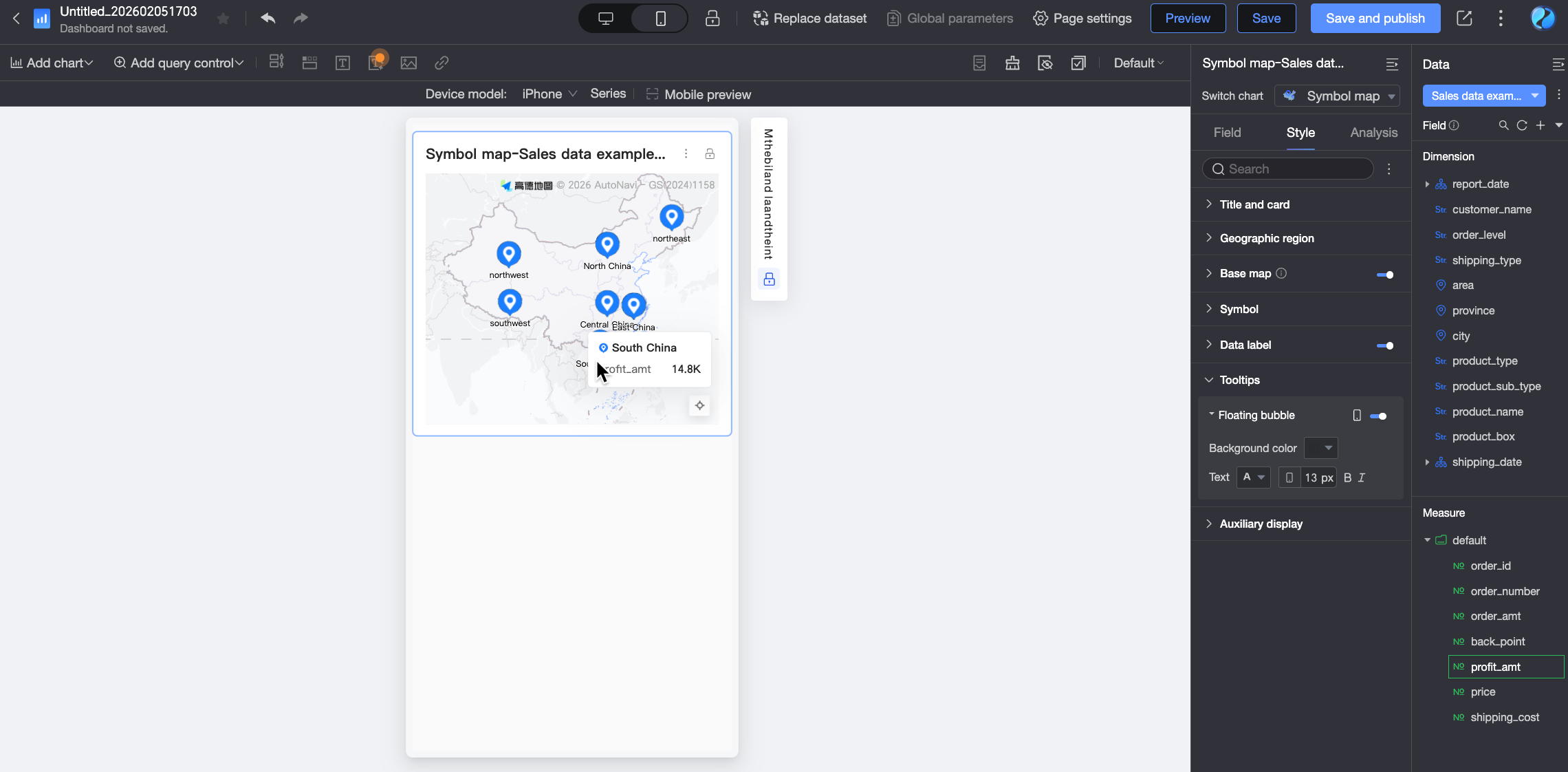
Metric selector
In the Metric selector section, enable the metric filter and set the default metric.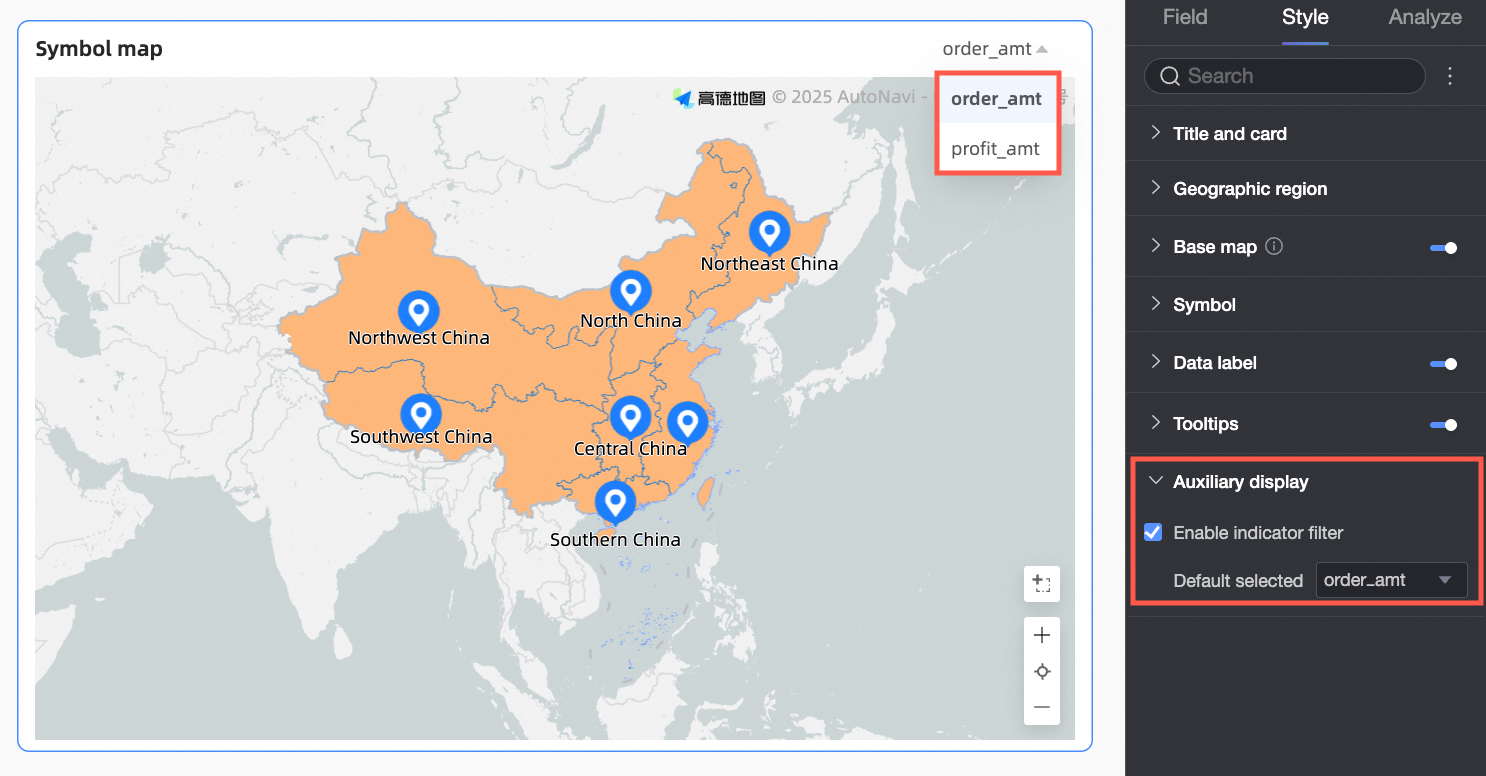
Advanced chart settings
|
Parameter |
Description |
|
Auto-refresh |
When this option is selected, the system automatically refreshes the chart data. For example, if you set the duration to 5 and select minutes as the unit, the system automatically refreshes the chart data every 5 minutes. |
|
Linkage |
To analyze data across different charts, use chart linkage for coordinated analysis. For more information, see Drill-down. Note
Symbol maps do not support the advanced linkage feature. |
|
Navigation |
To analyze data across multiple dashboards, use dashboard navigation. The two navigation methods are parameter-based navigation and external links. For details, see Drill-down. |