Configure data and styles for progress bar charts that visualize metric completion.
Chart Overview
Scenarios
Track progress, monitor indicators, analyze trends, and spot anomalies in enterprise or business performance at a glance.
Benefits
-
Calculation: One-click completion rate.
-
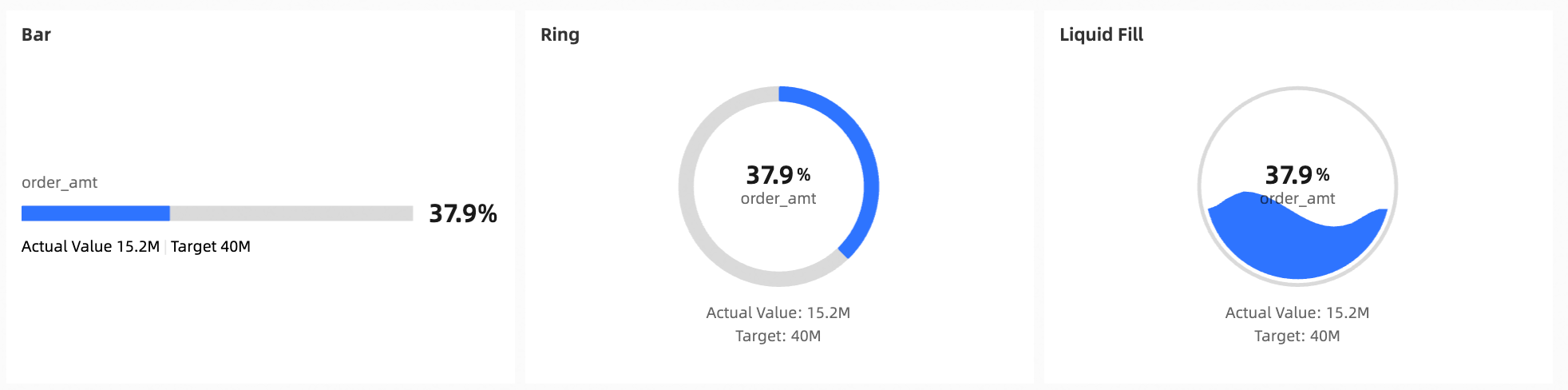
Visualization: Includes bar, ring, and liquid fill styles.
-
Annotations: Add metric notes, endnotes, and links to external systems.
Example
Limits
-
Prerequisites: You have created a dashboard. Create a dashboard.
-
Notes
-
Set a target value in the section before using the progress bar.
-
When you add data, the Progress Indicator/Measure field lists measures from your dataset. Select one to five measures.
-
Configure Chart Data
-
From the Measures list in the Data panel, select a field and double-click or drag it to the Progress Indicator/Measure area.
In this example, the destination field is Order amount.
-
Click Update.
-
On the Style tab, set a target value in the Current Value/Target Value section.
In this example, a fixed value of 40000000 is set.
 Note
NoteYou must set a Target Value. Otherwise, the progress always shows 100%.
Configure Chart Styles
-
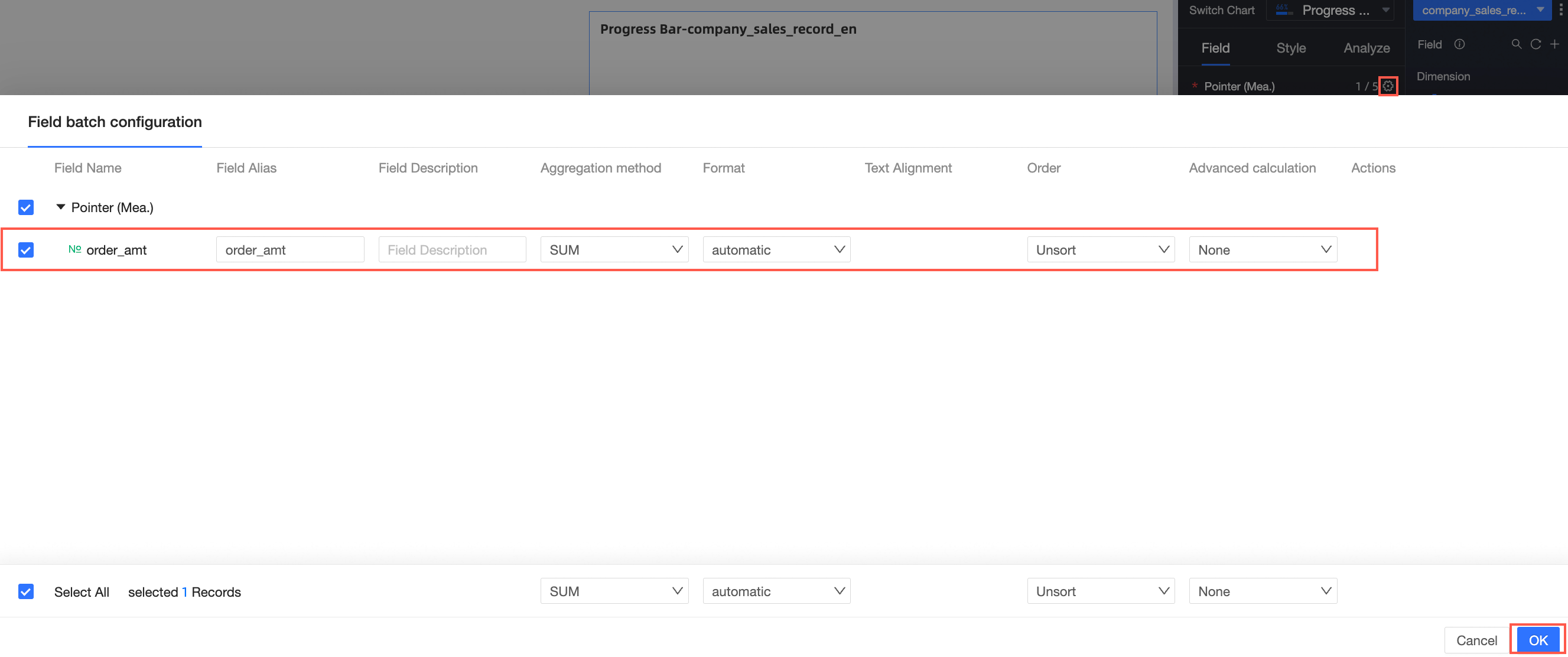
Batch format chart fields on the Fields tab in Chart Design.
-
Configure progress bar styles on the Style tab in Chart Design.
This section describes the chart style configuration. For more information, see Configure the chart title.
Use the search box to find a configuration item, or click the
 icon to Expand/Collapse all categories.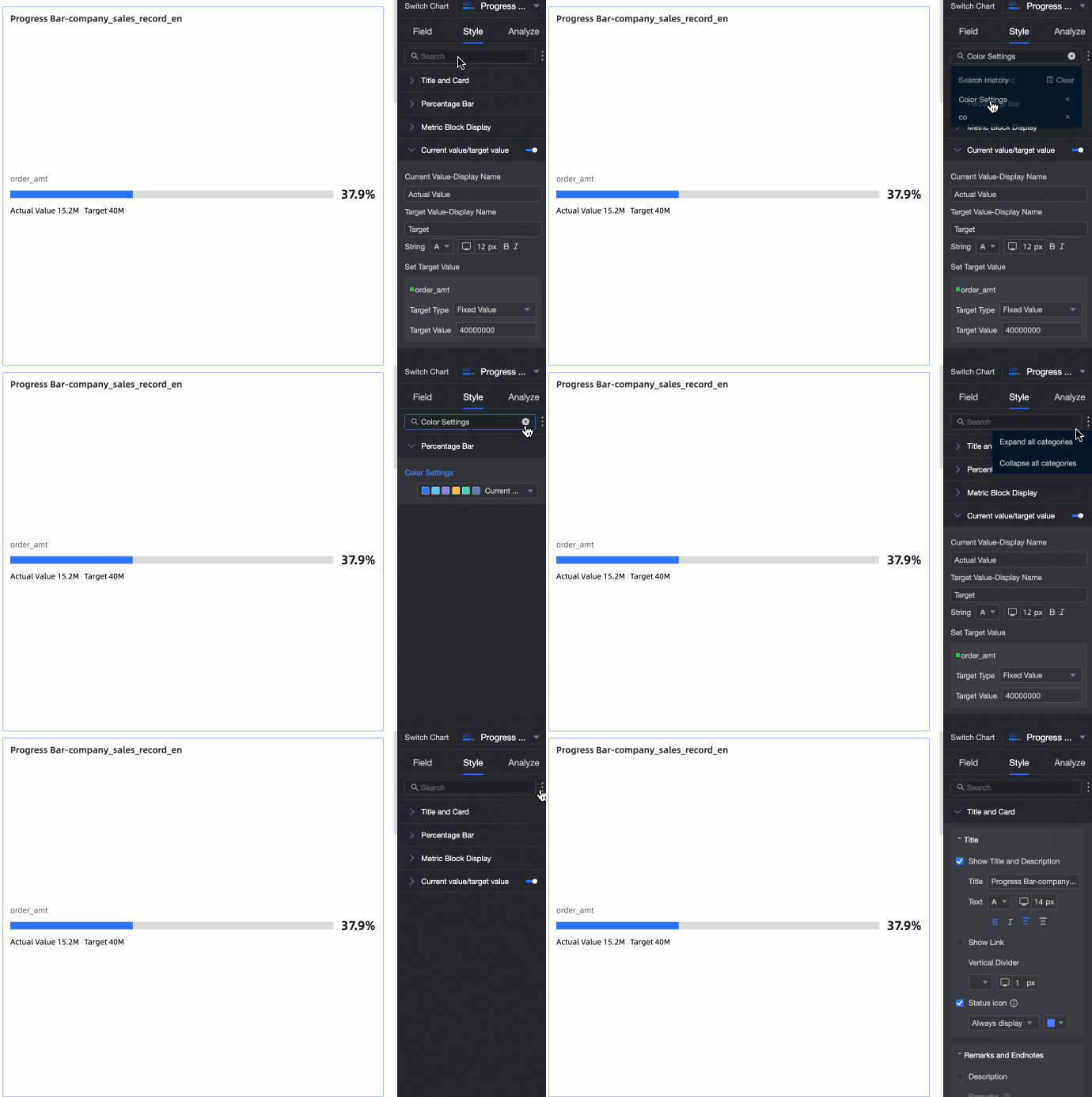
-
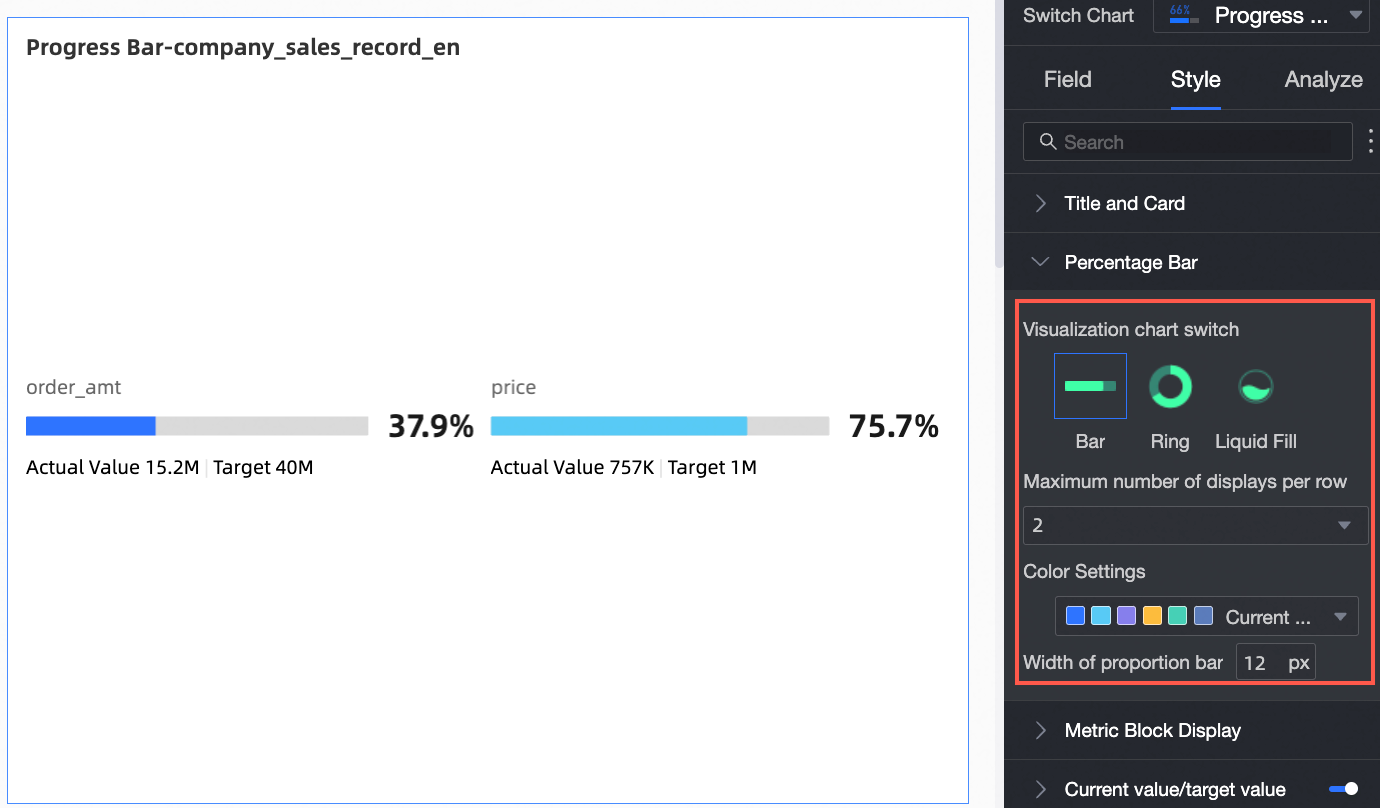
The Progress Bar section controls chart type, Display Count, Color Palette, and Progress Bar Width.
Configuration Item
Configuration Item Description
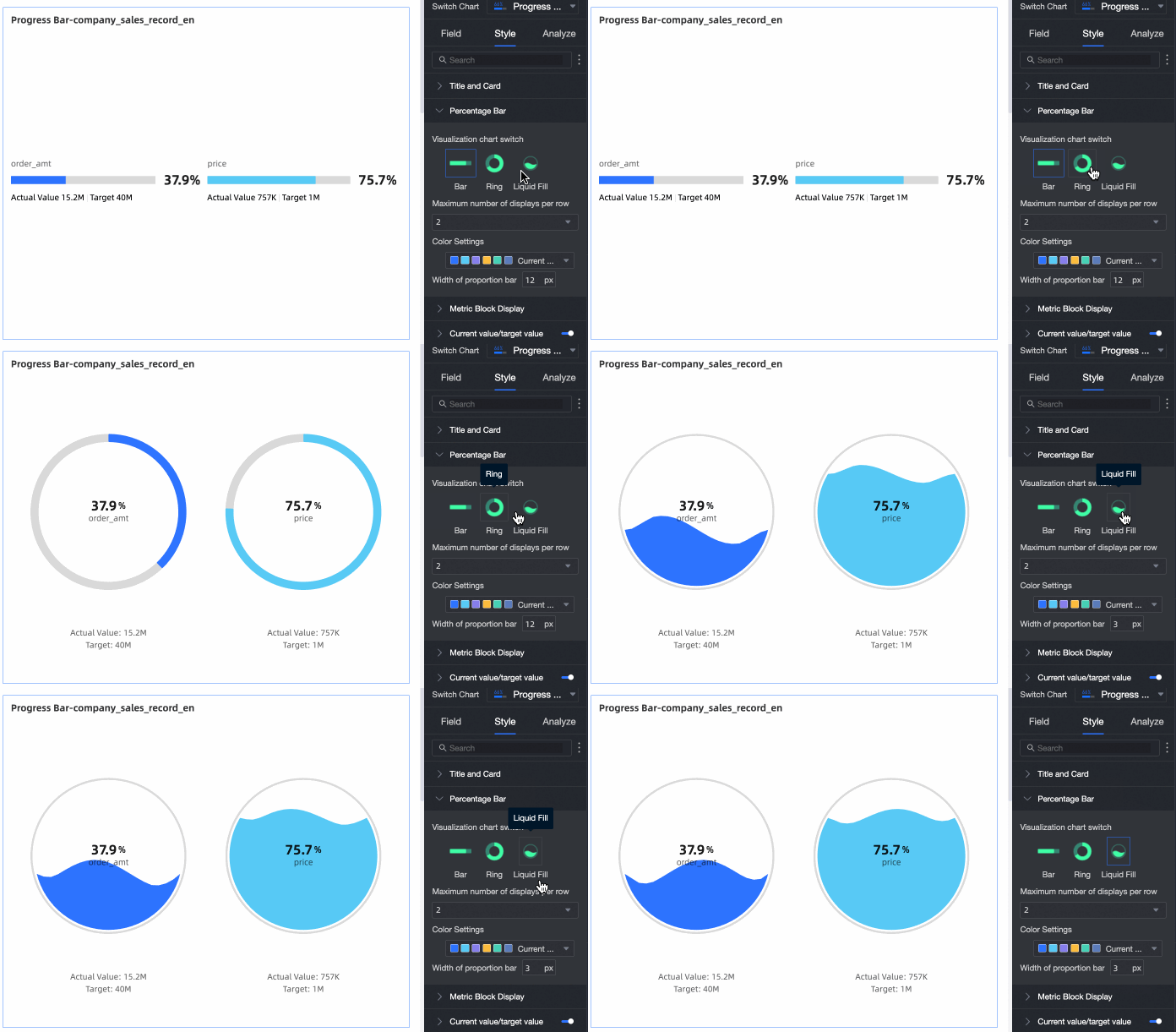
Switch visualization chart type
Switch between Bar, Ring, and Liquid Fill chart types.
Max Display Count per Row
Maximum items per row.
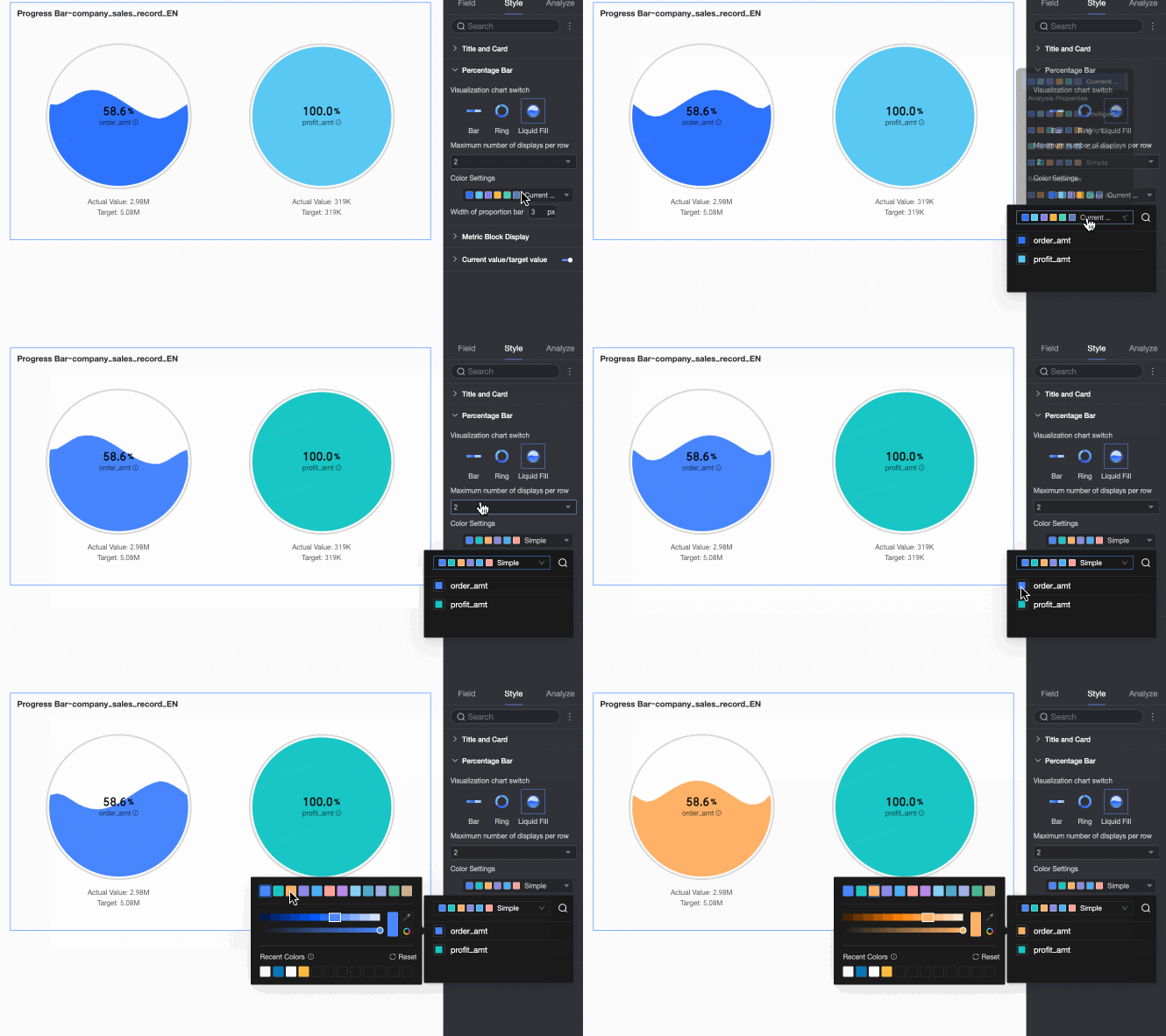
Color Palette
Color palette for the progress bar. Set a specific color per indicator.
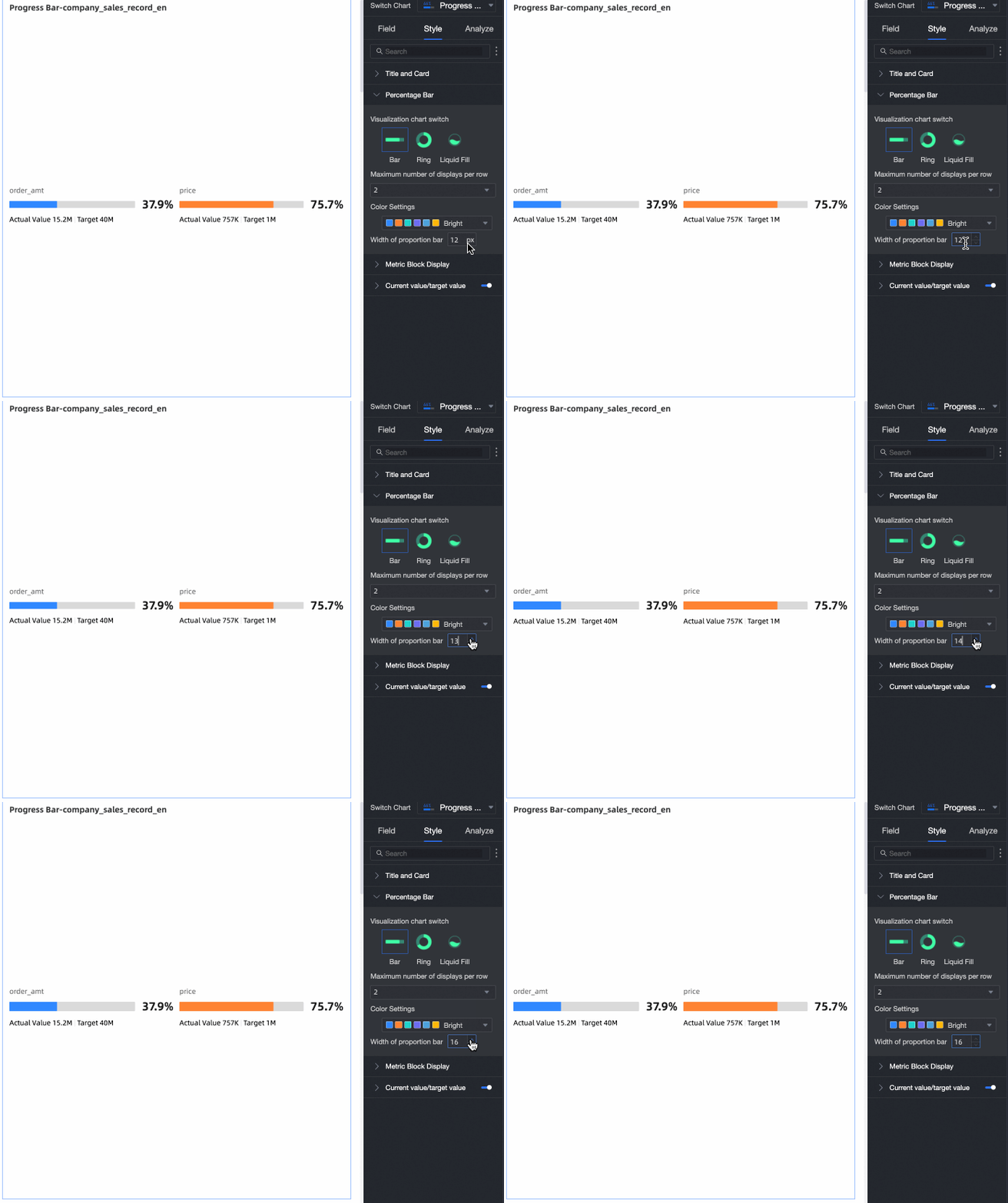
Percentage Bar Width
Customizes the progress bar width.
-
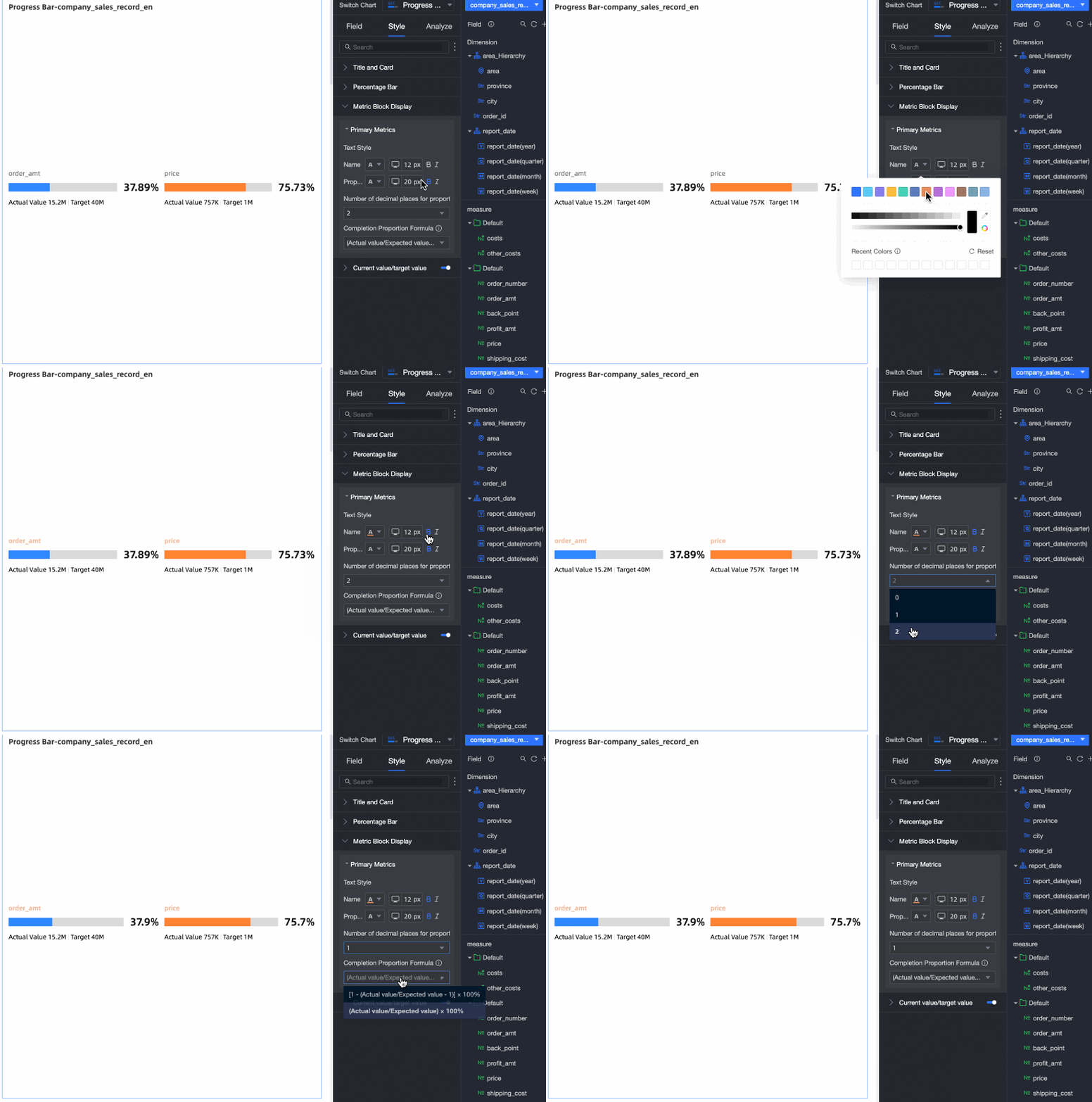
The Metric Content section configures metric display styles.
-
The Current Value/Target Value section configures target value text style and display name.
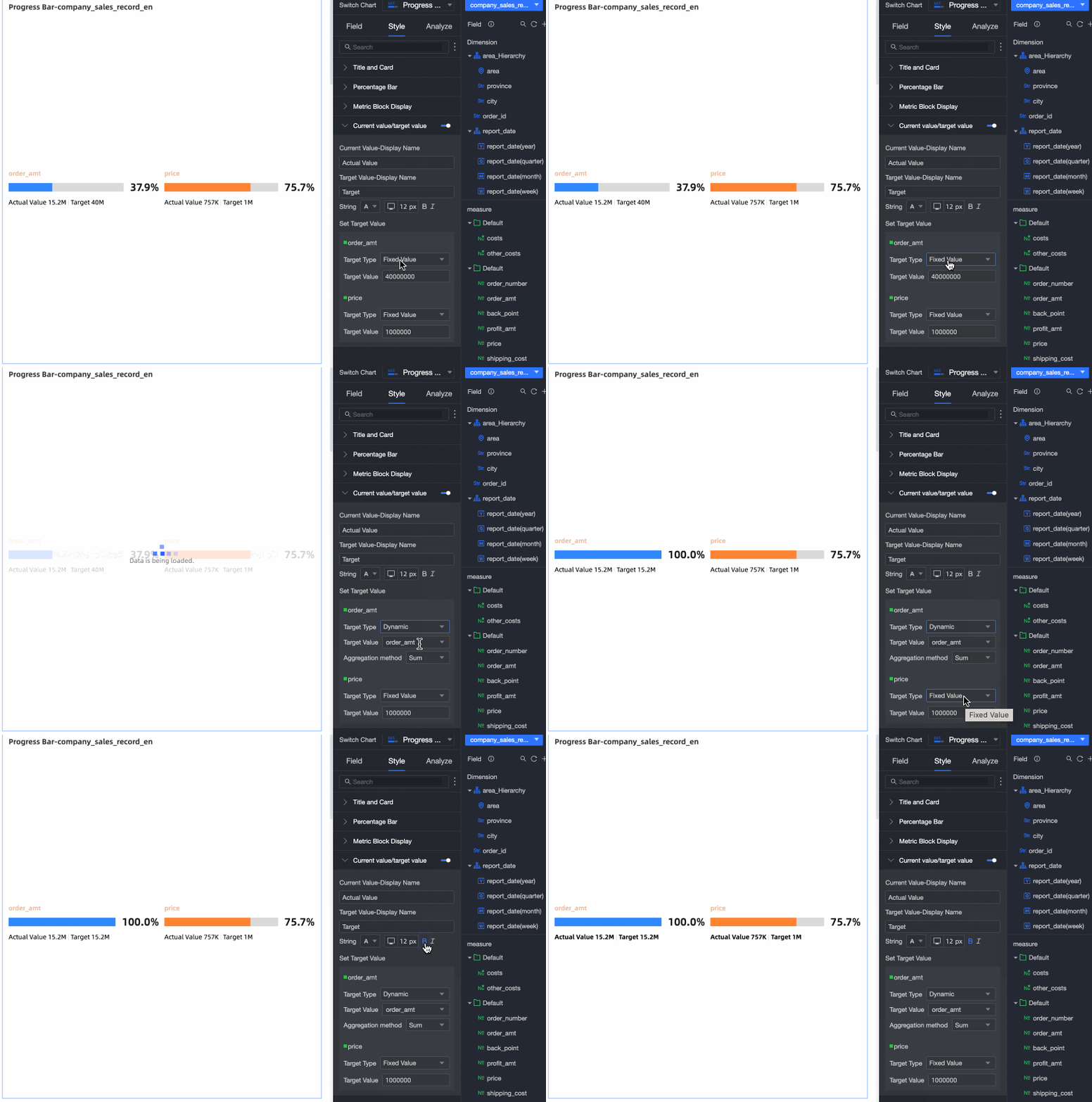
-
Use Conditional Formatting to apply different colors at different data development stages.

Configuration Item
Description
Select Field
Select any measure from the Progress Indicator/Measure area to apply conditional formatting.
To remove formats, click Batch Clear Formats at the lower-right corner, select the formats to clear, and click OK.
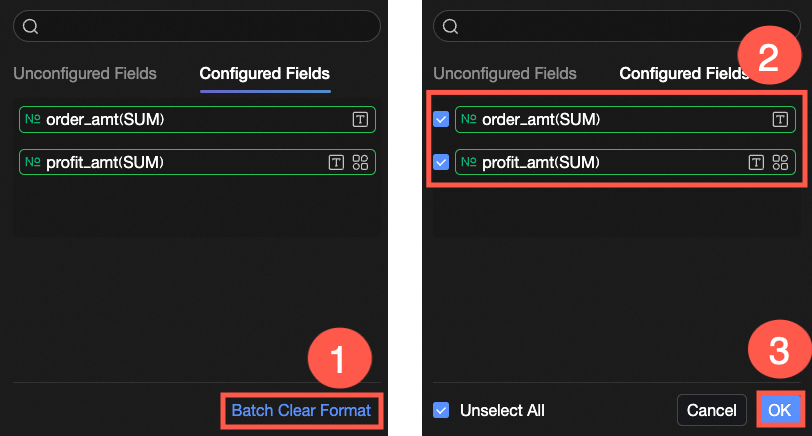
Conditional Style
Click the
 icon to open the conditional formatting pane. Set rules to highlight text and background colors for the selected measure. You can base rules on another field's values.
Configure the following:
-
Based on Field: The field the rule evaluates. Defaults to the Select Field value. Choose another chart field to create cross-field rules.
-
Condition Selection: Comparison basis. Options: Compare with Fixed Value, Divide by Percentage Range, or Compare with Dynamic Field.
-
Conditional Rule: Defines rule logic and the display style (text color, bold, italic, background fill) applied when the condition is met.
-
Add Rule: Click to add a new rule.
Sync Style To
Syncs the current conditional format to other measures.
NoteStyle synchronization is a one-time action. If you adjust the style, you must sync it again.
-
-
What to do next
-
Share the dashboard with other users. Share a Dashboard.
-
Integrate dashboards into the BI portal to build navigation menus for thematic analysis.
FAQ
1. Why does my progress bar always show 100%?
A: You have not set a target value. Set a target value in the Current Value/Target Value settings on the Style tab — either a fixed value or a dynamic value linked to a dataset field.
2. What field should I put in the 'Progress Indicator/Measure' area?
A: Add the measure field representing your current actual value or current status value. The progress bar displays this value as a percentage of the target value.
3. How do I change the progress bar from a bar to a ring or liquid fill style?
A: On the Style tab, in the Progress Bar section, click Switch visualization chart type and choose Bar, Ring, or Liquid Fill.
4. Can I show the progress of multiple metrics in one component?
A: Yes. Drag up to five measure fields to the Progress Indicator/Measure area. Each generates its own progress bar. Set a target value for each individually or collectively, and adjust layout (items per row) in the style settings.