Add an Alibaba Cloud RDS for SQL Server instance as a data source in Quick BI.
Prerequisites
-
You have created an Alibaba Cloud RDS for SQL Server instance.
-
You have the username and password for the SQL Server database.
Limitations
SQL Server versions 2008 through 2022 are supported.
Background Information
The process is similar to adding an RDS for MySQL data source. The key differences are the Schema configuration parameter and the default port 1433.
Procedure
-
Configure a whitelist.
Before you can connect to the RDS for SQL Server instance, you must add the IP addresses of Quick BI to the instance's whitelist. For instructions, see Configure a whitelist.
-
Log on to the Quick BI console.
-
Add the data source.
-
Navigate to the data source creation page. For instructions, see Create a data source.
-
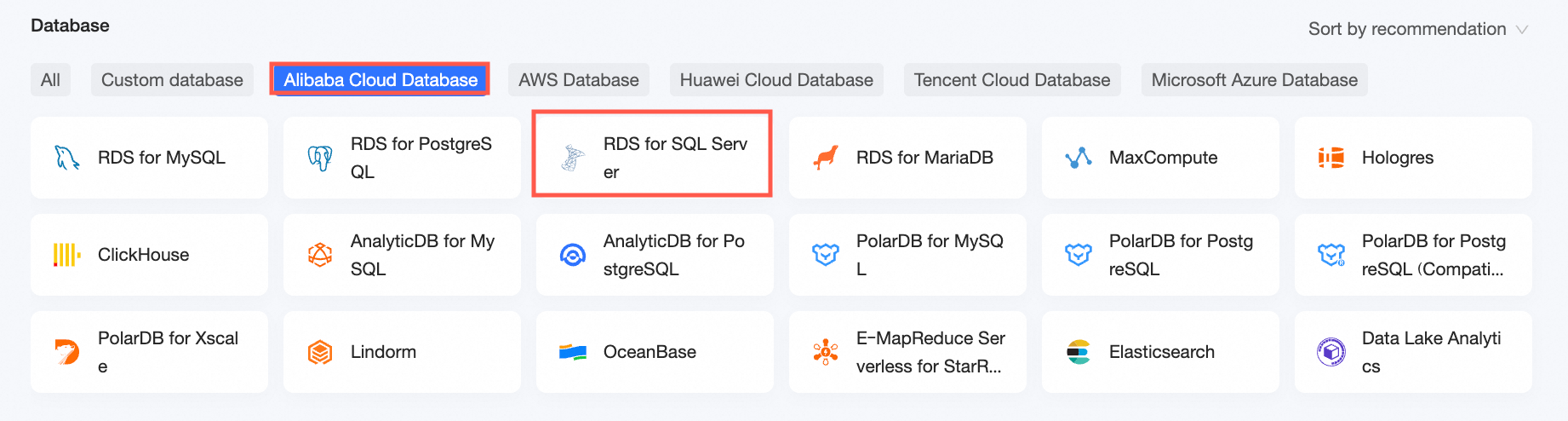
On the Alibaba Cloud Databases tab, select RDS for SQL Server.
-
-
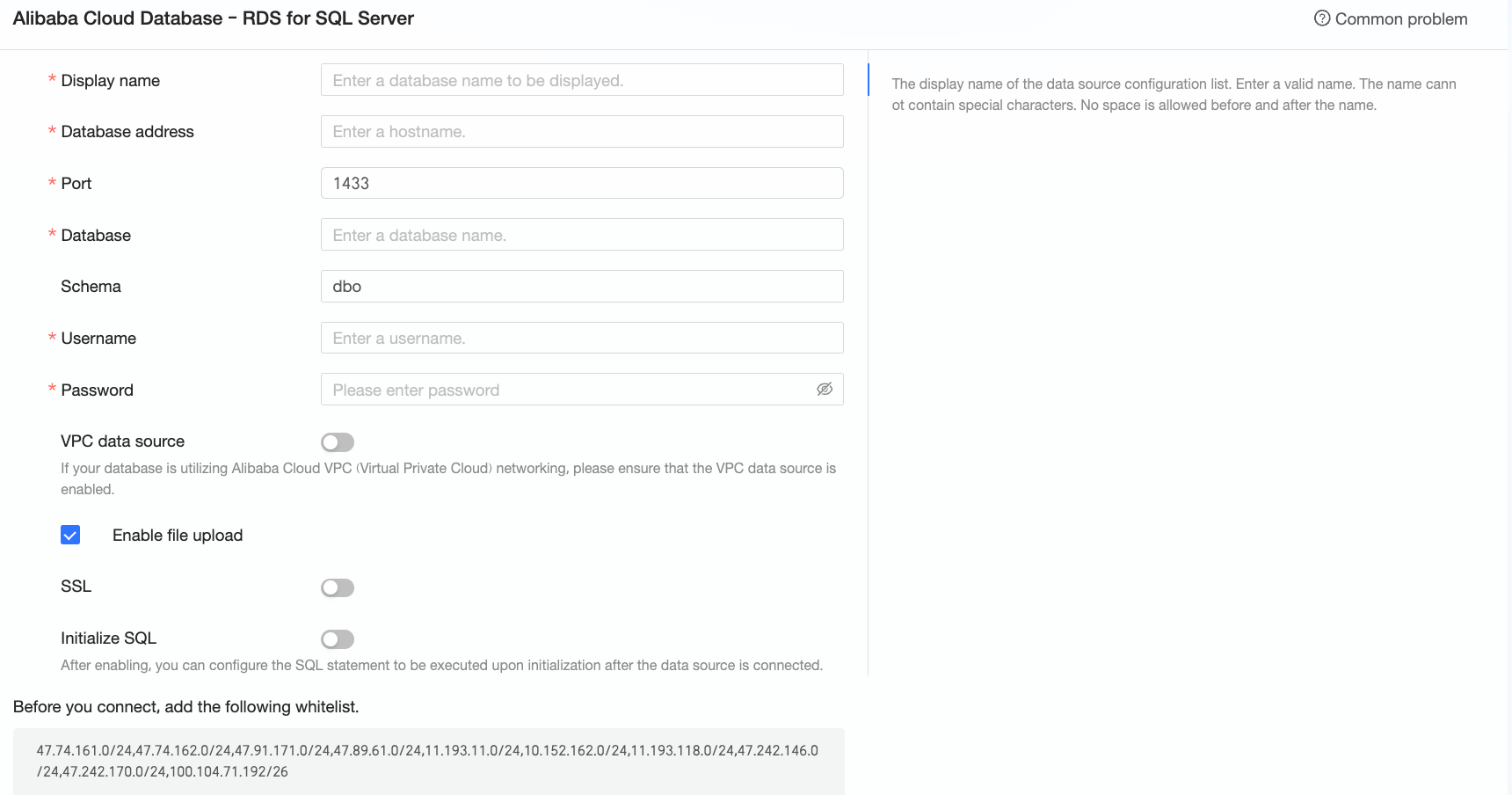
In the connection configuration dialog box, configure the following parameters.
Parameter
Description
Display name
The display name of the data source in the data source list.
The name must not contain special characters or leading or trailing spaces.
Endpoint
The public endpoint of the SQL Server database. For a VPC data source, enter the internal endpoint instead. To find the endpoint, go to the RDS console, open the basic information section, and click View Connection Details. Example: rm-xxxxxxxxxxxxxxxxxx.sqlserver.rds.aliyuncs.com.
For more information, see View or modify internal and public endpoints and ports.
Port
The database port. Default: 1433.
Database
The name of the target database.
Schema
The database schema. Default: dbo.
Username
The username for the database account.
Password
The password for the database account.
VPC data source
To connect through a VPC, select VPC data source and configure the following parameters.
-
Purchaser's AccessKey ID: The AccessKey ID of the Alibaba Cloud account that was used to purchase the instance.
For more information, see Obtain an AccessKey pair.
NoteEnsure that the AccessKey ID has read permissions on the target instance. If the AccessKey ID also has write permissions, Quick BI automatically adds the required IP addresses to the whitelist. Otherwise, you must add them manually. For more information, see Create a custom policy.
-
AccessKey Secret: The AccessKey Secret of the Alibaba Cloud account used to purchase the instance.
For more information, see Obtain an AccessKey pair.
-
Instance ID: The ID of the instance. Log in to the RDS console to find the ID in the Basic Information section.
-
Region: The region where the instance is located.
NoteIf you select VPC data source, you must enter the internal endpoint and port in the
EndpointandPortfields, respectively.Enable file upload
Allows file uploads to this data source.
SSL
Encrypts data in transit using SSL. Select this option if the data source requires SSL.
Initial SQL
Runs SQL statements each time a connection is established.
These statements run each time Quick BI connects to the data source. Use only
SETstatements, separated by semicolons (;). -
-
Click Test Connection to verify the data source connection.

-
After the connection test succeeds, click OK to add the data source.
If a data source with the same configuration already exists, Quick BI displays a conflict prompt. You do not need to add it again.
Next Steps
After you add the data source, you can create datasets and analyze data.
-
Add data tables or custom SQL queries from your data source to Quick BI. For more information, see Create a dataset.
-
Create charts to visualize and analyze data. For more information, see Create a dashboard and Chart overview.
-
Drill down into your data for in-depth analysis. For more information, see Configure a drill-down action.