Connect your Huawei Cloud GaussDB(DWS) database to Quick BI to analyze and visualize your data.
Procedure
-
Add IP addresses to the whitelist.
Before connecting to Huawei Cloud GaussDB(DWS), add the IP addresses of Quick BI to your GaussDB(DWS) instance's whitelist.
-
Verify the data source connection and create the data source.
-
Log on to the Quick BI console.
-
Follow the steps below to add a data source:
-
Go to the page for creating a data source.
-
On the Huawei Cloud tab, click GaussDB(DWS).

-
-
In the Configure Connection dialog box, configure the following parameters.
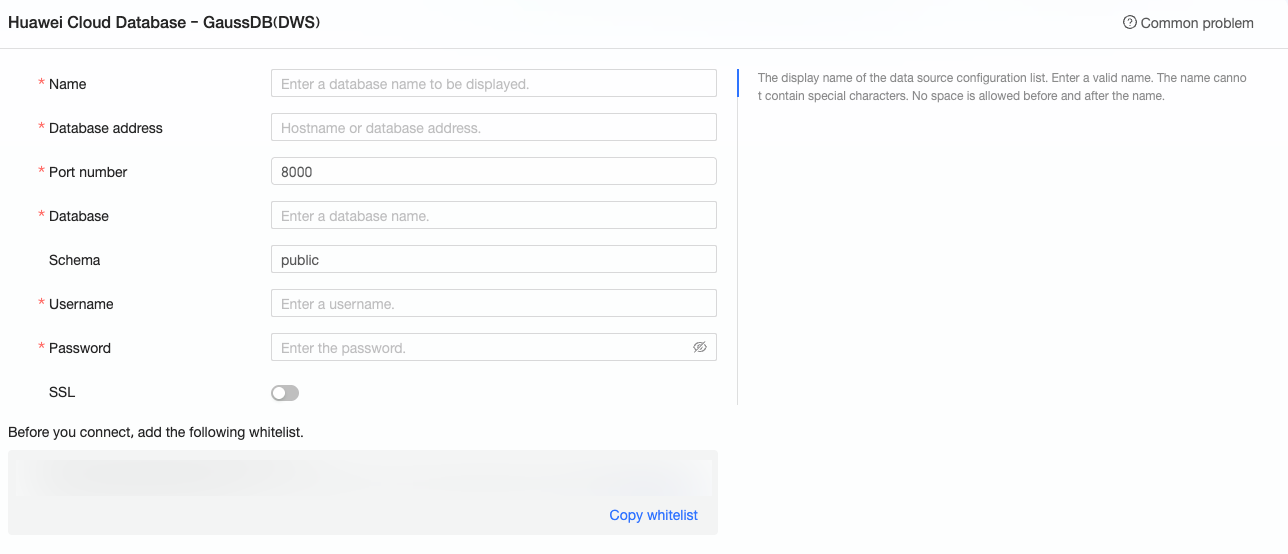
Parameter
Description
display name
The display name for this data source in the data source list.
Enter a valid name. Do not use special characters or include leading or trailing spaces.
host and port
The public endpoint of your Huawei Cloud GaussDB(DWS) database.
To find the endpoint, log on to the Huawei Cloud console, go to your instance's basic information page, and bind an elastic IP address. The endpoint is available on the connection management page.
database
The name of the database to connect to.
schema
The name of the schema to connect to.
username and password
The username and password for the GaussDB(DWS) database.
NoteMake sure that the user has the create, insert, update, and delete permissions on tables in the database.
SSL
Enable this option if your data source uses SSL encryption.
-
Click Test Connection to verify the connection.

-
After a successful test, click OK to add the data source.
-
Next steps
After the data source is added, you can create datasets and start analyzing data.
-
To add data tables or use custom SQL queries from your data source, see Create a dataset.
-
To add charts and analyze data, see Create a dashboard and Overview of charts.
-
To drill down into your data for in-depth analysis, see Step 3: Configure and display drill-down.