Audience filtering is the primary method for generating audiences in Quick Audience.
What is an audience?
An audience in Quick Audience is a list of specific users identified by their QAIDs.
Quick Audience generates a QAID for each user when user data is imported. When you use an audience, Quick Audience maps all ID types contained in the user data through the QAID and selects the ID type required for the current operation.
Unlike the full user set in the original data table, an audience is a subset filtered from all users for a specific purpose or to meet specific conditions.
Example 1: You want to send text messages to a group of users. If you have a list of their mobile phone numbers, you can use Upload Audience to save them as an audience. Then, you can run SMS Marketing for the audience.
Example 2: You want to send SMS greetings to users whose birthdays fall in the current month. You can import the user tags table that contains mobile phone numbers and birthdays, filter users by Tag Filtering to create an audience, and then run SMS Marketing for them.
Audiences can be used for many purposes, such as Insight Analysis, Marketing Content Sending, and pushing to Data Bank, Damengpan, or Kafka.
Audience filtering methods
You can filter audiences that meet specific conditions from imported data. The available filtering methods depend on the data table and the type of model generated from the data table:
-
Tag Filtering: filters audiences based on user tags, including user attributes and custom tags. You can combine multiple tag conditions with AND or OR. For example, province=Zhejiang and gender=female.
-
AIPL Model Filter: filters audiences based on AIPL models. You can filter users by AIPL model type or flow status.
-
Filter by type: Select users in the A (awareness), I (interest), P (purchase), and L (loyalty) stages to include in the audience.
-
Filter by Flow Status: Select users whose AIPL stage has changed. For example, users who moved from the A (awareness) stage to the P (purchase) stage.
-
-
RFM Model Filter: filters audiences by RFM model. For example, you can filter high-value users.
-
Behavior Filtering: filters audiences based on user behavior data and order details data. For example, users who purchased product A from offline stores in the last 30 days.
-
Metric Filter: filters audiences from an imported statistics table based on specified metrics and dimensions. For example, users whose mobile devices are located in a specific city and who have logged in to the app at least once in the last seven days.
-
Audience Intersection: generates a new audience by computing the intersection, union, or difference of existing audiences.
-
Cross Filtering: combines multiple filtering methods and computes the intersection, union, or difference of their results to obtain the final audience.
If one or more existing audiences are combined with other audience filtering methods by using AND, OR, or difference operations, the operation is classified as Audience Intersection, not Cross Filtering.
FAQ
What other methods can generate audiences besides audience filtering?
A: In addition to audience filtering, the following methods are supported:
-
Generate an audience for each selected tag value based on text or multi-value tags. For more information, see Select Audience Based on Tag Values.
-
Upload user IDs in CSV or TXT format to create an audience. For more information, see Upload Audience.
-
Generate an audience by reading user ID data from an analysis source. For more information, see Create Audience from Analysis Source.
-
Duplicate an existing audience to create a new identical audience. For more information, see Duplicate Audience.
-
During user analysis, you can create a new audience or add users to an existing audience. For more information, see User Analysis.
-
During self-service analysis, you can select a graph or data in a report to create an audience. For more information, see Self-service Analysis.
-
Within seven days after you run a non-automated SMS, email, or push marketing task, you can create audiences based on send results from the task details page. For more information, see SMS Marketing Tasks Management, Email Marketing Tasks Management, and PUSH Marketing Tasks Management.
-
Within seven days after automated marketing components such as text messages and SMS are executed, you can save the recipients (both successfully sent and failed) as an audience in the Action Analysis panel. For more information, see View The Execution of Campaign.
-
While viewing an analysis report, you can select graphs or data in the report to create an audience. For more information, see Analysis Dashboard Select Audience.
What do intersection, union, and difference mean in audience filtering?
Answer: These are three common set operations:
-
And (intersection): both conditions must be met. This is equivalent to taking the overlapping part of two sets and deduplicating the results.
-
Or (union): at least one condition must be met. This is equivalent to merging two sets and deduplicating the results.
-
Difference: removes elements of the second set from the first set.
In the following figure, the two circles R and S represent the original data sets, and the shaded area shows the result of each operation. 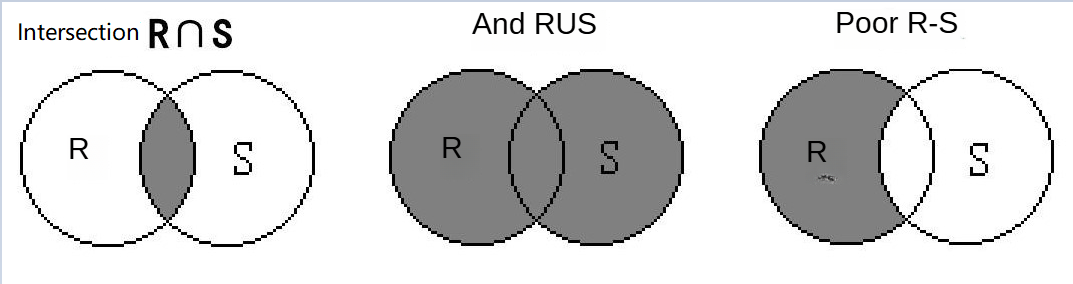
Recommended reading
-
User Insight FAQ
-
Audience Management, Audience Push, Audience Analysis, Self-service Analysis, Audience Marketing, and Automatic Audience Marketing