Use the PUSH task list to monitor execution status and review delivery statistics for your push marketing tasks. Go to Workspace > User Marketing > Reach Marketing > PUSH > Normal Tasks in the left-side navigation pane.
Tasks
The task list displays the status, delivery statistics, send type, and associated sub-campaigns for each task. If a task has multiple sub-campaigns, hover over the count to see all associated sub-campaigns.
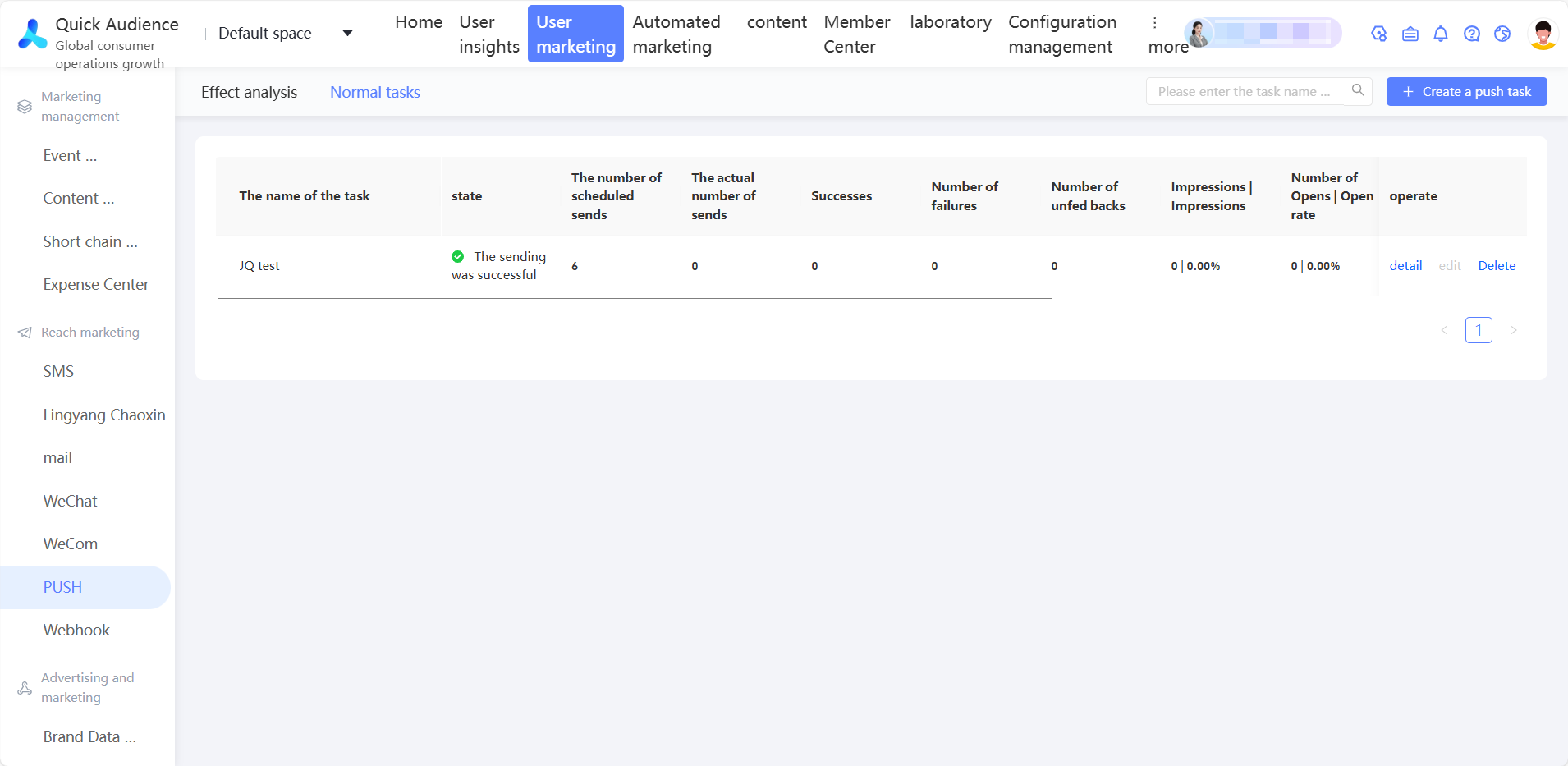
Delivery statistics require the Umeng PUSH delivery receipt feature, which is available in the Umeng Pro version. Contact Umeng to enable this feature before creating a PUSH task.
Statistics are collected for 72 hours after the push starts and are not updated after that window closes.
Push notification data comes from two sources: metrics such as Deliveries and Opens come from the Umeng push service, while receipt metrics such as Impressions and Dismissals come from the Umeng SDK on the user's device. This difference in source explains why these numbers can vary.
Planned sends: Total device count in the target audience.
-
Deliveries: Total devices that successfully received the notification across both the push channel and the OEM channel.
NoteDevice IDs in the audience must match a Umeng ID before delivery. Some matching loss may occur due to device firmware variations and matching algorithm constraints.
Impressions: Notifications successfully displayed in the notification tray (deliveries minus blocked notifications). Impression rate = Impressions ÷ Deliveries × 100%.
Opens: Number of times a user tapped the notification to open the message. Open rate = Opens ÷ Deliveries × 100%.
-
Dismissals: Number of notifications individually closed by the user, excluding batch-dismissed notifications. Dismissal rate = Dismissals ÷ Deliveries × 100%.
NoteDismissal tracking is not supported on iOS and is displayed as 0.
You can perform the following actions:
View details: Click Details to open the task sending details page. For more information, see View details.
Edit: Edit a task that has not yet been sent.
Delete: Delete a task in the Scheduled state.
View details
Click Details on a task to open the task sending details page.
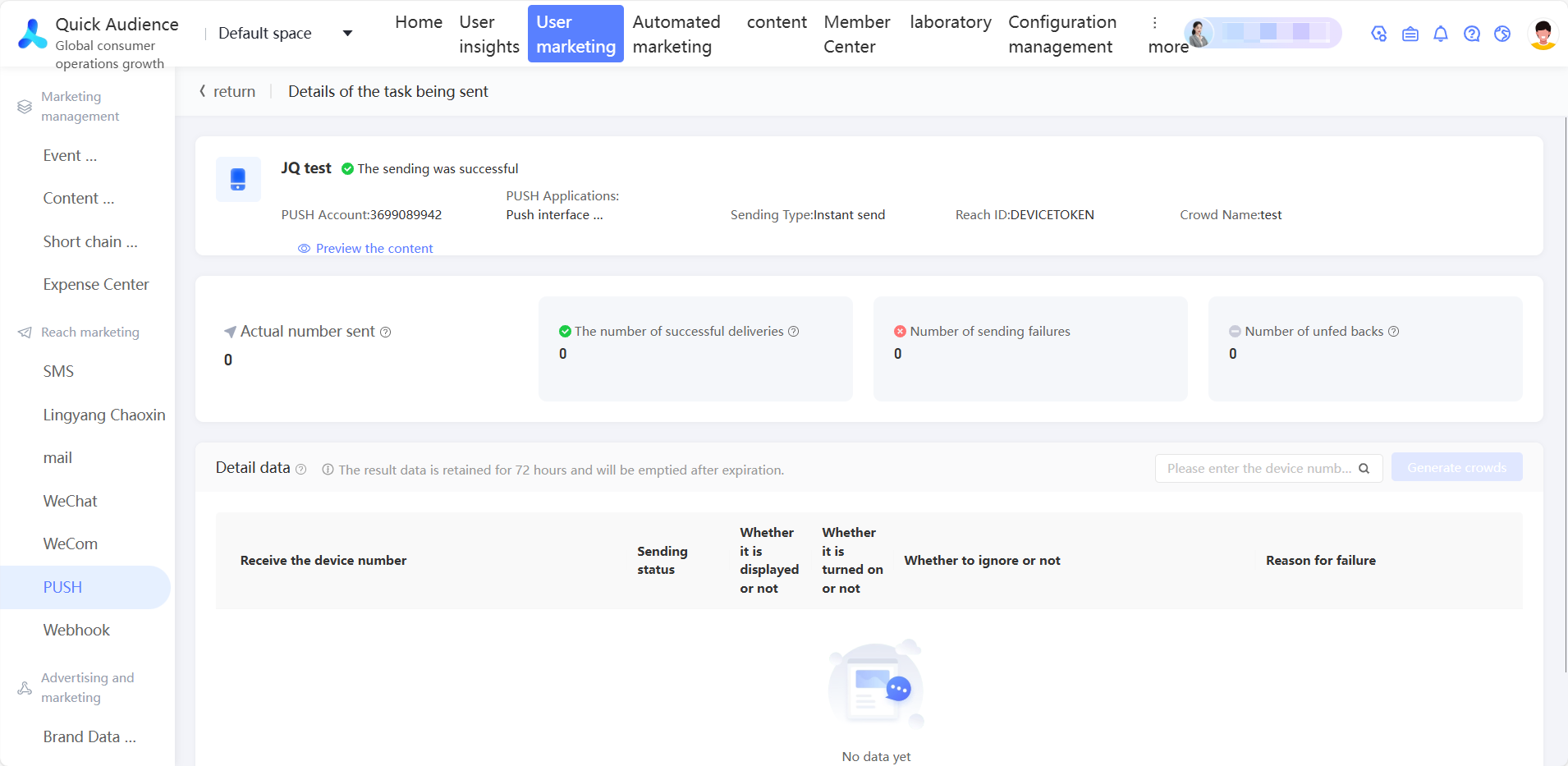
The page shows:
Basic information about the task.
Aggregate delivery statistics: total sent, deliveries, failures, no feedback, impressions, opens, and dismissals.
-
Device-level details: device count, batch ID, and the send, impression, open, and dismissal status per device.
Click Generate Audience to save devices from a specific PUSH result as a new audience.
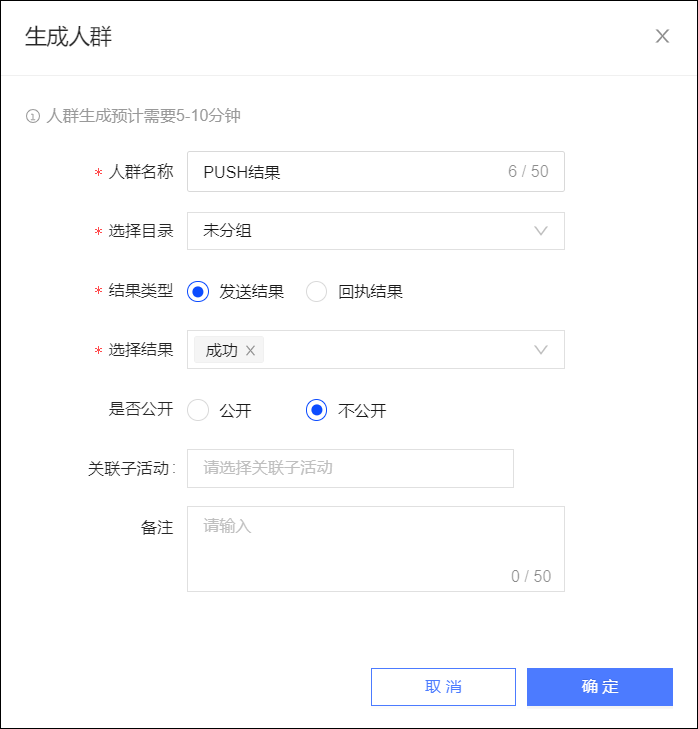
-
Send results:
For iOS tasks: success, failure.
For Android tasks: success, failure, no feedback.
-
Delivery receipts:
For iOS tasks: impression, open.
For Android tasks: impression, open, dismissal.
NoteDevice-level details are retained for 72 hours. After that, the data is deleted and can no longer be used to generate an audience.
-