Choose Workspace> User Marketing > Reach Marketing > Email > Normal Task to view the execution information of the normal email marketing task.
Task List
As shown in the following figure, the list displays the associated sub-activities of the task (if a number is displayed, all associated sub-activities will be displayed by hovering the mouse over), title, number of sent and success, number of failed, number of invalid addresses, sending type, status, and email platform. 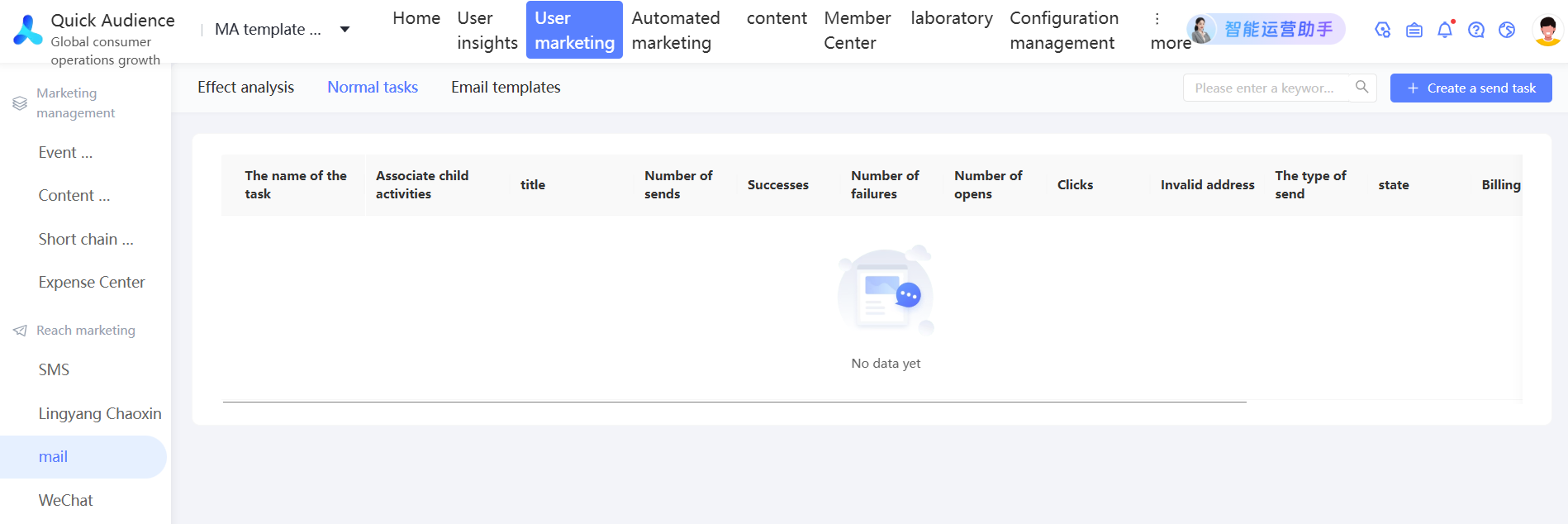
Among them, the status is divided into:
To be sent
Sending
Ended
Failed Invocations
You can perform the following operations:
View Details: View the task sending status. For more information, see View Details.
Edit: You can edit a failed task or a pending task that is more than 10 minutes away from the delivery time.
Delete: You can delete a failed task or a pending task that is more than 10 minutes away from the delivery time.
View details
Click View Details in the Actions column of a task. The task details page appears, as shown in the following figure. 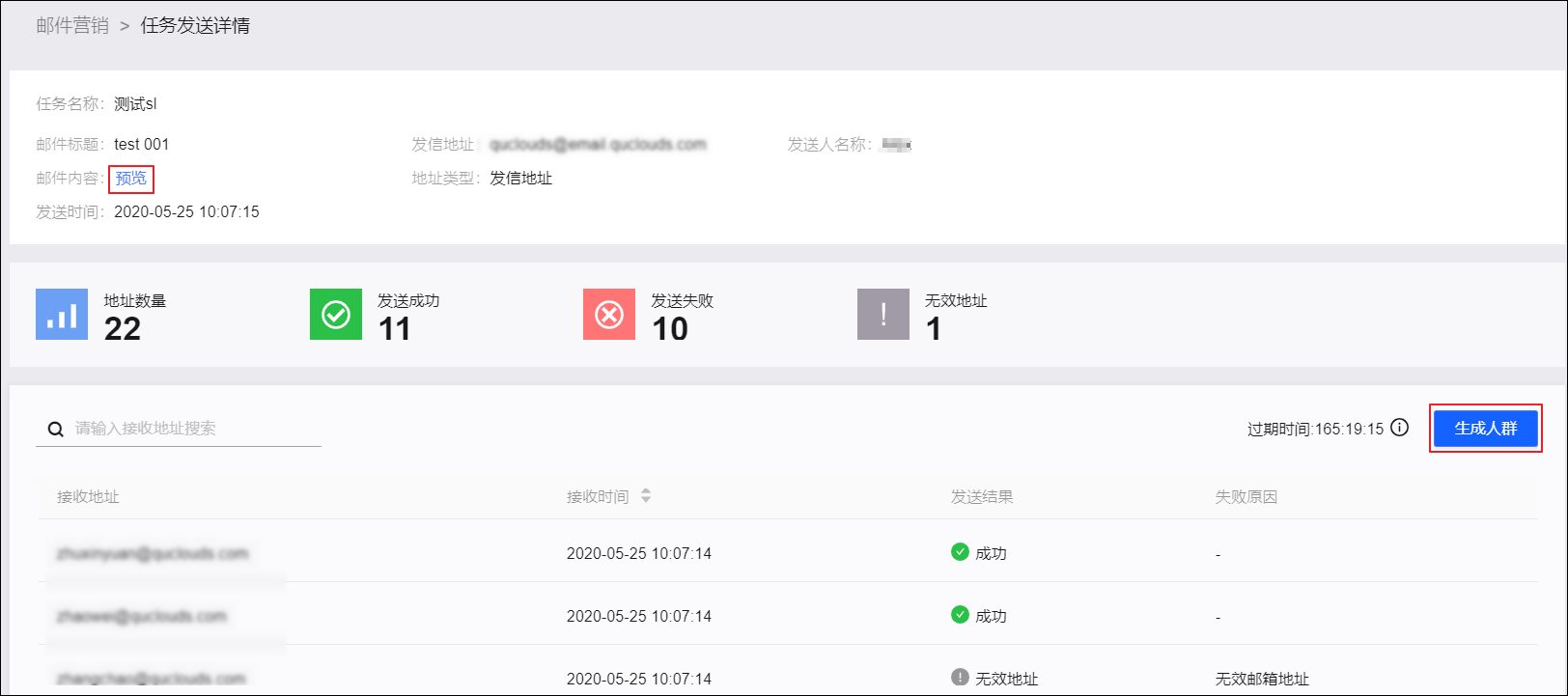
The page displays:
Task name, mail title, sending address, sender name, body, address type, and sending time.
Click Preview body view.
The number of addresses included in the task, the number of successful sending, the number of failed sending, and the number of invalid addresses.
The address details of the task, including the corresponding receiving time, sending result, and failure cause.
Click Generate Audience to filter users who are sent successfully, failed, invalid addresses, or users who have been marked as spam as new audience.
NoteExpiration Time: The URL details are retained for seven days. After the URL details expire, the URL details are deleted and the Generate Audience button cannot be clicked.