RFM model filtering lets you filter users by one or more of the eight RFM model types defined in the RFM Model. For details about each type, see RFM User Types and Division Rules.
Procedure
-
Choose Workspace> User Insight > Audience Insight > Audience Filtering to go to the Audience Filtering page.
-
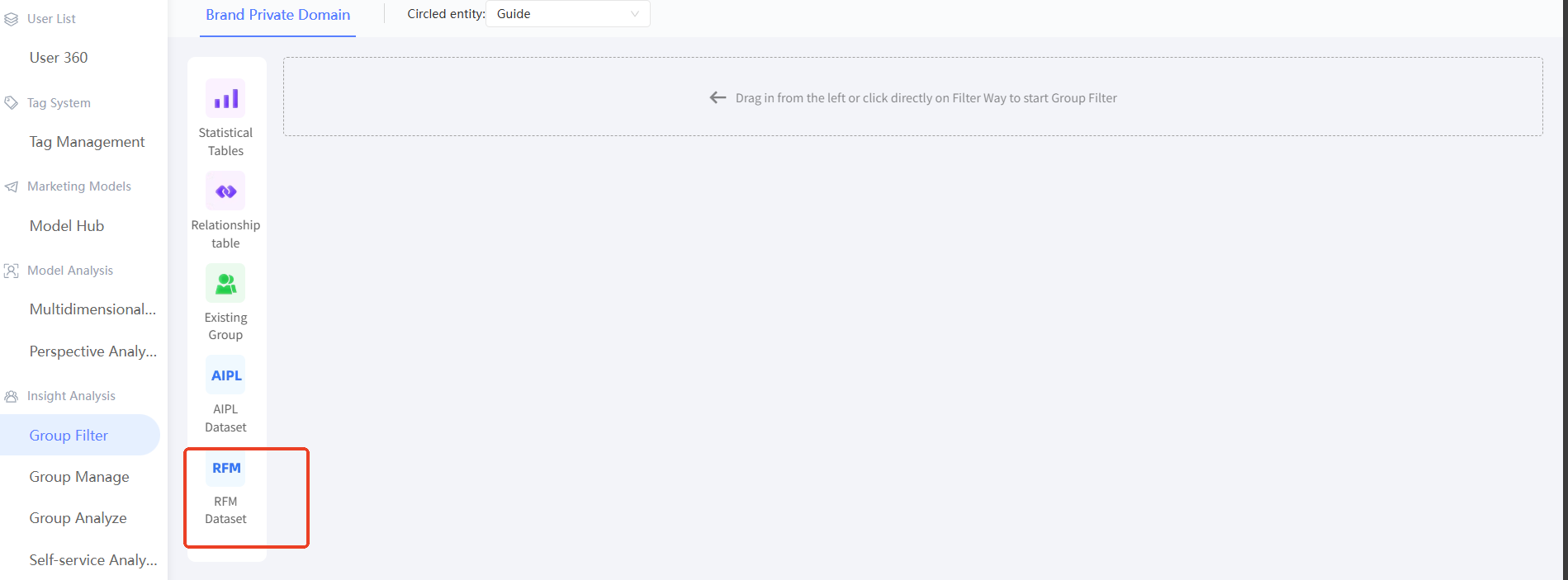
Click RFM Model in the left-side navigation pane, or drag RFM Model from the left side to the right side. An RFM model filter card is added on the right side.
-
Select an RFM model and select the required user type. You can select multiple or all users. Users that meet the definition of the RFM type are filtered out. For more information, see RFM User Types and Division Rules.

-
Click + Condition to add a condition.

Multiple conditions can be combined with AND or OR. The default operator is OR. Click to switch between operators.
Click Delete in the Actions column to delete the condition.
NoteTo create a difference set between two conditions, use cross filtering: filter each condition separately as a label filter, then apply the difference set relationship between the two label filters. For more information, see Cross Filter.
-
After you configure the RFM model filter conditions, enter the audience name and description, select the save directory, associate sub-activities (for more information, see Marketing Campaign Documentation), and specify whether to make the audience public. Click Estimate to preview the audience size. Click Generate Audience to save the result.
