Traditional SQL is cumbersome and inefficient for modeling and querying data with complex relationships, such as those in social networks, fraud detection, and knowledge graphs. PolarDB for PostgreSQL integrates the open source graph engine Apache AGE. This integration lets you use both standard SQL and the industry-standard openCypher graph query language in the same cluster to efficiently store, query, and analyze graph data for scenarios involving complex relationships.
Compatibility
The following PolarDB for PostgreSQL versions are compatible:
-
PostgreSQL 16 (minor engine version 2.0.16.8.3.0 and later)
-
PostgreSQL 15 (minor engine version 2.0.15.12.4.0 and later)
-
PostgreSQL 14 (minor engine version 2.0.14.12.24.0 and later)
You can view the minor engine version of a cluster in the console or run the SHOW polardb_version; statement. If your cluster does not meet the requirements, upgrade the minor engine version.
Visualization tool
You can create a visual graph management tool (based on Apache AGE Viewer) in the console to interact with your graph data through a web interface.
Step 1: Create a graph application
-
You can create the application in one of the following two ways:
-
Go to the PolarDB console, click PolarDB AI in the left-side navigation pane, and then click Create AI Application.
-
Go to the PolarDB console. In the left-side navigation pane, click Clusters. Find the target cluster that meets the requirements and go to the cluster details page. In the left-side navigation pane, click , and then click Create AI Application.
-
-
On the application purchase page, select the appropriate configurations based on your requirements:
Parameter
Description
Billing Method
-
subscription: A prepaid billing method where you pay for resources for a fixed period. This method is suitable for long-term, stable business scenarios. Longer subscriptions offer greater discounts.
-
pay-as-you-go: A postpaid billing method that bills you based on your actual usage. This method is ideal for scenarios with flexible resource requirements.
Database Engine
Fixed to Apsara PolarDB.
Region
Select the geographic location for the application.
Note-
The region cannot be changed after the application is purchased.
-
The application must be in the same region as the PolarDB for PostgreSQL cluster. Therefore, select the same region as your PolarDB for PostgreSQL cluster.
-
For optimal performance, create the application in the same region as the ECS instance it will connect to. Otherwise, they must communicate over the slower public network instead of the private network.
Architecture
Select AI Application.
Ecosystem
The system automatically populates this field with the database ecosystem of the source PolarDB cluster. You do not need to configure it.
Source PolarDB Cluster
Select the PolarDB cluster for which you want to create the application.
Edition
The system automatically populates this field with the database version of the source PolarDB cluster. You do not need to configure it.
AI Application
Select Graph Management.
Component Set
Customize the number and specifications of the Backend Components based on your business requirements.
AI Application Name
Enter a custom name for the application.
NoteThe name cannot start with http:// or https:// and must be 2 to 256 characters in length.
Network Type
Fixed to VPC.
VPC
The system automatically populates this field with the VPC of the source PolarDB cluster. You do not need to configure it.
Zone and vSwitch
For optimal network performance, select a vSwitch in the same primary zone as the PolarDB for PostgreSQL cluster.
If the existing vSwitches do not meet your requirements, you can create a vSwitch.
Security group
Configure the security group for the application.
Quantity
Select the number of applications to purchase.
Note-
You can purchase only one AI application of the same type for each PolarDB for PostgreSQL cluster.
-
This parameter is available only when Billing Method is set to subscription.
Subscription Duration
Select the subscription duration for the application.
NoteThis parameter is available only when Billing Method is set to subscription.
Auto-renewal
Specifies whether to enable auto-renewal. To prevent service interruptions caused by an overdue payment, we recommend that you enable this feature.
NoteThis parameter is available only when Billing Method is set to subscription.
-
-
After purchasing, return to the AI Applications page of the cluster to view your new application.
NoteApplication creation takes 3 to 5 minutes.
Step 2: Connect to the graph application
-
Configure the application whitelist: On the AI Applications list page, click the Application ID of your application to go to the application details page. On the Whitelist tab, Add Whitelist, Select Security Groups, or Configure an existing whitelist group.
Note-
The application whitelist is independent of the cluster whitelist and must be configured separately.
-
If your ECS instance needs to access the application, go to the Instance Details page of the ECS instance to view its IP address and add the IP address to the IP whitelist.
-
If your ECS instance and the application are in the same VPC, you can add the private IP address of the ECS instance or the CIDR block of its VPC.
-
If your ECS instance and the application are not in the same VPC, you can add the public IP address of the ECS instance or the security group to which the ECS instance belongs.
-
-
If your on-premises server, computer, or other cloud server needs to access the application, add its public IP address to the IP whitelist.
-
-
Get the endpoint: On the AI Applications list page, click the Application ID of your application to go to the application details page. On the Basic Information tab, view the Private Endpoint in the Topology section.
Note-
A public endpoint must be requested separately. Click the Apply button to apply for one.
-
The public endpoint provides only an IP address and port, not a domain name. If you require a domain name, you must bind it yourself.
-
Step 3: Create extension and set up database
-
Create the extension: Run the following statement as a privileged account.
NoteThe
ageextension cannot be created manually. To use this feature, submit a ticket.CREATE EXTENSION age; -
Set up the database: For each connection, you need to add
ag_catalogtosearch_pathto simplify queries, and load the extension by using theget_cypher_keywordsfunction:NoteYou may encounter compatibility issues when you use the Data Management Service (DMS) client to set
search_path. You can use PolarDB-Tools to execute the statements.SET search_path = ag_catalog, "$user", public;To simplify the workflow, permanently load the extension by setting the database parameters as a privileged account. This avoids running the SET command for each new connection.
ALTER DATABASE <dbname> SET search_path = "$user", public, ag_catalog; ALTER DATABASE <dbname> SET session_preload_libraries TO 'age'; -
(Optional) Allow regular users to use AGE: Grant the
USAGEpermission to regular users in theag_catalogschema.GRANT USAGE ON SCHEMA ag_catalog TO <username>;If a regular user only has read and write permissions, you must also grant them the
CREATEpermission to create tables.GRANT CREATE ON DATABASE <dbname> TO <username>;
Step 4: Create a graph and insert data
-
You must create a graph before you can use it. To do this, use the
create_graphfunction in theag_catalognamespace.Syntax:
SELECT create_graph('<graph_name>');Example:
SELECT ag_catalog.create_graph('moviedb'); -
Insert data: Use the following SQL statement to insert sample data into the
moviedbgraph:SELECT * FROM cypher('moviedb', $$ CREATE (matrix:Movie {title: 'The Matrix', released: 1997}) CREATE (cloudAtlas:Movie {title: 'Cloud Atlas', released: 2012}) CREATE (forrestGump:Movie {title: 'Forrest Gump', released: 1994}) CREATE (keanu:Person {name: 'Keanu Reeves', born: 1964}) CREATE (robert:Person {name: 'Robert Zemeckis', born: 1951}) CREATE (tom:Person {name: 'Tom Hanks', born: 1956}) CREATE (tom)-[:ACTED_IN {roles: ['Forrest']}]->(forrestGump) CREATE (tom)-[:ACTED_IN {roles: ['Zachry']}]->(cloudAtlas) CREATE (robert)-[:DIRECTED]->(forrestGump) $$) AS (result1 agtype);This dataset contains six nodes (three with the
Movielabel and three with thePersonlabel) and three edges (two with theACTED_INlabel and one with theDIRECTEDlabel). The relationship graph is shown in the following figure: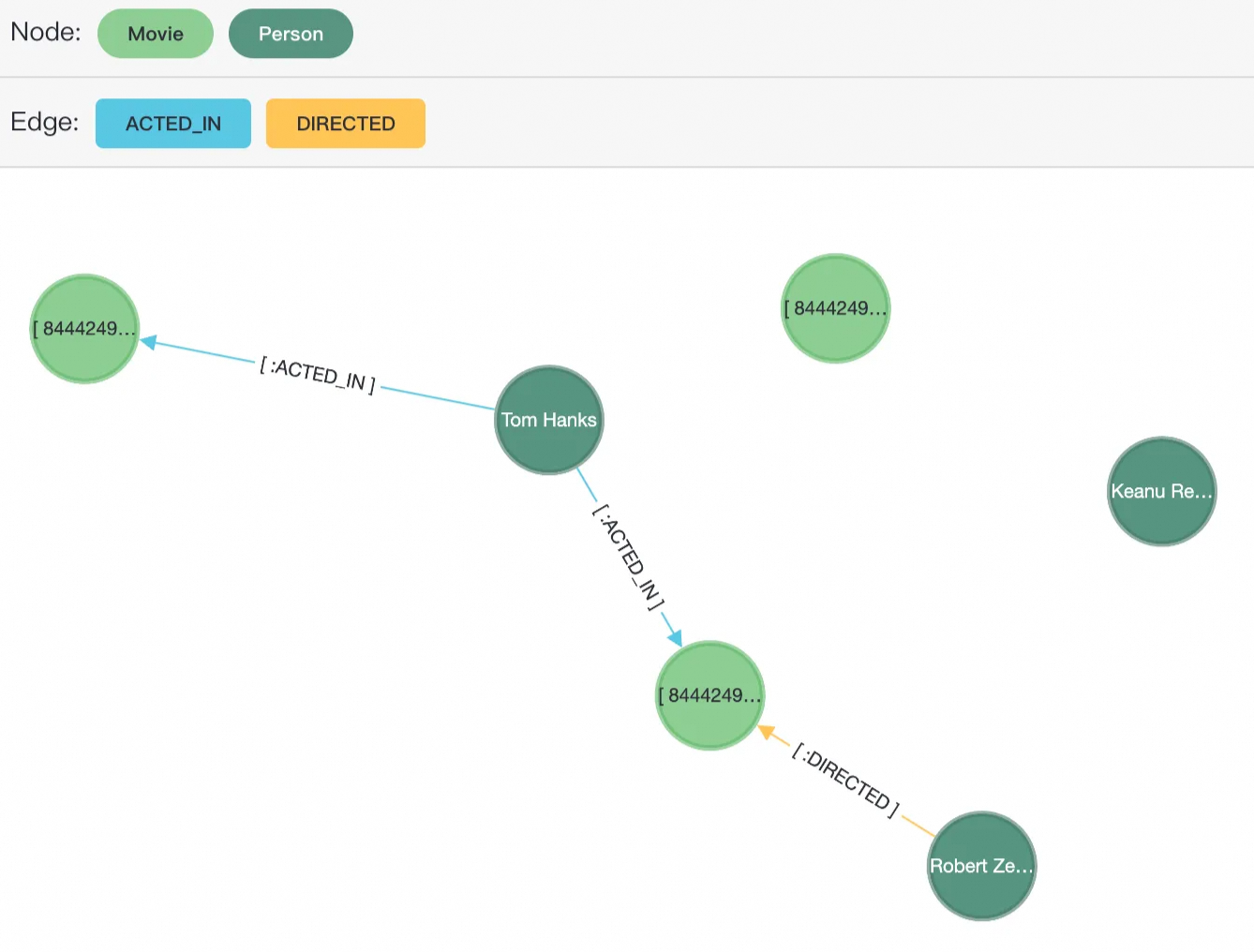
Step 5: Develop the application
-
Develop the application: You can access the application directly over the public network. On the AI Applications list page, click Develop Application to go to the public URL of the visualization tool. Alternatively, enter the application's public IP address and port in your browser.
NoteBefore you proceed, make sure you have added your public IP address to the application whitelist.
-
On the login page of the visualization tool, enter the following information:
-
Host: Select the endpoint of your PolarDB cluster.
-
Database Name: Enter the name of a database within the cluster. If you do not have a suitable database, return to the cluster details page to create a database.
-
User name: Enter a database account within the cluster. Make sure that the account has the required access permissions on the database.
-
Password: Enter the password for the database account.
-
-
Query data: In Cypher, use the
MATCHandRETURNkeywords to query data:-
MATCHis used for pattern matching to find content that matches a specified pattern. -
The
RETURNkeyword specifies the values or results to return from a Cypher query.
Syntax:
SELECT * FROM cypher('graph_name', $$
  MATCH <patterns>RETURN <variables>
$$) AS (result1 agtype);
Example: Enter the following Cypher query statement at the top of the visualization tool:
SELECT * FROM cypher('moviedb', $$
  MATCH (m:Person)
  RETURN m
$$) AS (result1 agtype);
After you enter the query, click the Run button in the upper-right corner of the editor. If the query is successful, the results area below shows the following: Node Label displays *(6), Movie(3), Person(3); Edge Label displays *(3), ACTED_IN(2), DIRECTED(1); and Properties is empty. In the right-side panel, the Current Graph drop-down list is set to
moviedb. -
-
Verification: After the operation is successful, you can see three Person nodes from
moviedbin the visualization area below. After you execute the query, the results are displayed graphically in the Graph view. The returned Person nodes, such as Tom Hanks and Keanu Reeves, are displayed as circular nodes.
Step 6: (Optional) Release the graph application
To save costs, release the visualization tool when you no longer need it. In the AI Applications list, find the target graph application, and in the Actions column, click Release Application.
Releasing a graph application only deletes the visualization tool for the web interface and does not delete any of your graph data stored in the PolarDB cluster. After the application is released, its configurations, such as the public network address, are lost and cannot be recovered.
How it works
-
Core engine: The PolarDB graph database feature is built on the PostgreSQL
ageextension, which is provided by the Apache AGE project and is compatible with the OpenCypher query syntax. -
Hybrid query: The
ageextension lets you manage both relational data (standard tables) and graph data in the same database. These data types can be queried separately. -
Query execution: You do not execute Cypher queries directly. Instead, you pass them as a string parameter to a PostgreSQL function named
cypher(). PolarDB parses this string, executes the Cypher command in the specified graph, and returns the results as a standard SQL row set. -
Data type: A query usually returns result columns of type
agtype. This is a custom data type similar to JSONB that encapsulates structured information about graph elements, such as nodes, edges, and paths. In an application, you can typically handle it as a JSON string.
Billing
-
Component fees: You are billed for the backend components of a graph application based on the component specifications (CPU and memory) and the subscription duration you select.
-
Storage fees: Data and files generated by graph applications are stored in your PolarDB for PostgreSQL cluster.
-
Traffic and bandwidth: Free.
Related documents
-
Quick Start for Graph Database: Interact with the graph database by running Cypher statements in an SQL client, such as psql. This method is ideal for backend development and automated scripting scenarios.
-
SQL Reference: The SQL syntax is based on Apache AGE, with modifications for Alibaba Cloud's Graph Database.