ODBC
Connect client applications to PolarDB for PostgreSQL (Compatible with Oracle) using the Open Database Connectivity (ODBC) driver on Windows or Linux/Unix.
Prerequisites
Before you begin, make sure that you have:
-
A PolarDB cluster with a database account created
-
The client IP address added to the cluster whitelist
-
A supported operating system:
-
Windows: Windows 7 or later with Service Pack 1
-
Linux/Unix: Libtool 1.5.10 or later and unixODBC-devel installed
-
Download the driver
Select the package that matches your operating system and processor architecture.
| Operating system | Architecture | Driver package |
|---|---|---|
| AliOS 8, ALinux 3, Anolis 8, or CentOS 8 | X86_64 | polardb-odbc-x86_64-8u-13.02.0000.1.tar.gz |
| ARM_64 | polardb-odbc-aarch64-8u-13.02.0000.1.tar.gz | |
| AliOS 2, ALinux 2, Anolis 7, or CentOS 7 | X86_64 | polardb-odbc-x86_64-7u-13.02.0000.1.tar.gz |
| ARM_64 | polardb-odbc-aarch64-7u-13.02.0000.1.tar.gz | |
| Unix/Linux 6 | X86_32 | polardb-odbc-X86_32-6u-13.02.0000.1.tar.gz |
| Ubuntu 18 | X86_64 | polardb-odbc-x86_64-ubuntu18.04-13.02.0000.1.tar.gz |
| Windows 7 or later | X86_64 | polardb2_odbc_x64_13.02.0000.1.msi |
| X86_32 | polardb2_odbc_x86_13.02.0000.1.msi |
Use the ODBC driver on Windows
Install the driver
-
Download the
.msipackage that matches your Windows architecture. See Download the driver. -
Right-click the
polardb2_odbc_*_*.msifile and select Run as administrator to install the driver.
Connect to PolarDB
-
Open Control Panel > Administrative Tools > ODBC Data Sources.
-
In the ODBC Data Source Administrator dialog box, click Add.
-
Select PolarDB Unicode(x64) and click Finish.
-
Fill in the connection details:
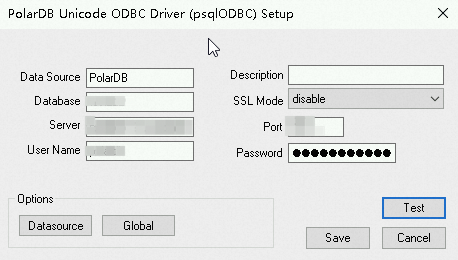
Parameter Description Default Data Source A name for this data source. — Description An optional description of the data source. — Database The name of the destination database. — SSL Mode The SSL encryption mode. — Server The cluster endpoint. To find it, see View or request an endpoint. — Port The database port. 1521User Name The database account. — Password The password for the database account. — -
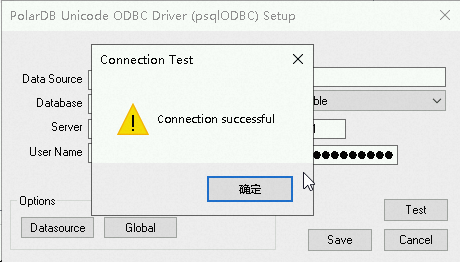
Click Test to verify the connection. A success message confirms that the connection string is correctly configured.
-
Click Save.
Use the ODBC driver on Linux or Unix
The following steps use CentOS as an example. Commands may differ depending on your distribution.
Install the driver
-
Download the driver package that matches your operating system and architecture. See Download the driver.
-
Extract the package. The PolarDB ODBC driver does not require installation — it's ready to use after extraction.
tar -zxvf polardb-odbc-*-*-*.tar.gzReplace
polardb-odbc-*-*-*.tar.gzwith the actual package name. -
Set the
LD_LIBRARY_PATHenvironment variable to point to the driver library:export LD_LIBRARY_PATH=<PolarDB-ODBC/lib>:$LD_LIBRARY_PATHReplace
<PolarDB-ODBC/lib>with the actual path to the extractedlibfolder. -
Set the
ODBCINIenvironment variable to point to yourodbc.inifile:export ODBCINI=</your/odbc.ini/file/path>
Connect to PolarDB
-
Install Libtool (1.5.1 or later) on the Linux server:
yum install -y libtool -
Install unixODBC-devel:
yum install -y unixODBC-devel -
Open the
odbc.inifile configured inODBCINI:vim $ODBCINI -
Add the following data source definition:
Field Description Default [POLARDB]The data source name. Use any name you like. — DescriptionAn optional description of this data source. — Driver/Driver64The path to psqlodbcw.soin the extractedlibfolder.— DatabaseThe name of the destination database. — ServernameThe cluster endpoint. To find it, see View or request an endpoint. — PasswordThe password for the database account. — PortThe database port. — UsernameThe database account. — TraceSet to yesto enable unixODBC tracing, which logs all ODBC calls. Useful for troubleshooting; disable in production to avoid performance overhead.yesTraceFileThe file where trace output is written. /tmp/odbc.logFileUsageSet to 1to indicate this is a file-based data source.1[POLARDB] Description = ODBC for POLARDB Driver = <PolarDB-ODBC/lib/psqlodbcw.so> Driver64 = <PolarDB-ODBC/lib/psqlodbcw.so> Database = <database_name> Servername = <database_endpoint> Password = <password> Port = <port> Username = <username> Trace = yes TraceFile = /tmp/odbc.log FileUsage = 1Replace
<PolarDB-ODBC/lib/>with the actual path to the extractedlibfolder. -
Connect to PolarDB:
$isql -v POLARDBExpected output:
+---------------------------------------+
| Connected!                            |
|                                       |
| sql-statement                         |
| help [tablename]                      |
| quit                                  |
|                                       |
+---------------------------------------+
SQL>
FAQ
When I use PowerBuilder to query data through ODBC, I get the error `ERROR: column "_polarHiddenprefix_dts_ROWID" does not exist` or `ERROR: column "polar_sys_rowid_attr" does not exist`.
This is a known issue with how earlier driver versions handle hidden columns. Upgrade to ODBC driver version 13.02.0000.1 or later to resolve it.
When I use PowerBuilder to run a query, I get the error `ERROR: syntax error at or near "limit"`.
This error occurs when an SQL reserved keyword is used as a column name. Upgrade to ODBC driver version 13.02.0000.1 or later to resolve it.
When I use isql to connect to PolarDB, I see `Can't open lib '/my/path/to/psqlodbcw.so' : file not found`, but the file exists.
The file exists, but a dynamic library it depends on — most likely libpq.so — is missing or not on the system path. Run ldd to check which dependencies are unresolved:
ldd /my/path/to/psqlodbcw.soLook for entries marked not found in the output:
linux-vdso.so.1 =>  (0x00007ffd7916a000)
libpq.so.5 => not found
libpthread.so.0 => /lib64/libpthread.so.0 (0x00007f388ac00000)
libodbcinst.so.2 => /lib64/libodbcinst.so.2 (0x00007f388a800000)
libc.so.6 => /lib64/libc.so.6 (0x00007f388a400000)
/lib64/ld-linux-x86-64.so.2 (0x00007f388afd1000)
libltdl.so.7 => /lib64/libltdl.so.7 (0x00007f388a000000)
libdl.so.2 => /lib64/libdl.so.2 (0x00007f3889c00000)
Add the directory containing the missing library to LD_LIBRARY_PATH:
export LD_LIBRARY_PATH=<path/to/library/directory>:$LD_LIBRARY_PATHUpdate log
13.02.0000.1 (February 10, 2025)
-
Type compatibility
-
The
DATEtype is now compatible with Oracle and supports time information, including hours, minutes, and seconds. -
The
INTERVALtype is now compatible with Oracle. To query anINTERVALcolumn, convert it to a string first.
-
-
API adaptation
-
PGAPI_Columnsand related APIs are updated for ROWID and DTS. System columns and system indexes are no longer displayed. -
PGAPI_Columnsnow supports using SQL reserved keywords as column names.
-