Learn how to create and manage an Enterprise Drive. The system automatically creates a default drive for your enterprise, accessible to all members without manual setup.
Enterprise Drive overview
After you purchase an Enterprise Drive, the system automatically creates a corresponding drive instance. A super administrator or drive administrator can log on to Enterprise Drive and navigate to Management Console > Team Management to view the root team, which is named after your enterprise and serves as the default enterprise space. No manual configuration is required. In the left-side navigation pane, click Team Management. Select the root team node from the tree structure. The team's information, including the New User and Import User buttons, appears in the details panel on the right.
Modify enterprise space size or permissions
Method 1:
A super administrator or drive administrator can go to , select the Enterprise Drive, and then click Modify Team Information to adjust the space size or permissions. The new size cannot exceed the remaining available space.
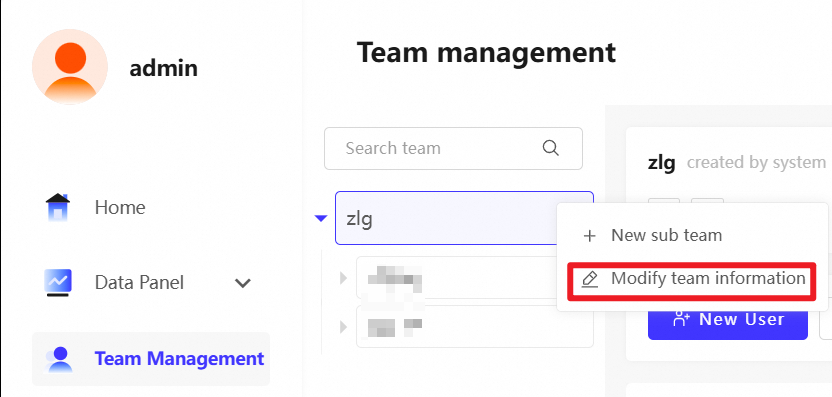
Method 2:
A super administrator or drive administrator can go to , select the enterprise space, and click Modify Space to adjust its size or permissions. The new size cannot exceed the remaining available space.
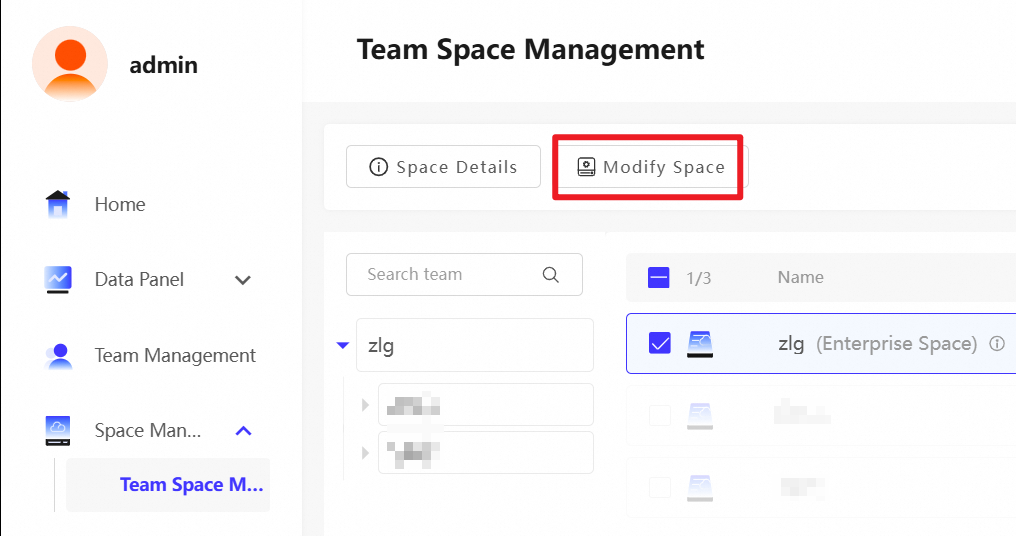
Enterprise space overview
Before using the enterprise space, you must allocate storage for the Enterprise Drive and grant the necessary access permissions.
From the Management Console, click Return to User Interface in the upper-right corner. You can then manage files under Enterprise > Enterprise Space:
A super administrator or drive administrator can upload, create, download, share, copy, and delete files in the enterprise space.
By default, team administrators and regular users have preview permissions. To grant additional permissions, see Permission Description.