The AI portrait solution allows you to automatically train your own low-rank adaptation (LoRA) models and use the LoRA models and template images to generate personalized AI portraits. Elastic Algorithm Service (EAS) is a model service platform provided by Platform for AI (PAI). The AI portrait solution defines an algorithmic process that can be deployed as EAS online model services, and provides relevant API operations for generating AI portraits. This topic describes how to deploy the EAS online model services and call the services to generate AI portraits.
Background information
EAS features
EAS is a model service platform provided by PAI. In the AI portrait solution, the following core features of EAS are used:
Deploy model services, including verification service, training service, and prediction service, by using custom images. EAS provides image verification, LoRA training, and image generation API services based on the algorithmic process of the AI portrait solution and supports load balancing and automatic scaling of GPU-accelerated instances for the services.
Configure asynchronous queues for the services. You can query and manage the consumption status of the queues and configure priorities for data to be pushed to the queues. For more information, see Asynchronous inference services.
Use the SDKs for Python and Java to call the services. You can pass through business-specific custom parameters. For more information, see SDKs.
Algorithmic process of the AI portrait solution
Perform a preliminary check on the images to ensure that the images are compliant.
Preprocess the images and check the quality of the images, automatically train and evaluate the model by using LoRA, and then generate the optimized model.
Preprocess the template image.
Generate an image in the first diffusion.
Generate an image in the second diffusion.
Prerequisites
A virtual private cloud (VPC) is created and Internet access is enabled for the VPC.
A VPC, vSwitch, and security group are created. For more information, see Create a VPC with an IPv4 CIDR block and Create a security group.
An Internet NAT gateway is created in the VPC. An elastic IP address (EIP) is associated with the gateway and SNAT entries are configured on the gateway. For more information, see Use the SNAT feature of an Internet NAT gateway to access the Internet.
EAS is activated and a default workspace is created. For more information, see Activate PAI and create a default workspace.
If you want to deploy the model services as a Resource Access Management (RAM) user, make sure that the RAM user is granted the management permissions on EAS. For more information, see Grant the permissions that are required to use EAS.
For model training and portrait creation, 5 to 20 training images and 1 template image are prepared. The following image formats are supported:
.jpg,.jpeg, and.png. Make sure that the size of each image is greater than 512 x 512 pixels.Single-person portrait: The template image must contain the face of a person. The faces in multiple training images belong to the same person.
Multi-person portrait: The template image must contain multiple faces, and the number of faces must be the same as the value of the model_id parameter specified for model training.
Limits
The AI portrait solution is supported only in the China (Beijing) and Singapore regions.
Deploy EAS online model services
Deploy the verification service
-
Log on to the PAI console. Select a region on the top of the page. Then, select the desired workspace and click Elastic Algorithm Service (EAS).
-
Click Deploy Service. In the Custom Model Deployment section, click Custom Deployment.
On the Custom Deployment page, configure the following key parameters.
In the Basic Information section, customize the service name according to the instructions on the page. For example, photog_check.
In the Environment Information section, configure the following parameters:
Parameter
Description
Deployment Method
Select Image-based Deployment and select Asynchronous Queue.
Image Configuration
Select Image Address and enter the image address in the text box:
Image address for the China (Beijing) region:
registry.cn-beijing.aliyuncs.com/mybigpai/photog_pub:check.1.0.0.pub.Image address for the Singapore region:
registry.ap-southeast-1.aliyuncs.com/mybigpai/photog_pub:check.1.0.0.pub.
Mount storage
Configure one of the following mount methods:
OSS
Uri: Select your own OSS Bucket path. For example,
oss://examplebucket/.Mount Path: Set to
/photog_oss.
NAS
Select File System: Select the NAS file system.
Mount Target: Select the NAS mount target.
File System Path: Set to the source path in NAS to be mounted, for example
/.Mount Path: Set to
/photog_oss.
Command
Set to
python app.py.Port Number
Set to 7860.
In the Resource Information section, configure the following parameters:
Parameter
Description
Resource Type
Select Public Resources.
Deployment
Select a GPU type GU30 series type. We recommend
ml.gu7i.c32m188.1-gu30.Configure a system disk
Set to 120 GiB.
In the Asynchronous Queue section, configure the following parameters:
Parameter
Description
Resource Type
Select Public Resource Group.
Deployment
Configure the following parameters:
Minimum Instances: 1
vCPUs: 8 cores
Memory: 64 GB
Maximum Data for A Single Input Request
Set to 20480 KB to prevent insufficient storage space for each request in the queue.
Maximum Data for A Single Output
In the Network Information section, select your created VPC, vSwitch, and security group.
In the Service Configuration section, click Edit button and add the following configurations. You can refer to the complete configuration example below to add new parameters.
Field
New parameters
metadata
Add the following:
"rpc": {
            "keepalive": 3600000,
            "worker_threads": 1
        }
keepalive: The maximum processing time for a single request in milliseconds, set to 3600000.
worker_threads: The number of threads used by EAS for concurrent request processing in each instance.
The default is 5, which means the first five tasks entering the queue will be assigned to the same instance. Set this parameter to 1 to ensure requests are processed in order.
queue
Add
"max_delivery": 1to prevent repeated delivery after failure.Complete configuration example:
{
    "metadata": {
        "name": "photog_check",
        "instance": 1,
        "rpc": {
            "keepalive": 3600000,
            "worker_threads": 1
        },
        "type": "Async"
    },
    "cloud": {
        "computing": {
            "instance_type": "ml.gu7i.c32m188.1-gu30",
            "instances": null
        },
        "networking": {
            "vswitch_id": "vsw-2ze4o9kww55051tf2****",
            "security_group_id": "sg-2ze0kgiee55d0fn4****",
            "vpc_id": "vpc-2ze5hl4ozjl4fo7q3****"
        }
    },
    "features": {
        "eas.aliyun.com/extra-ephemeral-storage": "100Gi"
    },
    "queue": {
        "cpu": 8,
        "max_delivery": 1,
        "min_replica": 1,
        "memory": 64000,
        "resource": "",
        "source": {
            "max_payload_size_kb": 20480
        },
        "sink": {
            "max_payload_size_kb": 20480
        }
    },
    "storage": [
        {
            "oss": {
                "path": "oss://examplebucket/",
                "readOnly": false
            },
            "properties": {
                "resource_type": "code"
            },
            "mount_path": "/photog_oss"
        }
    ],
    "containers": [
        {
            "image": "registry.cn-beijing.aliyuncs.com/mybigpai/photog_pub:check.1.0.0.pub",
            "script": "python app.py",
            "port": 7860
        }
    ]
}
Click Deploy.
When the Service Status is Running, the service is successfully deployed.
Deploy training service
-
Log on to the PAI console. Select a region on the top of the page. Then, select the desired workspace and click Elastic Algorithm Service (EAS).
-
Click Deploy Service. In the Custom Model Deployment section, click Custom Deployment.
On the Custom Deployment page, configure the following key parameters.
In the Basic Information section, customize the service name according to the instructions on the page. For example:
photog_train_pmml.In the Environment Information section, configure the following parameters:
Parameter
Description
Deployment Method
Select Image-based Deployment, and select Asynchronous Queue.
Image Configuration
Select Image Address, and enter the image address in the text box:
Image address for the China (Beijing) region:
registry.cn-beijing.aliyuncs.com/mybigpai/photog_pub:train.1.0.0.pub.Image address for the Singapore region:
registry.ap-southeast-1.aliyuncs.com/mybigpai/photog_pub:train.1.0.0.pub.
Mount storage
Configure one of the following mount methods:
OSS
Uri: Select your own OSS Bucket path, which should be the same as the OSS path selected for the verification service. For example
oss://examplebucket/.Mount Path: Set to
/photog_oss.
NAS
Select File System: Select the NAS file system.
Mount Target: Select the NAS mount point.
File System Path: Set to the source path in NAS that needs to be mounted, for example
/.Mount Path: Set to
/photog_oss.
Command
Set to
python app.py.Port Number
Set to 7860.
In the Resource Information section, configure the following parameters:
Parameter
Description
Resource Type
Select Public Resources.
Deployment
Select a GPU type GU30 series type. We recommend
ml.gu7i.c32m188.1-gu30.Configure a system disk
Set to 120 GiB.
In the Asynchronous Queue section, configure the following parameters:
Parameter
Description
Resource Type
Select Public Resources.
Deployment
Configure the following parameters:
Minimum Instances: 1
vCPUs: 8 cores
Memory: 64 GB
Maximum Data for A Single Input Request
Set to 20480 KB to avoid insufficient storage space for each request in the queue.
Maximum Data for A Single Output
In the Network Information section, select your created VPC, vSwitch, and security group.
In the Service Configuration section, click Edit, and add the following configurations. You can refer to the complete configuration example below to add new parameters.
Field
New parameters
autoscaler
(Optional) Horizontal auto-scaling configuration. For more information, see Horizontal auto scaling.
"behavior": {
  "scaleDown": {
    "stabilizationWindowSeconds": 60
  }
},
"max": 5,
"min": 1,
"strategies": {
            "queue[backlog]": 1
}
metadata
Add the following parameters:
"rpc": {
            "keepalive": 3600000,
            "worker_threads": 1
        }
keepalive: The maximum processing time for a single request in milliseconds, set to 3600000.
worker_threads: The number of threads used by EAS for concurrent request processing in each instance.
The default value is 5, which means the first five tasks that enter the queue will be assigned to the same instance. Set this parameter to 1 to ensure requests are processed in order.
queue
Add
"max_delivery": 1to prevent repeated delivery after failure.Complete configuration example:
{
    "autoscaler": {
        "behavior": {
            "scaleDown": {
                "stabilizationWindowSeconds": 60
            }
        },
        "max": 5,
        "min": 1,
        "strategies": {
            "queue[backlog]": 1
        }
    },
    "metadata": {
        "name": "photog_train_pmml",
        "instance": 1,
        "rpc": {
            "keepalive": 3600000,
            "worker_threads": 1
        },
        "type": "Async"
    },
    "cloud": {
        "computing": {
            "instance_type": "ml.gu7i.c32m188.1-gu30",
            "instances": null
        },
        "networking": {
            "vswitch_id": "vsw-2ze4o9kww55051tf2****",
            "security_group_id": "sg-2ze0kgiee55d0fn4****",
            "vpc_id": "vpc-2ze5hl4ozjl4fo7q3****"
        }
    },
    "features": {
        "eas.aliyun.com/extra-ephemeral-storage": "120Gi"
    },
    "queue": {
        "cpu": 8,
        "max_delivery": 1,
        "min_replica": 1,
        "memory": 64000,
        "resource": "",
        "source": {
            "max_payload_size_kb": 20480
        },
        "sink": {
            "max_payload_size_kb": 20480
        }
    },
    "storage": [
        {
            "oss": {
                "path": "oss://examplebucket/",
                "readOnly": false
            },
            "properties": {
                "resource_type": "code"
            },
            "mount_path": "/photog_oss"
        }
    ],
    "containers": [
        {
            "image": "registry.cn-beijing.aliyuncs.com/mybigpai/photog_pub:train.1.0.0.pub",
            "script": "python app.py",
            "port": 7860
        }
    ]
}
Click Deploy.
When the Service Status is Running, the service is successfully deployed.
Deploy the prediction service
-
Log on to the PAI console. Select a region on the top of the page. Then, select the desired workspace and click Elastic Algorithm Service (EAS).
-
Click Deploy Service. In the Custom Model Deployment section, click Custom Deployment.
On the Custom Deployment page, configure the following key parameters.
In the Basic Information section, customize the service name according to the instructions on the page. For example, photog_pre_pmml.
In the Environment Information section, configure the following parameters:
Parameter
Description
Deployment Method
Select Image-based Deployment and check Asynchronous Queue.
Image Configuration
Select Image Address and enter the image address in the text box. You need to configure both the AI portrait prediction service and WebUI prediction service image addresses. In this section, you only need to configure the AI portrait prediction service image address. The WebUI prediction service image address will be configured in the service configuration section later. The supported image list is as follows. This solution selects the image address in the China (Beijing) region.
Image addresses for the China (Beijing) region:
AI portrait prediction service:
registry.cn-beijing.aliyuncs.com/mybigpai/photog_pub:infer.1.0.0.pub.WebUI prediction service:
eas-registry-vpc.cn-beijing.cr.aliyuncs.com/pai-eas/stable-diffusion-webui:3.2.
Image address for the Singapore region
AI portrait prediction service:
registry.ap-southeast-1.aliyuncs.com/mybigpai/photog_pub:infer.1.0.0.pub.WebUI prediction service:
eas-registry-vpc.ap-southeast-1.cr.aliyuncs.com/pai-eas/stable-diffusion-webui:3.2.
Mount storage
Configure one of the following mounting methods. This solution selects OSS mounting.
OSS
Uri: Select your own OSS Bucket path, which should be the same as the OSS path selected for the verification service. For example,
oss://examplebucket/.Mount Path: Set to
/photog_oss.
NAS
Select File System: Select the NAS file system.
Mount Target: Select the NAS mount point.
File System Path: Set to the source path in NAS to be mounted, for example
/.Mount Path: Set to
/photog_oss.
Fownload and extract the model files required for WebUI, and store them in your OSS Bucket path
oss://examplebucket/photog_oss/webuior NAS path/photog_oss/webuiaccording to the layout shown in the screenshot below. For more information about how to upload files to an OSS Bucket path, see ossutil 1.0. For more information about how to upload files to a NAS path, see Mount a file system on a Linux ECS instance and Manage files.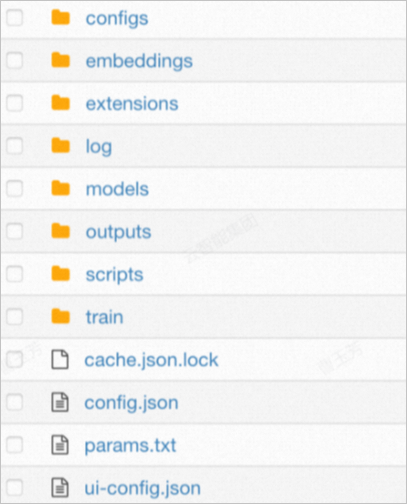
Environment Variable
Click Add to add the following two environment variables:
Variable name:
URL. Variable value:http://127.0.0.1:8000.Variable name:
AUTHORIZATION. Variable value:=.
Command
Set to
python app.py.Port Number
Set to 7860.
In the Resource Information section, configure the following parameters:
Parameter
Description
Resource Type
Select Public Resources.
Deployment
Select a GPU GU30 series type. We recommend
ml.gu7i.c32m188.1-gu30.Configure a system disk
Set to 120 GiB.
In the Asynchronous Queue section, configure the following parameters:
Parameter
Description
Resource Type
Select Public Resources.
Deployment
Configure the following parameters:
Minimum Instances: 1.
vCPUs: 8 cores.
Memory: 64 GB.
Maximum Data for A Single Input Request
Set to 20480 KB. This prevents insufficient storage space for each request in the queue.
Maximum Data for A Single Output
In the Network Information section, select your created VPC, vSwitch, and security group.
In the Service Configuration section, add the following configurations. You can refer to the complete configuration example below to add new parameters.
Field
New parameters
metadata
Add the following parameters:
"rpc": {
            "keepalive": 3600000,
            "worker_threads": 1
        }
keepalive: The maximum processing time for a single request, in milliseconds, set to 3600000.
worker_threads: The number of threads used by EAS for concurrent request processing in each instance.
The default is 5, which means the first five tasks that enter the queue will be allocated to the same instance. It is recommended to set this parameter to 1 to ensure that requests are processed in order.
containers
Add the following parameters:
{
            "image": "eas-registry-vpc.cn-beijing.cr.aliyuncs.com/pai-eas/stable-diffusion-webui:3.2",
            "port": 8000,
            "script": "./webui.sh --listen --port 8000 --skip-version-check --no-hashing --no-download-sd-model --skip-install --api --filebrowser --sd-dynamic-cache --data-dir /photog_oss/photog/webui/"
        }
These represent the WebUI prediction service image and the corresponding run command and port number.
queue
Add the parameter
"max_delivery": 1to prevent repeated delivery after failure.Complete configuration example:
{
    "metadata": {
        "name": "photog_pre_pmml",
        "instance": 1,
        "rpc": {
            "keepalive": 3600000,
            "worker_threads": 1
        },
        "type": "Async"
    },
    "cloud": {
        "computing": {
            "instance_type": "ecs.gn6v-c8g1.2xlarge",
            "instances": null
        },
        "networking": {
            "vswitch_id": "vsw-2ze4o9kww55051tf2****",
            "security_group_id": "sg-2ze0kgiee55d0fn4****",
            "vpc_id": "vpc-2ze5hl4ozjl4fo7q3****"
        }
    },
    "features": {
        "eas.aliyun.com/extra-ephemeral-storage": "120Gi"
    },
    "queue": {
        "cpu": 8,
        "max_delivery": 1,
        "min_replica": 1,
        "memory": 64000,
        "resource": "",
        "source": {
            "max_payload_size_kb": 20480
        },
        "sink": {
            "max_payload_size_kb": 20480
        }
    },
    "storage": [
        {
            "oss": {
                "path": "oss://examplebucket/",
                "readOnly": false
            },
            "properties": {
                "resource_type": "code"
            },
            "mount_path": "/photog_oss"
        }
    ],
    "containers": [
        {
            "image": "registry.cn-beijing.aliyuncs.com/mybigpai/photog_pub:infer.1.0.0.pub",
            "env": [
                {
                    "name": "URL",
                    "value": "http://127.0.0.1:8000"
                },
                {
                    "name": "AUTHORIZATION",
                    "value": "="
                }
            ],
            "script": "python app.py",
            "port": 7861
        },
        {
            "image": "eas-registry-vpc.cn-beijing.cr.aliyuncs.com/pai-eas/stable-diffusion-webui:3.2",
            "port": 8000,
            "script": "./webui.sh --listen --port 8000 --skip-version-check --no-hashing --no-download-sd-model --skip-install --api --filebrowser --sd-dynamic-cache --data-dir /photog_oss/photog/webui/"
        }
    ]
}
Click Deploy.
When the Service Status is Running, the service is successfully deployed.
Call the services
Step 1: Call the verification service
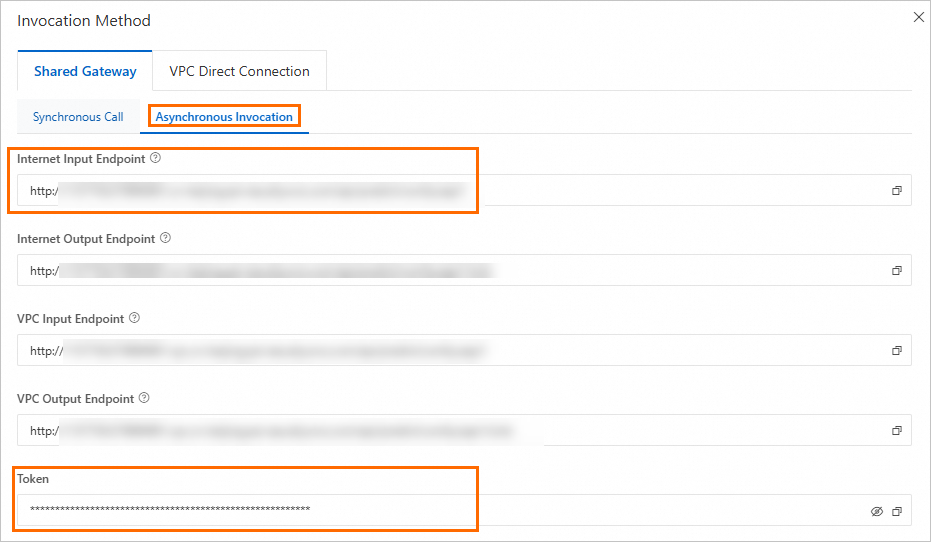
On the Elastic Algorithm Service (EAS) page, click the service name to open the Overview page. In the Basic Information section, click View Endpoint Information. On the Asynchronous Invocation tab, obtain the service endpoint and token.
Create an input queue for image verification and query the information about the input queue.
Sample requests:
SDK for Python
import json
from eas_prediction import QueueClient

# Create an input queue object to receive input data.
input_queue = QueueClient('182848887922****.cn-shanghai.pai-eas.aliyuncs.com', 'photog_check')
input_queue.set_token('<token>')
input_queue.init()

datas = json.dumps(
    {
       'request_id'    : 12345,
       'images'        : ["xx.jpg", "xx.jpg"], # urls, a list
       'configure'     : {
            'face_reconize' : True, # Judge whether all pictures are of a person
        }
    }
)

index, request_id = input_queue.put(f'{datas}')
print(index, request_id)

# Query the details of the input queue.
attrs = input_queue.attributes()
print(attrs)
The following table describes the key parameters.
Parameter
Description
Default value
Required
input_queue
The endpoint of the verification service that you obtained. The value must be of the STRING type. For more information about how to configure this parameter, see the preceding code.
N/A
Yes
<token>
The token of the verification service that you obtained. The value must be of the STRING type.
N/A
Yes
request_id
The ID of the request. The value must be of the STRING type.
N/A
Yes
images
The URLs of the images that are used for model training. The value must be of the LIST type.
N/A
Yes
configure
face_reconize
Specifies whether to check whether the faces in the images are of the same person. The value must be of the BOOLEAN type.
False
No
SDK for Java
import com.aliyun.openservices.eas.predict.http.HttpConfig;
import com.aliyun.openservices.eas.predict.http.QueueClient;
import com.aliyun.openservices.eas.predict.queue_client.QueueUser;
import org.apache.commons.lang3.tuple.Pair;

public class AsyncTest {
    public static void main(String[] args) throws Exception {
        /** Create a queue service client. */
        String queueEndpoint = "182848887922****.cn-shanghai.pai-eas.aliyuncs.com";
        String inputQueueName = "photog_check";
        String queueToken = "YmE3NDkyMzdiMzNmMGM3ZmE4ZmNjZDk0M2NiMDA3OTZmNzc1MT****==";

        QueueClient inputQueue =
            new QueueClient(queueEndpoint, inputQueueName, queueToken, new HttpConfig(), new QueueUser());

        /** The request data. */
        String data = "{\n" +
            "    'request_id': 12345,\n" +
            "    'images'    : [\"xx.jpg\", \"xx.jpg\"],\n" +
            "    'configure' : {\n" +
            "        'face_reconize' : True,\n" +
            "    }\n" +
            "}";
        Pair<Long, String> entry = inputQueue.put(data.getBytes(), null);
        System.out.println(String.format("index = %s, request id = %s", entry.getKey(), entry.getValue()));

        // Query the details of the input queue.
        System.out.println(inputQueue.attributes());

        /** Shut down the client. */
        inputQueue.shutdown();
    }
}
The following table describes the key parameters.
Parameter
Description
Default value
Required
queueEndpoint
The endpoint of the verification service that you obtained. The value must be of the STRING type.
N/A
Yes
inputQueueName
The name of the verification service. The value must be of the STRING type.
N/A
Yes
queueToken
The token of the verification service that you obtained. The value must be of the STRING type.
N/A
Yes
request_id
The ID of the request. The value must be of the STRING type.
N/A
Yes
images
The URLs of the images that are used for model training. The value must be of the LIST type.
N/A
Yes
configure
face_reconize
Specifies whether to check whether the faces in the images are of the same person. The value must be of the BOOLEAN type.
False
No
Sample responses:
SDK for Python
1 6bdea119-01f3-4728-b3d3-b0af366ad3eb
{'consumers.list.[0]': 'Id: photog_check.photog-check-738569a9-798897bdf5-76****, Index: 0, Pending: 0, Status: Running, Idle: 1h10m4.997s, Window: 1, Slots: 1, AutoCommit: false', 'consumers.stats.total': '1', 'consumers.status.total': '1', 'groups.list.[0]': 'Id: photog_check, Index: 1, Pending: 1, Delivered: 2, Consumers: 1', 'meta.header.group': 'X-EAS-QueueService-Gid', 'meta.header.priority': 'X-EAS-QueueService-Priority', 'meta.header.user': 'X-EAS-QueueService-Uid', 'meta.name': 'photog-check-queue-95e006df', 'meta.state': 'Normal', 'stream.approxMaxLength': '1439', 'stream.firstEntry': '1', 'stream.lastEntry': '1', 'stream.length': '1', 'stream.maxPayloadBytes': '20971520'}
SDK for Java
index = 2, request id = 61132b43-a527-40dc-89bb-a9a48316ddea
{"meta.header.priority":"X-EAS-QueueService-Priority","consumers.status.total":"1","stream.firstEntry":"2","stream.maxPayloadBytes":"20971520","consumers.stats.total":"1","stream.approxMaxLength":"1439","stream.length":"1","groups.list.[0]":"Id: photog_check, Index: 2, Pending: 1, Delivered: 3, Consumers: 1","meta.header.group":"X-EAS-QueueService-Gid","stream.lastEntry":"2","consumers.list.[0]":"Id: photog_check.photog-check-738569a9-798897bdf5-76j48, Index: 2, Pending: 0, Status: Running, Idle: 19m11.174s, Window: 1, Slots: 1, AutoCommit: false","meta.name":"photog-check-queue-95e006df","meta.state":"Normal","meta.header.user":"X-EAS-QueueService-Uid"}

Process finished with exit code 0
Key parameters in the preceding code:
index: the position of the request in all requests sent to EAS.
request_id: the ID of the request. The ID is used to query the output results.
Other parameters indicate the details of the input queue.
Create an output queue and query output results to check whether the images are compliant.
Sample requests:
SDK for Python
# Create an output queue object to subscribe to the processing results in the output queue.
sink_queue = QueueClient('182848887922****.cn-shanghai.pai-eas.aliyuncs.com', 'photog_check/sink')
sink_queue.set_token('<token>')
sink_queue.init()

sink_queue.get(request_id, auto_delete=True)[0].data.decode('utf-8')
Key parameters in the preceding code:
sink_queue: the endpoint of the verification service that you obtained.
<token>: the token of the verification service that you obtained.
auto_delete: specifies whether to delete the queried output results from the output queue. Default value: True. If you specify only the request_id parameter and do not specify the
auto_deleteparameter, the queried output results are deleted from the output queue. We recommend that you explicitly set theauto_deleteparameter to True because output results need to be deleted from output queues in most cases.
SDK for Java
import com.aliyun.openservices.eas.predict.http.HttpConfig;
import com.aliyun.openservices.eas.predict.http.QueueClient;
import com.aliyun.openservices.eas.predict.queue_client.DataFrame;
import com.aliyun.openservices.eas.predict.queue_client.QueueUser;
import org.apache.commons.lang3.tuple.Pair;

import java.util.HashMap;
import java.util.Map;

public class AsyncPhotoTest {
    public static void main(String[] args) throws Exception {
        /** Create a queue service client. */
        String queueEndpoint = "166233998075****.cn-beijing.pai-eas.aliyuncs.com";
        String inputQueueName = "photog_check";
        String sinkQueueName = String.format("%s/sink", inputQueueName);
        String queueToken = "YjczMzFlYmRkMDU4YmZmMGQ4NTEwODA4NDk3NmFhODE5N2ExMzEy****";

        QueueClient inputQueue =
            new QueueClient(queueEndpoint, inputQueueName, queueToken, new HttpConfig(), new QueueUser());
        QueueClient sinkQueue =
            new QueueClient(queueEndpoint, sinkQueueName, queueToken, new HttpConfig(), new QueueUser());

        /** The request data. */
        String data = "{\n" +
            "  \"request_id\": 12345,\n" +
            "  \"images\": [\"xx.jpg\", \"xx.jpg\"],\n" +
            "  \"configure\": {\n" +
            "    \"face_reconize\": true\n" +
            "  }\n" +
            "}";
        Pair<Long, String> entry = inputQueue.put(data.getBytes(), null);
        Long index = entry.getKey();
        final String requestId = entry.getValue();
        System.out.println(String.format("index = %d, request id = %s", index, requestId));

        // Query the details of the input queue.
        System.out.println(inputQueue.attributes());

        // Query the input data.
        Map<String, String> tags =
            new HashMap<String, String>() {
                {
                    put("requestId", requestId);
                }
            };
        DataFrame[] dfs = inputQueue.get(0, 1L, 0, false, tags);
        if (dfs.length > 0) {
            System.out.println(String.format("Successfully get input data = %s, index = %d, tags = %s", new String(dfs[0].getData()), dfs[0].getIndex(), dfs[0].getTags()));
        } else {
            System.out.println("no data");
        }

        // Query the output data.
        while (true) {
            dfs = sinkQueue.get(0, 1L, 0, true, tags);
            if (dfs.length > 0) {
                System.out.println(String.format("Successfully get sink data = %s, tags = %s", new String(dfs[0].getData()), dfs[0].getTags()));
                break;
            } else {
                System.out.println("no data");
                Thread.sleep(5000);
            }
        }

        /** Shut down the client. */
        inputQueue.shutdown();
        sinkQueue.shutdown();
    }
}
Key parameters in the preceding code:
queueEndpoint: the endpoint of the verification service that you obtained.
inputQueueName: the name of the verification service.
queueToken: the token of the verification service that you obtained.
images: the URLs of the images that are used for model training.
Sample responses:
SDK for Python
'{"request_id": "12345", "code": "OK", "message": "success", "data": {"request_id": 12345, "images": ["xx.jpg", "https://xxx.oss-cn-beijing.aliyuncs.com/photog/user_images/foto/train/0.jpg"], "configure": {"face_reconize": true}, "cost_time": 9.820043325424194, "check_results": [{"url": "https://xx-cn-beijing.aliyuncs.com/photog/user_images/foto/train/1.jpg", "message": "success", "code": 1, "frontal": true}, {"url": "https://xx-cn-beijing.aliyuncs.com/photog/user_images/foto/train/0.jpg", "message": "success", "code": 1, "frontal": false}]}}'SDK for Java
Successfully get sink data = {"request_id": "12345", "code": "OK", "message": "success", "data": {"request_id": 12345, "images": ["xx.jpg", "xx.jpg"], "configure": {"face_reconize": true}, "cost_time": 0.2047882080078125, "check_results": [{"url": "https://xx-cn-beijing.aliyuncs.com/photog/user_images/foto/train/1.jpg", "message": "success", "code": 1, "frontal": true}, {"url": "https://xx-cn-beijing.aliyuncs.com/photog/user_images/foto/train/0.jpg", "message": "success", "code": 1, "frontal": false}]}}The following table describes the key parameters.
Parameter
Description
request_id
The ID of the request. The value is of the STRING type.
code
The status code of the request. The value is of the STRING type. Valid values:
OK: The verification is complete.
error: The verification is not complete.
message
The detailed information about the request status. A value of success indicates that the images are compliant. If other values are returned, resolve the issues based on the returned message.
data
The detailed response content. Parameters:
check_results: the verification results of the images.
url: the URL of the image.
message: the verification details of the image. A value of success indicates that the image is compliant. For more information about the valid values of the message parameter and the corresponding values of the code parameter, see the message parameter section of this topic.
frontal: indicates whether the image is a frontal face image.
cost_time: the processing time for the request on the server side.
images: the URLs of the images that are verified. The value is of the LIST type.
request_id: the ID of the request. The value is of the STRING type.
Step 2: Call the training service
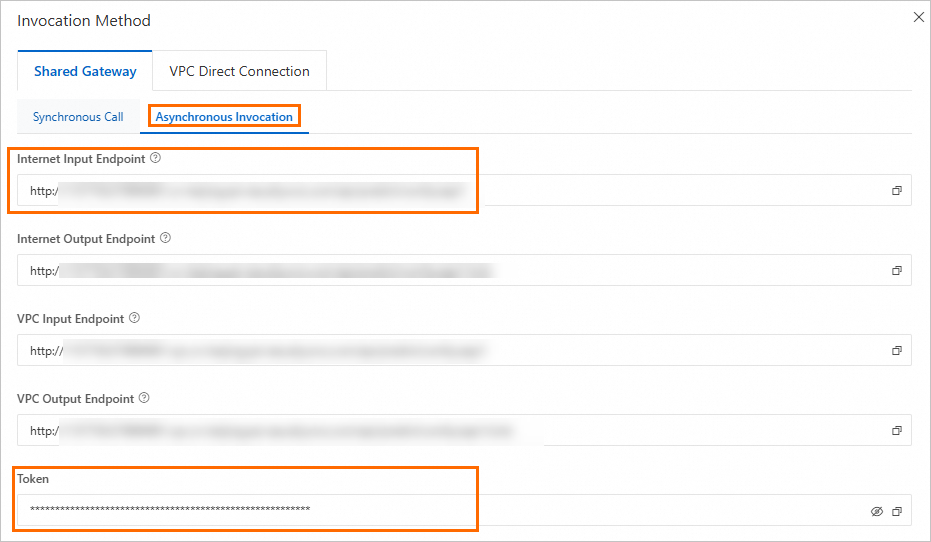
On the Elastic Algorithm Service (EAS) page, click the training service name to open the Overview page. In the Basic Information area, click View Endpoint Information. On the Asynchronous Invocation tab, obtain the service endpoint and Token.
Create an input queue for LoRA model training and query the information about the input queue.
Sample requests:
SDK for Python
photog_train_pmmln import json
from eas_prediction import QueueClient

# Create an input queue object to receive input data.
input_queue = QueueClient('182848887922****.cn-shanghai.pai-eas.aliyuncs.com', 'photog_train_pmml')
input_queue.set_token('<token>')
input_queue.init()

datas = json.dumps(
    {
        'request_id'    : 12345,
        'images'        : ["xx.jpg", "xx.jpg"], # urls
        'configure'     : {
            'user_id'   : "zhoumo", # user id
        }
    }
)

index, request_id = input_queue.put(f'{datas}')
print(index, request_id)

# Query the details of the input queue.
attrs = input_queue.attributes()
print(attrs)
The following table describes the key parameters.
Parameter
Description
Default value
Required
input_queue
The endpoint of the training service that you obtained. The value must be of the STRING type. For more information about how to configure this parameter, see the preceding code.
N/A
Yes
<token>
The token of the training service that you obtained. The value must be of the STRING type.
N/A
Yes
request_id
The ID of the request. The value must be of the STRING type.
N/A
Yes
images
The URLs of the images that are used for model training. The value must be of the LIST type.
N/A
Yes
configure
user_id
The ID of the user. The value must be of the STRING type.
N/A
Yes
sex
The gender of the person in the images for model training.
secret
No
max_train_steps
The total number of training steps.
400
No
val_save_checkpointing_steps
The number of steps between two model evaluations.
50
No
SDK for Java
import com.aliyun.openservices.eas.predict.http.HttpConfig;
import com.aliyun.openservices.eas.predict.http.QueueClient;
import com.aliyun.openservices.eas.predict.queue_client.QueueUser;
import org.apache.commons.lang3.tuple.Pair;

public class AsyncTest {
    public static void main(String[] args) throws Exception {
        /** Create a queue service client. */
        String queueEndpoint = "182848887922****.cn-shanghai.pai-eas.aliyuncs.com";
        String inputQueueName = "photog_train_pmml";
        String queueToken = "YmE3NDkyMzdiMzNmMGM3ZmE4ZmNjZDk0M2NiMDA3OTZmNzc1MT****==";

        QueueClient inputQueue =
            new QueueClient(queueEndpoint, inputQueueName, queueToken, new HttpConfig(), new QueueUser());

        /** The request data. */
        String data = "{\n" +
            "        'request_id'    : 12345,\n" +
            "        'images'        : [\"xx.jpg\", \"xx.jpg\"],\n" +
            "        'configure'     : {\n" +
            "            'user_id'   : \"zhoumo\",\n" +
            "        }\n" +
            "    }";
        Pair<Long, String> entry = inputQueue.put(data.getBytes(), null);
        System.out.println(String.format("index = %s, request id = %s", entry.getKey(), entry.getValue()));

        // Query the details of the input queue.
        System.out.println(inputQueue.attributes());

        /** Shut down the client. */
        inputQueue.shutdown();
    }
}
The following table describes the key parameters.
Parameter
Description
Default value
Required
queueEndpoint
The endpoint of the training service that you obtained. The value must be of the STRING type.
N/A
Yes
inputQueueName
The name of the training service. The value must be of the STRING type.
N/A
Yes
queueToken
The token of the training service that you obtained. The value must be of the STRING type.
N/A
Yes
request_id
The ID of the request. The value must be of the STRING type.
N/A
Yes
images
The URLs of the images that are used for model training. The value must be of the LIST type.
N/A
Yes
configure
user_id
The ID of the user. The value must be of the STRING type.
N/A
Yes
sex
The gender of the person in the images for model training.
secret
No
max_train_steps
The total number of training steps.
400
No
val_save_checkpointing_steps
The number of steps between two model evaluations.
50
No
Sample responses:
SDK for Python
2 bb4ce34d-47e4-425d-bee7-b806e29c6d78
{'consumers.list.[0]': 'Id: photog_train_pmml.photog-train-pmml-78550f91-7545766654-jpdtp, Index: 2, Pending: 0, Status: Running, Idle: 18h46m24.039s, Window: 1, Slots: 1, AutoCommit: false', 'consumers.stats.total': '1', 'consumers.status.total': '1', 'groups.list.[0]': 'Id: photog_train_pmmln, Index: 2, Pending: 1, Delivered: 3, Consumers: 1', 'meta.header.group': 'X-EAS-QueueService-Gid', 'meta.header.priority': 'X-EAS-QueueService-Priority', 'meta.header.user': 'X-EAS-QueueService-Uid', 'meta.name': 'photog-train-pmmln-queue-7a5e7cc6', 'meta.state': 'Normal', 'stream.approxMaxLength': '1438', 'stream.firstEntry': '2', 'stream.lastEntry': '2', 'stream.length': '1', 'stream.maxPayloadBytes': '20971520'}
SDK for Java
index = 3, request id = ec3b7c21-c395-4490-ae42-8f66d06e9d4d
{"meta.header.priority":"X-EAS-QueueService-Priority","consumers.status.total":"1","stream.firstEntry":"3","stream.maxPayloadBytes":"20971520","consumers.stats.total":"1","stream.approxMaxLength":"1438","stream.length":"1","groups.list.[0]":"Id: photog_train_pmml, Index: 3, Pending: 1, Delivered: 4, Consumers: 1","meta.header.group":"X-EAS-QueueService-Gid","stream.lastEntry":"3","consumers.list.[0]":"Id: photog_train_pmmln.photog-train-pmmln-78550f91-7545766654-jpdtp, Index: 3, Pending: 0, Status: Running, Idle: 2h30m57.08s, Window: 1, Slots: 1, AutoCommit: false","meta.name":"photog-train-pmmln-queue-7a5e7cc6","meta.state":"Normal","meta.header.user":"X-EAS-QueueService-Uid"}

Process finished with exit code 0
Key parameters in the preceding code:
index: the position of the request in all requests sent to EAS.
request_id: the ID of the request. The ID is used to query the output results.
Other parameters indicate the details of the input queue.
Create an output queue and subscribe to the processing results to check whether the model is successfully trained.
Sample requests:
SDK for Python
# Create an output queue object to subscribe to the processing results in the output queue.
sink_queue = QueueClient('182848887922****.cn-shanghai.pai-eas.aliyuncs.com', 'photog_train_pmml/sink')
sink_queue.set_token('<token>')
sink_queue.init()

sink_queue.get(request_id, auto_delete=True)[0].data.decode('utf-8')
Key parameters in the preceding code:
sink_queue: the endpoint of the training service that you obtained.
<token>: the token of the training service that you obtained.
SDK for Java
import com.aliyun.openservices.eas.predict.http.HttpConfig;
import com.aliyun.openservices.eas.predict.http.QueueClient;
import com.aliyun.openservices.eas.predict.queue_client.DataFrame;
import com.aliyun.openservices.eas.predict.queue_client.QueueUser;
import org.apache.commons.lang3.tuple.Pair;

import java.util.HashMap;
import java.util.Map;

public class AsyncPhotoTest {
    public static void main(String[] args) throws Exception {
        /** Create a queue service client. */
        String queueEndpoint = "166233998075****.cn-beijing.pai-eas.aliyuncs.com";
        String inputQueueName = "photog_train_pmml";
        String sinkQueueName = String.format("%s/sink", inputQueueName);
        String queueToken = "N2E2YWI0Y2MyNjZmNjdlMWFmZjNhOTM5M2E5ZGNlMGY1NDQwZGYw****";

        QueueClient inputQueue =
                new QueueClient(queueEndpoint, inputQueueName, queueToken, new HttpConfig(), new QueueUser());
        QueueClient sinkQueue =
                new QueueClient(queueEndpoint, sinkQueueName, queueToken, new HttpConfig(), new QueueUser());

        /** The request data. */
        String data = "{\n" +
                "  \"request_id\": 12345,\n" +
                "  \"images\": [\"xx.jpg\", \"xx.jpg\"],\n" +
                "  \"configure\": {\n" +
                "    \"user_id\": \"zhoumo\"\n" +
                "  }\n" +
                "}";
        Pair<Long, String> entry = inputQueue.put(data.getBytes(), null);
        Long index = entry.getKey();
        final String requestId = entry.getValue();
        System.out.println(String.format("index = %d, request id = %s", index, requestId));

        // Query the details of the input queue.
        System.out.println(inputQueue.attributes());

        // Query the input data.
        Map<String, String> tags =
                new HashMap<String, String>() {
                    {
                        put("requestId", requestId);
                    }
                };
        DataFrame[] dfs = inputQueue.get(0, 1L, 0, false, tags);
        if (dfs.length > 0) {
            System.out.println(String.format("Successfully get data = %s, index = %d, tags = %s", new String(dfs[0].getData()), dfs[0].getIndex(), dfs[0].getTags()));
        } else {
            System.out.println("no data");
        }

        // Query the output data.
        while (true) {
            dfs = sinkQueue.get(0, 1L, 0, true, tags);
            if (dfs.length > 0) {
                System.out.println(String.format("Successfully get data = %s, tags = %s", new String(dfs[0].getData()), dfs[0].getTags()));
                break;
            } else {
                System.out.println("no data");
            }
        }

        /** Shut down the client. */
        inputQueue.shutdown();
        sinkQueue.shutdown();
    }
}
Key parameters in the preceding code:
queueEndpoint: the endpoint of the training service that you obtained.
inputQueueName: the name of the training service.
queueToken: the token of the training service that you obtained.
images: the URLs of the images that are used for model training.
Sample responses:
SDK for Python
'{"request_id": "12345", "code": "OK", "message": "success", "data": {"user_id": "zhoumo", "cost_time": 272.7406361103058}}'NoteIf the value of the code parameter in the response is 502, the training is in progress.
SDK for Java
... no data no data Successfully get data = {"request_id": "12345", "code": "OK", "message": "success", "data": {"user_id": "zhoumo", "cost_time": 260.7540729045868}}NoteIf
no datais returned in the response, the training is in progress.The following table describes the key parameters.
Parameter
Description
request_id
The ID of the request. The value is of the STRING type.
code
The status of the training. Valid values:
OK: The training is complete.
error: The training is not complete.
message
The detailed information about the training status. A value of success indicates that the model is trained.
data
The detailed response content. Parameters:
user_id: the ID of the user.
cost_time: the processing time for the request on the server side.
Step 3: Call the image generation interface
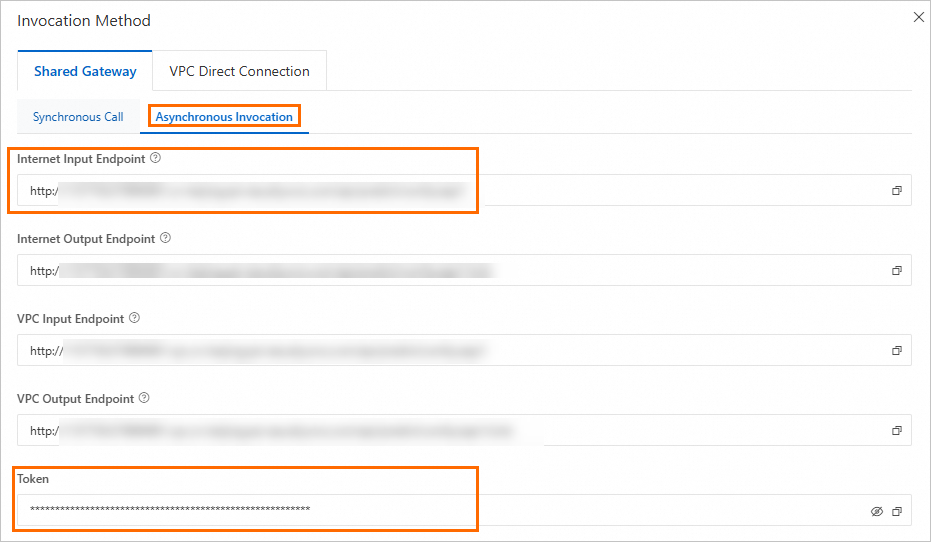
Go to the Elastic Algorithm Service (EAS) page and click the name of the prediction service to open the Overview page. In the Basic Information section, click View Endpoint Information. On the Asynchronous Invocation tab, obtain the service endpoint and token.
Create an input queue for image prediction and query the information about the input queue.
Sample requests:
SDK for Python
import json
from eas_prediction import QueueClient

# Create an input queue object to receive input data.
input_queue = QueueClient('182848887922****.cn-shanghai.pai-eas.aliyuncs.com', 'photog_pre_pmml')
input_queue.set_token('<token>')
input_queue.init()

datas = json.dumps({
    'request_id'    : 12345,
    'template_image': "xx.jpg",
    'configure'     : {
        'user_id'   : "zhoumo", # threshold to get tags.
    }
})

index, request_id = input_queue.put(f'{datas}')
print(index, request_id)

# Query the details of the input queue.
attrs = input_queue.attributes()
print(attrs)

# Query a specific request based on the request ID.
print(input_queue.get(request_id, auto_delete=False)[0].data.decode('utf-8'))
The following table describes the key parameters.
Parameter
Description
Default value
Required
input_queue
The endpoint of the prediction service that you obtained. The value must be of the STRING type. For more information about how to configure this parameter, see the preceding code.
N/A
Yes
<token>
The token of the prediction service that you obtained. The value must be of the STRING type.
N/A
Yes
request_id
The ID of the request. The value must be of the STRING type.
N/A
Yes
template_image
The URL of the template image.
N/A
Yes
configure
user_id
The ID of the user. The value must be of the STRING type.
N/A
Yes
sex
The gender of the person in the images for model training. The value must be of the STRING type.
secret
No
first_diffusion_steps
The number of steps in the first diffusion. The value must be of the INT type.
50
No
first_denoising_strength
The strength of the first diffusion. The value must be of the FLOAT type.
0.45
No
second_diffusion_steps
The number of steps in the second diffusion. The value must be of the INT type.
20
No
second_denoising_strength
The strength of the second diffusion. The value must be of the FLOAT type.
0.30
No
more_like_me_before
The degree of the first face fusion. A higher value specifies a higher resemblance. The value must be of the FLOAT type.
0.50
No
more_like_me
The degree of the second face fusion. A higher value specifies a higher resemblance. The value must be of the FLOAT type.
0.50
No
mask_region
The mask region. The value must be of the STRING type. Valid values:
edge: reconstructs only the edges in the second diffusion.
face: reconstructs the entire face in the second diffusion.
edge
No
crop_face_preprocess
Specifies whether to reconstruct the portrait after the portrait area is cropped. The value must be of the BOOLEAN type.
True
No
apply_face_fusion_before
Specifies whether to perform the first face fusion. The value must be of the BOOLEAN type.
True
No
apply_face_fusion_after
Specifies whether to perform the second face fusion. The value must be of the BOOLEAN type.
True
No
color_shift_middle
Specifies whether to perform the first face color balance. The value must be of the BOOLEAN type.
True
No
color_shift_last
Specifies whether to perform the second face color balance. The value must be of the BOOLEAN type.
True
No
background_restore
Specifies whether to reconstruct the background. The value must be of the BOOLEAN type.
False
No
skin_retouching_bool
Specifies whether to perform skin smoothing. The value must be of the BOOLEAN type.
True
No
photo_enhancement_bool
Specifies whether to enhance the portrait. The value must be of the BOOLEAN type.
True
No
photo_enhancement_method
The method that is used to enhance the portrait. Valid values:
photo_fix
super_resolution
photo_fix
No
makeup_transfer
Specifies whether to transfer the makeup. The value must be of the BOOLEAN type.
False
No
makeup_transfer_ratio
The strength of the makeup transfer. The value must be of the FLOAT type.
0.50
No
SDK for Java
import com.aliyun.openservices.eas.predict.http.HttpConfig;
import com.aliyun.openservices.eas.predict.http.QueueClient;
import com.aliyun.openservices.eas.predict.queue_client.DataFrame;
import com.aliyun.openservices.eas.predict.queue_client.QueueUser;
import org.apache.commons.lang3.tuple.Pair;

import java.util.HashMap;
import java.util.Map;

public class AsyncTest {
    public static void main(String[] args) throws Exception {
        /** Create a queue service client. */
        String queueEndpoint = "166233998075****.cn-beijing.pai-eas.aliyuncs.com";
        String inputQueueName = "photog_pre_pmml";
        String queueToken = "NjViMTI2NGQxZWQxYTI1NGE5MGQ1YTQ5Y2Y2MGZjY2VlZTVmNWE1****";

        QueueClient inputQueue =
                new QueueClient(queueEndpoint, inputQueueName, queueToken, new HttpConfig(), new QueueUser());

        /** The request data. */
        String data = "{\n" +
                "    'request_id'    : 12345, \n" +
                "    'template_image': \"xx.jpg\", \n" +
                "    'configure'     : { \n" +
                "        'user_id'   : \"zhoumo\",\n" +
                "    } \n" +
                "}";
        Pair<Long, String> entry = inputQueue.put(data.getBytes(), null);
        System.out.println(String.format("index = %s, request id = %s", entry.getKey(), entry.getValue()));

        // Query the details of the input queue.
        System.out.println(inputQueue.attributes());

        // Query a specific request based on the request ID.
        final String requestId = entry.getValue();
        Map<String, String> tags =
                new HashMap<String, String>() {
                    {
                        put("requestId", requestId);
                    }
                };
        DataFrame df = inputQueue.get(0, 1L, 0, false, tags)[0];
        System.out.println(String.format("Successfully get data = %s, tags = %s", new String(df.getData()), df.getTags()));

        /** Shut down the client. */
        inputQueue.shutdown();
    }
}
The following table describes the key parameters.
Parameter
Description
Default value
Required
queueEndpoint
The endpoint of the prediction service that you obtained. The value must be of the STRING type.
N/A
Yes
inputQueueName
The name of the prediction service.
N/A
Yes
queueToken
The token of the prediction service that you obtained. The value must be of the STRING type.
N/A
Yes
request_id
The ID of the request. The value must be of the STRING type.
N/A
Yes
template_image
The URL of the template image.
N/A
Yes
configure
user_id
The ID of the user. The value must be of the STRING type.
N/A
Yes
sex
The gender of the person in the images for model training. The value must be of the STRING type.
secret
No
first_diffusion_steps
The number of steps in the first diffusion. The value must be of the INT type.
50
No
first_denoising_strength
The strength of the first diffusion. The value must be of the FLOAT type.
0.45
No
second_diffusion_steps
The number of steps in the second diffusion. The value must be of the INT type.
20
No
second_denoising_strength
The strength of the second diffusion. The value must be of the FLOAT type.
0.30
No
more_like_me_before
The degree of the first face fusion. A higher value specifies a higher resemblance. The value must be of the FLOAT type.
0.50
No
more_like_me
The degree of the second face fusion. A higher value specifies a higher resemblance. The value must be of the FLOAT type.
0.50
No
mask_region
The mask region. The value must be of the STRING type. Valid values:
edge: reconstructs only the edges in the second diffusion.
face: reconstructs the entire face in the second diffusion.
edge
No
crop_face_preprocess
Specifies whether to reconstruct the portrait after the portrait area is cropped. The value must be of the BOOLEAN type.
True
No
apply_face_fusion_before
Specifies whether to perform the first face fusion. The value must be of the BOOLEAN type.
True
No
apply_face_fusion_after
Specifies whether to perform the second face fusion. The value must be of the BOOLEAN type.
True
No
color_shift_middle
Specifies whether to perform the first face color balance. The value must be of the BOOLEAN type.
True
No
color_shift_last
Specifies whether to perform the second face color balance. The value must be of the BOOLEAN type.
True
No
background_restore
Specifies whether to reconstruct the background. The value must be of the BOOLEAN type.
False
No
skin_retouching_bool
Specifies whether to perform skin smoothing. The value must be of the BOOLEAN type.
True
No
photo_enhancement_bool
Specifies whether to enhance the portrait. The value must be of the BOOLEAN type.
True
No
photo_enhancement_method
The method that is used to enhance the portrait. Valid values:
photo_fix
super_resolution
photo_fix
No
makeup_transfer
Specifies whether to transfer the makeup. The value must be of the BOOLEAN type.
False
No
makeup_transfer_ratio
The strength of the makeup transfer. The value must be of the FLOAT type.
0.50
No
Sample responses:
SDK for Python
1 069173d0-dce9-4ed6-913e-cc5fdda38764
{'consumers.list.[0]': 'Id: photog_pre_pmml.photog-pre-pmml-835253f3-686f87d4f-d****, Index: 0, Pending: 0, Status: Running, Idle: 21h41m4.995s, Window: 1, Slots: 1, AutoCommit: false', 'consumers.stats.total': '1', 'consumers.status.total': '1', 'groups.list.[0]': 'Id: photog_pre_pmml, Index: 1, Pending: 1, Delivered: 2, Consumers: 1', 'meta.header.group': 'X-EAS-QueueService-Gid', 'meta.header.priority': 'X-EAS-QueueService-Priority', 'meta.header.user': 'X-EAS-QueueService-Uid', 'meta.name': 'photog-pre-pmml-queue-912f2cdb', 'meta.state': 'Normal', 'stream.approxMaxLength': '1439', 'stream.firstEntry': '1', 'stream.lastEntry': '1', 'stream.length': '1', 'stream.maxPayloadBytes': '20971520'}
{"request_id": 12345, "template_image": "https://xx.oss-cn-beijing.aliyuncs.com/photog/user_images/foto/train/1.jpg", "configure": {"user_id": "zhoumo"}}
SDK for Java
index = 4, request id = 996cb029-133e-4f18-bb03-e696fc6ae4a1
{"meta.header.priority":"X-EAS-QueueService-Priority","consumers.status.total":"1","stream.firstEntry":"4","stream.maxPayloadBytes":"20971520","consumers.stats.total":"1","stream.approxMaxLength":"1436","stream.length":"1","groups.list.[0]":"Id: photog_pre_pmml, Index: 4, Pending: 1, Delivered: 5, Consumers: 1","meta.header.group":"X-EAS-QueueService-Gid","stream.lastEntry":"4","consumers.list.[0]":"Id: photog_pre_pmml.photog-pre-pmml-835253f3-686f87d4f-d****, Index: 4, Pending: 0, Status: Running, Idle: 2m12.017s, Window: 1, Slots: 1, AutoCommit: false","meta.name":"photog-pre-pmml-queue-912f2cdb","meta.state":"Normal","meta.header.user":"X-EAS-QueueService-Uid"}
Successfully get data = {
    'request_id'    : 12345,
    'template_image': "https://xx.oss-cn-beijing.aliyuncs.com/photog/user_images/foto/train/1.jpg",
    'configure'     : {
        'user_id'   : "zhoumo",
    }
}, tags = {requestId=996cb029-133e-4f18-bb03-e696fc6ae4a1, ts@source=169778191****}

Process finished with exit code 0
Key parameters in the preceding code:
index: the position of the request in all requests sent to EAS.
request_id: the ID of the request. The ID is used to query the output results.
Other parameters indicate the details of the input queue.
Create an output queue and query output results. In the response, you can view the Base64-encoded image.
Sample requests:
SDK for Python
# Create an output queue object to subscribe to the processing results in the output queue.
sink_queue = QueueClient('182848887922****.cn-shanghai.pai-eas.aliyuncs.com', 'photog_pre_pmml/sink')
sink_queue.set_token('<token>')
sink_queue.init()

sink_queue.get(request_id, auto_delete=True)[0].data.decode('utf-8')
Key parameters in the preceding code:
sink_queue: the endpoint of the prediction service that you obtained.
<token>: the token of the prediction service that you obtained.
SDK for Java
import com.aliyun.openservices.eas.predict.http.HttpConfig;
import com.aliyun.openservices.eas.predict.http.QueueClient;
import com.aliyun.openservices.eas.predict.queue_client.DataFrame;
import com.aliyun.openservices.eas.predict.queue_client.QueueUser;
import org.apache.commons.lang3.tuple.Pair;

import java.util.HashMap;
import java.util.Map;

public class AsyncPhotoTest {
    public static void main(String[] args) throws Exception {
        /** Create a queue service client. */
        String queueEndpoint = "166233998075****.cn-beijing.pai-eas.aliyuncs.com";
        String inputQueueName = "photog_pre_pmml";
        String sinkQueueName = String.format("%s/sink", inputQueueName);
        String queueToken = "NjViMTI2NGQxZWQxYTI1NGE5MGQ1YTQ5Y2Y2MGZjY2VlZTVmNWE1****";

        QueueClient inputQueue =
                new QueueClient(queueEndpoint, inputQueueName, queueToken, new HttpConfig(), new QueueUser());
        QueueClient sinkQueue =
                new QueueClient(queueEndpoint, sinkQueueName, queueToken, new HttpConfig(), new QueueUser());

        /** The request data. */
        String data = "{\n" +
                "  \"request_id\": 12345,\n" +
                "  \"template_image\": \"xx.jpg\",\n" +
                "  \"configure\": {\n" +
                "    \"user_id\": \"zhoumo\"\n" +
                "  }\n" +
                "}";
        Pair<Long, String> entry = inputQueue.put(data.getBytes(), null);
        Long index = entry.getKey();
        final String requestId = entry.getValue();
        System.out.println(String.format("index = %d, request id = %s", index, requestId));

        // Query the details of the input queue.
        System.out.println(inputQueue.attributes());

        // Query the input data.
        Map<String, String> tags =
                new HashMap<String, String>() {
                    {
                        put("requestId", requestId);
                    }
                };
        DataFrame[] dfs = inputQueue.get(0, 1L, 0, false, tags);
        if (dfs.length > 0) {
            System.out.println(String.format("Successfully get data = %s, index = %d, tags = %s", new String(dfs[0].getData()), dfs[0].getIndex(), dfs[0].getTags()));
        } else {
            System.out.println("no data");
        }

        // Query the output data.
        while (true) {
            dfs = sinkQueue.get(0, 1L, 0, true, tags);
            if (dfs.length > 0) {
                System.out.println(String.format("Successfully get data = %s, tags = %s", new String(dfs[0].getData()), dfs[0].getTags()));
                break;
            } else {
                System.out.println("no data");
            }
        }

        /** Shut down the client. */
        inputQueue.shutdown();
        sinkQueue.shutdown();
    }
}
Key parameters in the preceding code:
queueEndpoint: the endpoint of the prediction service that you obtained.
inputQueueName: the name of the prediction service.
queueToken: the token of the prediction service that you obtained.
template_image: the URL of the template image.
Sample responses:
SDK for Python
'{"request_id": "12345", "code": "OK", "message": "success", "data": {"user_id": "zhoumo", "image": "iVBORw*****CYII=", "cost_time": 329.69798278808594}}'NoteIf the value of the code parameter in the response is 502, the image is being generated.
SDK for Java
... no data no data Successfully get data = {"request_id": "12345", "code": "OK", "message": "success", "data": {"user_id": "zhoumo", "image": "iVBORw0KGgoAAA****ABJRU5ErkJggg==", "cost_time": 21.584840059280396}}NoteIf
no datais returned in the response, the image is being generated.The following table describes the key parameters.
Parameter
Description
request_id
The ID of the request. The value is of the STRING type.
code
The status code of the request. Valid values:
OK: The request was successful.
error: The request failed.
message
The detailed information about the request status. A value of success indicates that the request was successful. If other values are returned, resolve the issues based on the returned message.
data
The detailed response content. Parameters:
user_id: the ID of the user.
image: The generated Base64-encoded image.
cost_time: the time consumed. The value is of the FLOAT type.