Integrate Elasticsearch into your Retrieval-Augmented Generation (RAG) service to enhance the accuracy and richness of answers from the large language model (LLM). Elasticsearch not only delivers efficient retrieval but also provides features such as dictionary configuration and index management. These features help your RAG system better understand query intent and provide more relevant and valuable responses. This topic shows you how to connect an Elasticsearch instance when deploying a RAG service, and explores the basic functions of the RAG system and its Elasticsearch-specific features.
Background information
EAS
Elastic Algorithm Service (EAS) is a model online service platform in PAI that supports deploying models as online inference services and AI-powered web apps. EAS provides features such as Auto Scaling and blue-green deployment, for high-concurrency, stable online services at a low resource cost. EAS also offers resource group management, version control, and a comprehensive O&M and monitoring system. For more information, see EAS overview.
RAG
While large language models (LLMs) have achieved remarkable success, their widespread application has revealed several inherent limitations:
Limited domain knowledge: LLMs are typically trained on large-scale, general-purpose datasets and struggle to provide in-depth, targeted processing for specialized vertical domains.
Outdated information: Due to the static nature of their training datasets, LLMs cannot access and learn the latest information and knowledge in real time.
Misleading outputs: Due to data biases and inherent model flaws, LLMs may produce outputs that seem plausible but are factually incorrect. This phenomenon is known as "model hallucination."
Retrieval-Augmented Generation (RAG) was developed to address these challenges and enhance the accuracy of large models. By integrating external knowledge bases, RAG significantly reduces model fabrications and improves the model's ability to access and apply the latest knowledge, enabling more personalized and precise LLM customization.
Elasticsearch
Alibaba Cloud Elasticsearch is a fully managed cloud service built on open-source Elasticsearch. It is fully compatible with open-source features and offers a ready-to-use, pay-as-you-go service. It not only provides the Elastic Stack components, including Elasticsearch, Logstash, Kibana, and Beats, but also offers free X-Pack (Platinum Edition advanced features) commercial plug-ins in cooperation with Elastic. These plug-ins integrate advanced features such as security, SQL, machine learning, alerting, and monitoring. The service is widely used for real-time log analysis, information retrieval, and multi-dimensional data querying and statistical analysis. For more information about Alibaba Cloud Elasticsearch, see What is Alibaba Cloud Elasticsearch?.
Workflow
EAS provides a comprehensive RAG solution with flexible parameter configurations. You can customize your own conversational system by using the RAG service through the WebUI or API calls. The core architecture of RAG consists of retrieval and generation:
For retrieval, EAS supports multiple vector databases, including the open-source Faiss, Elasticsearch, Hologres, OpenSearch, and RDS for PostgreSQL.
For generation, EAS supports a rich set of open-source models, such as Qwen, Llama, Mistral, and Baichuan, as well as ChatGPT API calls.
This topic uses Elasticsearch as an example to show you how to build a RAG-based conversational system with EAS and Elasticsearch. The workflow is as follows:
Prepare the Elasticsearch vector database
Create an Elasticsearch instance and gather the required configuration details for connecting it to the RAG service during deployment.
Deploy the RAG service and associate it with Elasticsearch
Deploy the RAG service on the EAS platform and associate it with your Elasticsearch instance.
Use the RAG conversational system
You can connect to Elasticsearch from your RAG conversational system, upload your enterprise knowledge base files, and perform knowledge-based Q&A.
Prerequisites
A VPC, a vSwitch, and a security group have been created. For more information, see Create a VPC with an IPv4 CIDR block and Create a security group.
Usage notes
This solution is limited by server resource size and the LLM service's default token limit, which restricts the conversation length. Its purpose is to help you experience the basic retrieval functions of the rag-based llm chatbot.
Prepare the Elasticsearch vector database
Step 1: Create an Alibaba Cloud Elasticsearch instance
Log on to the Alibaba Cloud Elasticsearch console and create an Alibaba Cloud Elasticsearch instance on the Elasticsearch Instances page. The key parameters are described below. For details about other parameters, see Create an Alibaba Cloud Elasticsearch instance.
Parameter | Description |
Region and zone | Select the same region as your EAS service. |
Instance type | Select Standard Edition. |
Password | Set a logon password and save it locally. |
Step 2: Prepare parameters
Prepare the Elasticsearch URL.
On the Elasticsearch Instances page, select the region where you created the instance from the top menu bar, and then click the ID of the created Elasticsearch instance in the instance list.
In the Basic Information section, get the private endpoint and port number, and then combine them to create the Elasticsearch URL.
The format is
http://<private_endpoint>:<private_port>.ImportantWhen using a private endpoint, ensure that the Elasticsearch instance and the PAI-RAG service are in the same VPC. Otherwise, the connection will fail.
Prepare the index name.
On the page of your Elasticsearch instance, click Modify Configuration and set Auto Indexing to Enable in the YML file. For more information, see Configure YML parameters.
After completing the configuration, you can specify a custom index name, such as es-test, when deploying the PAI-RAG service.
Prepare the username and password.
The username is elastic by default. The password is the one you set when creating the instance. If you have forgotten the password, you can reset it. For more information, see Reset the access password of an instance.
Deploy the RAG service with Elasticsearch
Log on to the PAI console. In the top navigation bar, select the target region. In the right part of the page, select the target workspace, and then click Enter Elastic Algorithm Service (EAS).
On the Inference Service tab, click Deploy Service. In the Scenario-based Model Deployment section, click RAG-based Smart Dialogue Deployment.
On the RAG-based LLM Chatbot Deployment page, configure the following key parameters. For information about other parameters, see Step 1: Deploy the RAG service.
Parameter
Description
Basic Information
Version
Select LLM-Integrated Deployment.
RAG Version
Select pai-rag:0.3.4.
Model Type
Select qwen1.5-1.8b.
Resource Information
Deployment
The system recommends a resource specification based on the model type. Using a different specification may prevent the service from starting.
Vector Database Settings
Vector Database Type
Select Elasticsearch.
Private Endpoint and Port
Enter the Elasticsearch URL that you obtained in Step 2. The format is
http://<private_endpoint>:<private_port>.Index Name
Enter a name for a new index or the name of an existing index. If you use an existing index, its structure must meet PAI-RAG requirements. For example, you can use an index that was automatically created by a previous RAG service deployment in EAS.
Account
Set this to elastic.
Password
Enter the logon password you set in Step 2.
OSS Path
Select an existing OSS directory in the current region. This OSS path is used to mount and manage the knowledge base.
VPC
VPC
Ensure that the configured VPC is the same as the one used by your Elasticsearch instance.
vSwitch
Security Group Name
After you configure the parameters, click Deploy.
Use the RAG conversational system
The basic usage of the RAG conversational system is as follows. For more information, see Large Model RAG Conversational System (v0.3.x).
1. Check the vector database configuration
Click the name of your target RAG service, and then click View Web App in the upper-right corner of the page.
Check if the Elasticsearch vector database configuration is correct.
The system automatically configures a
defaultknowledge base and applies the vector database settings that you specified during RAG service deployment. In the Vector Database Settings section, check if the Elasticsearch configuration is correct. You can modify the settings if necessary, and then click Update Knowledge Base.
2. Upload enterprise knowledge base files
On the Knowledge Base tab, click the File Management tab to upload knowledge base files.
After you upload the knowledge base, the system automatically stores the files in the vector database in the PAI-RAG format. If you upload a knowledge base file with the same name as an existing file, the original file is overwritten in all vector databases except Faiss. Supported file types include .html, .htm, .txt, .pdf, .pptx, .md, Excel (.xlsx or .xls), .jsonl, .jpeg, .jpg, .png, .csv, and Word (.docx), for example, rag_chatbot_test_doc.txt.
3. Perform knowledge-based Q&A
On the Chat tab, select a knowledge base and an intent. To use more tools, select Query Knowledge Base. You can then perform knowledge-based Q&A.
Elasticsearch features
Custom tokenization and stopwords
Alibaba Cloud Elasticsearch comes with the built-in IK analysis plug-in (analysis-ik). The IK analyzer functions like a dictionary, containing various common words, and tokenizes sentences into words rather than individual Chinese characters. IK includes a main dictionary for complex Chinese text tokenization and a stopword dictionary for removing high-frequency, low-value words (such as "of", "is", and "in"). This improves retrieval efficiency and accuracy. Although the default IK dictionaries are powerful, specialized fields like law or medicine often have extensive jargon. Your knowledge base may also contain product names, company names, or brand names that are not in the default dictionaries. You can create custom dictionaries to achieve more accurate search results that align with your business needs. For more information about the Elasticsearch IK analysis plug-in, see Use the IK analysis plug-in (analysis-ik).
1. Prepare dictionary files
Create a custom dictionary file on your local machine:
File format: A
.dicfile. The filename can contain uppercase letters, lowercase letters, digits, or underscores, and must not exceed 30 characters in length. Example: new_word.dic.Content requirements: Add new words or stopwords to the dictionary file, one term per line. For example, using the built-in tokenizer, "cloud server" might be split into "cloud" and "server". If your business requires it to be treated as a single term, you can add "cloud server" to your main dictionary. The following example shows the content of a new_word.dic file:
cloud server
custom tokenization
2. Upload the dictionary file
After preparing the dictionary file, you need to upload it to the specified location. The following steps show how to perform a rolling update as an example. For more information about other methods for updating dictionary files, see Use the IK analysis plug-in (analysis-ik).
Go to the details page of your Elasticsearch instance.
Log on to the Alibaba Cloud Elasticsearch console.
In the left navigation menu, choose Elasticsearch Clusters.
Navigate to the target cluster.
In the top navigation bar, select the resource group to which the cluster belongs and the region where the cluster resides.
On the Elasticsearch Clusters page, find the cluster and click its ID.
-
Go to the hot update page for the
analysis-ikplugin.-
In the navigation pane on the left, choose .
-
On the Built-in Plug-ins tab, find the
analysis-ikplugin and click Rolling Update in the Actions column.
-
-
Perform the hot update.
-
In the Configure IK Dictionaries - Rolling Update dialog box, click Edit next to the target dictionary, upload the required dictionary file as instructed, then click Save.
You can upload dictionary files using one of the following methods:
-
Upload On-premises File: Click the
 icon or drag and drop your local file as instructed.
 -
Upload OSS File: Enter the bucket name and dictionary file name, then click Add.
-
The bucket and Alibaba Cloud ES instance must be in the same region.
-
OSS dictionary files are not automatically synchronized. If the source file changes, perform a dictionary update to apply changes.
-
Note-
You can upload multiple dictionary files. File names must end with
.dic. File names can contain letters, digits, and underscores, and must not exceed 30 characters. -
To modify an uploaded dictionary file, click the
 icon next to it to download and edit the file. Then delete the original file and re-upload the updated one. After deleting the original file, click Save; otherwise, the system reports that a file with the same name already exists.
-
-
Click OK and wait for ES nodes to finish loading the dictionary.
ES nodes load dictionary files automatically. Loading times vary across nodes — wait until all nodes finish.
-
After the dictionary file is updated, you must reconnect to Elasticsearch from the RAG service WebUI. For more information, see Connect to a vector database.
After reconnecting, you can perform knowledge-based Q&A in the WebUI. When the Retrieval Mode is set to Keyword Only (keyword search) or Hybrid (vector search + keyword search), Elasticsearch uses the updated dictionary for full-text search.
Index management
Effective index management is key to helping your RAG system efficiently retrieve relevant information and generate high-quality answers. Perform the following steps:
Go to the details page of your Elasticsearch instance.
Log on to the Alibaba Cloud Elasticsearch console.
In the left navigation menu, choose Elasticsearch Clusters.
Navigate to the target cluster.
In the top navigation bar, select the resource group to which the cluster belongs and the region where the cluster resides.
On the Elasticsearch Clusters page, find the cluster and click its ID.
In the left-side navigation pane of the page that appears, choose .
In the Kibana section of the page that appears, click Modify Configuration. On the Kibana Configuration page, configure a private or public IP address whitelist for Kibana.
For more information, see Configure a public or private IP address whitelist for Kibana.
Log on to the Kibana console.
Click the Back icon in the upper-left corner of the page to return to the Data Visualization page.
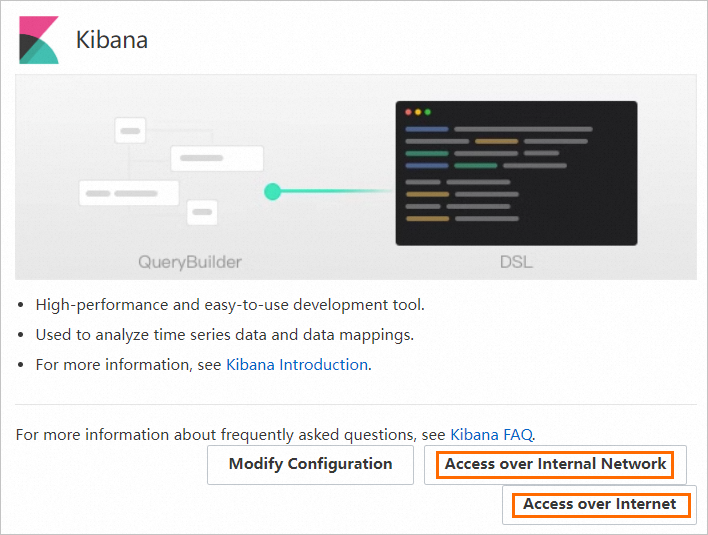
In the Kibana section, click Access over Internet or Access over Internal Network.
NoteThe Access over Internet or Access over Internal Network entry is displayed only after the Public Network Access or Private Network Access switch is turned on for Kibana.
On the Kibana logon page, enter the username and password.
Username: The default username of an Elasticsearch cluster is elastic.
You can also customize a username. For more information, see Use the RBAC mechanism provided by Elasticsearch X-Pack to implement access control.
Password: the password that corresponds to the elastic username. The password of the elastic account is specified when you create the Elasticsearch cluster. If you forget the password, you can reset it.
For more information about the procedure and precautions for resetting the password, see Reset the access password of an Elasticsearch cluster.
Click Log In to log on to the Kibana console.
After you log on, the Kibana home page appears. The page displays the Welcome back heading, followed by four feature entry cards: Search, Observability, Security, and Analytics. The page also provides data onboarding options such as Add integrations, Try sample data, and Upload a file.
View and manage indexes.
In the Kibana console, click the
 icon in the upper-left corner and choose Management > Stack Management from the drop-down list.
In the Data section of the left-side navigation pane, click Index Management.
On the index tab on the right, view your index (for example, the
es_testindex you created) and perform management operations such as closing, flushing, clearing, or deleting the index.
Related documents
EAS provides simplified deployment methods for typical AIGC and LLM scenarios, allowing you to launch services with a single click. For more information, see Scenario-based deployment in EAS.
The RAG service WebUI offers a wide range of parameter configurations. You can also call the RAG service by using an API. For implementation details and parameter descriptions, see RAG-based LLM chatbot (v0.3.x).
The RAG system also supports other vector databases, such as OpenSearch, or RDS for PostgreSQL. For more information, see Build a RAG-enhanced conversational system with EAS and OpenSearch, or Build a RAG-enhanced conversational system with EAS and RDS for PostgreSQL.