PAI includes multiple functional modules that support the end-to-end process of data preparation, model development, model training, and model deployment. This topic describes how to purchase and use each functional module.
Activation instructions
PAI supports two activation methods, each with different billing rules:
Activate PAI separately
Activate PAI for free and create a default workspace. Each functional module is billed separately when used. Expense details appear in your PAI bill.
Activate with other products
When activating PAI, activate other products such as OSS, MaxCompute, and DataWorks at the same time. After combined activation, usage fees for these products do not appear in your PAI bill. Billing logic and expense details are as follows:
For more information about OSS pay-as-you-go billing standards, see OSS pay-as-you-go.
For MaxCompute pay-as-you-go billing standards, see Pay-as-you-go Standard Edition.
For more information about DataWorks billing standards, see DataWorks Resource Consumption Billing Standards.
Product feature usage (purchasing) overview
AI workflow stage | Functional module | Sales type | Usage guide |
Data Preparation | iTAG | [Free] Annotation platform | This feature is available on the iTAG page in the PAI console. For more information, see iTAG Overview. |
[Paid] Annotation platform | When the annotation volume is greater than or equal to 100,000, you can submit a ticket to contact the PAI team for paid annotation services. | ||
Model development | Data Science Workshop | [Pay-as-you-go] | You are charged on a pay-as-you-go basis for the runtime of DSW instances that are deployed in the public resource group for general computing resources. To learn how to use a public resource group to create a DSW instance, see Data Science Workshop. |
[Subscription] | Go to the AI Compute Resources > Resource Pool page to purchase general computing resources or Lingjun resources and create a resource quota. DSW instances that are created using a resource quota associated with a workspace are billed based on the subscription duration of the dedicated resources. For more information about how to create DSW instances using resource quotas, see Data Science Workshop (DSW). Note
| ||
Model training | Distributed Training (Deep Learning Containers) | [Pay-as-you-go] | You are charged on a pay-as-you-go basis for the runtime duration of distributed training tasks deployed on public resources. For more information about how to submit distributed training tasks using public resources, see Deep Learning Containers (DLC). |
[Subscription] | Go to the AI Compute Resources > Resource Pool page to purchase general computing resources or Lingjun resources and create a resource quota in advance. Use a resource quota that is associated with a workspace to create a DLC job. You are charged for the job based on the subscription duration of the dedicated resources. For information about how to submit a training task using a resource quota, see Deep Learning Containers. Note
| ||
Model deployment | Elastic Algorithm Service (EAS) | [Pay-as-you-go] |
|
[Subscription] | You can go to and EAS Dedicated Machine Prepayment to pre-purchase dedicated resource group machines on a subscription basis. You are charged based on the subscription duration of the dedicated resource group machines. For more information, see Elastic Algorithm Service. | ||
[Spot instance] | When you use a public resource group to deploy an EAS service, you can use preemptible instances to reduce your running costs. These instances are highly cost-effective. For more information about how to configure preemptible instances, see Elastic Algorithm Service (EAS). |
Usage guides
Data Science Workshop (DSW)
Pay-as-you-go billing
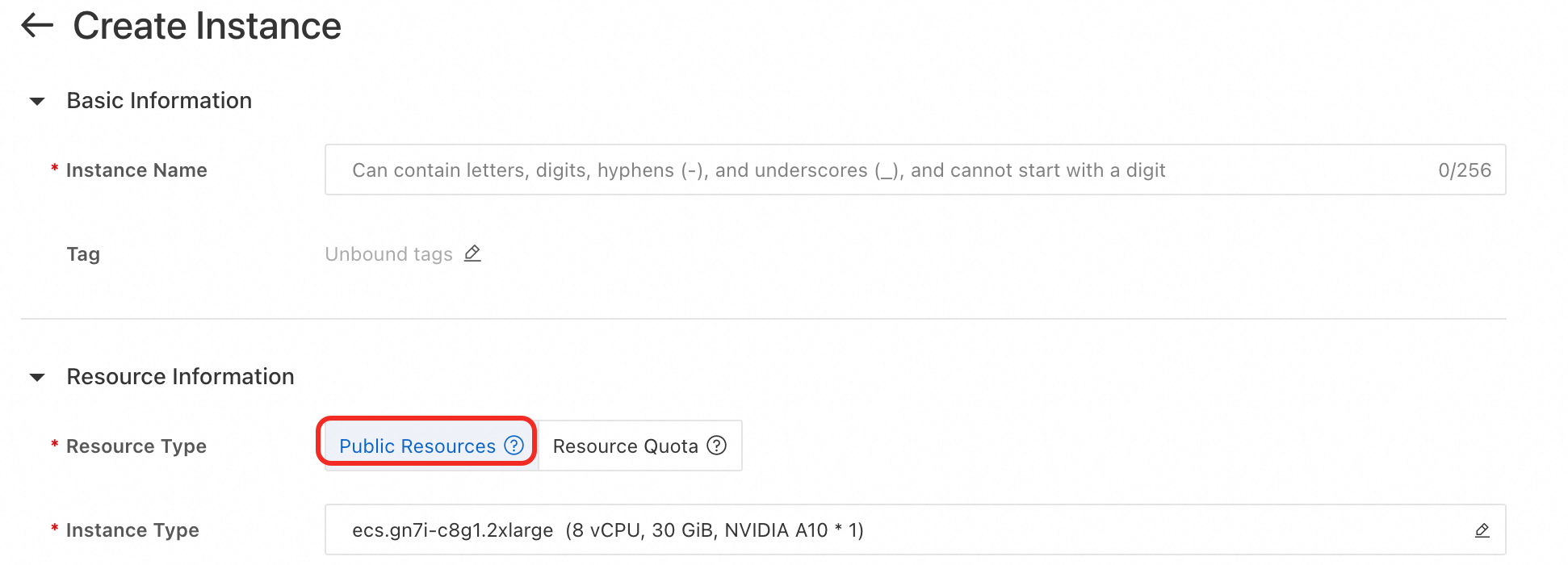
Create a DSW instance and select Resource Type as Public Resources. For more information about parameter settings, see Create a DSW Instance.
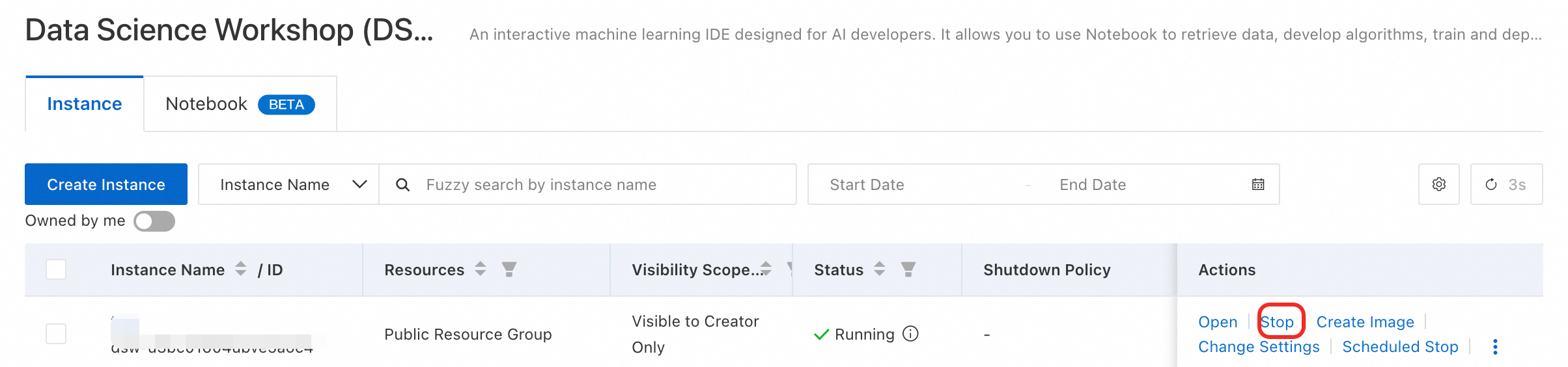
If you no longer need the DSW instance, you can click Actions and then Stop in the Actions column of the target instance. Resource consumption stops immediately after the instance stops successfully.
Subscription
Go to the AI Computing Resources page to purchase subscription computing resources:
First, on the Resource Pool page, in the General Computing Resources tab, create a resource group and purchase general computing resources. Then, on the Resource Quota (Quota) page, in the General Computing Resources tab, create a resource quota and associate it with a workspace. For more information, see General Computing Resource Quotas.
First, on the Resource Pool page, in the Lingjun Resources tab, create a resource group and purchase Lingjun resources. Then, on the Resource Quota (Quota) page, in the Lingjun Resources tab, create a resource quota and associate it with a workspace. For more information, see create a resource quota.
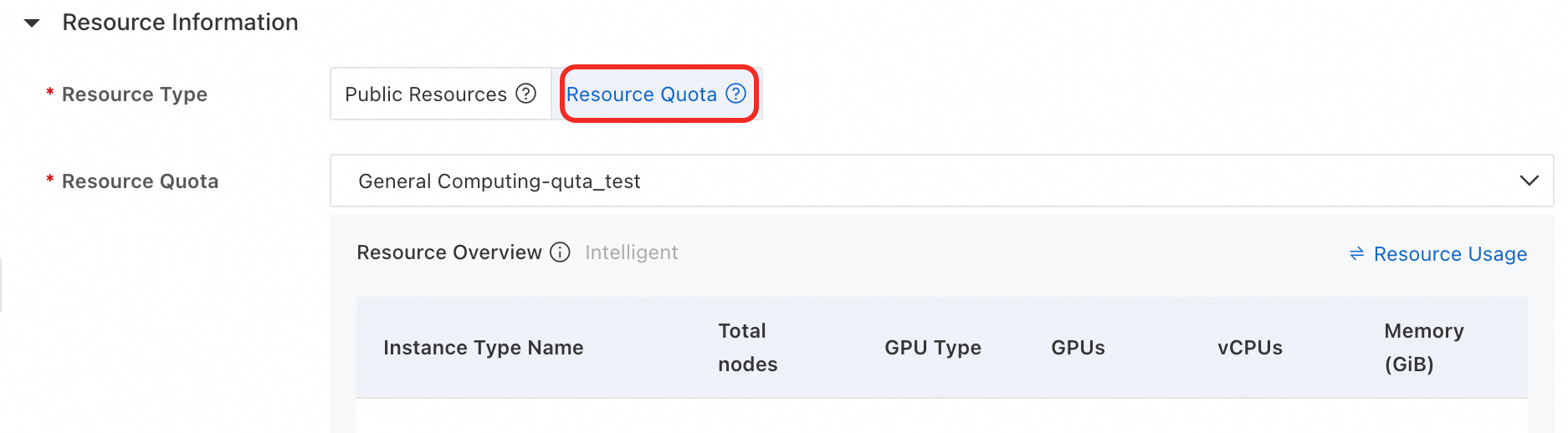
Create a DSW instance in a workspace with an associated resource quota, selecting either an existing general computing resource quota or a Lingjun resources quota for Resource Quota. For more information about parameter settings, see Create a DSW Instance.
Deep Learning Containers (DLC)
Pay-as-you-go billing
Submit a Deep Learning Containers (DLC) training task and select Resource Source as Public Resources. For more information, see Create a Training Task.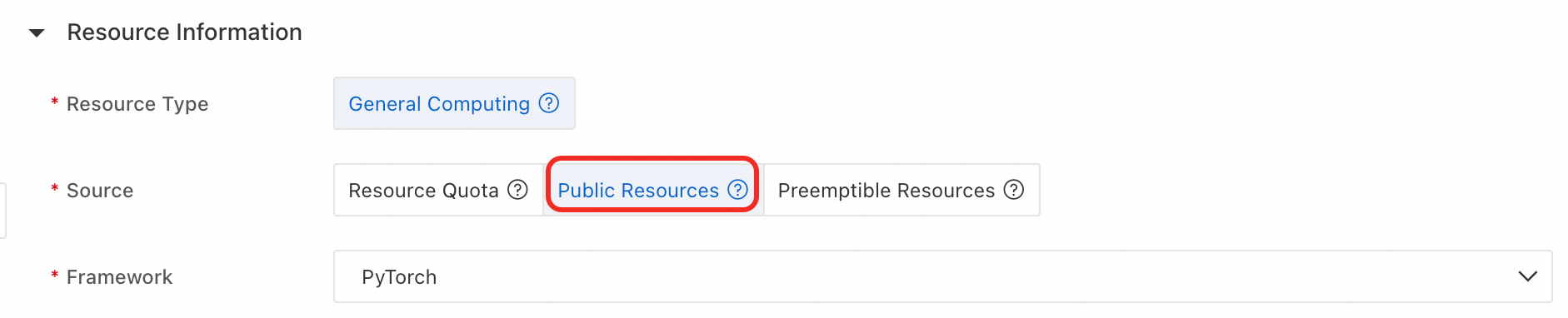
Subscription
Go to the AI Computing Resources page to purchase subscription computing resources:
First, on the Resource Pool page, in the General Computing Resources tab, create a resource group and purchase general computing resources. Then, on the Resource Quota (Quota) page, in the General Computing Resources tab, create a resource quota and associate it with a workspace. For more information, see General Computing Resource Quotas.
First, on the Resource Pool page, in the Lingjun Resources tab, create a resource group and purchase Lingjun resources. Then, on the Resource Quota (Quota) page, in the Lingjun Resources tab, create a resource quota and associate it with a workspace. For more information, see create a resource quota.
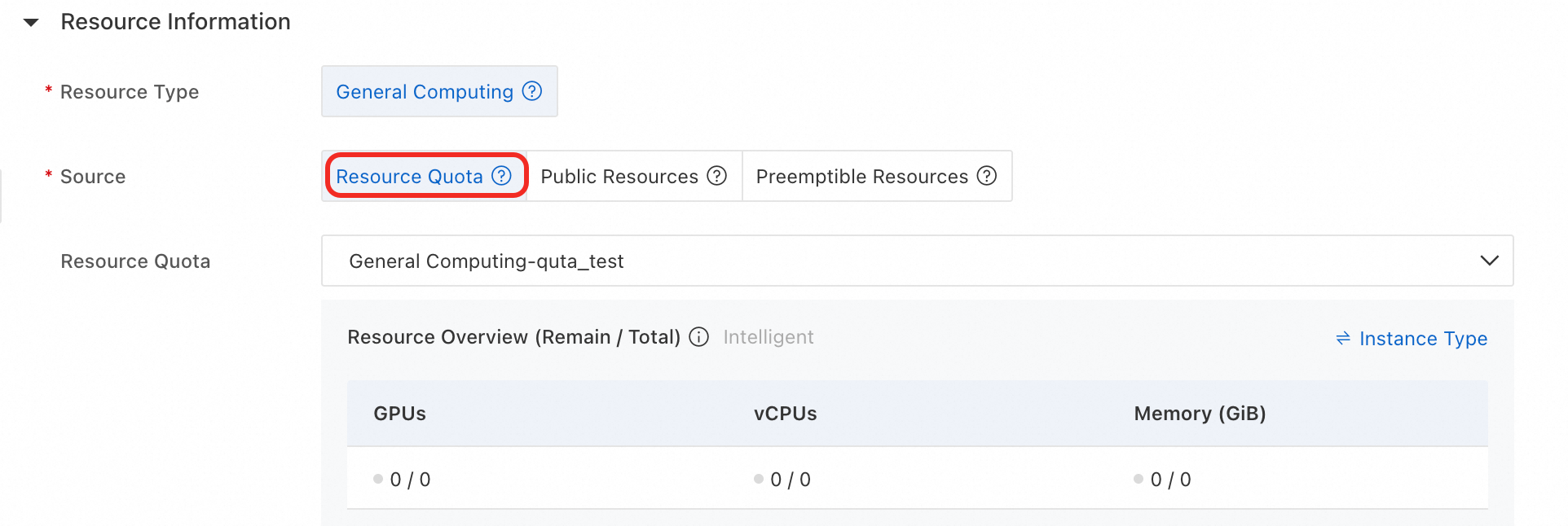
Submit a Deep Learning Containers (DLC) training task in a workspace with an associated resource quota, selecting Resource Source as Resource Quota, and selecting a created general computing resource quota or Lingjun resource quota for Resource Quota. For more information about parameter settings, see Create Training Task.
Elastic Algorithm Service (EAS)
Pay-as-you-go billing
Deploy services using public resources
Go to the Elastic Algorithm Service (EAS) page to create a pay-as-you-go EAS service, and select Resource Type as Public Resources. For more information, see Using Public Resources.

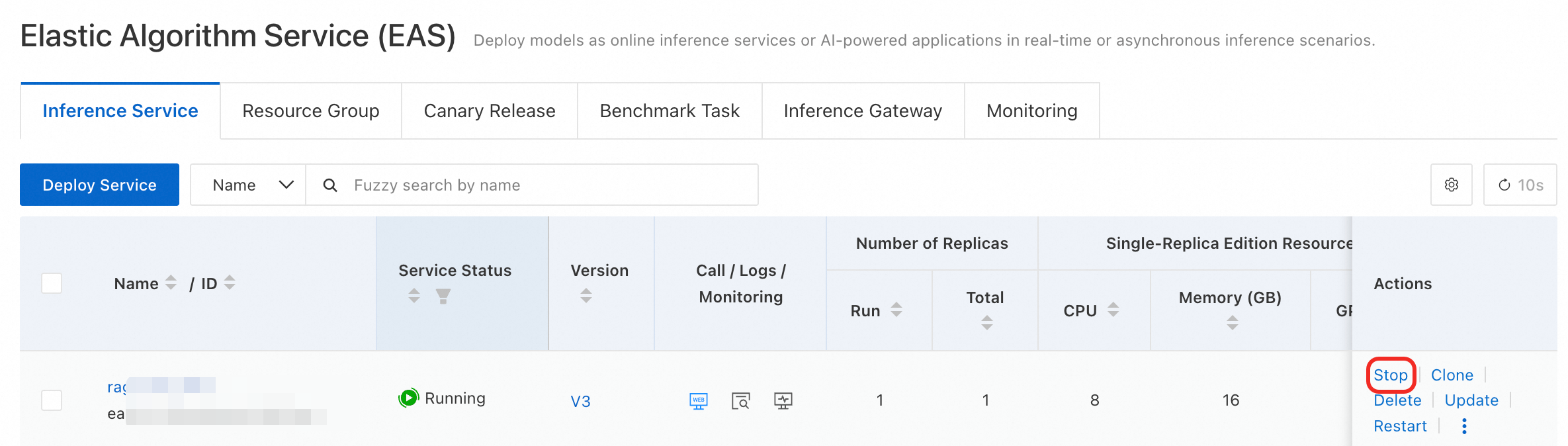
If you no longer need the EAS service, you can click Stop in the Actions column of the target service. Resource consumption stops immediately after the service stops successfully.
Deploy services using pay-as-you-go dedicated resource groups
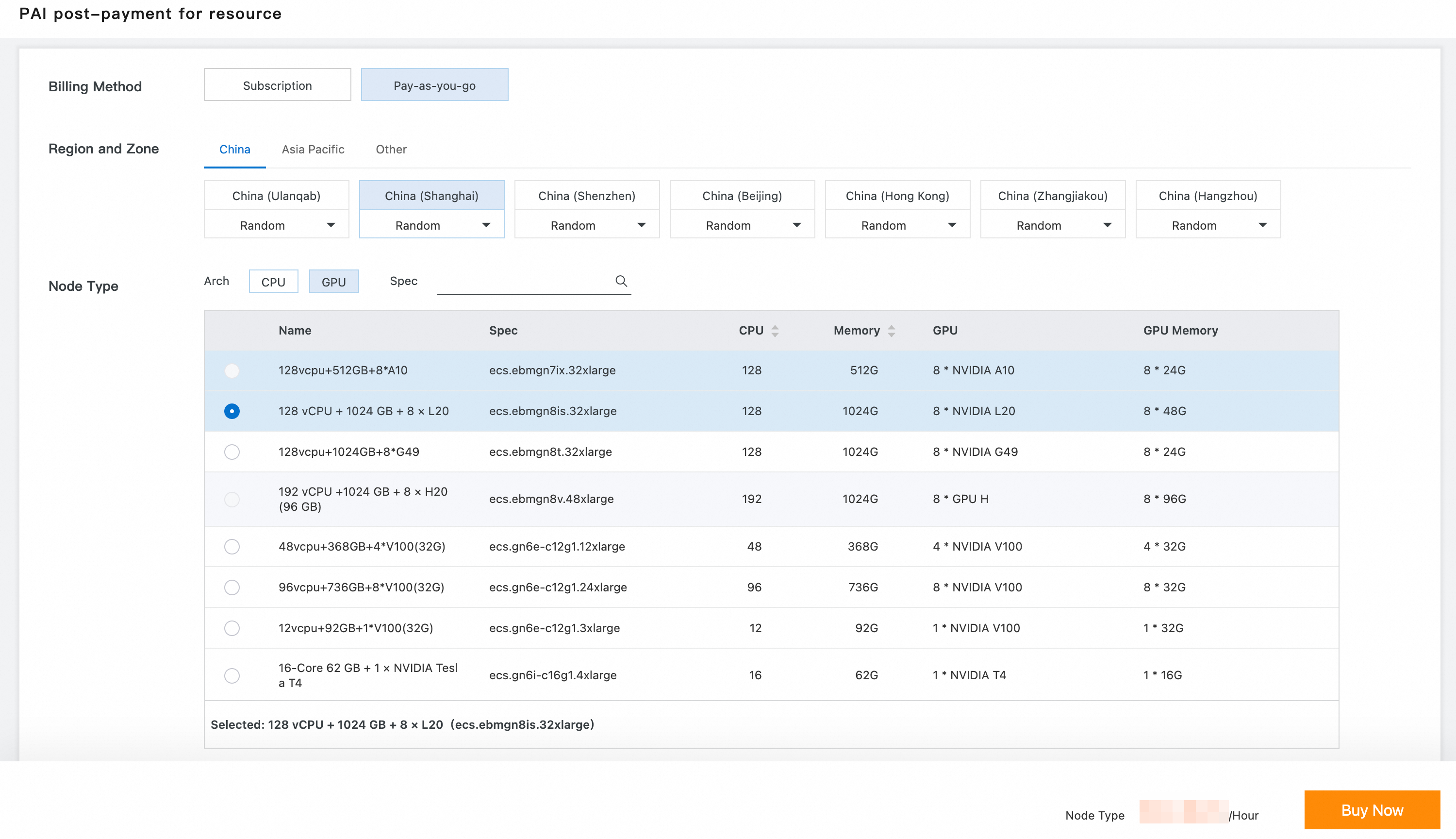
Go to the EAS Dedicated Machine Pay-as-you-go page to purchase pay-as-you-go machines. For detailed instructions, see Using EAS Resource Groups.
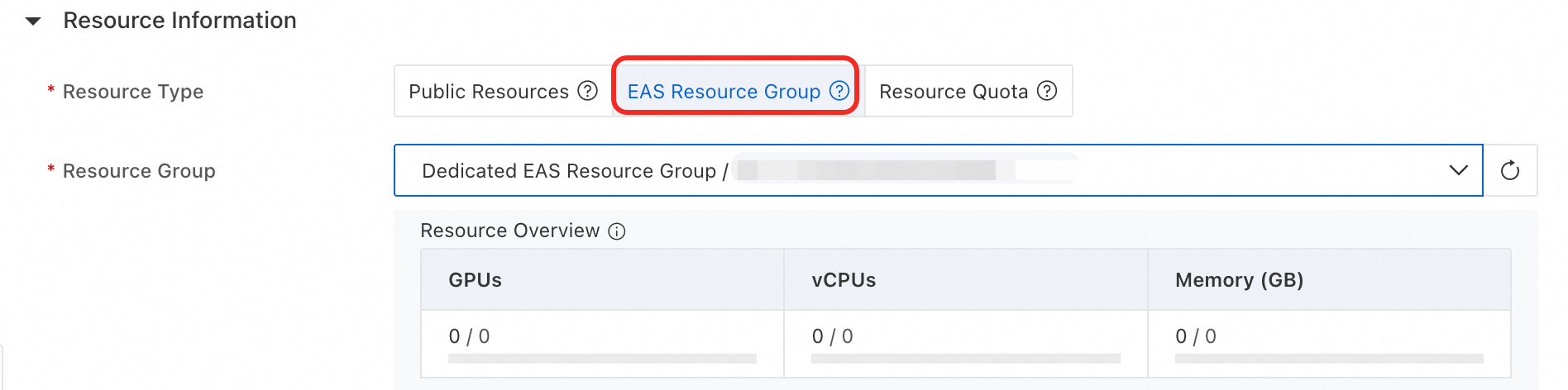
Go to the Elastic Algorithm Service (EAS) page to create an EAS service, where you select Resource Type as EAS Resource Group and Resource Group as a pay-as-you-go dedicated resource group that you purchased. For more information, see Custom Deployment.
If you no longer need the EAS service, you can click Stop in the Actions column of the target service.
Upfront (Subscription)
Go to the EAS Dedicated Machine Upfront page to purchase upfront machines. For detailed instructions, see Using EAS Resource Groups.
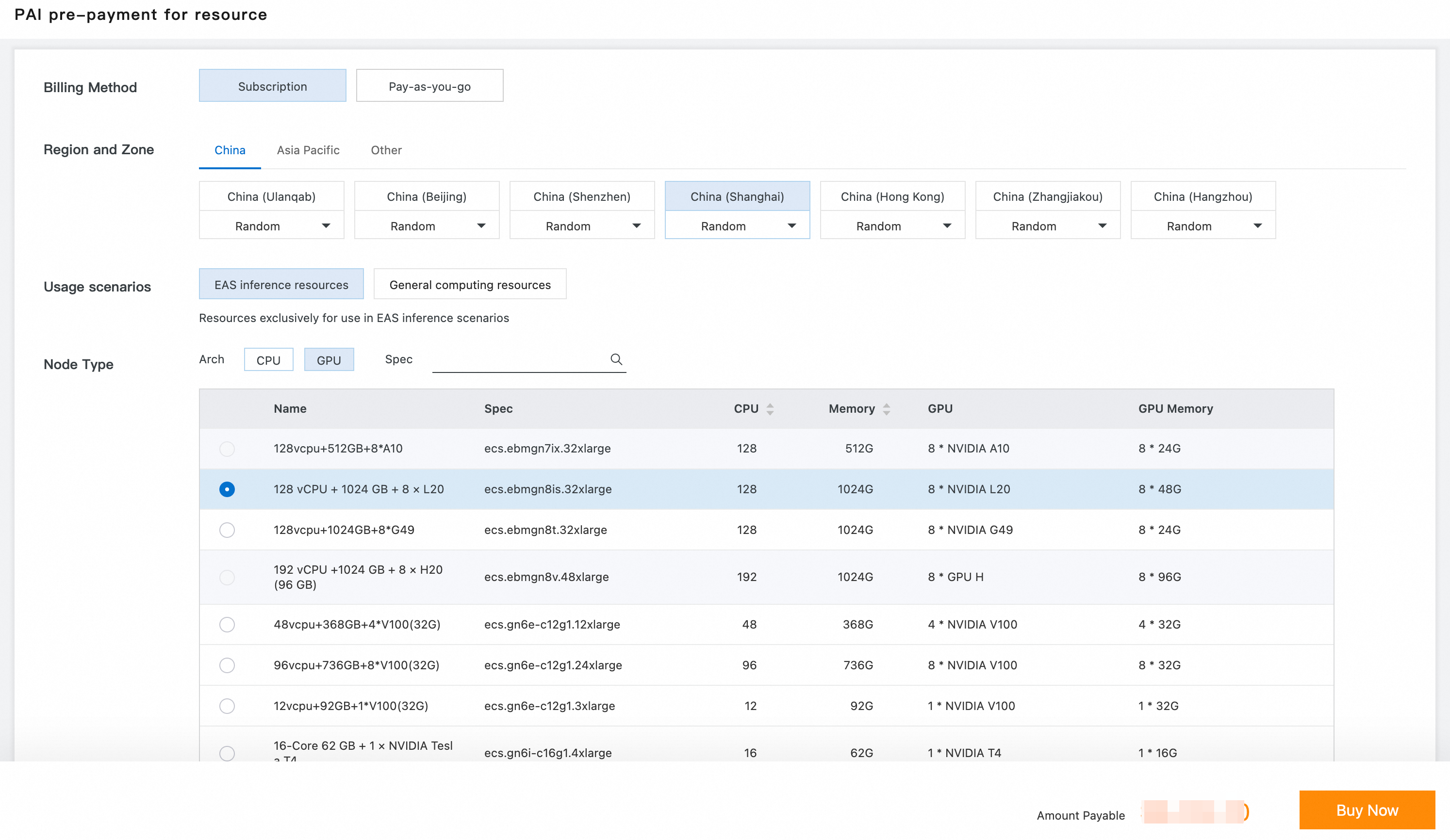
Go to the Elastic Algorithm Service (EAS) page to create an EAS service. Select EAS Resource Group for Resource Type and the purchased subscription dedicated resource group for Resource Group. For more information, see Custom Deployment.
Spot instances
Deploy a service. For Resource Type, select Public Resources. After you select a Resource Specification, turn on the Spot Instance switch. For more information, see Spot Instance.
References
After activating PAI and purchasing relevant resources, refer to the New User Guide to learn how to use PAI.
The PAI QuickStart > Model Gallery integrates many high-quality pre-trained models. Based on open-source models, it supports the entire process of zero-code model training (fine-tuning), model compression, model evaluation, and model deployment, allowing you to quickly experience and use PAI features. For details, see Model Gallery.