This topic describes how to use the Stable Diffusion WebUI tool.
Log on to the PAI ArtLab console.
Prerequisites
-
(Optional) Claim free trial resources or a cash coupon, or purchase a resource plan. For more information, see PAI ArtLab billing overview.
Use your resources, cash coupon, or resource plan before it expires. For more information, see View usage quota and validity period.
Procedure
This topic uses the text-to-image feature of Stable Diffusion (Shared Edition) to generate an image, then uses that image to generate a new one.
Step 1: Text-to-image
-
Log on to PAI ArtLab. Hover over the icon in the upper-right corner
 , and select the China (Shanghai) region.
 -
On the Toolbox page, click the Stable Diffusion (Shared Edition) card to launch the tool.
-
Select your target checkpoint model under Stable Diffusion model.
-
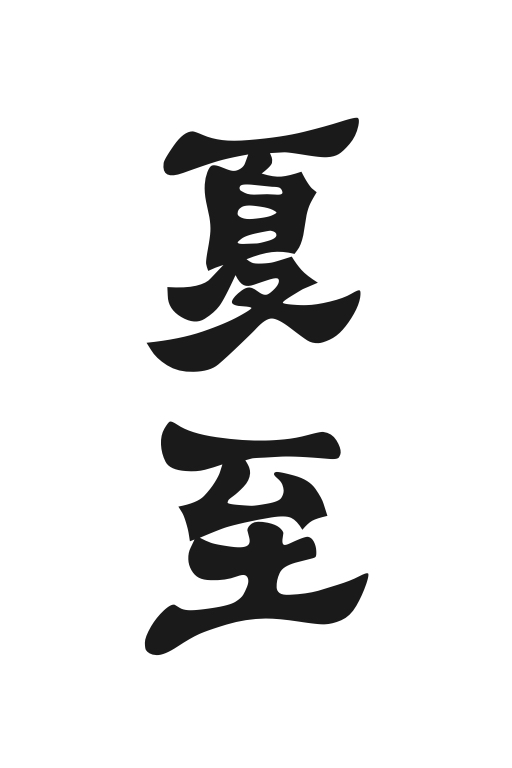
On the Text-to-image > Generation tab, configure the following parameters.
Parameter
Description
Prompt area
-
Positive prompt (summer):
Green, Spring, Bamboo Forest, River:1.2, Flowing Water, Nature, Poetic Atmosphere, Green Theme, jade, light green, Masterpiece:1.2, Best Picture Quality, High Definition, Original, Extremely Good Wallpaper, Perfect Light, Extremely Good CG:1.2, Best Picture Quality, Magical Light Effect, super rich, super detailed, 32k, Abstract, 3D<lora:shuimo:0.5> <lora:green:0.1> <lora:guofeng:0.8> -
Negative prompt:
lowres, bad anatomy, bad hands, text, error, missing fingers, extra digit, fewer digits, cropped, worst quality, low quality, normal quality, jpeg artifacts, signature, watermark, username, blurry
Sampling steps
Set to 30.
Sampling method
Select DPM++2M Karras.
Width
Set to 512.
Height
Set to 768.
Random seed
Use any one of the following values:
-1, 994414790, 2897581471, 4112712676, or 460787179.
-
-
On the Text-to-image > Generation > ControlNet > ControlNet Unit 0 tab, configure the following parameters.
Parameter
Description
Single image
Upload the sample image, and check Enable, Pixel perfect, and Allow preview.
Control type
Select Lineart.
Preprocessor
Select lineart_coarse.
Models
Select control_v11p_sd15_lineart[3ead383e].
Control weight
Set to 0.8.
-
Click
 to preview the pre-processing result.
Set Preprocessor to
lineart_coarseand Model tocontrol_v11p_sd15_lineart [3ead383e]. -
Click Generate.
Without changing other parameters, you can combine different prompts and models to generate images in various styles.
Step 2: Image-to-image
-
Send the text-to-image result to image-to-image using either of the following methods. The sent image includes all information used to generate it.
-
Method 1: On the Text-to-image tab, set Total batches to 4, click Generate, choose a satisfactory result, and click
 to send it to image-to-image.
 -
Method 2: On the PNG info tab, upload the generated image and click Send to image-to-image.
-
-
On the Image-to-image > Generation > ControlNet > ControlNet Unit 0 tab, configure the following parameters.
Parameter
Description
Single image
Upload the generated image, and check Enable, Pixel perfect, Allow preview, and Upload independent control image.
Control type
Select Tile.
Keep Preprocessor and Models at their default values.
Control weight
Set to 0.8.
-
On the Image-to-image > Generation > Script > ControlNet Unit 0 tab, configure the following parameters.
Parameter
Description
Script
Select Ultimate SD upscale.
Target size type
Select Scale from image size.
Upscaling algorithm
Select 4x-UltraSharp.
-
Click Generate.
Related operations
Install Stable Diffusion WebUI (plugin)
Only the Dedicated Edition of Stable Diffusion WebUI supports installing nodes. For more information, see Upload local model plugins to the PAI ArtLab platform.
Add models from Model Gallery
For more information, see Use models from Model Gallery.
Appendix: Differences between PAI ArtLab Stable Diffusion WebUI and open source Stable Diffusion WebUI
PAI ArtLab Stable Diffusion is built on Alibaba Cloud's Elastic Algorithm Service (EAS) and provides fast cloud deployment and access to the open source Stable Diffusion project.
To meet cloud deployment and enterprise requirements, PAI has customized the open source project—while maintaining compatibility—to deliver the PAI Stable Diffusion WebUI solution. Key features include the following:
-
Agile deployment
-
After creating an Alibaba Cloud account, deploy in under 5 minutes and obtain a WebUI access link with performance comparable to local deployment.
-
Pre-installed popular plugins and accelerated downloads for trending open source models.
-
The cloud provides a wide range of GPU resources, including models such as A10, GU60, and GU100, with GPU memory options of 24 GB, 48 GB, 80 GB, and 96 GB, enabling you to run tasks of varying complexity.
-
-
Enterprise-grade features
-
Frontend and backend decoupling enables multi-user, multi-GPU cluster scheduling—for example, 10 users sharing 3 GPUs.
-
Supports RAM user authentication to isolate models and outputs while sharing access endpoints and GPU resources.
-
Billing supports cost allocation by workspace and cluster for streamlined financial management.
-
-
Deep optimization and plugin ecosystem
-
Integrated with PAI-Blade to accelerate image generation by 2–3× compared to the original version and by 20%–60% over xFormers, with no loss in output quality.
-
Includes the filebrowser plugin for easy cloud-based transfer of models and images.
-
Features the self-developed modelzoo plugin for accelerated open source model downloads and management of prompts, image results, and parameters by model.
-
Supports centralized plugin management and personalized user configurations for enterprise users.
-