PAI ArtLab supports five model types for AI image generation: Checkpoint, LoRA, Hypernetwork, Embedding, and VAE. Each plays a different role in shaping output images. This page explains what each model type does, how to add models from the Models page, and how to upload your own local models.
Prerequisites
Before you begin, make sure you have:
Model types at a glance
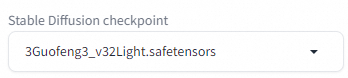
A checkpoint is the foundation — a full-weight model that does the actual image generation. All other model types are lightweight layers you stack on top to steer style, characters, or visual quality. They require a checkpoint to function. You can also use other characteristic models developed on top of official checkpoints to generate images, or combine them with fine-tuning models to customize image styles.
| Model type | Role | Works with | Weight range | Notes |
|---|---|---|---|---|
| Checkpoint (ckpt) | Base model — generates the image | Standalone | — | Stable Diffusion provides V1.5 and V2.1 |
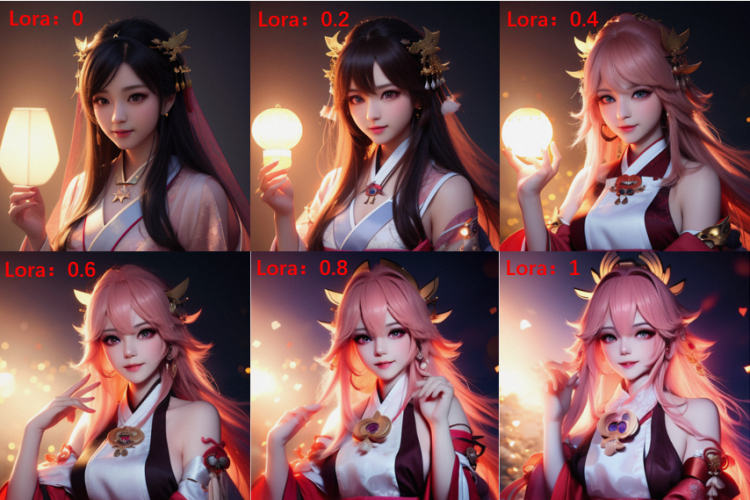
| LoRA | Fine-tunes style or character | Requires a checkpoint | 0–1 (default 1, recommended 0.8) | Higher weight = closer to the LoRA style; lower weight = closer to the base checkpoint |
| Hypernetwork | Modifies style or generates specific characters | Requires a checkpoint | Adjustable | Less effective for fine-grained effects |
| Embedding (textual inversion) | Applies specified characteristics or styles via prompt tokens | Requires a checkpoint | — | Small file size; lower information density; not widely used |
| VAE (Variational Autoencoder) | Adjusts colors and filters | Requires a checkpoint | — | Most checkpoints have a built-in VAE; download separately only if needed |
How to activate each model type
After you select a LoRA, Hypernetwork, or Embedding model, a tag is automatically inserted into the positive prompts. For LoRA and Hypernetwork, adjust the weight in that tag to control how strongly the model influences the output.
LoRA weight guidance: A weight of 0.8 balances LoRA influence with the checkpoint's base style. Values closer to 1 produce stronger resemblance to the LoRA's training style; values closer to 0 fall back toward the base checkpoint.
Checkpoint performance example
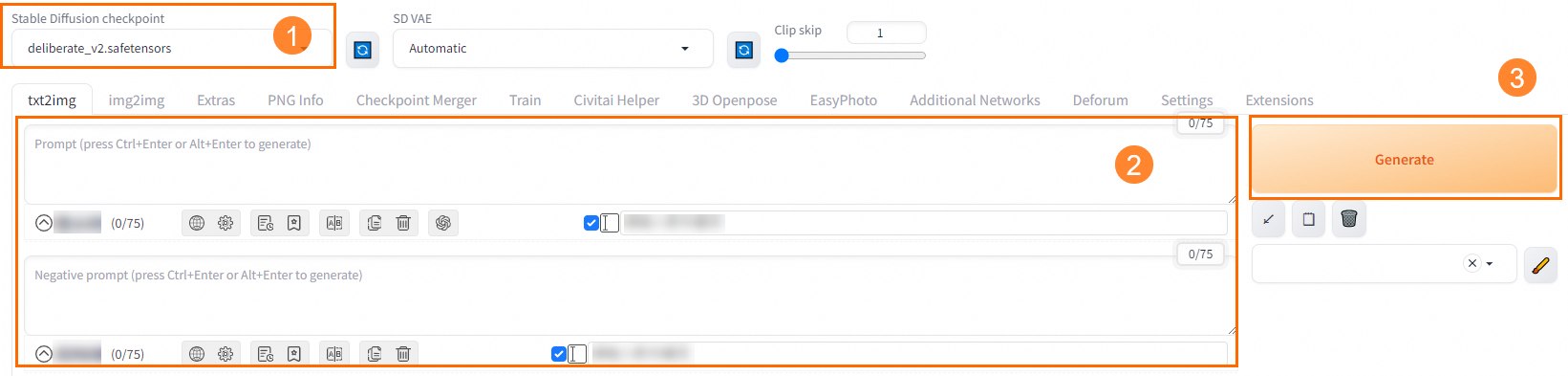
Positive prompt: best quality, masterpiece, highres, 1girl,blush,(seductive smile:0.8),star-shaped pupils,china hanfu,hair ornament,necklace, jewelry,Beautiful face,upon_body, tyndall effect,photorealistic, dark studio, rim lighting, two tone lighting,(high detailed skin:1.2), 8k uhd, dslr, soft lighting, high quality, volumetric lighting, candid, Photograph, high resolution, 4k, 8k, Bokeh
Negative prompt: (((simple background))),monochrome ,lowres, bad anatomy, bad hands, text, error, missing fingers, extra digit, fewer digits, cropped, worst quality, low quality, normal quality, jpeg artifacts, signature, watermark, username, blurry, lowres, bad anatomy, bad hands, text, error, extra digit, fewer digits, cropped, worst quality, low quality, normal quality, jpeg artifacts, signature, watermark, username, blurry, ugly,pregnant,vore,duplicate,morbid,mutilated,transsexual, hermaphrodite,long neck,mutated hands,poorly drawn hands,poorly drawn face,mutation,deformed,blurry,bad anatomy,bad proportions,malformed limbs,extra limbs,cloned face,disfigured,gross proportions, (((missing arms))),(((missing legs))), (((extra arms))),(((extra legs))),pubic hair, plump,bad legs,error legs,username,blurry,bad feet
Prompt source: Civitai
Generation result:
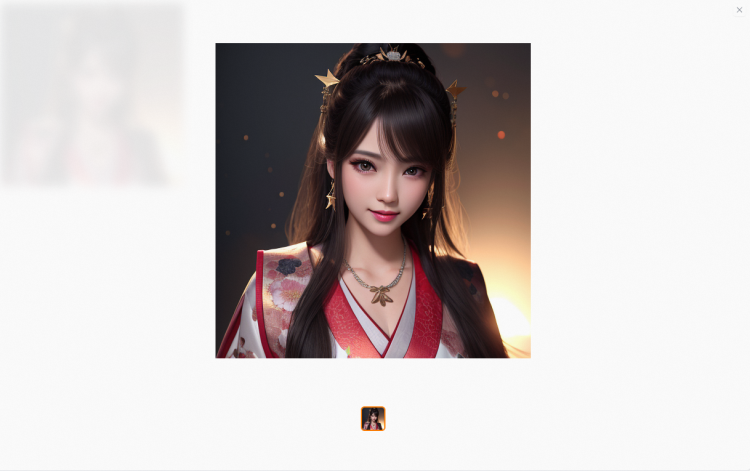
Base model output:
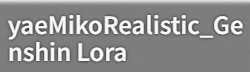
LoRA model output:
Positive prompt: best quality, masterpiece, highres, 1girl,blush,(seductive smile:0.8),star-shaped pupils,china hanfu,hair ornament,necklace, jewelry,Beautiful face,upon_body, tyndall effect,photorealistic, dark studio, rim lighting, two tone lighting,(high detailed skin:1.2), 8k uhd, dslr, soft lighting, high quality, volumetric lighting, candid, Photograph, high resolution, 4k, 8k, Bokeh
Negative prompt: (((simple background))),monochrome ,lowres, bad anatomy, bad hands, text, error, missing fingers, extra digit, fewer digits, cropped, worst quality, low quality, normal quality, jpeg artifacts, signature, watermark, username, blurry, lowres, bad anatomy, bad hands, text, error, extra digit, fewer digits, cropped, worst quality, low quality, normal quality, jpeg artifacts, signature, watermark, username, blurry, ugly,pregnant,vore,duplicate,morbid,mutilated,transsexual, hermaphrodite,long neck,mutated hands,poorly drawn hands,poorly drawn face,mutation,deformed,blurry,bad anatomy,bad proportions,malformed limbs,extra limbs,cloned face,disfigured,gross proportions, (((missing arms))),(((missing legs))), (((extra arms))),(((extra legs))),pubic hair, plump,bad legs,error legs,username,blurry,bad feet
Prompt source: Civitai
Seed: 3, other parameters at default. LoRA weight comparison:
Add a model from the Models page
The steps differ depending on which ArtLab edition you use.
SD WebUI/ComfyUI/Kohya exclusive edition
Log on to the PAI ArtLab console and click Model in the left-side navigation pane.
On the Models tab, click
 next to the target model to add it to My Models.
After the transfer completes, the model appears on the My Models tab.
SD WebUI shared edition
Log on to the PAI ArtLab console and click Model in the left-side navigation pane.
On the Models tab, click
 next to the target model to add it to the SD shared edition.
After the transfer completes, refresh the model section to find the model.
Upload a local model to ArtLab
Edition support
Check your edition before uploading. Not all editions support custom model uploads.
| Edition | Custom model upload | Custom node installation |
|---|---|---|
| SD WebUI shared edition | Supported | Supported |
| SD WebUI/ComfyUI/Kohya exclusive edition | Supported | Supported |
| ComfyUI shared edition | Not supported | Not supported |
Model files smaller than 5 GB
Log on to the PAI ArtLab console and click Model in the left-side navigation pane.
On the Models tab, click Upload, complete the configurations, and click OK.

After the upload completes, refresh the model section to find the model.
Model files larger than 5 GB
For files larger than 5 GB, use ossbrowser to upload directly to the OSS bucket backing your workspace.
Log on to the PAI ArtLab console and note your workspace ID, account ID, and storage path.

Open ossbrowser and navigate to the correct folder.
Search for the storage path and open the corresponding bucket.

Inside the bucket, search for your workspace ID and open the file path.

Inside the file path, search for your account ID and open the corresponding folder.
Upload the model or node files to the correct subfolder based on your edition.
ComfyUI exclusive edition: place custom node files in the
custom_nodesfolder.SD WebUI/Kohya/ComfyUI exclusive edition: place model files in the corresponding subfolder under the
modelsdirectory — for example, theStable Diffusion (checkpoint)folder for checkpoints, or thelorafolder for LoRA models.
Close ossbrowser, then restart the tool for the uploaded files to take effect. The tool does not detect new files added while it is running.
Models page notes
Model sources
The models, images, and other resources on the Models page come from third parties. Read the model details and agree to the third party's terms before using any model. PAI ArtLab does not assume responsibility for adverse results or potential risks caused by third-party models.
Most popular open-source models originate from the Civitai community. Because of access restrictions, users in the Chinese mainland may find it difficult to access Civitai directly. PAI ArtLab lists models only after obtaining formal authorization from their creators, simplifying access and promoting the use of high-quality models.
Billing
PAI ArtLab does not charge for models or for images generated using models.
Rights and protections for model creators
PAI ArtLab's commitments to you:
Display author attribution, model name, model source, and open-source license in the model details.
Not charge users any fees for your models or their generated content on PAI ArtLab.
Your commitments to PAI ArtLab:
Grant ArtLab a global, non-exclusive, revocable, royalty-free license to host, store, transmit, publicly display, exhibit, communicate, copy, modify, and create derivative works of your models, with support for multi-level sub-licensing across all media and channels.
Ensure the legality and compliance of your models and confirm that the above uses on PAI ArtLab do not infringe any third-party rights.
Cooperation opportunities:
Showcase your model advantages to businesses through the Alibaba Cloud platform.
Benefit from platform promotions that increase model exposure and user awareness after your model goes live.
Participate in planned model ecosystem cooperation projects for additional collaboration opportunities.
Intellectual property: PAI ArtLab respects the intellectual property rights of original authors. If you have objections to displayed content as a copyright holder, contact us at PAI-ArtLab@alibabacloud.com.