Deploying the Hermes Agent service on Elastic Algorithm Service (EAS) lets you build a personalized assistant that understands you better over time. Hermes Agent is a self-evolving AI agent framework developed by Nous Research. It features a built-in closed-loop learning mechanism that automatically creates skills from experience and persists memory across sessions. It supports multiple messaging platforms, including Telegram, DingTalk, and Lark.
Deploy an EAS service
Log on to the PAI console. Select a region on the top of the page. Then, select the desired workspace and click Enter Elastic Algorithm Service (EAS).
-
On the Inference Service tab, click Deploy Service. In the Scenario-based Model Deployment section, click Hermes Agent deployment.
-
Configure the following key parameters:
Parameter
Description
Service Name
Example: hermes_demo.
Image Configuration
Select the latest version.
Resource Configuration
Select a CPU instance type based on your resource requirements. The default is
ecs.c7a.large.Model Settings
Select an OSS path to store the Hermes Agent configurations, such as
oss://examplebucket/hermes/.VPC
Create and configure a VPC, vSwitch, and security group.
NotePublic network access is required to use the QwenPaw search or browser functionalities. Select a VPC for which public network access is configured.
-
Click Deploy. The deployment is complete when the service status changes to Running.
Configure public network access
An EAS service accesses the public network through an Internet NAT gateway. The configuration steps are as follows. For more information, see Internet NAT Gateway.
1. Create an Internet NAT gateway and attach an EIP
Go to the NAT Gateway – Internet NAT Gateway purchase page.
Billing Method: Pay-as-you-go.
Region: Select the region where the EAS service is located.
Network and Zone: Select the VPC configured for the EAS service. This setting cannot be changed after creation.
EIP: Select an unattached elastic IP address (EIP) or purchase a new one.
2. Configure an SNAT entry
Go to the Internet NAT Gateway page. Find the Internet NAT gateway that you created, and in the Actions column, click Configure SNAT . Click Create SNAT Entry.
SNAT Entry: Select VPC Granularity.
Select EIP: Select the configured EIP.
Use the web UI
1. Access the web UI
In the Invoke/Log/Monitoring column, click the  button to go to the WebUI page.
On the Inference Service tab of Elastic Algorithm Service (EAS), find your service. The Invoke/Log/Monitoring column contains three icons. Click the first icon to open the WebUI.
2. Configure a model
-
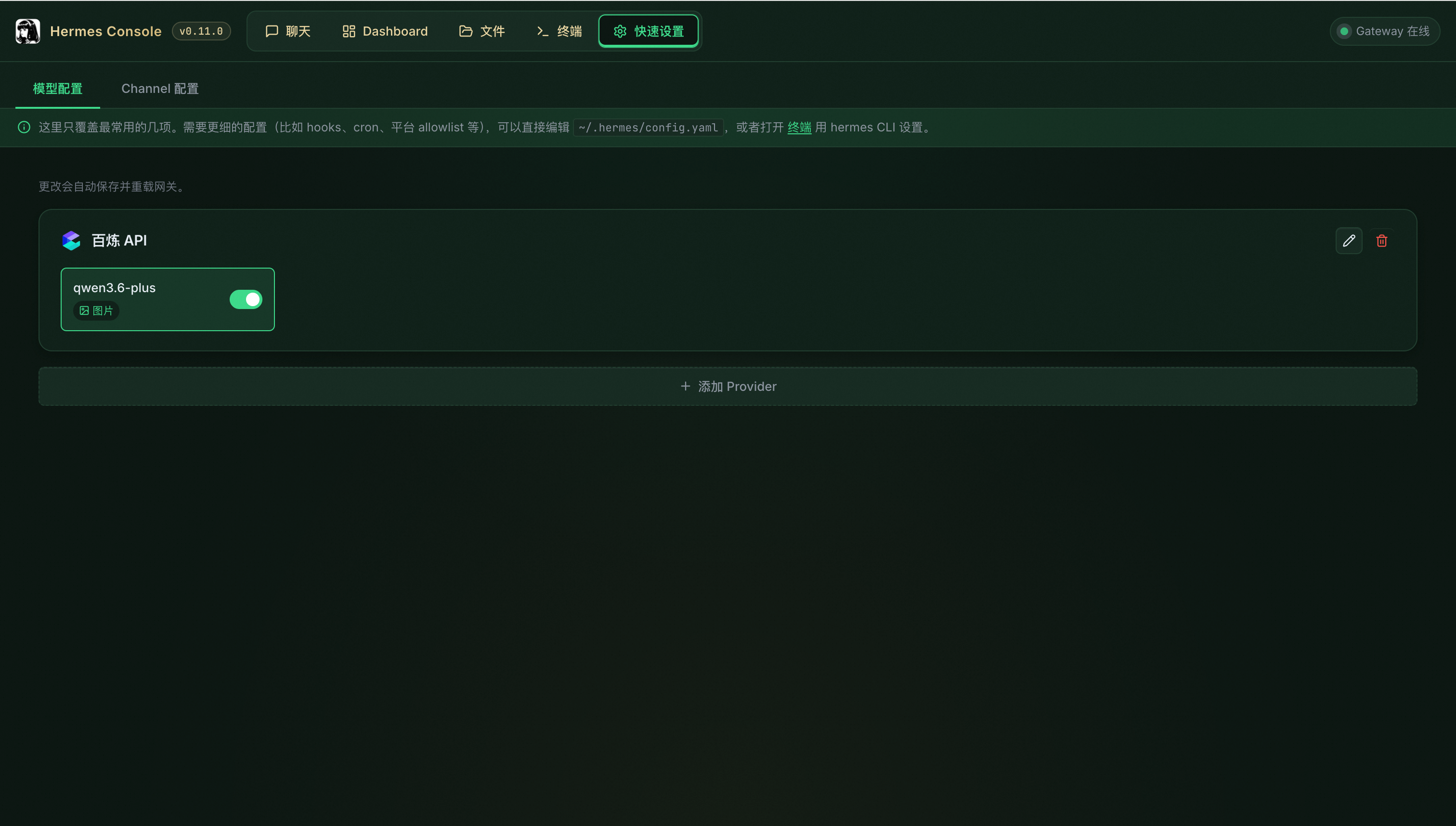
On the Quick Settings > Model configuration page, you can configure the Model Studio (Bailian) API, Token Plan, Coding Plan, and a custom OpenAI-compatible model service.
-
To use an EAS model service, select Custom. Set the Base URL and API Key as described in Obtain the endpoint and token. Note: Append
/v1to the endpoint address.
3. Start a conversation
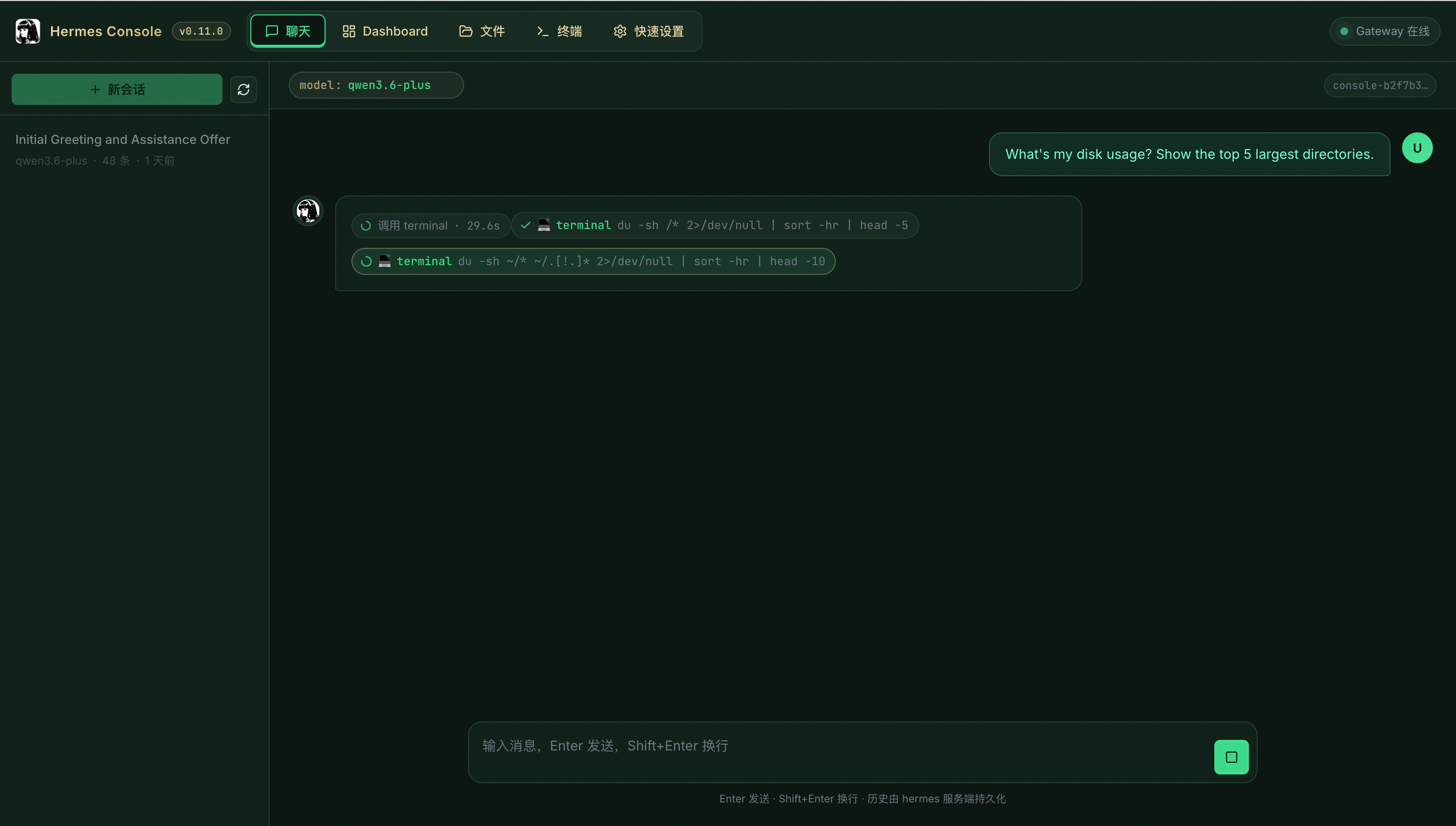
On the Chat page, send a message to start interacting with the agent.
Channel configuration
In the web UI, go to the Quick Settings > Channel configuration page to configure the Client ID and Secret for your DingTalk enterprise application, and the App ID and Secret for your Lark application.
For more information, see DingTalk configuration and Lark configuration.